
You plug in your Chromecast, turn on the TV, and instead of seeing a familiar cast screen, you notice an orange light on Chromecast blinking. No error message appears. Casting does not start. And now you are left guessing.
The situation is surprisingly common. Searches for Chromecast blinking orange spike every time Google releases system updates or when users change TVs or WiFi networks.
The good news is that an orange light usually does not mean your Chromecast is broken. In most cases, it is simply communicating its current state. Once you understand what the light pattern means, fixing the issue becomes much easier.
This guide explains what each orange light scenario means, why it happens, and how to respond without making the problem worse.
What Does the Orange Blinking Light on Chromecast Mean?
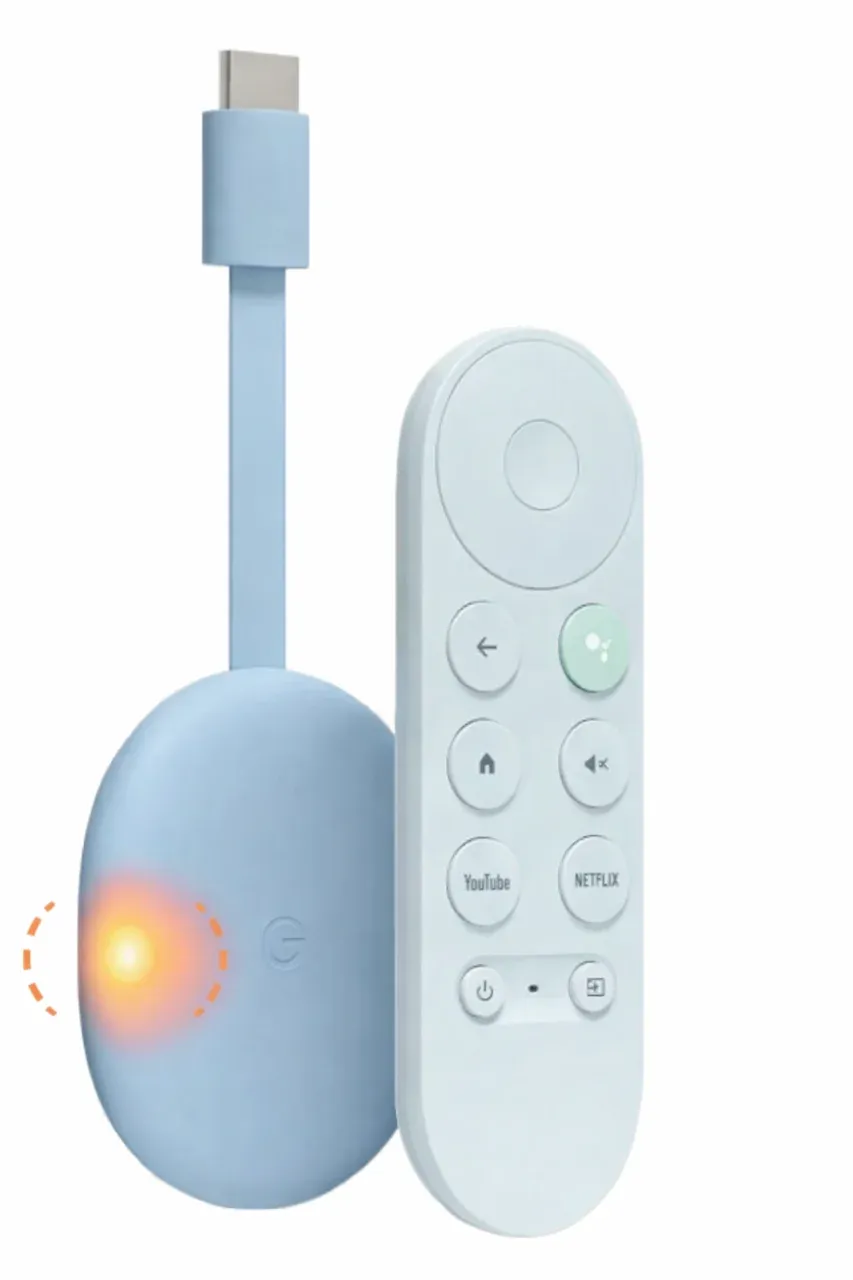
The meaning of an orange blinking light on Chromecast depends on two factors: the device model and the LED pattern itself. According to Google's official documentation on Chromecast LED colors, each light state reflects a specific system status.
- Chromecast with Google TV 4K and HD:
| LED Light Pattern | Meaning |
|---|---|
| Blinking orange | Chromecast is running a short self-diagnostic check |
| Blinking orange then turns white | Chromecast has just been reset |
| Chromecast blinking white and orange | A system update is in process |
If you see Chromecast blinking white and orange, the most important thing is patience. Disconnecting power during updates can cause setup loops later.
- Chromecast 2nd Gen, 3rd Gen, and Chromecast Ultra:
| LED Light Pattern | Meaning |
|---|---|
| Pulsing orange | Chromecast is installing an update |
| Solid orange | A device or power-related issue may exist |
| Pulsing orange with black screen | HDMI or power instability |
On older models, a Chromecast flashing orange light often points to update activity or inconsistent power delivery rather than hardware failure.
Why Chromecast Is Blinking Orange in the First Place
When users see Chromecast blinking orange, the first reaction is often to assume something went wrong. In reality, this light usually appears because Chromecast is in a transitional state rather than a failure state.
Understanding these situations helps explain why the device may feel unavailable, missing, or unreliable during certain moments.
Chromecast Is Busy With System Tasks
One of the most common reasons for a Chromecast orange light blinking is background activity. This includes system updates, internal checks, or brief restarts after software changes.
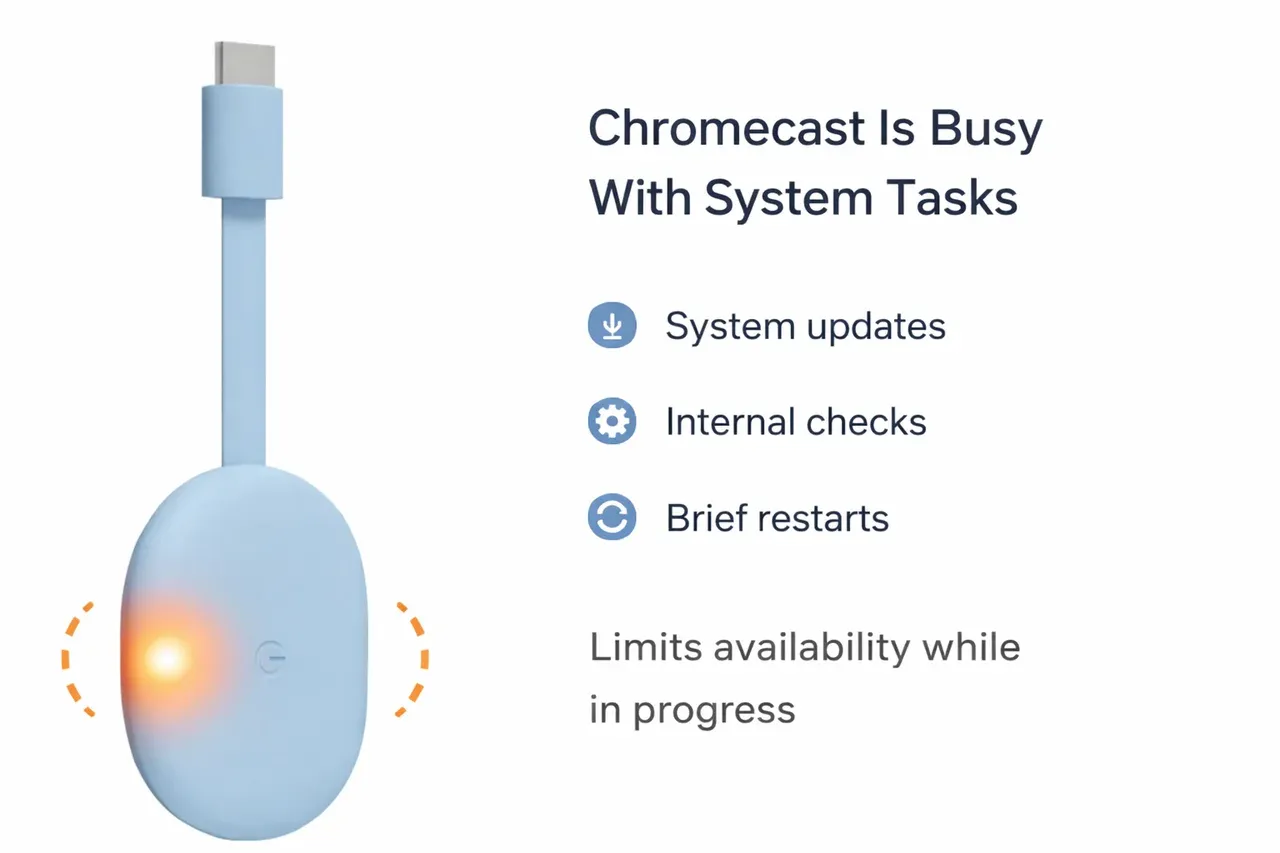
During these moments, Chromecast limits its visibility and functionality. As a result, it may not appear as an available device to cast to. This is why many users believe their Chromecast is not showing up, even though it is technically still online.
If the light turns solid white after a short wait, no further action is needed.
Temporary Network Discovery Limitations
Chromecast relies heavily on local network discovery. When the device is updating or restarting, it may temporarily stop announcing itself to other devices on the network.
This often leads to follow-up issues, such as Google Home not finding Chromecast or Chrome not finding Chromecast, especially if you try to cast too soon.
In these cases, the orange light on Chromecast is not signaling a network failure, but a pause in communication while the system stabilizes.
These are the two main reasons why Chromecast is blinking orange. Is there any other reason? Strictly speaking, no. In some cases, the orange light is misinterpreted due to timing rather than a genuine device issue. Even after the light changes, Chromecast may take a moment to fully reappear across apps and devices, which can make it feel like something is still wrong.
At the same time, certain apps only allow casting for specific videos or regions. When casting fails under these conditions, users often connect it to the earlier orange light, even though the limitation comes from the app itself, not the Chromecast.
How to Fix Chromecast Orange Light Blinking
In most cases, the Chromecast orange light blinking resolves on its own once the device finishes its background tasks. If it does not, a few simple checks can usually get things back on track. The key is to avoid rushing into resets or unplugging the device too quickly.
Step 1. Give Chromecast a moment to finish.
If you see Chromecast blinking white and orange, the device is likely updating or restarting. Interrupting this process can cause more issues than it solves.
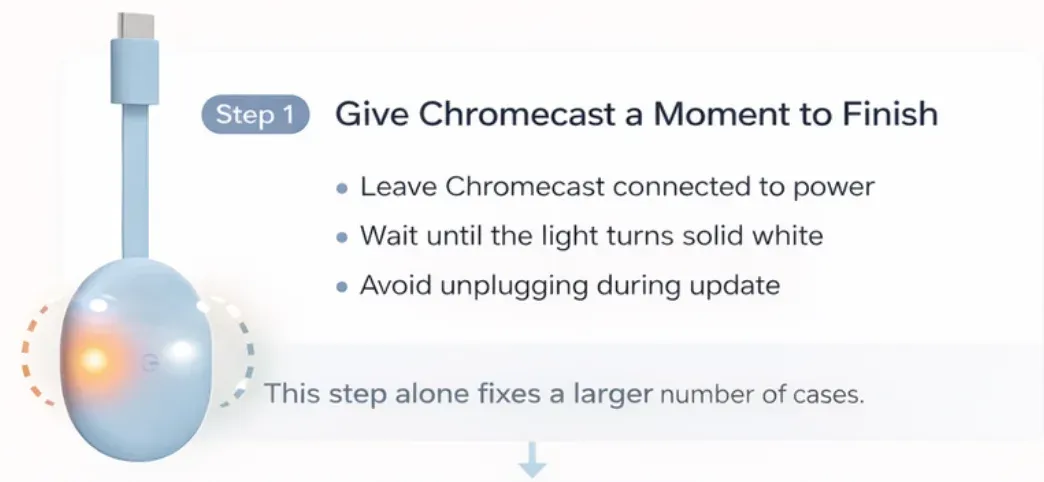
What to do:
- Leave Chromecast connected to power
- Wait until the light turns solid white
- Avoid unplugging during this stage
This step alone fixes a larger number of cases.
Step 2. Power cycle the device properly.
If the Chromecast flashing orange does not change after a reasonable wait, a proper power cycle can help clear temporary states.
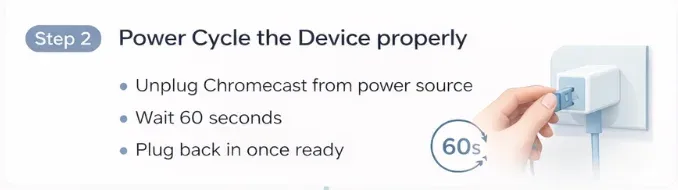
How to do it:
- Unplug Chromecast from the power source
- Wait at least 60 seconds
- Plug it back in and observe the LED
If the Chromecast orange light turns white after restarting, the issue is resolved.
Step 3. Check power and HDMI stability.
On older models, repeated Chromecast blinking orange behavior is often related to unstable power or HDMI connections.
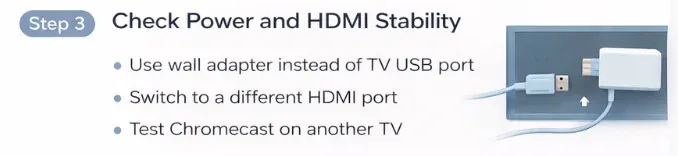
Try the following:
- Use a wall power adapter instead of a TV USB port
- Switch to a different HDMI port
- Test Chromecast on another TV if possible
These small changes often stop the orange light from returning.
Step 4. Confirm network stability.
Once the light turns white, make sure Chromecast fully reappears across your devices. If it does not, wait a short moment before trying again.
 Casting too quickly can lead to situations where the device seems unavailable even though it is still stabilizing its connection.
Step 5. Try free PigeonCast for easy streaming.
Occasional Chromecast blinking orange behavior is normal and usually resolves on its own. However, when updates, restarts, or discovery delays begin to interrupt meetings, presentations, or daily use, the experience can quickly feel unreliable.
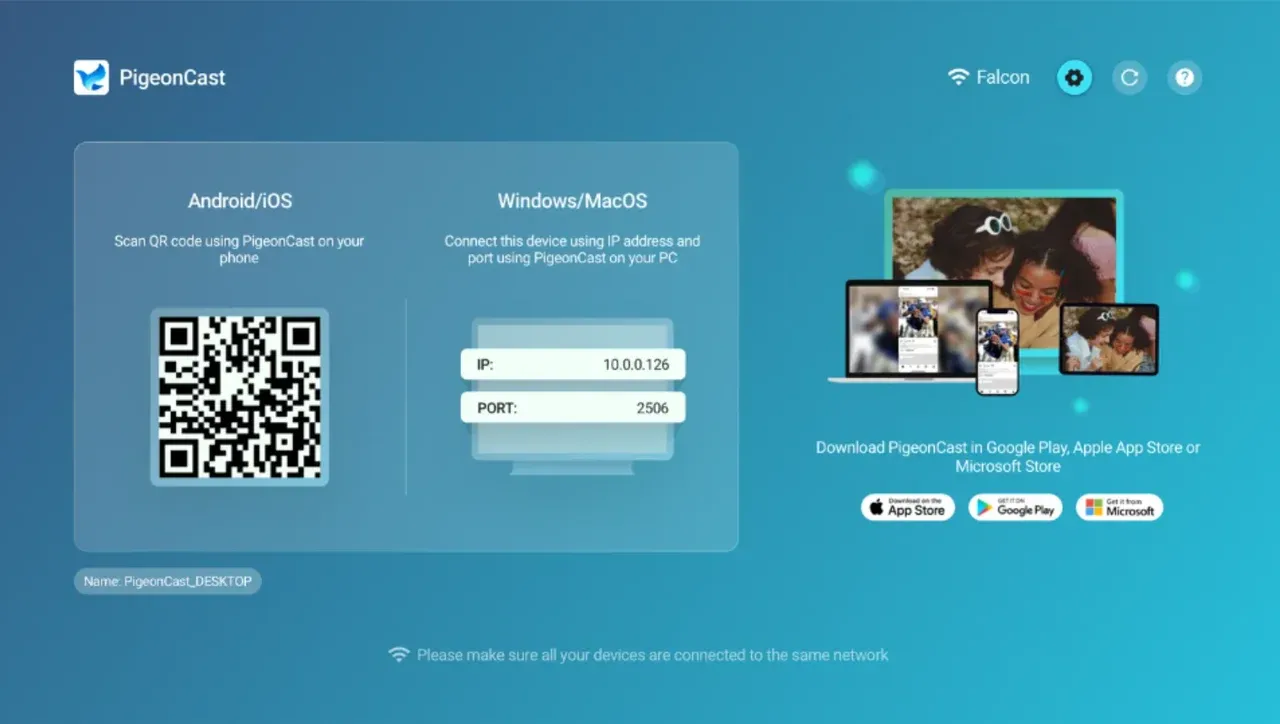
In these situations, some users choose to keep a secondary screen-sharing option available. When Chromecast is temporarily unavailable due to system tasks, tools like PigeonCast can act as a practical fallback. Instead of relying on device discovery or app-based casting rules, it supports direct screen mirroring across phones, laptops, and TVs.


Overall Rating:



This does not replace Chromecast for every scenario. But when the Chromecast orange light blinking becomes a recurring interruption, having an alternative can help maintain continuity without waiting for system states to resolve.
To use PigeonCast, go to the app store on your device, search for PigeonCast, download and install it. Then, ensure both your devices are on the same WiFi network, launch the app on them, and start casting with onscreen prompts.
Final Thoughts
An orange light on Chromecast often looks more serious than it actually is. In most cases, it signals a short transition rather than a real problem.
By understanding why the light appears and responding calmly, you can avoid unnecessary resets and get back to casting faster. And when reliability matters most, keeping a backup option on hand can make all the difference.
Chromecast Blinking Orange FAQs
What does a yellow light on Chromecast mean?
Yellow or amber tones usually indicate updates or system checks and behave similarly to orange.
What does a red light on Chromecast mean?
A red light may signal a power or hardware issue. Unplug the device, wait one minute, then reconnect it.
What does a solid white Chromecast light mean?
A solid white Chromecast light means the device is connected and ready to cast or already casting.
Is Chromecast blinking orange dangerous?
No. In most cases, Chromecast is blinking orange to indicate a temporary system state, not device failure.
Mia Clarke is a technology editor specializing in screen mirroring and casting solutions across multiple platforms. Mia provides clear, practical guides and in-depth insights to help users seamlessly connect their devices. Passionate about enhancing digital experiences, Mia is dedicated to keeping readers updated on the latest trends and tools in cross-platform screen sharing. Whether you’re looking to mirror your smartphone, laptop, or smart TV, Mia’s content delivers reliable, user-friendly advice to simplify your tech setup.