
If you've ever tried casting from Google Chrome and seen the dreaded "Chrome can't find Chromecast" error, you know how frustrating it can be. Whether you're trying to stream videos, share a presentation, or simply mirror your screen, having Chrome not detect your Chromecast can bring your plans to a halt. But don't worry; this is a common issue that can usually be fixed with a few simple troubleshooting steps.
In this guide, we'll walk you through the most effective solutions to get your Chromecast working with Google Chrome again. From checking basic connection settings to advanced fixes, we've got you covered.
Why Google Chrome Can't Find Chromecast: Common Causes
Google Cast now has the Cast feature built in, allowing you to cast to any compatible device (see How to Cast from Chrome). However, sometimes Google Chrome might not be able to find Chromecast. Why? The common reasons include:
- Wi-Fi Connectivity Issues: Chromecast and Chrome need to be connected to the same Wi-Fi network. If either device is on a different network, the connection won't work. This is the most common cause of the "Chrome not finding Chromecast" issue.
- Outdated Software or Chrome Version: Running an outdated version of Google Chrome or Chromecast software can result in compatibility issues. Both devices need to be up-to-date to communicate properly.
- Chromecast Device Configuration Issues: If your Chromecast is not set up correctly, it may not be detected by Chrome. Issues such as improper setup or conflicts with other devices on your network can cause this problem.
- Browser Settings and Extensions: Sometimes, browser settings or conflicting extensions can interfere with Chrome's ability to detect Chromecast. If extensions like ad blockers or firewalls are running, they might block communication between the devices.
How to Fix "Google Chrome Can't Find Chromecast" Issue
If you've run into the "can't find Chromecast from Chrome" error, here's a more detailed guide to help you fix it. Whether it's an issue with network settings, device compatibility, or software glitches, we'll walk through each potential cause and solution.
Fix 1: Check Wi-Fi Network Compatibility
Chromecast can only connect to devices on the same Wi-Fi network. If your computer, phone, or tablet is connected to a different network than your Chromecast, it won't show up in Chrome for casting. Ensuring they are on the same network is the first and most important step.
Here's how to fix "Chromecast not showing up on Chrome"
Step 1. Check Wi-Fi network on your PC:
- Open the Wi-Fi settings from your taskbar (or System Preferences on Mac).
- Ensure you're connected to the same Wi-Fi network that your Chromecast is on.
- If you have multiple networks or routers (e.g., a dual-band router), check to make sure both devices are on the same band (either 2.4 GHz or 5 GHz). Chromecast may have difficulty connecting across different bands.
Step 2. Check Wi-Fi network on Chromecast:
- Open the Google Home app on your mobile device.
- Check the network your Chromecast is connected to by tapping on the Chromecast device.
- If it's connected to the wrong network, follow the prompts to switch it to the correct Wi-Fi network.
Fix 2: Restart Devices and Router
A simple restart can help refresh the connections and clear any temporary issues affecting Chromecast and Chrome. This can resolve a variety of connection issues, including "Chromecast not showing up on Chrome". So, you can:
Step 1. Restart your Chromecast:
- Unplug the power cable from your Chromecast and wait for about 10 seconds. This helps to reset the device.
- Plug it back in and give it time to restart completely.
Step 2. Restart Google Chrome:
- Close Google Chrome completely (ensure all Chrome windows and tabs are closed).
- Reopen Chrome to initiate a fresh start. Sometimes, Chrome may be running into a temporary issue that prevents it from detecting your Chromecast.
Step 3. Restart your router:
- Unplug the power cable of your router, wait for 30 seconds, and plug it back in.
- This helps clear any possible network congestion or errors and gives your devices a chance to reconnect with a refreshed network.
Fix 3: Update Google Chrome and Chromecast Software
Outdated software can cause compatibility issues that prevent Chromecast from being detected by Chrome. Keeping both Chrome and Chromecast updated ensures smooth performance and resolves known bugs.
Step 1. Update Google Chrome:
- Open Google Chrome and click on the three vertical dots (menu) in the top right corner.
- Go to Help > About Google Chrome. Chrome will automatically check for updates and install any available ones.
- Once the update is installed, restart Chrome to ensure the update is applied.
Step 2. Update Chromecast:
- Open the Google Home app and select your Chromecast device.
- Tap on the settings icon and check for any available updates under Device Settings.
- If an update is available, it will automatically begin downloading and installing. Follow the instructions in the app to complete the update process.
Fix 4: Disable Extensions and Clear Cache
Some Chrome extensions, especially those that affect network settings or browser performance (like VPNs or firewalls), may interfere with Chromecast. Additionally, cached data or cookies may cause Chrome to misbehave when trying to detect Chromecast.
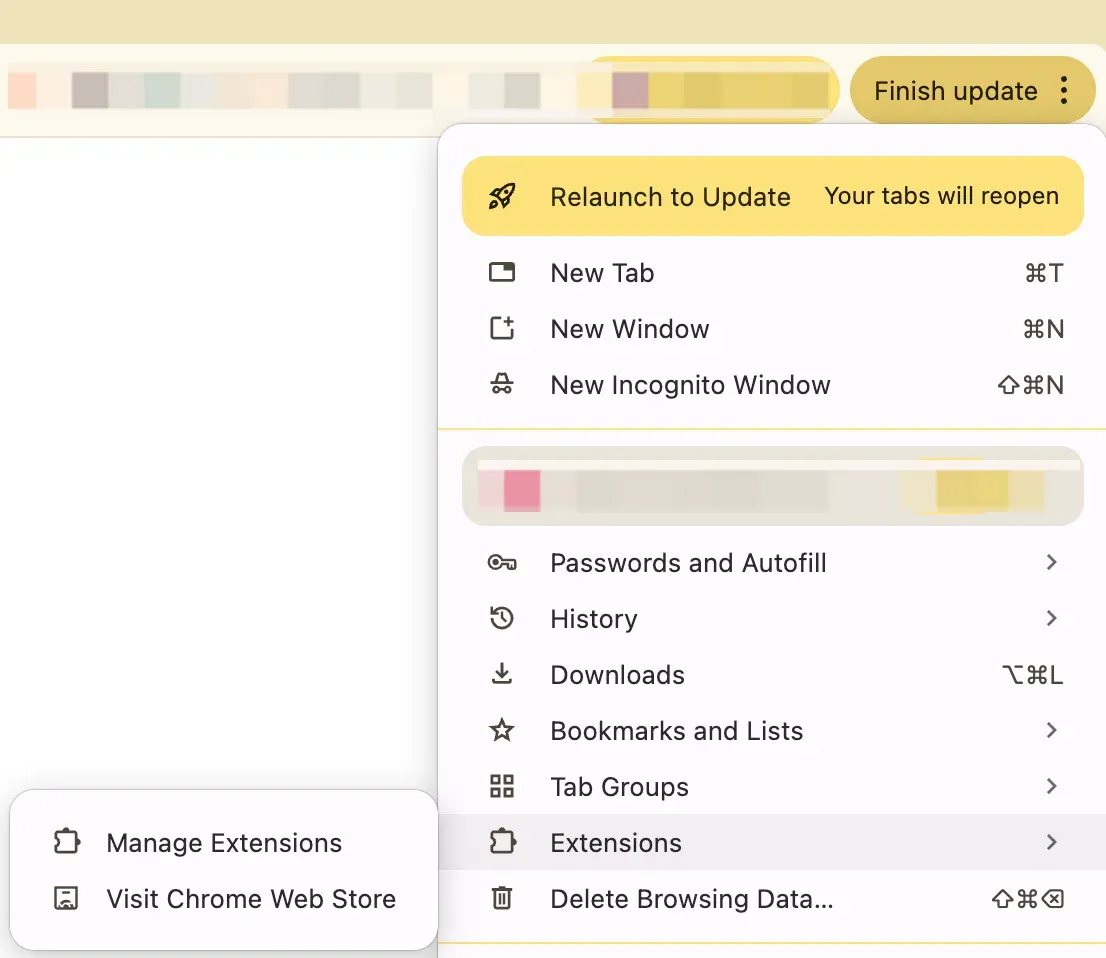
Step 1. Disable Extensions:
- Open Chrome settings and click on Extensions.
- Disable any extensions that could potentially block Chromecast detection, such as VPN extensions, ad blockers, or security/firewall-related extensions.
- Refresh your Chrome browser after disabling the extensions to check if Chromecast shows up.
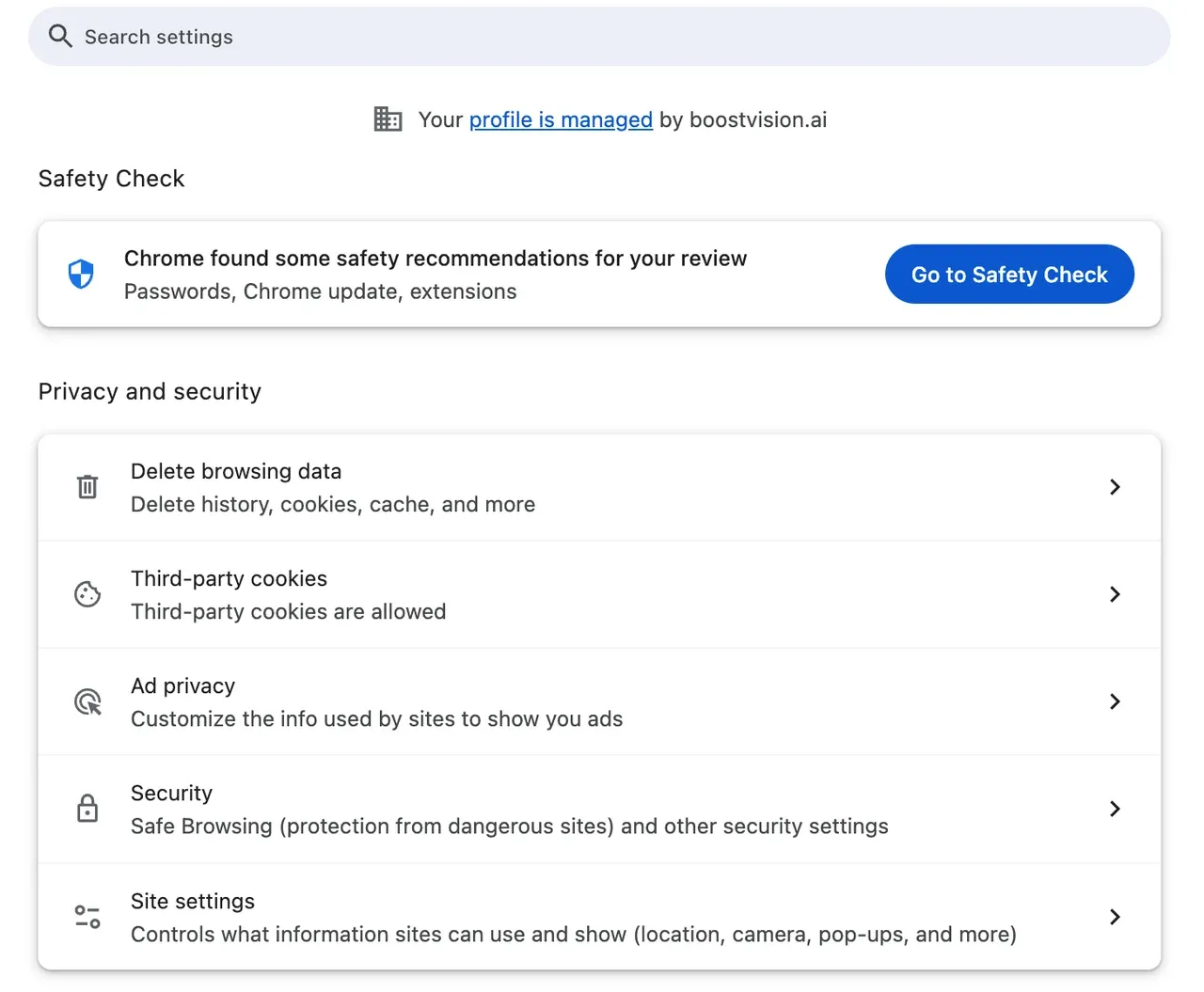
Step 2. Clear Cache and Browsing Data:
- Go to Chrome settings > Privacy and security > Clear browsing data.
- Choose Cached images and files and Cookies to clear.
- Click Clear data to remove any old or corrupted files that could be interfering with Chromecast detection.
Fix 5: Reconfigure Chromecast Device
If Chromecast isn't showing up in Chrome, it might have configuration issues or need a reset to fix potential setup errors.
Step 1. Open the Google Home app and select your Chromecast device.
Step 2. Look for any error messages or settings that might indicate issues with its setup.
Step 3. If necessary, perform a factory reset by holding the button on the Chromecast device until the LED blinks. Follow the instructions in the Google Home app to set it up again.
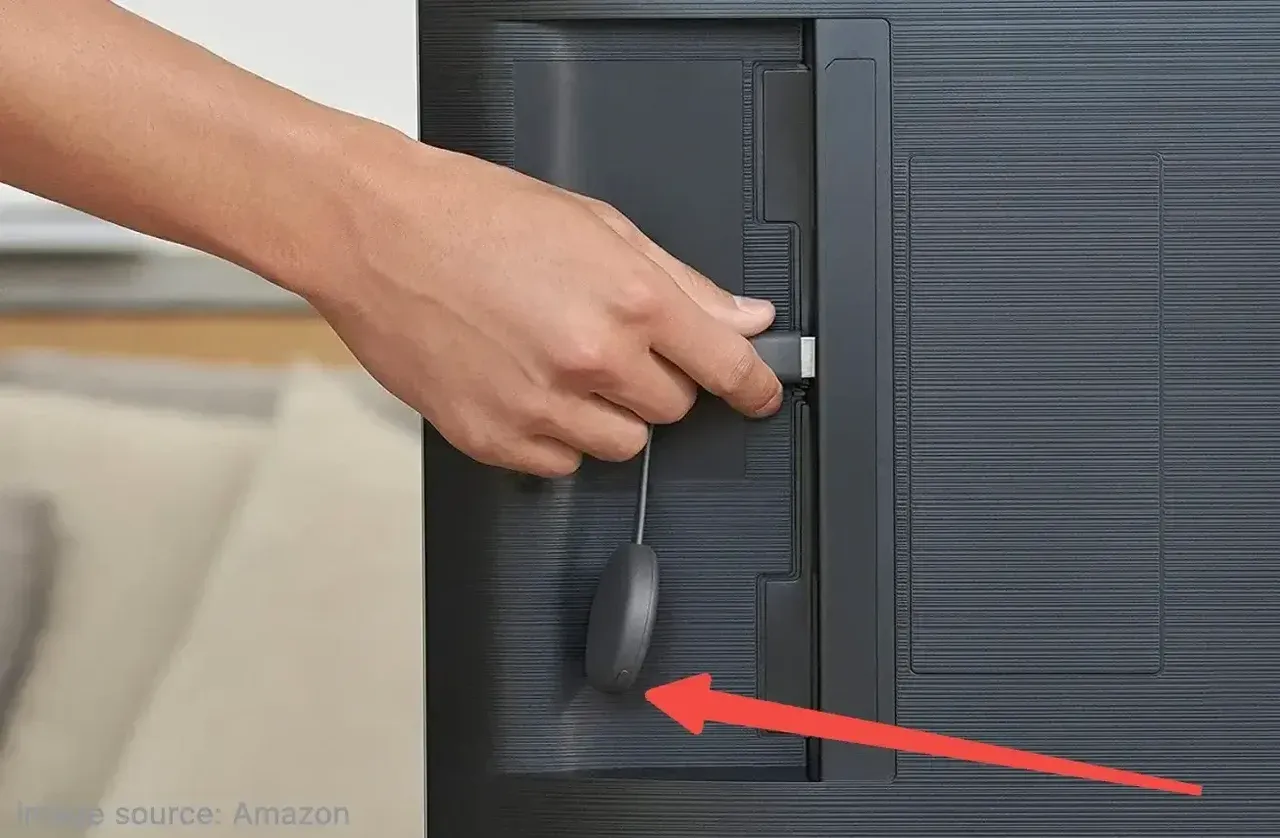
Fix 6: Use a Wired Connection (for Troubleshooting)
A wired connection can offer a more stable and reliable link between your Chromecast and your Chrome browser, especially in environments with weak Wi-Fi signals or high network congestion. By connecting Chromecast directly to your router via an Ethernet cable, you can bypass potential wireless interference and ensure a smoother casting experience.
Step 1. Obtain an Ethernet adapter for Chromecast. You'll need a compatible Ethernet adapter to plug into the Chromecast's micro-USB port. Google offers an official Chromecast Ethernet adapter, but third-party options work as well.
step2. Plug the adapter into your Chromecast and then connect an Ethernet cable between the adapter and your router.
step3. Restart both Chromecast and Chrome. After setting up the wired connection, restart both your Chromecast and your computer or mobile device. This often helps establish a solid connection over the wired link.
Step 4. Check if the issue persists. If Chromecast now shows up in Chrome, the problem was likely related to Wi-Fi connectivity, and the wired solution is a quick fix.
Fix 7: Check for Network Conflicts
Network conflicts, such as IP address collisions, can prevent Chromecast from being detected in Chrome. If multiple devices are using the same IP address on your network, it may cause connection problems or even disconnect some devices. Identifying and resolving these conflicts ensures that each device has its unique identifier, preventing network issues.
Step 1. Log into your router's settings (usually through a web browser by entering the router's IP address, like 192.168.1.1). Check the connected devices and their assigned IP addresses.
Step 2. Look for any duplicate IP addresses. If two devices are assigned the same IP, disconnect one and allow the router to reassign a new address, or manually assign a static IP to your Chromecast.
Step 3. Restart your router. After resolving any conflicts, restart your router to clear any lingering network issues. This will also refresh the connection to Chromecast and other devices on the network.
Step 4. Recheck Chromecast visibility in Chrome. After resolving IP conflicts and restarting the network, verify whether the Chromecast now appears in Chrome for casting.
When to Use PigeonCast as an Alternative
If you continue to experience issues with "Chrome not finding Chromecast", you can use free PigeonCast as an alternative for wireless screen mirroring. PigeonCast allows you to easily mirror your screen from Chrome or any other device to your TV, even if Chromecast is not detected. It's simple to set up and works seamlessly across multiple devices.
Here's how to mirror a Windows PC or Mac without Chromecast:
Step 1. Install PigeonCast on your laptop (Windows PC or MacBook) and the TV you want to cast to.


Overall Rating:



Step 2. While your laptop and TV are on the same Wi-Fi network, launch PigeonCast on both sides.
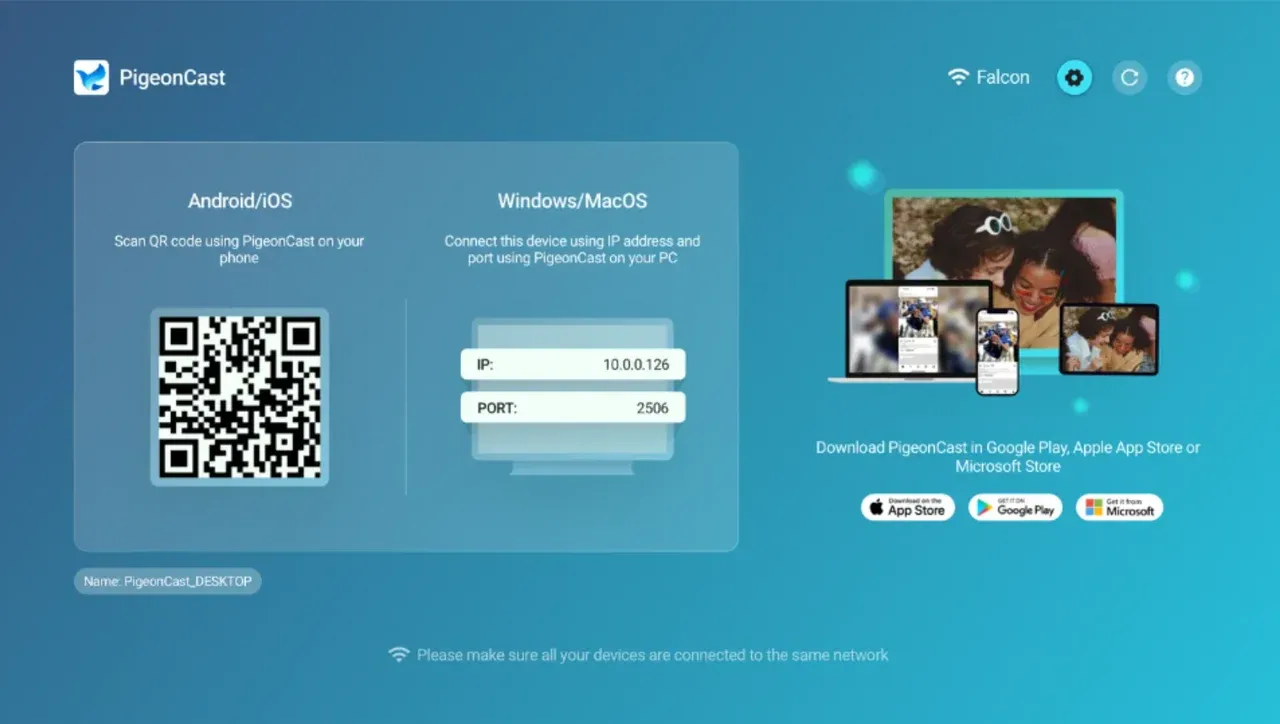
Step 3. On the PigeonCast interface, click Send my screen. PigeonCast also enables you to cast a device's screen or content to your laptop once you click Receive screen.
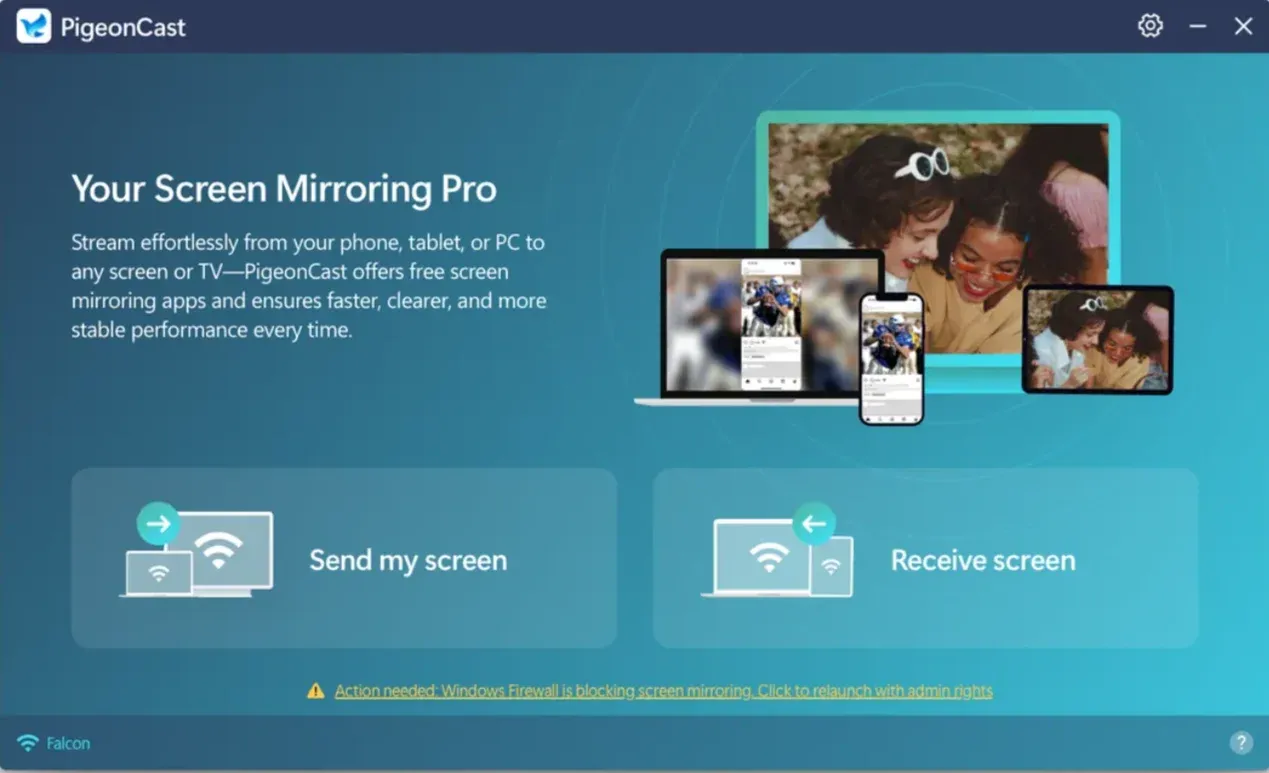
Step 4. Choose your TV from the device list, then start mirroring your laptop's entire screen or a signal app window.
PigeonCast is a free, reliable alternative to Chromecast. If you have a Chromecast issue, try PigeonCast and get casting back instantly.
Getting Your Chromecast Back on Track
In conclusion, while it can be frustrating when "Chrome can't find Chromecast," the good news is that most of the time, the problem is easily fixable. Whether it's a simple issue like ensuring both devices are on the same network or something more complex, like checking for updates or adjusting router settings, each solution we've discussed brings you one step closer to enjoying seamless casting.
If you've gone through the steps and your Chromecast still isn't showing up in Chrome, don't hesitate to reset your device or check for hardware issues. As a last resort, consider using third-party apps like PigeonCast for wireless casting; it's a reliable alternative for both screen mirroring and media casting.
Remember, technology issues are often temporary, and with the right troubleshooting approach, you'll be back to streaming and casting in no time.
Chrome Can't Find Chromecast FAQs
Can you use Chromecast with any device?
Yes, you can use Chromecast with most modern devices, including Android phones, iPhones, Windows PCs, and Macs. Make sure the device is connected to the same Wi-Fi network as your Chromecast.
Can I cast to Chromecast from my phone if Chrome can't find it?
Yes, you can use the Google Home app to cast content directly from your phone to Chromecast if Chrome can't find it.
How can I fix "Chrome can't find Chromecast from Chrome" permanently?
To fix this issue permanently, ensure that both Chromecast and your device are on the same network, update the software, disable any conflicting extensions, and ensure that your Chromecast is set up properly.
Can I plug my PC into a TV with HDMI if Chrome can't find Chromecast?
Yes, you can always use an HDMI connection as an alternative. Simply plug your PC into the TV using an HDMI cable, and use it as a monitor.
What should I do if "Google Chrome can't find Chromecast" during setup?
During setup, ensure both devices are on the same Wi-Fi network. You can also try resetting your Chromecast and reconnecting it through the Google Home app.
Why can't I find the cast option on Chrome?
If the cast option is missing in Google Chrome, it could be due to an outdated browser, network issues, or Chromecast not being properly set up. Make sure both devices are on the same Wi-Fi network, update Chrome, and check your Chromecast settings.
Does Google no longer support Chromecast?
No, Google continues to support Chromecast. However, if you are experiencing issues, they may be related to network or software problems. Make sure your Chromecast is updated and correctly configured.
Is PigeonCast a good Chromecast alternative?
Yes, PigeonCast is an excellent alternative to Chromecast. It allows you to wirelessly mirror your screen across devices without the limitations of Chromecast, offering compatibility with a wide range of devices and operating systems. PigeonCast is especially useful for those seeking a more seamless connection experience with fewer network-related issues compared to traditional Chromecast setups.
Mia Clarke is a technology editor specializing in screen mirroring and casting solutions across multiple platforms. Mia provides clear, practical guides and in-depth insights to help users seamlessly connect their devices. Passionate about enhancing digital experiences, Mia is dedicated to keeping readers updated on the latest trends and tools in cross-platform screen sharing. Whether you’re looking to mirror your smartphone, laptop, or smart TV, Mia’s content delivers reliable, user-friendly advice to simplify your tech setup.