
Forget HDMI cables and adapters. Today, you can mirror your screen wirelessly with ease. In this guide, you'll learn how to connect your phone to your TV wirelessly using free, safe, and beginner-friendly methods. Whether you're streaming a movie, sharing photos, or presenting slides, these wireless option gives you a cleaner setup, more flexibility, and a far better viewing experience. No technical skills required, and no extra hardware needed, so just follow the steps and start mirroring or casting in minutes.
Method 1: Use PigeonCast (for Android and iPhone)
If you're looking for a simple and highly compatible solution, PigeonCast is one of the easiest ways to figure out how to connect phone to smart TV wirelessly. It works on both Android and iPhone, and it supports a wide range of TVs, including Android TV, Google TV, Fire TV, and Apple TV.

Since PigeonCast runs on every major platform, you don't need to worry about matching specific brands or protocols. Everything connects seamlessly as long as your devices share the same Wi-Fi network.
How to start wireless screen mirroring from phone to TV:
Step 1. Install PigeonCast on your Android phone or iPhone.


Overall Rating:



Step 2. Download PigeonCast on your TV from the built-in app store and launch it. For example, on your Apple TV, go to the App Store, search for PigeonCast, and download the app.
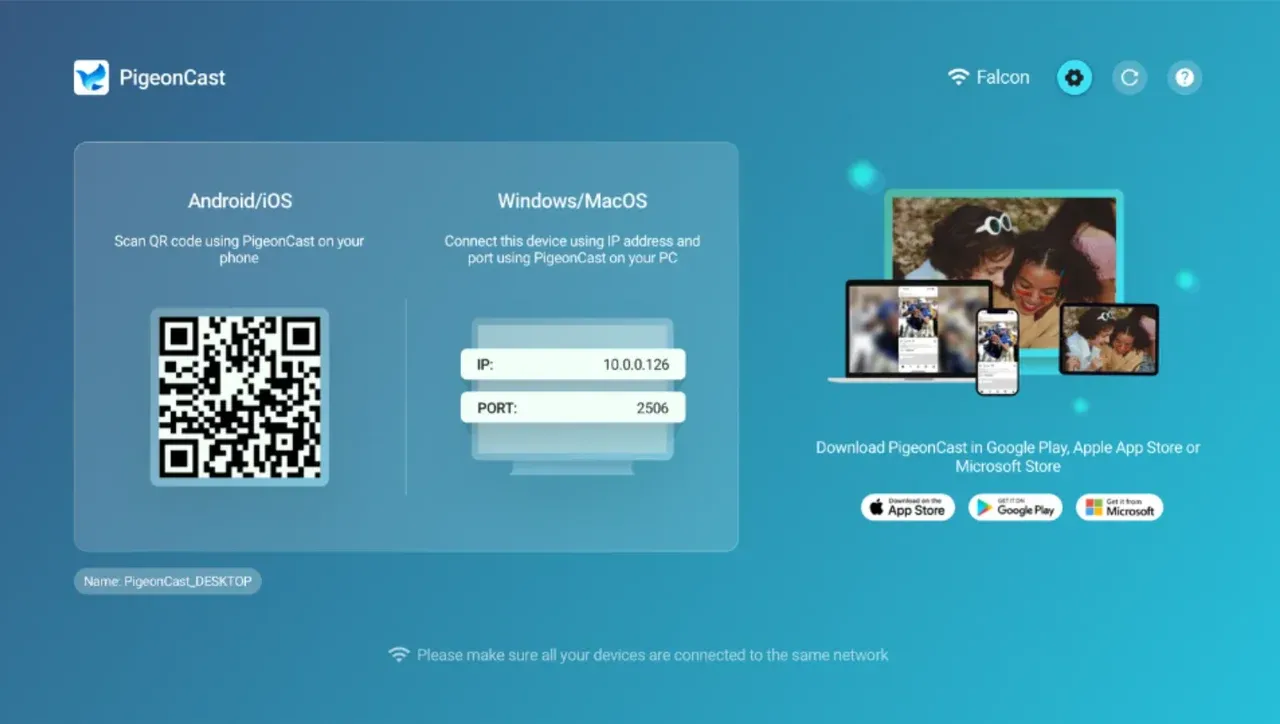
Step 3. Make sure your phone and TV are connected to the same WiFi network.
Step 4. Open PigeonCast on your phone and choose your TV from the available devices.
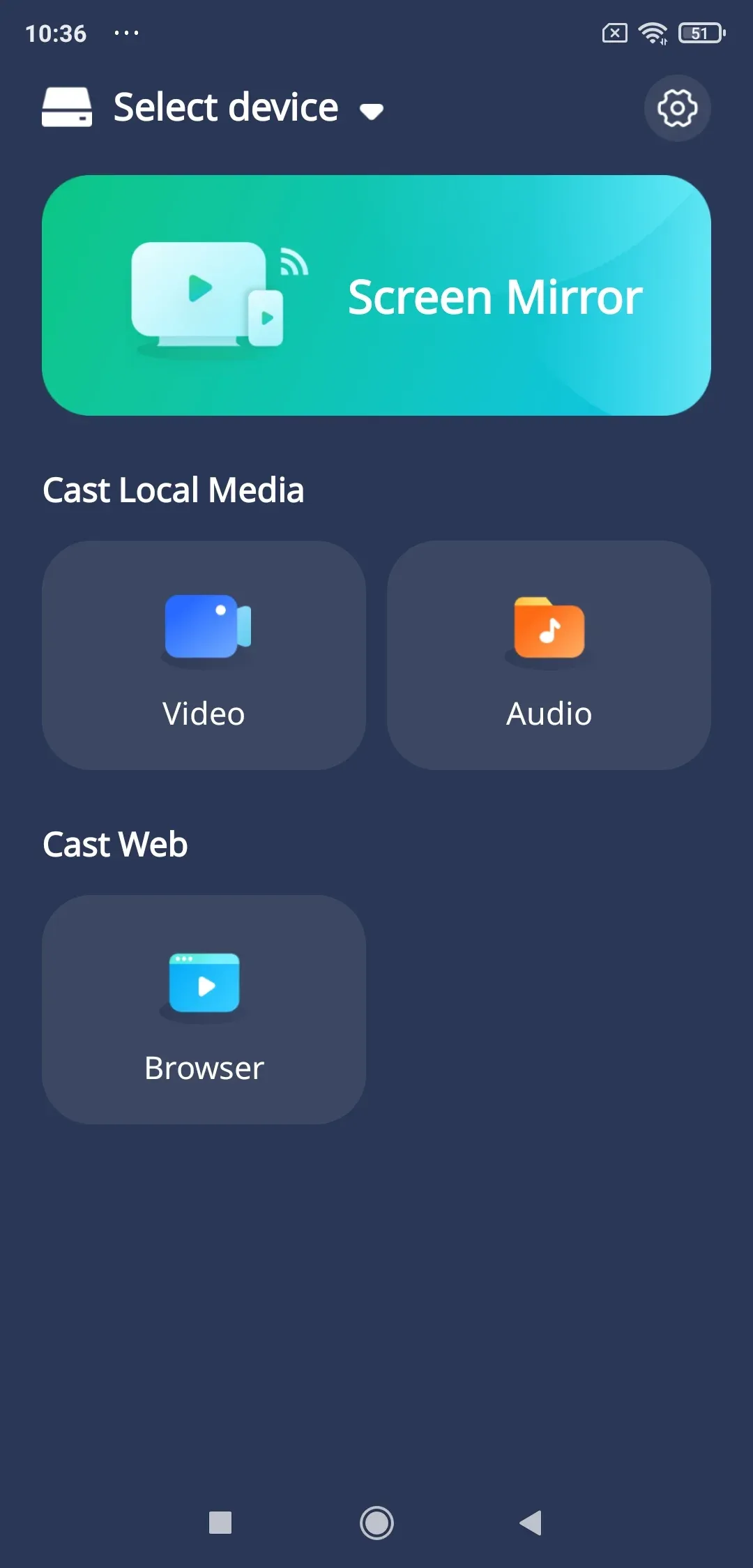
Step 5. Once connected, tap Screen Mirror or choose media content to cast.
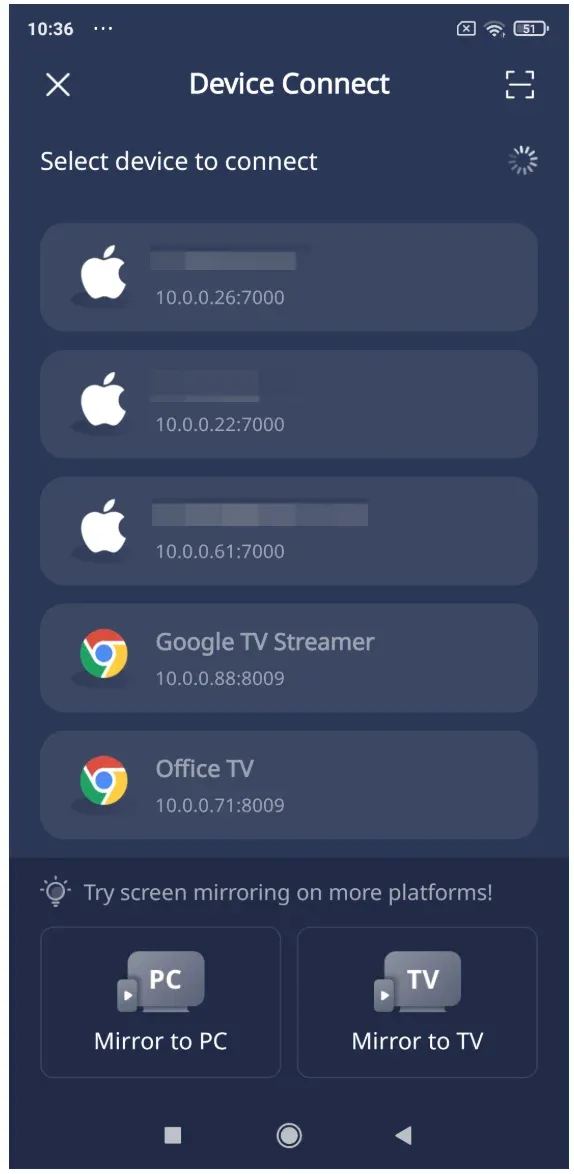
PigeonCast offers smooth performance, minimal delay, and a clean setup without any cables. Since it supports both major mobile platforms, it's a reliable option for anyone who wants a straightforward way to mirror content from their phone to a TV wirelessly.
Method 2: Use Chromecast (for Android and iPhone)
Chromecast is another reliable way to figure out how to connect phone to smart TV wirelessly, especially if your TV already has Chromecast built in or you have a non-smart TV and a Chromecast device. Whether you want to share photos, stream videos, or mirror your entire screen, Chromecast makes the process quick and straightforward.
How to connect phone to non smart TV wirelessly with Chromecast:
Step 1. Make sure your Chromecast or Chromecast-enabled TV is powered on and connected to WiFi.
Step 2. Connect your phone to the same WiFi network.
Step 3. Open the app you want to use, such as YouTube or Google Photos.
Step 4. Tap the Cast icon that appears in the corner of the app and select your TV from the list of available devices.
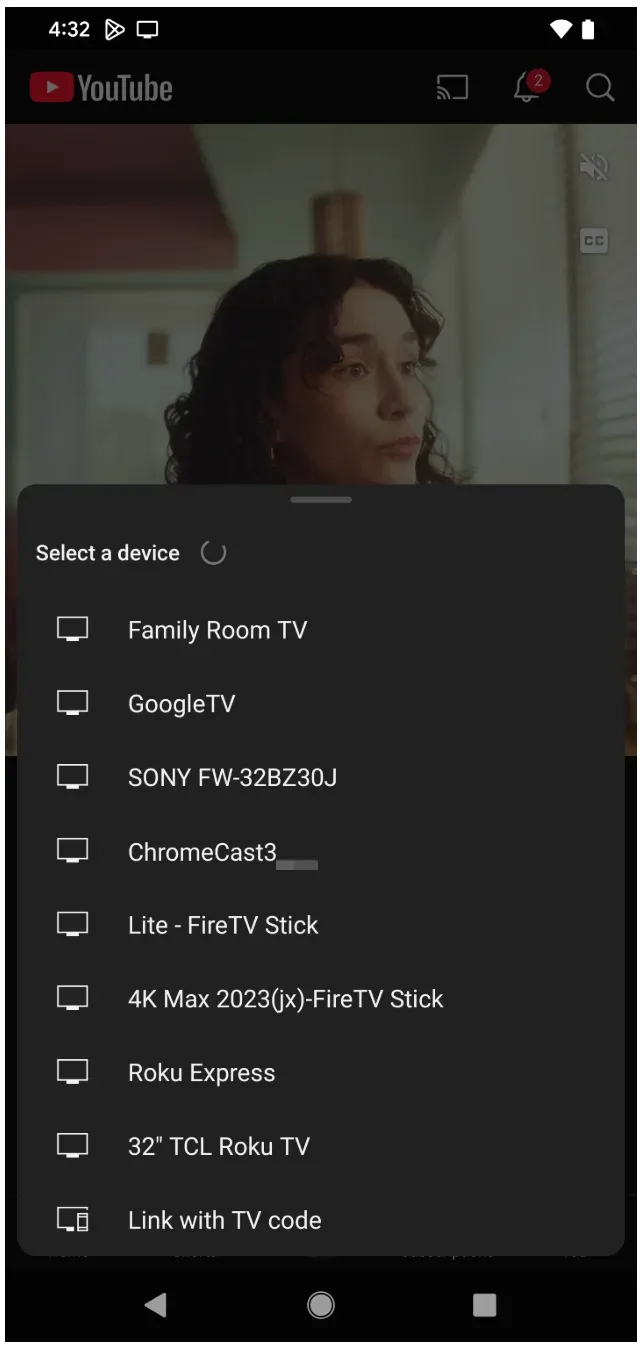
Step 5. Your content will appear on the TV immediately. You can continue browsing on your phone while the video plays on the big screen.
For screen mirroring on Android, you can also use the built-in Cast feature from the Quick Settings panel. iPhone users, however, can cast content through supported apps only, since iOS doesn't offer full system mirroring to Chromecast.
Method 3: Use AirPlay (for iPhone)
If you're using an iPhone, AirPlay is the most seamless way to connect your phone to a smart TV wirelessly. It works instantly with Apple TV and with many smart TVs that support AirPlay, allowing you to mirror your screen, stream videos, or share photos in just a few taps.
The setup is simple, and once your devices are connected to the same Wi-Fi network, AirPlay becomes a smooth, everyday tool. Here's how to connect phone to TV wirelessly using AirPlay:
Step 1. Make sure your TV or Apple TV has AirPlay turned on.
Step 2. Connect your iPhone to the same WiFi network as the TV.
Step 3. Swipe down to open Control Center, tap Screen Mirroring, and choose your TV from the device list.
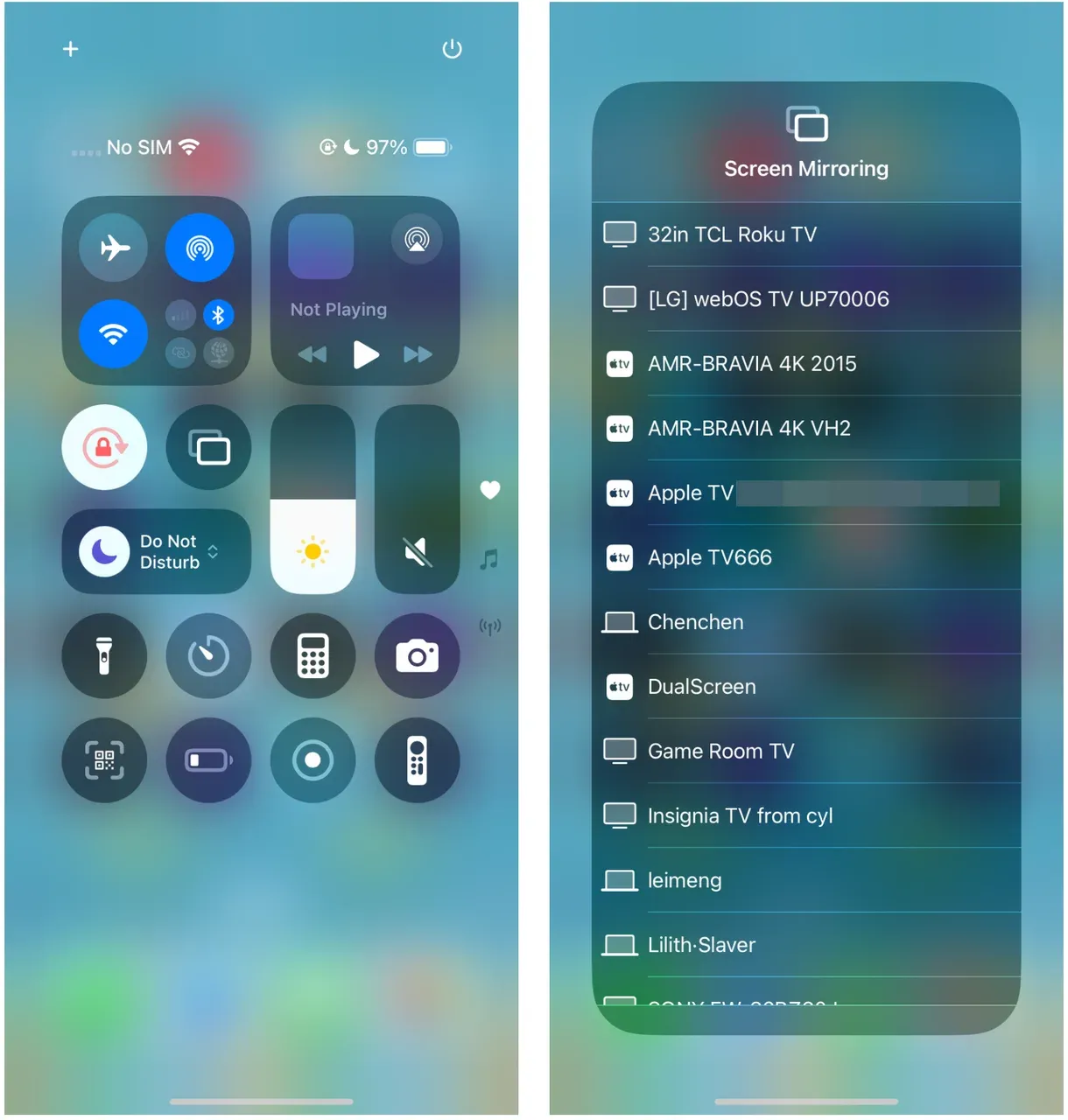
Step 4. Your iPhone screen will appear on the TV. You can stop mirroring anytime by returning to Control Center and tapping Stop Mirroring.
How to connect your phone to your TV wirelessly? Connecting to AirPlay is ideal when you want a stable connection, high-quality video output, and a quick way to get your iPhone's content onto a larger display without dealing with cables or adapters.
Method 4: Use Miracast (for Android)
How to connect Android phone to TV wirelessly? If you're searching for the most direct or offline way, Miracast is often the answer.
Android Miracast is one of the simplest ways to mirror your Android screen directly to a TV without installing extra apps. It works on most Android phones and many smart TVs, making it a practical option if you want to quick wireless setup.
How to connect Android phone to smart TV wirelessly with Miracast:
Step 1. On your TV, enable the Screen Mirroring or Wireless Display feature.
Step 2. On your Android phone, open Settings and look for Cast, Smart View, or Wireless Display.
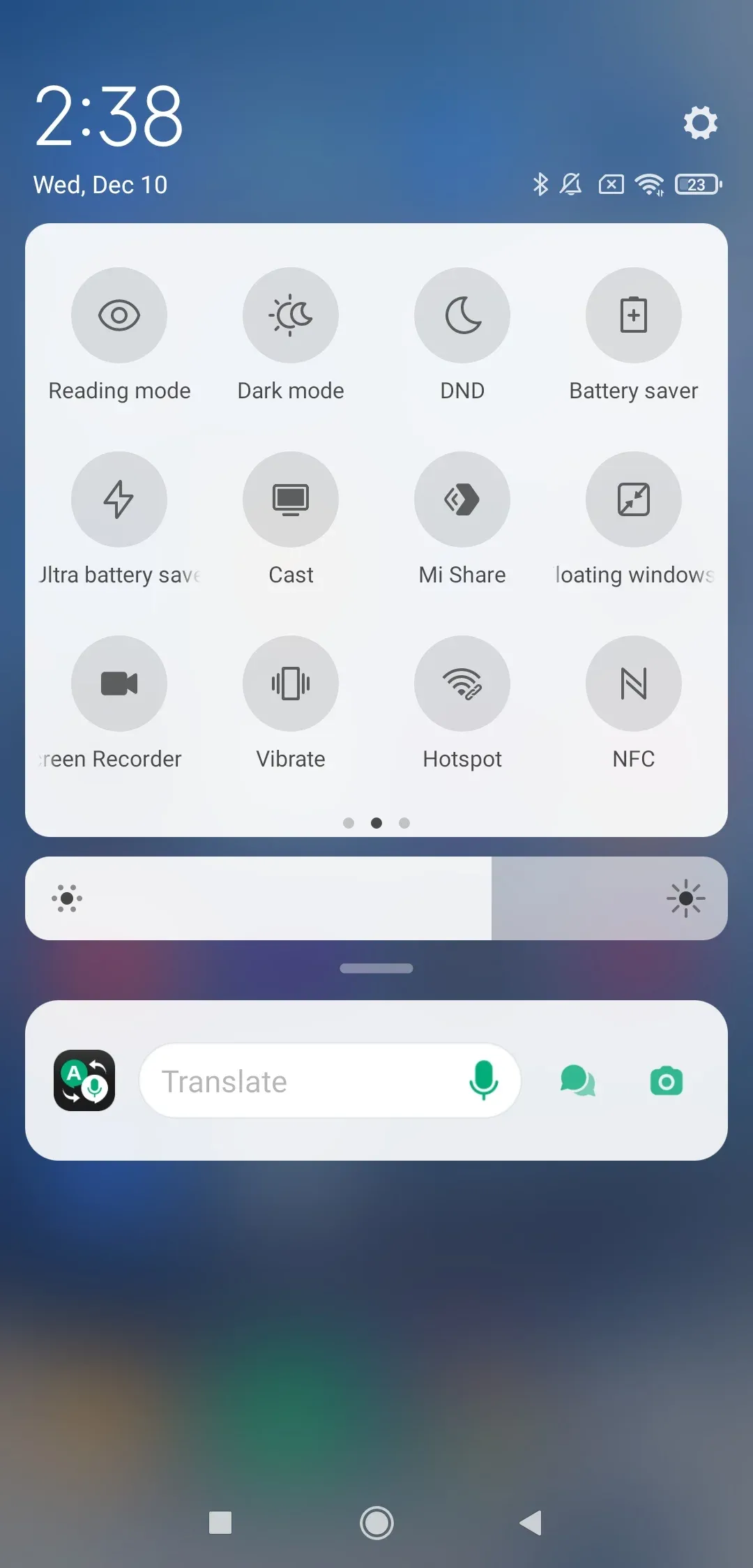
Step 3. Select your TV when it appears in the list of available devices.
Step 4. Confirm the connection on your TV if prompted.
Once connected, your entire screen appears on the TV instantly. Miracast is especially useful when you need to mirror apps, show photos, or play locally stored videos without relying on an internet connection.
Final Words
Learning how to connect your phone to your TV wirelessly gives you a simple way to enjoy your photos, videos, apps, and streaming content on a much bigger screen. Once you understand the different methods available, the entire process becomes surprisingly easy. Whether you choose PigeonCast for its cross-platform flexibility, Chromecast for its straightforward setup, AirPlay for Apple devices, or Miracast for Android phones, each option lets you break free from cables and enjoy a cleaner, more convenient viewing experience.
The key is choosing he method that fits both your phone and your TV. After that, everything comes down to a few quick steps. With the right tool, you can relax on the couch, share content with family, or stream your favorite shows without ever reaching for an HDMI cable again.
How to Connect Your Phone to Your TV Wireless FAQs
How can I connect my phone to my TV wirelessly without Wi-Fi?
You can connect your phone to your TV without Wi-Fi using technologies like Miracast or a wireless display adapter. Miracast creates a direct connection between your Android phone and the TV, so no internet is required. For iPhone and Apple TV users, peer-to-peer AirPlay is the most reliable non-Wi-Fi solution.
How to connect your phone to your TV wirelessly on an iPhone?
The easiest way is through AirPlay. Just make sure your iPhone and the TV support AirPlay and are on the same Wi-Fi network. Open Control Center, tap Screen Mirroring, and select your TV. If your TV doesn't support AirPlay, installing PigeonCast on your TV also works.
How to connect phone to Roku TV wirelessly?
For Android, enable Screen Mirroring on your Roku TV and use the Cast or Smart View feature on your phone. For iPhone, use AirPlay by enabling it in Roku's settings and selecting your Roku TV from the Screen Mirroring menu on your iPhone.
How to connect phone to LG TV wirelessly?
Android users can use Miracast by enabling Screen Share on the LG TV and selecting the TV from the Cast menu. iPhone users can connect wirelessly using AirPlay on supported LG models.
How to connect phone to Hisense TV wirelessly
Most Hisense TVs support either AirPlay, Chromecast Built-in, or Miracast. Android users can mirror via the Cast feature or Miracast. iPhone users can mirror through AirPlay if supported, or use PigeonCast for universal compatibility.
Mia Clarke is a technology editor specializing in screen mirroring and casting solutions across multiple platforms. Mia provides clear, practical guides and in-depth insights to help users seamlessly connect their devices. Passionate about enhancing digital experiences, Mia is dedicated to keeping readers updated on the latest trends and tools in cross-platform screen sharing. Whether you’re looking to mirror your smartphone, laptop, or smart TV, Mia’s content delivers reliable, user-friendly advice to simplify your tech setup.