
Now, your TV is the perfect way to showcase your pictures in stunning detail. Whether it's vacation photos, a party slideshow, or just enjoying your images on a larger screen, there are several ways to show pictures on TV from your iPhone. This guide will walk you through all the steps on how to show pictures on TV from iPhone, from wireless streaming to wired connections.
How to Show Pictures from iPhone on TV
Sharing your iPhone photos on the big screen is easier than you might think. We've compiled the five best methods to help you do it. Below, you'll find a detailed guide and a comparison table to help you choose the option that best suits your needs. Let's dive in.
Method 1. Use Airplay
AirPlay is Apple's wireless technology that lets you stream content like photos, videos, and music from your iPhone to compatible devices, including your TV. If you have an Apple TV or a smart TV with AirPlay support, this method is straightforward and convenient.
Step 1. Ensure both your iPhone and TV are connected to the same Wi-Fi network.
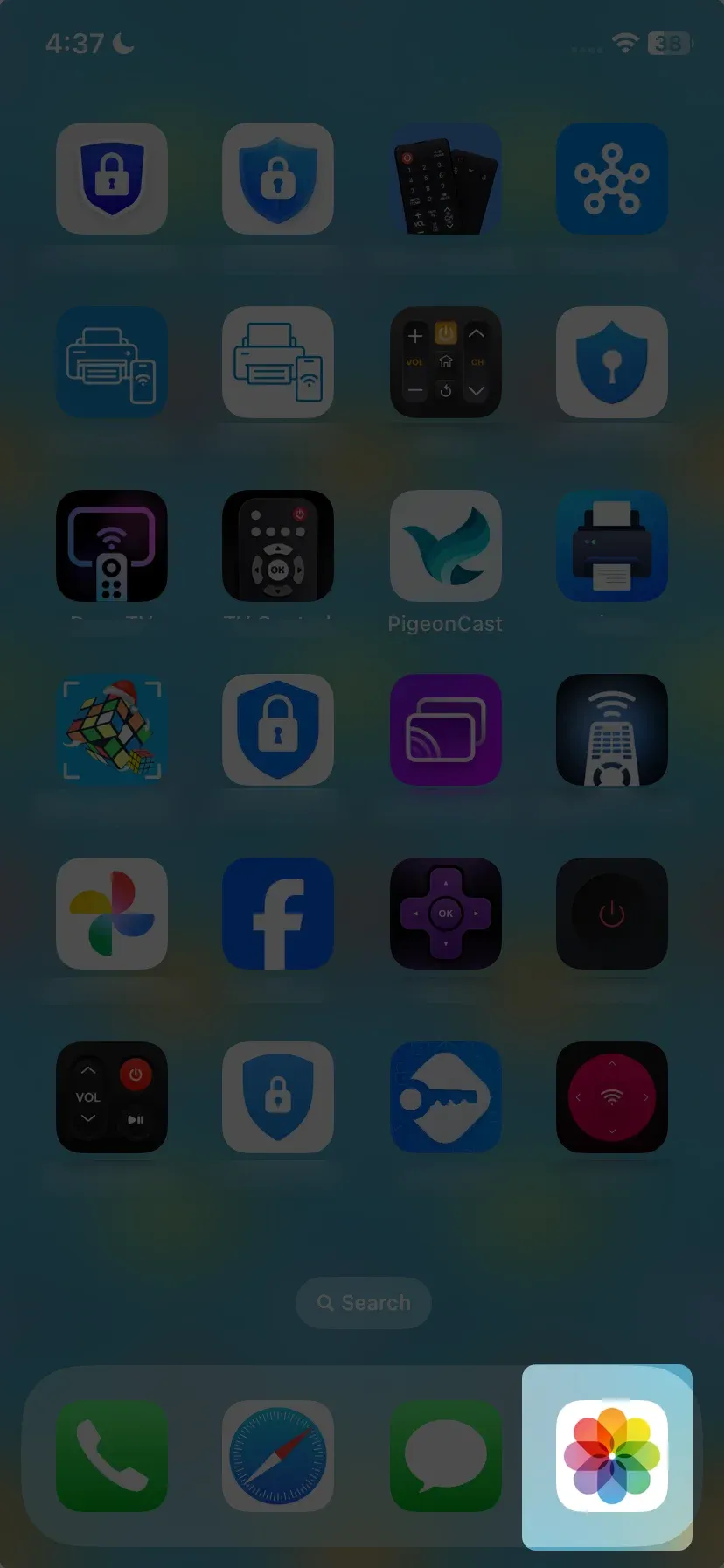
Step 2. Open the Photos app on your iPhone and select the pictures you want to display.
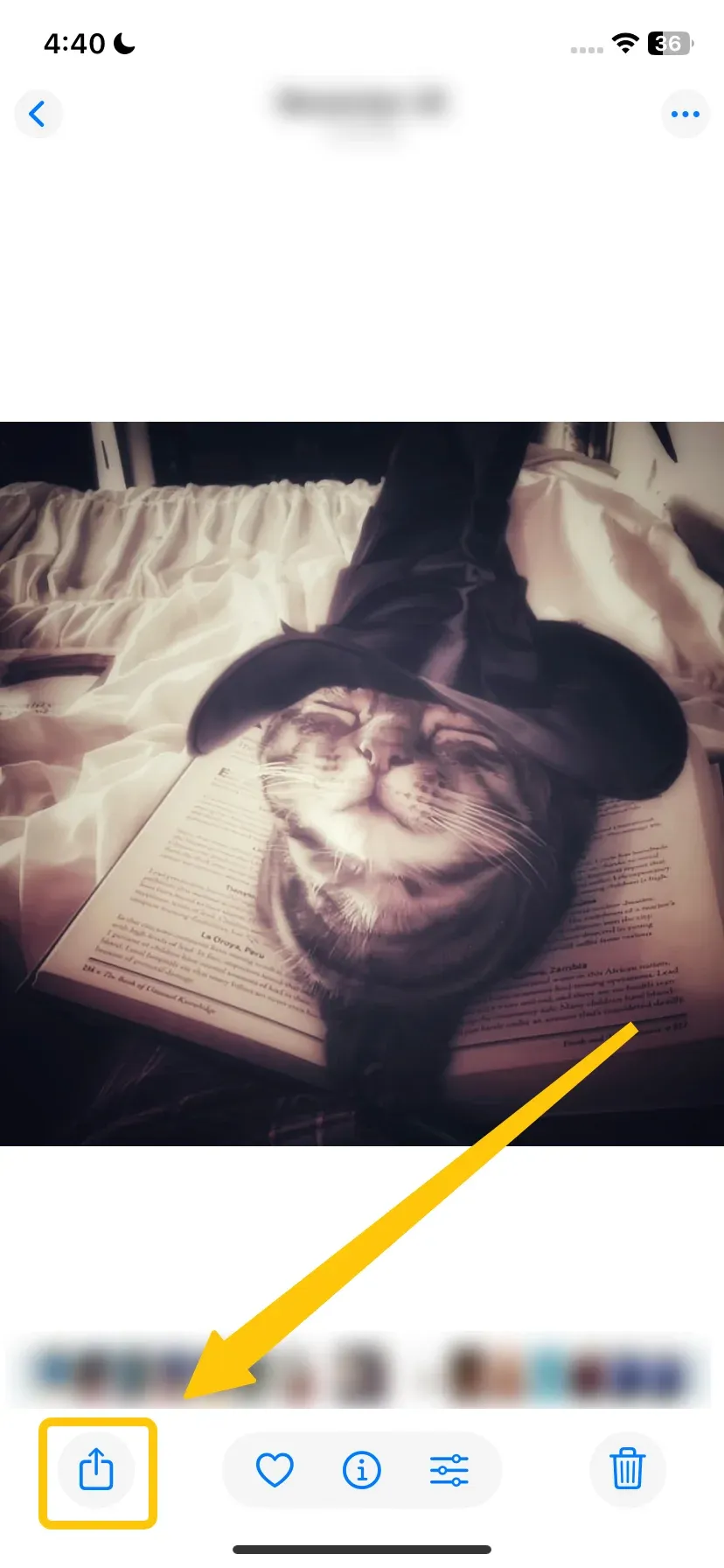
Step 3. Tap the Share icon (the square with an upward arrow).
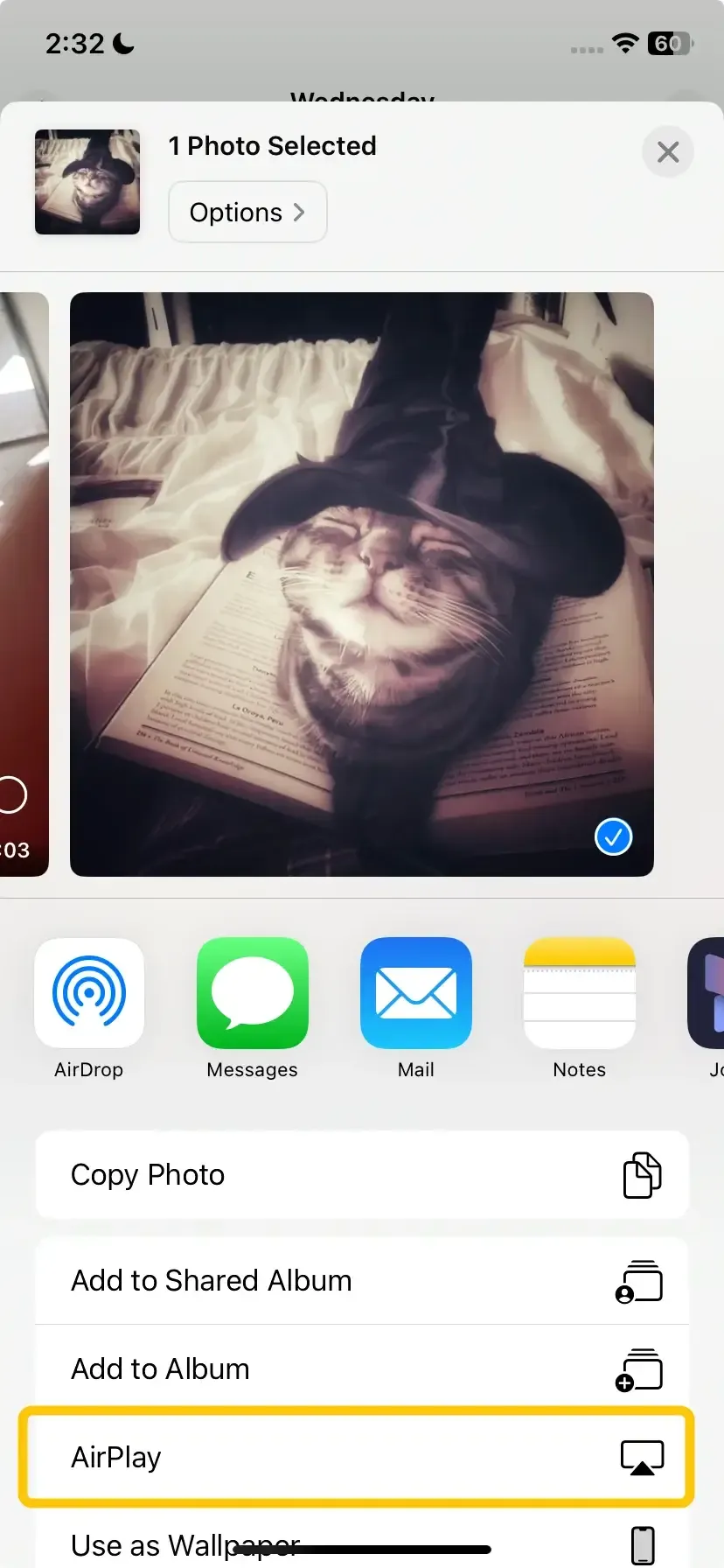
Step 4. Select the AirPlay icon (a rectangle with a triangle) from the sharing options.
Step 5. Choose your Apple TV or AirPlay-compatible TV from the list of devices.
Step 6. If prompted, enter the PIN code, and your selected photos will now appear on your TV screen.
Method 2. Use Chromecast
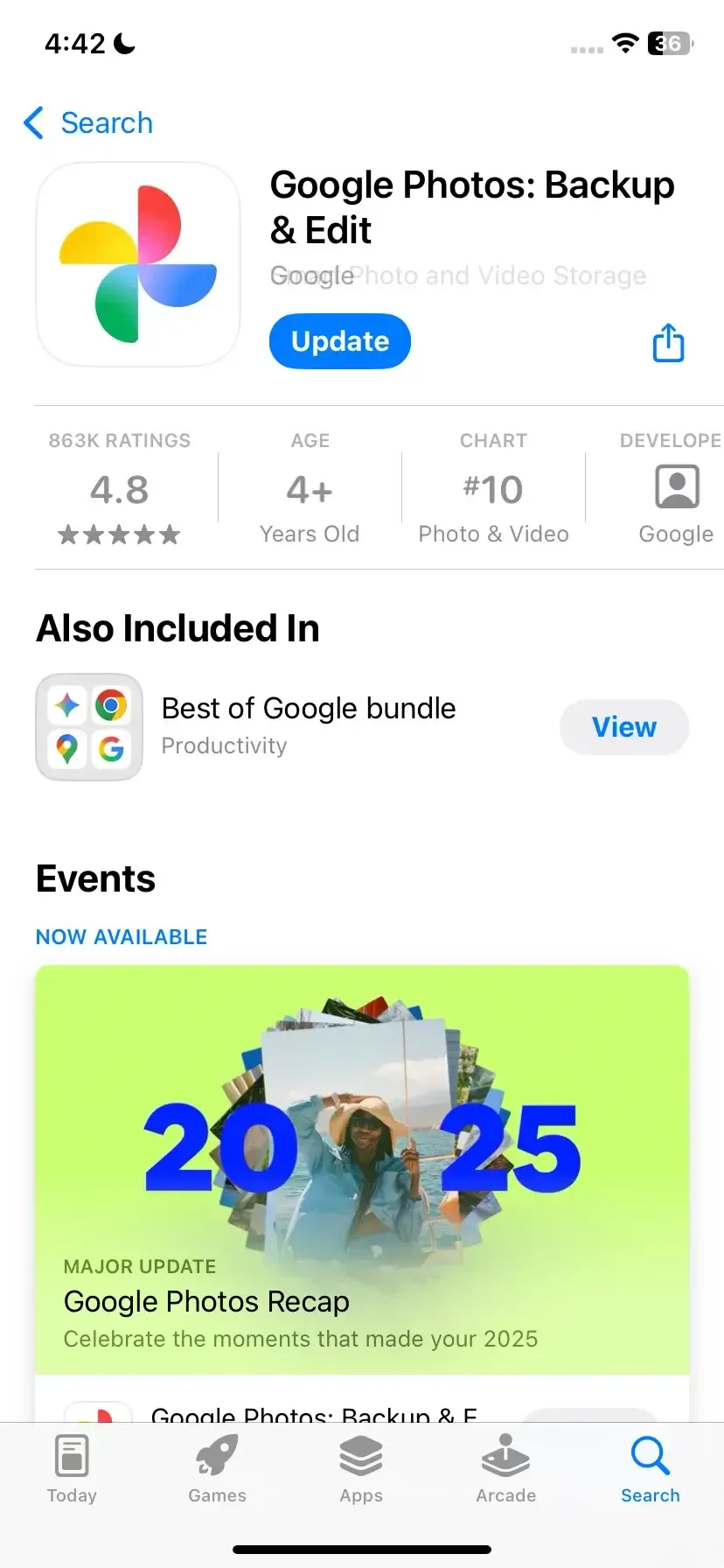
Step 1. Install and open the Google Photos app on your iPhone and ensure your photos are backed up to Google Photos.
Step 2. Ensure both your iPhone and Chromecast are on the same Wi-Fi network.
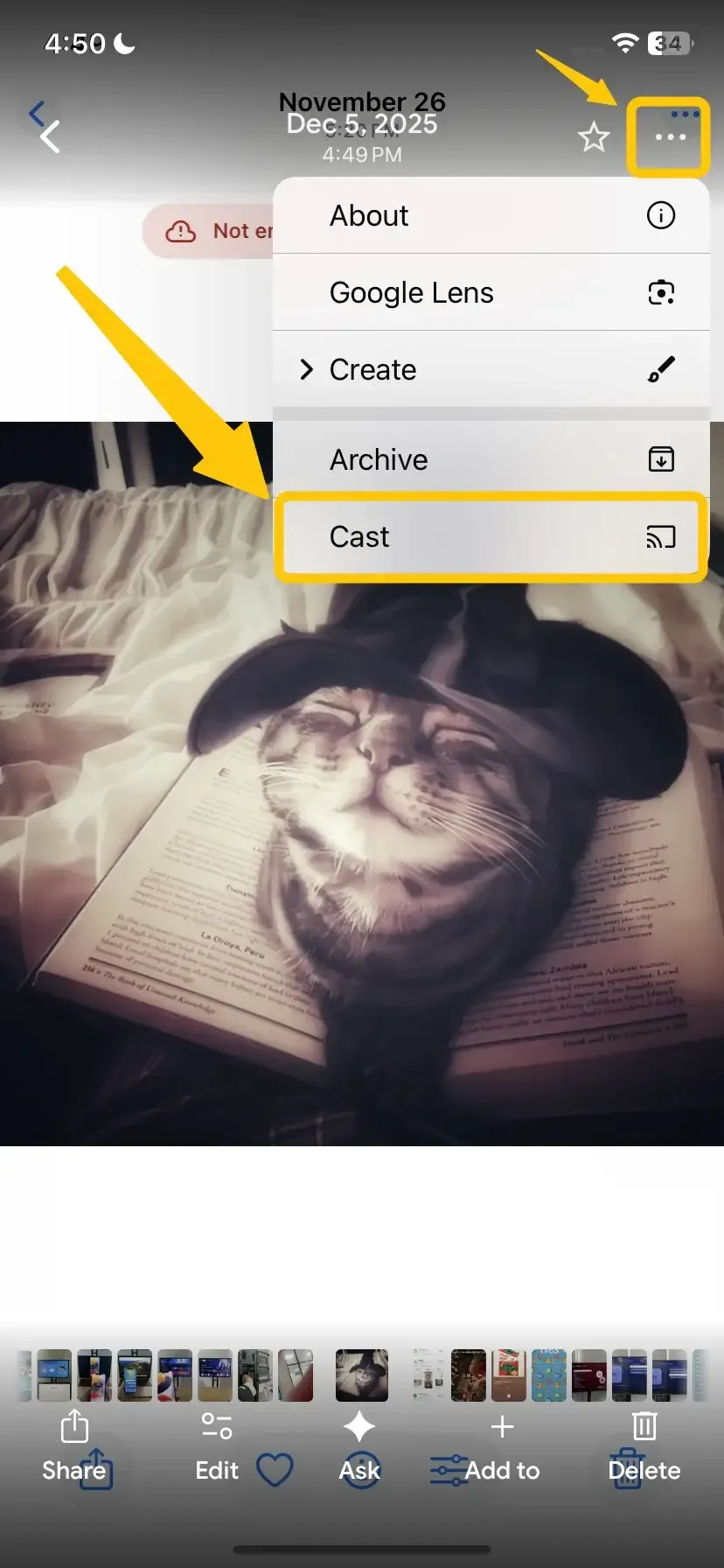
Step 3. Select the photos or album you want to display and tap the Cast icon in the upper-right corner
Step 4. Choose your Chromecast device from the list, and your Google Photos library will now display on your television.
Method 3. Use a Streaming Device
How to show pictures from iPhone on TV screen? Streaming devices compatible with AirPlay, like Roku, make it easy to view content from your iPhone on your TV. If you have one of these devices connected to your TV, you can quickly display your iPhone photos using the screen mirroring feature.
Step 1. Make sure the streaming device is connected to your TV and connected to the same Wi-Fi network as your iPhone.
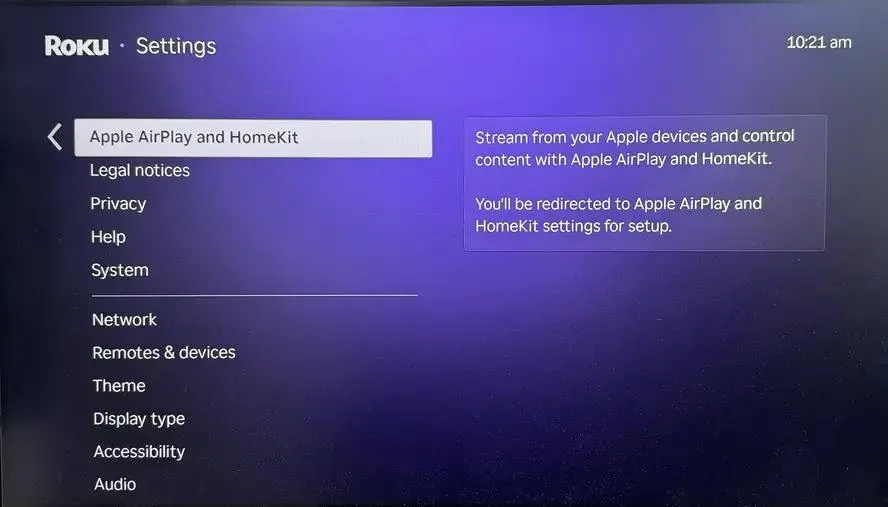
Step 2. Go to Settings on your Roku, select Apple AirPlay and HomeKit, and turn AirPlay on.
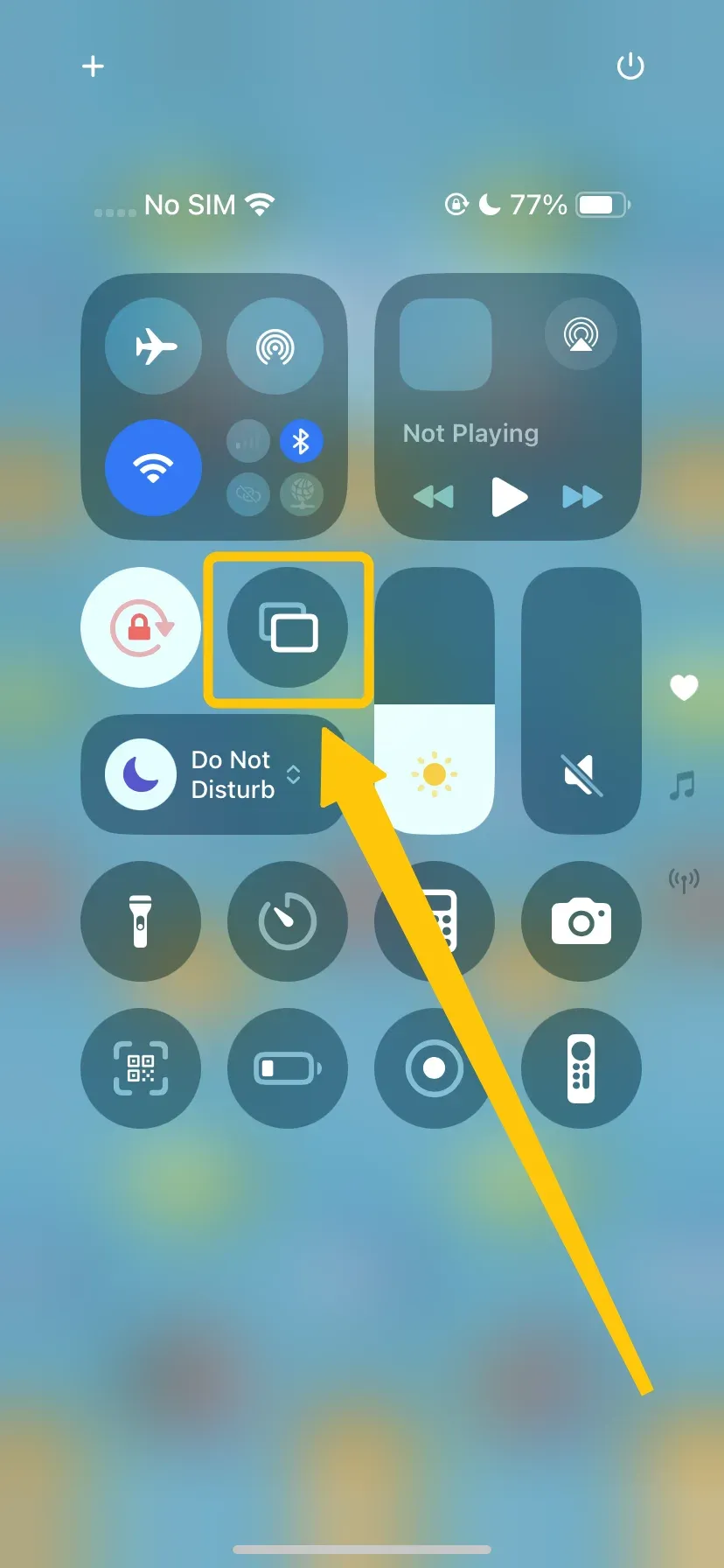
Step 3. Tap Screen Mirror in the Control Center on your iPhone (swipe down from the top-right corner on iPhone X or newer, or swipe up on older models).
Step 4. Select your Roku device from the list of available devices to connect with.
Step 5. Once connected, open the photo app and your selected photos will now appear on the TV screen via Roku.
Method 4. Use Pigeoncast
Third-party apps like PigeonCast offer a valuable solution for connecting your iPhone to your TV, especially when using non-Apple devices without built-in casting capabilities. It's a free, easy-to-use, cross-platform tool that supports both iOS and Android devices, allowing you to effortlessly mirror content to your TV. Here's how to use it:


PigeonCast Screen Mirroring

Official Download



Step 1. Install the PigeonCast app on both your iPhone and the TV.
Step 2. Connect both devices to the same Wi-Fi network.
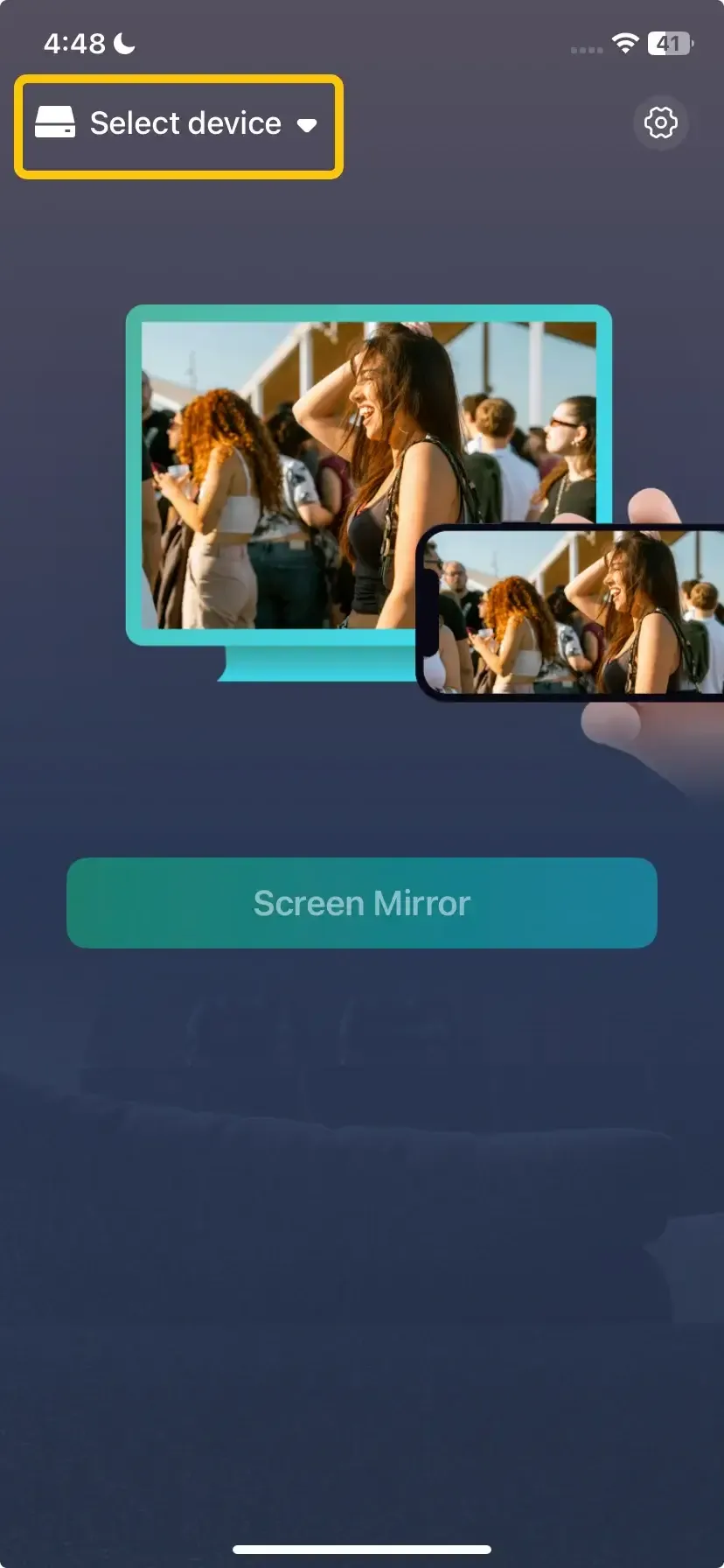
Step 3. Open the PigeonCast app, tap Select device on your iPhone to choose your TV from the available list to connect.
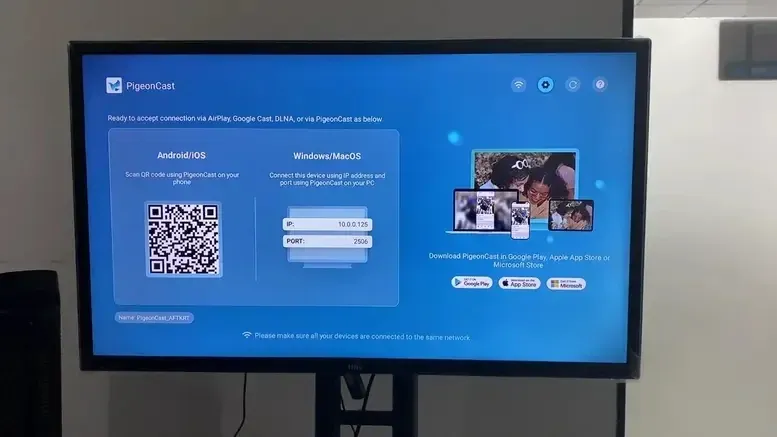
Step 4. Enter the onscreen PIN code, or you can scan the QR code on the television screen to confirm the connection.
Step 5. When you pair successfully, you can then launch the photo app on your iPhone, and it will be displayed on the TV screen instantly.
Method 5. Use HDMI
For a reliable wired connection to display photos from your iPhone on your TV, you'll need an adapter to connect your iPhone to the HDMI port. If you have an iPhone with a Lightning port (iPhone 14 and earlier), use the Apple Lightning Digital AV adapter. For iPhone 15 and later models with a USB-C port, you'll need a USB-C to HDMI adapter.
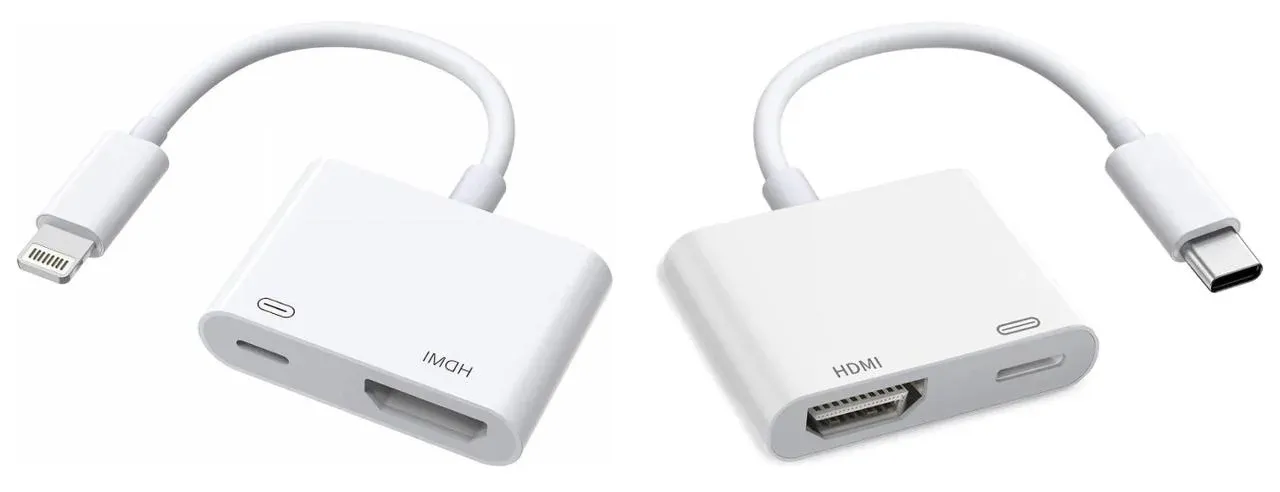
Step 1. Get the required adapter and connect the adapter to your iPhone
Step 2. Connect one end of an HDMI cable to the adapter and the other end to an available HDMI port on your TV.
Step 3. Use your TV remote to switch to the corresponding HDMI input where your iPhone is connected. This may be labelled as HDMI 1, HDMI 2, etc.
Step 4. Once connected, your iPhone screen will be mirrored to the TV. Open the Photos app on your iPhone and select the photos you want to display. They will appear on your TV in full-screen mode.
| Method | Required Devices | Compatibility | Setup Complexity | Key Features | Best For |
|---|---|---|---|---|---|
| AirPlay | Apple TV or AirPlay-compatible Smart TV | Apple devices (iPhone, iPad) | Easy | Wireless streaming, seamless integration with iOS, no app needed | Apple ecosystem users with AirPlay-compatible devices |
| Chromecast | Chromecast dongle or built-in Chromecast on TV | iPhone, iPad, Android devices | Medium | Uses Google Photos, casts photos via the app, and works with any TV with Chromecast | Users with Chromecast devices or built-in support on TVs |
| Streaming Device (Roku) | Roku with AirPlay support | iPhone, iPad | Medium | AirPlay support, easy setup, works with Roku-compatible TVs | Roku users or AirPlay-compatible streaming device owners |
| PigeonCast | Smart TV with DLNA or Google Cast support, iPhone | iPhone, iPad, Android, and TVs with DLNA/Google Cast | Medium | Cross-platform, free, no need for native AirPlay support, works with non-Apple devices | Users with non-Apple TVs or those facing AirPlay issues |
| HDMI Cable | HDMI cable, Lightning or USB-C to HDMI adapter | iPhone, iPad, TV with HDMI port | Easy to Medium | Wired connection, reliable, full-screen photo display, no Wi-Fi required | Users who prefer wired connections, no Wi-Fi dependency |
Closing Words
How to show pictures from iPhone on smart TV? No matter how you prefer to connect, there are multiple ways to display your iPhone photos on your TV, from wireless streaming to wired connections. Whether using AirPlay, Chromecast, a streaming device like Roku, PigeonCast, or a reliable HDMI connection, each method offers a simple solution to enjoy your photos on the big screen.
How to Show Pictures on TV from iPhone FAQ
How to show pictures on Samsung TV from iPhone?
To show pictures on a Samsung TV from your iPhone, use AirPlay (available on newer Samsung Smart TVs). Ensure both devices are on the same Wi-Fi network, and then follow the AirPlay steps outlined earlier to cast your pictures directly to the TV.
How to show pictures on Roku TV from iPhone?
You can use Apple AirPlay to show pictures on a Roku TV, provided your Roku device supports AirPlay (models from 2017 onward). Set up AirPlay through your iPhone's sharing options, select your Roku device, and your pictures will appear on the screen.
How to view photos on a smart TV?
To view photos on a smart TV, connect your iPhone using a wireless method like AirPlay, Chromecast, or via an app like PigeonCast. Alternatively, you can use an HDMI cable for a direct connection.
How do I show photos from iPhone to TV without Apple TV?
If you don't have an Apple TV, you can use Chromecast, Roku, or PigeonCast to display photos. You can also mirror your screen using apps like Pigeoncast or a wired connection via HDMI.
How to show pictures on TV from iPhone free?
For a free option, try using AirPlay (on compatible devices), Pigeoncast, or screen mirroring with a device like Chromecast. All of these options can be done without extra charges if you have the necessary equipment.
Clara Rossi is an experienced technology editor and a seasoned expert in screen mirroring and casting technologies. With a keen eye for detail and a deep understanding of how to seamlessly connect devices, Clara excels at optimizing user experiences for effortless sharing and streaming. Whether you're seeking quick fixes or advanced tips, her expertise and responsiveness ensure that every query is met with a well-informed and efficient solution.