
Connecting to AirPlay usually starts from the Apple device you are sending from. On an iPhone, iPad, or Mac, you can open the AirPlay or Screen Mirroring controls, choose an available receiver, and complete the connection in just a few steps.
The exact AirPlay button may appear in different places depending on what you want to share, but the connection process itself is similar: make sure both devices are ready, find the receiver, select it, and enter a code if prompted. This guide focuses specifically on how to connect to AirPlay.
What You Need Before Connecting to AirPlay
Before trying to connect, check the basic setup on both devices.
- An AirPlay sender: Usually an iPhone, iPad, or Mac.
- A compatible receiver: Such as an Apple TV, AirPlay-compatible smart TV, Mac, or supported speaker.
- A network connection: In most home setups, keep the sender and receiver on the same Wi-Fi network.
- AirPlay enabled on the receiver: Some TVs and receiving devices require AirPlay to be turned on in their settings.
- Updated software: Keeping both devices up to date can help prevent discovery and connection problems.
Once the receiver is ready, most of the connection process happens from the sending device.
How to Connect to AirPlay From iPhone or iPad
On an iPhone or iPad, you can connect through Control Center or through the AirPlay controls inside a supported app.
Step 1. Make sure your iPhone or iPad and the receiving device are connected to the same Wi-Fi network.
Step 2. Open the AirPlay controls.
If you want to share your full screen, open Control Center and tap Screen Mirroring. If you are sharing supported media, look for the AirPlay icon inside the app or playback controls.
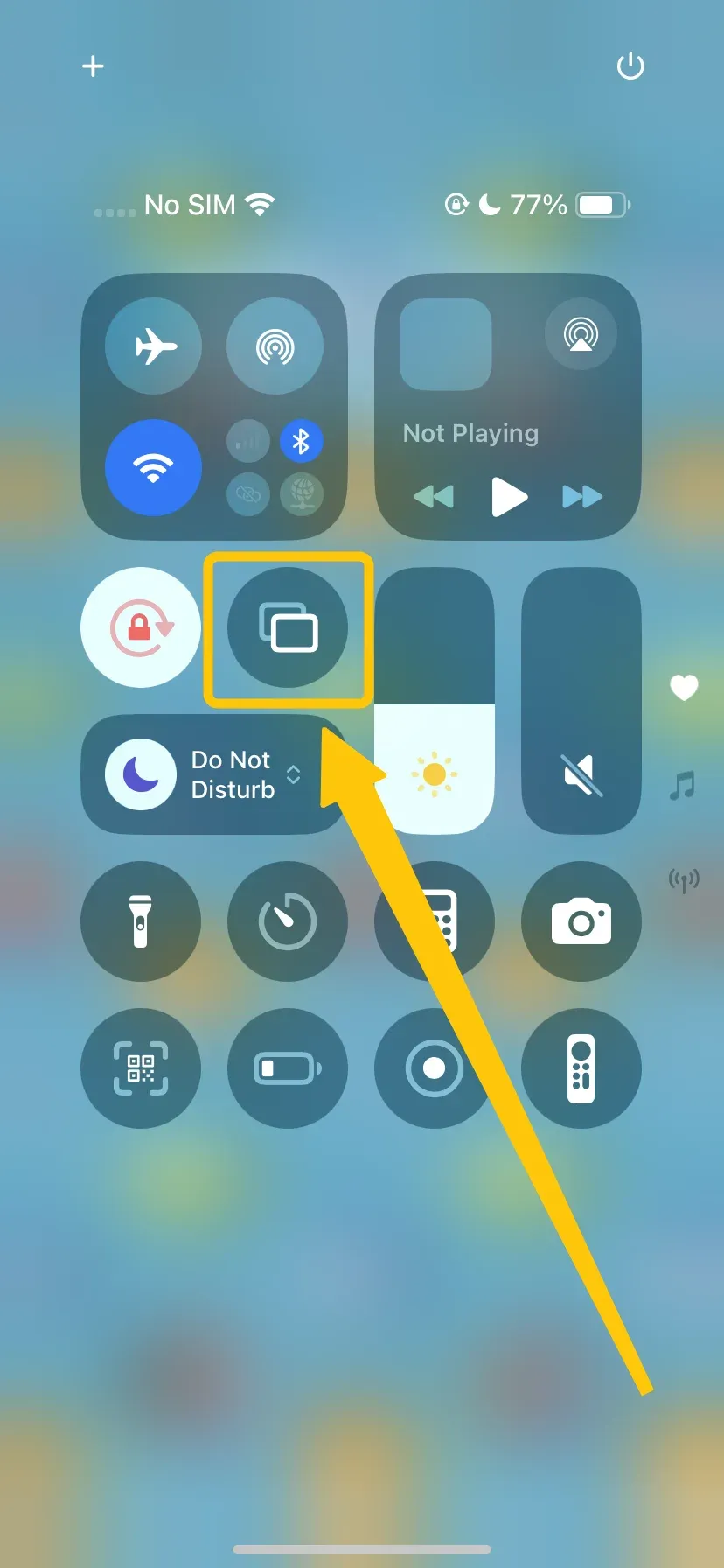
Step 3. Select the TV, Mac, speaker, or other AirPlay receiver you want to connect to.
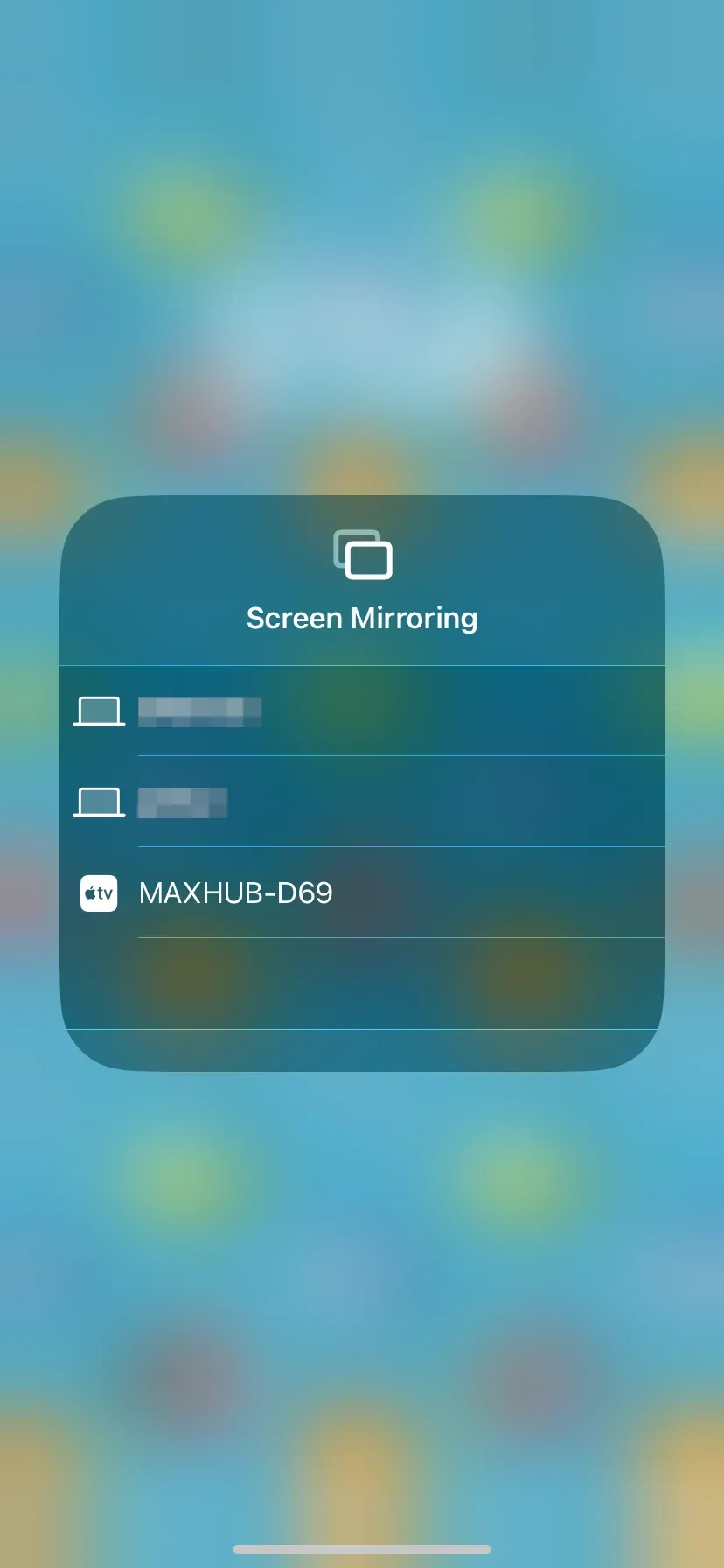
Step 4. If an AirPlay code appears on the receiving screen, enter it on your iPhone or iPad.
Once the connection is established, your device will begin sending the selected screen, media, or audio to the receiver.
How to Connect to AirPlay From Mac
The connection process on Mac is similar. You first open the relevant AirPlay control, then select the receiving device.
Step 1. Connect your Mac and AirPlay receiver to the same Wi-Fi network.
Step 2. Open Control Center from the menu bar.
Step 3. Select Screen Mirroring if you want to connect your Mac display to another screen.
For supported videos or other media, you may also see an AirPlay button directly inside the app or player.
Step 4. Select the available AirPlay receiver.
Step 5. Enter the code shown on the receiving screen if prompted.
After the connection is established, your Mac can send the selected content to the receiver.
To disconnect, return to the same Screen Mirroring or AirPlay control and stop the connection.
How to Connect to AirPlay From Non-Apple Devices
AirPlay is designed primarily for Apple devices, so Android phones, Windows PCs, and Chromebooks do not provide the same native AirPlay controls found on an iPhone, iPad, or Mac.
If you want to connect from a non-Apple device, you will usually need a third-party screen mirroring solution that supports cross-platform connections.
PigeonCast supports AirPlay alongside other casting and mirroring methods, making it possible to connect Android, Windows, Chromebook, and other supported devices to compatible receiving screens.
How to connect to AirPlay using PigeonCast:
Step 1. Open PigeonCast on both the sending device.
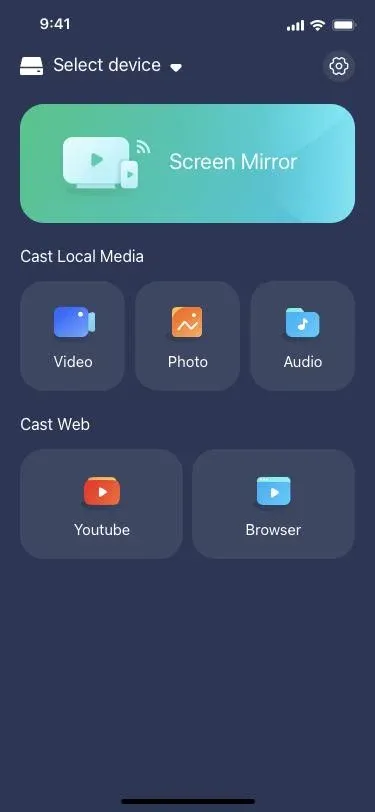
Step 2. Make sure both devices are connected to the same Wi-Fi network.
Step 3. Select the receiving device, or connect using the QR code shown on the receiver.
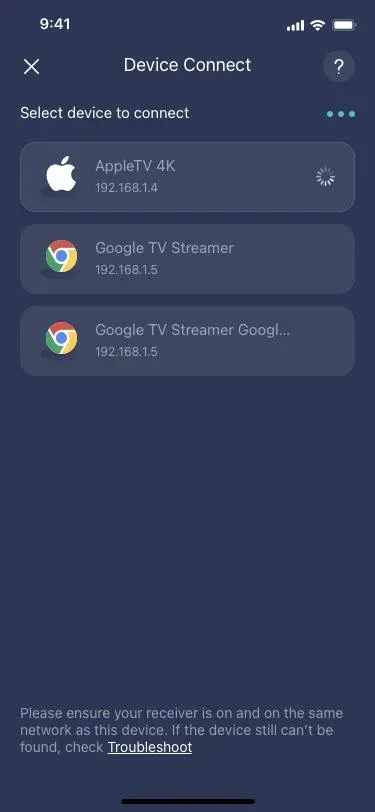
Step 4. Start screen mirroring.
This is also useful when the receiving screen itself does not support AirPlay natively. Instead of relying on built-in AirPlay compatibility, PigeonCast can provide another connection path between supported devices.
Why Can't I Connect to AirPlay?
If AirPlay does not connect, first identify whether the problem is with device discovery or the connection itself.
AirPlay Device Is Not Showing Up
If the receiver does not appear in the AirPlay list:
- Make sure both devices are turned on and nearby.
- Check that they are connected to the same Wi-Fi network.
- Confirm that AirPlay is enabled on the receiving device.
- Turn Wi-Fi off and back on if device discovery appears stuck.
- Restart both devices if the receiver still does not appear.
If other AirPlay receivers appear but one specific device does not, check whether that device actually supports AirPlay.
You Can See the Device but Can't Connect
If the receiver appears but the connection fails, try selecting it again and check the receiving screen for a permission request or AirPlay code.
If that does not work, restart both devices and reconnect them to Wi-Fi before trying again.
Receiver access settings can also limit which devices are allowed to connect.
AirPlay Keeps Asking for a Code
An AirPlay code is a normal security step on many receiving devices, especially during the first connection.
Enter the code shown on the TV or receiving screen into your iPhone, iPad, or Mac.
If you are repeatedly asked for a code, check the AirPlay security or access settings on the receiver.
AirPlay Keeps Disconnecting
Frequent AirPlay disconnections are often related to the network or receiver.
Make sure both devices have a stable Wi-Fi connection and are within reasonable range of the router. Restarting the sender and receiver can also help clear temporary connection problems.
AirPlay Connects but Content Doesn't Appear
If AirPlay says it is connected but a specific video or app does not display correctly, test another piece of content first.
If AirPlay works elsewhere, the issue may come from the app or content itself rather than the connection. Some services restrict mirroring or external playback.
Conclusion
Connecting to AirPlay usually comes down to four steps: prepare the receiver, open the AirPlay controls on your iPhone, iPad, or Mac, select the destination, and enter a code if required.
If the receiving device supports AirPlay, it should appear directly in the available device list. If it does not support AirPlay natively, a compatible receiver solution such as PigeonCast may provide another way to connect.
For detailed instructions on what you can do after connecting—including screen mirroring, video, photos, and audio—continue with our complete how to use AirPlay guide.
How to Connect to AirPlay FAQ
Do I need an Apple TV to connect to AirPlay?
No. Apple TV is one common AirPlay receiver, but many smart TVs, Macs, speakers, and other supported devices can also receive AirPlay directly.
Why can't I find the AirPlay button on my iPhone?
There is no single permanent AirPlay button on the iPhone home screen. For full-screen sharing, open Control Center and select Screen Mirroring. For supported media, the AirPlay icon usually appears inside the app or playback controls.
Why does my TV not appear in Screen Mirroring?
The TV may have AirPlay turned off, may be connected to another network, or may not support AirPlay. Check the TV's AirPlay and Wi-Fi settings first.
Can I connect AirPlay without Wi-Fi?
AirPlay is normally easiest and most reliable when both devices are connected to the same Wi-Fi network. Some Apple devices support peer-to-peer AirPlay in specific setups, but this is not the standard connection method for most users.
Why can I see an AirPlay device but not connect to it?
This usually means discovery is working but the connection is being blocked by a network issue, receiver permission, security code, or temporary device problem. Check the receiver screen for prompts, then restart both devices if necessary.
Can I connect AirPlay to a Windows PC or Android TV?
Windows PCs and Android TVs do not always provide native AirPlay receiving support. If the device cannot receive AirPlay directly, you may need a compatible receiver app or a cross-platform screen mirroring solution such as PigeonCast.
Clara Rossi is an experienced technology editor and a seasoned expert in screen mirroring and casting technologies. With a keen eye for detail and a deep understanding of how to seamlessly connect devices, Clara excels at optimizing user experiences for effortless sharing and streaming. Whether you're seeking quick fixes or advanced tips, her expertise and responsiveness ensure that every query is met with a well-informed and efficient solution.