
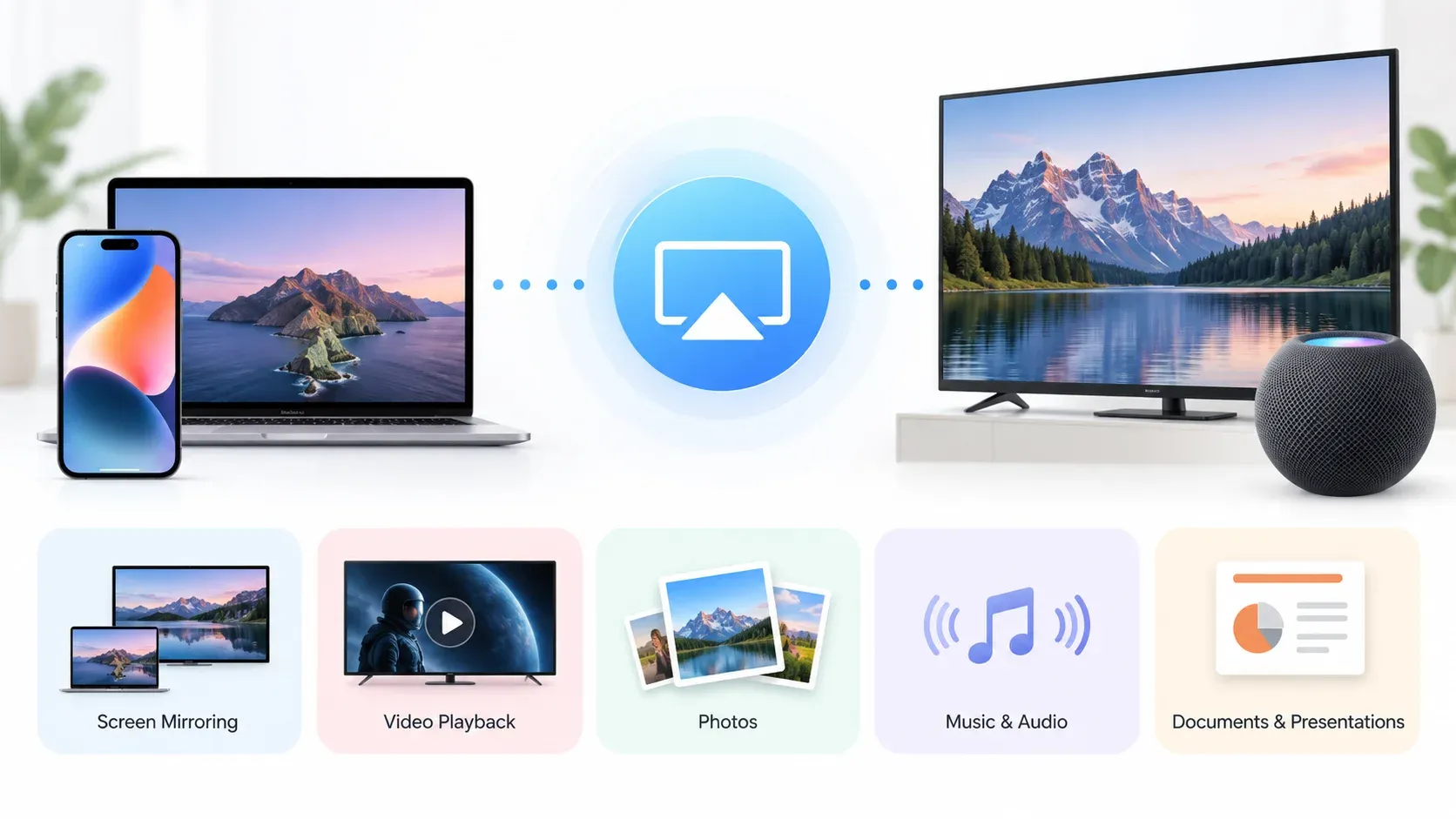
AirPlay gives you several ways to share content from an iPhone, iPad, or Mac with another screen or speaker. You can mirror your entire screen, stream a video, show photos, play music, or put a document and presentation on a larger display.
The important part is choosing the right AirPlay method for what you want to share.
Screen Mirroring copies everything on your device to another screen. The AirPlay button inside a supported app, on the other hand, sends only the video, photo, or audio you are playing.
This guide explains how to use AirPlay for each of these common situations and what to do when native AirPlay is not available. For a complete overview of AirPlay, including compatibility, setup, and troubleshooting, see our AirPlay guide.
How to Use AirPlay: Choose What You Want to Share
You do not need to use AirPlay the same way for every type of content.
| What you want to share | Best AirPlay method |
|---|---|
| Entire iPhone, iPad, or Mac screen | Screen Mirroring |
| Video or movie | AirPlay button in the video player |
| Photos | AirPlay from Photos |
| Music or other audio | AirPlay audio output |
| PDF, presentation, webpage, or document | Screen Mirroring |
Before you begin, make sure the sending device and receiver are ready for AirPlay. In most home setups, both devices should be connected to the same Wi-Fi network, and the TV or other receiver needs to support AirPlay.
If you are mainly trying to figure out how to find a receiving device and start the connection from your iPhone, iPad, or Mac, see our guide on how to connect to AirPlay.
How to AirPlay Your Screen
Screen Mirroring is the most flexible way to use AirPlay because it displays almost everything you see on your device.
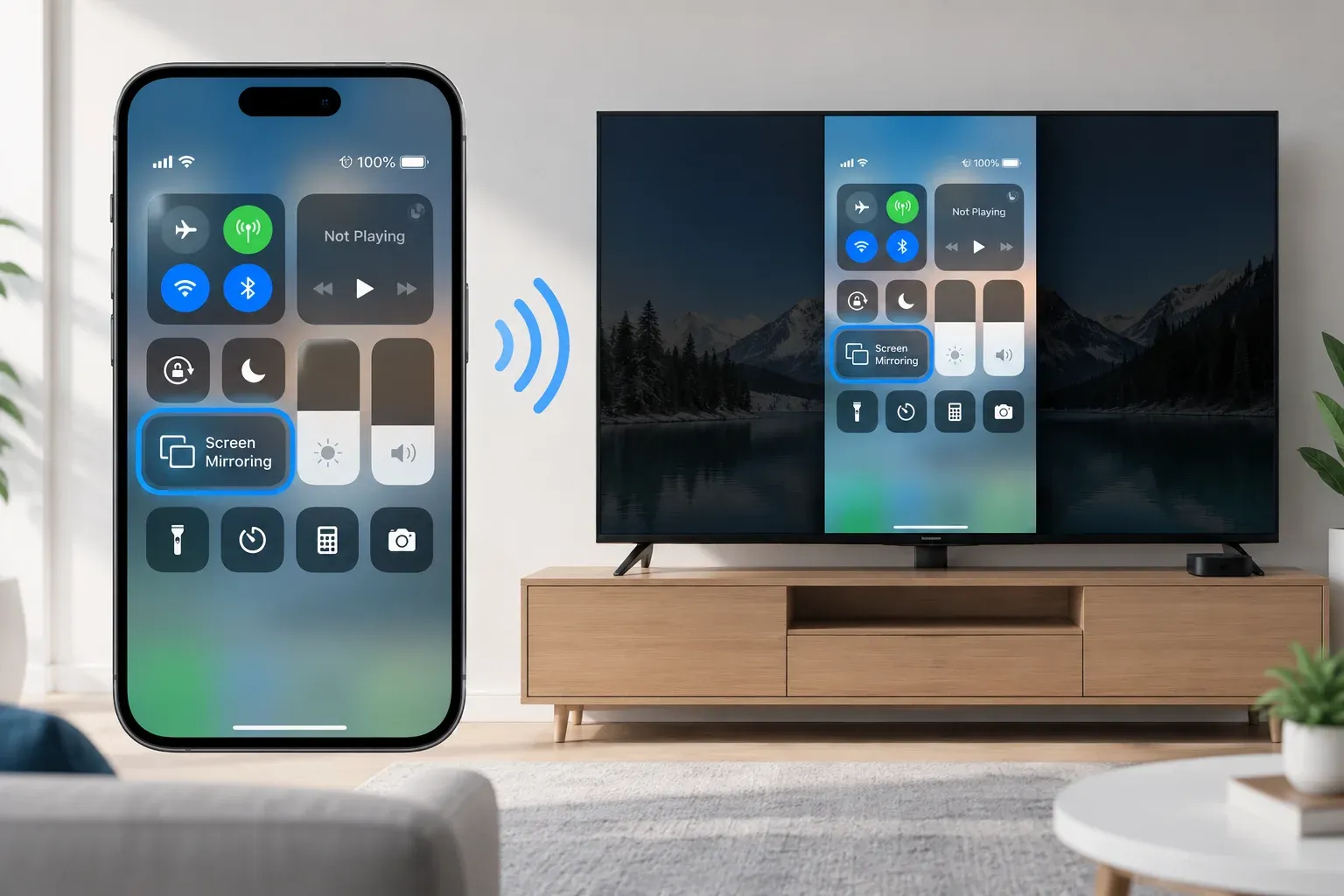
It works well when you want to demonstrate an app, browse a website on a larger display, show a presentation, display a document, or share content that does not have its own AirPlay button.
Mirror an iPhone or iPad Screen
On an iPhone or iPad:
Step 1. Open Control Center.
Step 2. Tap Screen Mirroring.
Step 3. Choose the TV, Apple TV, Mac, or other available AirPlay receiver.
Your iPhone or iPad screen will then appear on the receiving display.
Anything you open, scroll through, or rotate on the device will also be reflected on the larger screen until you stop mirroring.
Mirror a Mac Screen
On a Mac:
Step 1. Open Control Center from the menu bar.
Step 2. Click Screen Mirroring.
Step 3. Select the AirPlay-compatible display you want to use.
Depending on your Mac and display setup, AirPlay can be useful for giving presentations, sharing a browser window, watching content on a larger display, or using another screen as part of your workspace.
If the receiving device does not appear in the list, that is usually a connection or compatibility issue rather than a Screen Mirroring problem. Check the AirPlay connection guide before changing how you mirror the screen.
How to AirPlay Videos
When you only want to watch a video on another screen, direct AirPlay is usually better than mirroring your entire display.
With direct AirPlay, the video is sent to the receiving device while your iPhone, iPad, or Mac remains the playback controller.
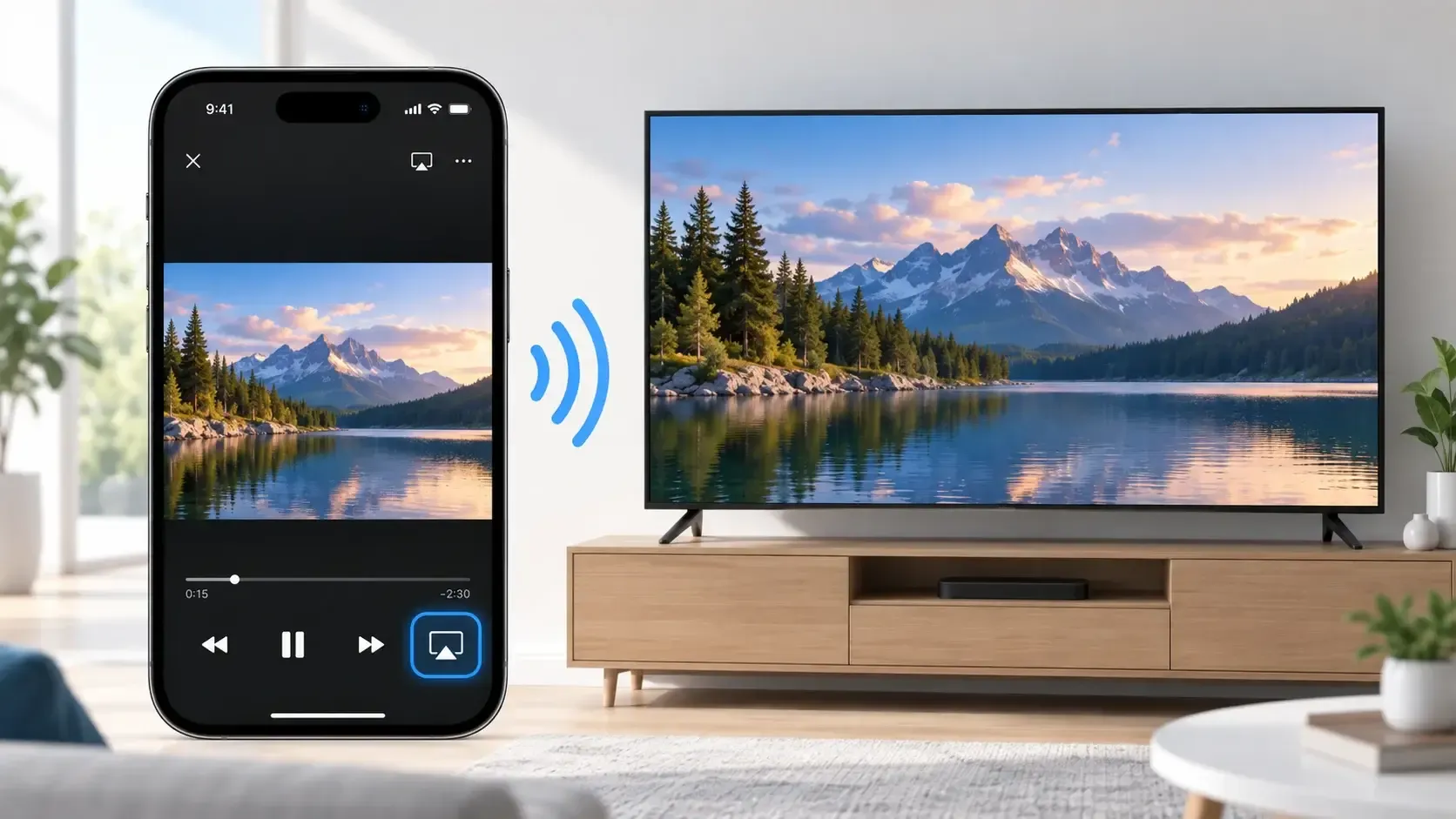
A typical video AirPlay flow is:
Step 1. Open the video in a supported app or player.
Step 2. Tap or click the AirPlay button in the playback controls.
Step 3. Select your TV, Apple TV, Mac, or another compatible receiver.
Step 4. Control playback from the sending device.
This keeps the rest of your screen private and avoids displaying notifications or other apps on the TV.
Not every video player provides an AirPlay button. If one is unavailable, Screen Mirroring may be another option, although some protected streaming content may limit mirroring.
For the differences between direct AirPlay and screen mirroring, plus steps for iPhone, iPad, and Mac, see our complete guide on how to AirPlay video.
How to AirPlay Photos
AirPlay is also useful when you want to show photos on a TV rather than passing your phone around. For example, you might use it for vacation photos, family albums, event pictures, work images, and photo slideshows.
On an iPhone or iPad:
Step 1. Open Photos.
Step 2. Select the photo you want to display.
Step 3. Tap the Share button.
Step 4. Choose AirPlay.
Step 5. Select the receiving device.
You can then move between photos from your phone while viewing them on the larger screen.
If you want to show an entire album or use a Mac instead, see how to AirPlay photos to TV for the more detailed photo-specific methods.
How to AirPlay Music and Audio
AirPlay does not require a screen at all. It can also send audio from an Apple device to compatible speakers, TVs, Macs, Apple TV, HomePod, and other AirPlay-enabled audio devices. You can use it for music, podcasts, audiobooks, and other supported audio apps.
Start playing the audio on your iPhone, iPad, or Mac, open the playback controls, then choose the AirPlay or audio output option and select the receiver you want to use.
Unlike Screen Mirroring, this sends the audio output rather than everything happening on your screen.
This is especially useful when your music is stored or controlled on your phone but you want to listen through a TV or larger speaker system.
If Apple Music is your main use case and you specifically want to listen through a television, our guide on how to play Apple Music on TV covers the available TV playback methods in more detail.
How to AirPlay Documents, PDFs, and Presentations
Documents work a little differently from video, photos, and audio.
A PDF, PowerPoint presentation, spreadsheet, webpage, or other document usually does not need a dedicated AirPlay option. Instead, Screen Mirroring is the most universal method.
First start Screen Mirroring from your iPhone, iPad, or Mac, then open the document normally.
This works well for PDF files, PowerPoint or Keynote presentations, Word documents, spreadsheets, webpages, notes, and teaching materials.
For presentations, you can keep controlling the content from the sending device while the audience views it on the larger screen. Because you are mirroring the display, remember that notifications or other content you open may also appear on the receiving screen.
Screen Mirroring vs AirPlay: Which Should You Use?
Although Screen Mirroring uses AirPlay technology, the two terms are often used to describe slightly different ways of sharing content.
Use Screen Mirroring when:
- you want to show your entire screen
- the content does not have an AirPlay button
- you are presenting an app, webpage, or document
- you need viewers to see exactly what you see
Use direct AirPlay when:
- you only want to play a video
- you only want to send photos or audio
- the app provides a built-in AirPlay option
- you do not want the rest of your screen visible
For video and audio in particular, using the AirPlay control inside the app is usually the cleaner experience when that option is available.
How to Stop Using AirPlay
How you stop AirPlay depends on how you started it.
If you are mirroring an iPhone or iPad screen, go through Control Center > Screen Mirroring > Stop Mirroring.
On Mac, return to Control Center > Screen Mirroring and disconnect from the current display.
If you are streaming video or audio directly, open the AirPlay controls again and switch playback back to your current device.
This only ends the current AirPlay session. If you want to disable AirPlay, stop automatic connections, or change how your device uses AirPlay in the future, see how to turn off AirPlay.
What If AirPlay Is Restricted
Sometimes AirPlay or Screen Mirroring is available in theory but cannot be used because of device settings or restrictions.
For example, Screen Time, managed-device policies, receiver permissions, or other AirPlay settings may prevent mirroring or limit who can connect.
If your devices support AirPlay but the option is restricted, see how to turn off AirPlay restrictions for the settings worth checking.
How to Mirror When AirPlay Isn't Available
AirPlay works best inside an AirPlay-compatible setup. But the screen you want to use may not always support AirPlay natively.
For example, you may want to mirror content from an iPhone to a Windows PC or use a TV setup where native AirPlay is unavailable.
In these situations, PigeonCast provides a cross-platform screen mirroring option instead of relying entirely on AirPlay support from the receiver.

A typical connection works like this:
Step 1. Open PigeonCast on the sending device and supported receiver.


Overall Rating:


Step 2. Make sure both devices are on the same network.
Step 3. Select the receiving device and complete the connection.
Step 4. Start Screen Mirror, then open the video, photo, document, app, or other content you want to display.
This makes PigeonCast particularly useful when the task is still the same—showing content on another screen—but the devices do not fit into a native AirPlay setup.
Conclusion
The easiest way to use AirPlay depends on what you want to share.
Use Screen Mirroring when you need to display your full iPhone, iPad, or Mac screen, including apps, websites, documents, and presentations. For individual videos, photos, or music, use the AirPlay option inside the app when one is available.
Once you separate these two methods, AirPlay becomes much easier to use: choose the content first, then choose the sharing method that fits it.
And when the receiving screen does not support AirPlay, a cross-platform mirroring option such as PigeonCast can provide another way to put the same content on a larger display.
How to Use AirPlay FAQ
Can you AirPlay anything from an iPhone?
You can mirror most of what appears on an iPhone using Screen Mirroring, while supported apps can send video, photos, and audio directly through AirPlay. Some protected or DRM-controlled content may restrict screen mirroring or external playback.
Is Screen Mirroring the same as AirPlay?
Screen Mirroring is one way of using AirPlay. It copies your entire display to another screen. AirPlay can also stream individual videos, photos, or audio without mirroring everything shown on your device.
Should I use AirPlay or Screen Mirroring for video?
Use the AirPlay button inside the video player when the app supports it. This sends only the video and generally provides a cleaner viewing experience. Screen Mirroring is more useful when the app does not offer direct AirPlay or when you need to show other content alongside the video.
Can I use my iPhone while AirPlaying?
It depends on the method. When you directly AirPlay supported video or audio, you can often continue using your device as a controller. With Screen Mirroring, however, whatever appears on your iPhone is also visible on the receiving screen.
Do I need Apple TV to use AirPlay?
No. Apple TV supports AirPlay, but many compatible smart TVs, Macs, speakers, and other receivers can also work with AirPlay. The available functions depend on the receiving device.
What should I do if my device does not appear in AirPlay?
First check that the receiver supports AirPlay, AirPlay is enabled, and both devices are available on the appropriate network. If the receiver still does not appear, follow the dedicated AirPlay connection steps rather than repeatedly restarting Screen Mirroring.
Clara Rossi is an experienced technology editor and a seasoned expert in screen mirroring and casting technologies. With a keen eye for detail and a deep understanding of how to seamlessly connect devices, Clara excels at optimizing user experiences for effortless sharing and streaming. Whether you're seeking quick fixes or advanced tips, her expertise and responsiveness ensure that every query is met with a well-informed and efficient solution.