
If you've ever wanted to stream a video from your iPhone to your TV or play music from your Mac on a speaker, you've likely looked for the AirPlay icon. What does the AirPlay icon look like? This simple symbol is your gateway to Apple's wireless streaming magic, but its appearance can vary slightly depending on where you find it. Let's demystify this icon once and for all.
What Is the AirPlay Icon
The AirPlay symbol represents Apple's official wireless streaming technology, enabling you to send audio, video, photos, and even your entire device screen from an Apple product to AirPlay-compatible receivers like Apple TV, smart TVs, and speakers. Essentially, it's Apple's version of "casting".
Recognizing this Apple AirPlay logo is the first step toward enjoying a smooth, multi-screen experience. While the core design of the icon remains the same, understanding the different contexts in which it appears will help you master its use and become an AirPlay pro.
What Does AirPlay Icon Look Like
The AirPlay icon is a simple triangle inside a rectangle, resembling a play button on a screen. It signals "play this on another screen". The icon may look different depending on the device or app you're using. Understanding where to find it, and how to know if screen mirroring is on will help you make the most of AirPlay across your Apple devices.
#1. AirPlay Icon on iPhone and iPad
Where is the AirPlay icon? On your iPhone or iPad, it serves as your control hub for wireless output. You'll typically find it in two primary locations with slightly different functions.
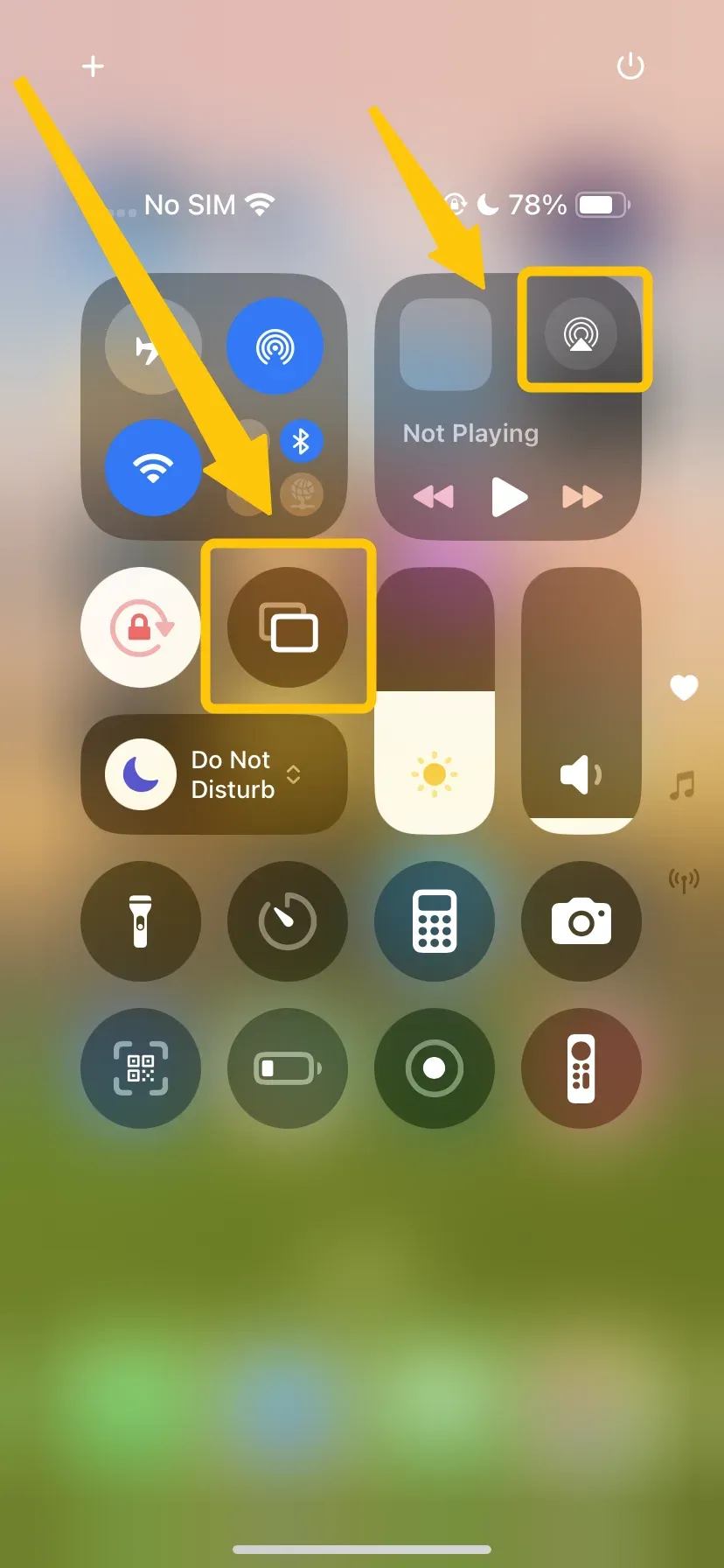
- First, in Control Center, you'll discover it in two places: in the audio playback widget (where it appears as a triangle with sound waves) for routing all audio, and in the Screen Mirroring tile (which may show two overlapping rectangles) for displaying your entire screen.

- Second, within supported apps like Apple Music, Photos, or video players, you'll see the classic triangle-in-rectangle icon that lets you stream specific content directly from that app.
#2. AirPlay Icon on Mac
AirPlay icon on MacBook is seamless but presents through slightly different interfaces. The icon maintains the same recognizable design but appears in macOS-specific locations.
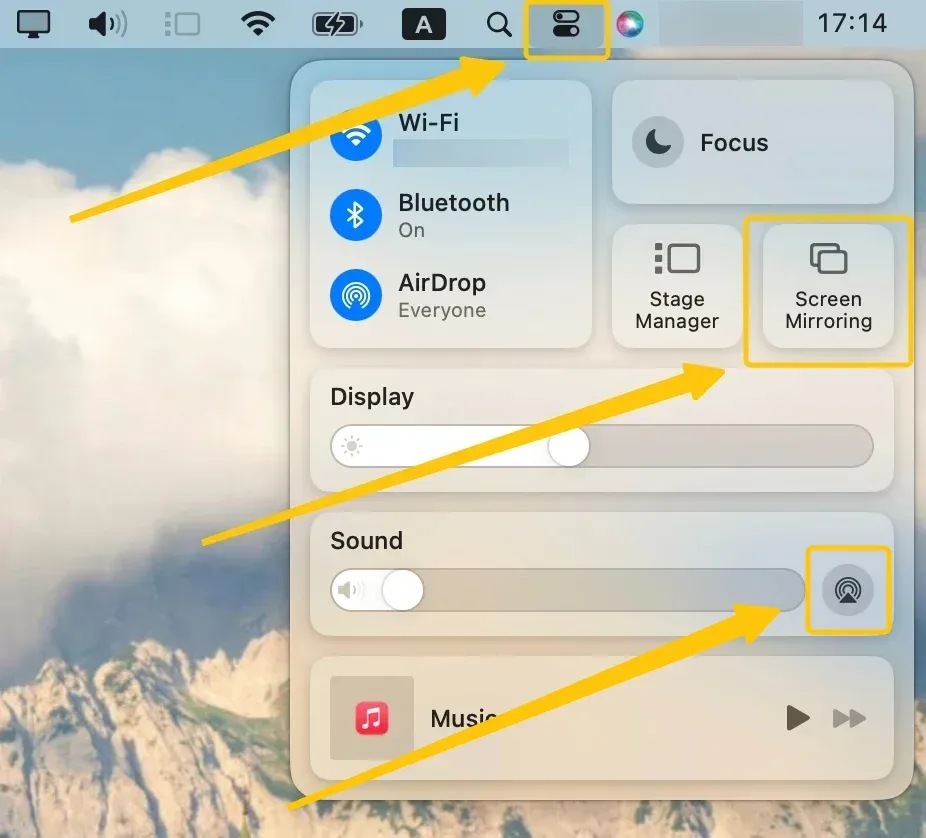
- You'll most consistently find AirPlay controls in your menu bar. Click the Control Center icon or the sound/speaker icon, and you'll see the AirPlay symbol in the Sound or Display sections.

- Additionally, media apps like Apple TV, Music, or QuickTime Player feature the icon in their playback controls. When actively using AirPlay for display mirroring, you might also see the icon in your menu bar with a filled-in appearance indicating an active connection.
Ditch the AirPlay Icon and Try PigeonCast Today
Tired of finding the AirPlay icon, or seeing that AirPlay icon grayed out when you try to cast to a non-Apple TV? Or maybe you're just done with the constant compatibility hunt between your Android, Windows laptop, and the living room screen. There's a simpler, more universal way to connect.
If your screen mirroring experience feels limited by brand-specific ecosystems, it's time to break free. PigeonCast is emerging as the powerful, cross-platform alternative that makes casting as easy as tapping a button, no matter what devices are in the mix.

Step 1. Ensure your iPhone/iPad/Mac and Android TV are covered by the same wireless network.


Overall Rating:



Step 2. Install PigeonCast on your Apple device from the App Store, and install PigeonCast on Android TV from the app store.
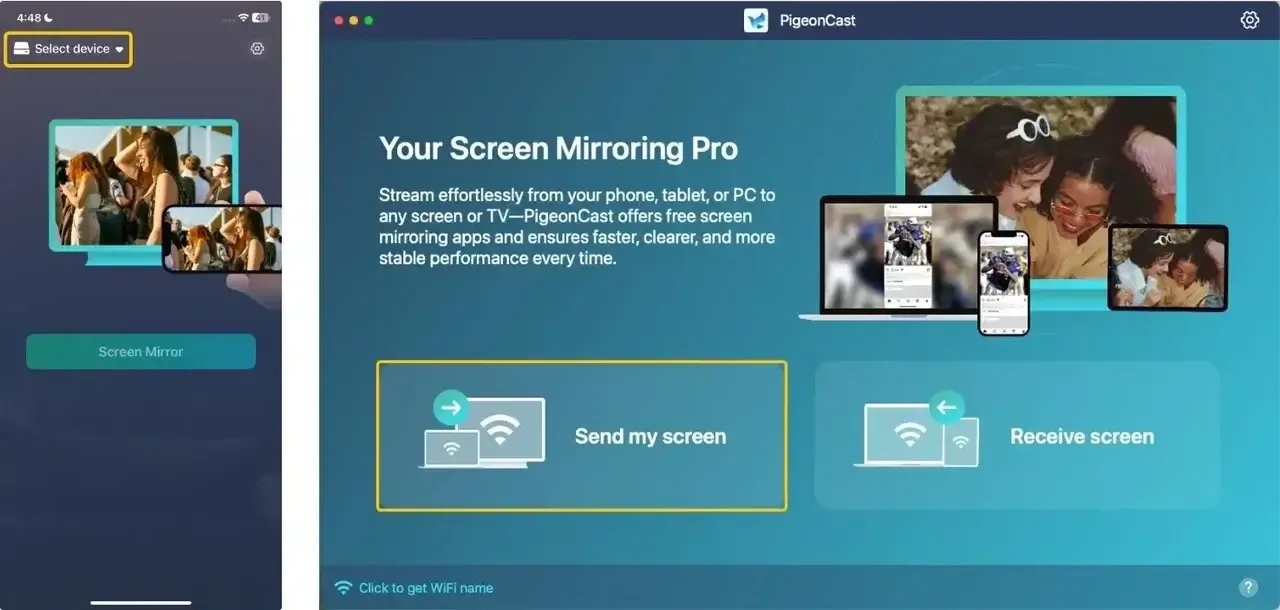
Step 3. Launch the app, tap Select device or Send my screen to choose your Android TV from the available list.
Step 4. Enter the onscreen PIN code to confirm the pairing process.
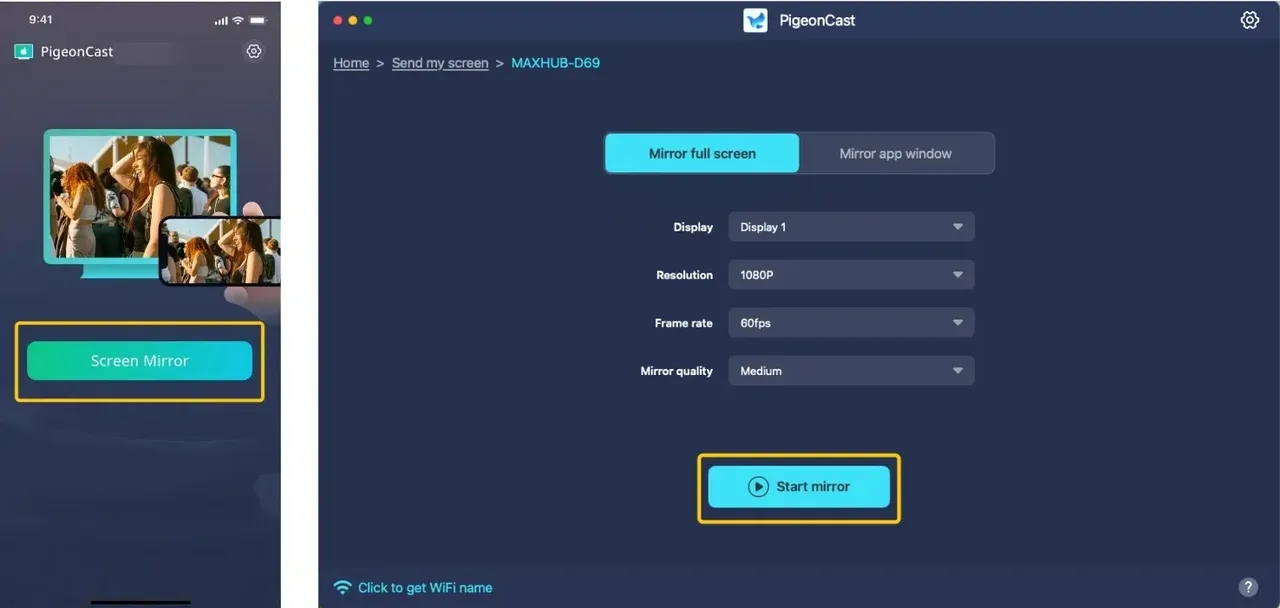
Step 5. When you finish the connection, tap Screen Mirror or Start mirror to start your mirroring activities. (If you use a Mac, you can choose either to screen the full screen or just a single app window)
Bottom Line
What does the Apple AirPlay icon look like? The AirPlay icon is your gateway to effortlessly streaming audio, video, and photos across devices. While the core design remains simple, its appearance can vary depending on the device or app you're using. Understanding where to find it, whether on an iPhone, iPad, or Mac, will help you make the most of AirPlay's wireless capabilities. Plus, with the help of third-party apps like the free PigeonCast, you can even extend AirPlay functionality to Android TVs or PCs, bridging the gap between different ecosystems.
What Does The AirPlay Icon Look Like FAQ
How to tell if AirPlay is on?
An active AirPlay connection is usually clearly indicated. The AirPlay icon will change from an outline to a filled-in or highlighted state, often turning blue. On iPhones and iPads, you might also see a blue AirPlay indicator in the status bar. On the receiving end, your TV or speaker will typically display the name of the connected device or an AirPlay symbol to confirm the active stream.
How do I get AirPlay 2?
AirPlay 2 is the enhanced version that supports multi-room audio and improved performance. To access it, you need compatible hardware and software. For your Apple devices, ensure they're running the latest supported version of iOS, iPadOS, or macOS. For receivers, you need an AirPlay 2-certified device like a HomePod, Apple TV 4K, or newer smart TVs that explicitly advertise AirPlay 2 support.
How to Turn Off AirPlay?
Disconnecting from AirPlay is straightforward. Simply tap or click the AirPlay icon again and select "iPhone", "iPad", "Mac" or your device's built-in speakers from the list. Alternatively, you can stop playback on the content itself, or switch inputs on your TV. The connection will typically time out after a period of inactivity if not manually disconnected.
Clara Rossi is an experienced technology editor and a seasoned expert in screen mirroring and casting technologies. With a keen eye for detail and a deep understanding of how to seamlessly connect devices, Clara excels at optimizing user experiences for effortless sharing and streaming. Whether you're seeking quick fixes or advanced tips, her expertise and responsiveness ensure that every query is met with a well-informed and efficient solution.