
Screen mirroring is a handy feature that allows you to share your smartphone or tablet's screen with a larger display, such as a TV or computer. But how to know if screen mirroring is on? Whether you're using an Android phone or an iPhone, it's essential to understand how to check this feature to avoid confusion or connectivity issues. This guide will walk you through the steps to determine if screen mirroring is active on both Android and iPhone, and offer tips for a smoother experience.
How to Know If Screen Mirroring Is On
To begin, let's answer the key question: how to know if screen mirroring is on? There are different ways to check, depending on the device you're using. For both Android and iPhone, screen mirroring usually involves either a notification or a visual indicator that something is being mirrored to another screen. But these indicators might not always be obvious, so understanding how to recognize them is key.
How to Know If Screen Mirroring Is On iPhone
It is fairly straightforward to check whether screen mirroring is enabled on an iPhone. Follow these steps:
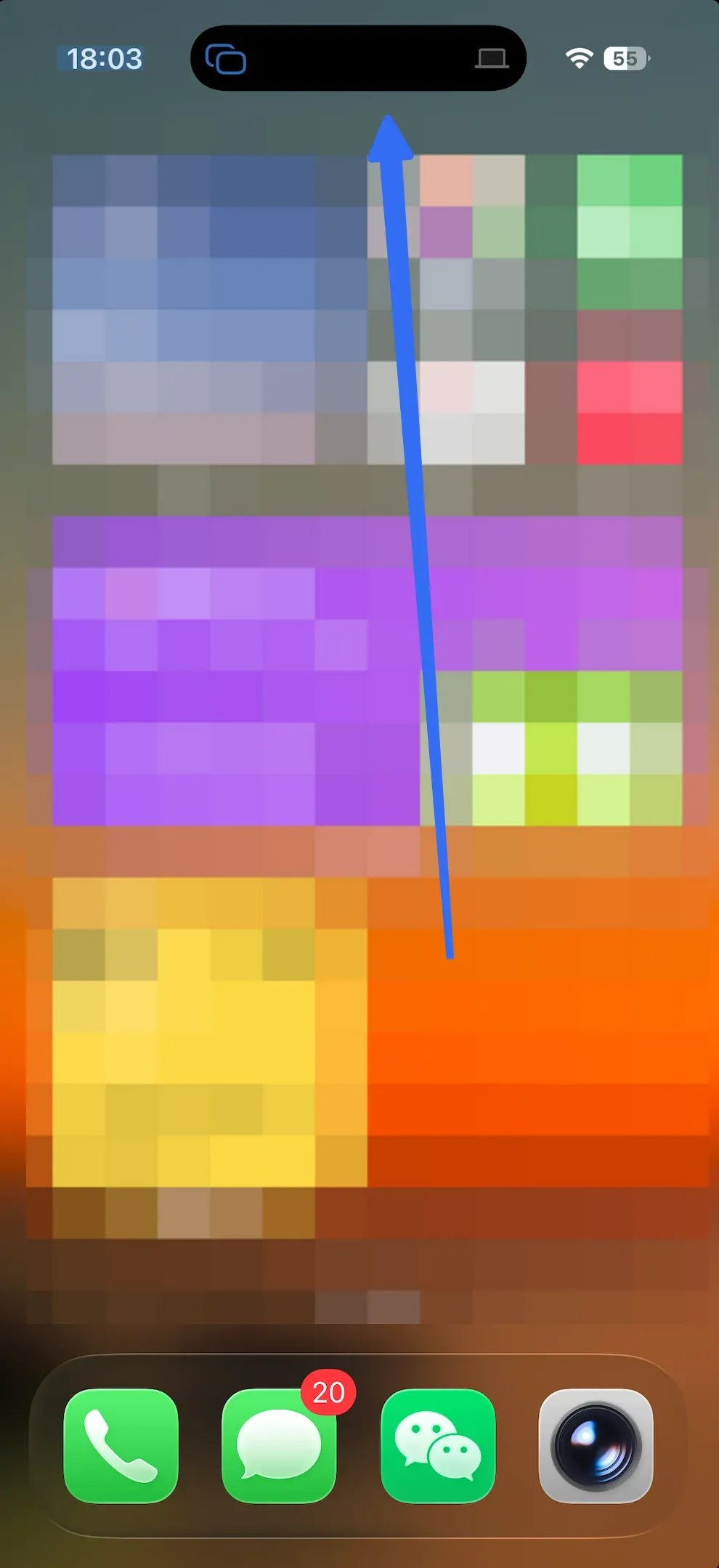
Option 1: Check the Dynamic Island.
Suppose your iPhone is being mirrored to a TV or another device. In that case, you'll see the screen mirroring icon (two overlapping rectangles) and the device icon displayed in Dynamic Island on new models, such as the iPhone 16.
Option 2: Check the Control Center
How to tell if your phone is mirrored? To quickly verify if screen mirroring is active on your iPhone, the Control Center is your go-to place. Swipe down from the top-right corner of the screen (iPhone X or newer) or swipe up from the bottom (for older models) to access the Control Center. There are many hints about active screen mirroring:
- Device icon next to the battery: If you're mirroring your iPhone to a Mac or another compatible device, you'll see a device icon next to the battery icon at the top of the screen. This indicates that your device is actively connected to another screen.
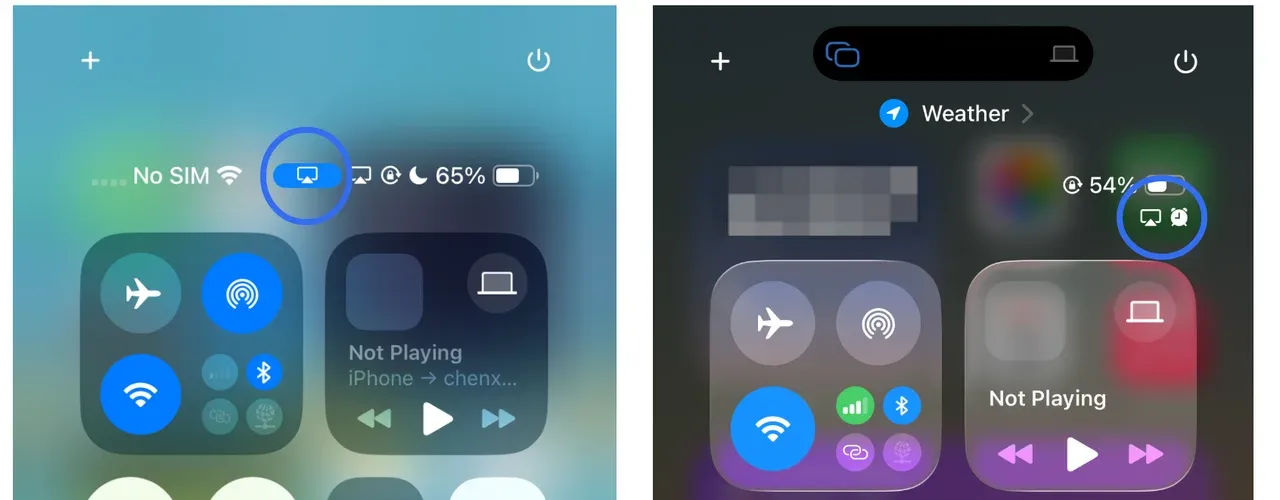
- Highlighted Screen Mirroring icon: When you're mirroring to an Apple TV or another AirPlay-compatible device, the Screen Mirroring icon (a rectangle with a triangle at the bottom) in the Control Center will be highlighted. This icon shows that your iPhone's screen is being mirrored to another device. Tap the icon and choose Stop Mirroring to turn off AirPlay directly.
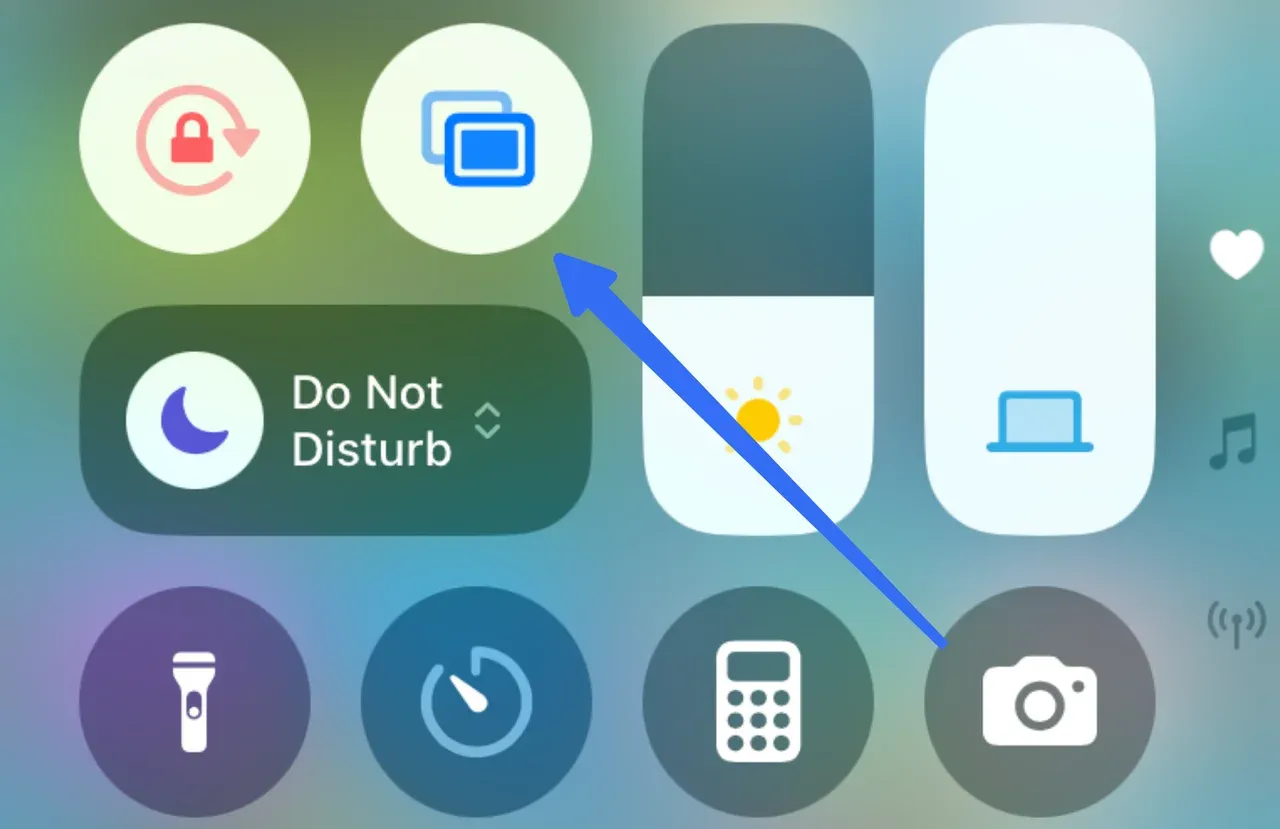
- Volume output shows the device icon: When screen mirroring is active, the volume output section of the Control Center will display an icon representing the device you're mirroring to. This icon indicates that the device is connected, confirming that your phone is mirroring to another screen. If you see the device icon here, screen mirroring is enabled.
Option 3: Check the Time
When screen mirroring is active on your iPhone, the time at the top of the screen will be highlighted in blue. This subtle visual cue confirms that screen mirroring is enabled, indicating that your iPhone is connected to another device.
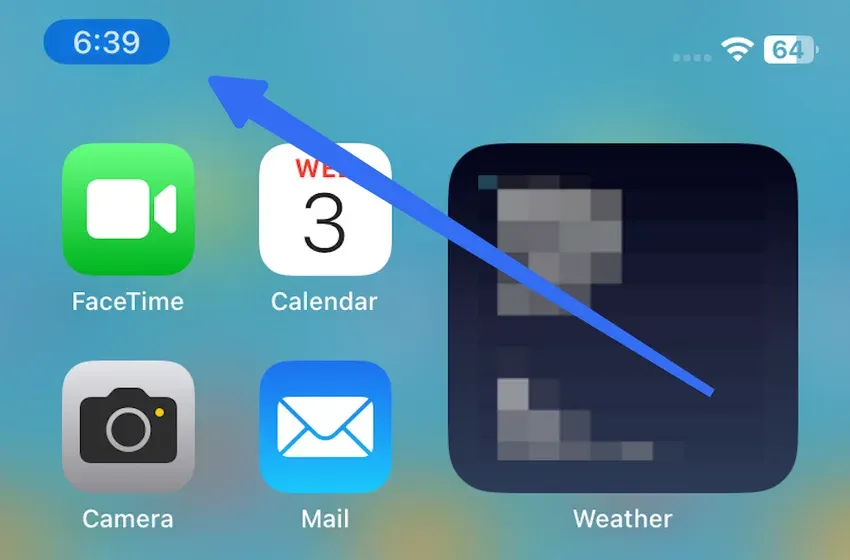
In addition to screen mirroring, the blue bubble may also appear when other background activities are running in the foreground, such as accessing your location or using SharePlay for media sharing. This feature helps you quickly identify when your device is actively engaged in any sharing or connectivity tasks.
How to Know if Screen Mirroring is On Android
For Android users, the process to check if screen mirroring is on is also simple but can vary slightly between brands and versions of Android. Here's how you can check:
Option 1: Check the Phone Screen
When screen mirroring is active on an Android phone, you'll notice a highlighted device icon or a blue bubble at the top left corner of the screen. This indicates that your Android phone is currently mirrored to a TV or another display.
Tapping on this icon will give you the option to quickly disconnect and stop mirroring your Android phone.
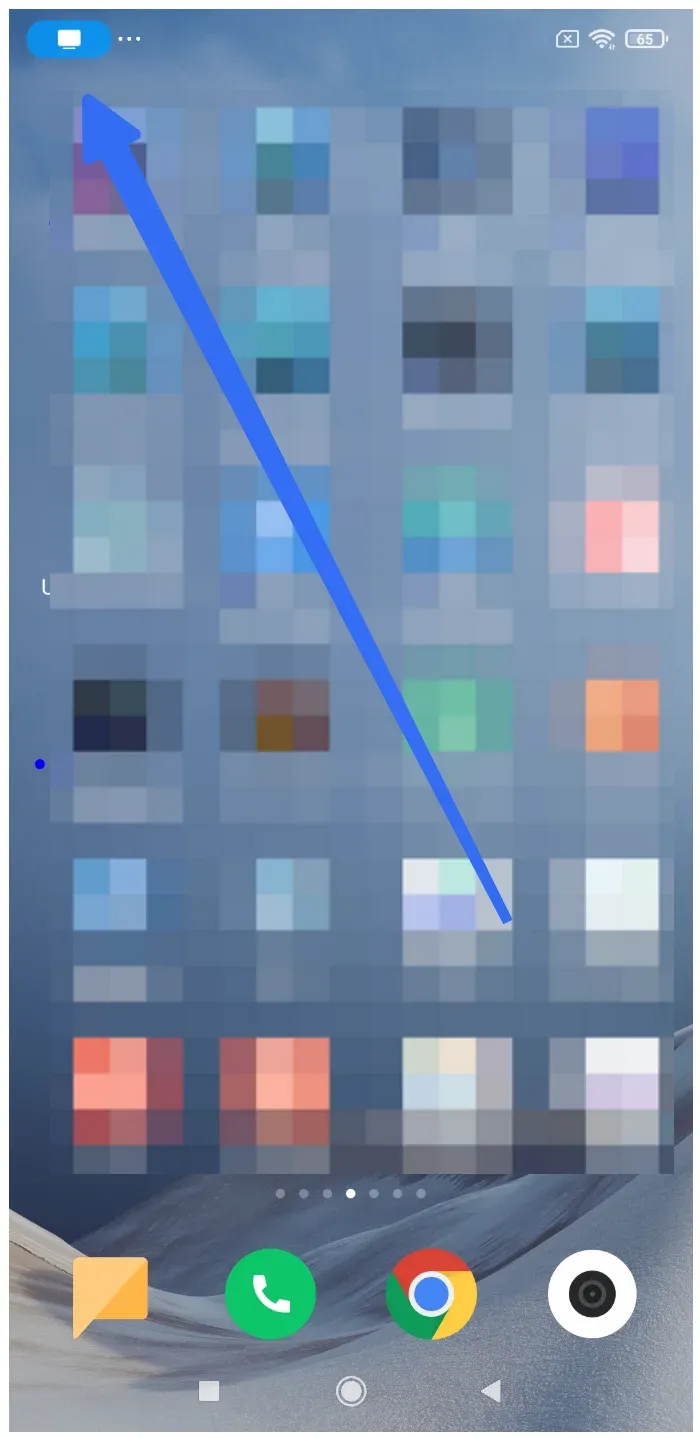
Option 2: Check the Control Panel
How to tell if your phone is mirrored? Similar to the iPhone, the Control Panel on Android devices provides several cues to indicate whether screen mirroring is active:
- Casting Notification: When screen mirroring is on, you'll see a notification indicating the casting process, along with the name of the device your Android phone is connected to.
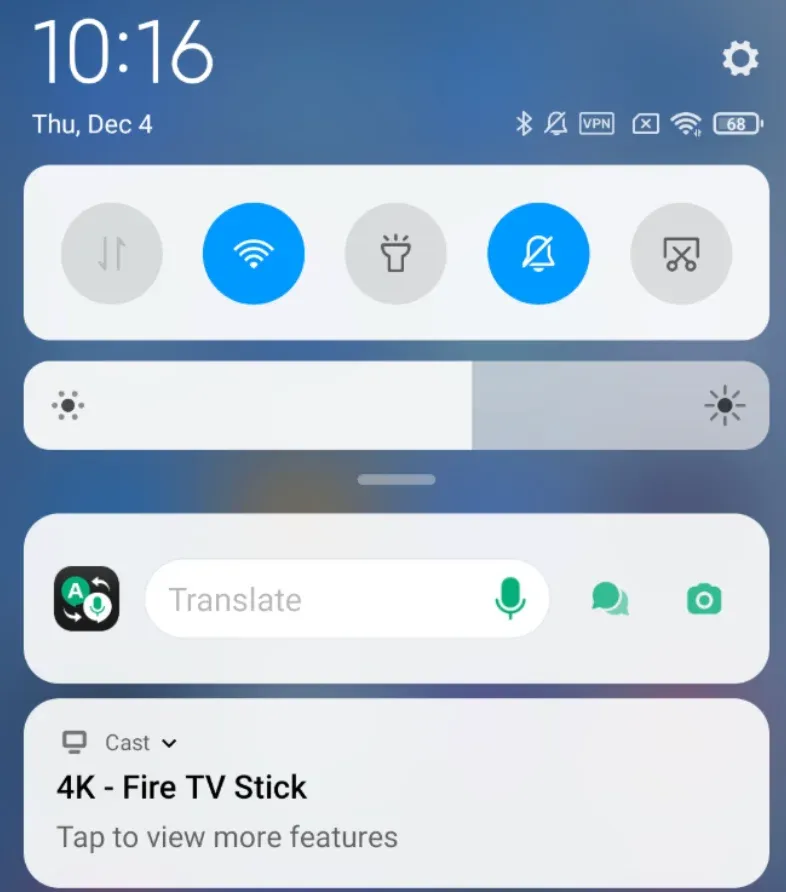
- Activated Cast Button: The Cast, Smart View, or Wireless Display button will be highlighted in the Control Panel, signaling that screen mirroring is enabled.
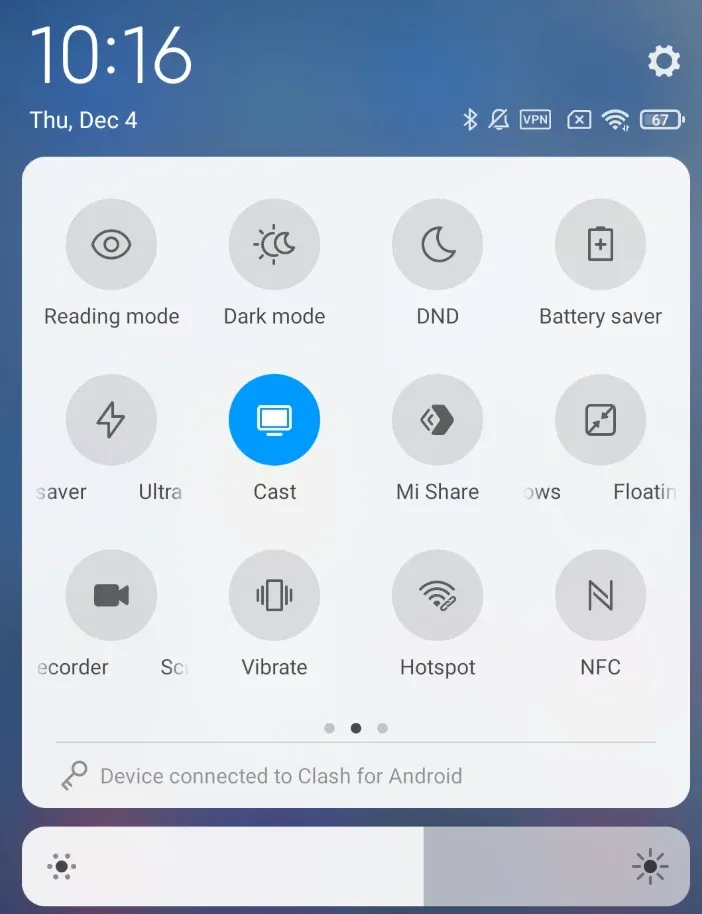
These visual indicators make it easy to check the status of your screen mirroring connection at a glance.
How to Ensure a Smooth Screen Mirroring Experience: PigeonCast as Your Solution
If you're looking for a more reliable and seamless way to manage screen mirroring, PigeonCast is a great tool to consider. It allows you to easily mirror your phone's screen to other devices like smart TVs and computers without the need for complicated setup or network configurations.

Whether you're using an iPhone or an Android phone, PigeonCast simplifies the process of screen mirroring by offering cross-platform support. This means you can connect your Android phone to an Apple TV, mirror your iPhone to a Windows computer, and much more, without worrying about device compatibility or connectivity issues.
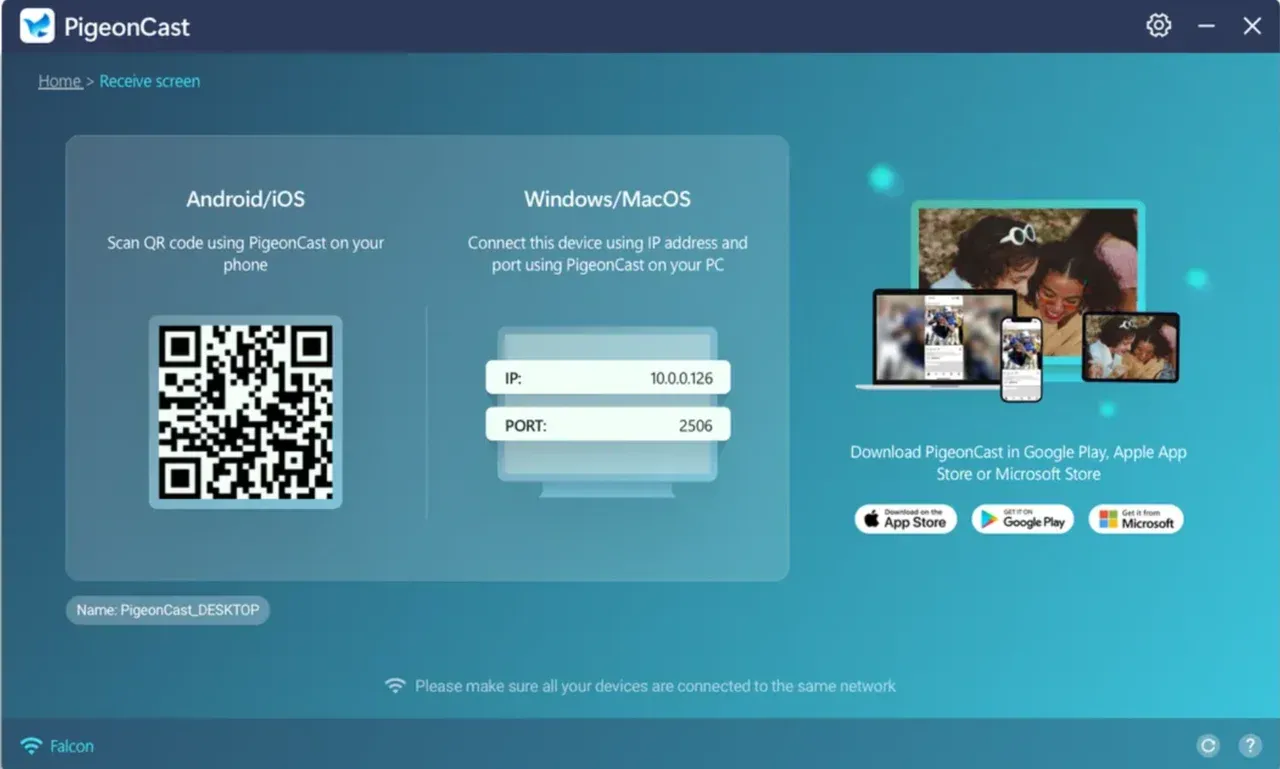
To get started, simply download PigeonCast on your phone and the device you wish to mirror to. Once installed, follow the easy steps to initiate the connection, and you're ready to enjoy screen mirroring in no time.


Overall Rating:



Conclusion
Knowing how to check if screen mirroring is on is important for ensuring a seamless experience, whether you're sharing content with friends, giving a presentation, or troubleshooting a connection. By following the simple steps outlined for both Android and iPhone, you can easily determine if screen mirroring is active.
And if you're looking for a versatile and user-friendly tool to make your screen mirroring experience even better, consider PigeonCast. It offers reliable performance across platforms, making it an ideal solution for both casual users and professionals alike.
Now that you know how to check if screen mirroring is on, you're all set to mirror your device with ease!
How to Know If Screen Mirroring Is On FAQs
How to know if someone is mirroring your phone?
If someone is mirroring your phone, you may notice a few key indicators:
- Control Center (iPhone): You'll see an AirPlay icon or device name in the Control Center.
- Status Bar (Android): A Cast icon will appear in the status bar if screen mirroring is active.
- Device Notifications: Some devices will send a notification indicating that your phone is being mirrored.
How do I make sure my screen mirroring is off?
- On iPhone: Open the Control Center, tap the Screen Mirroring icon, and select Stop Mirroring.
- On Android: Open the Control Panel, tap the Cast or Smart View button, and choose Disconnect or turn off the mirroring option.
Can other people see what I'm screen mirroring?
Yes, when you use screen mirroring, the content displayed on your phone will be shown on the connected device, such as a TV or computer. The mirrored content can be seen by anyone near the connected display.
Can screen mirroring be detected?
Yes, screen mirroring can typically be detected by both the device you're mirroring from and the device you're mirroring to. Your phone will show icons or notifications indicating that mirroring is active, and the receiving device may display a confirmation message or visual cue. Additionally, apps and certain settings can alert you when mirroring is in progress.
Mia Clarke is a technology editor specializing in screen mirroring and casting solutions across multiple platforms. Mia provides clear, practical guides and in-depth insights to help users seamlessly connect their devices. Passionate about enhancing digital experiences, Mia is dedicated to keeping readers updated on the latest trends and tools in cross-platform screen sharing. Whether you’re looking to mirror your smartphone, laptop, or smart TV, Mia’s content delivers reliable, user-friendly advice to simplify your tech setup.