
If you're experiencing issues with Disney Plus Chromecast not working, you're not the first one. Many users encounter problems when trying to cast content from Disney+ to their Chromecast-enabled TV. But don't worry; this comprehensive guide will walk you through a series of easy, practical solutions that will help you fix the issue and get back to enjoying your favorite shows and movies.
Fix 1: Check Your Wi-Fi Network Connection
One of the most common causes for Disney+ Chromecast not working is an unstable or mismatched Wi-Fi connection. For Disney Plus to work with Chromecast, both your Chromecast device and the device you're casting from (e.g., your phone or computer) must be on the same Wi-Fi network. If they aren't, you won't be able to cast content.
Follow the steps to ensure your devices are on the same network:
Step 1. Check your Chromecast.
Go to the Google Home app on your phone, select your Chromecast device, and verify the Wi-Fi network it's connected to.
Step 2. Check your phone or computer.
Ensure your phone or computer is connected to the same network as your Chromecast device.
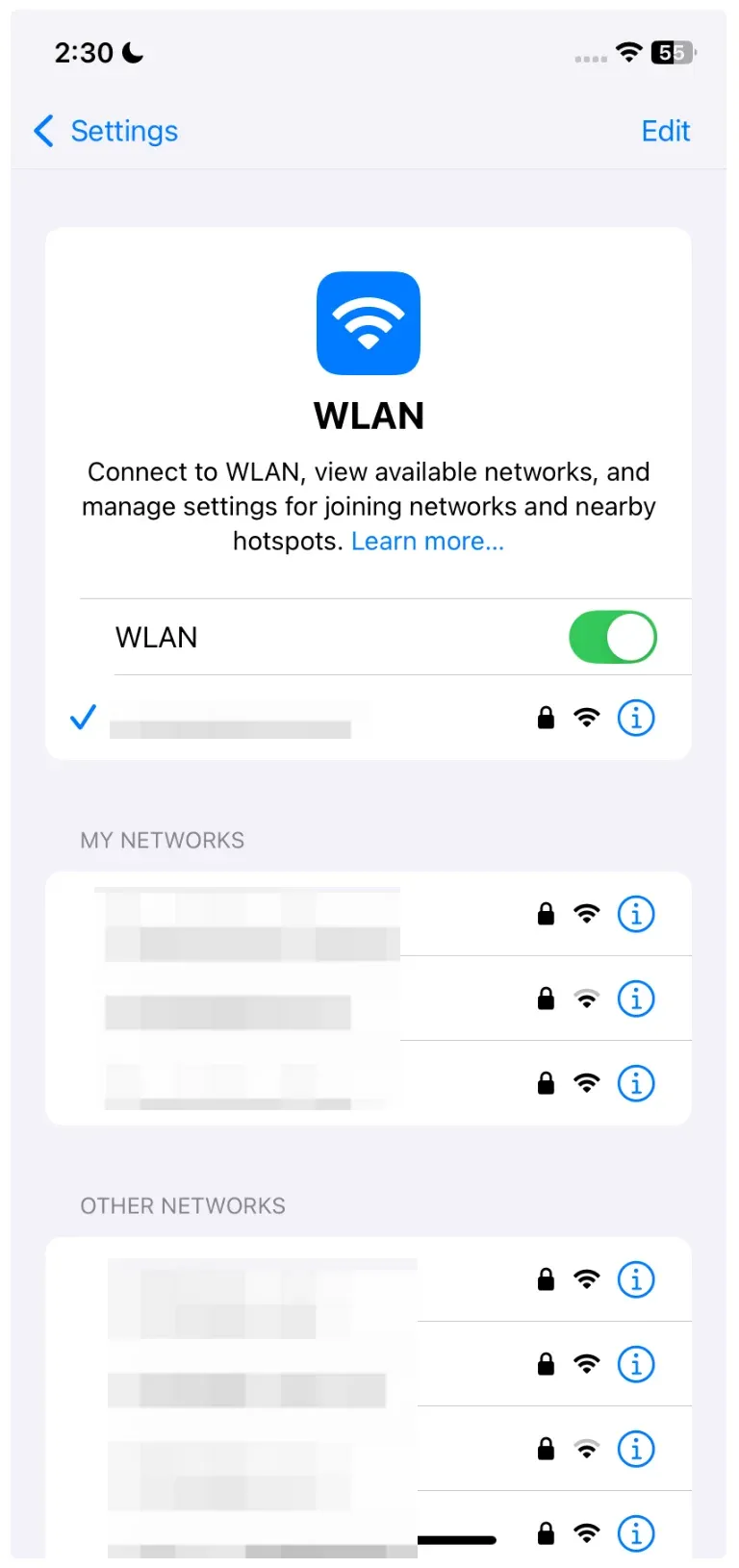
Step 3. Restart your router.
If your devices are on the same network but Disney Plus not connecting to Chromecast arises, try restarting your router. This can resolve issues with unstable connections.
Fix 2: Update Disney+ and Chromecast App
Outdated apps are another reason for Disney Plus not working with Chromecast. If either the Disney+ app or the Chromecast app is outdated, it may cause compatibility issues. Make sure you are using the latest versions of both apps.
How to update Chromecast and Disney+:
Step 1. On your mobile phone, go to the app store, search for Disney Plus, and hit the Update button if available.
Step 2. In the app store, search for Google Home, and tap the Update button if necessary.
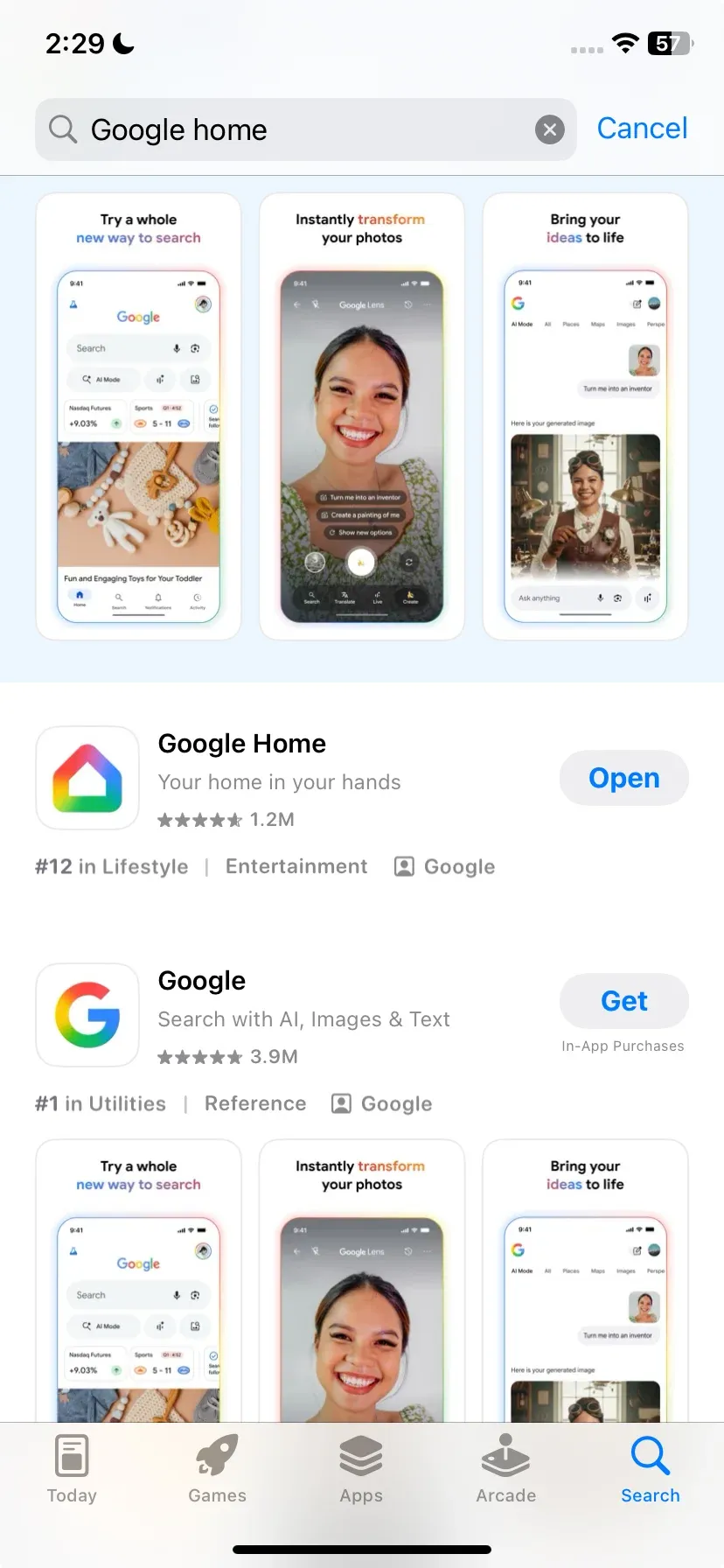
Step 3. Open the Google Home app, select your Chromecast device, and check if there are any updates available.
Fix 3: Restart Disney+, Chromecast, and Your Device
If Disney Plus not connecting to Chromecast is the issue, restarting all devices involved can often resolve the problem. A quick reboot refreshes the system and helps clear any glitches.
Step 1. Close the Disney Plus app and reopen it.
Step 2. Unplug the Chromecast from the TV and the power source for at least 10 seconds before plugging it back in.
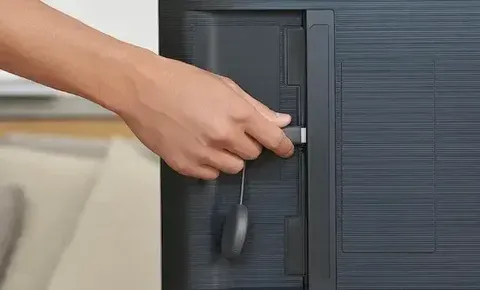
Step 3. Restart the device you're casting from. This can resolve minor software conflicts that may be preventing the connection.
Fix 4: Clear Cache and Data for Disney Plus
Sometimes, corrupted cache files can prevent apps from working properly. Clearing the cache and data for the Disney Plus app can help resolve issues with streaming content to Chromecast.
How to clear cache and data for Disney Plus:
Step 1. On your Android, go to Settings.
Step 2. Navigate to Apps > Disney Plus > Storage > Clear Cache and Clear Data.
Tip: iOS doesn't have a direct way to clear the cache. Instead, you can uninstall and reinstall the app to achieve a similar effect.
Fix 5: Check for Device Compatibility
If Disney Plus not working on Chromecast persists, it's important to ensure that your Chromecast device and the Disney Plus app are compatible with each other. Older Chromecast models may experience issues when casting high-definition content from apps like Disney Plus.
Disney Plus supports Chromecast Ultra, Chromecast with Google TV, and Chromecast 3rd Gen. Make sure your device is running the latest firmware.
Plus, ensure your phone or computer meets the minimum system requirements for casting Disney Plus. Most modern Android and iOS devices should work, but older versions may have issues.
Fix 6: Reconnect Disney Plus Account
Sometimes, Chromecast Disney Plus not working can be due to issues with your Disney Plus account. Logging out and then logging back in can resolve authentication or syncing issues.
Follow the steps:
Step 1. Open the Disney Plus app and sign out of your account.
Step 2. Close the app completely, then reopen it.
Step 3. Log back in with your Disney Plus credentials.
Step 4. Try casting to your Chromecast again.
Fix 7: Use PigeonCast as an Alternative Solution
If you've tried all the above steps and Disney Plus is still not working on Chromecast, consider using PigeonCast as an alternative way to stream Disney Plus to your TV. PigeonCast allows you to mirror your entire phone screen to any Chromecast-enabled device, bypassing potential compatibility issues with apps like Disney+.
Step 1. Download and install PigeonCast on your phone or computer.


Overall Rating:



Step 2. On your TV, open the app store, search for PigeonCast, and install it.
Overall Rating:
Step 3. Ensure your phone or computer and TV are on the same Wi-Fi network.
Step 4. Launch the PigeonCast on your phone or computer and TV, and choose your TV from the device list.
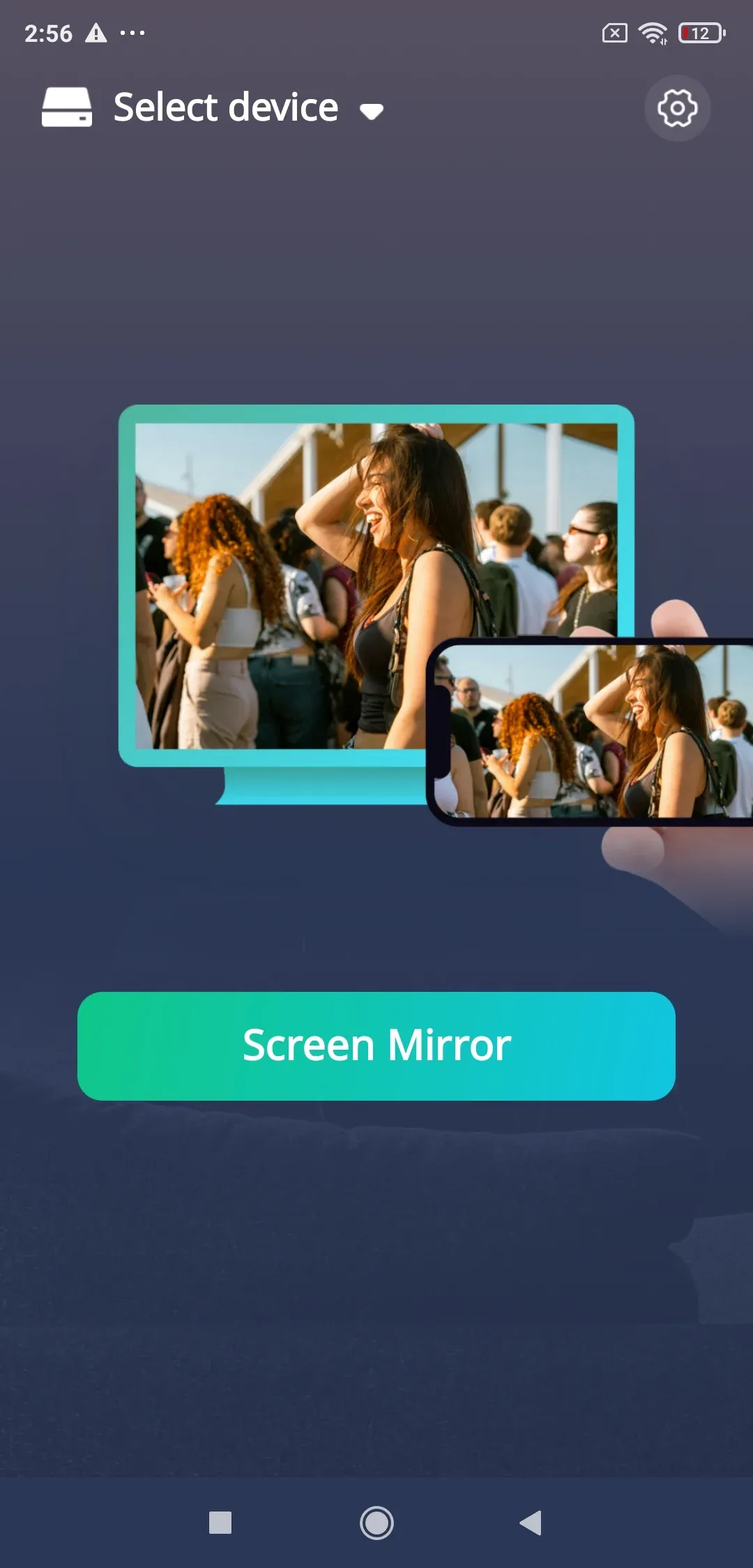
Step 5. Start streaming content directly to your TV by mirroring your phone's screen.
This method provides a stable connection for Disney Plus not working with Chromecast, especially when standard casting is not functioning properly.
Fix 8: Test Disney Plus on Other Devices
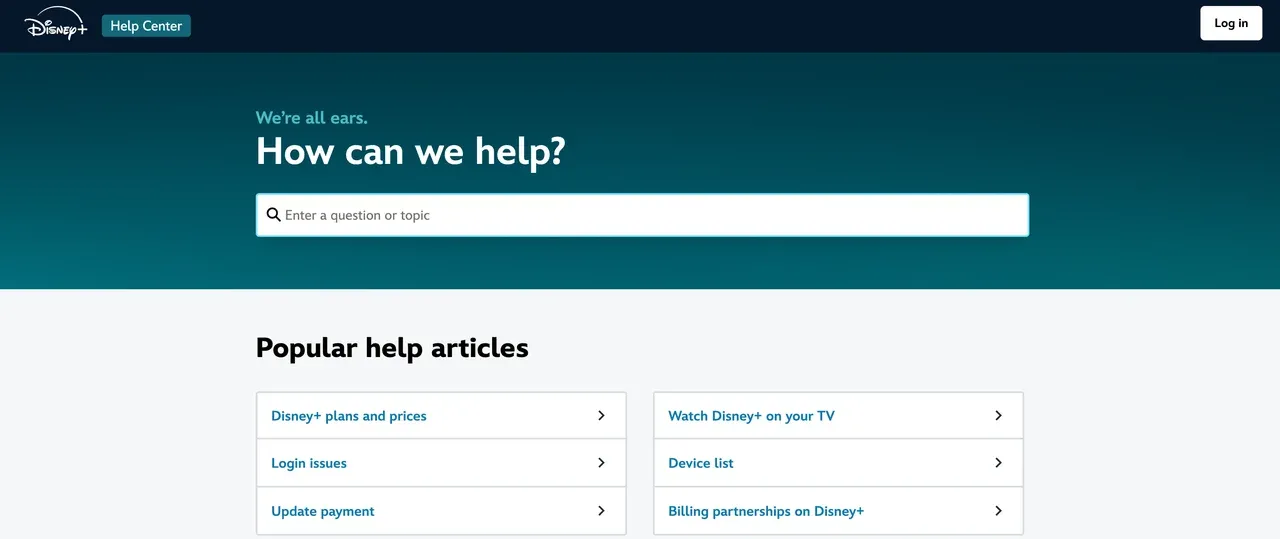
If none of the above steps worked and Disney Plus is still not working on Chromecast, try casting to another device, such as a smart TV, Fire TV, or Apple TV, to determine whether the issue is specific to your Chromecast. You can also get in touch with Disney Plus Help Center for additional diagnostics and known issues.
Conclusion
If you're experiencing issues with Disney Plus Chromecast not working, follow these troubleshooting steps to fix the problem. By ensuring your devices are on the same Wi-Fi network, updating apps, and clearing caches, you should be able to enjoy Disney Plus on your Chromecast without further issues. If all else fails, PigeonCast provides a reliable alternative for streaming content when casting is not working. Happy streaming!
Disney Plus Chromecast Not Working FAQs
Why can't I Chromecast Disney Plus?
This usually happens when your phone and Chromecast are not on the same Wi-Fi network. It can also occur if the Disney Plus app has cached data conflicts or if your Chromecast is running outdated firmware. Restarting both devices and reconnecting to the same network often resolves the issue.
Did Disney+ stop supporting Chromecast?
No. Disney Plus still supports Chromecast on compatible models. If Disney Plus is not working with Chromecast on your setup, it is typically caused by network problems, outdated apps, or device compatibility issues.
How to cast Disney Plus to Chromecast?
Open the Disney Plus app on your phone, connect to the same Wi-Fi network as your Chromecast, and tap the Cast icon at the top of the screen. Select your Chromecast from the list, then choose the movie or show you want to play. The video will begin streaming on your TV.
What Chromecast works with Disney+?
Disney Plus supports all current Chromecast models, including Chromecast with Google TV and most older Chromecast generations that receive regular updates. If your device is very old or no longer updating, you may experience connection issues.
Mia Clarke is a technology editor specializing in screen mirroring and casting solutions across multiple platforms. Mia provides clear, practical guides and in-depth insights to help users seamlessly connect their devices. Passionate about enhancing digital experiences, Mia is dedicated to keeping readers updated on the latest trends and tools in cross-platform screen sharing. Whether you’re looking to mirror your smartphone, laptop, or smart TV, Mia’s content delivers reliable, user-friendly advice to simplify your tech setup.