
There is a specific kind of frustration that sets in when you are ready to binge-watch a new series, but the Prime Video app refuses to acknowledge your Chromecast. Despite both being industry giants, the integration between Amazon's streaming service and Google's hardware can be temperamental. Usually, the breakdown occurs during the initial "handshake"—that moment when your phone tells the Chromecast to take over the stream.
How to fix Prime Video Chromecast not working? If you are staring at a static screen or a missing icon, don't worry. Most of these issues stem from cache congestion or network invisibility rather than a hardware death sentence. Let's break down the specific scenarios and how to bypass them.
Quick Comparison: Which Fix Should You Choose?
| If you see | Start with | Success Rate |
|---|---|---|
| No Icon at all | Check Wi-Fi Band & Permissions | High |
| Infinite Loading | Hard Reset (Unplug) Chromecast | Medium |
| Black Screen | Power via Wall Outlet | High |
| App Crashes | Clear Cache & Force Stop | Medium |
Issue 1: The Cast Icon is Missing in the Prime Video App
You open the app, but the rectangular casting symbol is nowhere to be found. This is a classic "visibility" error where the app and the Chromecast are essentially standing in the same room but wearing blindfolds.
Why this happens:
- Mismatched Wi-Fi Bands: Your phone is on the 5GHz "Fast" band while the Chromecast is tucked away on the 2.4GHz band.
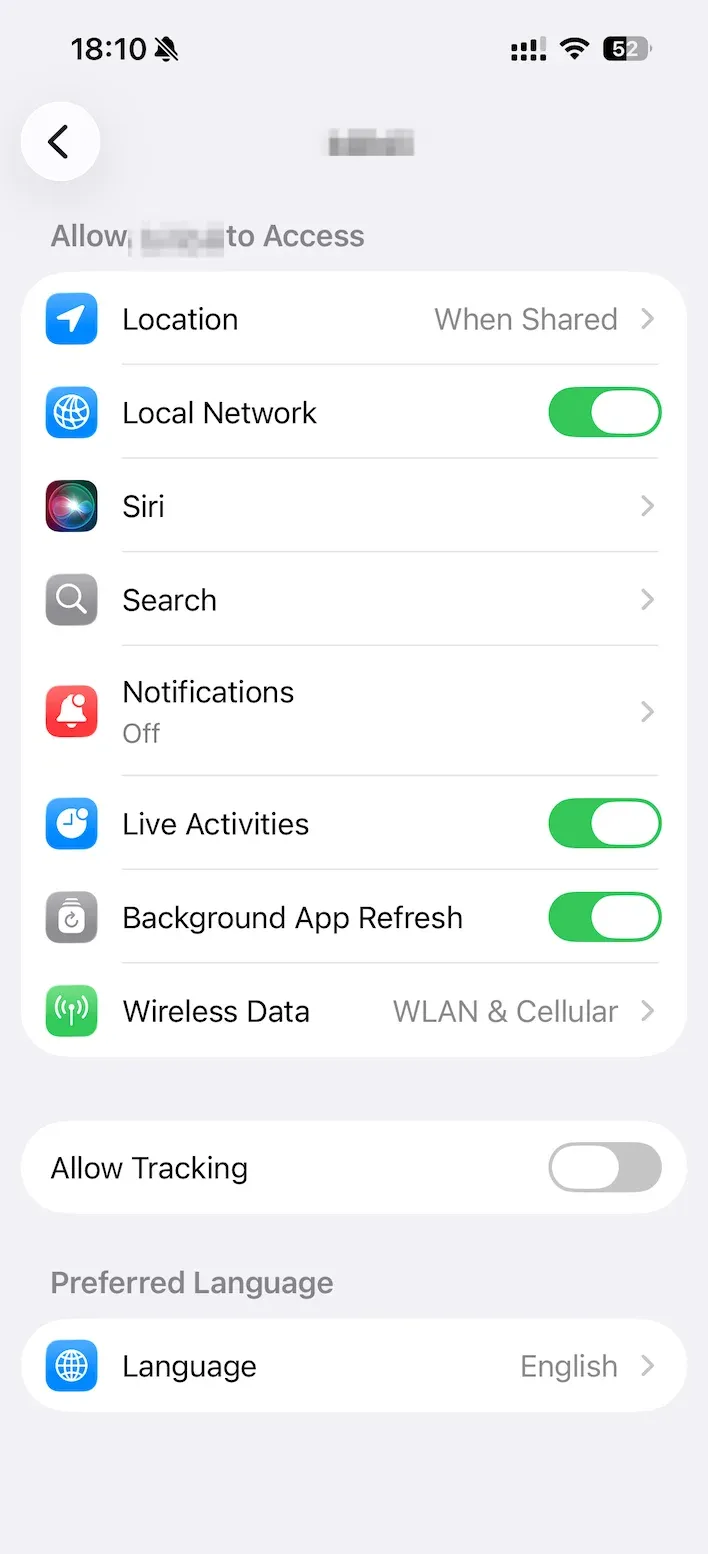
- Local Network Permissions: On newer mobile OS versions, apps need explicit permission to "see" other devices on your home network.
How to fix the Chromecast issue with Prime Video
Step 1. Open your Wi-Fi settings and ensure both devices are on the exact same SSID (network name).
Step 2. Go to Settings > Apps > Prime Video and make sure the Local Network switch is green.
Step 3. On Android, if this background app is outdated, the communication bridge for casting often breaks. Search for it in the Play Store and hit update.
Issue 2: The "Ready to Cast" Screen Frozen on Your TV
You see the Prime Video logo on your TV, but the movie refuses to load, or perhaps you are staring at a Prime Video Chromecast spinning wheel that feels like it will never stop. Whether the screen is stuck on a "Ready to Cast" message or the loading animation is just looping endlessly, the culprit is usually a stalled data packet.
Why this happens:
- Stale Session Data: The Chromecast is trying to resume a stream that the Prime Video server has already timed out.
- HDCP Handshake Failure: The digital "handshake" that prevents piracy has failed between your Chromecast and the TV's HDMI port.
How to fix it:
Step 1. Physically unplug the Chromecast from its power source for 60 seconds. This resets the HDCP handshake and resets the HDCP encryption.
Step 2. On your phone, go to Settings > Apps > Prime Video > Storage and tap Clear Cache. This forces the app to generate a fresh connection token.
Step 3. Try plugging the Chromecast into a different port, preferably one labeled HDMI (ARC).
Issue 3: Black Screen with Sound or Constant Buffering
The audio plays perfectly, but the screen remains pitch black, or the video stutters every three seconds despite having fast internet.
Why this happens:
- DRM Conflicts: Prime Video has some of the strictest Digital Rights Management in the industry. If it detects any signal interference, it cuts the video feed.
- Power Insufficiency: If your Chromecast is plugged into the TV's USB port for power, it might not be getting enough "juice" to decode high-definition video.
How to fix it:
Step 1. Always power your Chromecast using the provided wall adapter rather than the TV's USB port. This provides the stable voltage required for 4K rendering.
Tip: Check the Chromecast setup requirements in the guide on How to Connect Chromecast to TV.
Step 2. Temporarily go into the Prime Video app settings and change Stream Quality from "Best" to "Better." If the black screen disappears, your network bandwidth or HDMI cable version was the bottleneck.
Step 3. Disable VPNs. Casting rarely works with an active VPN on your mobile device because it masks the local IP address needed for the devices to talk.
Still Stuck? Try PigeonCast for a Seamless Bridge
When the native Prime Video "Cast" button fails, it is often due to a bug in the app’s own internal code. In these instances, use a dedicated utility like PigeonCast.
Think of PigeonCast as a specialized courier for your media. While the standard Amazon-to-Google link can be fragile, PigeonCast creates a more robust bridge that can often bypass the "Source Not Supported" errors or the disappearing icon bugs.
It is a fantastic "Plan B" that handles the handshake more aggressively than the native app, ensuring your content actually reaches the screen without the constant drops.
PigeonCast supports 4K screen mirroring from phone to TV, plus video casting:
Step 1. Download and install PigeonCast on your phone (and the TV).


Overall Rating:



Step 2. Ensure your phone and TV are on the same Wi-Fi network.
Step 3. Launch the PigeonCast app, connect it to your TV, and tap Screen Mirror.
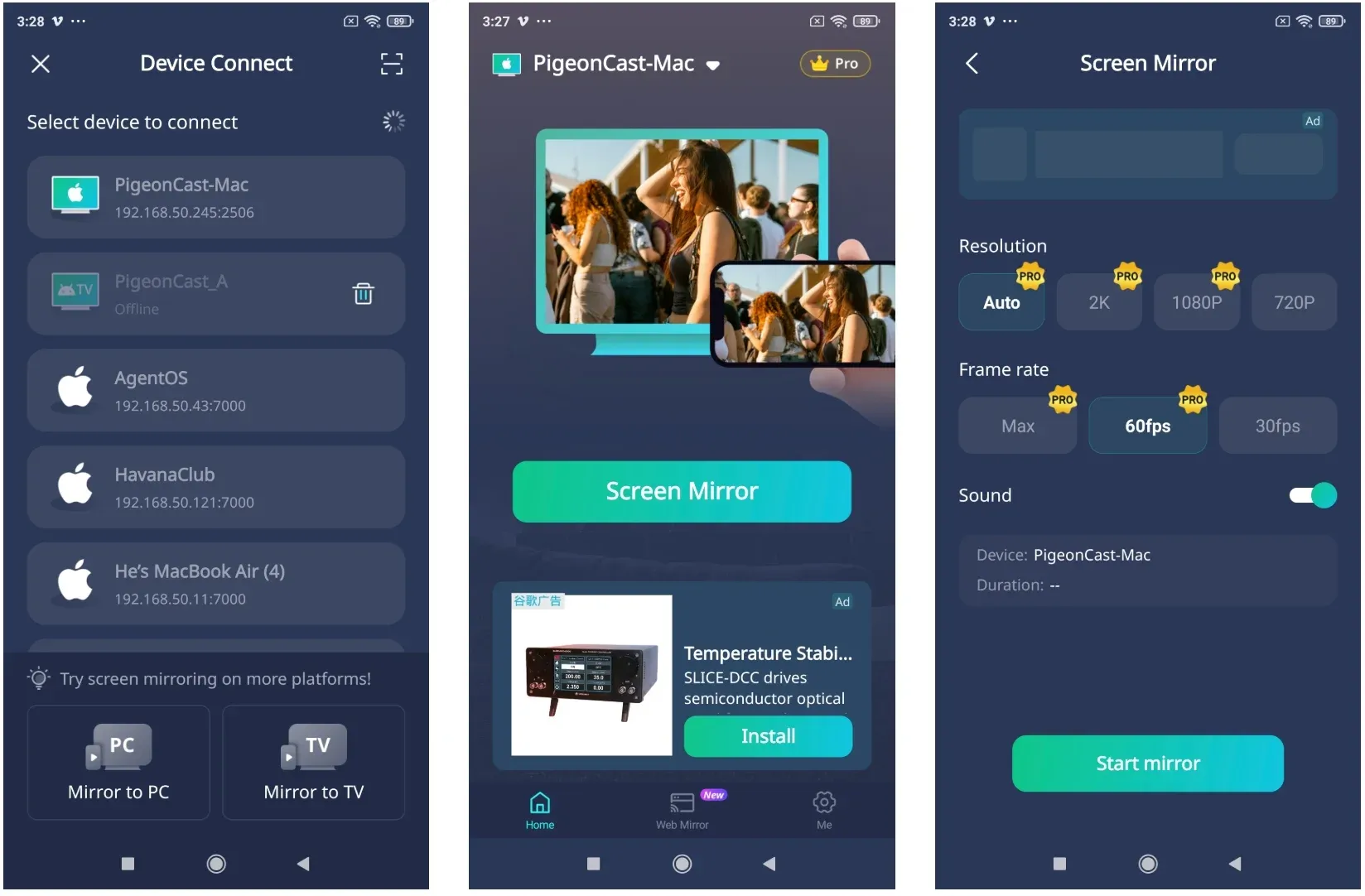
Step 4. Launch Prime Video on your phone, play a video, and enjoy it on your TV screen.
Tip: Alternatively, tap the Browser option if you are using an Android device, input your video URL, and tap Connect to start casting instead of screen mirroring.
Final Words
At the end of the day, Chromecast not working on Prime Video shouldn't be the reason you abandon your movie night. Most of these hiccups are just digital "misunderstandings" between the app and your network. By following the steps above—specifically ensuring your power source is consistent and your cache is clear—you can fix 90% of casting failures in under five minutes.
However, if the native Prime Video app continues to be stubborn (as it occasionally is with certain hardware versions), don't waste hours fighting a losing battle. Moving over to a dedicated bridge like PigeonCast is often the smarter move. It simplifies the connection and bypasses the native bugs that Amazon has yet to patch. Life is too short for buffering wheels; fix the connection, grab your popcorn, and finally hit play.
Prime Video Chromecast Not Working FAQ
Why does Prime Video stop casting when my phone goes to sleep?
This is usually due to "Battery Optimization." Your phone is killing the Prime Video background process to save power. Go to Settings > Apps > Prime Video > Battery and select Unrestricted.
Can I cast Prime Video from my laptop?
Yes, via the Chrome browser, but it is less stable than using a phone. If you must use a laptop, click the three dots in Chrome and select Cast..., then choose your device. However, the mobile app is the "preferred" way for better resolution.
Do I need a 4K Chromecast for Prime Video?
You don't need one, but if you're trying to watch UHD content, a standard Chromecast will struggle with the data load, often leading to the buffering issues mentioned above.
Is my Chromecast too old?
If you are using a 1st Generation Chromecast (the key-shaped one), Prime Video’s modern app may no longer be fully compatible. Upgrading to a newer model or using a bridge app like PigeonCast is your best bet.
Mia Clarke is a technology editor specializing in screen mirroring and casting solutions across multiple platforms. Mia provides clear, practical guides and in-depth insights to help users seamlessly connect their devices. Passionate about enhancing digital experiences, Mia is dedicated to keeping readers updated on the latest trends and tools in cross-platform screen sharing. Whether you’re looking to mirror your smartphone, laptop, or smart TV, Mia’s content delivers reliable, user-friendly advice to simplify your tech setup.