
"While I can stream Prime Video through its app, I recently encountered a new error on AirPlay: 'Playback Error: Videos can't be watched on external devices.' On another title, I saw a different message: 'AirPlay is unavailable for this video.' Is this a licensing limitation tied to the specific rights holder?"
If you've experienced this, you're not alone. Many users find that Prime Video AirPlay not working appears for some titles but not others. Unlike a typical app glitch, these errors often reflect content restrictions or licensing rules rather than a device problem.
In this guide, we'll show why AirPlay is unavailable for this video Prime, how to verify if it's a content limitation, and step-by-step solutions to enjoy your shows on the big screen without hassle.
Why Can't I AirPlay Prime Video
Most cases where you cannot AirPlay Prime Video fall into three main categories:
-
Licensing and Content Restrictions: Some movies and shows are blocked from AirPlay due to rights management. Studios or Amazon may restrict external streaming, which explains messages like AirPlay blocked on iPhone. Even if your device works fine for other titles, restricted content will trigger these messages.
-
Device or App Compatibility: Older iPhones, iPads, or Apple TV models, or outdated Prime Video apps, can prevent AirPlay from functioning correctly. If you notice that AirPlay not working on Prime Video affects only a few titles, the issue is likely a combination of device or app version and content rules.
-
Network and Account Settings: AirPlay requires all devices to be on the same Wi-Fi network. VPNs, regional restrictions, or mismatched Apple IDs can sometimes lead to Prime Video streaming issues with AirPlay.
How to Fix Prime Video AirPlay Error
Always test multiple titles first. This quickly tells you whether the problem is content-specific or a technical issue. It saves time and prevents unnecessary troubleshooting. Follow these steps:
Step 1. Open Prime Video on your device.
Step 2. Attempt AirPlay with another movie or episode.
Fix DRM Restrictions (If AirPlay Fails for a Specific Video)
If other titles AirPlay successfully, then the issue is likely DRM or licensing restrictions for the specific video. Luckily, you can still watch restricted content by using one of these approaches:
-
Use the native Prime Video app on your TV or streaming box.
-
Install and log in to Prime Video on Apple TV, Roku, Fire TV, or a smart TV.
-
Play the same title directly. This bypasses AirPlay restrictions safely.
-
-
Try screen mirroring your device.


Overall Rating:


-
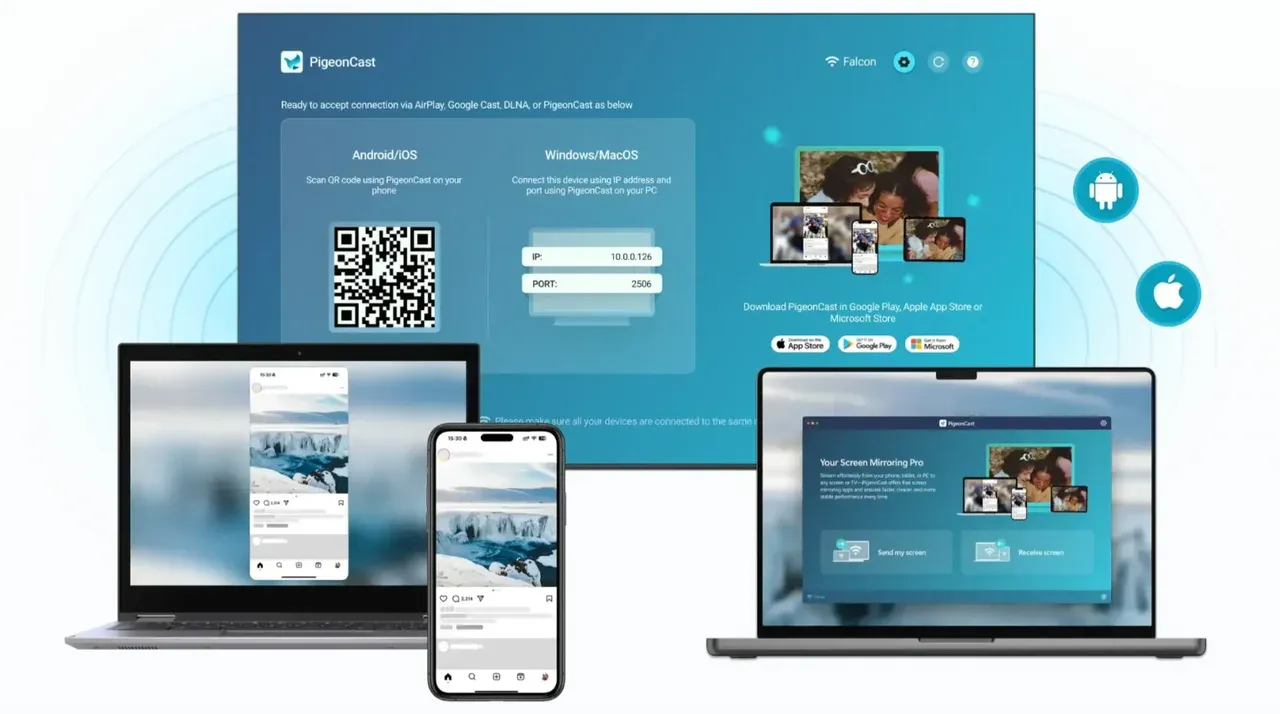
If your TV doesn't have a native app, use a screen mirroring app like PigeonCast, which is optimized for iOS mirroring to laptop or TV.
-
Mirror your iPhone or iPad to a laptop or smart TV, then play the restricted title.
-
Enjoy the title on the big screen. This method respects device DRM while allowing you to watch on a larger screen.
Fix Technical Issues (If AirPlay Fails for All Videos)
If every Prime Video title fails to AirPlay, the issue is likely related to your device, app, or network rather than content licensing. In this case, the following checks can help restore normal AirPlay functionality.
Note: If AirPlay works with other streaming apps (such as YouTube or Apple TV+) or previously worked with Prime Video on the same device, the steps below are unlikely to bypass DRM or licensing restrictions. They are designed only to resolve technical breakdowns that affect all videos.
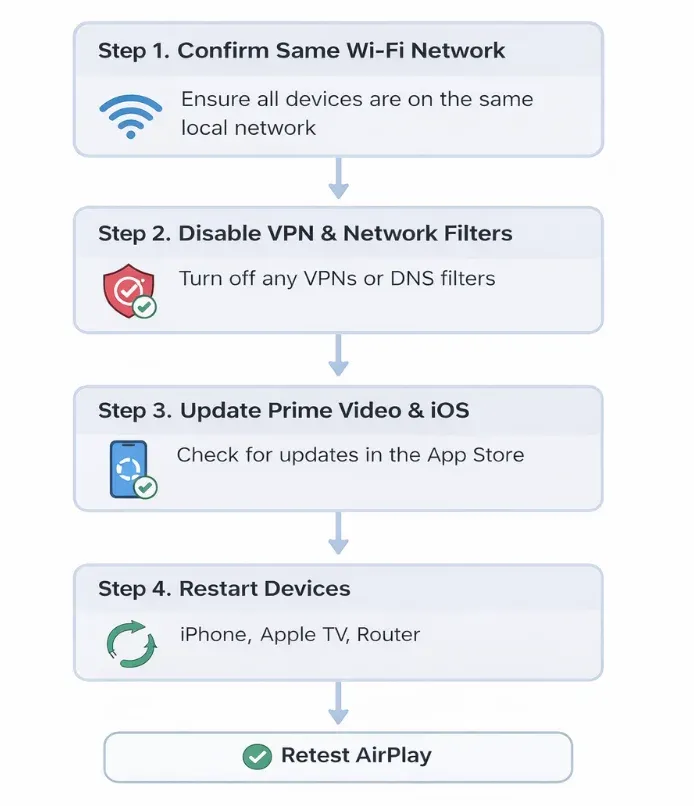
Step 1. Confirm all devices are on the same Wi-Fi network.
AirPlay requires your iPhone, iPad, and Apple TV (or AirPlay-compatible TV) to be connected to the same local network.
Even small differences, such as a phone switching to a guest network or a router broadcasting separate 2.4 GHz and 5 GHz SSIDs, can prevent AirPlay from initializing correctly.
Step 2. Disable VPNs and network filters temporarily.
VPNs, DNS filters, or "privacy" network tools can interfere with AirPlay device discovery and Prime Video playback validation. So, turn off any VPN or custom DNS settings, then reopen the Prime Video app and try AirPlay again.
Step 3. Update Prime Video and iOS to the latest version.
Outdated app versions may fail AirPlay checks, especially after backend updates from Amazon. You need to ensure:
-
Prime Video is updated from the App Store
-
Your iPhone or iPad is running the latest supported iOS version
After updating, force-close the app and reopen it before testing AirPlay.
Step 4. Restart all related devices.
This step sounds basic, but it resolves more AirPlay issues than most advanced tweaks.
You need to restart:
-
Your iPhone or iPad
-
Apple TV or AirPlay-enabled TV
-
Your Wi-Fi router
A clean restart refreshes AirPlay services, network leases, and background processes that may block playback.
Note: If AirPlay starts working again only for certain titles, but others still show messages like "AirPlay is unavailable for this video", the issue is almost certainly content-level DRM or licensing restrictions. In that case, technical troubleshooting won't override the limitation, and you'll need to use a native Prime Video app or a screen-mirroring workaround instead.
Final Words
Seeing errors like "AirPlay is unavailable for this video Prime" or "Videos can't be watched on external devices" can feel frustrating, especially when AirPlay works fine in other apps. The key takeaway is this: most Prime Video AirPlay issues are not random failures.
If only certain titles fail, the problem almost always comes down to content licensing or DRM rules set by Amazon or the rights holder. No amount of restarting or reinstalling will change that. On the other hand, if AirPlay fails across all Prime Video titles, basic checks around network, app versions, and device compatibility are still worth doing.
Once you separate content restrictions from technical problems, the path forward becomes much clearer. Use AirPlay when it's supported, switch to the native Prime Video app when it's not, and avoid wasting time troubleshooting limits you can't control.
AirPlay Is Unavailable for This Video Prime FAQs
Can I AirPlay all Prime Video content?
No. Some movies and shows restrict external playback. When this happens, Prime Video blocks AirPlay for that specific title, even if other videos work normally.
How to AirPlay Amazon Prime Video from Mac?
On macOS, you can AirPlay Prime Video using Safari or the Prime Video app when the title allows it. If AirPlay is unavailable for that video, using the native Prime Video app on Apple TV or another streaming device is more reliable.
Why is Prime Video saying video unavailable?
This message usually appears when the video cannot be streamed to an external display. It often points to licensing or regional restrictions rather than a playback error on your device.
What content on Prime Video blocks AirPlay mirroring?
Blocking is title-specific, not category-based. Some licensed movies, shows, or live content restrict AirPlay due to rights agreements with studios.
How to change DNS on Apple TV to fix Prime Video AirPlay?
Changing DNS rarely fixes AirPlay restrictions. DNS adjustments may help with regional loading issues, but they will not override Prime Video DRM or AirPlay blocks.
Are there any alternative ways to cast Prime Video to Apple TV?
Yes. The most stable option is to use the Prime Video app directly on Apple TV. Screen mirroring may work in some setups, but it depends on device support and content rules.
Is this AirPlay restriction due to DRM licensing?
In most cases, yes. If AirPlay works for some titles but not others, DRM and licensing restrictions are the primary reason.
How to fix AirPlay connected but not playing on Prime?
First, test another Prime Video title. If others work, the issue is content-related. If none work, check Wi-Fi, app updates, and device compatibility.
Why is there Amazon Prime AirPlay sound only?
AirPlay only playing audio happens when Prime Video allows audio output but blocks video transmission to external displays. It is usually tied to content or display restrictions rather than a hardware failure.
Mia Clarke is a technology editor specializing in screen mirroring and casting solutions across multiple platforms. Mia provides clear, practical guides and in-depth insights to help users seamlessly connect their devices. Passionate about enhancing digital experiences, Mia is dedicated to keeping readers updated on the latest trends and tools in cross-platform screen sharing. Whether you’re looking to mirror your smartphone, laptop, or smart TV, Mia’s content delivers reliable, user-friendly advice to simplify your tech setup.