
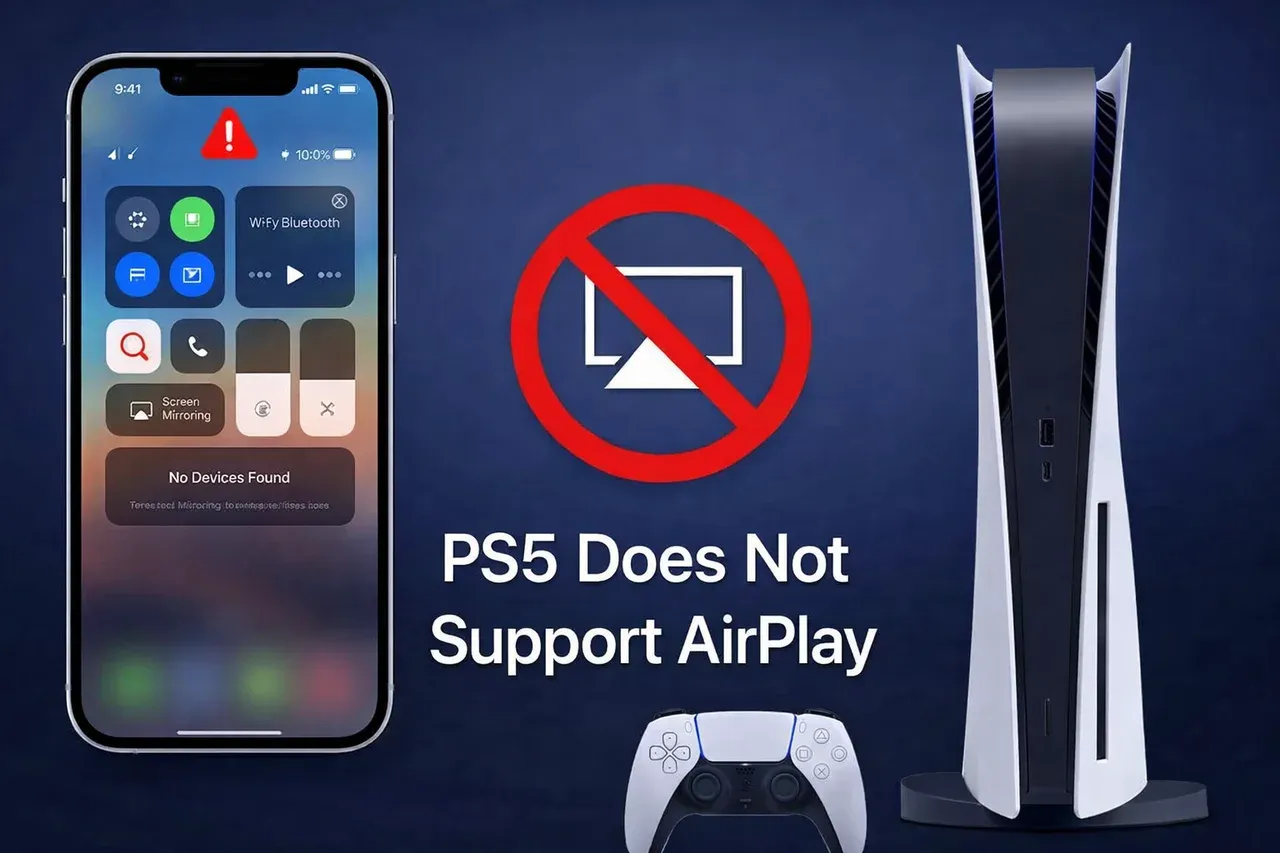
Can you AirPlay to PS5? No, Sony designed the PlayStation 5 to be a closed ecosystem for gaming, which is why it lacks native AirPlay support. Unlike many modern smart TVs, the PS5 does not include the AirPlay 2 protocol, meaning your iPhone or Mac will not see the console as a destination in the Screen Mirroring menu.
If you need to get your mobile content onto the big screen via your console, you have to bypass the system's limitations using specific apps or hardware bridges.
PS5 with No AirPlay Support
Native AirPlay PS5 support does not exist. Sony prefers you use their proprietary PS Remote Play app, but that only works for streaming the console to your phone, not the other way around. This gap in functionality is frustrating for users who want to share photos or quick clips from an iPhone.
If your goal is simply to cast media to a larger screen without cables, you might find more success by looking at your other devices. For instance, tools like PigeonCast Screen Mirroring App allow for seamless iPhone-to-PC or Android TV mirroring, often bypassing the laggy workarounds required for a gaming console.


Overall Rating:



However, if the PS5 is your only connection to the TV, you can still bridge the gap using the methods below.
How to Screen Mirror iPhone to PS5
Although there is no native AirPlay on PS5, you can simulate a mirroring experience by utilizing apps that exist on both the iOS and PlayStation stores. Since there is no "Magic Button" for PS5 AirPlay, these methods rely on third-party servers or specific app casting protocols.
Method 1: Use AirPlay-enabled Apps (YouTube)
No AirPlay 2 on PS5, how to connect iPhone to PS5? Casting is the most stable way to get video content from your iPhone to the console. While not true screen mirroring, apps like YouTube and Spotify use a Link with TV Code or a shared Wi-Fi detection system that functions similarly to AirPlay.
Here is how to AirPlay to PS5 via YouTube:
-
On PS5, go to the Media tab, choose All Apps, find YouTube, and download it.
-
Open the YouTube app on your PS5 and go to Settings > Link with TV Code.
-
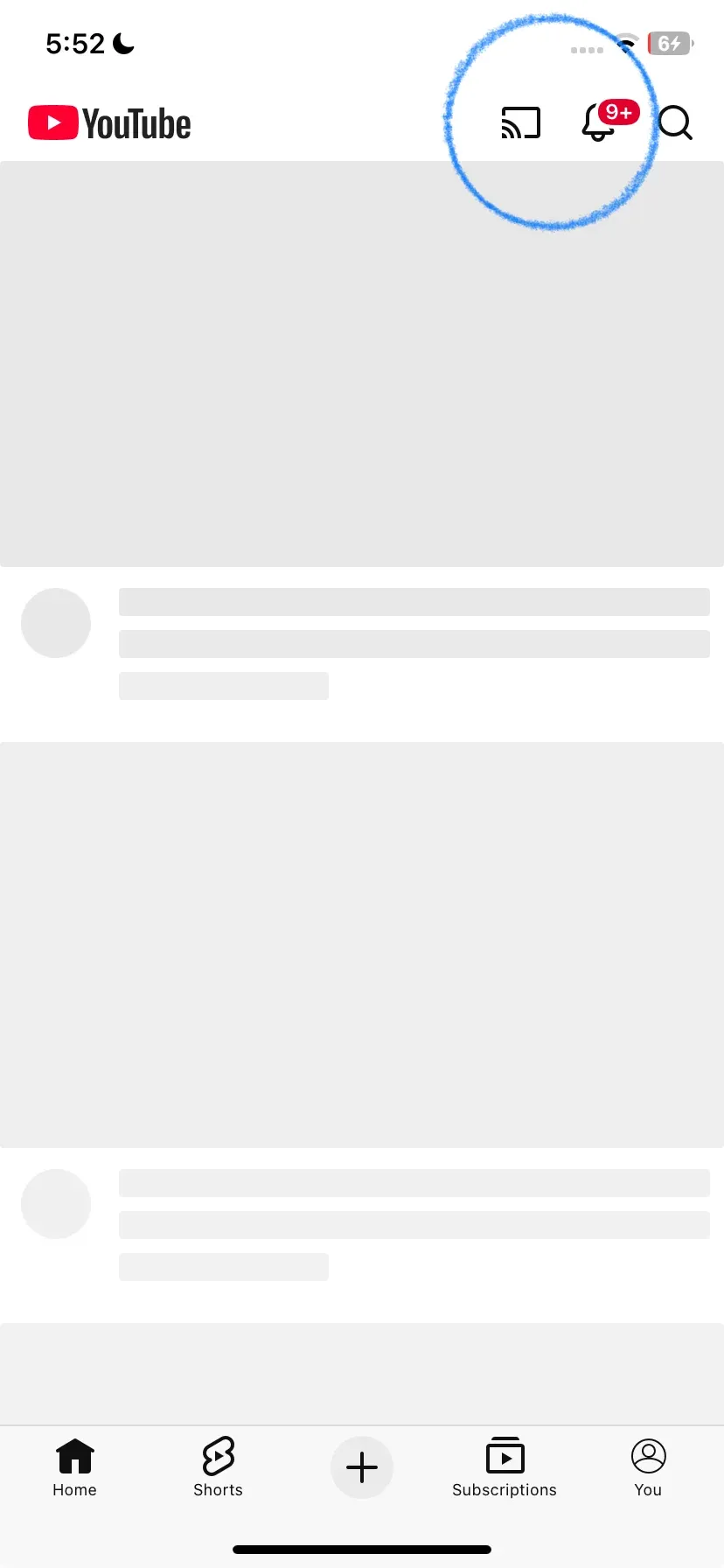
Open YouTube on your iPhone and tap the Cast icon.
-
Enter the code displayed on your TV to sync the sessions.
Method 2: Use Plex for Media Libraries
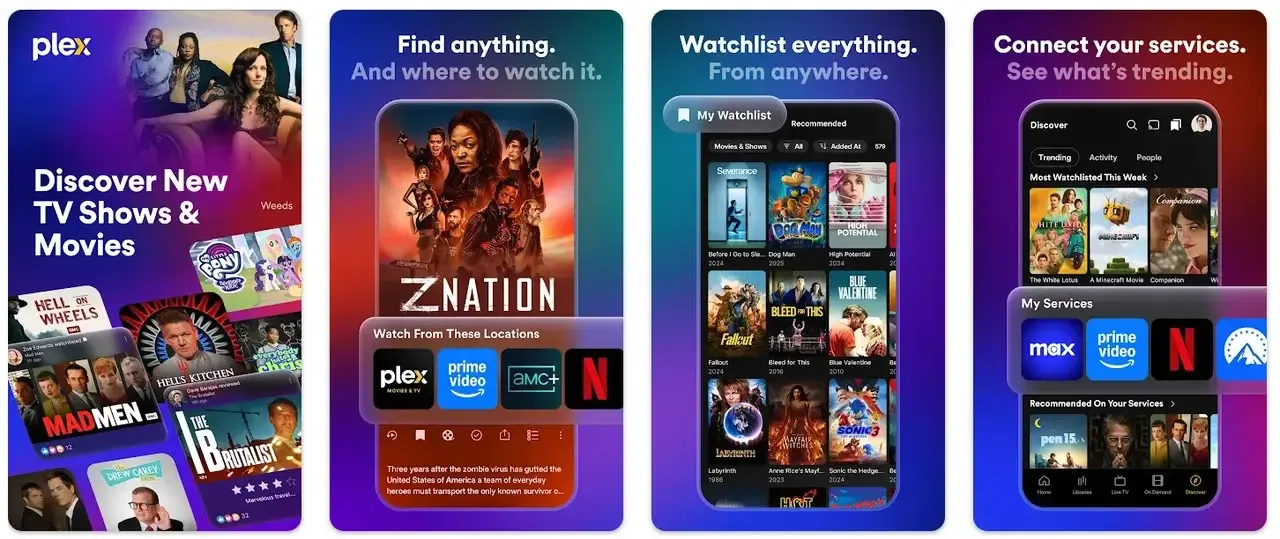
Plex is the best solution for users who have a large library of local videos or photos on their computer or mobile device. By setting up a Plex Media Server, your PS5 acts as a client that pulls data from your iPhone.
-
Pro: It handles high-resolution files better than simple mirroring apps.
-
Con: It requires a bit of initial setup and a dedicated server (even if that server is just your laptop).
Here's what to do:
-
Download and install the Plex app from the PlayStation Store on your gaming console.
-
Download and install the Plex app from the App Store on your iPhone.
-
Open the Plex app on both devices and sign in with the same Plex account (create one if needed at plex.tv).
-
Install Plex Media Server on a computer or NAS and add your media files.
-
Keep the server running on the same Wi-Fi network as your PS5 and iPhone
-
Go to plex.tv/link on your iPhone and enter the code shown on your PS5.
-
Choose your media files to authorize access.
-
Inside Plex on your iPhone, play a video, tap the Cast icon, and choose PS5.
Method 3: Use AirDroid Cast
AirDroid Cast is a practical workaround because it uses the PS5's web browser functionality to receive a screen signal.
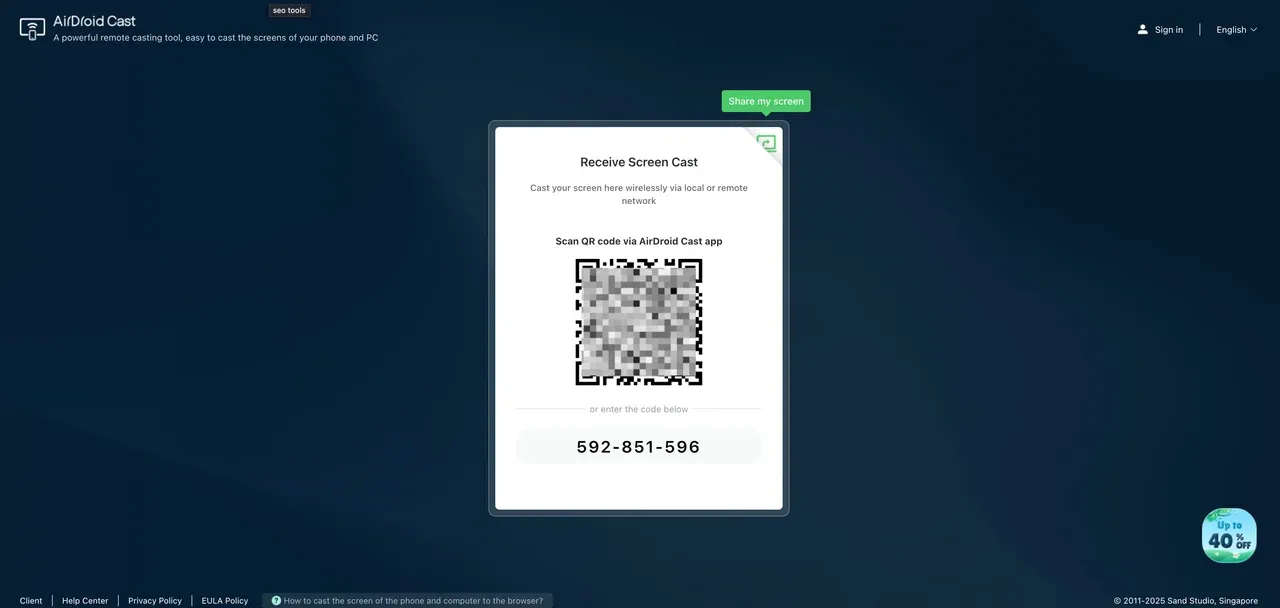
How to screen mirror iPhone to PS5:
-
Open the AirDroid Cast Web (webcast.airdroid.com) portal on your PS5's hidden browser.
-
Open the AirDroid Cast app on your iPhone and scan the QR code shown on the TV.
-
Your iPhone screen will appear inside the browser window on your PS5.
How to Screen Mirror PS5 to iPhone via PS Remote Play
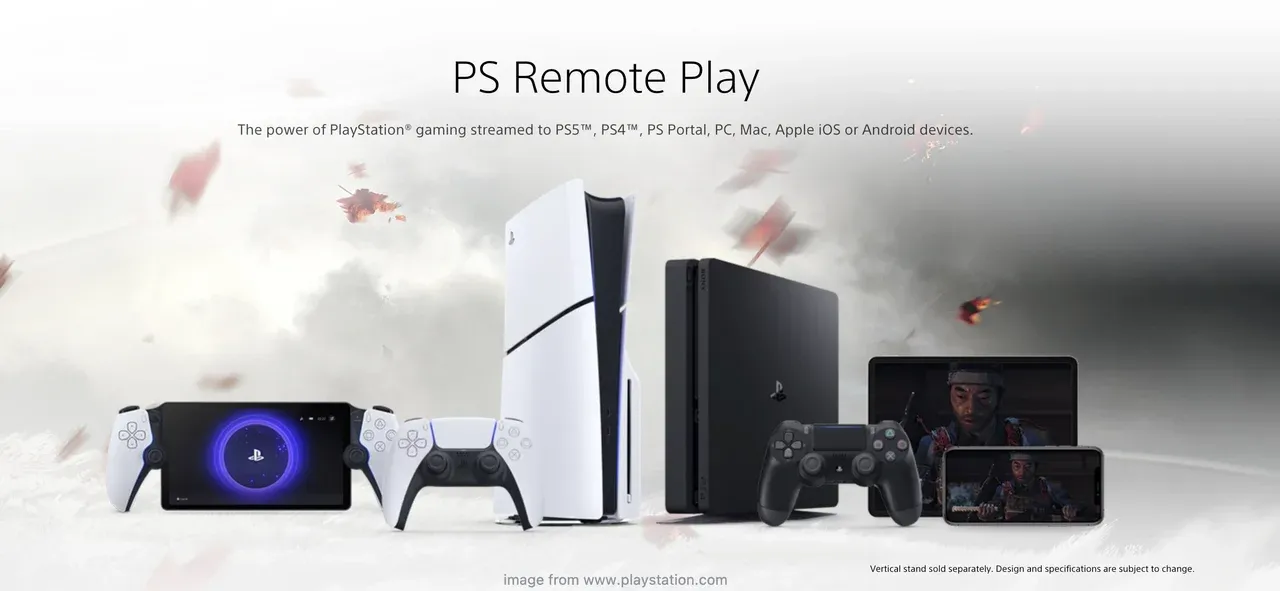
If you want to do the reverse, viewing your console's output on your phone, the process is much simpler. Sony provides a dedicated app for this exact purpose, though it is intended for remote gaming rather than content sharing.
-
Enable Remote Play on your console through Settings > System > Remote Play > Enable.
-
Download the PS Remote Play app on your iPhone.
-
Sign in to your PSN account and follow the prompts to link the devices.
-
Your PS5 screen will now mirror directly to your iPhone screen.
Final Words
The PlayStation 5 remains a gaming machine first, and its refusal to adopt the AirPlay 2 protocol is a deliberate choice by Sony to keep users within their specific ecosystem. If you were searching for a hidden toggle in the settings menu, you can stop looking; it simply isn't there. This lack of native support means you will always be dealing with third-party bridges that carry inherent trade-offs in resolution and speed.
For those who only need to share a quick video, app-based casting through YouTube or Spotify is your most stable bet. However, if you require full screen mirroring for presentations or non-supported apps, web-based workarounds like AirDroid Cast are your only path, even if they feel a bit clunky. These methods are functional band-aids rather than permanent solutions.
Ultimately, if high-performance mirroring is a daily requirement for your setup, relying on a game console will eventually become a source of frustration. Dedicated hardware like a smart TV or a PC equipped with PigeonCast will consistently outperform the PS5 in both latency and ease of use. Understanding these hardware boundaries saves you from troubleshooting a feature that was never intended to exist in the first place.
Can You AirPlay to PS5 FAQs
Does PS5 have AirPlay?
No, the PS5 does not have built-in AirPlay or AirPlay 2 support. You cannot find it in the iPhone's Control Center under Screen Mirroring.
Can you AirPlay to PS5 directly?
No direct connection is possible. You must use a third-party app like Plex or the casting feature within apps like YouTube to share media.
Can you screen mirror on PS5 with iPhone?
Not in the traditional sense. The PS5 does not support full iPhone screen mirroring because it lacks AirPlay. What you can do is stream specific content using supported apps (like YouTube or Plex) or use third-party browser-based tools that approximate mirroring with limitations.
What apps enable AirPlay-like mirroring to PS5?
Apps like YouTube, Spotify, and Plex allow AirPlay-like casting by syncing playback between your iPhone and the PS5 app. For full-screen duplication, tools such as AirDroid Cast work by displaying your phone's screen inside the PS5 browser, though performance varies.
Can PS Remote Play mirror iPhone to PS5?
No. PS Remote Play only works one way: it mirrors the PS5 screen to your iPhone, not the other way around. It's designed for remote gaming, not for sharing mobile photos, videos, or apps on the TV.
Is there lag when mirroring iPhone to PS5?
Yes, usually. Since mirroring relies on third-party apps or browser-based methods, some latency is expected, especially with full screen mirroring. App-based casting (like YouTube or Plex) is generally smoother than live screen duplication.
How do I cast my phone onto my PS5?
The most reliable method is app-based casting:
-
Open a supported app (YouTube, Spotify, Plex) on both your iPhone and PS5
-
Link them using a TV code or shared account
-
Control playback from your phone while content plays on the PS5
This works well for media, but does not mirror your entire screen.
Can you screen mirror a PS5 to a TV?
Yes. When connected via HDMI, the PS5 always outputs video to the TV by default. No mirroring setup is required—this is the console's primary display method.
Is there a way to share my screen on PS5?
Yes, but only from the PS5 outward. You can:
-
Stream gameplay via PS Remote Play
-
Broadcast to platforms like Twitch or YouTube
-
Share gameplay clips or screenshots
Mia Clarke is a technology editor specializing in screen mirroring and casting solutions across multiple platforms. Mia provides clear, practical guides and in-depth insights to help users seamlessly connect their devices. Passionate about enhancing digital experiences, Mia is dedicated to keeping readers updated on the latest trends and tools in cross-platform screen sharing. Whether you’re looking to mirror your smartphone, laptop, or smart TV, Mia’s content delivers reliable, user-friendly advice to simplify your tech setup.