

Viewing your phone screen on a PC via USB can work, but the setup is different for Android and iPhone. Android methods may require USB debugging, data-transfer cable support, or a desktop mirroring tool. iPhone methods usually depend on a trusted USB connection and a PC app that can display an iOS screen. This guide explains how to view phone screen on PC via USB, what each method needs, and what to check when your phone screen does not show.
Can You View Phone Screen on PC via USB
Yes, you can view a phone screen on a PC via USB, but a cable alone is usually not enough to display the screen. You also need the right USB mode, device permission, and a supported desktop tool or built-in feature. The setup is different for Android and iPhone, so the best method depends on your phone model and computer system.
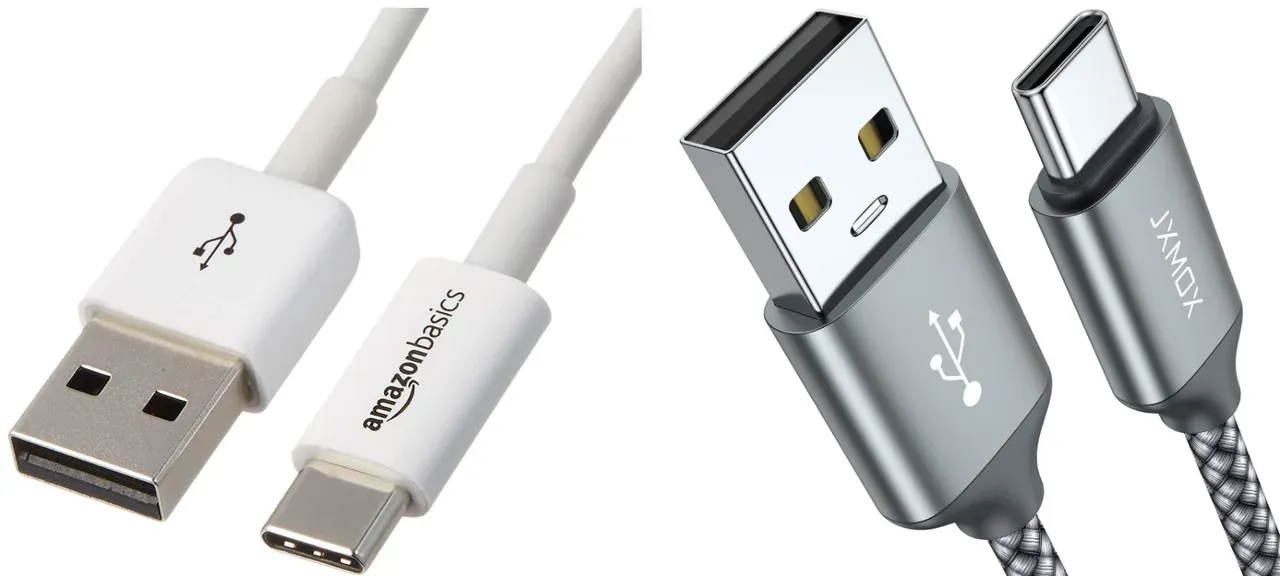
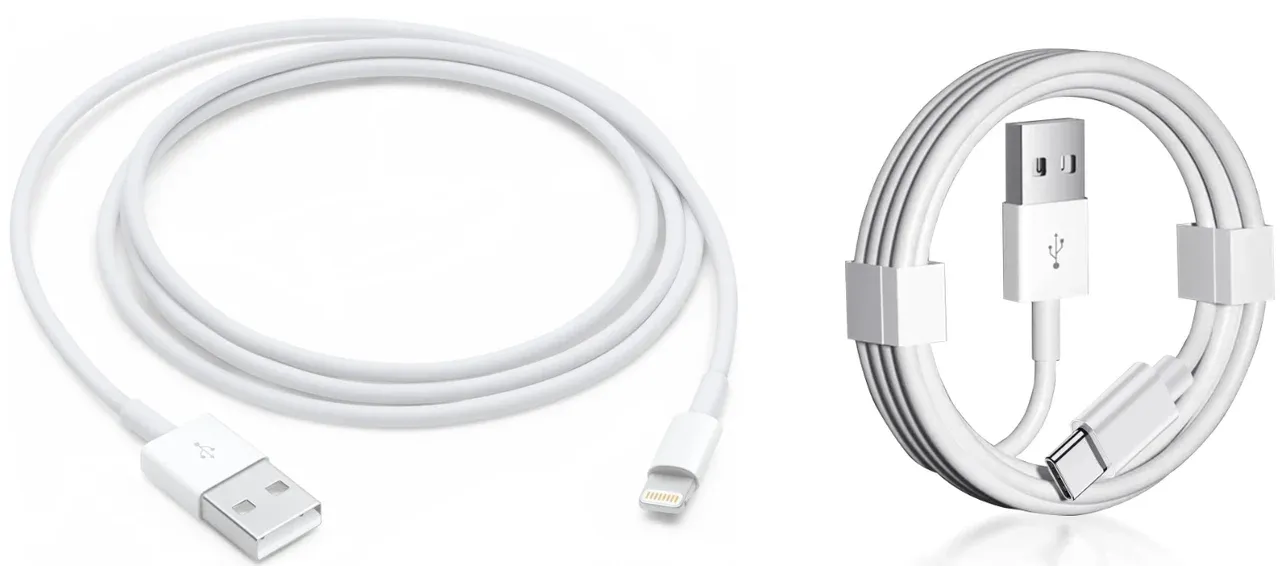
For Android phones, you may use a USB-C to USB-A or USB-C to USB-C cable, depending on your phone and computer ports. Many Android USB mirroring methods also require USB debugging, data transfer mode, or a brand-specific tool. For iPhone, you may use a Lightning to USB-A, Lightning to USB-C, or USB-C to USB-C cable, depending on your iPhone model, but you still need to trust the computer and use a tool that can display the iPhone screen.
How to View Phone Screen on PC via USB
After checking the cable, permissions, and tool requirements, the next step is to choose the right USB method for your phone. A general Android phone usually needs a USB mirroring tool, a Samsung phone can use Samsung-specific options such as Samsung Flow, and an iPhone needs a trusted USB connection with a desktop app that supports iOS screen display.
View Android Phone Screen on PC via USB
For most Android phones, viewing the Android screen on a PC via USB usually requires a desktop mirroring tool. Some tools may also ask you to enable USB debugging, especially when they use Android Debug Bridge to connect the phone and computer.
Step 1. Connect your Android phone to your PC with a USB cable that supports data transfer.
Step 2. Unlock your phone and choose File Transfer or the required USB mode if prompted.
Step 3. Open the mirroring tool on your PC and follow its connection instructions.
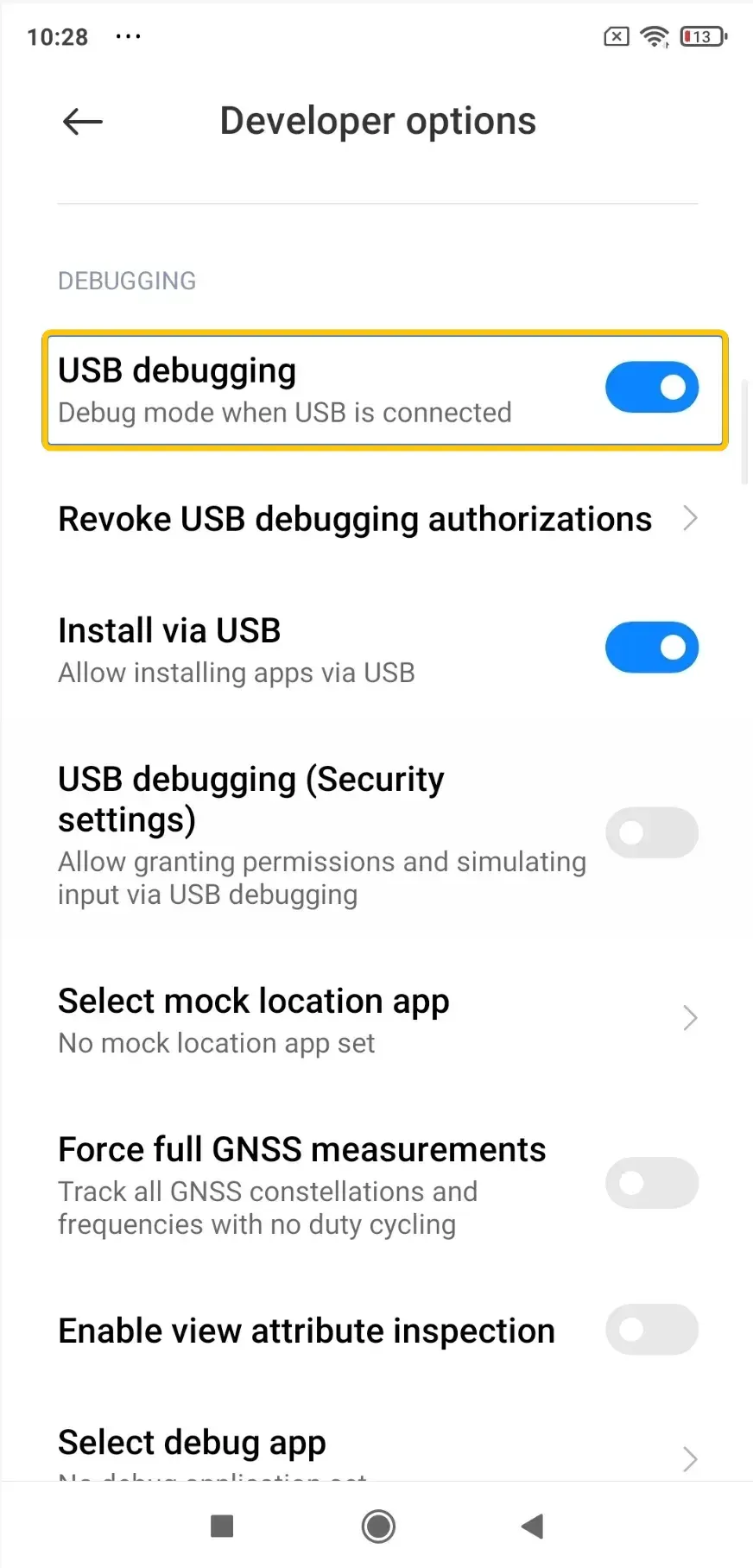
Step 4. If the tool requires USB debugging, turn it on in Developer options on your Android phone.
Step 5. Confirm any permission prompt on your phone, then wait for the phone screen to appear on your PC.
- For Samsung Galaxy phones: You can also use Samsung Flow as a Samsung-specific option.
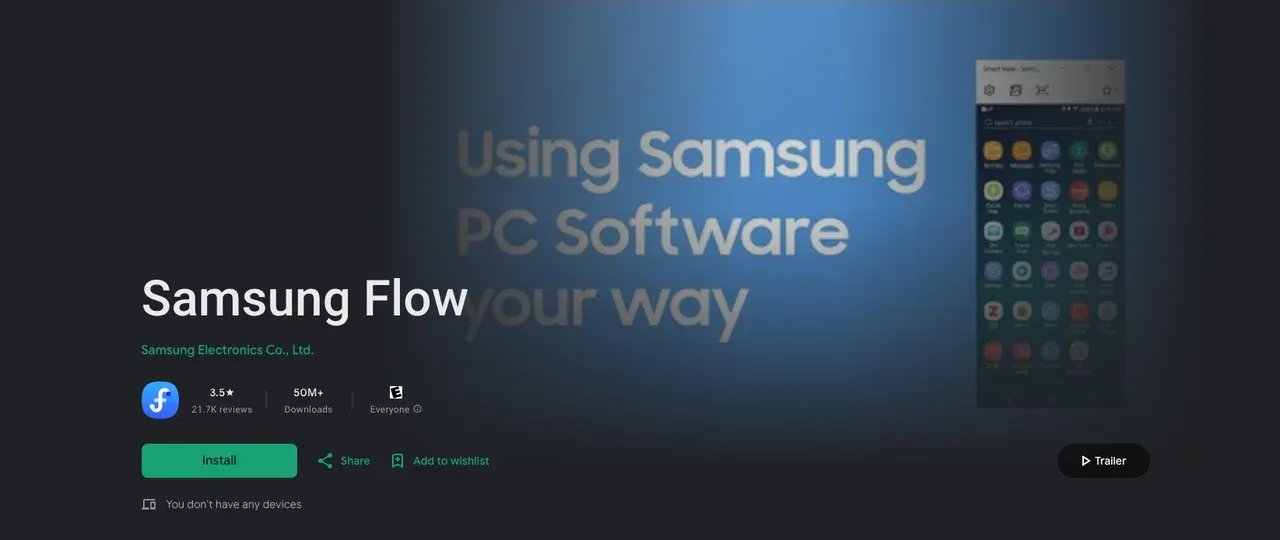
Step 1. Download and install Samsung Flow on your Samsung phone and Windows PC.
Step 2. Open Samsung Flow on both devices and connect your Samsung phone to the PC with a USB cable.
Step 3. Confirm the connection and grant the requested permissions on your phone.
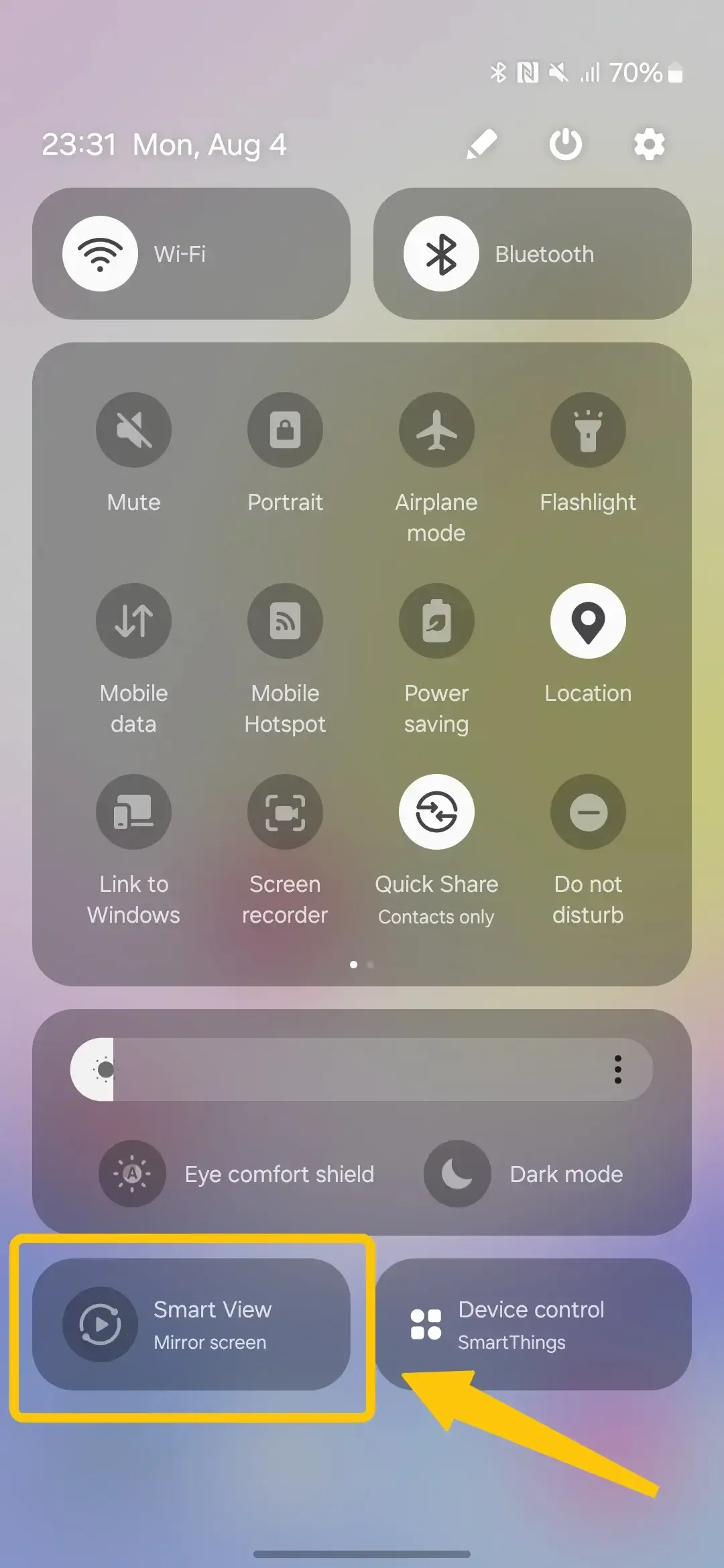
Step 4. Once paired, select the screen sharing or Smart View option in Samsung Flow to view your phone screen on the PC.
View iPhone Screen on PC via USB
Viewing an iPhone screen on a Windows PC via USB is different from using AirPlay. A USB cable can help your PC recognize the iPhone, but Windows does not provide a built-in way to mirror an iPhone screen through USB alone. You need to trust the computer and use a desktop app that supports iPhone screen display over USB.
Step 1. Connect your iPhone to the PC with a Lightning to USB, Lightning to USB-C, or USB-C to USB-C cable, depending on your iPhone model and computer port.
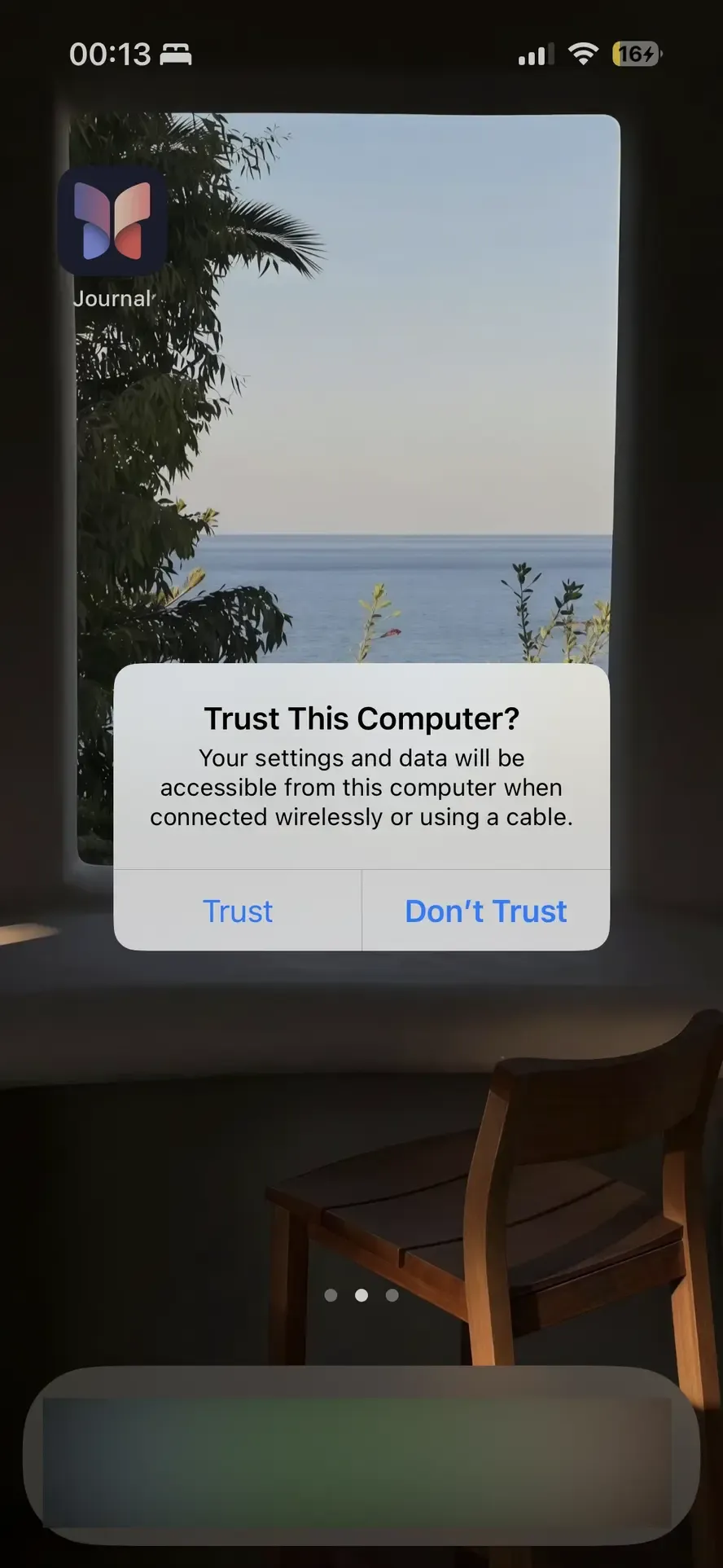
Step 2. Unlock your iPhone and tap Trust This Computer if the prompt appears.
Step 3. Open the desktop app you want to use for iPhone screen display.
Step 4. Select your iPhone in the app and follow the setup instructions.
Step 5. If your iPhone does not appear, try another cable, another USB port, or restart both devices.
Use PigeonCast When You Prefer Wireless Screen Mirroring
If you do not want to use a USB cable, USB debugging, or phone drivers, PigeonCast offers a separate wireless way to view your phone screen on a PC. It is not a USB mirroring tool. Instead, it mirrors your phone, tablet, or computer over the same Wi-Fi network.
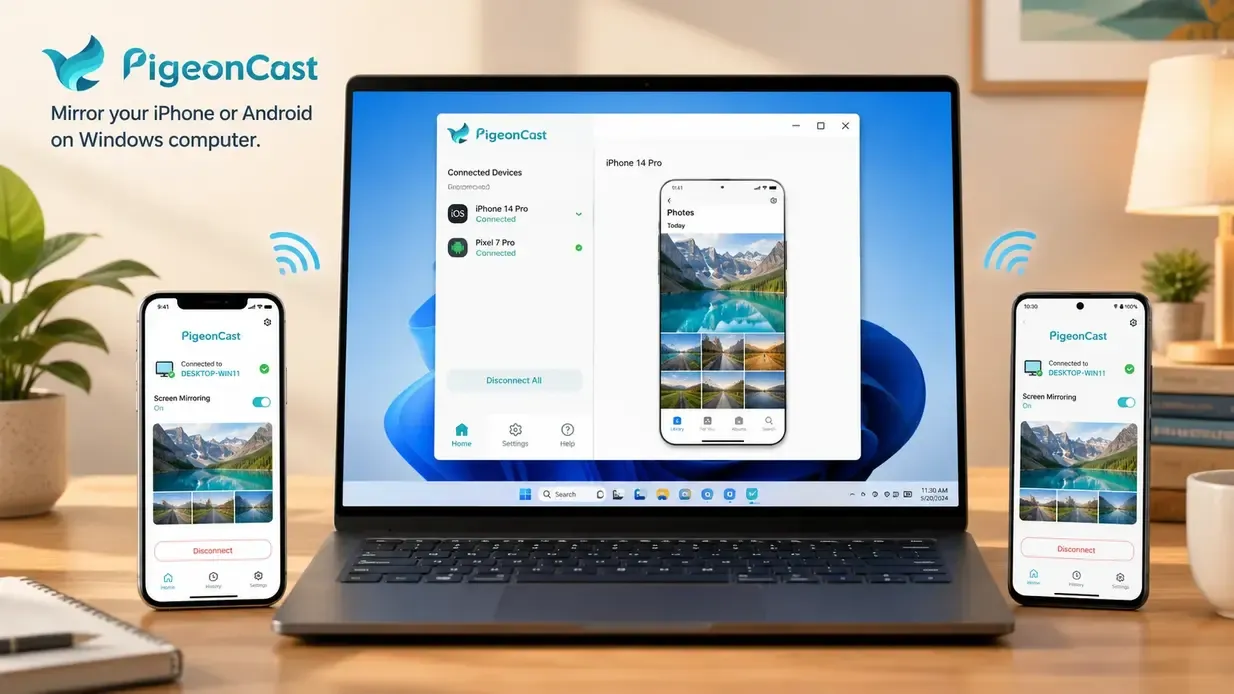
This free Windows screen mirroring app works across iPhone, Android, Windows, Mac, Android TV, and Apple TV, so it is useful when you switch between different devices or want to avoid cable-based setup. It can help when your USB cable only charges the phone, your PC cannot detect the device, or you simply prefer a wireless connection.


Overall Rating:



The mirroring app also supports common protocols like AirPlay, Google Cast, and DLNA, making it a flexible choice for streaming videos, showing photos, sharing browser pages, or presenting your phone screen on a larger display.
Step 1. Ensure your mobile phone and PC connect to the same WiFi network.
Step 2. Install the free mirroring app on your mobile device or Windows PC from the corresponding app store. Then launch this app.
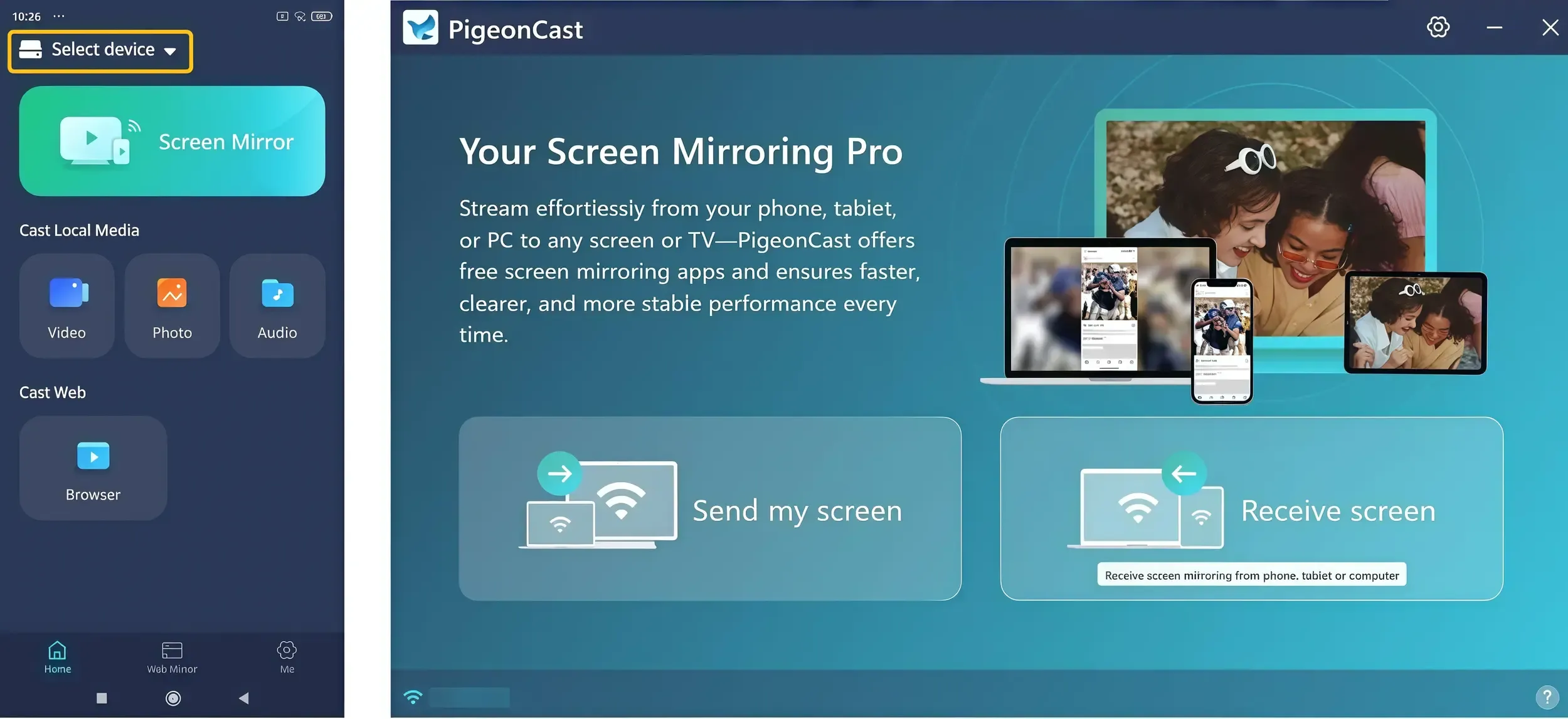
Step 3. On the sender device, tap Select device and choose your Windows computer from the list. On the receiving device, open Receive screen if needed.
Step 4. Enter the prompted onscreen code to finish the connection process.
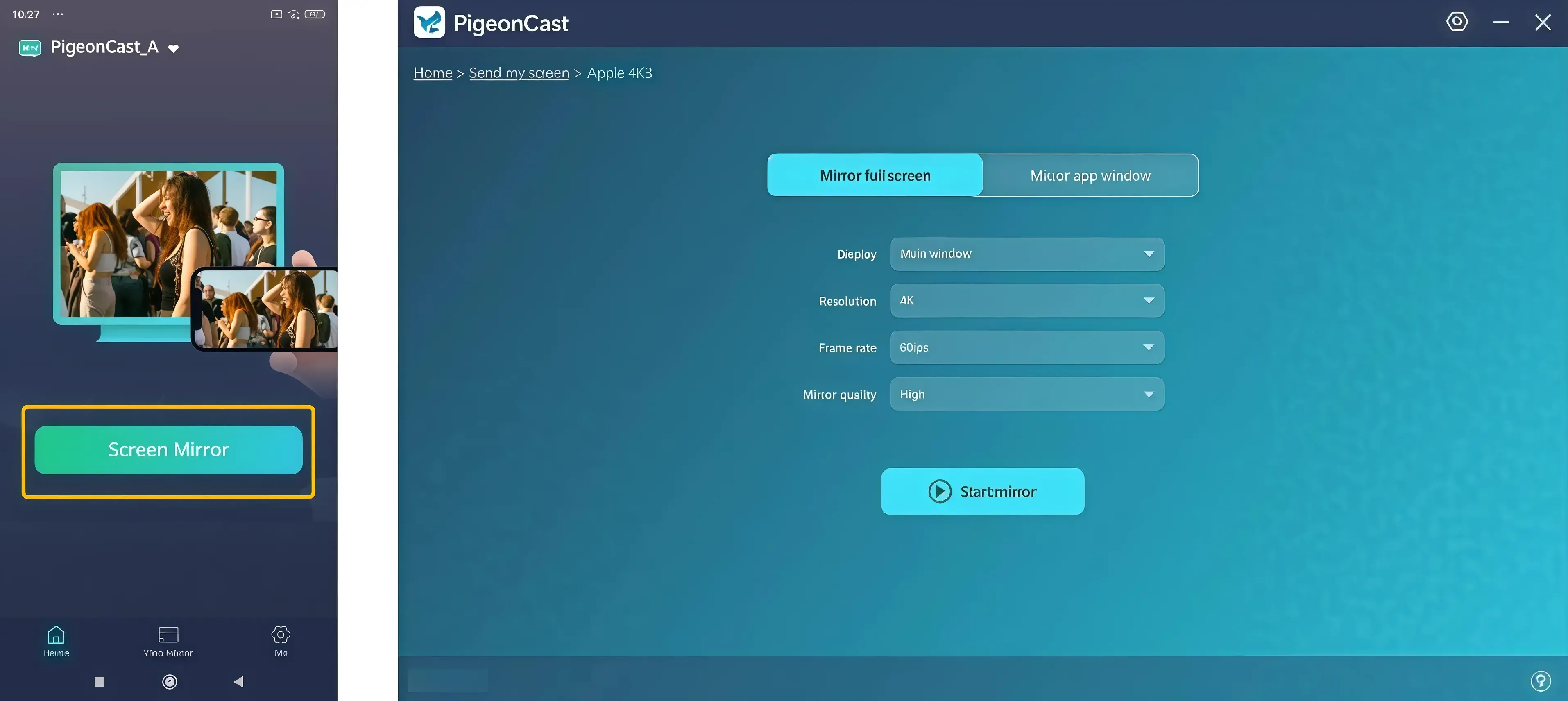
Step 5. After the connection succeeds, choose Mirror full screen or Mirror app window on the desktop version, then tap Screen Mirror or Start Mirror to begin.
Common Troubleshooting: Phone Screen Not Showing on PC
If your phone screen does not show on your Windows PC via USB, check the connection, phone permissions, and the mirroring tool first. Most problems come from the cable, USB mode, device permission, or app compatibility.
- Check Your USB Cable: Use a cable that supports data transfer, not a charge-only cable. If your phone only charges after connecting to the PC, try another cable or USB port.
- Choose the correct USB mode: After connecting your phone, unlock it and check the USB notification. Select File Transfer or the mode required by your mirroring tool.
- Enable USB debugging when required: Some Android mirroring tools need USB debugging to read the screen through a USB connection. If your tool asks for it, turn on Developer options and enable USB debugging on your Android phone.
- Trust the computer on iPhone: If you use an iPhone, unlock it and tap Trust This Computer when the prompt appears. If the prompt does not show, reconnect the cable or try another USB port.
- Grant app permissions: The desktop mirroring tool may need permission to access the device screen. Check both the phone prompt and the PC app settings before reconnecting.
- Update the phone and desktop tool: An outdated phone system, Windows driver, or mirroring app can stop the screen from appearing. Update both devices and reopen the tool before trying again.
Wrapping Up
A USB setup works best when your cable supports data transfer, your phone permissions are set correctly, and the desktop tool matches your device system. If USB debugging, drivers, or cable issues keep getting in the way, a wireless screen mirroring option can be easier to manage. PigeonCast is worth considering when you want to view your phone screen on a PC without relying on a wired connection.
View Phone Screen on PC via USB FAQ
Can I view my phone screen on PC with only a USB cable?
Usually, no. A USB cable only connects your phone to the computer, but it does not automatically display the phone screen. You still need a desktop tool, the correct USB mode, and permission from your phone. If your phone only charges after you plug it in, the cable may not support data transfer, or your phone may not be set to the mode required by the mirroring tool.
Can I view Android phone screen on PC without USB debugging?
Sometimes, but it depends on the phone brand and the tool you use. Some brand-specific tools may work without USB debugging, while many Android USB mirroring tools need it to access the screen through a USB connection. If you do not want to enable USB debugging, check whether your phone brand offers its own PC connection tool, or use a wireless screen mirroring method instead.
Why does my USB cable only charge my phone?
If your phone is not connecting to PC and only charging, the issue usually comes from a charge-only cable, an unstable USB port, or the phone still being set to charging mode. Use a cable that supports data transfer, unlock your phone, and check the USB notification after connecting it to the PC. If you see options such as File Transfer or a mode required by your mirroring tool, select the correct one before opening the desktop app.
Can I view iPhone screen on PC via USB without AirPlay?
Yes. You can mirror your iPhone to a PC without AirPlay over USB, but Windows does not offer native iPhone screen mirroring through USB. A USB cable can help your PC recognize the iPhone, but you still need a desktop app that supports iPhone screen display over USB. After connecting the cable, unlock your iPhone and tap Trust This Computer if the prompt appears. If the iPhone does not show up, try another cable, another USB port, or restart both devices.
Is USB better than wireless screen mirroring?
USB can be more stable when the cable, phone permission, driver, and desktop tool all work correctly. It is useful when Wi-Fi is slow or unavailable. Wireless screen mirroring is more convenient if you want to avoid cables, USB debugging, or driver issues. The better option depends on whether you care more about stability or ease of setup.
Can PigeonCast help me view my phone screen on PC via USB?
No. PigeonCast is not a USB mirroring tool and does not support wired screen mirroring. It is a separate wireless screen mirroring app. You can use it when you want to view your phone screen on a PC without a USB cable, USB debugging, or phone drivers, as long as your devices are connected through the supported wireless setup.
Clara Rossi is an experienced technology editor and a seasoned expert in screen mirroring and casting technologies. With a keen eye for detail and a deep understanding of how to seamlessly connect devices, Clara excels at optimizing user experiences for effortless sharing and streaming. Whether you're seeking quick fixes or advanced tips, her expertise and responsiveness ensure that every query is met with a well-informed and efficient solution.