
You plug your phone into your computer, expecting file transfer or screen access. Instead, nothing happens. Just charging.
If your phone not connecting to PC only charging, you're not alone. This issue usually means your device is physically connected, but the data channel is blocked, misconfigured, or simply unreliable.
Here's the honest take: sometimes you can fix it. Sometimes you'll waste 20 minutes and still end up stuck. Let's go step by step and also look at a faster way out.
Why Won't My Computer Recognize My Phone
If your computer won't recognize phone, think of the connection as three layers working together:
-
Hardware layer → cable, port, phone interface
-
Permission layer → USB mode, authorization prompts
-
Software layer → drivers, system compatibility
If any one of these fails, your phone falls back to charging only. That's why the problem feels inconsistent. Sometimes it works. Sometimes it doesn't.
Instead of jumping randomly between fixes, go through these in order.
Fix 1: Change USB Mode
This is the first thing to check because Android often defaults to charging mode, especially after reconnecting or rebooting. Many users don't realize the phone needs manual confirmation before allowing data access.
If your phone not recognized by computer, chances are your phone is simply not in the right mode. Your phone is protecting your data. Until you explicitly allow file access, it behaves like a power-only device.
Step 1. Plug your phone into the PC.
Step 2. Unlock your phone.
Step 3. Swipe down the notification panel.
Step 4. Tap USB notification (it may say "Charging this device").
Tip: If the notification doesn't appear:
-
Reconnect the cable.
-
Try a different USB port.
-
Make sure your phone is unlocked before plugging in.
Step 5. Select File Transfer (MTP).
Fix 2: Check Your Cable
A surprising number of USB cables are designed only for charging. They physically lack the internal wiring needed for data transfer.
If your phone not connecting to pc, and everything on the screen looks correct, the cable becomes the prime suspect.
How to verify:
-
Try a different cable, ideally the one that came with your phone.
-
Use a cable labeled for "data transfer" or "sync".
-
Avoid very cheap or damaged cables.
Quick test:
Plug the same cable into another phone. If it still only charges, you've found the issue.
Fix 3: Enable USB Debugging
USB debugging forces a deeper communication layer between your phone and PC, bypassing some restrictions. This step is slightly more advanced, but it often resolves stubborn cases where the system refuses to establish a proper connection.
If your computer won't recognize phone, even after switching modes and cables, this is worth trying.
Step 1. Go to Settings > About Phone.
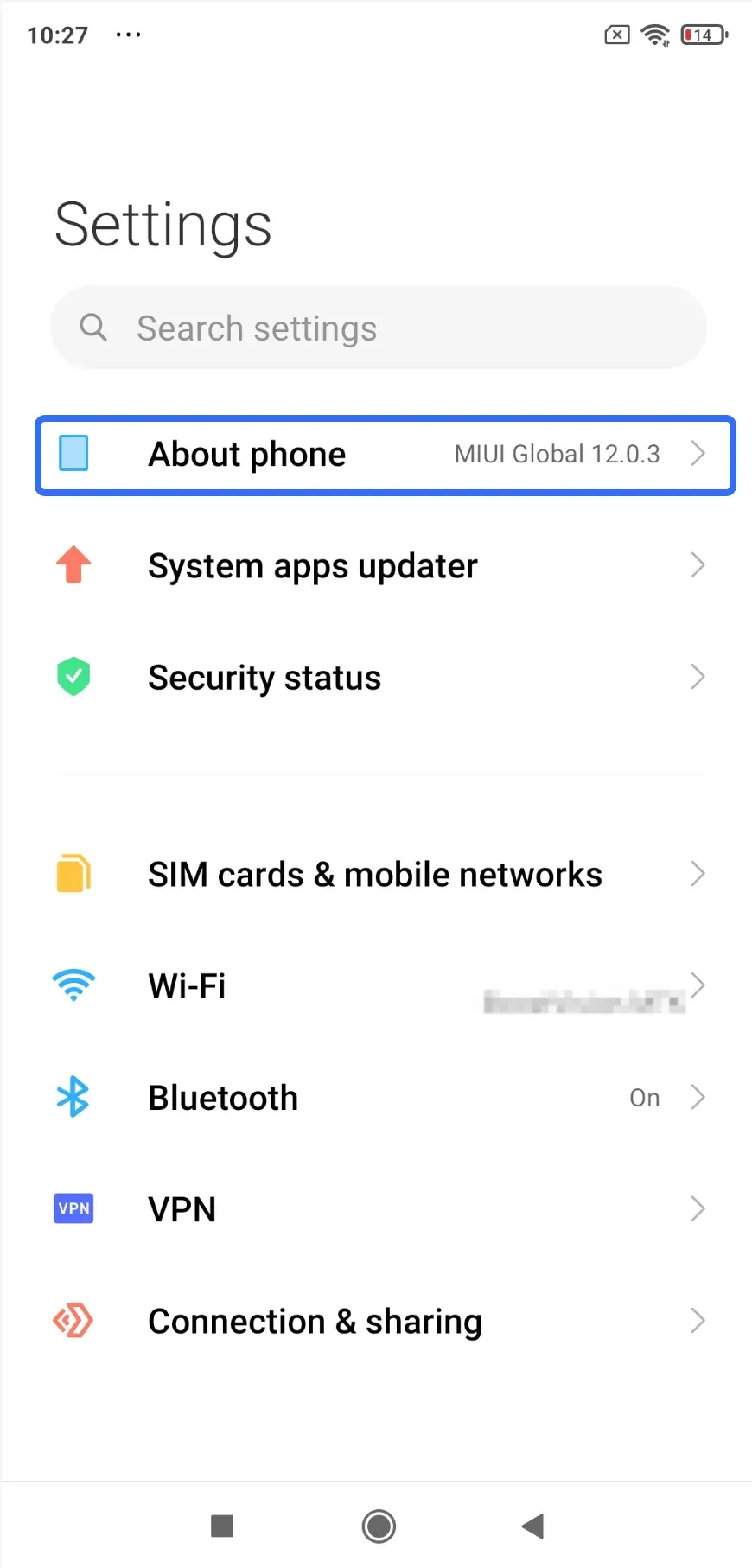
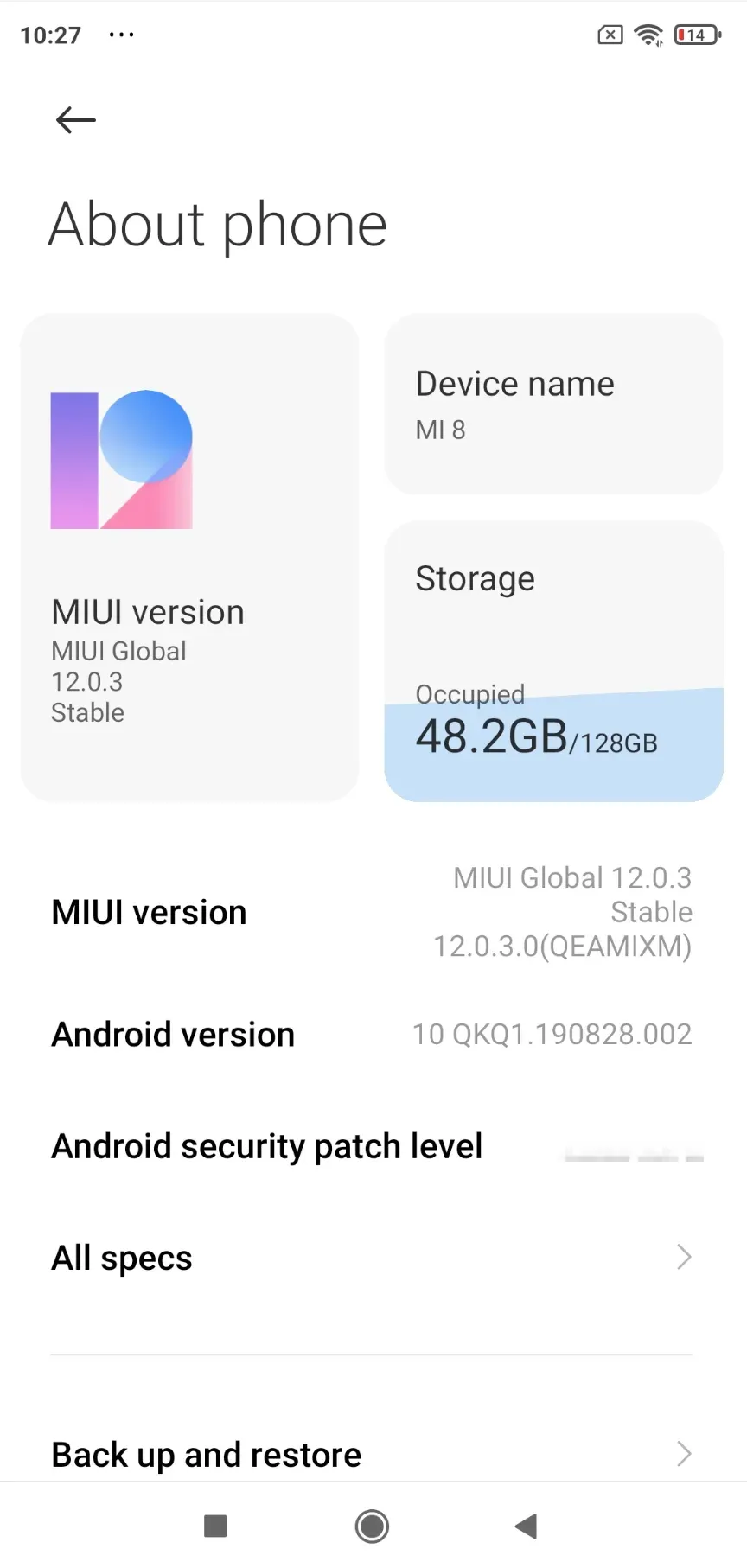
Step 2. Tap Build Number repeatedly (about 7 times).
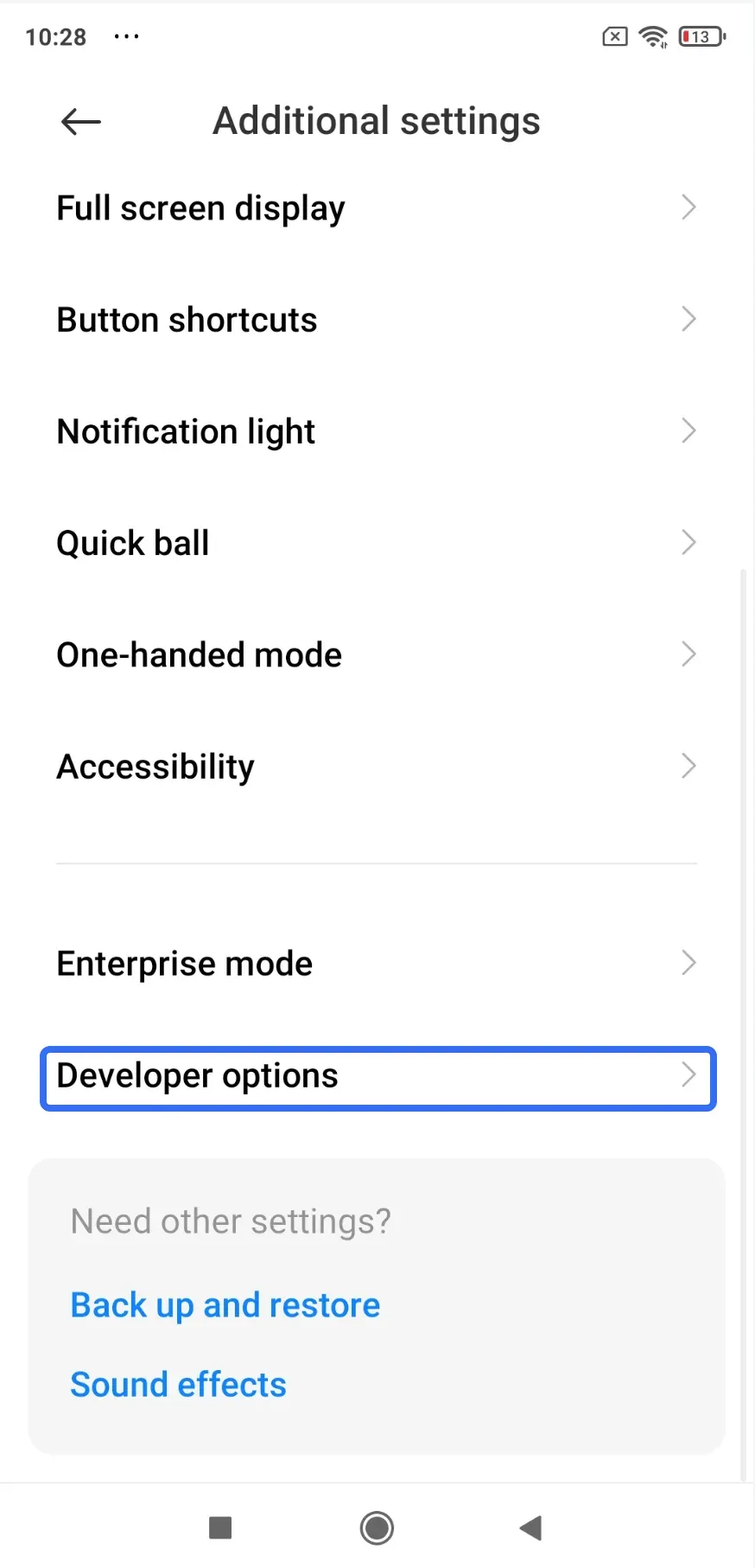
Step 3. Return to Settings > Additional settings > Developer Options.
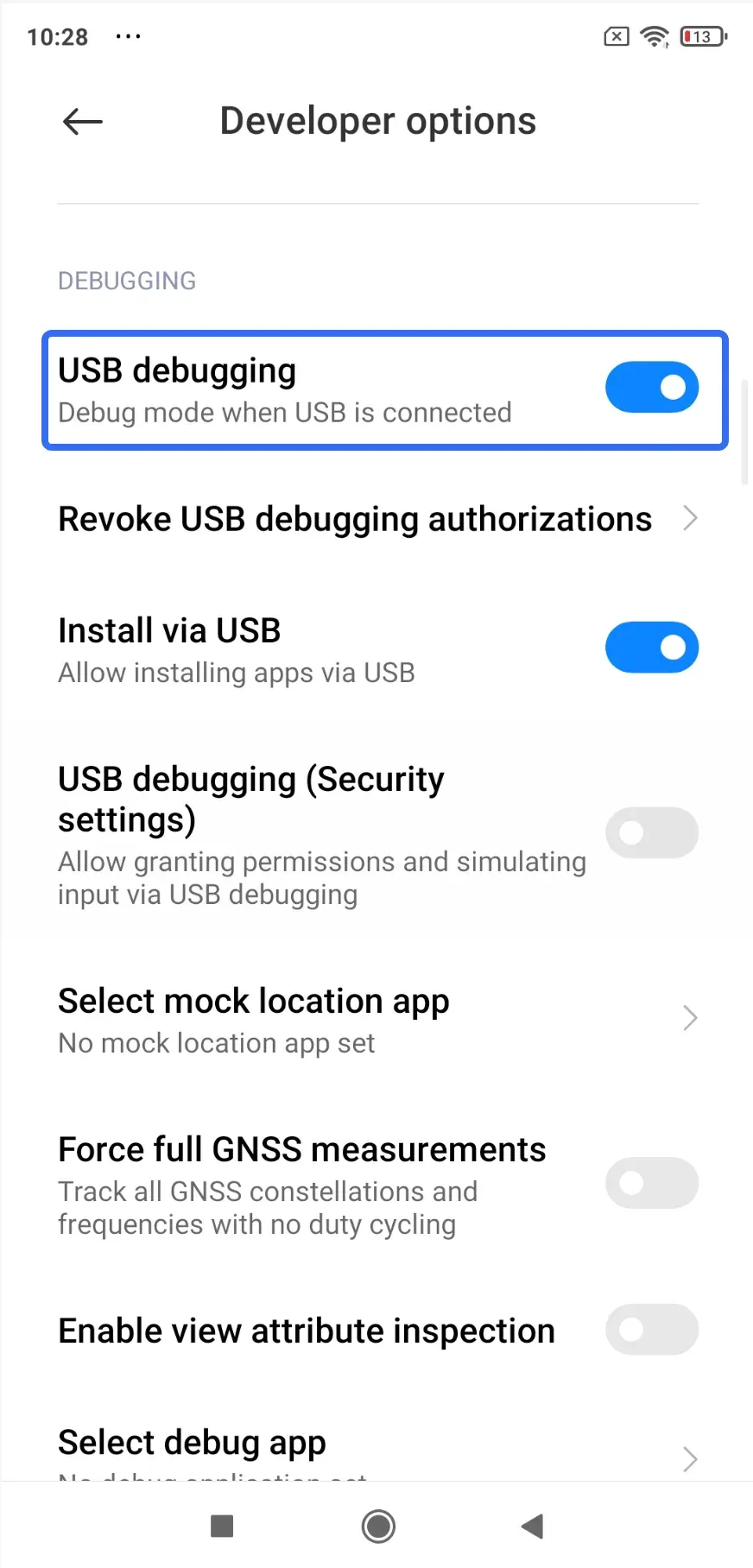
Step 4. Turn on USB Debugging.
Step 5. Reconnect your phone.
-
You may see a prompt asking to authorize your PC.
-
Accept it to establish a trusted connection.
Fix 4: Update or Reinstall Drivers
Sometimes your phone is working perfectly, but your PC simply doesn't know how to talk to it. That's where drivers come in.
If your phone not recognized by computer, especially on Windows, outdated or corrupted drivers are a common cause. So, try updating drivers on your Windows PC.
Step 1. Connect your phone to PC.
Step 2. On your Windows PC, right-click the Start button and select Device Manager.
Step 3. Look for your phone (may appear under Portable Devices or Unknown Device).
Step 4. Right-click the item and choose Update driver.
Step 5. If that fails, uninstall the device and reconnect.
Tip: If you're using a Samsung device and have the samsung phone not connecting to PC only charging issue, installing official Samsung USB drivers can resolve persistent issues.
Fix 5: Try a Different USB Port or Computer
It's easy to assume the issue is with your phone, but USB ports can fail quietly. Some ports deliver power but don't handle data properly. If your phone not connecting to pc only charging, testing another port can quickly rule this out.
-
Plug into a different USB port on your PC.
-
Avoid USB hubs or extensions.
-
Try another computer if available.
If the phone works on another device, you've narrowed the problem down instantly.
Fix 6: Restart Both Devices
It sounds basic, but temporary system glitches (including background processes or cached errors) are more common than most people think.
Step 1. Restart your phone.
Step 2. Restart your PC.
Step 3. Reconnect after both fully boot.
This process can clear hidden conflicts that don't show up in settings or notifications.
Your Phone Still Not Connecting to PC But Only Charging
Even after everything is set correctly, USB connections can still fail. You might fix it today and run into the same issue next week.
If your phone not connecting to PC, it's not always your fault. USB is simply not as reliable as people assume.
So instead of asking, "How do I fix this again?", it's worth asking something else: "Do you actually need USB at all?".
Try Wireless Connection Between Phone and PC
If your goal is to move files, mirror your Android phone screen on PC, or access content, there's a cleaner approach that avoids all these friction points.
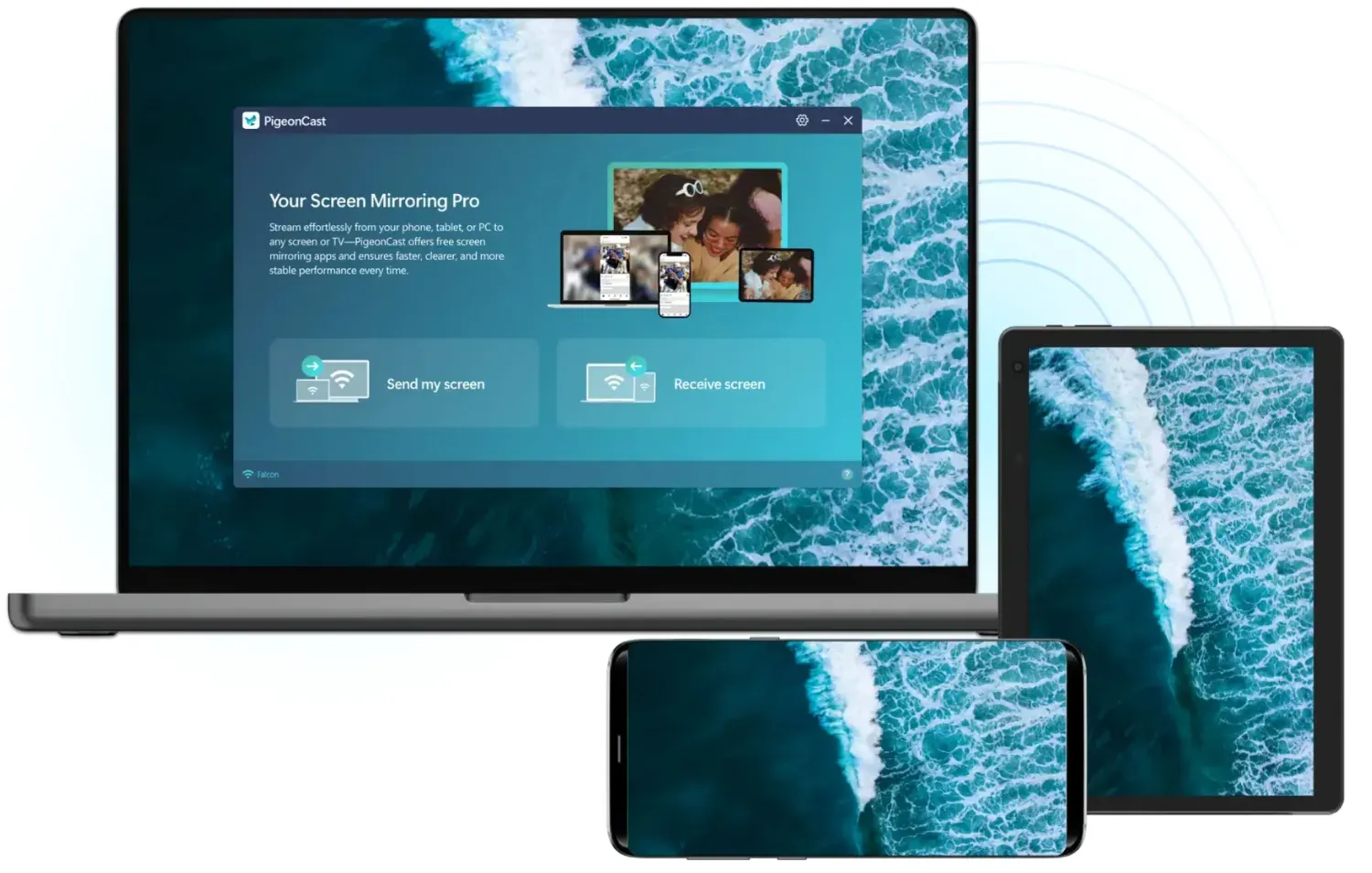
With tools like PigeonCast, you can:
-
Mirror your phone screen instantly
-
Avoid drivers, permissions, and cables
-
Start in seconds without setup headaches
How to use PigeonCast for phone-to-PC connection:
Step 1. Download and install PigeonCast from Google Play or Microsoft Store.


Overall Rating:



Step 2. Check if your PC and phone are on the same Wi-Fi network with the same band.
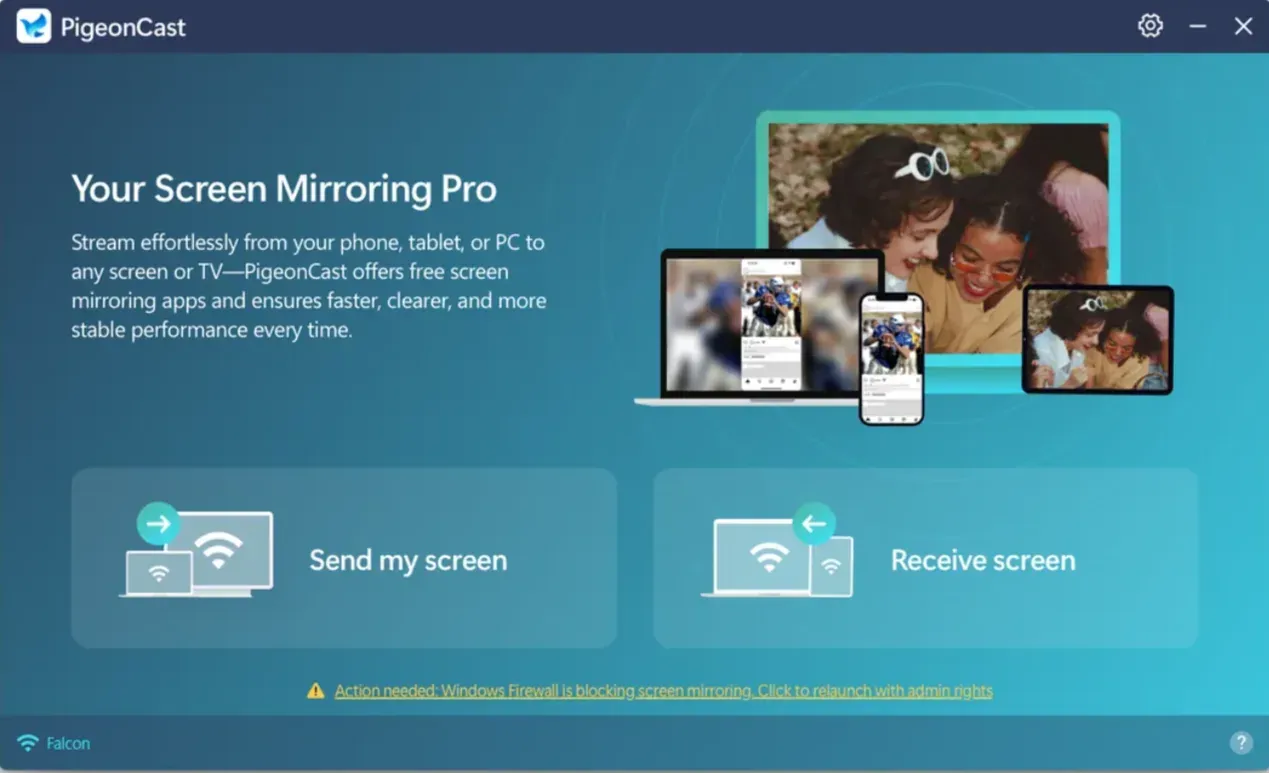
Step 3. Launch PigeonCast on your Windows PC and click Receive screen.
Step 4. On your phone, launch PigeonCast, choose your PC from the list, and start mirroring with onscreen instructions.
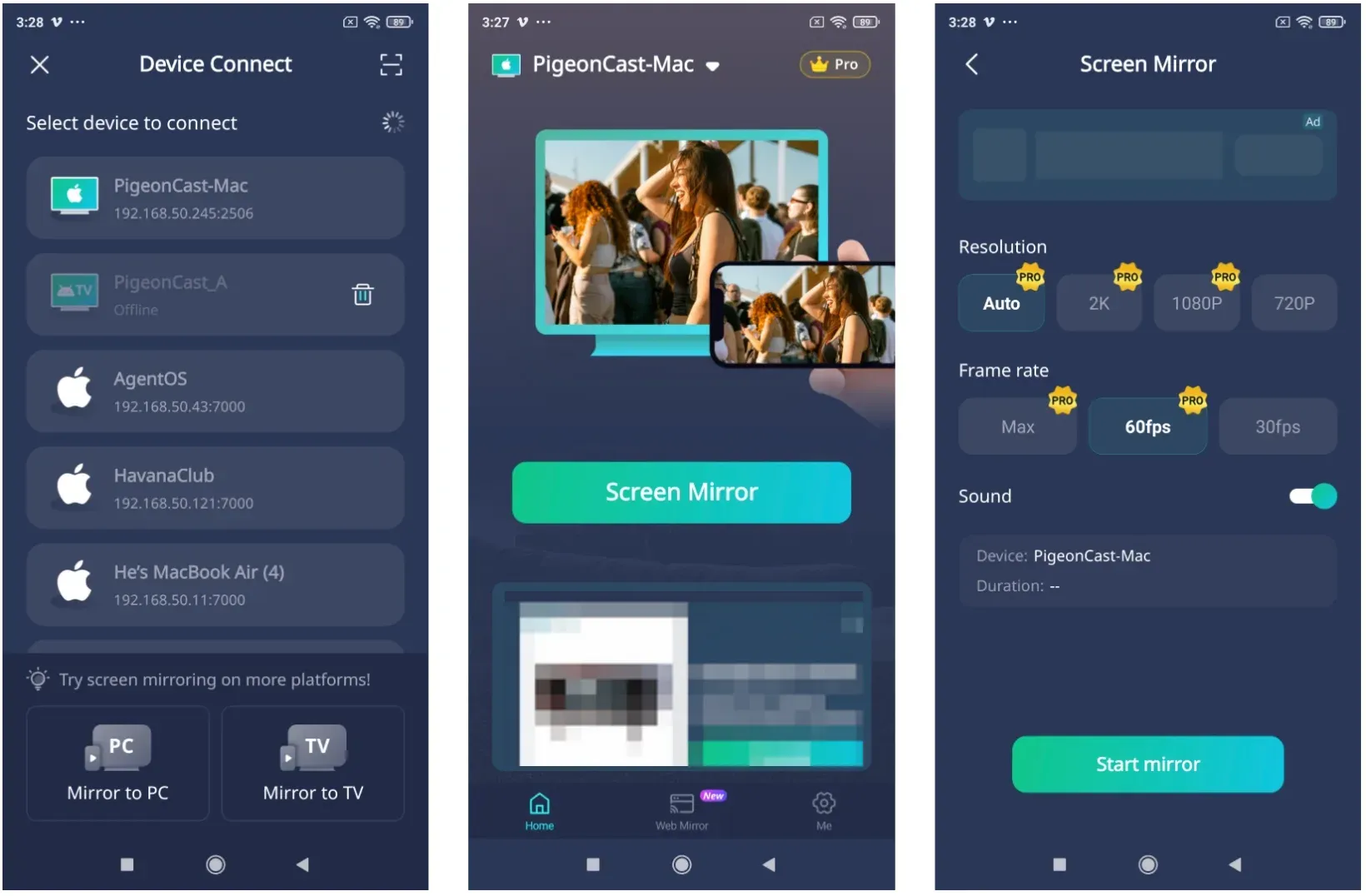
Now you can view your phone's file on your PC screen. No USB mode. No "charging only" issue. No repeated fixes.
USB vs Wireless: Which One Actually Saves Time?
td {white-space:nowrap;border:0.5pt solid #dee0e3;font-size:10pt;font-style:normal;font-weight:normal;vertical-align:middle;word-break:normal;word-wrap:normal;}| Method | USB Connection | Wireless (PigeonCast) |
|---|---|---|
| Setup | Requires cable + drivers | Instant |
| Stability | Can fail randomly | More consistent |
| Speed | Depends on cable | Usually smooth |
| Convenience | Limited | High |
| Flexibility | Low | Works anywhere |
If your phone not connecting to PC, this difference becomes obvious very quickly.
Final Thoughts
If your phone not connecting to PC only charging, start with the basics and work through the fixes methodically.
But if you find yourself repeating the same steps over and over, it's worth reconsidering the approach. Sometimes the smarter move isn't fixing USB. It's leaving it behind.
Phone Not Connecting to PC Only Charging FAQ
Why is my PC not detecting my phone?
In most cases, the phone is connected but not authorized for data transfer. Check the USB mode first, then rule out cable and driver issues.
What are signs of a dirty USB-C port?
Lint or dust inside the port can block proper contact. Common signs include loose connections, charging that cuts in and out, or needing to "wiggle" the cable to work.
How to connect phone to PC without USB?
You can use wireless tools like PigeonCast that connect over the same WiFi network. They allow file transfer or screen mirroring without cables or drivers.
Why does my phone connect and disconnect repeatedly?
This usually points to a damaged cable, unstable USB port, or debris inside the charging port interfering with the connection.
Do I need special drivers for Android phones on Windows?
Most modern systems install drivers automatically, but some brands like Samsung may still require manual installation for stable connections.
Mia Clarke is a technology editor specializing in screen mirroring and casting solutions across multiple platforms. Mia provides clear, practical guides and in-depth insights to help users seamlessly connect their devices. Passionate about enhancing digital experiences, Mia is dedicated to keeping readers updated on the latest trends and tools in cross-platform screen sharing. Whether you’re looking to mirror your smartphone, laptop, or smart TV, Mia’s content delivers reliable, user-friendly advice to simplify your tech setup.