
Want to share photos, play games, or watch movies from your phone on your TV? Learn how to connect phone to TV with USB in this simple guide. It's reliable, won't drain your battery, and often offers a more stable picture than wireless methods. We'll explain how to connect both Android and iPhone devices and offer solutions if things don't go as planned. Let's get your screen mirrored!
How to Connect Phone to TV with USB Cable
Modern smartphones use advanced USB standards like USB-C with DisplayPort or HDMI Alt Mode, which can send video and audio through the USB port. This means that with the right USB-C cable and a compatible TV, you can send a video signal without needing an HDMI cable. However, this only works if both your phone and TV support these features.
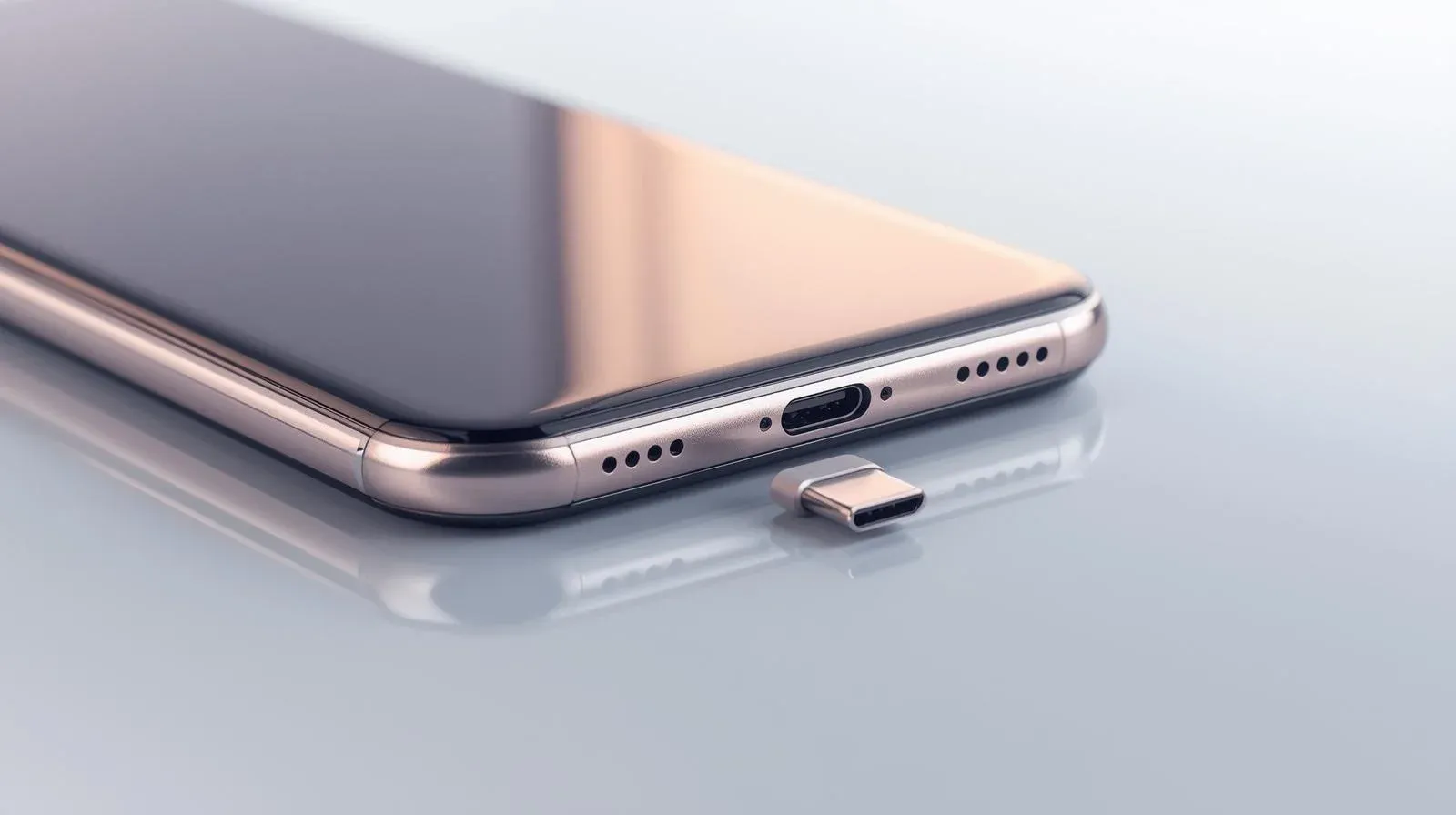
For most people, a regular USB cable connected to a TV's USB port will only transfer data or power, not video. To mirror your phone's screen, you'll typically need an adapter that converts your phone's video output to HDMI, or use your TV's USB port in media mode to browse files, but not for screen mirroring. Let's look at the best ways to connect, starting with Android phones, which usually support these features better.
How to Connect Android to TV with USB
Android devices offer several options for connecting to your TV via USB, but the exact method depends on your phone's capabilities. Here are four common methods about how to connect Android phone to normal TV with USB:
Use MHL (Mobile High-Definition Link)
MHL is an older standard that transmits video and audio over a micro-USB port while charging the phone. Requires an MHL-compatible phone and a special MHL-to-HDMI adapter. Here's the step on how to connect phone to TV using USB:
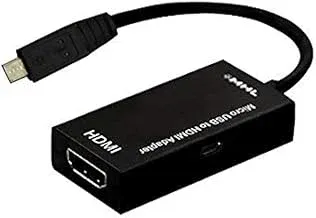
Step 1. Connect your MHL-enabled phone to the MHL adapter.
Step 2. Use the MHL cable to link the adapter to your TV.
Step 3. Your phone's screen will instantly appear on the TV.
Use SlimPort
SlimPort is another way to connect your Android phone to your TV using a USB cable. It supports HDMI, VGA, and DisplayPort, making it compatible with many TV models. SlimPort, commonly found on older LG and Nexus devices, is an alternative to MHL. It uses a micro-USB port and requires a specific adapter to output video to your TV.
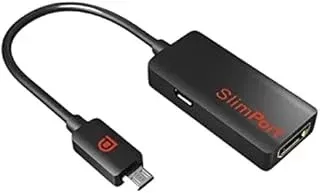
Step 1. Connect the SlimPort adapter to your phone's micro-USB port.
Step 2. Attach the other end of the SlimPort adapter to your TV using the appropriate cable (HDMI, VGA, or DisplayPort, depending on your TV).
Step 3. Once connected, your phone's screen will automatically appear on the TV.
Use a USB-C Cable with DisplayPort Support
The USB-C port is the modern, near-universal standard for current Android phones. It natively supports a DisplayPort signal, which can easily be converted to HDMI using a simple, passive adapter or cable. Here's how to connect phone to TV with USB-C to HDMI:
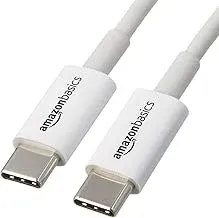
Step 1. Connect the USB-C cable to your Android phone.
Step 2. Plug the other end of the cable into a docking station with an HDMI port or use a USB-C to HDMI adapter.
Step 3. Your phone's screen should now appear on the TV.
Use Samsung DeX
Samsung DeX is a feature available on select Samsung devices, like the Galaxy and Note series, that lets you turn your phone into a desktop-like experience. It allows you to connect your phone to a TV or PC and use it for tasks like multitasking and running apps on a larger screen. Since DeX is exclusive to Samsung, it only works with their devices.
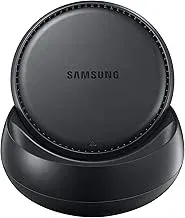
Step 1. Open the quick settings menu on your Samsung mobile and press the DeX button to turn on the feature.
Step 2. Select DeX on TV or monitor. (If you are only seeing the DeX on PC option, you should select More Options to select Switch to TV or monitor)
Step 3. Choose the TV to which you want to connect your phone, and press Start Now to make the connection.
Step 4. Once prompted, approve the connection on your TV to start mirroring your phone's display with Samsung DeX.
How to Connect iPhone to TV with USB
Connecting an iPhone to a TV via USB is easier than with Android phones. Apple uses special adapters to make sure everything works smoothly. To connect your iPhone, you'll need either a Lightning to Digital AV Adapter or a USB-C to Digital AV Adapter, depending on your model. Here's the how to connect iPhone to TV USB:
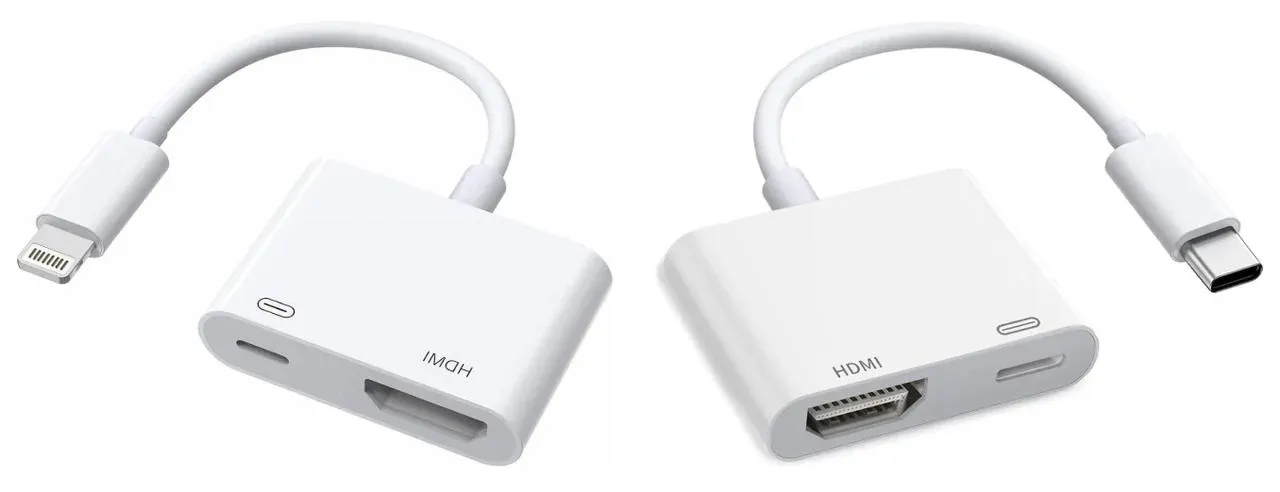
Step 1. Get the Correct Adapter:
- For iPhones with a Lightning port (iPhone 14 and older): Purchase Apple's Lightning to Digital AV Adapter.
- For iPhones with a USB-C port (iPhone 15 and newer): Purchase a USB-C to HDMI adapter (Apple's or a trusted third-party brand).
Step 2. Plug the adapter into your iPhone, then connect an HDMI cable between the adapter and your TV.
Step 3. Switch your TV to the corresponding HDMI input. Your iPhone's display will now appear on the TV for full-screen mirroring.
Best Alternative for Connecting Phone to TV with PigeonCast
If dealing with cables and adapters feels outdated, a wireless screen mirroring app like PigeonCast offers incredible convenience. PigeonCast is a free app that lets you mirror your phone's screen directly to your smart TV over your Wi-Fi network, no cables required. Its connection process is also simple to conduct:



Overall Rating:



Step 1. Install PigeonCast on your phone and TV, then launch it.
Step 2. Ensure both your devices are covered by the same wireless network.
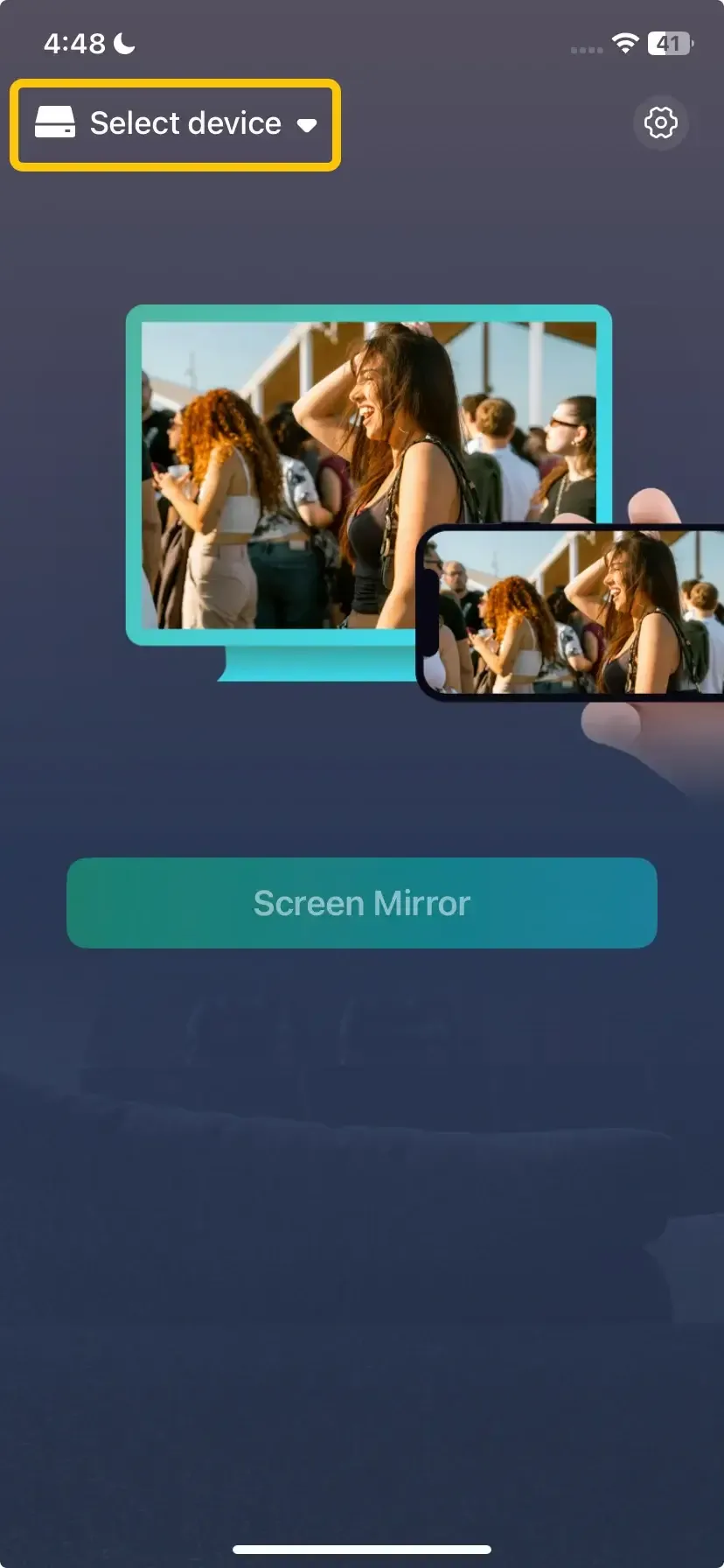
Step 3. On your phone, tap Select device to choose your TV from the available list. Or you can scan the QR code to finish the connection.
Step 4. Enter the onscreen code to confirm the connection.
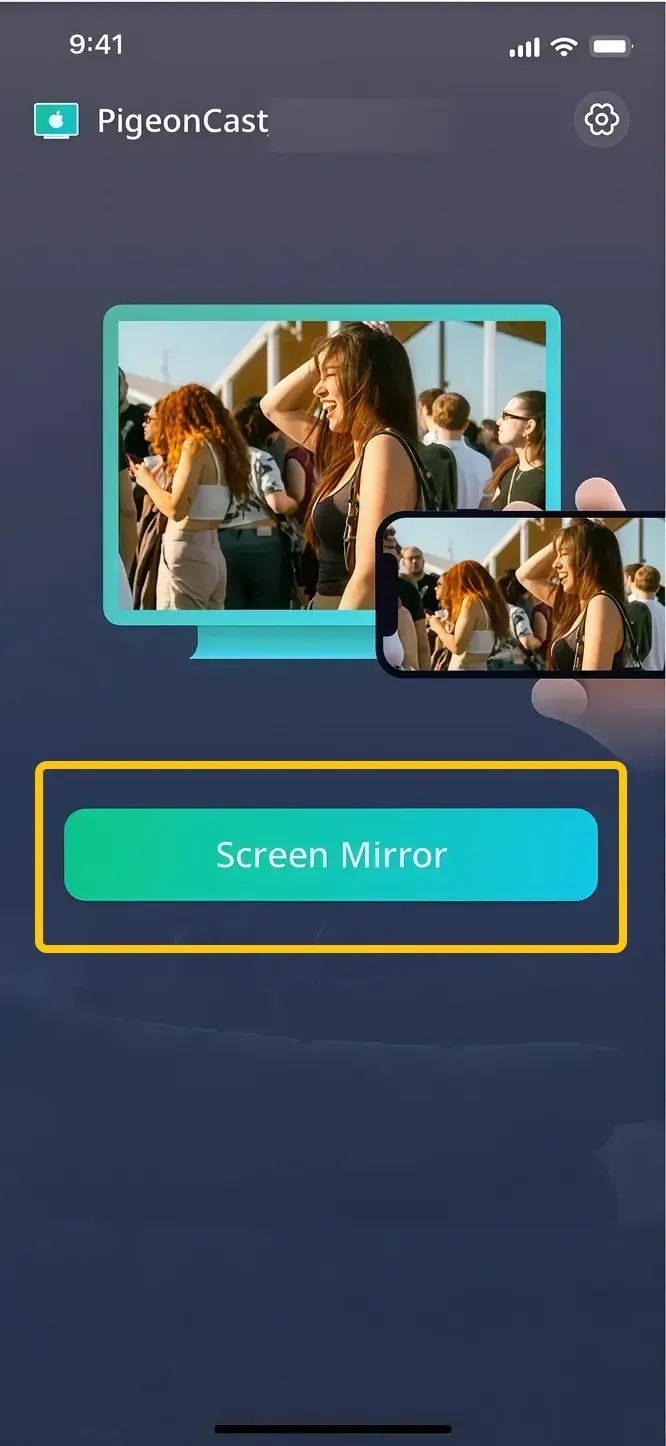
Step 5. Once finished the pairing process, you can then tap Start Mirror to begin your mirroring activities.
What to Do When You Won't Connect Phone to TV with USB
If your phone isn't connecting to your TV via USB, there are several common issues that could be causing the problem. Fortunately, troubleshooting them is usually straightforward. Here are a few steps to help you resolve the issue:
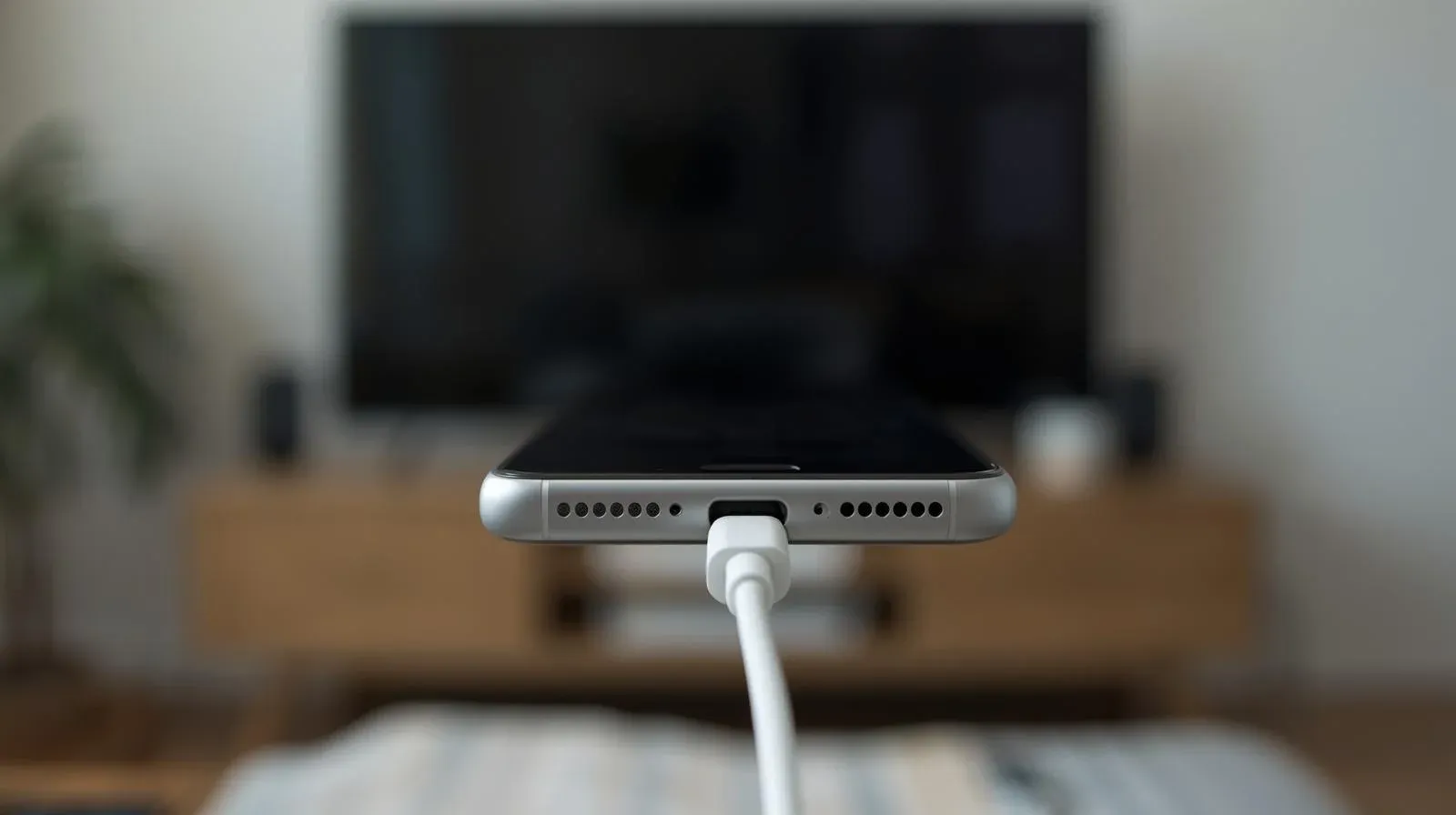
- Check the USB Cable: Ensure you're using the correct cable for data transfer. A regular charging cable won't work for connecting your phone to the TV. You need a USB cable that supports both power and data transfer.
- Ensure TV Supports USB Media Input**:** Not all USB ports on your TV are meant for data input. Some ports are only for charging or power. Look for a port labeled "Media" "USB 2.0" or something similar. This is the one that will allow your phone to transfer data to the TV.
- Check Your Phone's Settings: Make sure your phone is set up to allow data transfer:
- For Android: Ensure your phone is in "File Transfer" or "MTP" mode. This will let the TV access your phone's media.
- For iPhone: Make sure you've trusted the device and enabled Display Mirroring. You may need to swipe down on the screen to access these settings.
- Restart Devices: If the connection still isn't working, try restarting both your phone and TV. Sometimes, a quick reboot can fix temporary glitches that may prevent the connection.
- Use the Right Adapter (For iPhone): If you're using an iPhone, ensure you have the proper adapter, such as the Lightning to Digital AV Adapter. For USB-C iPhones, you’ll need a USB-C to Digital AV Adapter. Without these, the connection wouldn't work.
- Check for Software Updates: Sometimes, a software update on either your phone or TV might be needed to ensure compatibility. Make sure both devices are running the latest firmware or OS version.
- Try an Alternative Connection Method: If you've gone through all the troubleshooting steps and it still doesn't work, consider using an alternative method like wireless casting (e.g., Apple AirPlay for iPhones or Google Chromecast for Android phones) to connect your phone to the TV.
Wrapping Up
Whether you're using Android or iPhone, there are various methods, such as MHL, SlimPort, USB-C with DisplayPort support, and Samsung DeX. For iPhones, Apple's specific adapters make the process easy. If you encounter connection issues, check your cables, TV settings, and phone preferences. If needed, consider alternative wireless solutions like PigeonCast, AirPlay, or Chromecast. With the right setup, you'll be enjoying your phone's content on your TV in no time.
How to Connect Phone to TV with USB FAQ
How to connect phone to TV with USB without HDMI?
To connect your phone to a TV with USB without using HDMI, you can use a USB-C to USB or USB-C to DisplayPort adapter, depending on your phone and TV's capabilities. Some newer phones support direct video output via USB-C, allowing you to mirror your screen without HDMI. For older phones, you may need a special adapter like MHL or SlimPort, which converts the USB signal to a format your TV can recognize.
How to connect phone to TV with USB without WiFi?
To connect your phone to a TV with USB without using Wi-Fi, follow these steps:
- For Android phones: Use a USB-C to HDMI adapter if your phone supports video output through its USB-C port (e.g., using DisplayPort or HDMI Alt Mode). Plug the USB-C end into your phone and the HDMI end into your TV.
- For older Android phones (with micro-USB): Use an MHL or SlimPort adapter. These adapters convert the micro-USB port's signal to HDMI, allowing you to connect directly to your TV.
- For iPhones: Use a Lightning to Digital AV Adapter (or USB-C to HDMI adapter for newer models). Connect the adapter to your phone and the HDMI cable to your TV.
- Set your TV to the correct input: Once connected, switch your TV to the corresponding HDMI input to start mirroring your phone's screen.
How to connect phone to TV with USB charging cable?
To connect your phone to a TV using just a USB charging cable, you will need to ensure that both your phone and TV support the appropriate data transfer features. Here's how you can do it:
- Check Your TV's USB Port: Some modern TVs allow media files to be accessed via the USB port, but this usually works only for transferring files (like photos, videos, or music) and not for screen mirroring. Look for a USB port labeled "Media" or "USB 2.0".
- Use the Right Settings on Your Phone:
- For Android: Enable "File Transfer" or "MTP" mode in your phone’s settings. This will allow the TV to read media files from your phone.
- For iPhone: You'll typically need to trust the device and enable file sharing, though full screen mirroring via USB charging cable is not supported directly.
- Connect the Cable: Plug one end of your USB charging cable into your phone and the other end into the TV's USB port.
- Access the Files on TV: If the TV supports it, navigate to the TV's media input mode, and you should be able to browse and play files from your phone, such as photos and videos.
How to connect phone to Roku TV with USB?
To connect your phone to a Roku TV using USB, you need to follow these steps:
- Check the Roku TV's USB port
- Enable File Transfer on your phone
- Connect your phone to the TV
- Browse and view media
How to connect phone to TV with USB cable only?
If your TV doesn't have an HDMI port, there are still ways to connect your phone to the TV using a USB cable. Here are some effective workarounds:
- USB to VGA Adapter
- USB to RCA AV Adapter
- USB to SCART Adapter
How to connect phone to LG TV with USB?
To connect your phone to an LG TV using a USB cable, follow these steps:
- Check the TV's USB port
- Prepare your phone:
- For Android Phones: Swipe down to open the notification panel and select the "USB for file transfer" option. Choose "File Transfer" or "MTP" mode to allow the TV to read your phone's files.
- For iPhones: iPhones generally don't support full screen mirroring via USB, but you can transfer media files like photos and videos. Ensure your phone is unlocked and connected to the TV.
- Connect the USB cable
- Navigate to the "USB" or "Media" section on the TV's input menu
Clara Rossi is an experienced technology editor and a seasoned expert in screen mirroring and casting technologies. With a keen eye for detail and a deep understanding of how to seamlessly connect devices, Clara excels at optimizing user experiences for effortless sharing and streaming. Whether you're seeking quick fixes or advanced tips, her expertise and responsiveness ensure that every query is met with a well-informed and efficient solution.