
Whether you're watching a movie, playing games, or sharing photos with friends, an HDMI connection provides a stable, high-quality experience without worrying about Wi-Fi interference. In this guide, we'll explain how to connect phone to TV with HDMI for both Android and iOS devices. Plus, we'll introduce a powerful new mirroring tool for 2025 to make your experience even better. Let's dive in!
How to Connect Phone to TV with HDMI Cable
Unlike wireless methods, which can be affected by network congestion, signal interference, or compatibility issues, HDMI offers a direct, uncompressed connection between your devices. This means you get an instant, high-quality display on your TV with no lag or loss in resolution, making it perfect for watching high-definition videos, playing fast-paced games, or giving presentations.
How to Connect Android Phone to TV with HDMI
How to connect phone to TV with USB-C to HDMI? Most modern Android phones can easily connect to HDMI, but there's one important step to keep in mind: checking for compatibility. While nearly all flagship Android devices support video output, some budget models may not include this feature. To avoid any issues, it's a good idea to check your phone's specifications for terms like "video output" or "HDMI alt mode".
Step 1. Identify your Android phone's port. Most modern Android phones use USB-C, while older models may have Micro-USB.
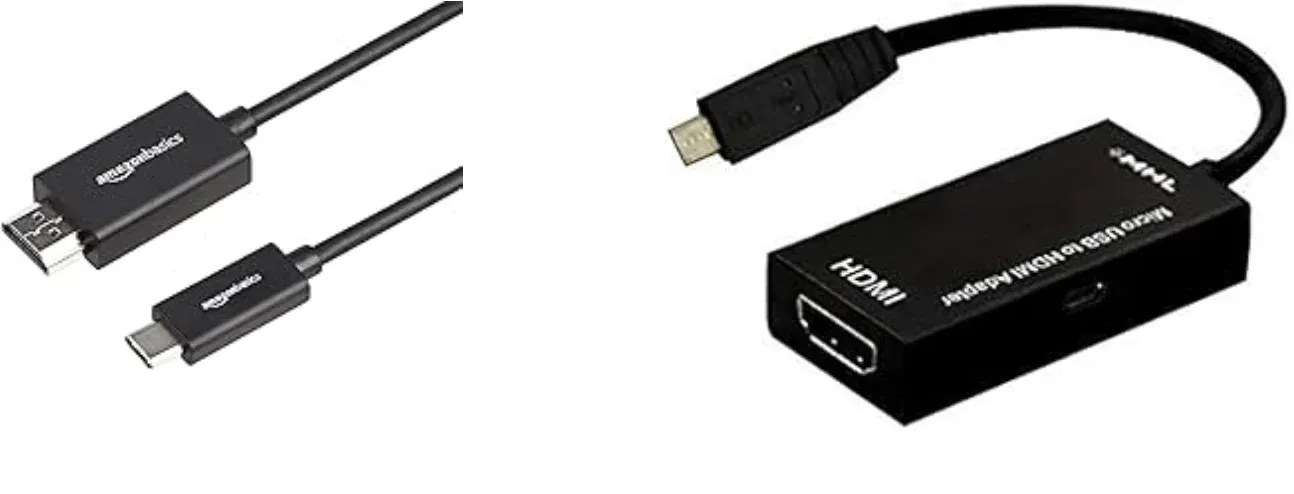
Step 2. Select the right adapter. Use a USB-C to HDMI adapter for USB-C phones, and use a Micro-USB MHL adapter for Micro-USB.
Step 3. Plug the adapter into your phone's charging port, and connect the HDMI cable between the adapter and the TV.
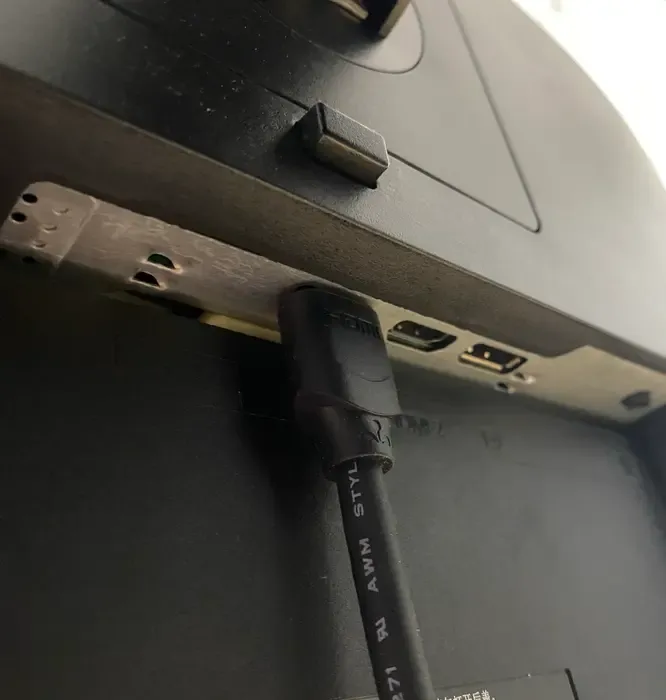
Step 4. Use your TV remote, select the corresponding HDMI input and your phone's display should appear immediately on the TV.
How to Connect iOS Phone to TV with HDMI
Apple's approach to HDMI connectivity has evolved alongside changes in its port designs, but the experience remains consistently reliable. While Apple's strict accessory certification ensures that official adapters often provide the best results, many third-party options also work well, offering flexibility without compromising performance. Here's the step on how to connect phone to TV with HDMI adapter:
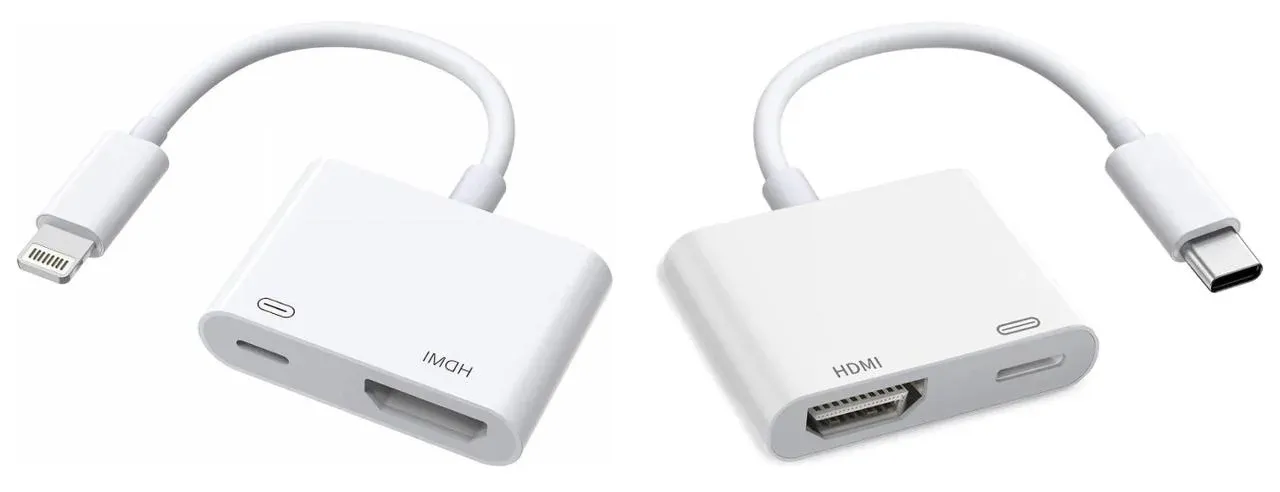
Step 1. iPhone 15 & newer use USB-C Digital AV Multiport Adapter, and iPhone 14 & older (Lightning) use the Lightning to Digital AV Adapter.
Step 2. Insert the Lightning Digital AV Adapter into the iPhone's Lightning port.
Step 3. Attach the HDMI cable to the adapter and plug it into the HDMI port on your TV.
Step 4. Use your TV remote to select the HDMI input where you've plugged in the cable.
Step 5. Your iPhone's screen will automatically appear on your TV. You can now watch videos, view photos, or display apps on the big screen.
2025 Best Mirroring Tool: PigeonCast
Once you're in a stable wireless environment, give PigeonCast a try. This free app seamlessly connects your Android, iOS, Windows, or Mac devices to your TV, with no cables or adapters needed. PigeonCast makes it simple to stream movies, TV shows, and videos from your phone, tablet, or computer straight to your smart TV. Now, let's dive into how to use it.
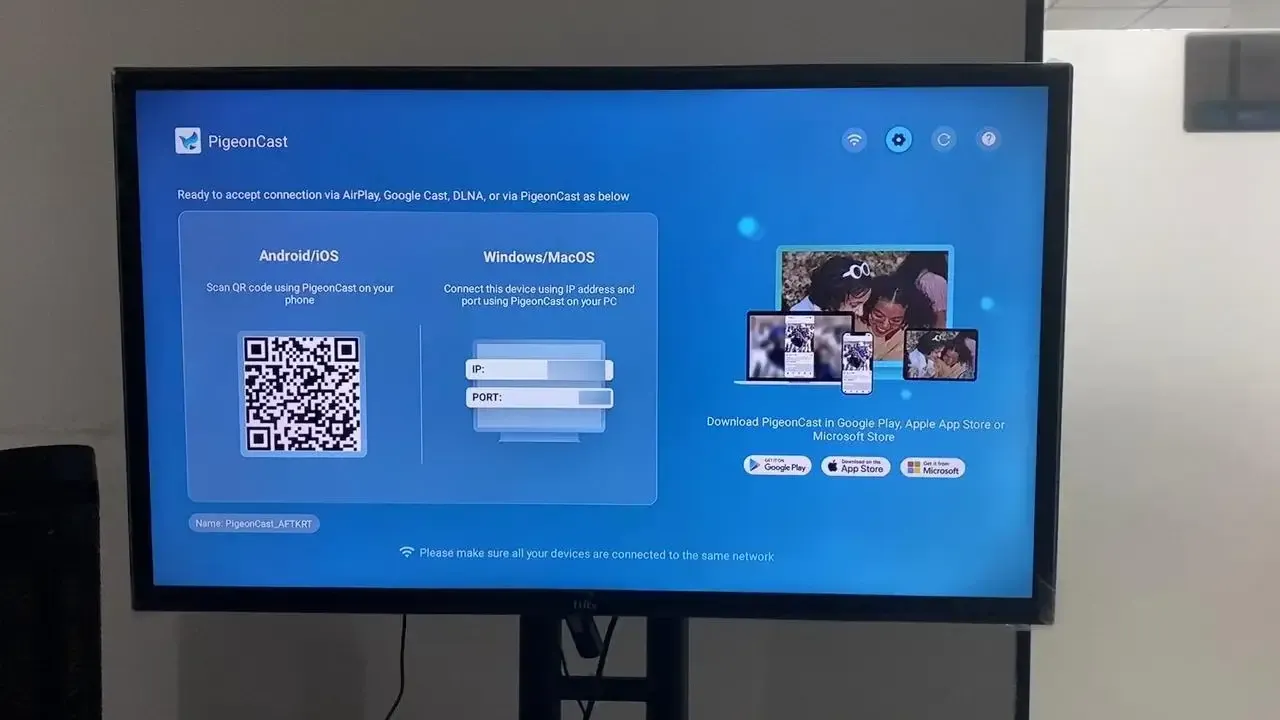
Step 1. Install PigeonCast on your mobile device and TV.


Overall Rating:



Step 2. Ensure the same wireless network covers your devices.
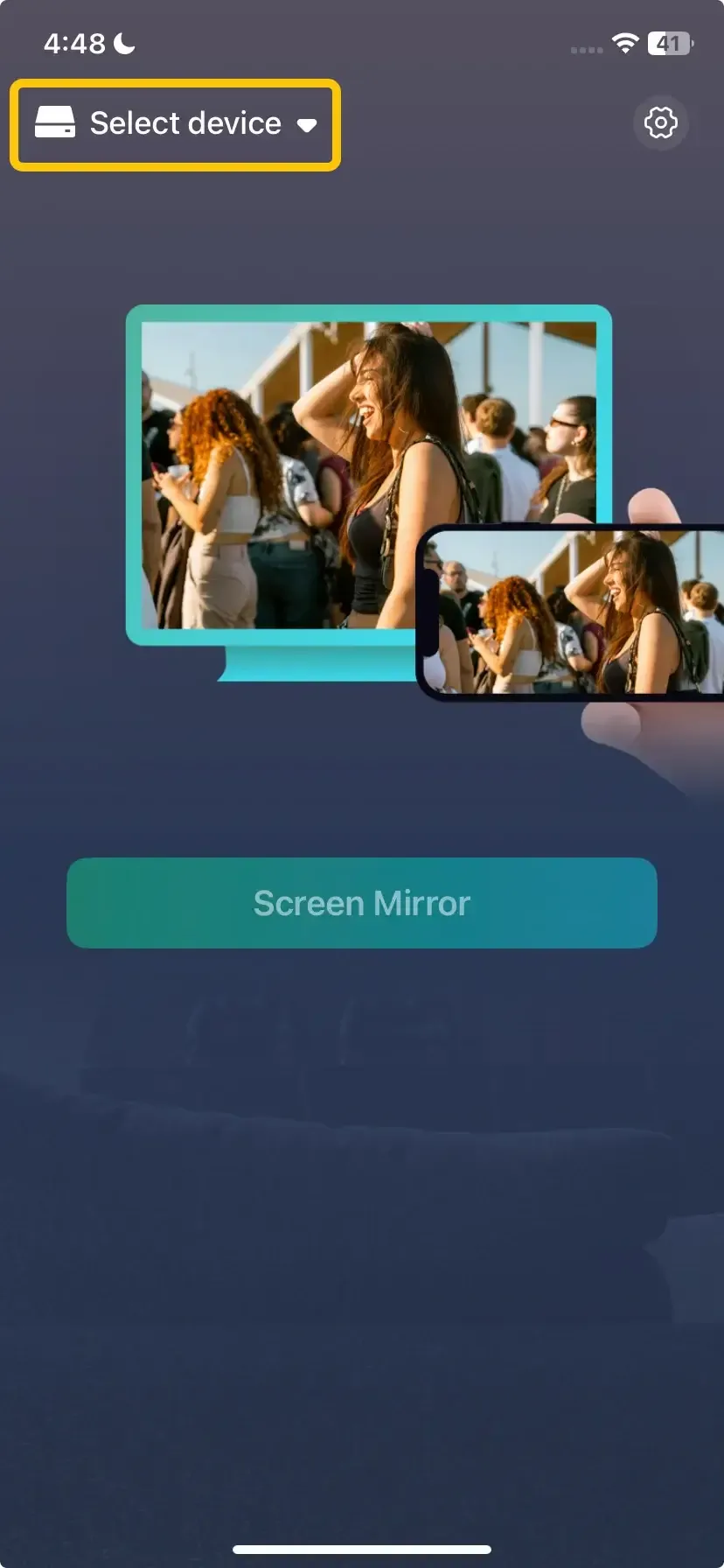
Step 3. Launch the app, tap Select device to choose your TV from the available list. Or you can scan the QR code shown on your television screen to connect.
Step 4. Enter the onscreen PIN code to finish the pairing process.
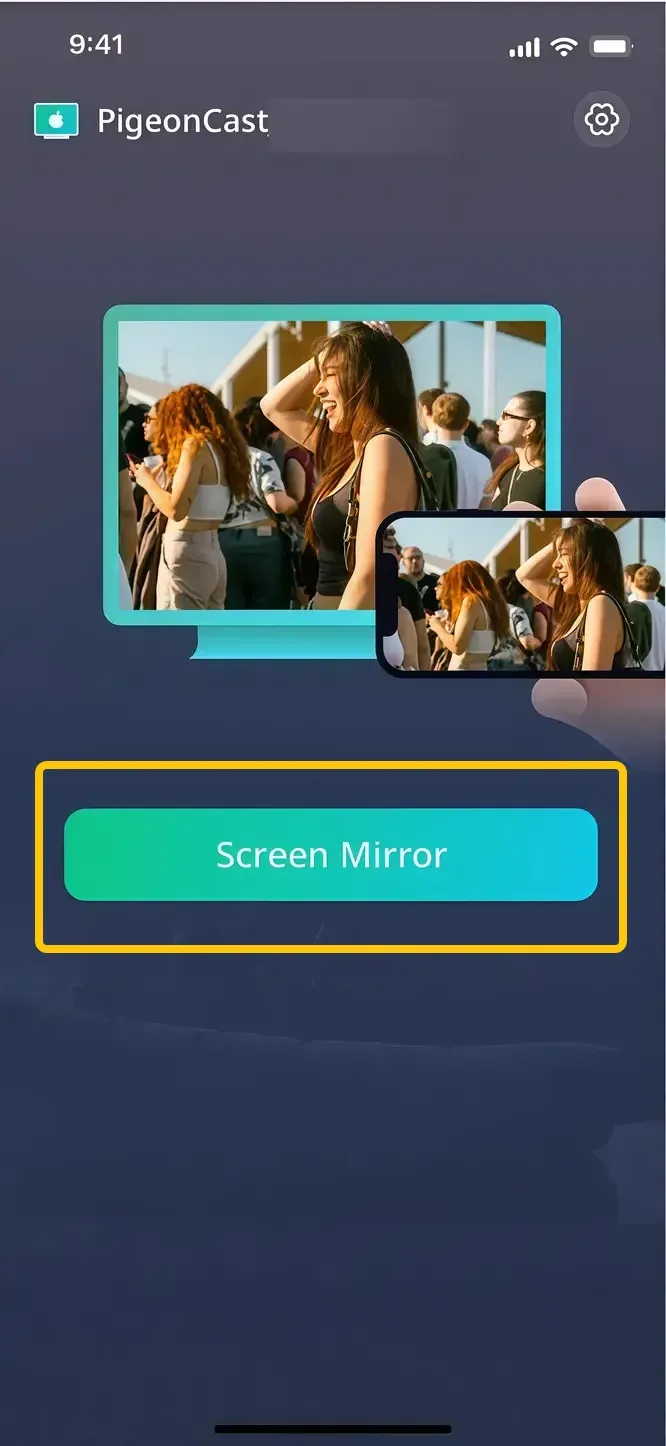
Step 5. Once you finish, you can then tap Screen Mirror to start your mirroing activities on your smart TV.
Bottom Line
How to connect a phone to a TV with HDMI? By following the steps outlined for both Android and iOS devices, you can easily connect your phone to your TV with HDMI and enjoy a seamless display on the big screen. If you're looking for a more flexible, wireless option, PigeonCast is a great tool for 2025, allowing you to effortlessly stream content from Android, iOS, Windows, or Mac devices to your TV.
How to Connect Phone to TV with HDMI FAQ
Can I connect my phone to a TV via HDMI?
Yes, you can connect your phone to a TV via HDMI. To do this, you'll need the appropriate adapter for your phone (USB-C to HDMI for newer Android devices, or a Lightning to HDMI adapter for iPhones). Simply plug the adapter into your phone, connect the HDMI cable to your TV, and select the correct HDMI input on your TV. This will allow you to mirror your phone's screen on the TV with a stable, high-quality connection.
How to connect Samsung phone to TV with HDMI?
To connect your Samsung phone to a TV with HDMI, follow these steps:
- Most modern Samsung phones use a USB-C port, but older models may use Micro-USB. Ensure you know which type of port your phone has.
- Get the Right Adapter:
- For Samsung phones with a USB-C port, use a USB-C to HDMI adapter.
- For older Samsung phones with a Micro-USB port, use a Micro-USB to HDMI adapter (also known as an MHL adapter).
- Plug the USB-C or Micro-USB end of the adapter into your phone's charging port. Connect an HDMI cable from the adapter to one of the HDMI ports on your TV.
- Use your TV remote to switch the input to the corresponding HDMI port you connected the cable to.
- Your Samsung phone's screen should now appear on your TV. You can watch videos, play games, or display photos and apps directly on the TV.
How to connect Netflix to the TV from phone with HDMI?
To connect Netflix to your TV from your phone using HDMI, follow these simple steps:
- For modern smartphones (Samsung, Google, etc.), you'll likely need a USB-C to HDMI adapter. For older phones with a Micro-USB port, you'll need an MHL (Mobile High-Definition Link) adapter to connect to HDMI.
- Plug the appropriate adapter into your phone's charging port. Use an HDMI cable to connect the adapter to an available HDMI port on your TV.
- Use your TV remote to change the input to the HDMI port where the phone is connected.
- Open the Netflix app on your phone. Select the movie or TV show you want to watch, and it will begin streaming directly to your TV via the HDMI connection.
How to connect a Motorola phone to TV with HDMI?
To connect a Motorola phone to your TV using HDMI, follow these simple steps:
- Most Motorola phones have a USB-C port (for newer models). Older Motorola phones may have a Micro-USB port. You'll need to identify which port your phone has before selecting the right adapter.
- Plug the USB-C to HDMI adapter (or Micro-USB to HDMI adapter) into your phone's charging port.
- Connect an HDMI cable to the adapter and plug the other end into one of the available HDMI ports on your TV.
- Using your TV remote, change the input to the corresponding HDMI port where your phone is connected. This should display your Motorola phone's screen on the TV.
- Open any app you want to mirror, such as YouTube, Netflix, or even the native video player. Whatever is displayed on your phone should now appear on your TV.
How to connect phone to TV with USB without HDMI?
To connect your phone to a TV using a USB cable without HDMI, you have a few options, depending on the type of phone and TV you have. Here's a breakdown of how to do it:
- Use a USB-C or Micro-USB Cable for Media Playback
- Use Screen Mirroring or Casting via USB
- Use Smart TV Apps or Streaming Services via USB or Wi-Fi
- Use a USB to VGA or USB to AV Adapter for Older TVs
How to connect phone to Roku TV with HDMI?
To connect your phone to a Roku TV via HDMI, follow these general steps:
- Gather the required components:
- HDMI cable: A standard HDMI cable to connect your phone to the TV.
- Phone adapter: Depending on your phone's charging port, you'll need a specific adapter:
- USB-C to HDMI adapter (for phones with USB-C ports).
- Micro-USB to HDMI adapter (for phones with Micro-USB ports).
- Lightning to HDMI adapter (for iPhones with a Lightning port).
- Plug the appropriate adapter into your phone's charging port (USB-C, Micro-USB, or Lightning, depending on your device).
- Connect one end of the HDMI cable to the adapter. Plug the other end of the HDMI cable into one of the available HDMI ports on your Roku TV.
- Using the Roku TV remote, switch to the HDMI input where your phone is connected. The TV should automatically detect the connection and begin displaying your phone's screen.
- Your phone's display will now be mirrored on the Roku TV. You can stream videos, browse photos, or use apps directly from your phone on the TV screen.
Clara Rossi is an experienced technology editor and a seasoned expert in screen mirroring and casting technologies. With a keen eye for detail and a deep understanding of how to seamlessly connect devices, Clara excels at optimizing user experiences for effortless sharing and streaming. Whether you're seeking quick fixes or advanced tips, her expertise and responsiveness ensure that every query is met with a well-informed and efficient solution.