
While wireless solutions like AirPlay are incredibly convenient, there are times when the reliability and simplicity of a physical cable are essential. Mirroring your Mac's screen using an HDMI connection provides a stable, high-quality link, perfect for important presentations, lag-free movie nights, or when your Wi-Fi connection is unreliable. Whether you're connecting to a TV, monitor, or PC, this guide will walk you through everything you need to know about how to mirror screen on Mac with HDMI.
How to Mirror MacBook with HDMI
Connecting your MacBook to an external screen via HDMI is an easy and reliable way to view or share content on a larger display. To get started, ensure you have the right hardware by checking your device's ports and selecting the appropriate adapter or cable.
How to Mirror Screen on Mac With HDMI to TV
Mirroring your Mac's screen to a TV via HDMI is one of the most common uses of the connection. To ensure the best experience, make sure both devices are set to the correct resolution and aspect ratio. Now, let's dive into how to mirror Mac on TV with HDMI:
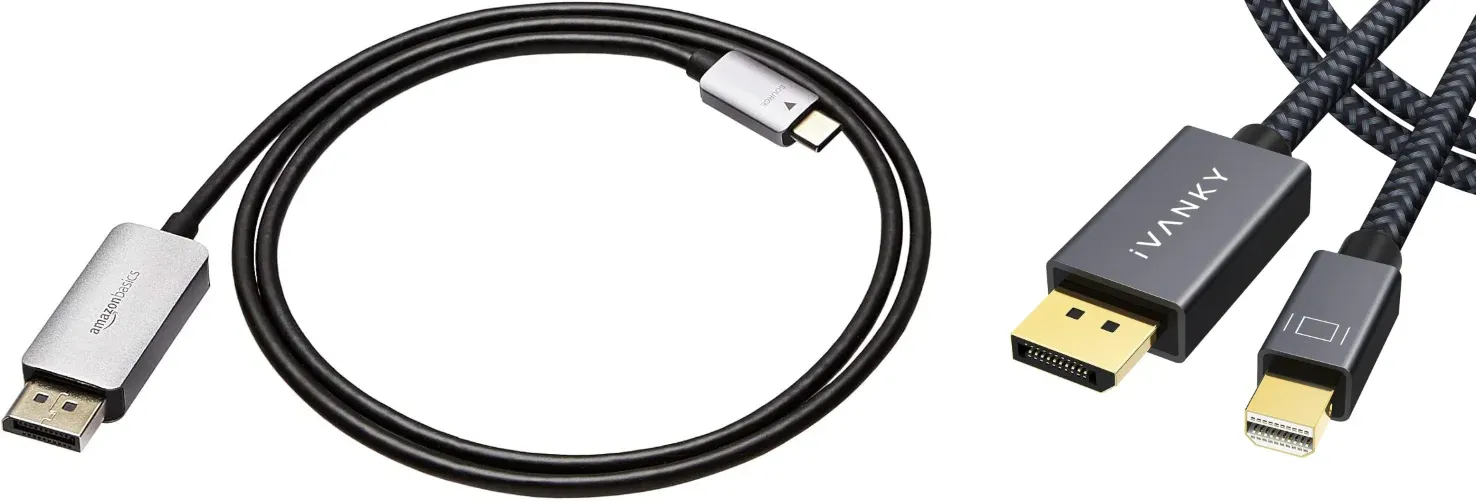
Step 1. Plug one end of the HDMI cable into your Mac's HDMI port or into the adapter (USB-C or Mini DisplayPort) if your MacBook lacks a direct HDMI port.
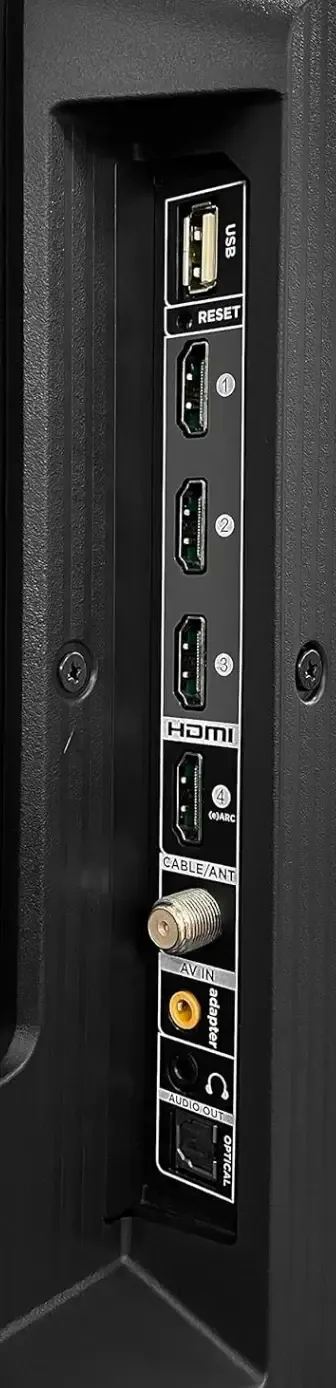
Step 2. Then plug the other end into your TV's HDMI port.
Step 3. Use your TV's remote control to change the input to the appropriate HDMI port (e.g., HDMI 1, HDMI 2).
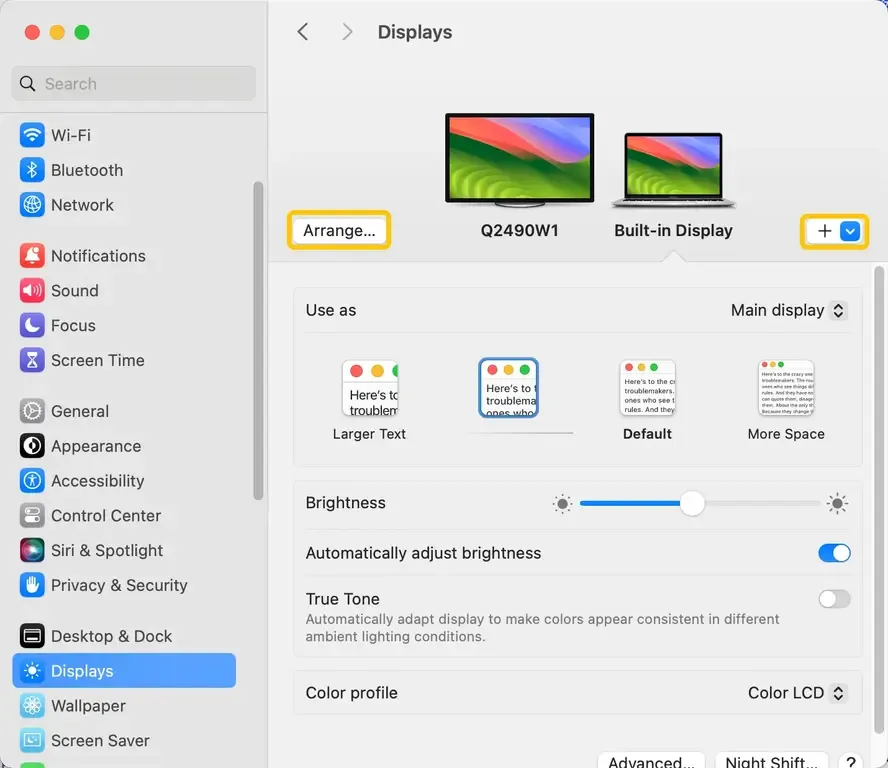
Step 4. On your Mac, go to System Settings > Displays > Arrangement and check the Mirror Displays option to make your TV screen mirror your Mac's display.
Step 5. You can also adjust the screen resolution & refresh rate to match your TV's specifications.
How to Mirror Screen on Mac with HDMI to PC
You cannot directly mirror your Mac's screen to a PC using HDMI in the same way you would with a TV or external monitor. HDMI is designed to transmit video and audio signals to a display device, but a PC is not typically set up to receive those signals like a TV or monitor does. However, there's an alternative way to achieve screen mirroring from your Mac to a PC:

If the cable connection isn't working, how about using a wireless network or hotspot instead? PigeonCast allows you to connect devices over your WiFi network without needing any cables or adapters. This free screen mirroring app offers reliable performance, working on Android, iOS, Windows, Mac, and various TVs, including tvOS and Android TV, with no limitations.

PigeonCast Screen Mirroring

Official Download



Step 1. Install PigeonCast on your MacBook and PC Windows.
Step 2. Ensure your MacBook and PC Windows are connected to the same wireless network.
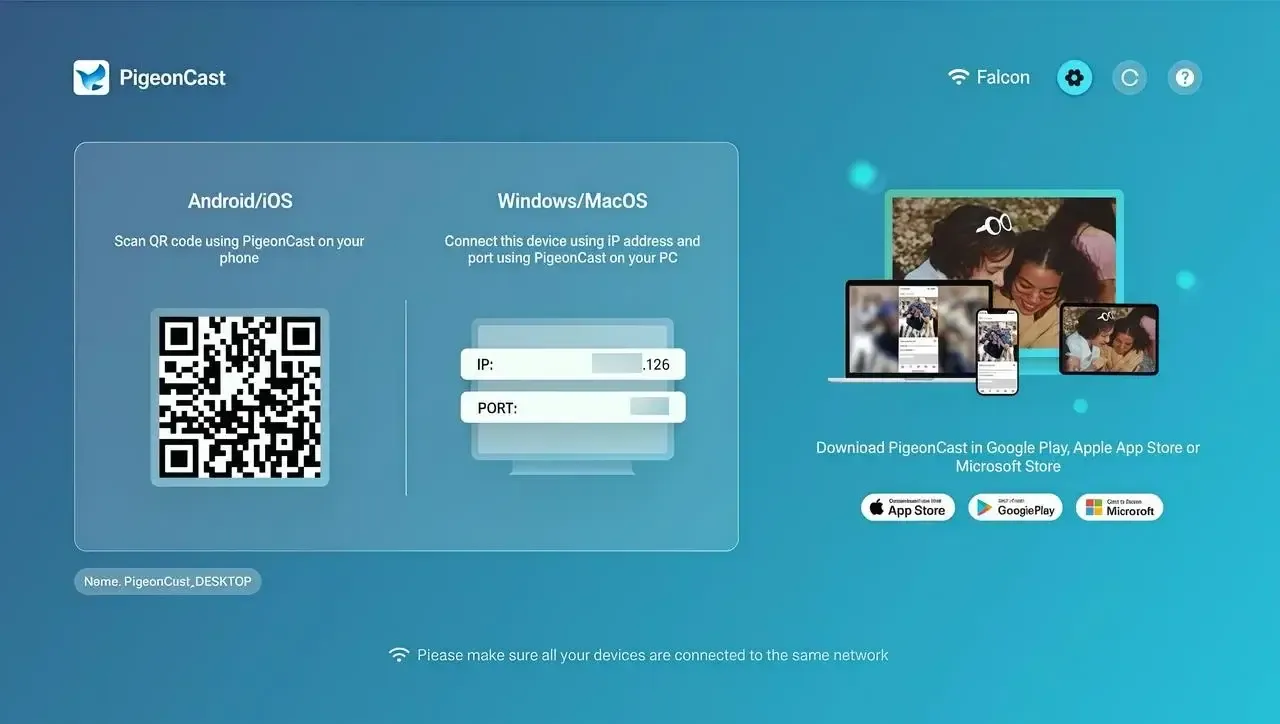
Step 3. Open the app on your receiving device, and the device is ready for screen mirroing.
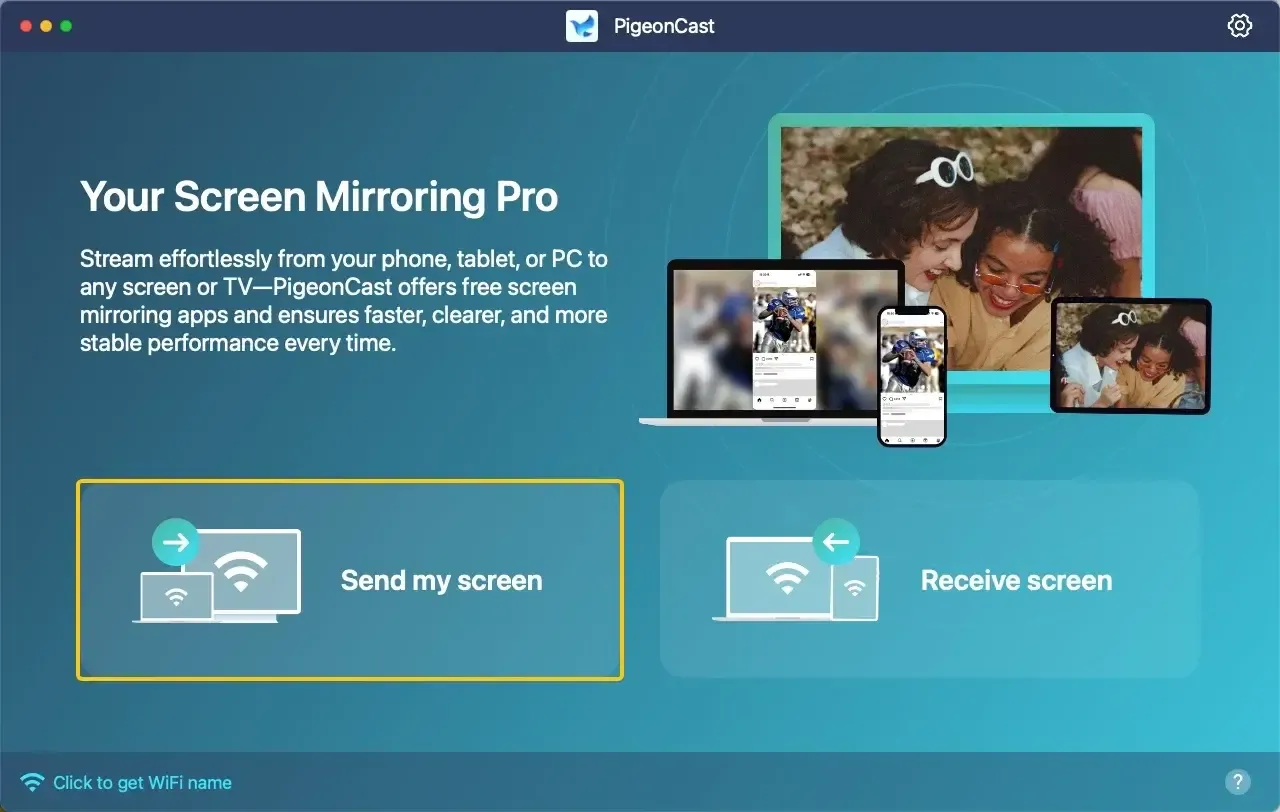
Step 4. Launch the app on your sender device, tap Send my screen to choose your receiver device from the available list.
Step 5. Enter the onscreen PIN code to finish the connection behavior.
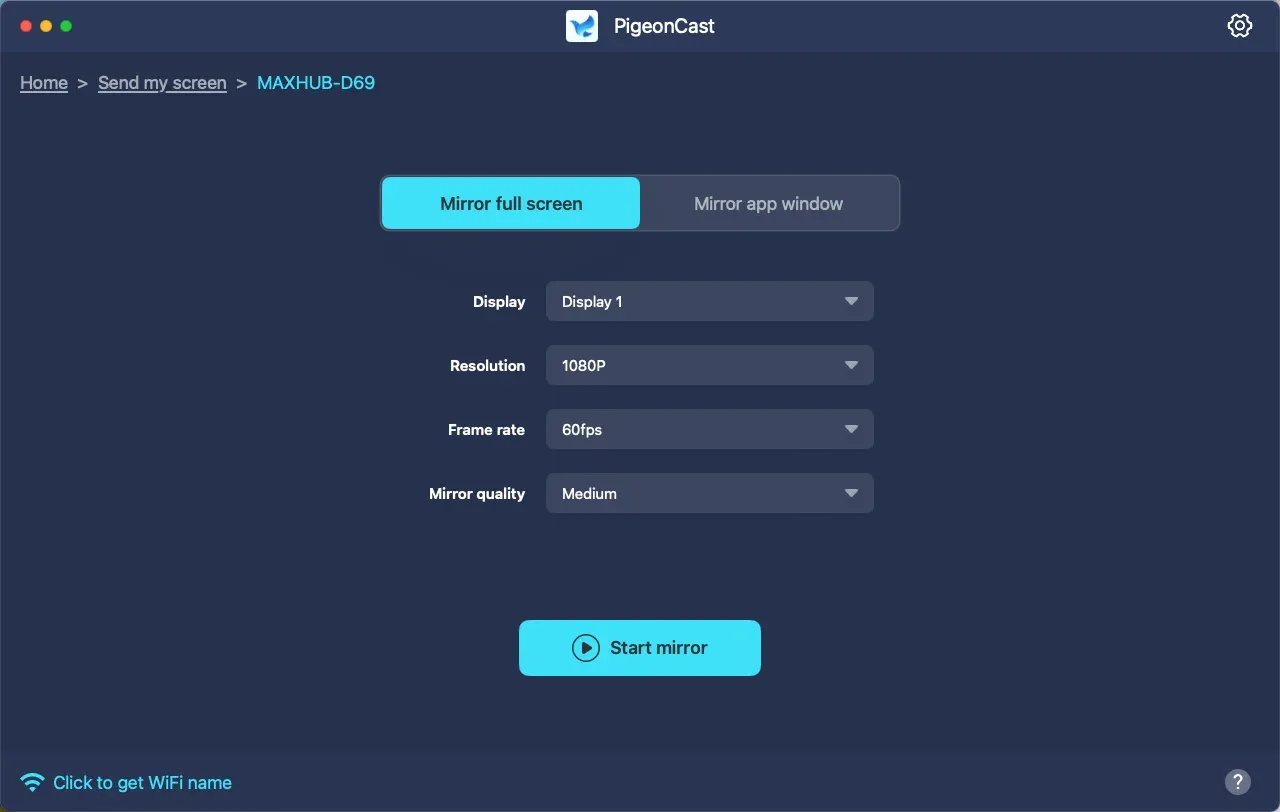
Step 5. Select Mirror whole screen or Mirror app windows, then tap the Start mirror button. When you finish, your Mac's screen will display on your Windows computer.
Why Is My Mac Not Displaying Through HDMI
If your Mac is not displaying anything on an external screen or TV after connecting it via HDMI, it can be frustrating. Fortunately, this issue is often easy to resolve once you know what to look for.
- Check the HDMI Cable and Connections: One of the first things to check when troubleshooting an HDMI connection is whether the cable is securely plugged in. A loose or faulty connection could prevent the screen from displaying correctly.
- Verify the Correct Input on Your TV or Monitor: The issue could also be as simple as your TV or monitor being set to the wrong HDMI input. Most TVs and monitors have multiple HDMI ports, and each needs to be selected individually.
- Adjust Display Settings on Your Mac: Sometimes, the issue lies within your Mac's display settings. If the settings aren't properly configured, your Mac might not recognize the external display at all.
- Ensure macOS Is Up to Date: Outdated macOS versions may contain bugs or compatibility issues that affect external displays. It's important to keep your Mac updated to the latest version to avoid such issues.
- Restart Both Your Mac and External Display: If all else fails, try restarting both your Mac and your external display. This can often resolve temporary glitches or conflicts between the devices.
- Try a Different Adapter (If Applicable): If you're using an adapter to connect HDMI to your Mac (such as USB-C to HDMI or Mini DisplayPort to HDMI), ensure the adapter is working correctly. Sometimes the adapter might be faulty, or the port might not support the HDMI connection properly.
- Reset NVRAM/PRAM: Resetting the NVRAM (Non-Volatile Random Access Memory) or PRAM (Parameter RAM) can help resolve display and hardware-related issues on your Mac.
Closing Words
How to mirror Mac to monitor with HDMI? Following the steps in this guide, you can easily connect your Mac to a TV, monitor, or PC. If a wired connection isn't an option, PigeonCast offers a seamless wireless alternative. With the right setup and troubleshooting tips, you can enjoy a smooth and hassle-free screen mirroring experience.
How to Mirror Screen on Mac with HDMI FAQ
How to connect MacBook to TV wirelessly?
To connect your MacBook to a TV wirelessly, you can use AirPlay if you have an Apple TV or a compatible smart TV. Here's how:
- Ensure your MacBook and TV are connected to the same Wi-Fi network.
- On your MacBook, click the Screen Mirroring icon in the menu bar (the rectangle with a triangle).
- Select your TV or Apple TV from the list of available devices.
- If prompted, enter the on-screen code to establish the connection.
If your TV doesn't support AirPlay, you can try PigeonCast to across the compatibility limitation.
How to Mirror Screen on Mac with HDMI to Android?
To mirror your Mac's screen to an Android device using HDMI, there isn't a direct way to connect via HDMI, since Android devices don't support HDMI input. However, here are two alternative methods:
- Mirror to an Android TV or monitor via HDMI
- Mirror to an Android phone/tablet via a wireless app, such as PigeonCast
How do I mirror my screen through HDMI?
To mirror your Mac's screen to another display (like a TV or monitor) using HDMI, follow these simple steps:
- Plug one end of the HDMI cable into your Mac (or use a USB-C to HDMI adapter if your Mac only has USB-C ports).
- Plug the other end of the HDMI cable into the HDMI port on your TV, monitor, or projector.
- Use your TV or monitor's remote control to switch to the correct HDMI input (e.g., HDMI 1, HDMI 2).
- On your Mac, go to System Settings > Displays. Then, select Mirror Displays to duplicate your Mac's screen on the connected display.
- You can also adjust the resolution and display arrangement if needed.
Clara Rossi is an experienced technology editor and a seasoned expert in screen mirroring and casting technologies. With a keen eye for detail and a deep understanding of how to seamlessly connect devices, Clara excels at optimizing user experiences for effortless sharing and streaming. Whether you're seeking quick fixes or advanced tips, her expertise and responsiveness ensure that every query is met with a well-informed and efficient solution.