
Connecting your Windows PC or laptop to an external monitor or TV via HDMI should be simple: plug in the cable and go. But when the "HDMI not working Windows 10" issue becomes your reality, it's more frustrating than you might expect. No signal, no sound, or a dead HDMI port not working on laptop, all can strike at any time.
Let's go through the most common reasons why your HDMI port not working on PC Windows 10, and what you can do to get your display and audio back up and running.
Fix 1: Check Your Physical HDMI Connection
A loose or damaged cable is one of the most common culprits behind HDMI not working on PC issues. So, before digging into software settings, always start with the basics:
Step 1. Unplug and firmly reconnect both ends of the HDMI cable.
Step 2. Test the HDMI cable on another device (like a TV or gaming console).
Step 3. Try a different HDMI port on your monitor or TV.
Step 4. If you're using an adapter (USB-C to HDMI or DisplayPort to HDMI), test with a native HDMI cable to rule out compatibility problems.
If your HDMI port not working on laptop but works fine with another device, the issue is likely on the computer's side.
Tip: If your HDMI port is physically damaged or unstable, a wireless mirroring solution like PigeonCast can instantly connect your PC to a TV or monitor, with no cable needed. It's a clean, lag-free alternative for Windows screen mirroring that works over Wi-Fi. To connect your Windows PC to a TV wirelessly, you need to:
- Install PigeonCast on both your PC and TV, and ensure the two devices are on the same Wi-Fi network.

PigeonCast Screen Mirroring

Official Download



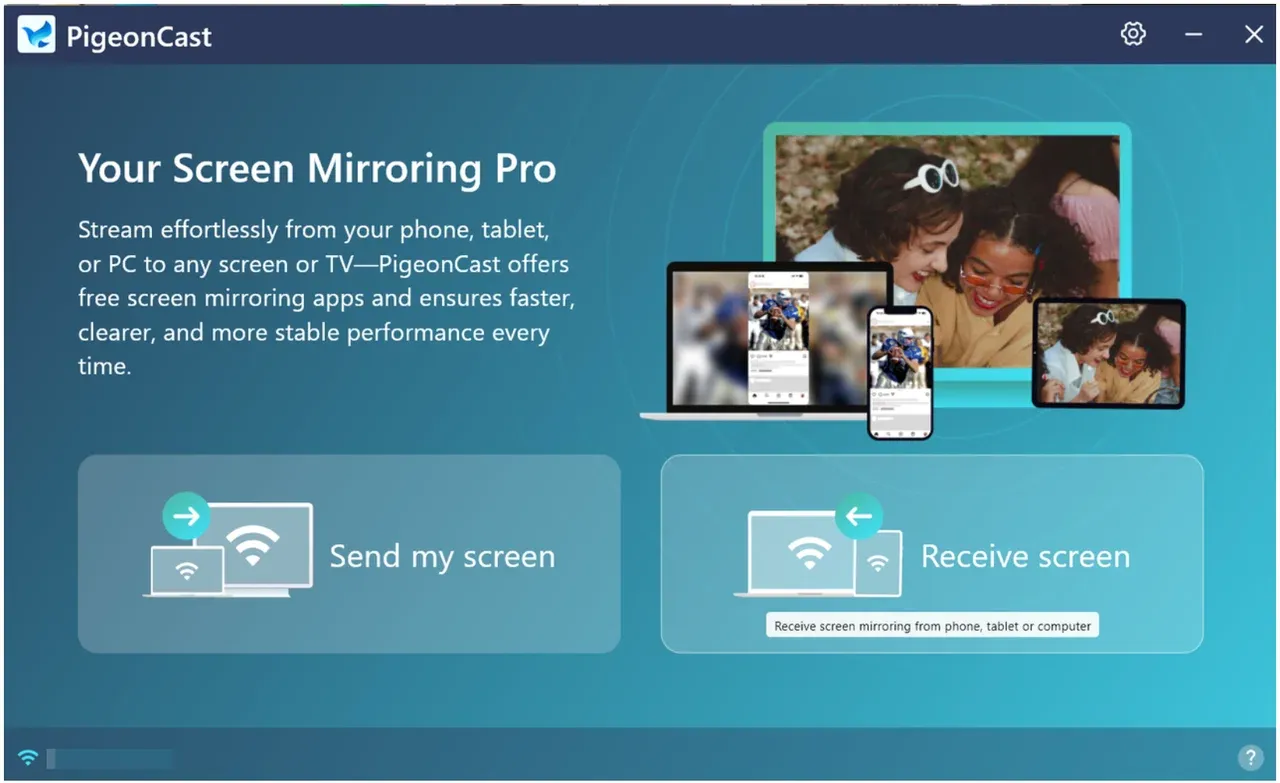
- Launch PigeonCast on your devices. On Windows, click the Send my screen option.
- Choose your TV from the device list on your Windows screen.
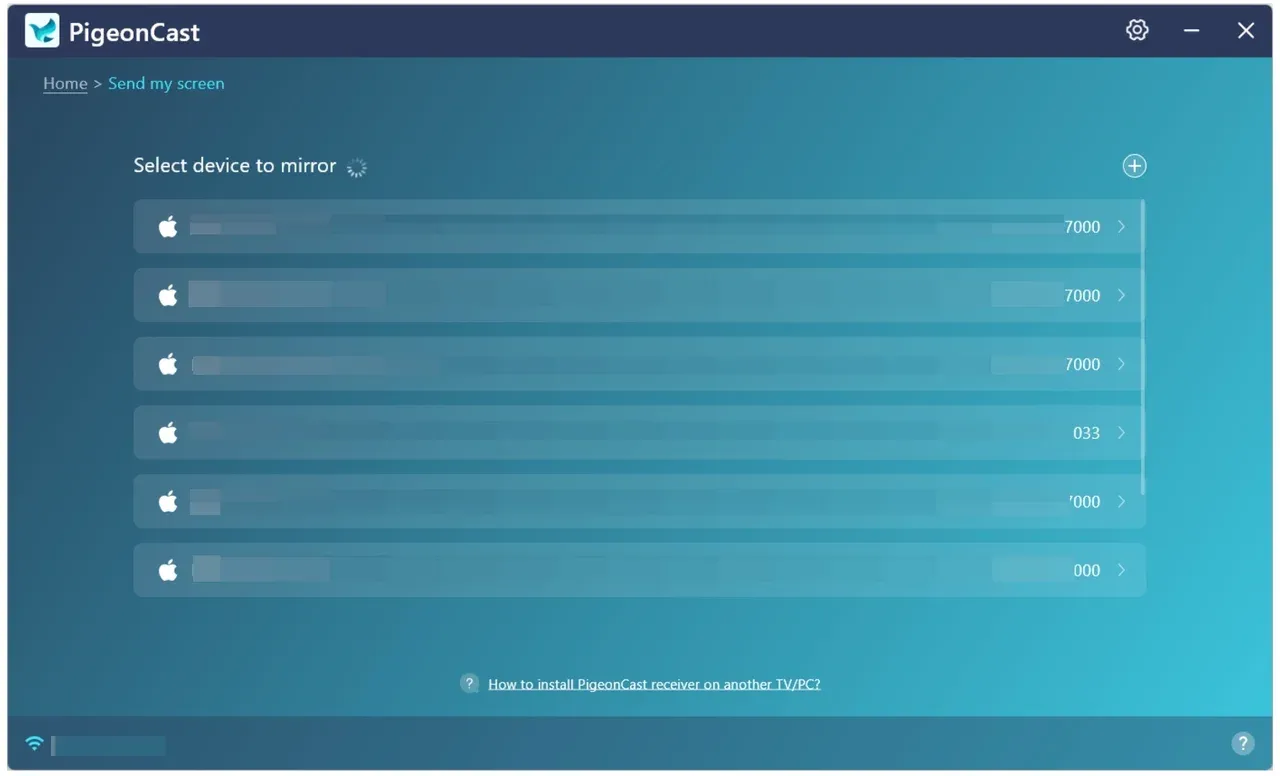
- Once connected, customize your mirroring experience (like resolution, frame rate, and quality) and click the Start mirror button.
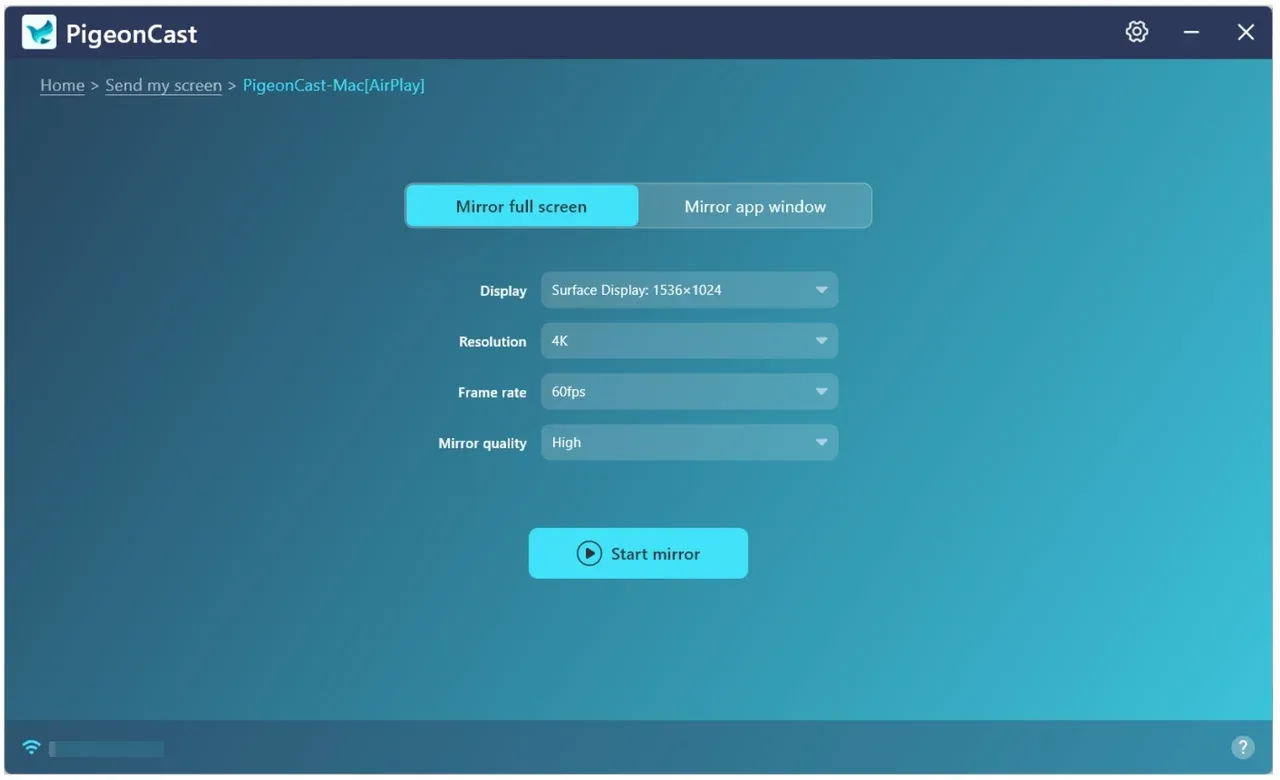 4. PigeonCast streams your Windows screen or app to your TV screen without an HDMI cable. Enjoy!
Fix 2: Select the Right Input Source
It might sound obvious, but many "HDMI not working on laptop" reports are simply due to the wrong input source being selected on the monitor or TV.
Use your remote or monitor buttons to switch to the correct HDMI channel. Some displays have multiple HDMI inputs, so make sure you're on HDMI 1 or HDMI 2, depending on where your device is connected.
If you're tired of constantly switching inputs or plugging cables, you can skip HDMI entirely and share your Windows screen wirelessly using the PigeonCast app. It connects your Windows PC to smart TVs and streaming devices instantly, letting you cast movies, apps, or games in full HD without any setup hassle.
Fix 3: Quick Reset for Laptop HDMI Ports
For laptop HDMI port not working, try this quick trick:
Step 1. Shut down your laptop completely.
Step 2. Unplug the power cable.
Step 3. Hold the power button for 30 seconds.
Step 4. Plug everything back in and restart.
This clears static charges and resets the display circuitry, which is an old but effective fix.
Fix 4: Detect Display Manually in Windows 10
Sometimes Windows 10 fails to automatically detect your second screen. Here's how to fix it:
Step 1. Press the Windows + P shortcut and choose Duplicate or Extend.
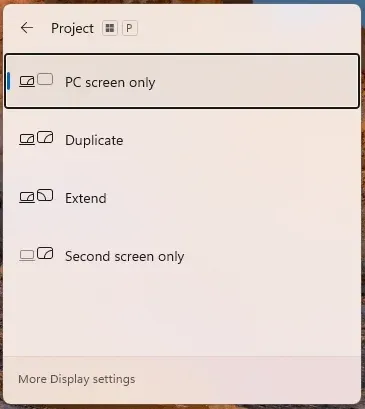
Step 2. If that doesn't work, go to Settings > System > Display > Multiple displays > Detect.
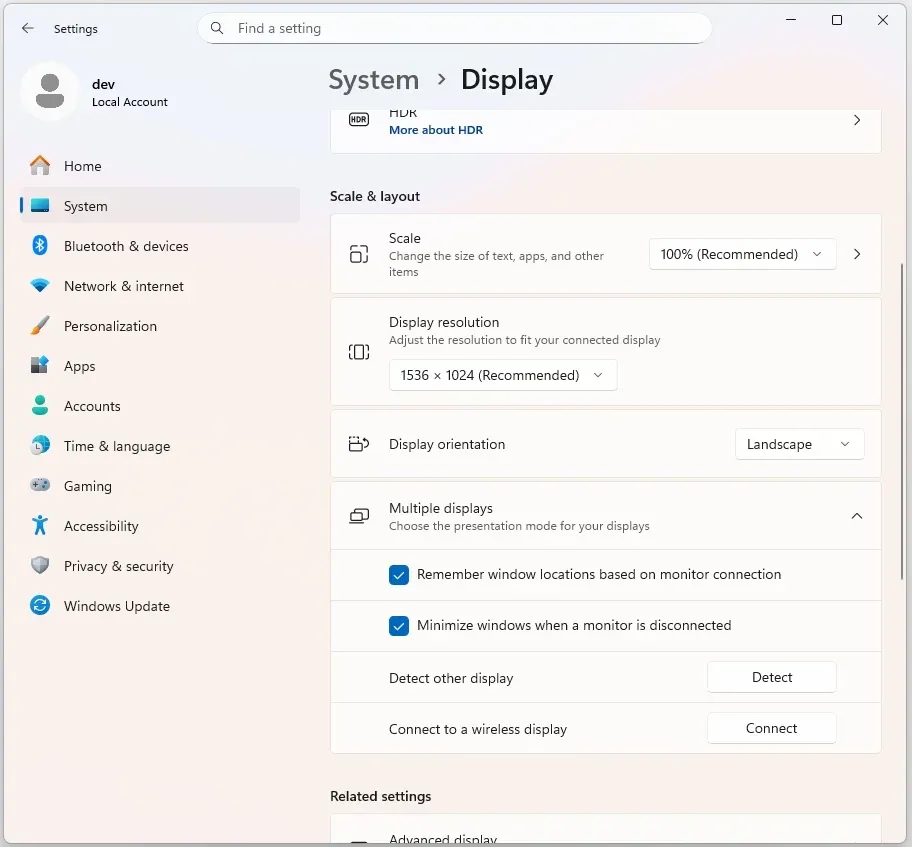
This forces Windows to search for the connected HDMI device. If it appears briefly and then disappears, the HDMI driver may be unstable or outdated.
Fix 5: Update or Reinstall Graphics Drivers
Outdated or corrupted display drivers can easily result in HDMI port not working Windows 10 issues. It's time to update your graphics drivers:
Step 1. Right-click the Start menu and choose Device Manager.
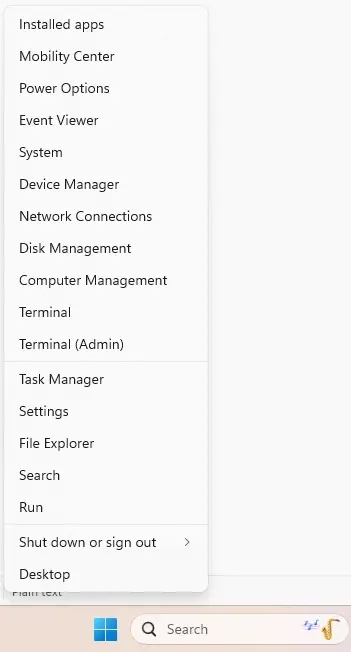
Step 2. Expand Display adapters, right-click your GPU (Intel, AMD, or NVIDIA), and choose Update driver.
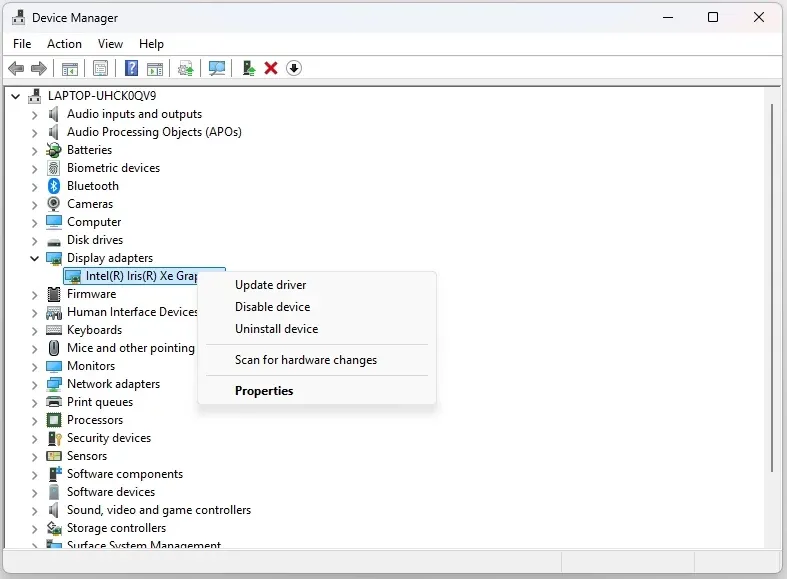 Step 3. Choose Search automatically for updated driver software.
If the problem started after a Windows update, roll back your graphics driver instead. Many users report success after reinstalling the latest drivers directly from the manufacturer's website.
Fix 6: Check Display Settings and Resolution
If your monitor says "No Signal" but Windows detects it, your display settings might be off.
Step 1. On your Windows, go to Settings > Display > Advanced display settings.
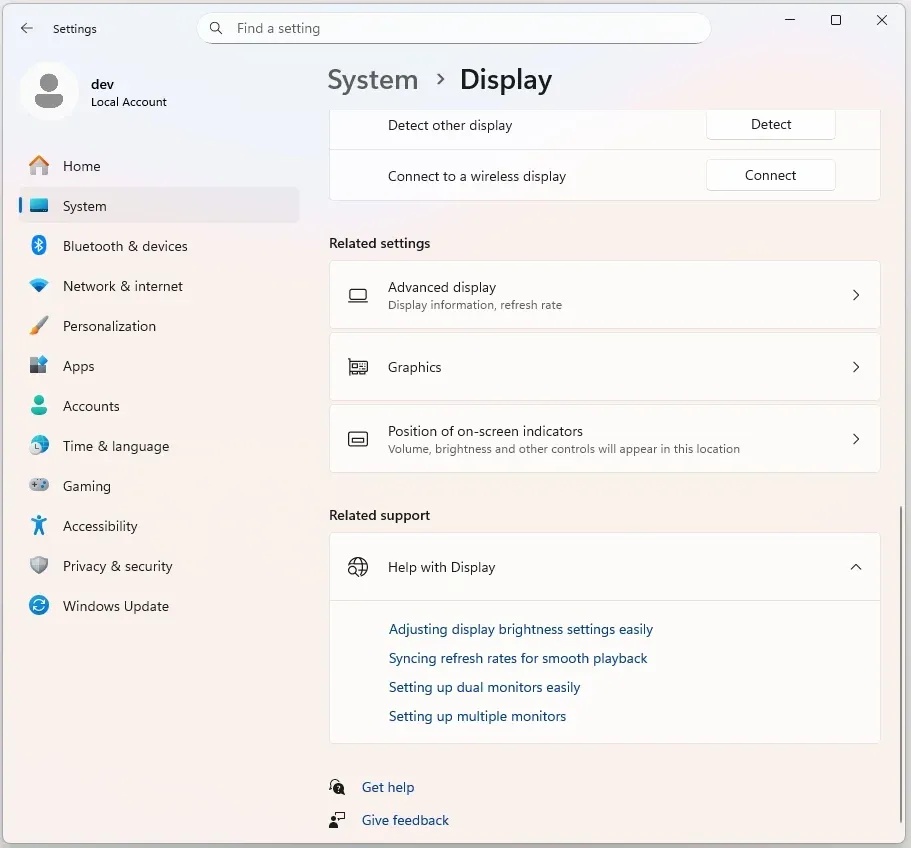
Step 2. Check the resolution and refresh rate. If your display doesn't support the selected resolution (for example, setting 4K on a 1080p TV), you'll get a black screen.
Step 3. Choose a standard resolution like 1920x1080 and apply.
Fix 7: Restart Graphics and Audio Services
Windows sometimes disables key system services after updates or sleep mode. Restarting them can bring your HDMI connection back:
Step 1. Press Windows + R, type services.msc, and hit Enter.
Step 2. Find and restart:
- Windows Audio
- Windows Audio Endpoint Builder
- Display Enhancement Service
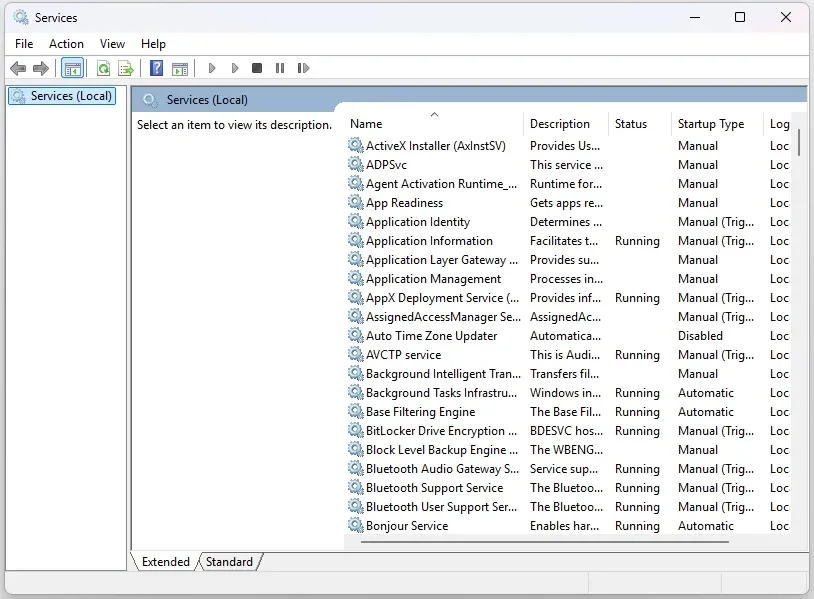
Step 3. Once restarted, replug your HDMI cable and check again.
Fix 8: Disable Fast Startup
Fast Startup helps Windows boot faster, but sometimes prevents HDMI detection on startup. Many users report this fixes PC HDMI not working after shutdown or hibernation.
To disable Fast Startup:
Step 1. Go to Control Panel and choose Power Options > Choose what the power buttons do.
Step 2. Click Change settings that are currently unavailable.
Step 3. Uncheck Turn on fast startup and save changes.
Step 4. Reboot your laptop.
Fix 9: BIOS or Hardware-Level HDMI Issues
If your HDMI port is not working on a PC with Windows 10, even after trying all the above, it could be a deeper hardware or firmware problem.
- Update your BIOS or UEFI firmware from the manufacturer's website.
- On laptops, sometimes the HDMI port is connected to a dedicated GPU, and it's essential to ensure it's enabled in the BIOS.
- If nothing works, have a technician test the port itself.
At this point, if your HDMI hardware is permanently faulty, using a wireless display tool like PigeonCast is the fastest workaround. It connects over Wi-Fi, supports 1080p and 4K streaming, and avoids all the hardware compatibility issues tied to HDMI ports.
Final Thoughts
If you run into HDMI issues with your Windows 10 laptop, the key is to move from simple hardware checks to software troubleshooting.
In most cases, reseating the cable, updating drivers, or changing display settings solves the problem in minutes. But if the issue persists or your HDMI port is physically damaged, skip the cables altogether. PigeonCast lets you mirror or cast your Windows 10 screen to any TV wirelessly, with full HD quality and zero lag.
A stable connection doesn't have to rely on a fragile port. Sometimes, the best HDMI fix is not using HDMI at all.
HDMI Not Working Windows 10 FAQs
Q: Why is HDMI plugged in but no signal PC?
If your HDMI is plugged in but there's no signal, the issue usually lies with the cable, port, or input source. Make sure both ends of the HDMI cable are firmly connected and that your TV or monitor is set to the correct HDMI input. Try a different cable or port if possible. Outdated display drivers can also cause your PC HDMI not working.
Q: Why is HDMI audio not working in Windows 10?
When the image shows but there's no sound, Windows might still be outputting audio through your laptop speakers instead of the HDMI device. Go to Sound settings > Playback tab, then set your TV or HDMI output as the Default Device. If Windows 10 HDMI audio not working persists, reinstall or update your audio drivers.
Q: Why is my computer not detecting HDMI?
If your PC doesn't detect HDMI at all, open Settings > Display > Detect to force Windows to search for an external display. You can also press Windows + P and select Extend or Duplicate mode. If this fails, update your graphics driver or restart your system. Sometimes, fast startup can block HDMI detection; disable it in Power Options and reboot.
Q: How do I enable HDMI output on Windows 10?
Windows 10 automatically enables HDMI when a compatible display is connected. If it doesn't, right-click the desktop > Display settings > Multiple displays > Detect. Make sure the correct screen is active. You can also check the Device Manager under Display Adapters and Audio to confirm your HDMI hardware is recognized.
Q: Can I use HDMI and wireless display at the same time?
In most cases, yes. You can extend your screen via HDMI while also mirroring wirelessly using a tool like PigeonCast. This is handy for multitasking: showing a presentation via HDMI while streaming another window to a TV over Wi-Fi.
Q: Is there a wireless alternative if my HDMI port is broken?
Yes, PigeonCast is a simple, plug-free solution for screen mirroring from Windows 10 to your TV. It streams both video and audio in real time over Wi-Fi, so you can enjoy the same experience without relying on HDMI cables or ports.
Mia Clarke is a technology editor specializing in screen mirroring and casting solutions across multiple platforms. Mia provides clear, practical guides and in-depth insights to help users seamlessly connect their devices. Passionate about enhancing digital experiences, Mia is dedicated to keeping readers updated on the latest trends and tools in cross-platform screen sharing. Whether you’re looking to mirror your smartphone, laptop, or smart TV, Mia’s content delivers reliable, user-friendly advice to simplify your tech setup.