
How to share screen on Windows? Whether you're using Windows 10 or Windows 11, the good news is that screen sharing has never been simpler. In this guide, we'll walk you through different ways to screen share Windows—from casting to a TV, presenting in a meeting, to helping someone remotely—so you can choose the method that works best for your setup.
How to Share Screen on Windows: Quick Overview
Before diving into step-by-step instructions, here's a quick overview of the main methods for Windows screen sharing:
| Method | Best For | Device Supported | Pros | Cons |
|---|---|---|---|---|
| PigeonCast | Cross-platform sharing | Android, iOS, Windows, Mac, Android TV, Apple TV | Low latency, versatile protocols (AirPlay, Google Cast, DLNA, PigeonCast), multiple-platform support | Requires installation |
| Win + K (Windows Miracast) | Quick wireless display | Windows 10 & 11, Miracast-enabled TVs/monitors | Built-in, fast, no extra apps | Both devices must support Miracast; same Wi-Fi network required |
| Google Chrome (Google Cast) | Streaming media, presentations | Windows, Chromecast-enabled TVs | Easy setup, no installation needed beyond Chrome | Dependent on network stability, limited to Chromecast-compatible devices |
| Quick Assist | Remote support, troubleshooting | Windows 10 & 11 PCs | Secure, built-in, allows control and view | Only works for PC-to-PC, internet connection require |
| Video Meeting Apps (Zoom, Teams, Google Meet) | Work meetings, online classes | Windows PCs, Mac, tablets, phones | Real-time collaboration, widely used | Requires internet; quality depends on bandwidth |
Method 1. Share Windows Screen via PigeonCast
How to screen share on Windows to TV or Mac? Try PigeonCast!

PigeonCast is a free, versatile screen mirroring app that supports AirPlay, Google Cast, DLNA, and its own protocol. It works on multiple platforms, from mobile to laptop and TV, making it one of the most flexible ways to share content.
How to use PigeonCast to start Windows screen sharing:
Step 1. Download and install the PigeonCast app on both devices.
Tip: For seamless cross-platform screen mirroring, install a screen mirroring app on your Windows PC as well as on the target device, whether it's another Windows computer, a Mac, or a smart TV.

PigeonCast Screen Mirroring

Official Download


Step 2. Ensure your Windows computer and the target device are on the same Wi-Fi network.
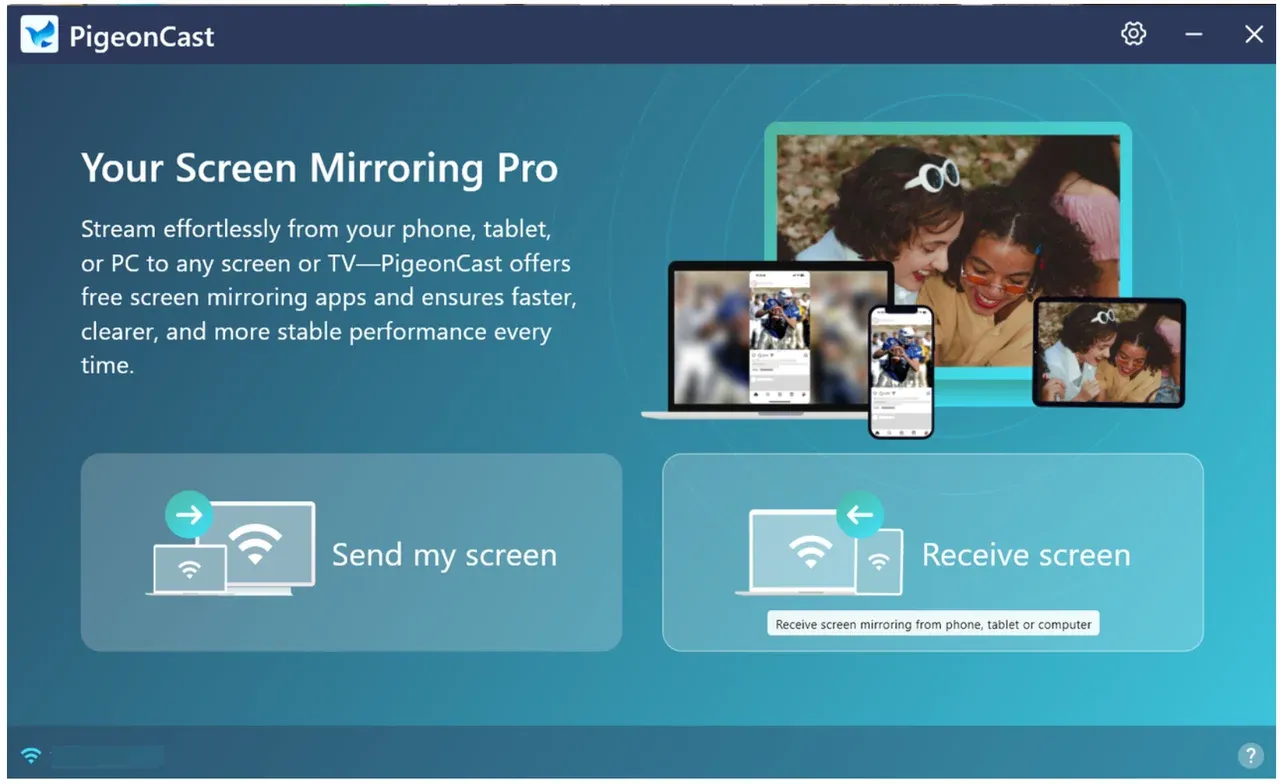
Step 3. Launch PigeonCast on both devices and choose Send my screen on the sender.
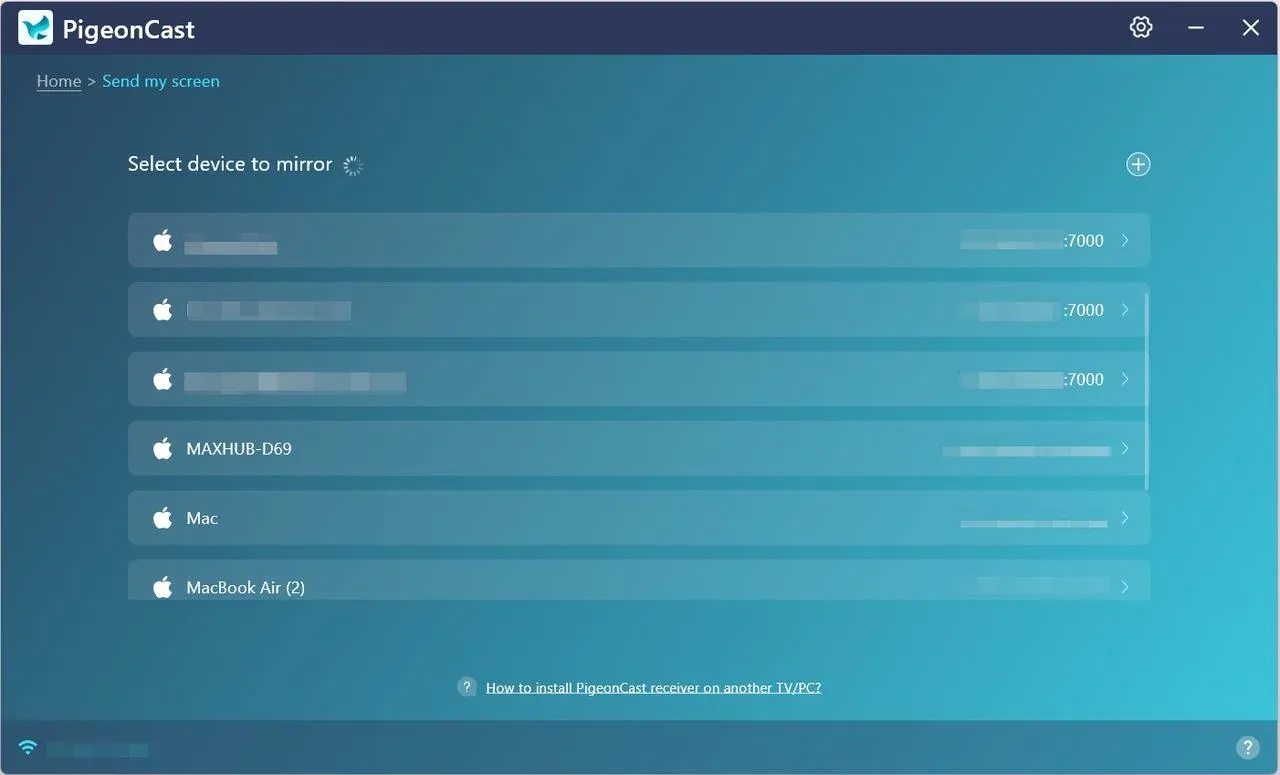
Step 4. Choose the target device from the list of available devices.
Step 5. Choose Mirror full screen or Mirror app window and configure the resolution, frame rate, and quality.
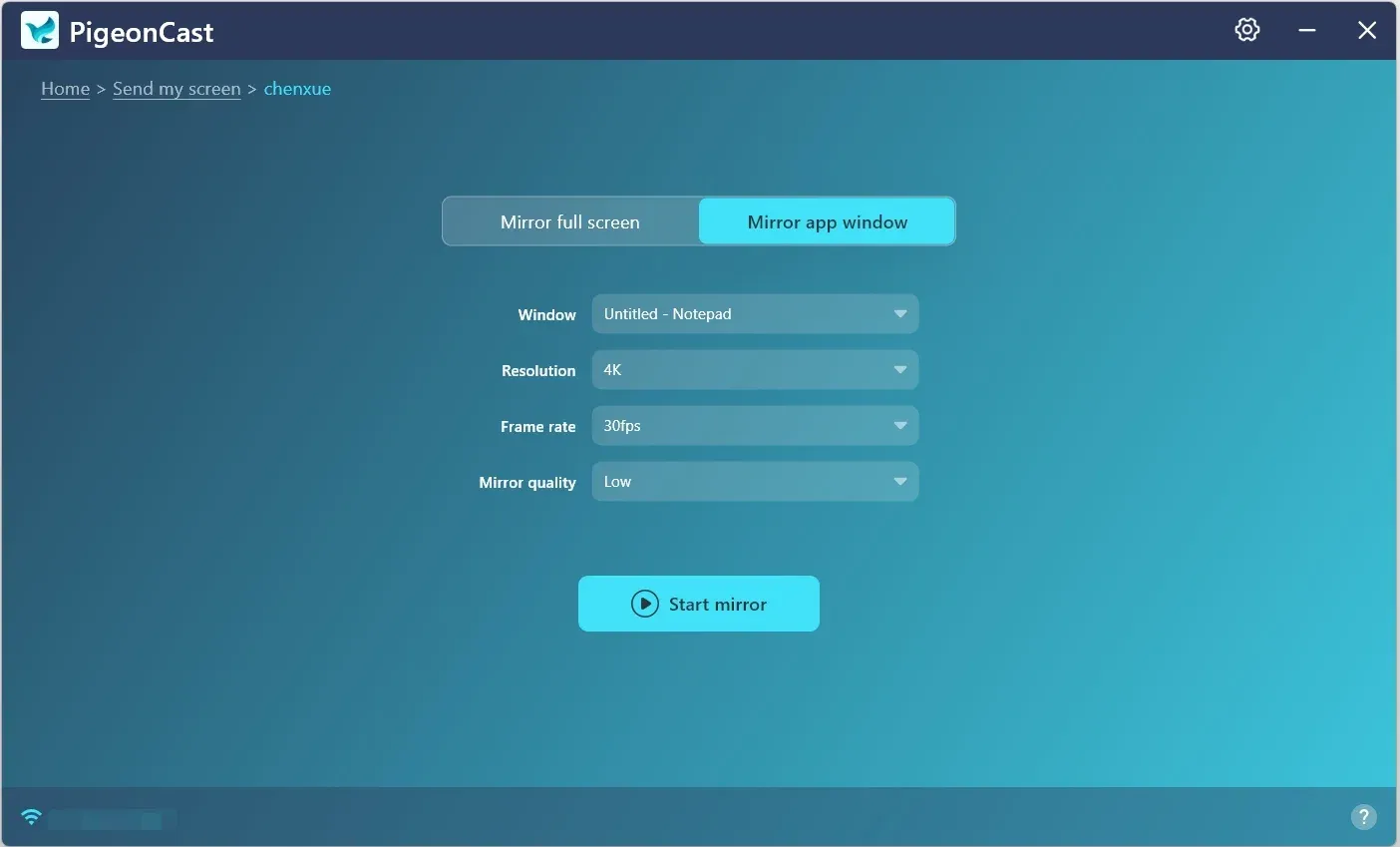
Step 6. Click the Start mirror button, and your Windows screen will appear on the target device.
Method 2. Share Windows Screen via Win + K
Windows has a built-in shortcut, Windows key + K, for quickly projecting your screen. This is the simplest option for Windows screen sharing to TVs and monitors that support Miracast.
Here's how to screen share on Windows 11 via this shortcut:
Step 1. Make sure your TV or wireless display supports Miracast and is connected to the same Wi-Fi network.
Step 2. On your Windows PC, press the Windows key and K simultaneously.
Step 3. Choose your TV or wireless display from the list.
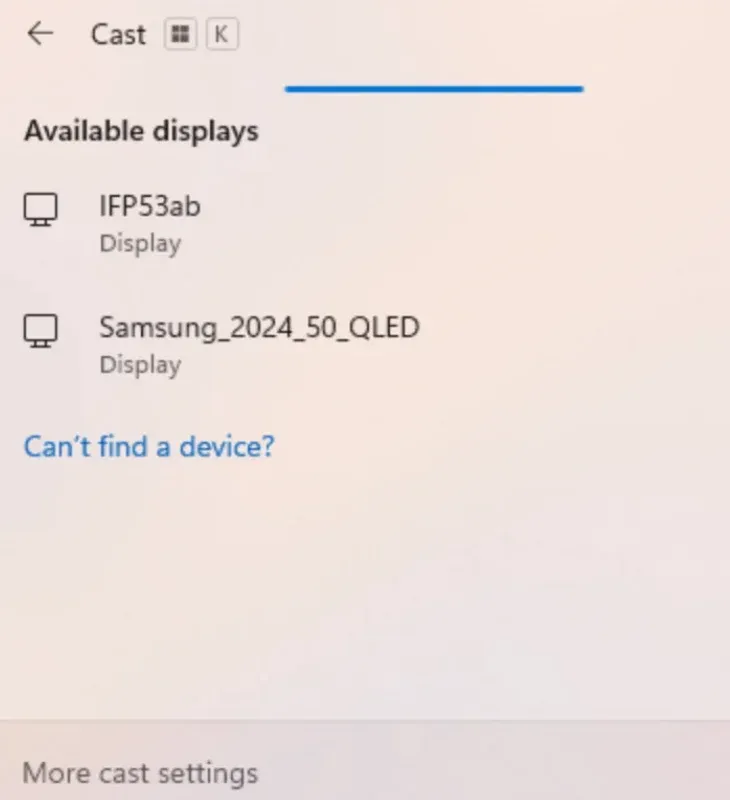
Step 4. Approve the connection on your TV if prompted.
Method 3. Share Windows Screen via Chrome
Google Chrome offers a built-in casting feature that's great for streaming videos, presentations, or even your full desktop to Chromecast-enabled devices, such as Chromecast dongles and TVs with Google TV.
See how to share screen on Windows 10 or Windows 11 via Chrome:
Step 1. Ensure your Windows laptop and the target device are on the same Wi-Fi network.
Step 2. Open Google Chrome on your Windows laptop.
Step 3. Click the three-dot menu in the top right corner.

Step 4. Choose Cast, Save, and Share > Cast....
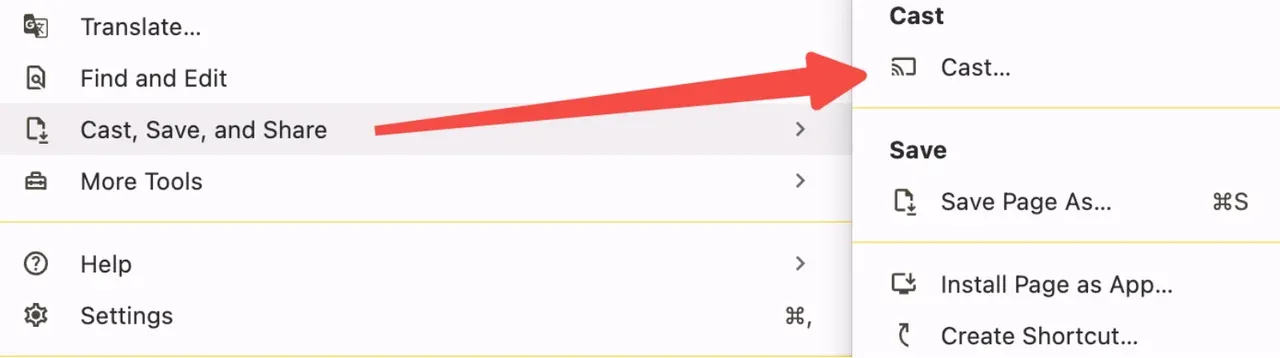
Step 5. Choose whether to cast your tab, desktop, or a file.
Step 6. Pick your Chromecast or compatible TV from the list.
Method 4. Share Windows Screen via Quick Assist
Quick Assist is a Microsoft tool designed for remote help. If someone needs to see or control your screen (or vice versa), Quick Assist makes it secure and straightforward.
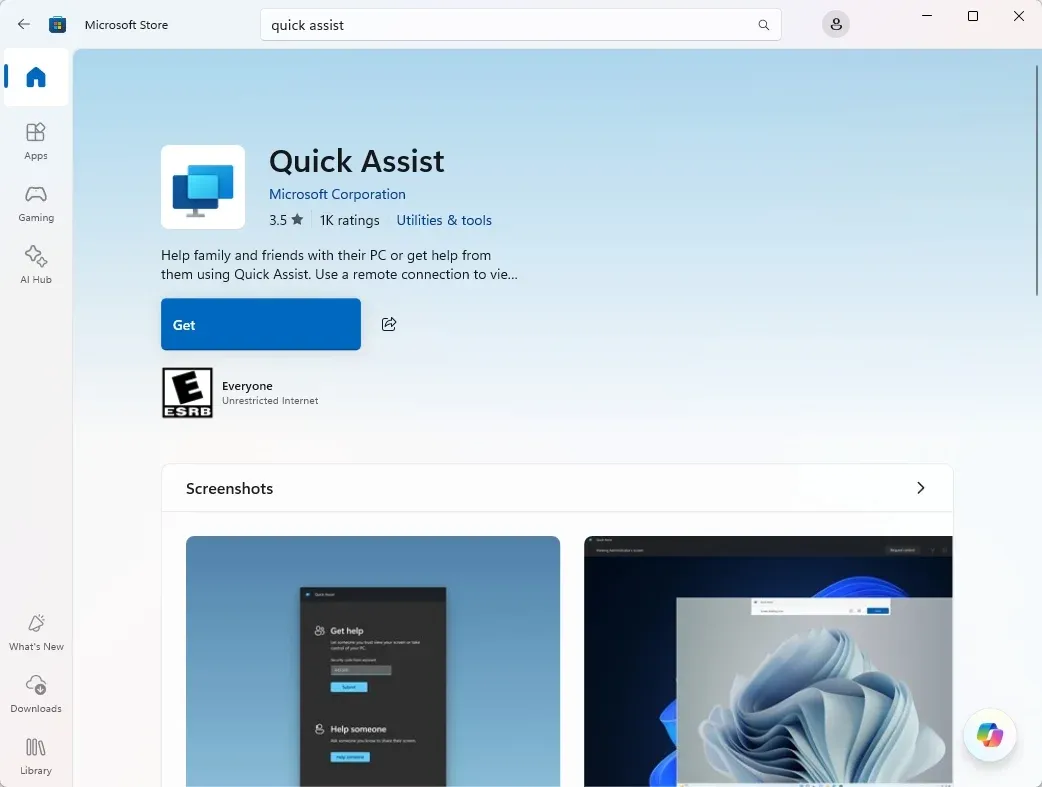
Here's how to screen share on Windows laptop via Quick Assist:
Step 1. Press Windows key + S and search for Quick Assist.
Step 2. Open Quick Assist and choose either Get assistance (share your Windows screen) or Give assistance (view someone else's).
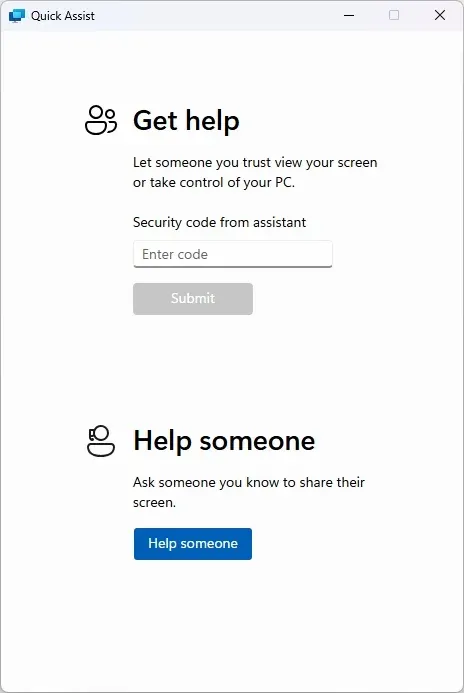
Step 3. Enter the six-digit security code provided by Microsoft.
Step 4. Once connected, your screen will be shared for troubleshooting or collaboration.
Step 5. When you're done getting help or helping someone, select Leave.
This is one of the safest methods for Windows screen sharing when IT support or friends need to help remotely.
Method 5. Share Windows Screen via Video Meeting Apps
Most online meeting platforms come with built-in screen share Windows features, making them ideal for classes, work, or remote presentations.
For example, to share screen on Windows 11:
- Zoom: Click Share Screen, then pick your desktop or an app window.
- Microsoft Teams: Click Share content and choose either your full screen, a window, or something else.
- Google Meet: Click Present now, then choose your entire screen or a specific window or tab.
No matter if you're on Windows 10 or Windows 11, these tools are optimized for smooth, real-time screen sharing.
Conclusion
Learning how to share screen on Windows doesn't have to be complicated. From simple shortcuts like Win + K to advanced apps like PigeonCast, there are plenty of methods available. Whether you're trying to figure out how to screen share on Windows 11, connect your Windows laptop to a TV, or show slides in a meeting, you'll always find a solution that works for your setup.
How to Share Screen on Windows FAQs
Q: How can I share my screen on my PC?
You can use Win + K, Quick Assist, Chrome Cast, PigeonCast, or meeting apps, depending on whether you want to share locally, remotely, or in a meeting.
Q: Why can't I screen mirror to my PC?
The common reasons are that the receiving PC doesn't support Miracast, devices are on different networks, or firewall/security settings block the connection.
Q: Can I screen share from a Windows laptop to another PC?
Yes, you can use Quick Assistant for remote viewing. Alternatively, you can try third-party apps like PigeonCast to connect a Windows laptop to another Windows or Mac.
Q: Is Windows screen sharing secure?
Yes. Using trusted apps like Quick Assist, Zoom, Teams, or PigeonCast is secure. Avoid unknown networks for wireless projection.
Q: Does screen sharing Windows affect performance?
Minor performance drops may occur depending on resolution, frame rate, and network speed. PigeonCast and Win + K are generally low-latency, while video meetings depend on bandwidth.
Q: Can I screen share Windows laptop to Mac?
Yes. Using apps like PigeonCast, you can mirror your Windows laptop to a Mac easily. Quick Assist only works PC-to-PC.
Mia Clarke is a technology editor specializing in screen mirroring and casting solutions across multiple platforms. Mia provides clear, practical guides and in-depth insights to help users seamlessly connect their devices. Passionate about enhancing digital experiences, Mia is dedicated to keeping readers updated on the latest trends and tools in cross-platform screen sharing. Whether you’re looking to mirror your smartphone, laptop, or smart TV, Mia’s content delivers reliable, user-friendly advice to simplify your tech setup.