
Want to turn your living room into a cinema, give a smooth presentation, or share vacation photos on the big screen? Connecting your iPad to your TV opens up endless possibilities. Whether you prefer a wired iPad to HDMI connection for a stable, high-definition display or the flexibility of a wireless method like PigeonCast, we've got you covered. This guide will walk you through both options, helping you choose the best one for a seamless viewing experience.
How to Connect iPad to TV with HDMI
For the most reliable connection, an iPad to HDMI cable setup is the best option. It provides a direct link between your iPad and TV, ensuring no compression, perfect audio sync, and eliminating reliance on Wi-Fi. Before you begin, ensure that you identify your iPad's port, as this determines the type of HDMI to iPad adapter you'll need.
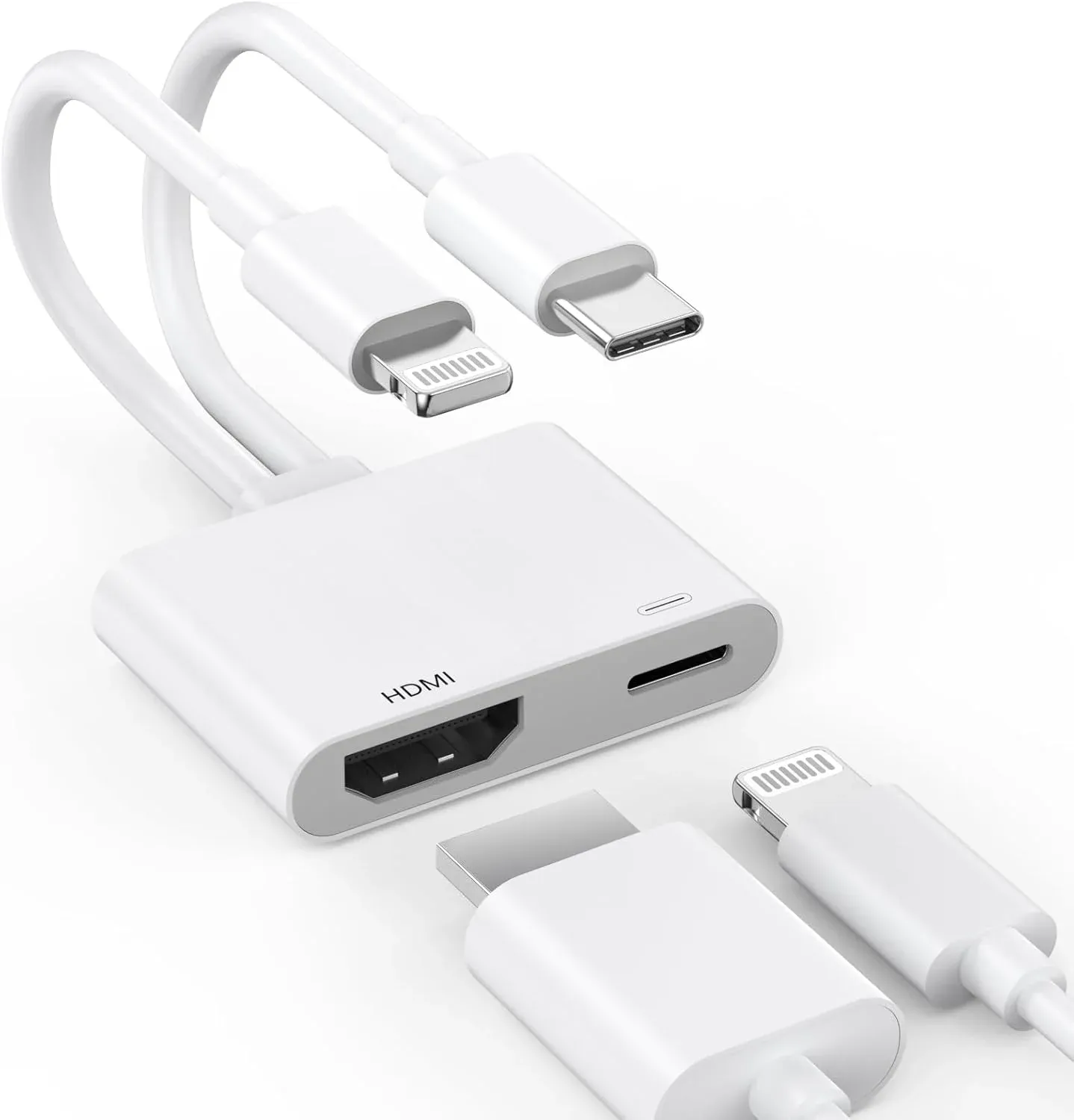
Step 1. Connect the appropriate iPad to HDMI adapter for TV (USB-C or Lightning) securely into your iPad's charging port:
- For iPads with a USB-C port (iPad Pro, iPad Air, iPad 10th gen+): You need a iPad USB C to HDMI Adapter.
- For older iPads with a Lightning port (most iPad models before 2018): You need a Lightning to Digital AV Adapter (Apple's official name).
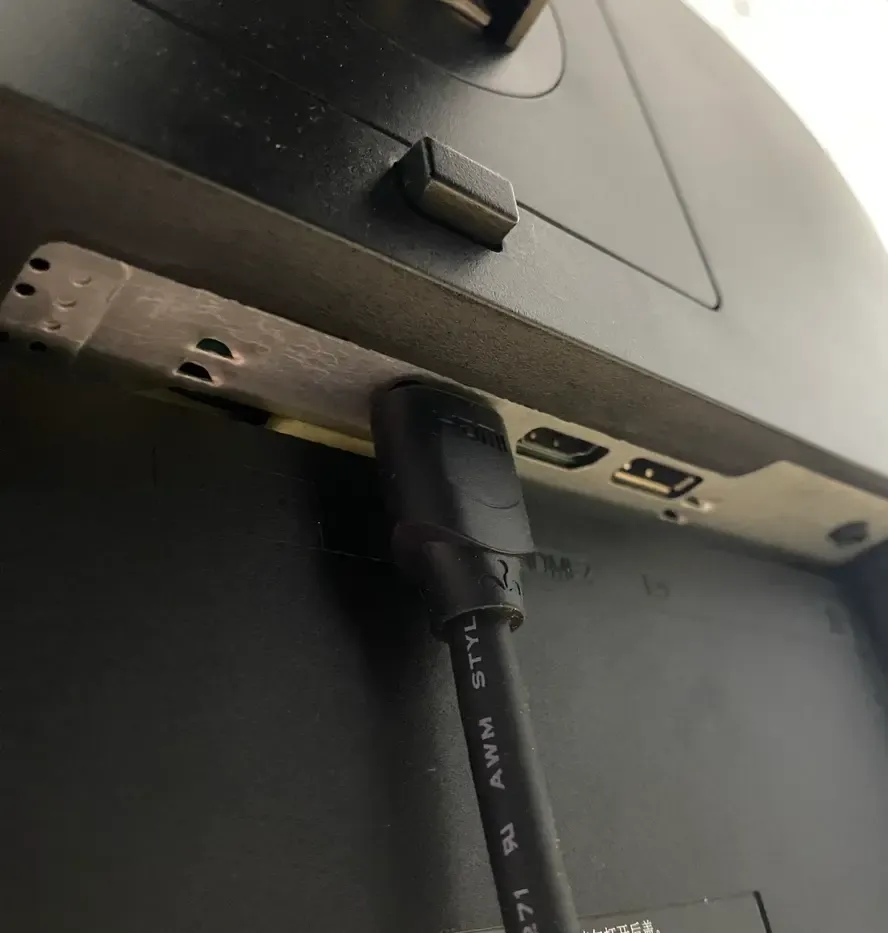
Step 2. Insert one end of your HDMI cable into the port on the adapter. Then, plug the other end into any available HDMI input port on your television.
Step 3. Using your TV remote, switch the source or input to match the HDMI port you used (e.g., HDMI 1, HDMI 2).
Step 4. Your iPad's screen should now appear on your TV instantly. Everything you do, from opening apps to playing videos or browsing the web, will be mirrored.
How to Connect iPad to TV with PigeonCast
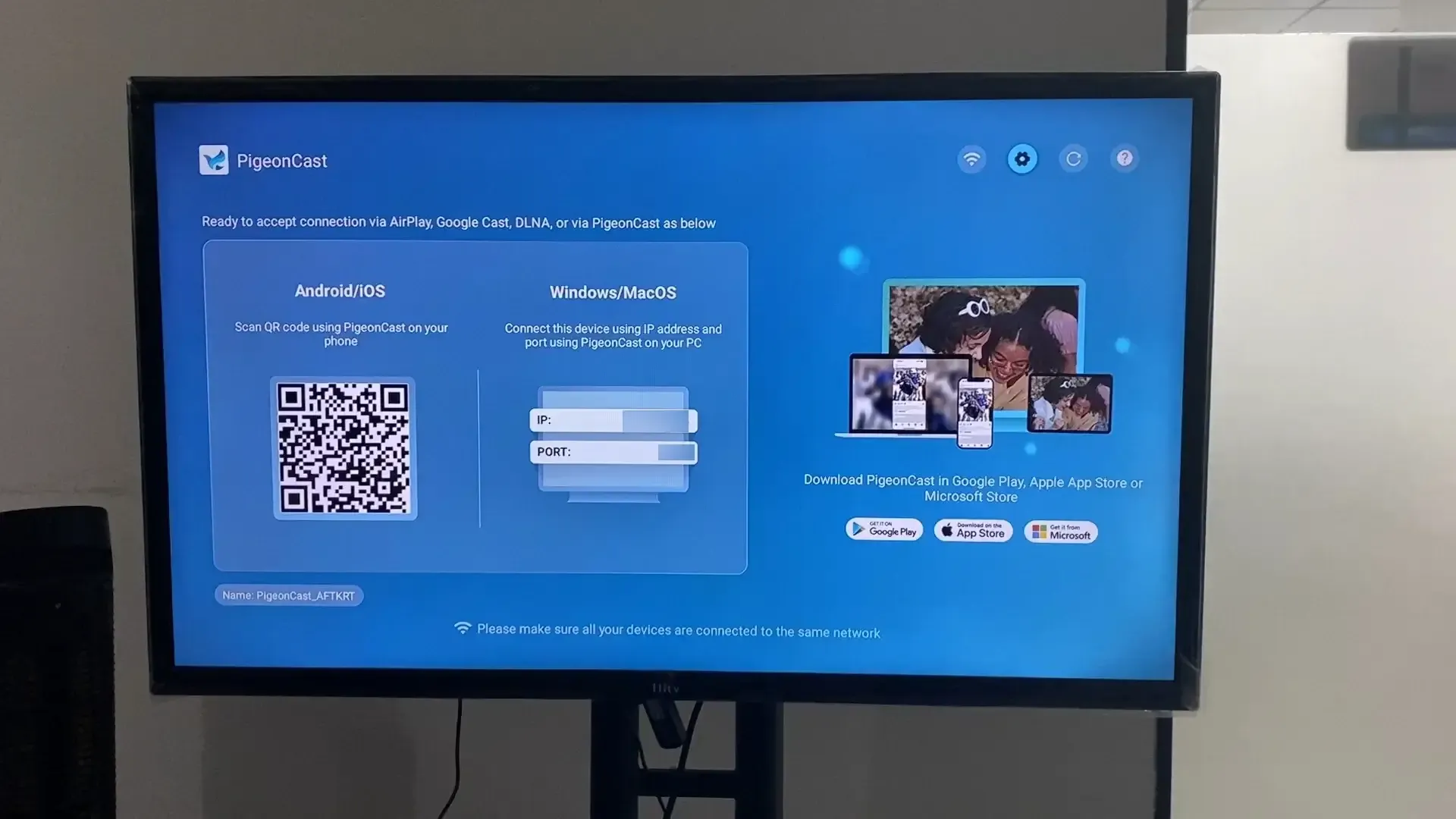
If you prefer a cable-free setup, PigeonCast is a great choice. It wirelessly mirrors your iPad's screen to your TV using your home Wi-Fi network. PigeonCast works seamlessly across Android, iOS, Windows, Mac, and TVs (tvOS, Android TV, etc.), offering faster, clearer, and more stable performance. It's perfect for streaming, sharing photos, or using your TV as a secondary monitor without cables.


Overall Rating:


Step 1. Install PigeonCast on both your iPad and your TV and launch it.
Step 2. Ensure both your iPad and TV are connected to the same Wi-Fi network.
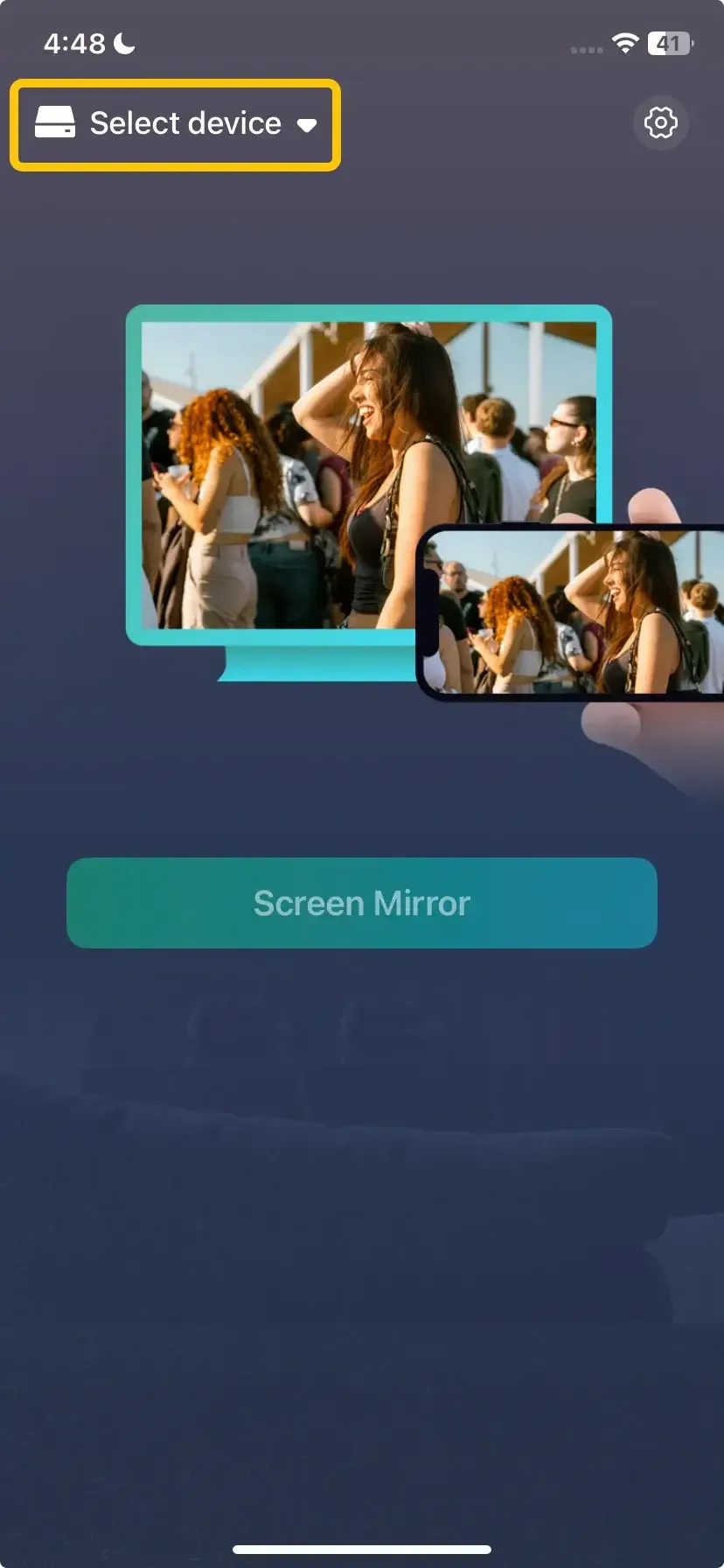
Step 3. On your iPad, tap Select device to find your television from the available list to connect to. (Or you can directly scan the onscreen QR code)
Step 4. Enter the onscreen PIN code to confirm your connection performance.
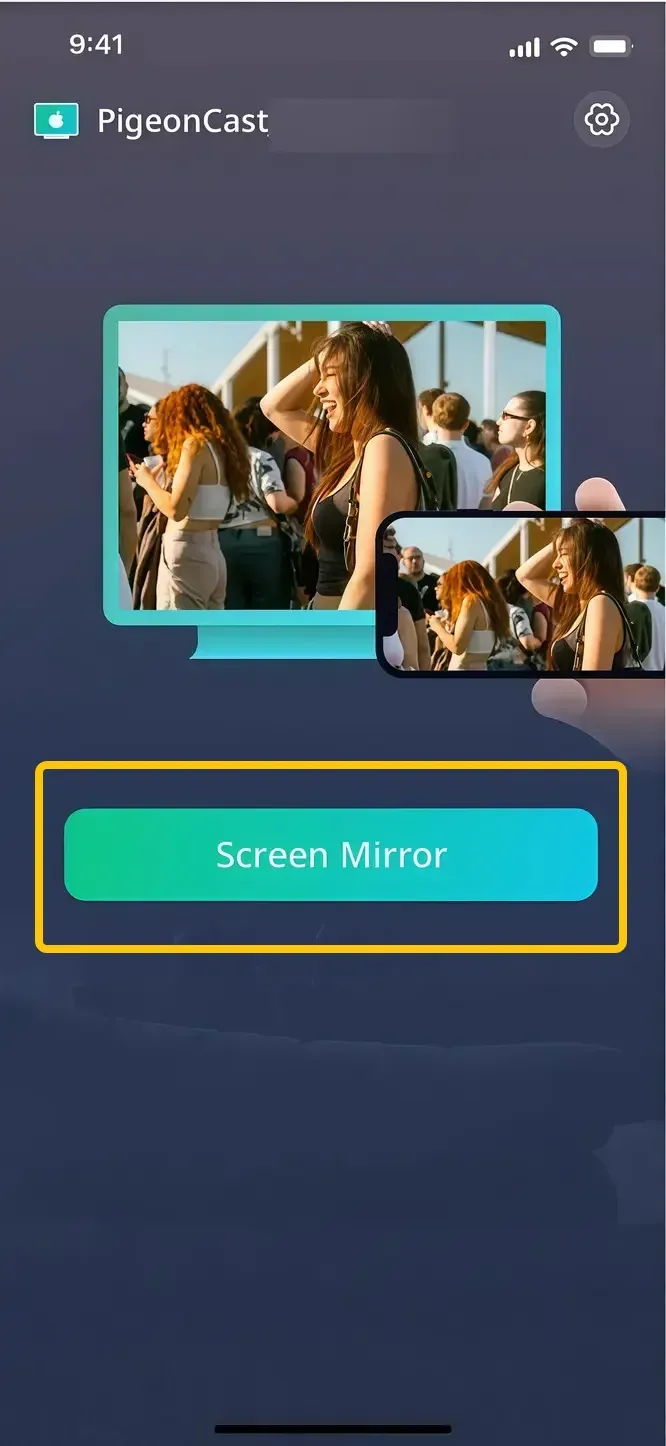
Step 5. Once the connection is established, you can choose the Screen mirror button to begin mirroring your iPad's screen directly to your TV.
How to Choose: Wired HDMI or Wireless PigeonCast
Now that we've covered both wired and wireless methods for connecting your iPad to your TV, it's time to decide which option best suits your needs. Whether you prioritise a stable, high-quality connection or the flexibility of a cable-free experience, each method has its advantages. Here's a clear comparison to help you decide:
| Feature | Wired HDMI Connection | Free PigeonCast (Wireless) |
|---|---|---|
| Cost | Requires adapter purchase ($20-$50) | Completely free (app-based) |
| Setup | Simple plug-and-play | Requires app download and TV compatibility check |
| Reliability | Excellent (No drops or interference) | Depend on Wi-Fi strength and app stability |
| Latency (Lag) | None - Perfect for gaming | Depend on Wi-Fi strength and app stability |
| Mobility | Tethered by cable length | Complete freedom to move around |
| Best For | Gaming, presentations, and critical viewing | Casual streaming, photo sharing, and budget-conscious users |
To Sum Up
How to mirror iPad to TV with HDMI? The most important thing is to choose the correct HDMI for iPad to TV, whether the iPad USB-C to HDMI or Lightning HDMI adapter. Meanwhile, free apps like PigeonCast offer impressive value, delivering convenient wireless mirroring without any hardware costs, ideal for casual viewers and budget-conscious users.
iPad to HDMI FAQ
Can you connect iPad to TV with HDMI?
Yes, you can use iPad HDMI to TV. There are a few different methods depending on your iPad model. For newer iPads with a USB-C port, you can use a USB-C to HDMI cable. For older iPads with a Lightning port, you can use a Lightning to HDMI adapter. Both options allow you to mirror your iPad's screen and stream content to your TV.
How to connect iPad to TV wirelessly?
To connect your iPad to a TV wirelessly, you can use AirPlay or a third-party device like PigeonCast. Here's how:
- Use AirPlay (for Apple TV or AirPlay-compatible smart TVs):
- Ensure your iPad and TV are connected to the same Wi-Fi network.
- Swipe down from the top-right corner of your iPad to open Control Center.
- Tap the Screen Mirroring button and select your Apple TV or AirPlay-compatible TV from the list.
- Your iPad screen will instantly appear on the TV.
- Use PigeonCast (for a broader range of devices):
- Ensure your iPad and TV are on the same Wi-Fi network.
- Download the PigeonCast app on your iPad and follow the setup instructions.
- Use PigeonCast to wirelessly mirror your iPad's screen to your TV, whether you have an Android TV, Roku, or other compatible devices.
Connect iPad to TV HDMI not working?
Here are the solution steps:
- Check the HDMI cable and adapter: Ensure both are securely connected and functional.
- Select the correct HDMI input on TV: Use the TV remote to switch to the correct HDMI source.
- Restart both devices: Power cycle the iPad and TV to resolve any temporary issues.
- Check for iPad software updates: Make sure iOS is up to date.
- Test with another device: Try a different device with the same HDMI cable and port.
Clara Rossi is an experienced technology editor and a seasoned expert in screen mirroring and casting technologies. With a keen eye for detail and a deep understanding of how to seamlessly connect devices, Clara excels at optimizing user experiences for effortless sharing and streaming. Whether you're seeking quick fixes or advanced tips, her expertise and responsiveness ensure that every query is met with a well-informed and efficient solution.