
Using an iPad as a second screen is a great way to expand your workspace without investing in another monitor. Whether you want to multitask, extend your device, or improve productivity for work, school, or creative projects, your iPad can become a versatile secondary display. This guide covers everything about how to use iPad as second screen you need to know.
How to Use an iPad as a Second Screen
Before setting up your iPad as a second screen, it helps to understand the benefits. Using an iPad as an extra monitor can boost productivity by giving you more screen space for multitasking. It is also portable, so you can take it anywhere and work on the go. You can take advantage of your iPad's touch features for creative tasks like drawing, sketching, or note-taking.
Way 1. Use Apple Sidecar on a MacBook
How to use iPad as a second screen? Apple's Sidecar feature lets you use your iPad as a secondary display for your Mac with ease. To use it, your Mac must be running macOS Catalina or later, and your iPad must have iPadOS 13 or later. Both devices also need to be signed in with the same Apple ID to enable a seamless connection and smooth performance. Here's how to use iPad as second screen for Mac:
Step 1. Both Mac and iPad must be on the same wireless network.
Step 2. Enable Bluetooth and Handoff:
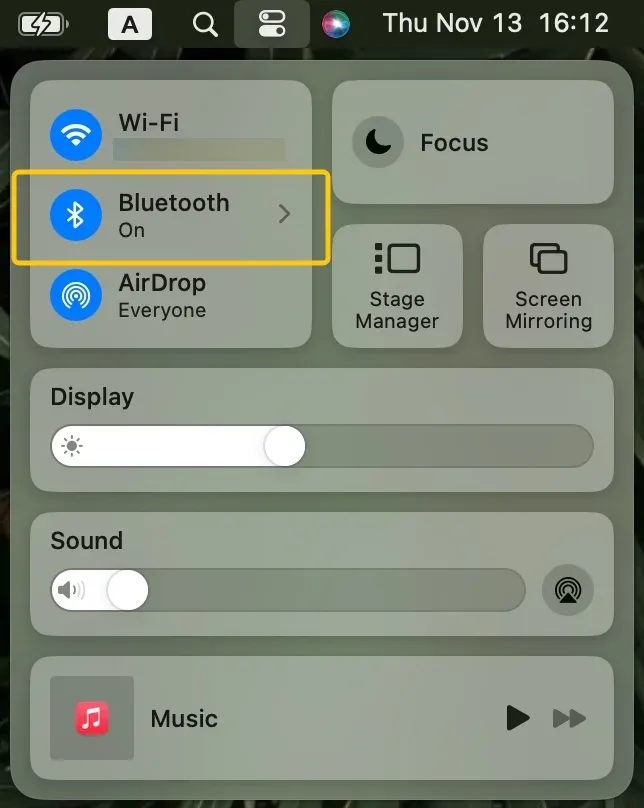
- On Mac: System Preferences > Bluetooth > Turn On.
- On iPad: Settings > General > AirPlay & Handoff > Handoff > On.
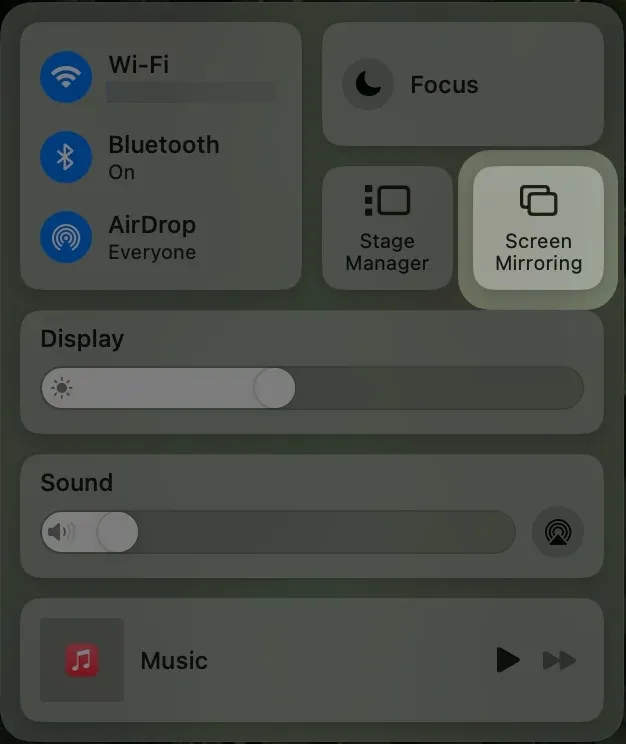
Step 3. On your Mac menu, select Screen Mirroring in the Control Center to choose your iPad to connect to.
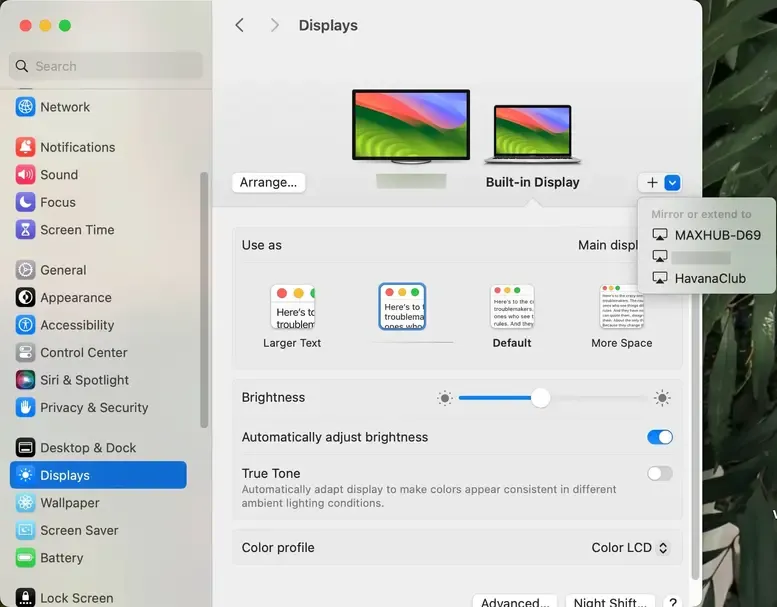
Step 4. Once connected, go to System Settings > Displays > Arrangement, and extend the display (iPad becomes a second screen). Then you can use Sidecar with your Mac and iPad:
- Move Windows Between Mac and iPad: Drag a window to the edge of your Mac screen until the pointer appears on the iPad. You can also go to Window > Move to while using an app to send it to your iPad.
- Use the Sidebar on iPad: Show or hide the menu bar, show or hide the dock, open the onscreen keyboard, or use modifier keys like Control for keyboard shortcuts. You can tap the icons with your finger or Apple Pencil.
- Use the Touch Bar on iPad: If your app supports it, the Touch Bar appears on your iPad. Tap any button with your finger or Apple Pencil to access app-specific controls.
- Use Apple Pencil: You can tap to select menu items, checkboxes, or files. In apps that support it, double-tap the lower section of your Apple Pencil to switch drawing tools if this option is enabled in display settings.
- Use Gestures: Basic gestures like tap, swipe, scroll, and zoom work on the iPad, along with gestures for entering and editing text.
- Switch Between Mac Desktop and iPad Home Screen: Swipe up from the bottom edge of your iPad to show the Home Screen. To return to your Mac desktop, swipe up and tap the appropriate icon.
To close Apple Sidecar and disconnect your iPad from your Mac, follow these steps:
- From the Mac:
Step 1. Click the Screen Mirror icon in the menu bar (top-right of your screen).
Step 2. In the dropdown menu, select Stop Screen Mirror to disconnect your iPad.
- From the iPad:
You can also simply press the Home button (or swipe up if your iPad doesn't have a Home button) to exit Sidecar mode and return to the home screen.
Way 2. Use Duet Display on a Windows PC
Another effective way to use your iPad as a second screen is by using the Duet Display app. If you're wondering how to use iPad as second screen Windows, Duet Display offers a simple and reliable solution. It's designed to seamlessly extend your desktop, improving productivity and multitasking. Let's dive into how to connect iPad to Windows PC as second monitor via Duet Display:

Step 1. First download and install the Duet Display app on both your iPad and computer.
Step 2. Connect your iPad and Windows PC either via a USB cable or wirelessly over the same Wi-Fi network
Step 3. Once connected, launch the apps, adjust the display settings on your computer to extend or mirror your display, and drag windows to your new iPad screen to use iPad as second monitor Windows 11.
Way 3. Use PigeonCast on Your Receiver Device
How to use your iPad as a second screen? By default, your iPad can only be used as a second screen with a Mac through Apple's Sidecar feature. Unfortunately, it doesn't support direct connections with other devices like an iPhone, Windows PC, or smart TV. In those cases, your iPad typically acts as the sender rather than the receiver. This is where PigeonCast comes in:

If you want more flexibility, especially for mirroring between different operating systems, this free and ad-free app is an excellent choice. It works seamlessly across iOS, Android, Windows, and macOS, allowing you to cast or mirror your iPad without worrying about device compatibility. PigeonCast offers smooth performance, secure connections, and an easy setup process, making it a practical solution between devices.

PigeonCast Screen Mirroring

Official Download



Step 1. Install PigeonCast on your MacBook or Windows PC.
Step 2. Ensure your iPad is connected to the same WiFi network as your receiver device, such as MacBook or Windows PC.
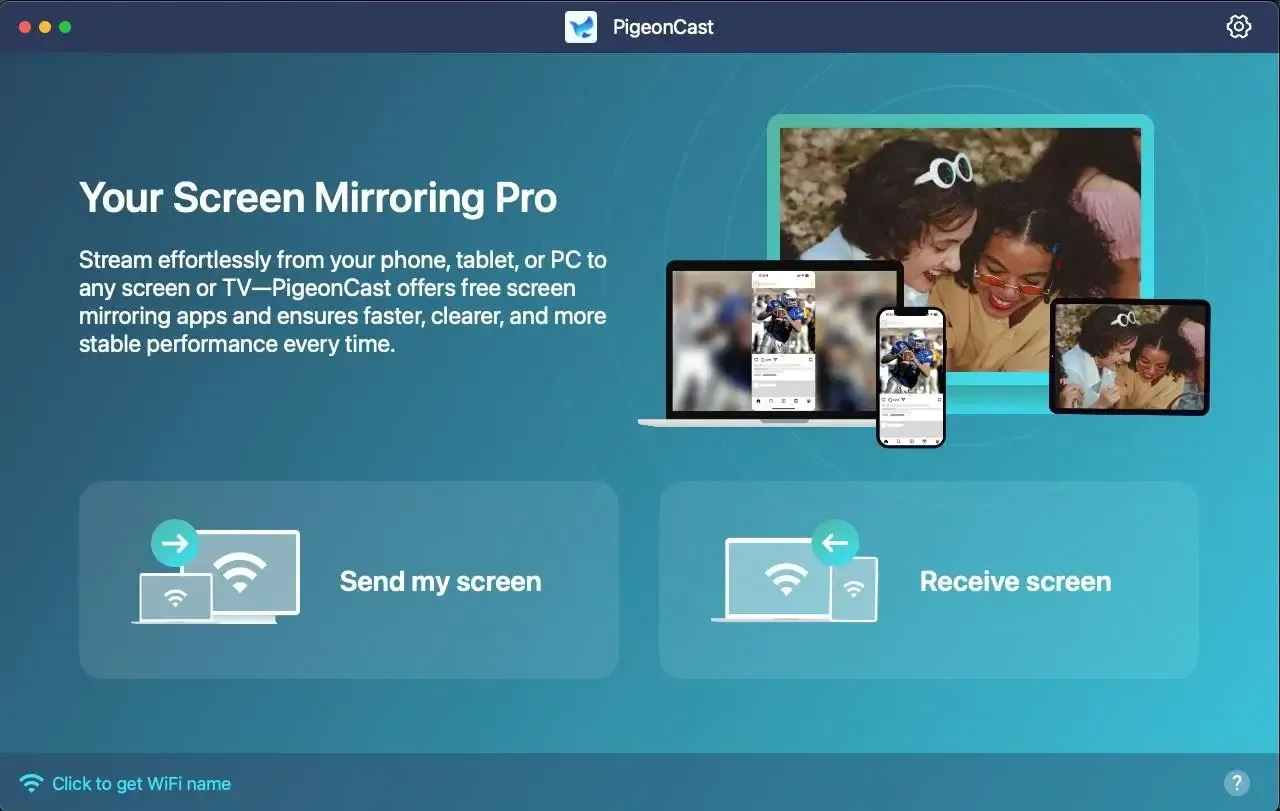
Step 3. Launch the app on your laptop, and tap the Receive screen option to turn your device ready to receive your iPad connection requisition.
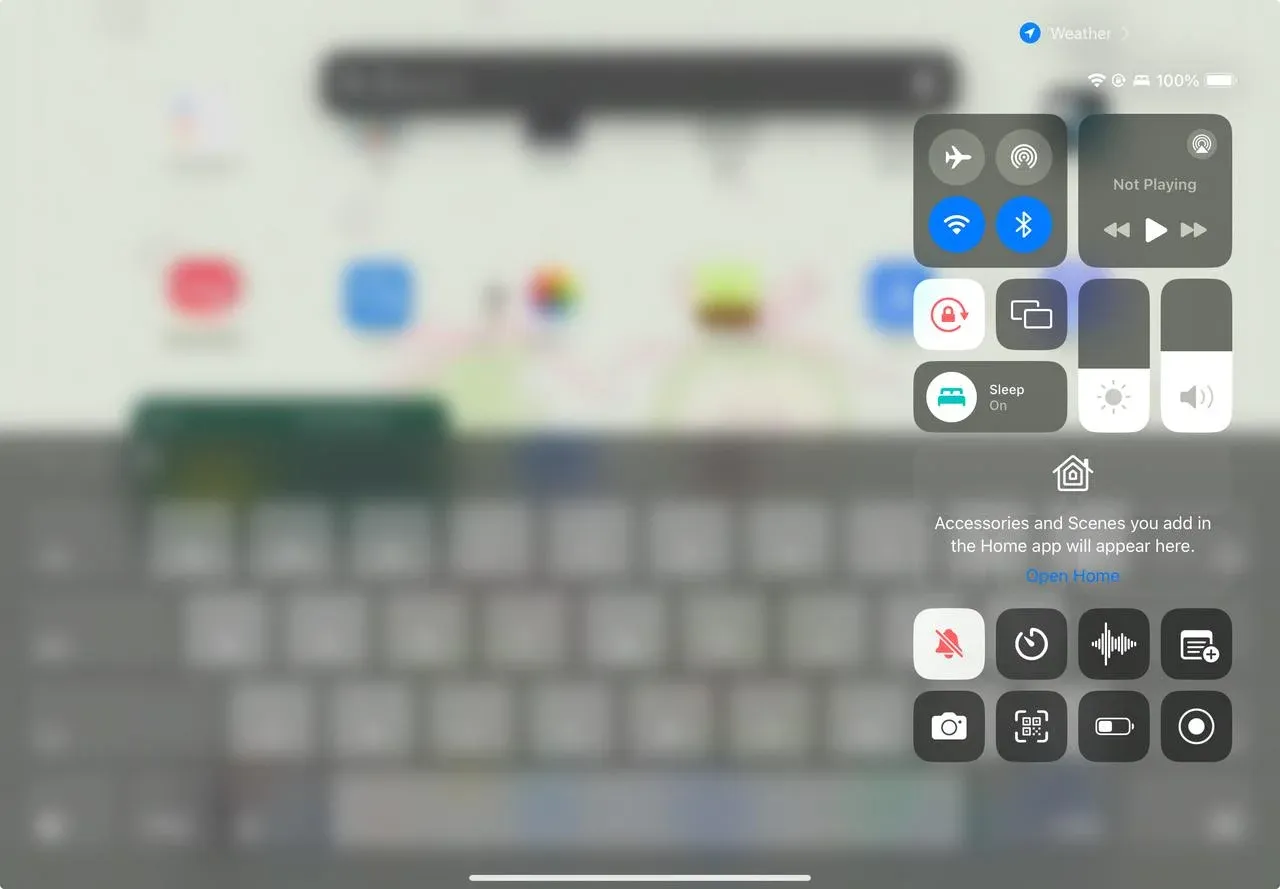
Step 4. On your iPad, move to Control Center and choose Screen Mirroring option to choose your laptop with PigeonCast name to pair.
Step 5. If prompted, enter the onscreen PIN code to confirm the connection performance.
Step 6. Once you succeed, you can see your iPad screen on the receiver device.
Closing Words
How to use my iPad as a second screen? Using your iPad as a second screen is a great way to expand your workspace and boost productivity, especially when paired with a Mac through Apple's Sidecar feature. However, if you want to use your iPad as a sender device to mirror content to other systems such as Windows PCs, or smart TVs, PigeonCast is a versatile and practical solution.
How to Use iPad as Second Screen FAQ
Q: How can I use my iPad as a second monitor?
You can use your iPad as a second monitor with Apple's Sidecar feature. Connect your iPad to a Mac running macOS Catalina or later, and ensure both devices are signed in with the same Apple ID and on the same Wi-Fi network. Once connected, select your iPad from the Screen Mirroring menu on your Mac to extend or mirror your display.
Q: Can I make my iPad a second monitor with Windows 11?
By default, iPads cannot be used as a second monitor for Windows 11 because Apple's Sidecar only works with Mac devices. However, you can achieve this using third-party apps like PigeonCast, which allow you connect your iPad to Windows PC directly, offering screen mirroring and extended display functionality.
Q: How to connect iPad screen to a laptop?
You can connect your iPad screen to a laptop using either built-in features or third-party apps:
- For Mac: Use Apple Sidecar. Connect your iPad to your Mac via USB or Wi-Fi, ensure both devices are signed in with the same Apple ID, then select your iPad from the Screen Mirroring menu to extend or mirror your display.
- For Windows or cross-platform: Use a third-party app like PigeonCast. Install the app on both your iPad and laptop, connect them to the same Wi-Fi network (or via USB if supported), and follow the app's instructions to mirror or extend your iPad screen to the laptop.
Q: What cable do I need to use an iPad as a monitor?
To use an iPad as a monitor, the cable you need depends on your setup: You can use a USB-C to USB-C or Lightning to USB cable (depending on your iPad model) to connect your iPad directly to your Mac. A wired connection provides a stable and lag-free experience.
Q: Does using iPad as a second screen require Wi-Fi?
No, using an iPad as a second screen does not always require Wi-Fi. Some apps, like Duet Display, allow you to connect your iPad to your computer via a USB cable, providing a stable connection without Wi-Fi. However, other apps like Sidecar or Air Display may require both devices to be on the same Wi-Fi network for wireless connectivity.
Q: Why can't I find the Sidecar option on my Mac?
If you can't find the Sidecar option on your Mac, it could be due to the following reasons:
- Compatibility: Sidecar is only available on specific Mac and iPad models.
- macOS Version: Sidecar requires macOS Catalina (10.15) or later.
- Bluetooth and Wi-Fi: Both devices need Bluetooth and Wi-Fi enabled for a wireless connection.
- Apple ID: Both devices must be signed into the same Apple ID.
- Handoff: Handoff needs to be enabled on both devices.
Q: Is Sidecar free to use?
Yes, Sidecar is free to use. It is a built-in feature of macOS and iPadOS, available to users with compatible devices running macOS Catalina (10.15) or later and iPadOS 13 or later. There are no additional charges for using Sidecar.
Q: Can I use my iPad as a second screen for gaming?
Yes, you can use your iPad as a second screen for gaming, but the experience may vary depending on the app you use and the game itself. Sidecar and third-party apps like Duet Display allow you to extend your screen to the iPad.
Q: How to use iPad as a second screen with Apple Pencil?
To use your iPad as a second screen with Apple Pencil, you can use Apple Sidecar or third-party apps like Duet Display. Use Sidecar iPad and Duet Display are both simple to set up:
- Using Sidecar
Make sure your Mac and iPad are compatible and running macOS Catalina or later and iPadOS 13 or later. On your Mac, go to System Preferences > Sidecar and select your iPad.
- Using Duet Display
Download and install the Duet Display app on both your Mac/PC and iPad. Connect your iPad via USB or Wi-Fi.
Q: Why is my iPad not connecting to a second screen?
If your iPad isn't connecting to a second screen, it could be due to the following reasons:
- Compatibility Issues: Your iPad or the second screen may not support the connection method you're using.
- Outdated Software: The devices may be running outdated operating systems.
- Connection Type: The cable or wireless connection may not function properly.
- Bluetooth and Wi-Fi: Bluetooth or Wi-Fi may be disabled or not properly configured.
- App Settings: The screen-mirroring or second-screen app may not be properly configured.
- Apple ID or Account Syncing: The devices may not be signed into the same Apple ID.
- Hardware Issues: There could be a hardware problem with your iPad, cable, or second screen.
Q: Can I use the old iPad as a second screen?
Yes, you can use an old iPad as a second screen, but it depends on the model and software compatibility. Apple Sidecar requires iPadOS 13 or later, so older iPad models running earlier versions of iPadOS may not support this feature. However, third-party apps like Duet Display or Luna Display may be compatible with a wider range of older iPads, allowing you to use them as a second screen for your Mac or PC.
Clara Rossi is an experienced technology editor and a seasoned expert in screen mirroring and casting technologies. With a keen eye for detail and a deep understanding of how to seamlessly connect devices, Clara excels at optimizing user experiences for effortless sharing and streaming. Whether you're seeking quick fixes or advanced tips, her expertise and responsiveness ensure that every query is met with a well-informed and efficient solution.