
Watching videos, photos, or presentations on a big screen is more enjoyable than on a tablet. Whether you're streaming, gaming, or sharing photos, mirroring your iPad to a TV makes it easy. This guide provides simple instructions on how to mirror iPad to TV, whether using Apple TV or not, including Smart TVs, HDMI models, or wireless displays.
How to Cast iPad to TV
Here's how to connect iPad to TV. You can mirror your screen for videos, games, presentations, or photos. Depending on your setup, you can use Apple TV, a Smart TV, an HDMI cable, or a wireless display. The following methods will guide you step by step to connect your iPad and enjoy content on the big screen.
Way 1. Screen Mirroring iPad to TV Wireless
How to cast from iPad to TV? Wireless mirroring is one of the easiest ways to display your iPad on a TV, especially if you have an Apple TV or a smart TV with AirPlay built in, like Samsung, LG, Sony, or Vizio. This method lets you stream videos, play games, show photos, or run apps directly from your iPad without any cables.
Step 1. Make sure your iPad and TV are on the same Wi-Fi network.
Step 2. On your TV, enable AirPlay (check Settings or AirPlay icon on your remote).
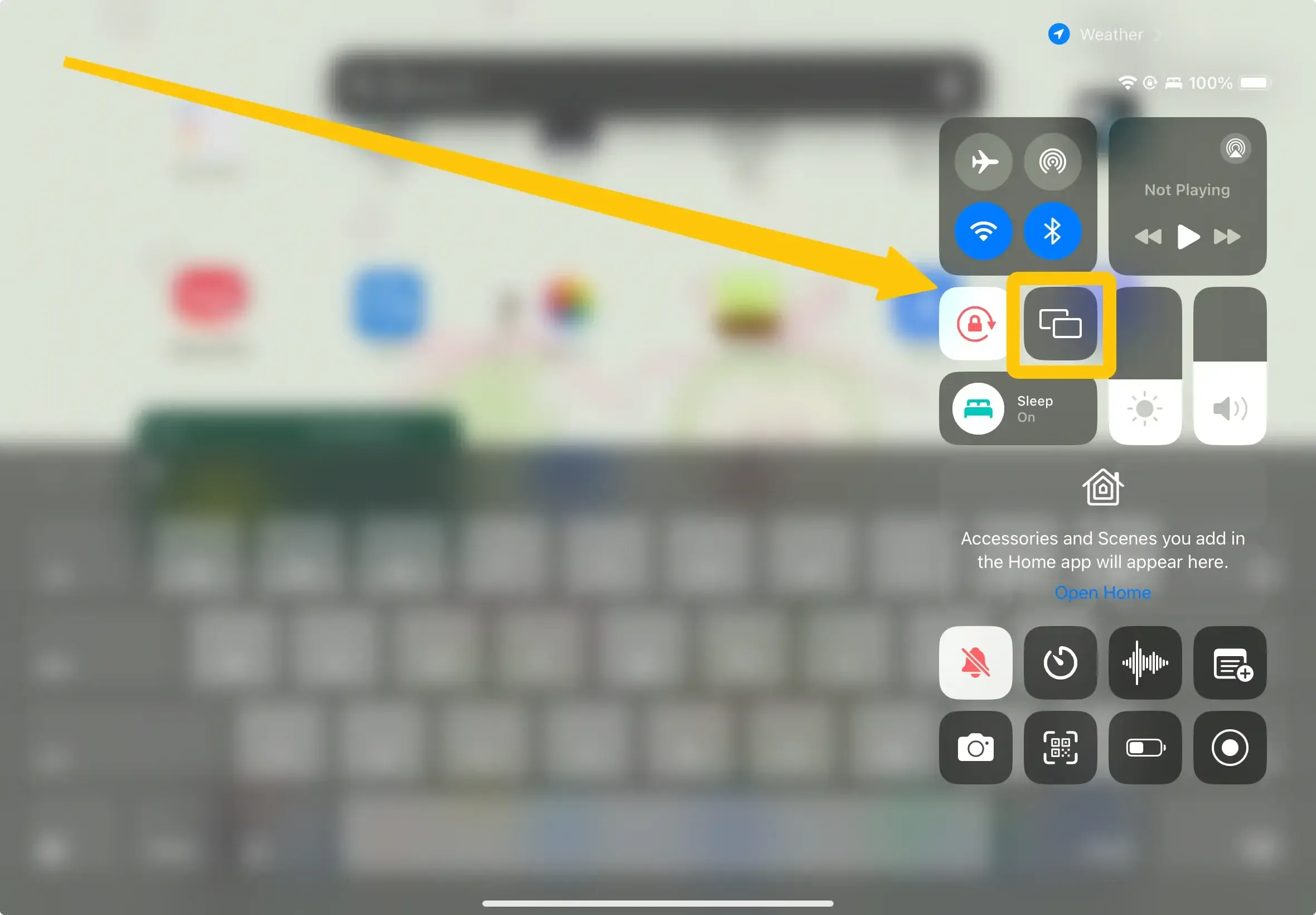
Step 3. On your iPad, open Control Center and tap Screen Mirroring to select your AirPlay-compatible TV from the list.
Step 4. If prompted, enter the AirPlay code shown on your TV. Your iPad screen should now appear on your TV instantly.
Way 2. Screen Mirroring iPad to TV with PigeonCast
How to connect iPad to TV wirelessly without Apple TV? Most modern Smart TVs now come with built-in screen mirroring or casting features, such as Google Cast. PigeonCast screen mirroring app lets you mirror your iPad to a TV, PC, or other screens, providing crystal-clear visuals, stable audio, and seamless wireless casting via AirPlay or Cast.

Step 1. Make sure your iPad and TV are on the same Wi-Fi network.

PigeonCast Screen Mirroring

Official Download



Step 2. Install the PigeonCast on your iPad and TV, then open it on your TV.
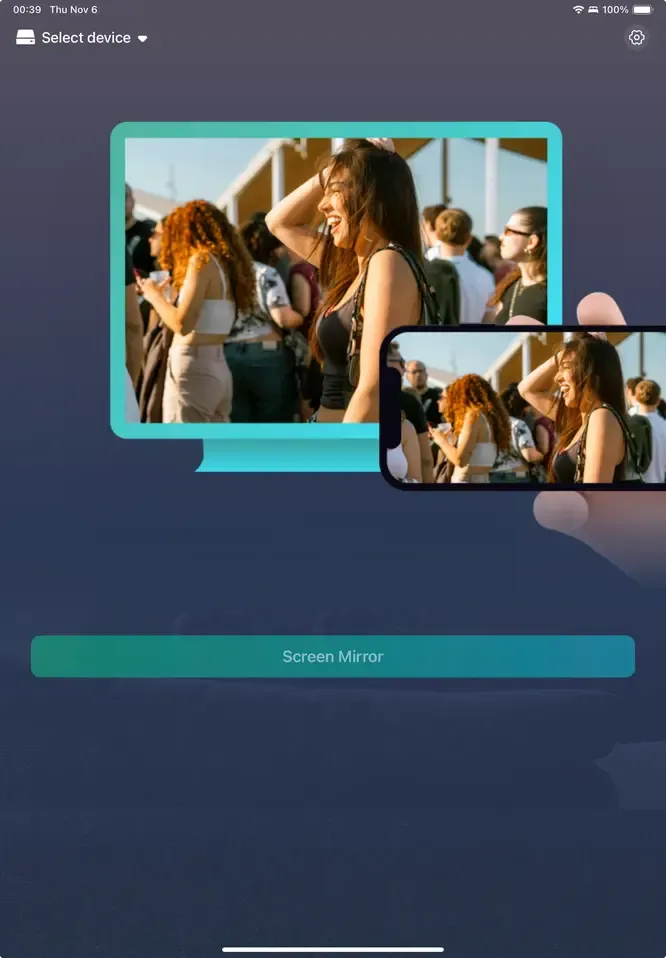
Step 3. On your iPad, launch the PigeonCast app and tap the Select device to choose your TV from the available list.
Step 4. Enter the onscreen PIN code to finish the connection.
Step 5. Once you succeed, you will see the iPad's screen displayed on your TV.
Way 3. Screen Mirroring iPad to TV via a Cable
Can I screen mirror from iPhone to iPad? If your TV doesn't support AirPlay or Wi-Fi, you can still mirror your iPad using a simple HDMI connection. Wired connections are often more stable and lag-free, making them ideal for gaming, presentations, or situations where Wi-Fi is unreliable.
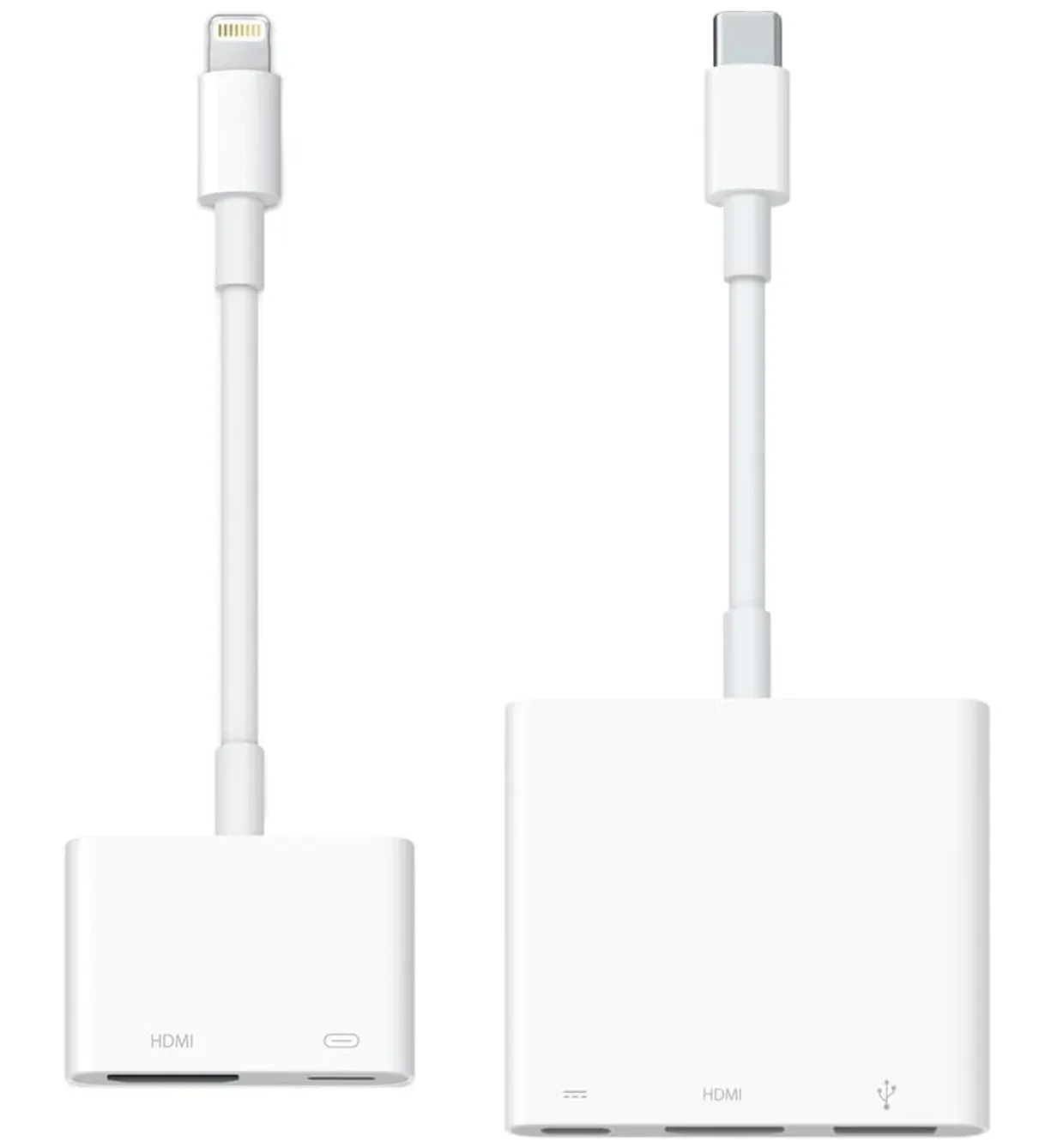
Step 1. Get an Apple Lightning Digital AV Adapter (for older iPads) or a USB-C Digital AV Multiport Adapter (for newer models).
Step 2. Plug the adapter into your iPad's charging port.
Step 3. Connect an HDMI cable to the adapter and the other end to your TV's HDMI port.
Step 4. Turn on your TV and select the correct HDMI input.
Final Verdict
How to cast to TV from iPad? Whether you use AirPlay for wireless streaming, a cable for a stable connection, or a third-party app like PigeonCast for Smart TVs, you can enjoy movies, games, and more on a bigger screen in just minutes. If one method doesn't work, try another, as your iPad can connect to nearly any modern TV in one way or another.
How to Mirror iPad to TV FAQ
Q: How can I mirror my iPad to my TV?
You can mirror your iPad to your TV using AirPlay with an Apple TV or a compatible Smart TV, a wired HDMI connection with a Lightning or USB-C adapter, or a third-party app like PigeonCast for wireless casting. Make sure your iPad and TV are on the same Wi-Fi network for wireless methods.
Q: Where is the screen mirroring button on my iPad?
The Screen Mirroring button is located in the Control Center on your iPad. To access it, swipe down from the top-right corner of the screen (on iPads with Face ID) or swipe up from the bottom (on older iPads with a Home button). Tap Screen Mirroring to see available devices and start mirroring your screen.
Q: How do I mirror my iPad to my TV wirelessly without an Apple TV?
You can mirror your iPad to a TV wirelessly without an Apple TV by using your TV's built-in screen mirroring or casting features, such as Google Cast, or a third-party app like PigeonCast. Make sure your iPad and TV are connected to the same Wi-Fi network, then open Control Center > Screen Mirroring on your iPad and select your TV or PigeonCast device to start casting.
Q: How do I mirror iPad to TV wirelessly?
To mirror your iPad to a TV wirelessly, use AirPlay. Make sure your iPad and AirPlay-compatible TV (or Apple TV) are on the same Wi-Fi network. Open Control Center, tap Screen Mirroring, and select your TV from the list. Your iPad screen will then appear on the TV.
Q: Why is my iPad not mirroring my TV?
Common causes for iPad not mirroring to TV:
- Devices not on the same Wi-Fi network
- AirPlay disabled on the TV
- Outdated iPad or TV software
- Network connectivity issues
- Device compatibility limitations
- Firewall or router restrictions
- Temporary glitches in iPad or TV system
Q: How do I mirror the iPad to a non-smart TV?
To mirror your iPad to a non-smart TV, you can use a wired connection with a Lightning-to-HDMI adapter (or USB-C-to-HDMI for newer iPads) and an HDMI cable. Plus, you can set up a streaming device on the TV, such as Roku Stick, FiresStick, Apple TV and Chromecast.
Q: Can I mirror my iPad to Roku or FireStick?
Yes, you can mirror your iPad to a Roku or Fire TV Stick. For Roku, use AirPlay, as most Roku devices support it. Ensure both devices are on the same Wi-Fi network, then select your Roku from Screen Mirroring on the iPad. For Fire TV Stick, you can use third-party apps like PigeonCast to enable AirPlay functionality and mirror your iPad wirelessly.
Q: How do I stop screen mirroring on my iPad?
To stop screen mirroring on your iPad, open Control Center by swiping down from the top-right corner of the screen. Tap Screen Mirroring, then select Stop Mirroring. This will immediately disconnect your iPad from the TV or device it was mirroring to.
Clara Rossi is an experienced technology editor and a seasoned expert in screen mirroring and casting technologies. With a keen eye for detail and a deep understanding of how to seamlessly connect devices, Clara excels at optimizing user experiences for effortless sharing and streaming. Whether you're seeking quick fixes or advanced tips, her expertise and responsiveness ensure that every query is met with a well-informed and efficient solution.