
If you want to mirror phone to tablet, the fastest path is to start with native casting features on both devices, then move to an app-based method only if discovery fails.
In most homes, this process takes only a few minutes when both devices are connected to the same Wi-Fi network and battery-saving restrictions are turned off.
This guide is designed for beginners and explains the process for both Android and iPhone users. The steps follow a simple order: prepare the devices, start mirroring, and then use an alternative method if necessary.
Can You Screen Mirror Phone to Tablet
Yes, you can mirror a phone to a tablet, but the exact method depends on the devices and the protocols they support.
Most modern phones support wireless screen mirroring technologies such as Google Cast, Miracast, Smart View, or AirPlay. However, not every tablet can act as a receiver for these protocols by default.
In practice, there are three common ways to mirror a phone to a tablet:
-
Native screen mirroring using built-in casting features
-
App-level casting from supported apps like YouTube or Photos
-
Third-party mirroring apps that create a receiver on the tablet
The native method is usually the fastest and most stable, so it should always be tested first.
What You Need Before You Mirror Phone to Tablet
Most pairing failures are not caused by broken devices. Instead, they happen because one requirement is missing, such as mismatched Wi-Fi networks, background restrictions, or unsupported receiver modes.
Check the following baseline setup before you begin.
Step 1. Connect both the phone and tablet to the same Wi-Fi network name (SSID).
Step 2. Disable VPN on both devices during setup.
Step 3. Temporarily turn off battery saver or power-saving modes.
Step 4. Update both devices to the latest stable operating system version.
Step 5. Keep both device screens unlocked during the initial pairing process.
Step 6. Enable Wireless Display, Cast, or Receiver Mode on the tablet if available.
Step 7. Confirm your goal before starting: Full phone screen duplication or App-only media casting.
How to Mirror an Android Phone to a Tablet
Android provides several ways to mirror a phone screen to a tablet, but compatibility depends on which receiver protocol the tablet supports.
Some tablets can receive Miracast or Google Cast signals natively, while others require a receiver application that simulates a compatible display target.
Because native casting requires less setup and usually offers lower latency, it should always be tested first. If the tablet does not appear after one full discovery cycle, move to a receiver-app method.
Option 1: Native Cast or Smart View
This method works when the tablet supports Miracast, Google Cast, or a built-in wireless display receiver.
Step 1. On the tablet, open Quick Settings and enable Cast, Wireless Display, or Screen Receive (the name varies by brand).
Step 2. On the Android phone, open Quick Settings and tap Cast or Smart View.
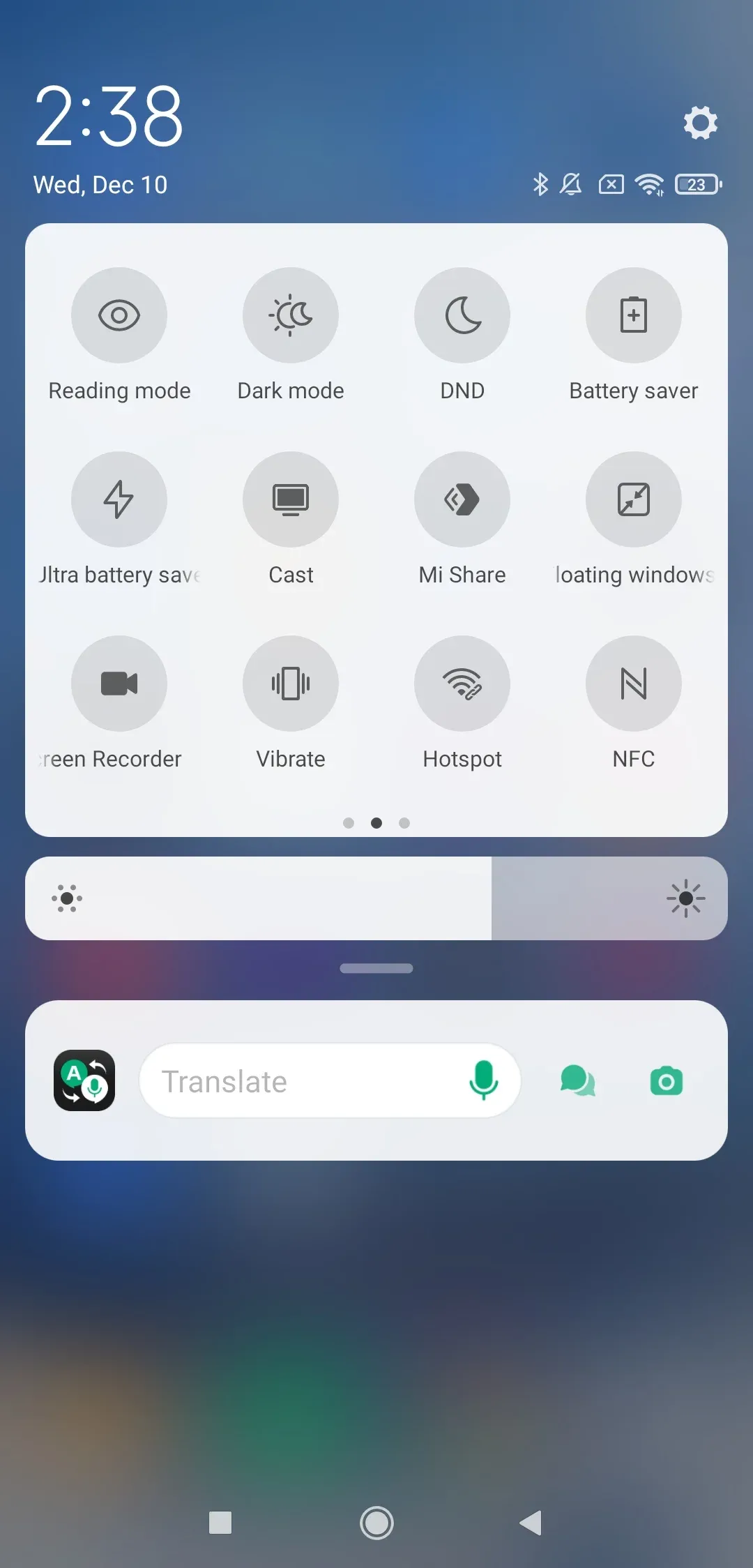
Step 3. Wait for the tablet name to appear in the device list.
Step 4. Tap the tablet name to start the connection.
Step 5. Accept the connection prompt on the tablet.
Step 6. Test the connection by opening a photo and rotating the phone to confirm live synchronization.
If the tablet does not appear after 20–30 seconds, it likely does not support the required receiver protocol.
Option 2: Receiver-App Path on Tablet
A receiver app turns the tablet into a virtual display that can accept mirroring signals. These apps typically emulate Miracast, AirPlay, or Chromecast receivers, allowing phones to discover the tablet as if it were a compatible display.
Common receiver apps include:
-
AirPlay receiver apps (for iPhone casting)
-
Miracast receiver apps
-
Cross-platform screen mirroring apps like LetsView
Step 1. Install a trusted screen receiver app on the tablet and the companion sender app on the phone.
Step 2. Connect both devices to the same Wi-Fi network.
Step 3. Open both apps.
Step 4. Select the tablet from the device list on the phone.
Step 5. Grant screen capture permissions when prompted.
Step 6. Start mirroring and test audio and video for about 30 seconds.
If the connection is unstable, check that the receiver app remains active on the tablet screen.
How to Mirror an iPhone to a Tablet
iPhone screen mirroring relies primarily on AirPlay, Apple’s wireless display protocol. However, most Android tablets do not include a built-in AirPlay receiver, which means full-device mirroring usually requires a receiver application.
Mirroring between two Apple mobile devices has different limitations, so an iPhone-to-iPad mirroring setup may require app-level sharing or a compatible third-party solution rather than standard AirPlay screen mirroring.
Because of these limitations, start with app-level casting, then switch to a full-screen mirroring app if necessary.
Option 1: App-Level Casting from iPhone (Native-Like Path)
Some apps support built-in casting even if the tablet is not a full AirPlay receiver.
Step 1. Open a cast-enabled app on the iPhone, such as YouTube or Photos.
Step 2. Tap the Cast or AirPlay icon within the app.
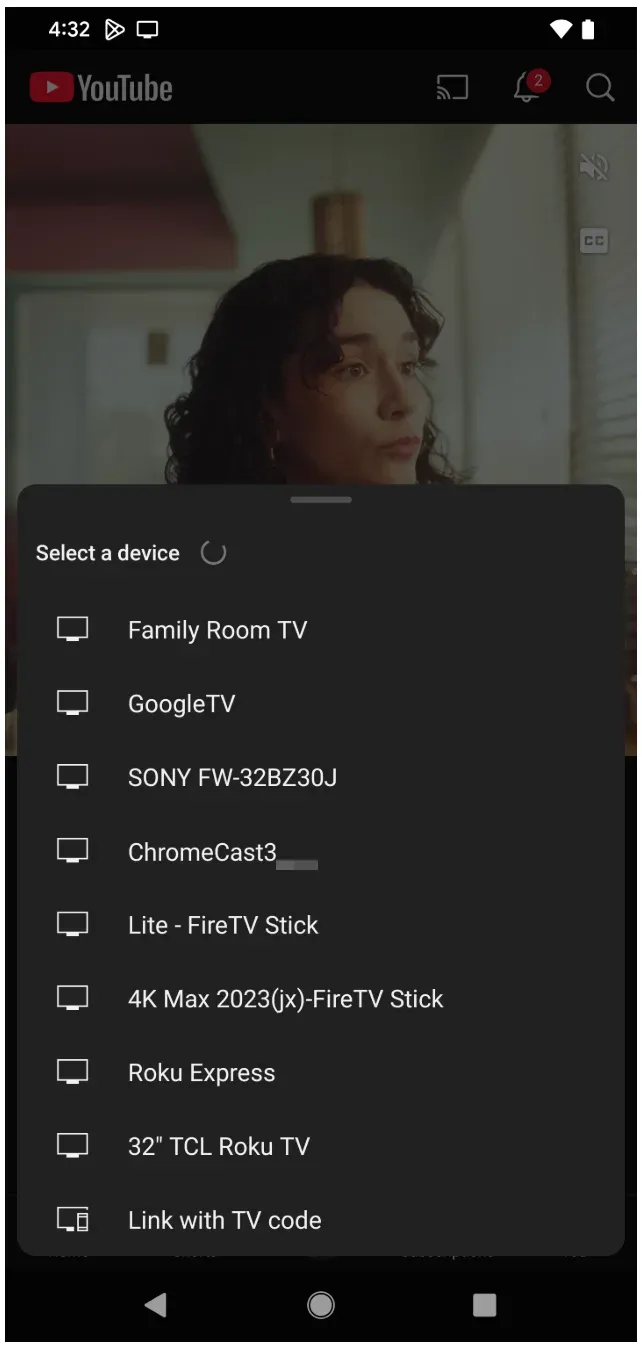
Step 3. Select the tablet receiver from the device list.
Step 4. Confirm that playback starts on the tablet.
Step 5. Control playback from the iPhone while the media runs on the tablet.
This method streams the media directly to the tablet instead of duplicating the entire screen.
Option 2: Full-Screen Mirroring with a Tablet Receiver App
When full screen duplication is required (for example, presentations or demos), use an AirPlay receiver app on the tablet.
Step 1. Install a compatible receiver app on the tablet and a mirroring app on the iPhone.
Step 2. Connect both devices to the same Wi-Fi network.
Step 3. Open both apps.
Step 4. On the iPhone, start Screen Broadcast or Start Mirroring.
Step 5. Choose the tablet as the target device.
Step 6. Approve all prompts and confirm that full-screen movement and audio work correctly.
Full-screen mirroring requires more bandwidth than app-level casting and may introduce slight latency on slower networks.
How to Fix Mirror Phone to Tablet Not Working
When pairing fails, random retries burn time because they do not isolate the cause. A fixed troubleshooting order is faster and gives you a clear signal after each step. Why guess when you can narrow the issue in one pass?
Step 1. Confirm both devices are connected to the exact same SSID.
Step 2. Restart Wi-Fi on both devices.
Step 3. Disable VPN, private DNS, and battery saver modes.
Step 4. Reboot both the phone and tablet once.
Step 5. Reopen cast or mirroring mode on both devices.
Step 6. Update sender and receiver apps if you are using app-based mirroring.
Step 7. Move both devices closer to the router.
Step 8. Test using a short video and check whether:
-
Only audio fails
-
Only video fails
-
Both fail
If only one app fails but others cast normally, your connection is fine and the issue is app-specific.
How to Screen Mirror iPhone or Tablet Easily
How to mirror your phone or tablet to a large display? One option is PigeonCast, a lightweight screen mirroring tool designed for simple wireless casting. It works particularly well when you want to mirror a phone screen to a larger display such as a computer or TV without complex setup.
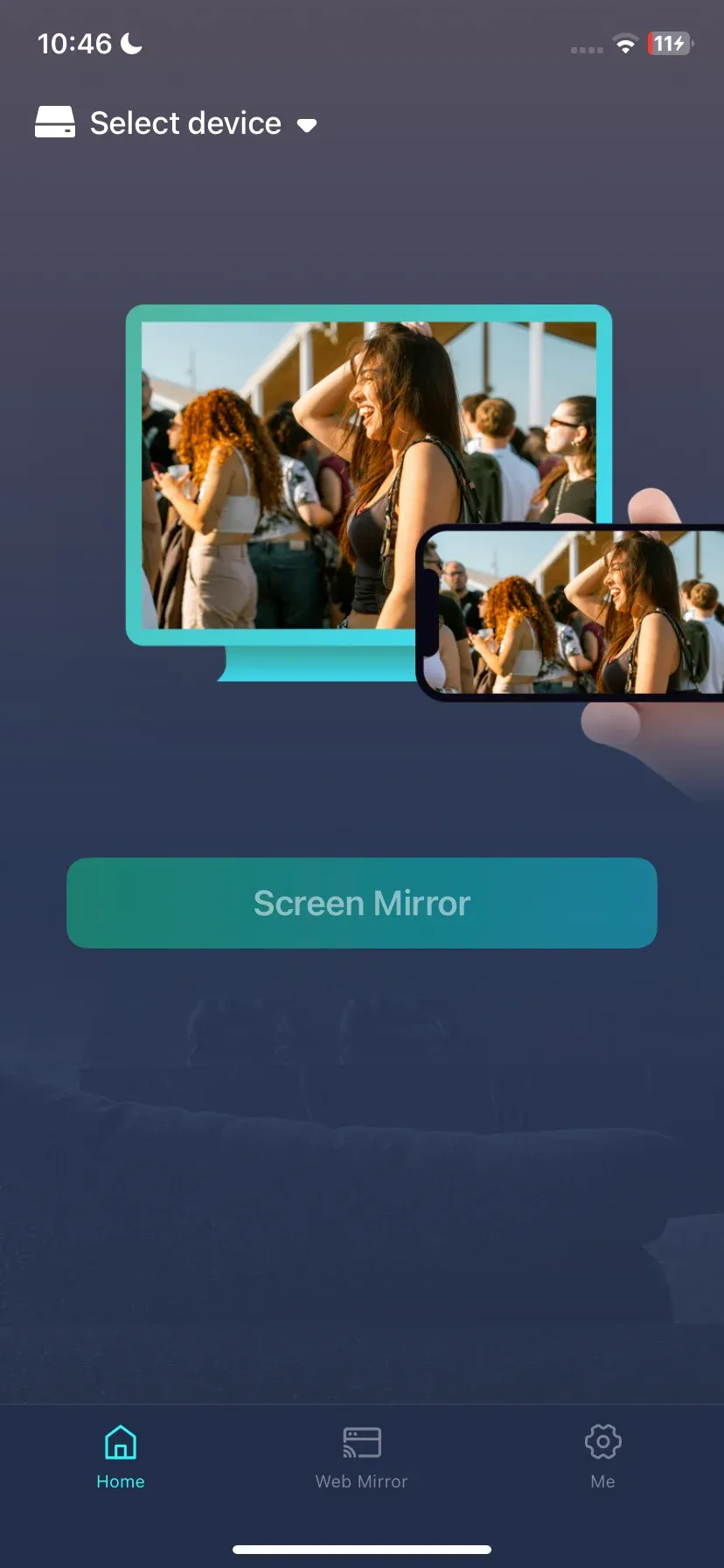
To try this approach:
Step 1. Install PigeonCast on your phone and PC or TV.


Overall Rating:



Step 2. Open the app on the two devices. Step 3. Connect both devices to the same Wi-Fi network. Step 4. Start screen mirroring from the phone and verify that video and audio transmit correctly.
At the moment, PigeonCast primarily supports mirroring from a phone to a PC or TV rather than directly to a tablet. However, it can still be a useful fallback solution when your goal is simply to share your phone screen on a larger display with minimal setup.
Conclusion
Phone to tablet screen sharing usually depends on two main factors: device compatibility and network setup. The tablet must support a compatible receiver protocol such as Miracast, Google Cast, or AirPlay, and both devices must be connected to the same Wi-Fi network so they can discover each other. If the tablet cannot act as a receiver natively, a receiver app can simulate that role and allow the phone to connect.
In most cases, the fastest approach is to try the native casting method first, since it requires less setup and typically offers better stability and lower latency. If the tablet does not appear in the device list, check network settings, disable VPN or battery saver, and ensure the tablet’s receiver mode is active.
If native discovery still fails, using a receiver app on the tablet is usually the simplest workaround. These apps allow the tablet to accept mirroring signals even when built-in protocol support is limited, making it possible to mirror the phone screen reliably within a few minutes.
Mirror Phone to Tablet FAQ
Can I mirror phone to tablet without Wi-Fi?
Most screen mirroring methods require a local Wi-Fi network so the phone and tablet can discover each other and maintain a stable video stream. Some apps support hotspot or direct connections, but compatibility and performance vary depending on the device and operating system. For the most reliable results, connect both devices to the same home Wi-Fi network and avoid guest networks that block device discovery.
What is the easiest way to mirror an Android phone to a tablet?
The easiest method is to use the built-in Cast or Smart View feature on Android, since it requires minimal setup and usually provides the most stable connection. If the tablet does not appear as a receiver, the next step is to install a receiver app on the tablet that can accept Miracast or casting signals.
Can I mirror an iPhone to a tablet natively?
Native mirroring from iPhone to a tablet depends on whether the tablet supports AirPlay receiver mode. Many tablets do not support AirPlay by default, which means full-screen mirroring often requires a receiver app on the tablet. If you only want to stream videos or photos, app-level casting from apps like YouTube may work more easily than full-screen mirroring.
Why is phone to tablet casting so laggy?
Screen mirroring lag is usually caused by weak Wi-Fi signals, network congestion, or power-saving restrictions that limit background performance. Because full-screen mirroring transmits continuous video data, it requires more bandwidth than simple media casting. Moving closer to the router, disabling battery saver, and reducing other network activity can often improve performance.
Is screen mirroring safer than sharing files directly?
Screen mirroring displays content in real time without permanently transferring files between devices, which can reduce file-sharing risks. However, security still depends on the apps you use and the network you connect to. To stay safe, use trusted mirroring apps, review permission requests carefully, and avoid casting over unknown public networks.
What should I do if no method works after troubleshooting?
If mirroring still fails after checking network settings and receiver modes, try using a different receiver app or testing with another tablet to determine whether the issue is device-specific. This helps identify whether the problem is on the phone side, the tablet side, or the network configuration, making it easier to choose the right fix.
Mia Clarke is a technology editor specializing in screen mirroring and casting solutions across multiple platforms. Mia provides clear, practical guides and in-depth insights to help users seamlessly connect their devices. Passionate about enhancing digital experiences, Mia is dedicated to keeping readers updated on the latest trends and tools in cross-platform screen sharing. Whether you’re looking to mirror your smartphone, laptop, or smart TV, Mia’s content delivers reliable, user-friendly advice to simplify your tech setup.