
Mirroring your iPad screen to a PC is a convenient way to display content from your tablet onto a larger screen. Whether you're sharing a presentation, showing off photos, or using apps in a bigger format, mirroring iPad to PC can significantly improve your viewing experience. In this guide, we'll walk you through easy-to-follow steps to mirror iPad to PC (Windows or macOS) wirelessly, and highlight the best tools for the job.
How to Mirror iPad to Windows PC
For Windows users, wireless mirroring provides the flexibility you need without the hassle of cables. PigeonCast is one of the most effective assistants in iPad screen mirroring to PC free, offering smooth, lag-free performance. Here's how to mirror iPad to PC with the free screen mirroring app:
Step 1. Ensure your iPad and Windows PC are connected to the same Wi-Fi network.
Step 2. On your iPad, go to the App Store and download PigeonCast; on your Windows PC, go to the Microsoft Store and download PigeonCast.


Overall Rating:



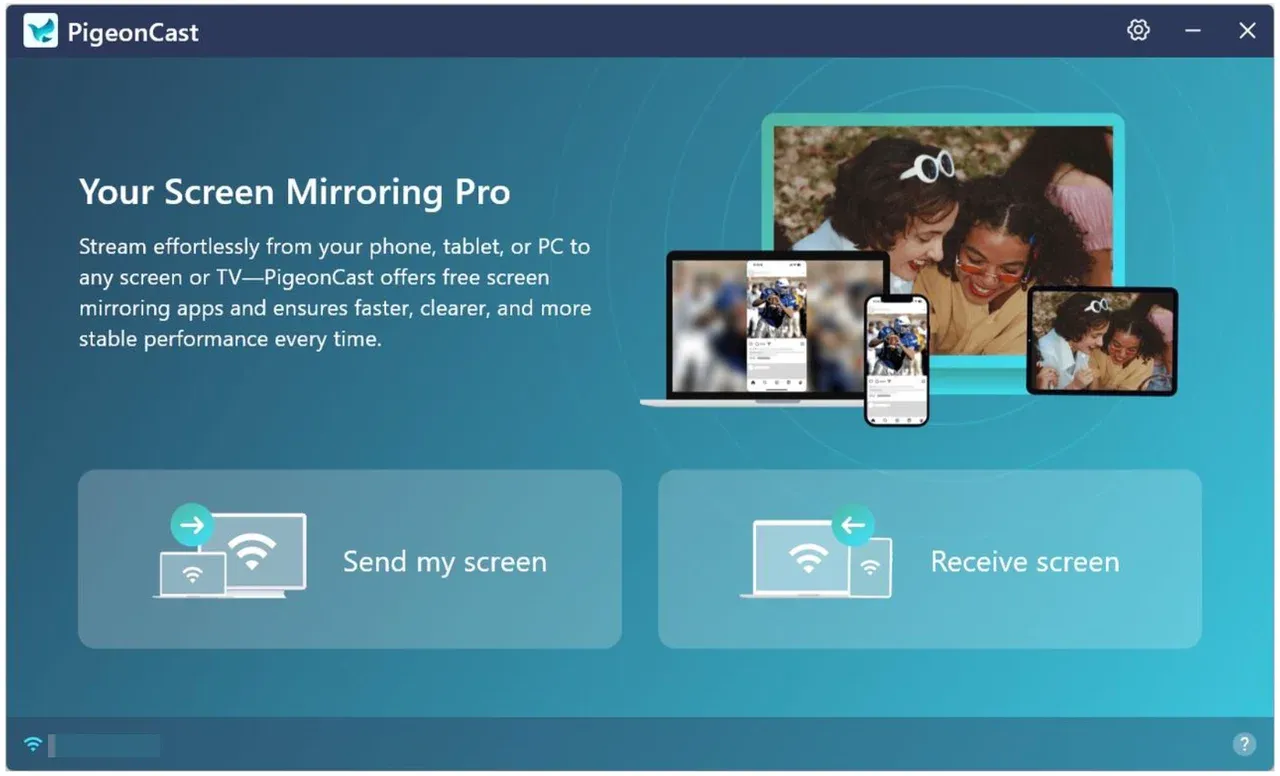
Step 3. On your Windows PC, click Receive screen, and your Windows PC is ready to receive content from other devices.
Step 4. Launch PigeonCast on your iPad, choose your Windows PC from the list of available devices.
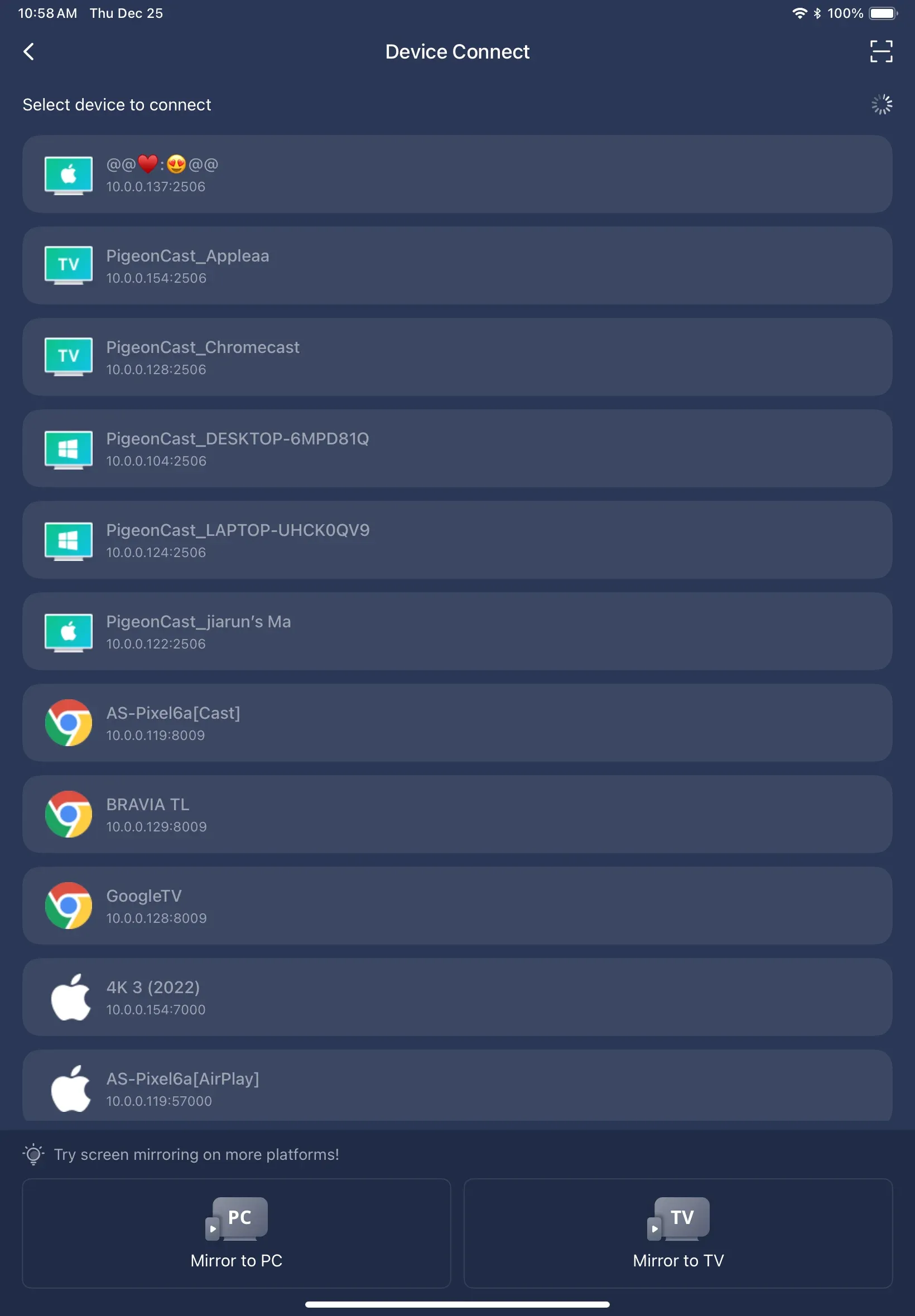
Step 5. Tap Screen Mirror to screen mirror iPad to PC.
PigeonCast ensures that your iPad screen mirroring to PC is smooth and easy to set up without requiring additional hardware or cables.
How to Mirror iPad to MacBook
If you're using a MacBook, mirroring your iPad is incredibly easy, thanks to Apple's built-in AirPlay. However, PigeonCast offers a great alternative for users who prefer a cross-platform solution.
Method 1: AirPlay (Best for MacBook Users)
How to connect iPad to computer wirelessly? AirPlay is Apple's native screen mirroring feature, and it works seamlessly within the Apple ecosystem. Here's how to use AirPlay to mirror iPad to MacBook:
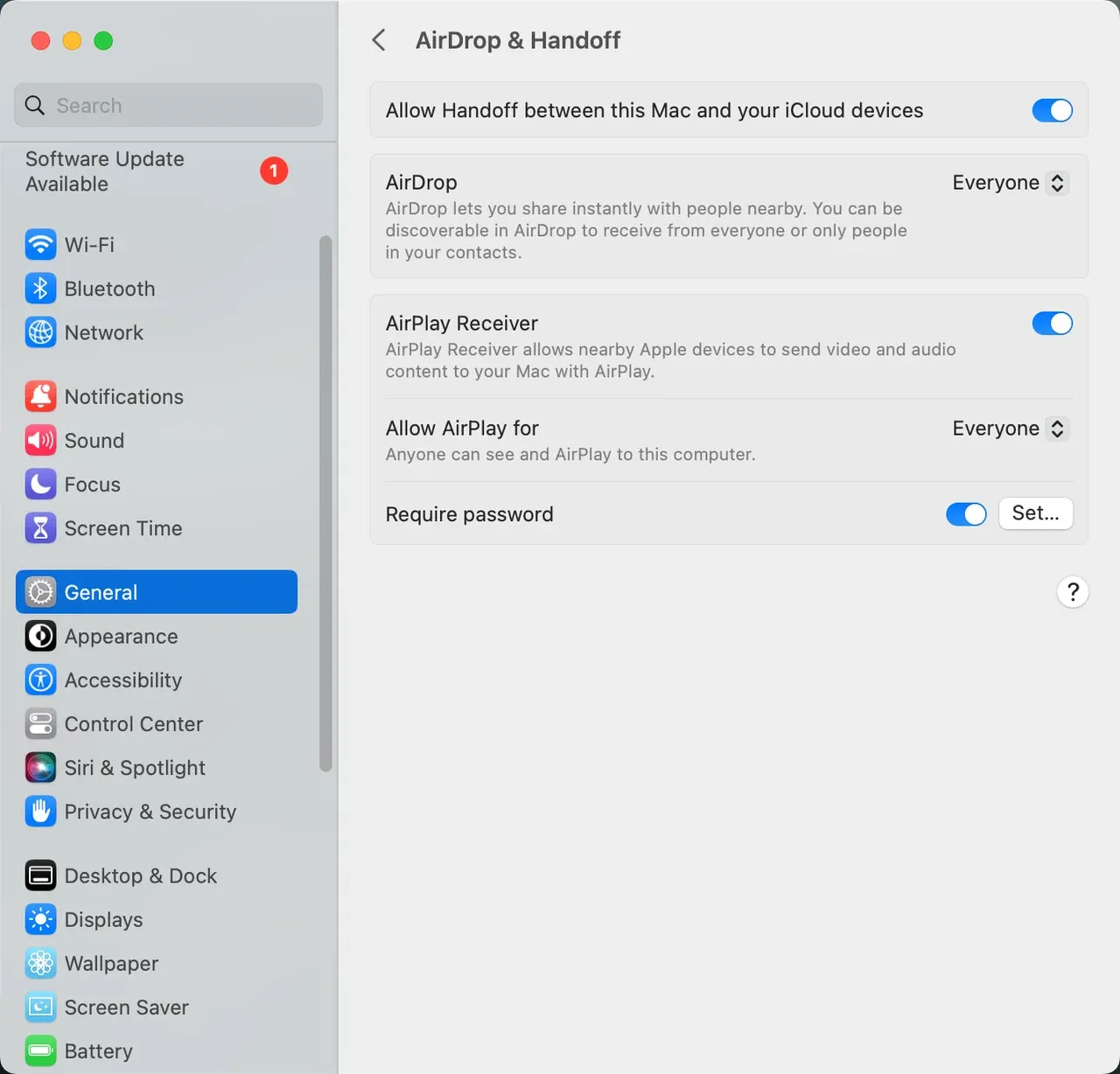
Step 1. Go to Settings > General > AirDrop & Handoff and check if AirPlay Receiver is enabled on your MacBook.
Step 2. Make sure both your iPad and MacBook are connected to the same Wi-Fi network.
Step 3. Swipe down from the top of your iPad screen to open Control Center.
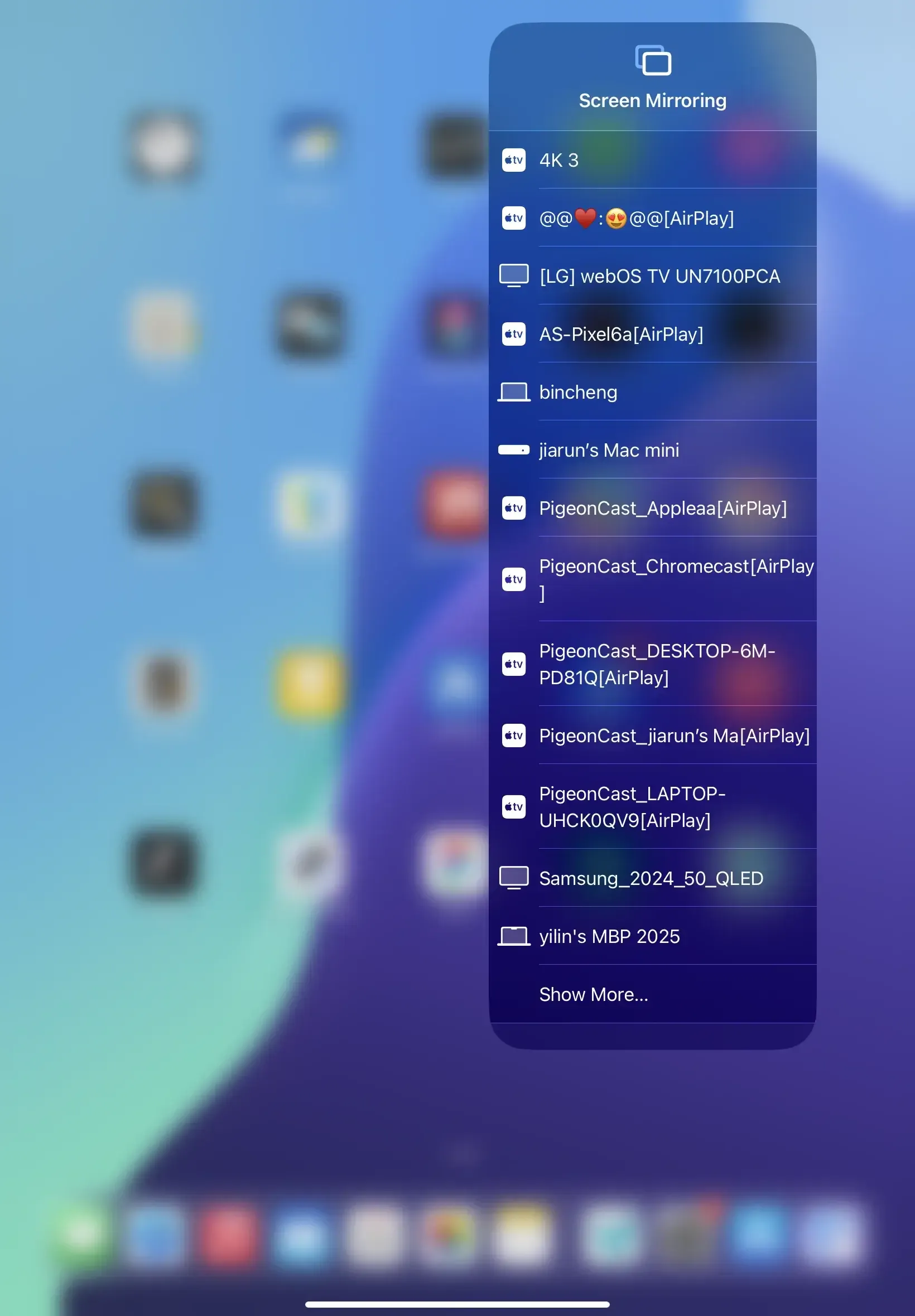
Step 4. Tap Screen Mirroring and select your MacBook from the list of available devices.
Step 5. Your iPad screen will now be mirrored onto your MacBook.
Method 2: PigeonCast (For Cross-Platform Use)
If you prefer a solution that works on both MacBook and Windows PC, PigeonCast is a great alternative to AirPlay.
Here's how to connect iPad to PC wirelessly:
Step 1. Download and install PigeonCast on both your iPad and MacBook.
Overall Rating:
Step 2. Make sure both devices are on the same Wi-Fi network.
Step 3. Open PigeonCast on both devices and choose your MacBook as the screen mirroring target.
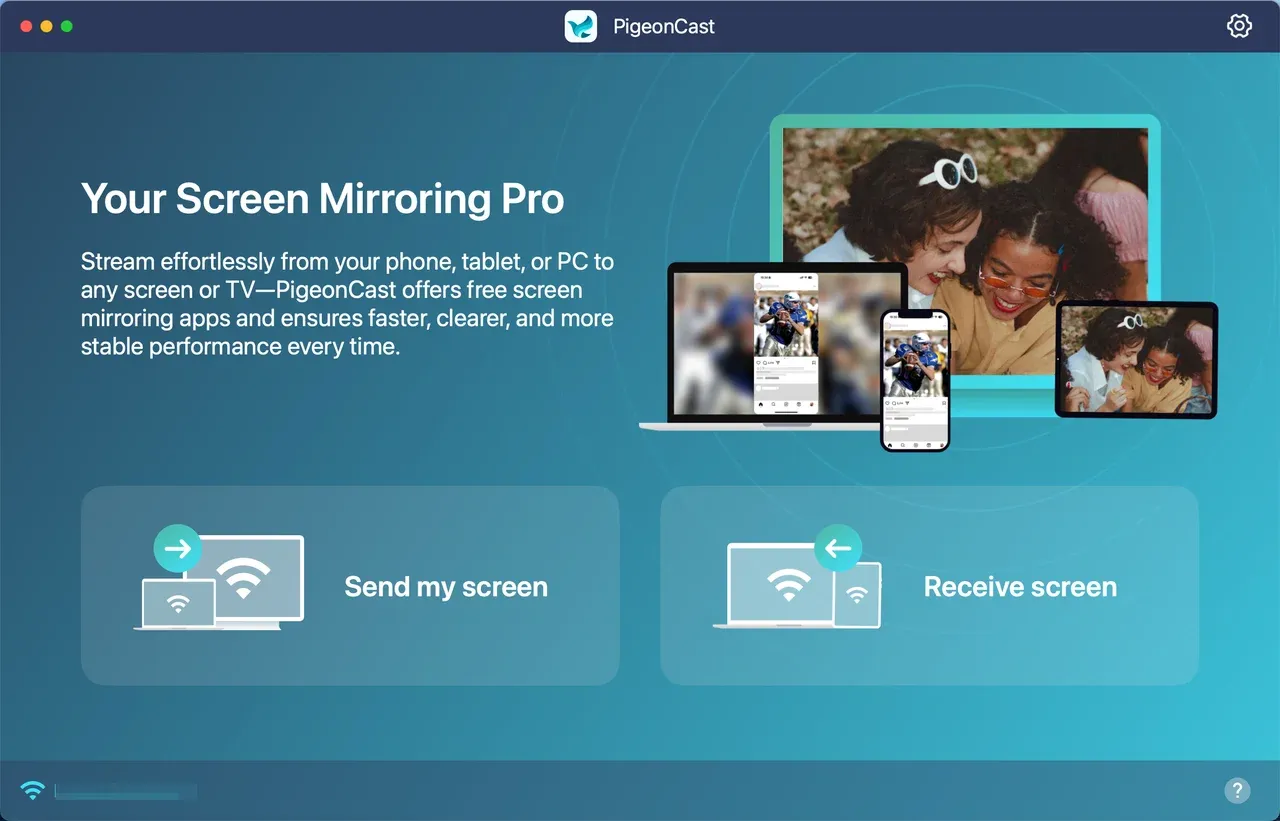
Step 4. Your iPad will instantly start mirroring to your MacBook.
Conclusion
Whether you're using a Windows PC or a MacBook, mirroring iPad to PC wirelessly is both easy and effective. PigeonCast is the go-to tool for seamless cross-platform mirroring, and AirPlay offers excellent performance for Mac users. These wireless solutions are perfect for anyone who wants a quick and hassle-free way to mirror iPad to PC or MacBook.
By following the simple steps in this guide, you'll quickly learn how to screen mirror iPad to PC, enabling you to share your iPad screen on a larger display with ease. This method is ideal for work, presentations, or entertainment, providing a smooth and efficient experience.
Mirror iPad to PC FAQs
Can I make my iPad a display on my PC?
Yes, set up PigeonCast on both your devices, and your iPad screen will appear on your PC.
How do I see my iPad on my computer Windows?
To view your iPad on a Windows PC, use a wireless screen mirroring tool like PigeonCast. Ensure both devices are connected to the same Wi-Fi network for seamless mirroring.
How to connect iPad to Windows PC wirelessly?
Use apps like PigeonCast or Reflector to wirelessly connect your iPad to a Windows PC. These apps work well as long as both devices are connected to the same Wi-Fi network.
Does an iPad allow screen mirroring?
Yes, iPads support screen mirroring through AirPlay and third-party apps like PigeonCast. You can easily mirror your iPad to compatible devices like PCs, Macs, and smart TVs.
Mia Clarke is a technology editor specializing in screen mirroring and casting solutions across multiple platforms. Mia provides clear, practical guides and in-depth insights to help users seamlessly connect their devices. Passionate about enhancing digital experiences, Mia is dedicated to keeping readers updated on the latest trends and tools in cross-platform screen sharing. Whether you’re looking to mirror your smartphone, laptop, or smart TV, Mia’s content delivers reliable, user-friendly advice to simplify your tech setup.