
Mirroring your iPhone's screen on your iPad is useful for sharing photos, demonstrating apps, or using the iPad as a larger display. However, this feature isn't available in the way many expect. In this guide, we'll explain how to mirror iPhone to iPad natively, show you Apple's official method for similar functionality, and explore the best alternatives for displaying your iPhone's content on a larger screen, including your TV.
Can You AirPlay from iPhone to iPad
A common misconception is that you can AirPlay iPhone to iPad directly, much like you would to an Apple TV. The short and direct answer is no, you cannot. AirPlay is designed primarily as a one-way streaming protocol from a smaller device (iPhone, iPad, Mac) to a larger receiver (Apple TV, Smart TV, smart speaker). An iPad functions as a source device, not a receiver for AirPlay video or screen mirroring from another iOS device.
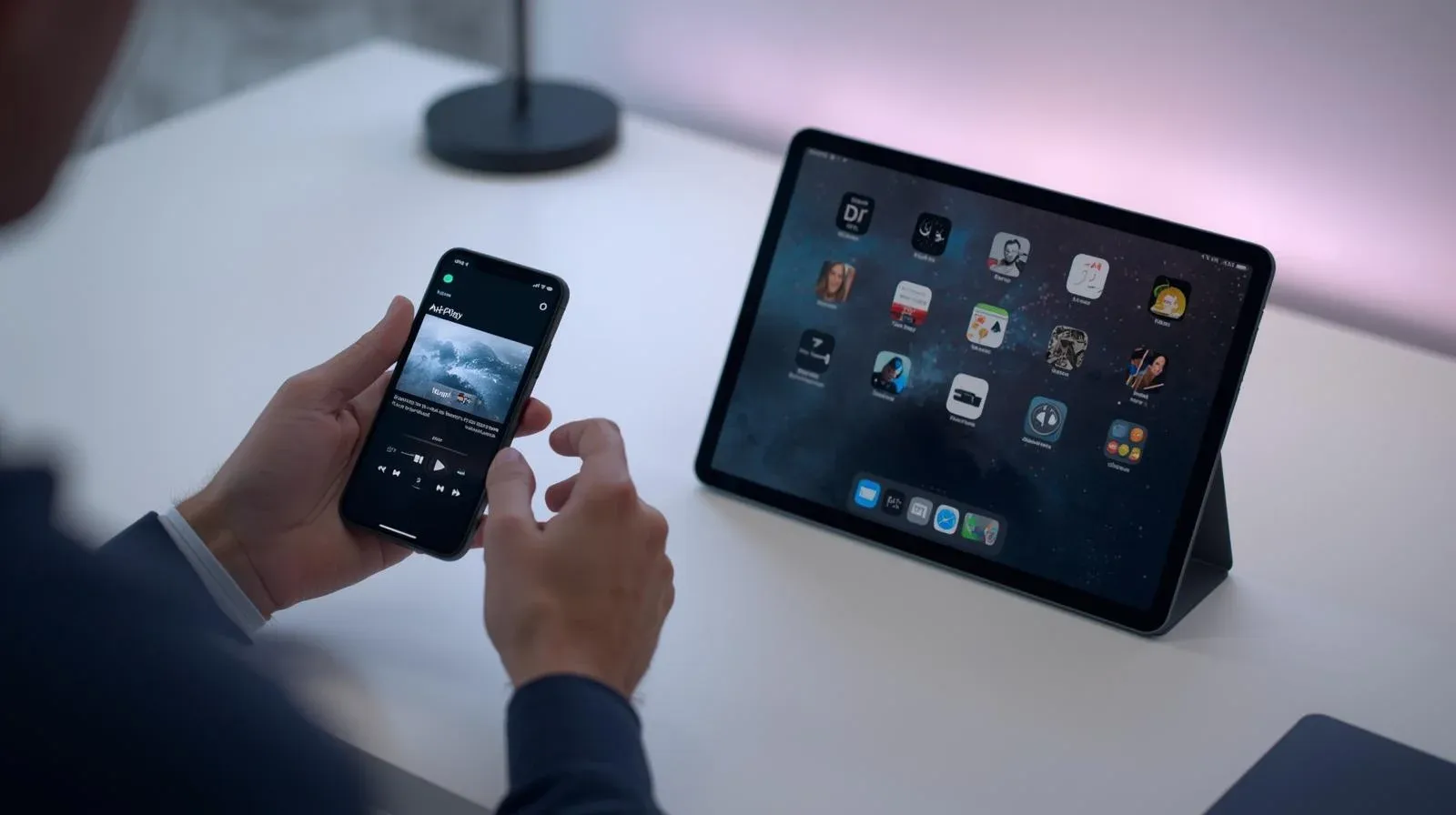
While this might seem like a limitation, it's a fundamental design of the operating systems. However, this doesn't mean you're completely out of options for sharing content between your Apple devices. The following methods provide powerful, albeit different, ways to achieve a connected experience.
How to Connect iPhone to iPad
Since direct screen mirroring isn't available, the most seamless way to share your iPhone's screen with your iPad is to use Apple's Continuity features. This doesn't create a perfect mirror, but it allows for real-time sharing and demonstration. This method requires a MacBook. Here's how do I sync my iPhone to my iPad:
Step 1. Ensure your iPhone, iPad, and MacBook are under the same wireless network.
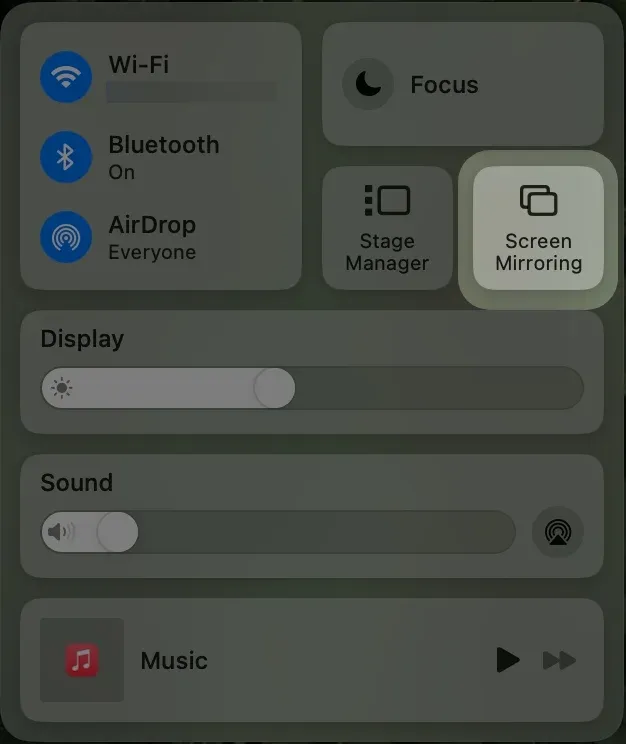
Step 2. On your Mac, click the Screen Mirroring icon in the menu bar to select your iPad from the list.
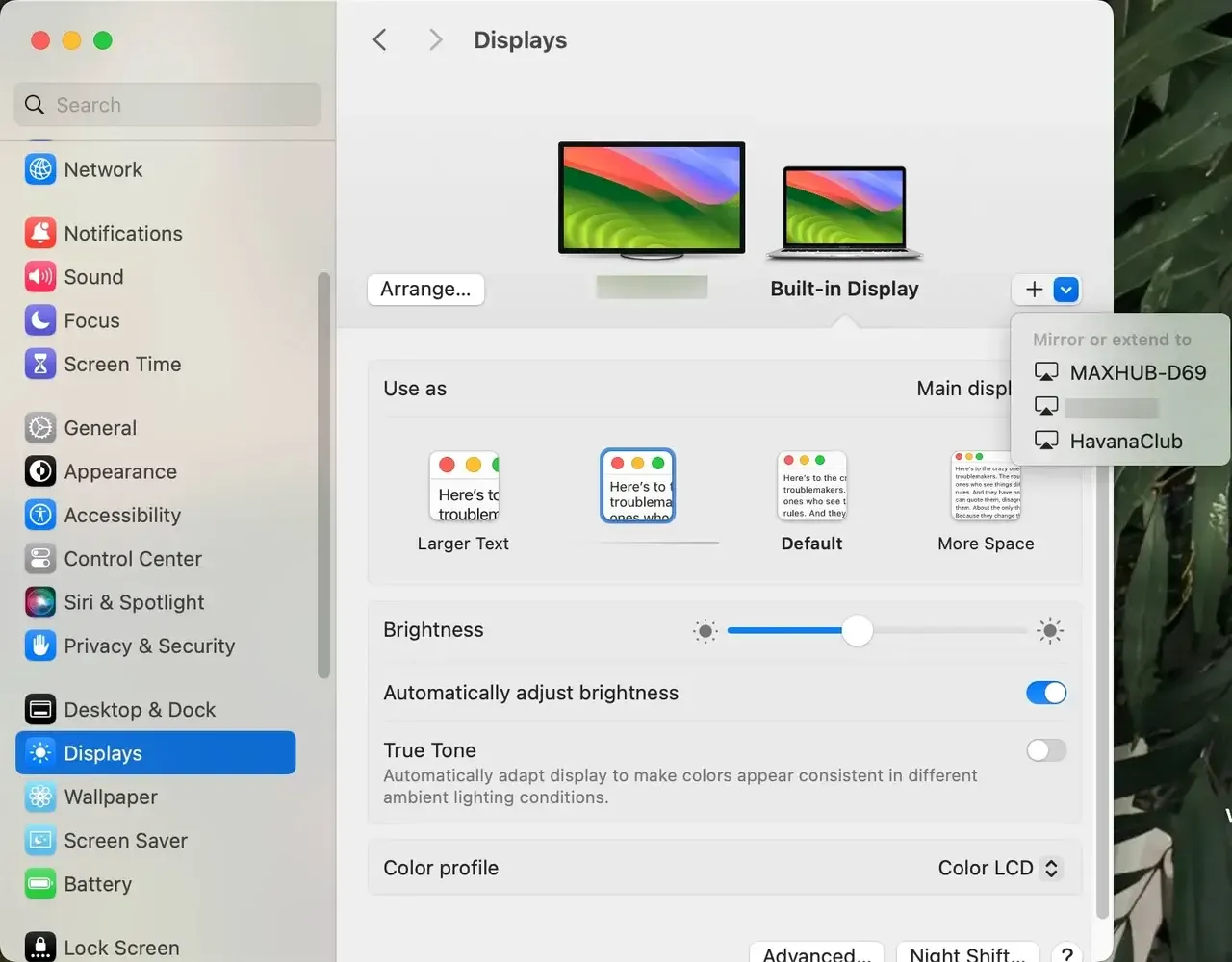
Step 3. Set your iPad to now function as an Extended display.
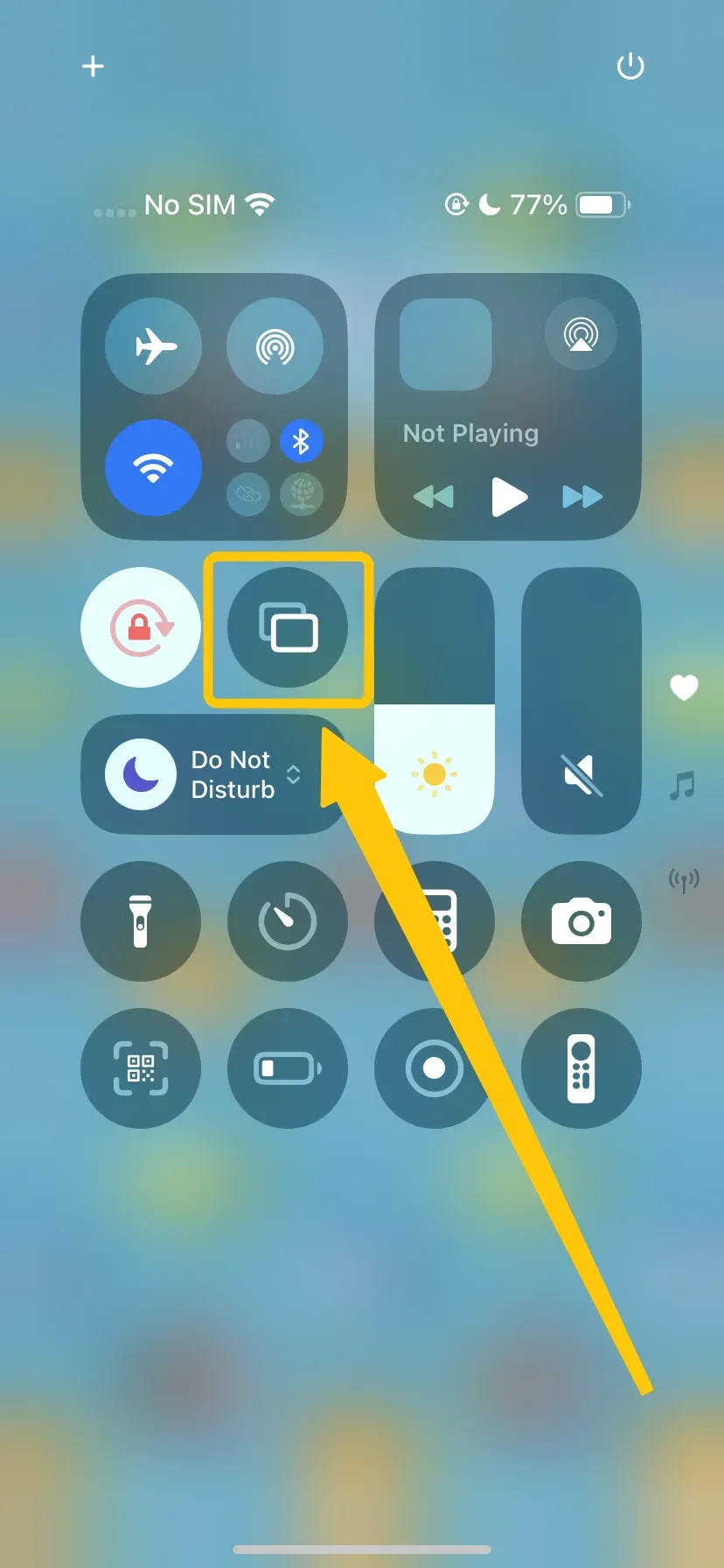
Step 3. On your iPhone, tap Screen Mirroring in Control Center to choose the MacBook. If prompted, enter the onscreen code to confirm the connection.
Step 4. Now, you can see screen mirroring iPhone to iPad screen.
2025 Best Alternative: Mirror iPhone to TV
Given the limitations of direct iPhone-to-iPad mirroring, the best alternative is to mirror your iPhone to a television. This not only solves the "larger screen" problem but is also simple to conduct. If you're concerned about device compatibility, PigeonCast could be a good solution for you.
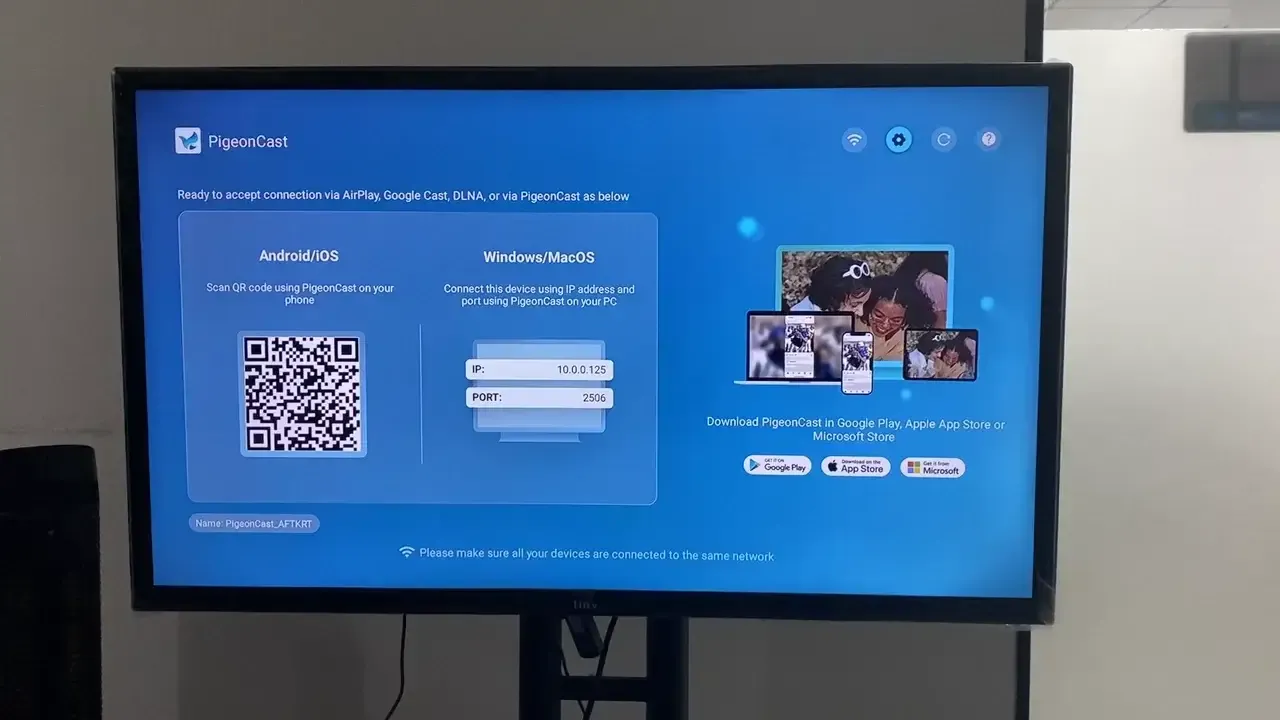
This free app works seamlessly across Android, iOS, Windows, Mac, and various TVs (including tvOS, Android TV, etc.). It supports AirPlay, DLNA, and Google Cast over a Wi-Fi network, allowing you to stream content in up to 4K resolution with minimal latency for an optimal viewing experience. Now, let's see how to mirror your iPhone to TV via PigeonCast:

PigeonCast Screen Mirroring

Official Download


Step 1. Install PigeonCast on your iPhone and TV.
Step 2. Ensure your iPhone and TV are covered by the same wireless network.
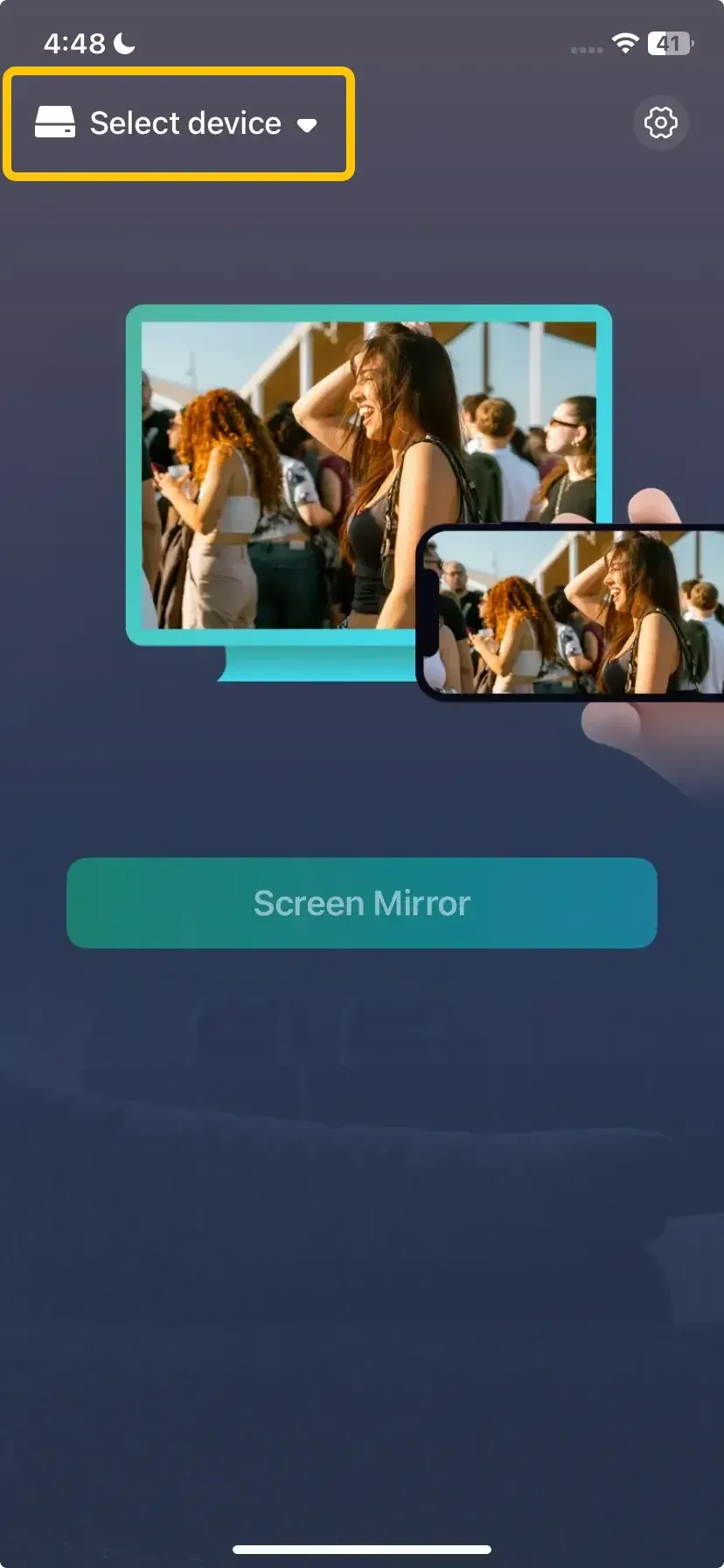
Step 3. Launch the app, tap the Select device to choose your TV from the available list or scan the onscreen QR code to connect your device.
Step 4. Enter the onscreen code to finish the pairing requisition.
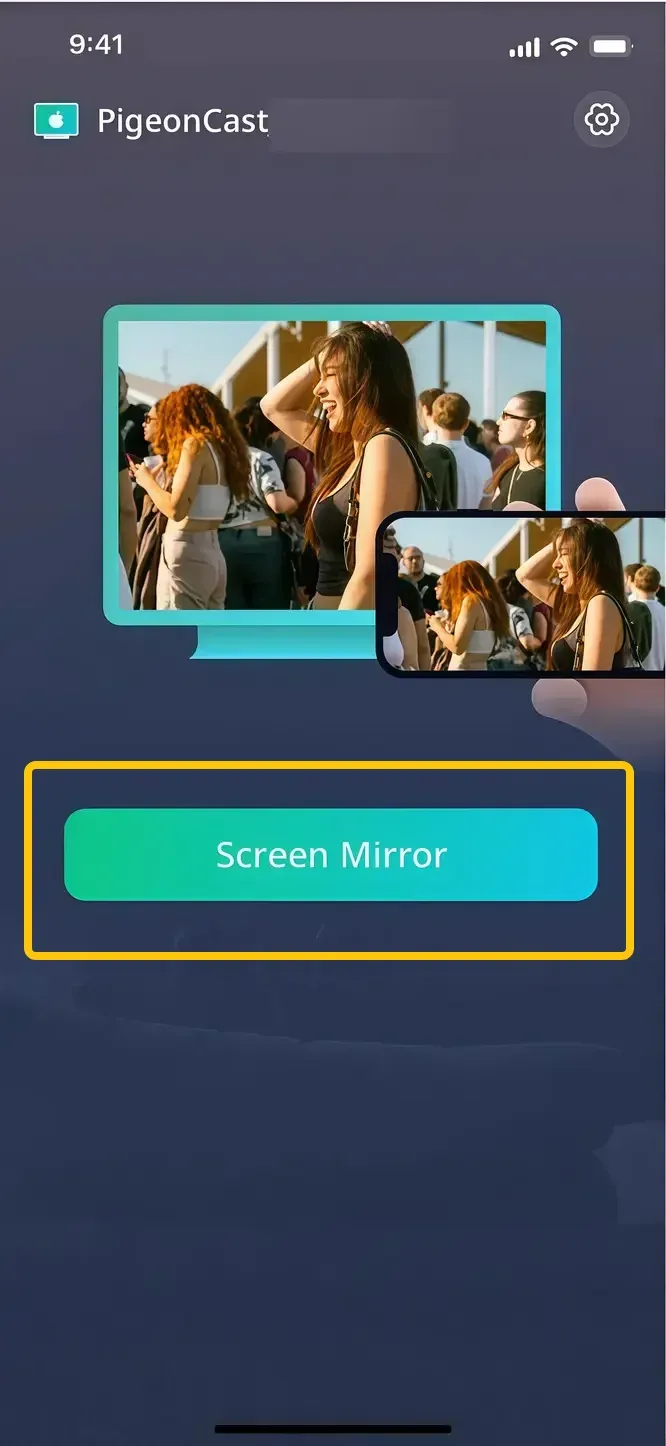
Step 5. Once connected, you can tap the Screen Mirror button to begin your mirroring activities on your iPhone.
Conclusion
How to pair iPad to iPhone? While you can't directly mirror your iPhone to your iPad, you can still use Apple's Continuity features with a MacBook for real-time sharing and demonstrations. If you're looking for a better solution, mirroring your iPhone to a TV is a great alternative. Apps like PigeonCast make it easy to stream content to a TV with minimal effort.
How to Mirror iPhone to iPad FAQ
How to screen mirror iPhone to iPad without WiFi?
To screen mirror your iPhone to an iPad without Wi-Fi, you can use a wired connection through a USB cable. This requires using a third-party app, such as ApowerMirror or LetsView, which supports USB mirroring. Simply connect both devices to your computer, use the app to establish the connection, and mirror your iPhone to your iPad via the software. Keep in mind that a direct iPhone-to-iPad mirroring feature without Wi-Fi is not natively supported by Apple.
How to screen mirror iPhone to iPad without app?
Unfortunately, Apple doesn't provide a native way to directly screen mirror an iPhone to an iPad without using an app or Wi-Fi. The iPad is not designed to act as a receiver for AirPlay, so there is no built-in feature for this purpose. However, one workaround is to use Apple's Continuity features, but this still requires a MacBook as an intermediary device.
How to screen mirror iPhone to iPad with Bluetooth?
Unfortunately, you cannot directly mirror your iPhone to an iPad using Bluetooth. Bluetooth does not support the high-bandwidth requirements needed for screen mirroring. Apple's screen mirroring protocols, like AirPlay, require a Wi-Fi connection to transmit the data between devices. To mirror your iPhone to your iPad, you'll need to use Wi-Fi and a MacBook as an intermediary, as Bluetooth alone cannot handle the data transmission required for this feature.
How to screen mirror iPhone to iPad with hotspot?
To screen mirror your iPhone to an iPad using a personal hotspot, you can follow these steps:
- Go to Settings > Personal Hotspot and turn it on. Make sure your iPhone's hotspot is active and note the Wi-Fi password.
- On your iPad, go to Settings > Wi-Fi and connect to the hotspot network created by your iPhone.
- Since direct mirroring from iPhone to iPad is not natively supported, you'll need a MacBook as an intermediary device. Here's how:
- Make sure both your iPhone and iPad are connected to the same hotspot network.
- On the MacBook, use Screen Mirroring or AirPlay to connect your iPhone to the MacBook.
- On the iPad, enable Sidecar (for iPad as an extended display) or use AirPlay to share the MacBook's screen to the iPad
Can You Mirror Your Phone to a Tablet?
Yes, you can mirror your phone to a tablet, although the available methods depend on your devices and operating systems. Some devices support wireless screen sharing through built-in features, while others may require a screen mirroring app to establish the connection. This allows you to view your phone’s photos, videos, apps, and other content on a larger tablet display.
Clara Rossi is an experienced technology editor and a seasoned expert in screen mirroring and casting technologies. With a keen eye for detail and a deep understanding of how to seamlessly connect devices, Clara excels at optimizing user experiences for effortless sharing and streaming. Whether you're seeking quick fixes or advanced tips, her expertise and responsiveness ensure that every query is met with a well-informed and efficient solution.