
Want to mirror iPad to MacBook—or even Mac to an iPad? This guide covers everything you need to know. From Apple's built-in AirPlay and Sidecar to third-party tools like PigeonCast and Reflector, we'll walk you through multiple ways to connect your devices quickly, easily, and wirelessly.
Can You Mirror iPad to MacBook?
Mirroring an iPad to a Mac used to be a cumbersome process, but advancements in technology have made it seamless and accessible to everyone. From Apple's built-in AirPlay to third-party solutions like PigeonCast, there are now multiple ways to share your iPad's screen, along with audio, videos, and photos, directly to your Mac. Overall, connecting and mirroring your iPad to a MacBook has become a straightforward and efficient experience.
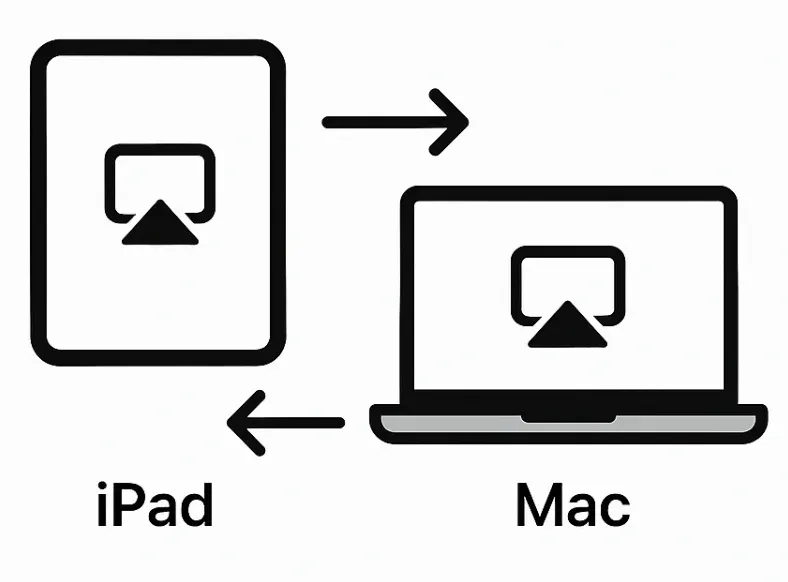
While mirroring your iPad to a MacBook has become increasingly accessible, the reverse, mirroring your Mac to an iPad, is also entirely possible. This functionality opens up new ways to use your iPad as a second display, especially for productivity or creative workflows.
After we explore the four main options for mirroring an iPad to a MacBook, we'll walk you through the steps to mirror your Mac to an iPad just as easily.
Option 1. Use Apple AirPlay
The easiest way to share iPad screen on MacBook is by using Apple's proprietary technology, known as AirPlay. AirPlay allows compatible devices to broadcast audio and video to one another wirelessly, like mirroring from iPhone to Mac.
However, not all Macs and iPads support AirPlay, and the compatible devices include:
- Macs: 2018 MacBook Air/Pro or later, 2019 Mac Pro, and 2020 Mac mini.
- iPads: iPad Air (3rd generation) or later, iPad Pro (2nd generation) or later, iPad (6th generation) or later, and iPad mini (5th generation) or later.
To successfully use AirPlay to mirror your iPad to a Mac, it's essential to first ensure that both devices are compatible. Additionally, for AirPlay to work properly, your iPad and Mac must be connected to the same Wi-Fi network.
How to mirror iPad to MacBook over AirPlay? To AirPlay iPad to Mac, you need to:
Step 1. Power on the MacBook you want to connect your iPad to.
Step 2. On your iPad, swipe down from the top-right corner of the screen to open the Control Center.
Step 3. Tap on the Screen Mirroring option from the menu.
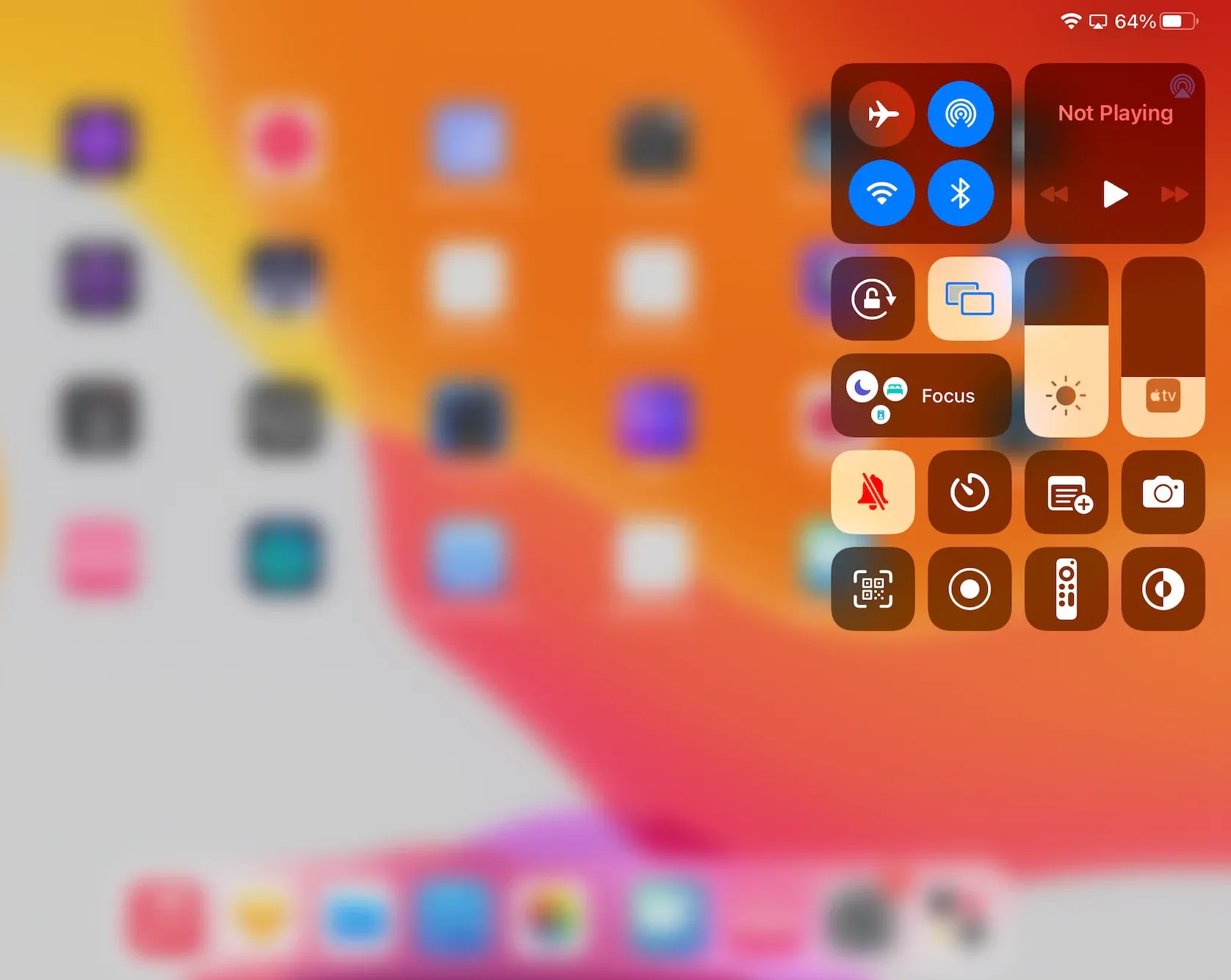
Step 4. Choose the macOS device from the list of available devices. If your iPad doesn't show the device, check the network connection.
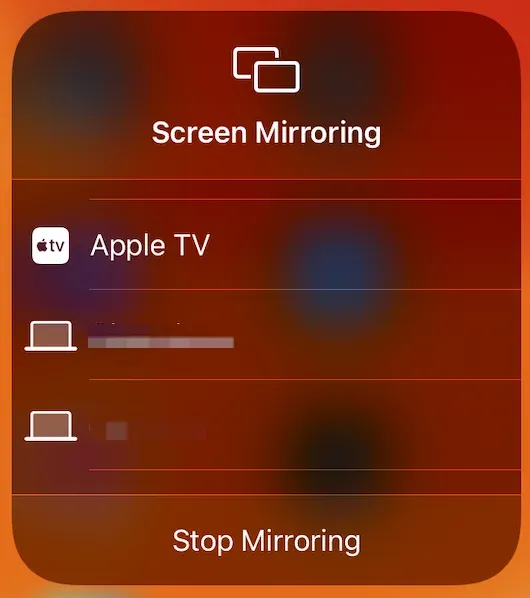
Step 5. A small AirPlay window will appear on the Mac's screen. Click the Accept option on that window.
Step 6. Enter the AirPlay password on your iPad if asked and wait for the devices to be connected.
Step 7. Once connected, you can view your iPad screen through the MacBook.
As mentioned above, you can also beam audio, photos, and videos from your iPad to a Mac. Here are the steps:
Step 1. Locate the media file on your iPad. For example, open the Photos app, select the photos or videos you want to share, tap on the Share icon, and choose the AirPlay option.
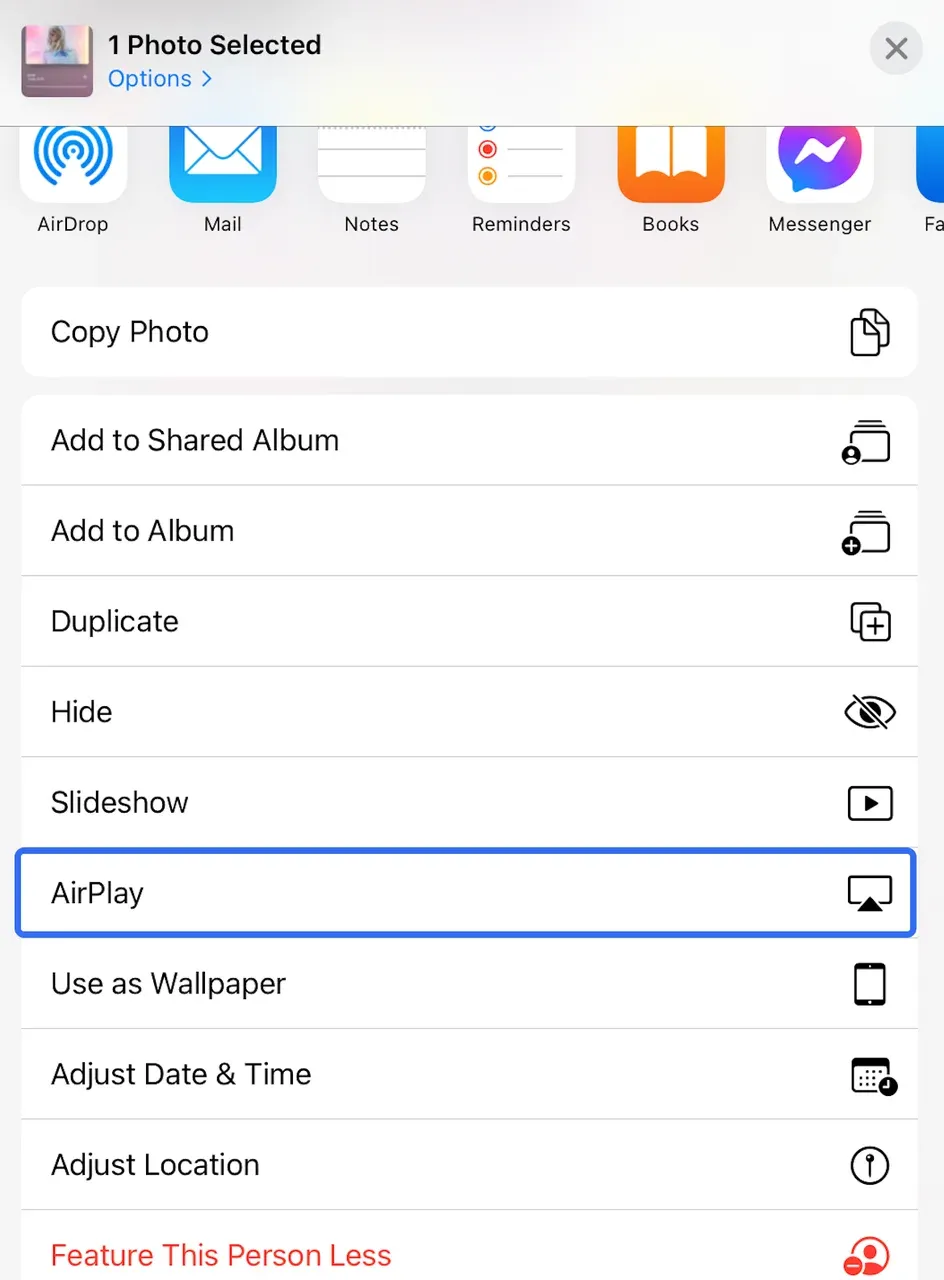
Step 2. Select your Mac from the list of available devices, then follow the on-screen prompts to begin displaying your iPad's content on the Mac.
Option 2: Use PigeonCast's App
The free Screen Mirroring app for iOS devices, designed by PigeonCast, is a good alternative option for screen mirroring an iPhone or iPad to a MacBook wirelessly. The app connects devices via AirPlay, Google Cast, and DLNA, making screen mirroring or casting effortless.
Here is how to mirror iPad screen to Mac via this third-party screen mirroring app:
Step 1. Download and install the iPad screen mirroring app.

PigeonCast Screen Mirroring

Official Download


Step 2. Ensure that your iPad and MacBook are connected to the same Wi-Fi network.
Step 3. Launch the app on your iPad and follow the on-screen instructions to initiate iPad screen mirroring.
PigeonCast offers a macOS app that allows you to mirror to a MacBook from any device, such as an iPhone, iPad, Android device, or even Windows. The app also integrates with protocols, including AirPlay, Google Cast, and DLNA, turning MacBooks into a universal receiver.
Macos-download-button
Option 3: Use Reflector
Reflector is another reliable solution for mirroring your iPad screen to a Mac. It's a wireless screen mirroring and media streaming software that works with AirPlay, Google Cast, and Miracast. Once installed on your Mac, it allows you to receive and record mirrored screens from iOS devices easily.
Here's how to use Reflector to screen mirror iPad to a Mac:
Step 1. Download and install Reflector on your Mac from the official website. Launch the application once it's installed.
Step 2. Make sure both your iPad and Mac are connected to the same Wi-Fi network.
Step 3. On your iPad, swipe down from the top-right corner of the screen to access the Control Center.
Step 4. Tap Screen Mirroring, and your Mac running Reflector should appear in the list of available devices.
Step 5. Select your Mac, and the iPad screen should begin mirroring immediately on your Mac.
Reflector also supports additional features like screen recording and device framing, which can be helpful for demos, tutorials, or presentations.
Option 4: Use QuickTime Player
If you prefer a stable, wired connection or don't have access to Wi-Fi, QuickTime Player provides a built-in method to mirror your iPad to a Mac using a USB cable. This method is also great for recording your iPad screen on a Mac.

Here's how to mirror iPad to Mac using QuickTime Player:
Step 1. Connect your iPad to the Mac using a Lightning or USB-C cable.
Step 2. Open QuickTime Player on your Mac.
Step 3. Right-click the app's icon in the toolbar and choose New Movie Recording.
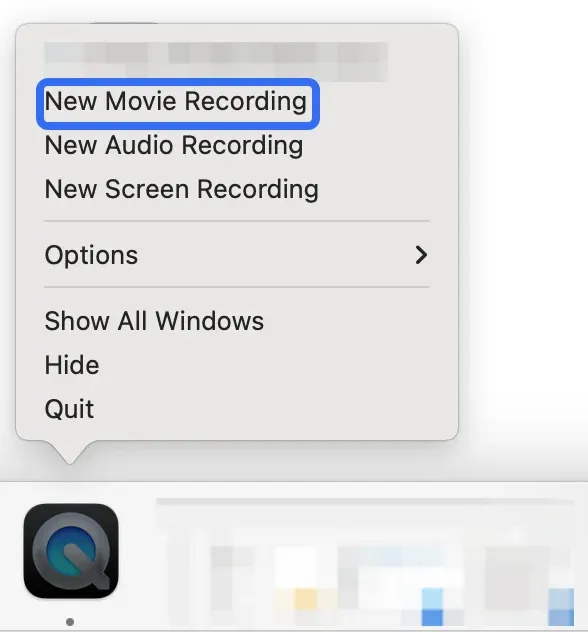
Step 4. A new recording window will appear. Click the small arrow next to the record button to open the source menu.
Step 5. From the list, select your iPad as both the camera and microphone source.
Step 6. Your iPad screen will now be displayed in the QuickTime window on your Mac.
You don't need to record if you only want to mirror. Just leave the QuickTime window open to view your iPad screen in real time.
How to Mirror Mac to iPad?
Now that we've covered how to mirror your iPad to a MacBook, let's look at how to mirror your Mac screen to an iPad. Apple's Sidecar feature is the most convenient option, allowing your iPad to act as a second display for your Mac.
Sidecar is built into macOS and iPadOS and doesn't require any third-party apps. Here's how to use it:
Requirements:
- Mac running macOS Catalina (10.15) or later
- iPad running iPadOS 13 or later
- Both devices must be signed in to the same Apple ID using two-factor authentication
- Bluetooth, Wi-Fi, and Handoff should be enabled on both devices
- For wireless use, devices must be within about 10 meters (30 feet) of each other
Steps:
Step 1. On your Mac, click the Control Center icon in the menu bar and choose Screen Mirroring (or go to System Settings > Displays).
Step 2. Select your iPad from the list of available devices.
Step 3. Your Mac screen will extend or mirror to the iPad, depending on your settings. You can adjust this in Display Settings.
Step 4. You can now drag windows or apps from your Mac to your iPad, just like using a second monitor.
You can also interact with macOS using the Apple Pencil or your fingers when using Sidecar, which is especially helpful for designers and artists using apps like Adobe Photoshop or Illustrator.
Conclusion
Mirroring your iPad to a Mac—or your Mac to an iPad—is no longer limited to tech-savvy users. Thanks to built-in features like AirPlay, Sidecar, and QuickTime Player, along with third-party tools such as PigeonCast, Reflector, screen sharing between Apple devices (and even non-Apple ones) has become incredibly flexible and easy.
Whether you're streaming media, presenting a slideshow, recording content, or simply multitasking with a second screen, there's a method tailored for your workflow. With just a few taps or clicks, you can create a seamless cross-device experience between your iPad and MacBook.
Mirror iPad to Mac FAQs
Q: How do I connect my iPad to my Mac as a display?
You can connect your iPad to your Mac as a display using several methods, depending on whether you want to extend your Mac's screen or simply mirror your iPad:
- Use AirPlay for iPad screen mirroring
- Use third-party apps, like PigeonCast or Reflector
- Use QuickTimer Player to mirror the screen with a cable
- Use Sidecar to extend the Mac display to the iPad
Q: Why can't I screen mirror my iPad to my Mac?
If you're unable to mirror your iPad to your Mac, check these common issues:
- Device compatibility: AirPlay requires newer models (e.g., 2018+ MacBooks, 6th-gen iPads and later).
- Wi-Fi connection: Both devices must be on the same Wi-Fi network.
- AirPlay turned off: Make sure AirPlay Receiver is enabled in System Settings > General > AirPlay & Handoff on your Mac.
- Firewall settings: A strict firewall may block the connection. Allow incoming connections for AirPlay.
Q: How can I display my iPad screen on my computer?
To display your iPad screen on a Mac, you can use AirPlay, QuickTime Player, or third-party tools like Reflector and PigeonCast.
For Windows, download the PigeonCast Windows Screen Mirroring app. It turns your PC into an AirPlay-compatible receiver. Once installed:
- Connect both devices to the same Wi-Fi network.
- Open the PigeonCast app on your PC.
- On your iPad, open Control Center, tap Screen Mirroring, and select your PC from the list.
Q: How do I make my iPad visible on my Mac?
There are many ways to make your iPad visible on your Mac. The first way is using the built-in AirPlay feature on the Apple device. Alternatively, use a third-party app, like PigeonCast's Screen Mirroring App for iOS or Reflector. Apart from these wireless ways, QuickTime Player syncs your iPad and Mac via a USB cable.
Q: How to make a Mac discoverable for screen mirroring?
Macs come with AirPlay built in, which lets you mirror your iPhone or iPad screen directly to your Mac. While AirPlay works well within the Apple ecosystem, it has limitations when it comes to non-Apple devices. To make your Mac discoverable by Android phones, Chromebooks, or other platforms, you can install the Mac Screen Mirroring app from PigeonCast, which turns your Mac into a universal receiver that supports AirPlay, Google Cast, and DLNA.
Mia Clarke is a technology editor specializing in screen mirroring and casting solutions across multiple platforms. Mia provides clear, practical guides and in-depth insights to help users seamlessly connect their devices. Passionate about enhancing digital experiences, Mia is dedicated to keeping readers updated on the latest trends and tools in cross-platform screen sharing. Whether you’re looking to mirror your smartphone, laptop, or smart TV, Mia’s content delivers reliable, user-friendly advice to simplify your tech setup.