
Screen sharing on an iPad is a powerful way to share your screen with friends, colleagues, or larger displays like TVs and computers. If you want to screen share on your iPad, you can easily mirror apps, videos, or presentations to a larger display like a TV, computer, or projector. This guide explains how to screen share on iPad step by step, ensuring a smooth and hassle-free experience.
How to Screen Share on iPad to TV
Sharing your screen on an iPad is simple, and we'll walk you through the process. First, we'll explain how to share screen on iPad screen to a TV, then we'll guide you through the steps to share it on a Windows PC. With these methods, you'll be able to choose the one that fits your needs best.
For Compatible TVs (Apple TV or AirPlay-Enabled Smart TVs)
How to mirror iPad to TV? If your TV supports AirPlay, mirroring your iPad is quick and wireless. Using AirPlay, you can easily display videos, apps, or presentations on a larger screen without extra cables. The following steps will guide you through connecting your iPad to a compatible TV.
Step 1. Make sure your iPad and TV are connected to the same Wi-Fi network.
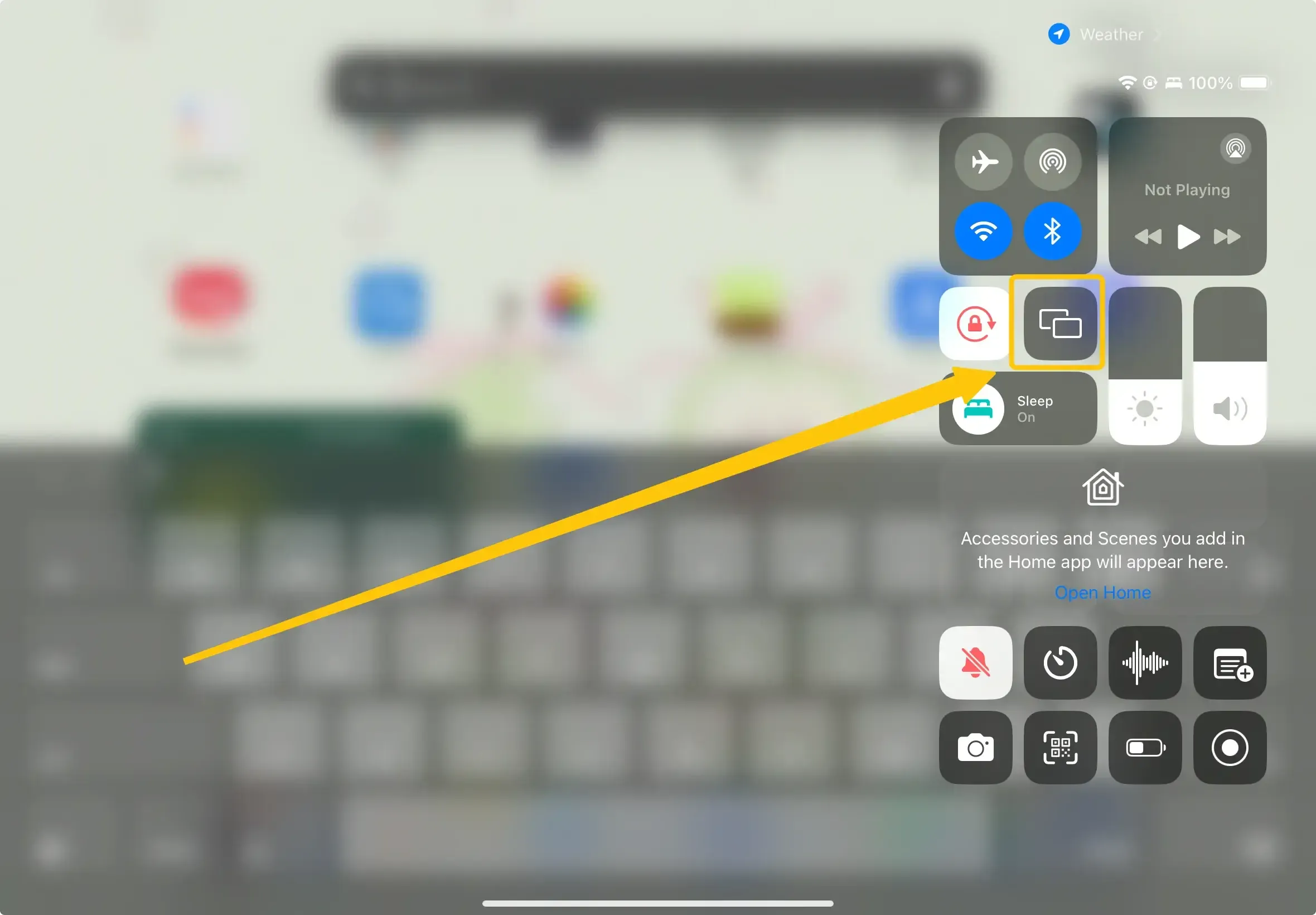
Step 2. Open the Control Center on your iPad and tap Screen Mirroring.
Step 3. Select your Apple TV or AirPlay-compatible smart TV from the available devices.
Step 4. Your iPad screen will appear on the TV instantly, allowing wireless streaming with high-quality visuals.
For Incompatible TVs
How to screen share on an iPad? If your TV does not support AirPlay, you can still mirror your iPad using a wired connection. An HDMI adapter allows you to connect your iPad directly to the TV, providing a stable and lag-free display. The steps below will show you how to set up this connection.
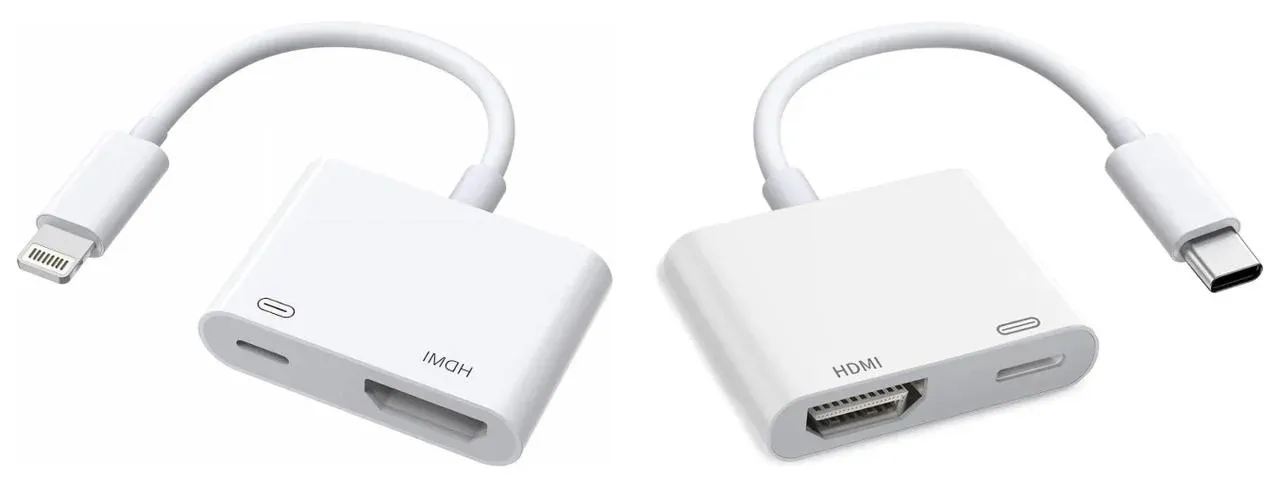
Step 1. Determine your iPad port type:
- Lightning port (older iPads): Use a Lightning to HDMI adapter.
- USB-C port (newer iPads, e.g., iPad 10th generation): Use a USB-C to HDMI adapter.
Step 2. Connect the adapter to your iPad, then plug an HDMI cable from the adapter into your TV.
Step 3. Switch your TV to the corresponding HDMI input.
Step 4. Your iPad screen will automatically appear on the TV, providing a stable and lag-free connection.
Tips: If you prefer a wireless connection and your TV supports Google Cast or has a Chromecast, you can use free PigeonCast for iPad mirroring. This app allows seamless screen mirroring across different devices and platforms, supporting both AirPlay and Google Cast for a smooth and flexible viewing experience.

PigeonCast Screen Mirroring

Official Download


How to Share iPad Screen on PC
While mirroring your iPad to a TV is great for entertainment, many users also want to share their screen on a PC for work, presentations, or recording purposes. You can mirror your iPad to a Windows or Mac computer using AirPlay on compatible devices or through reliable third-party apps.
Way 1. Wireless Screen Sharing via PigeonCast
While AirPlay doesn't natively work on Windows, you can still mirror your iPad screen using apps that act as AirPlay receivers. One reliable option is PigeonCast for Windows, which lets your Windows PC function as an AirPlay-compatible device. With PigeonCast, you can wirelessly share videos, presentations, apps, or games from your iPad to your PC with stable connections and high-quality streaming.
How to share your screen on iPad with PigeonCast:
Step 1. Ensure both your iPad and PC are on the same Wi-Fi network for a stable connection.
PigeonCast Screen Mirroring
Official Download

Step 2. Install PigeonCast on your Windows from the app store and open it.
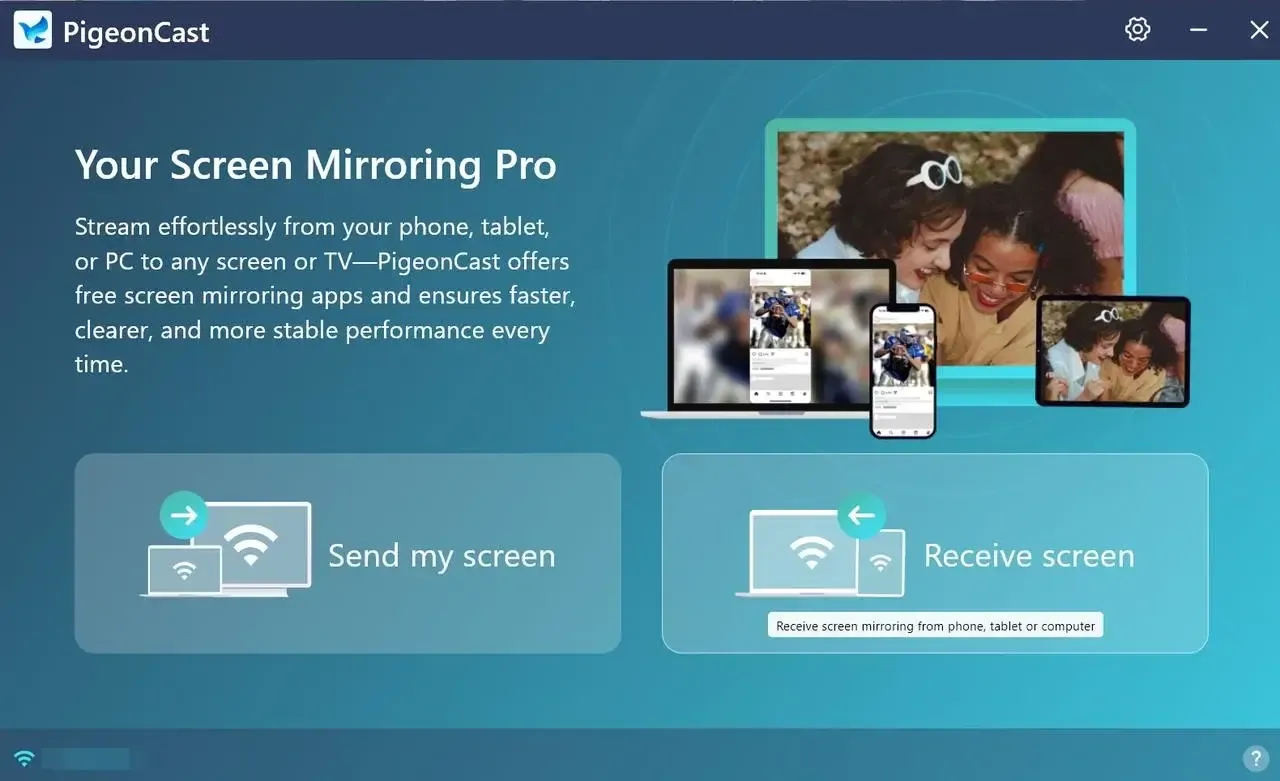
Step 3. Click the onscreen Receive screen to transform your Windows PC into an AirPlay receiver.
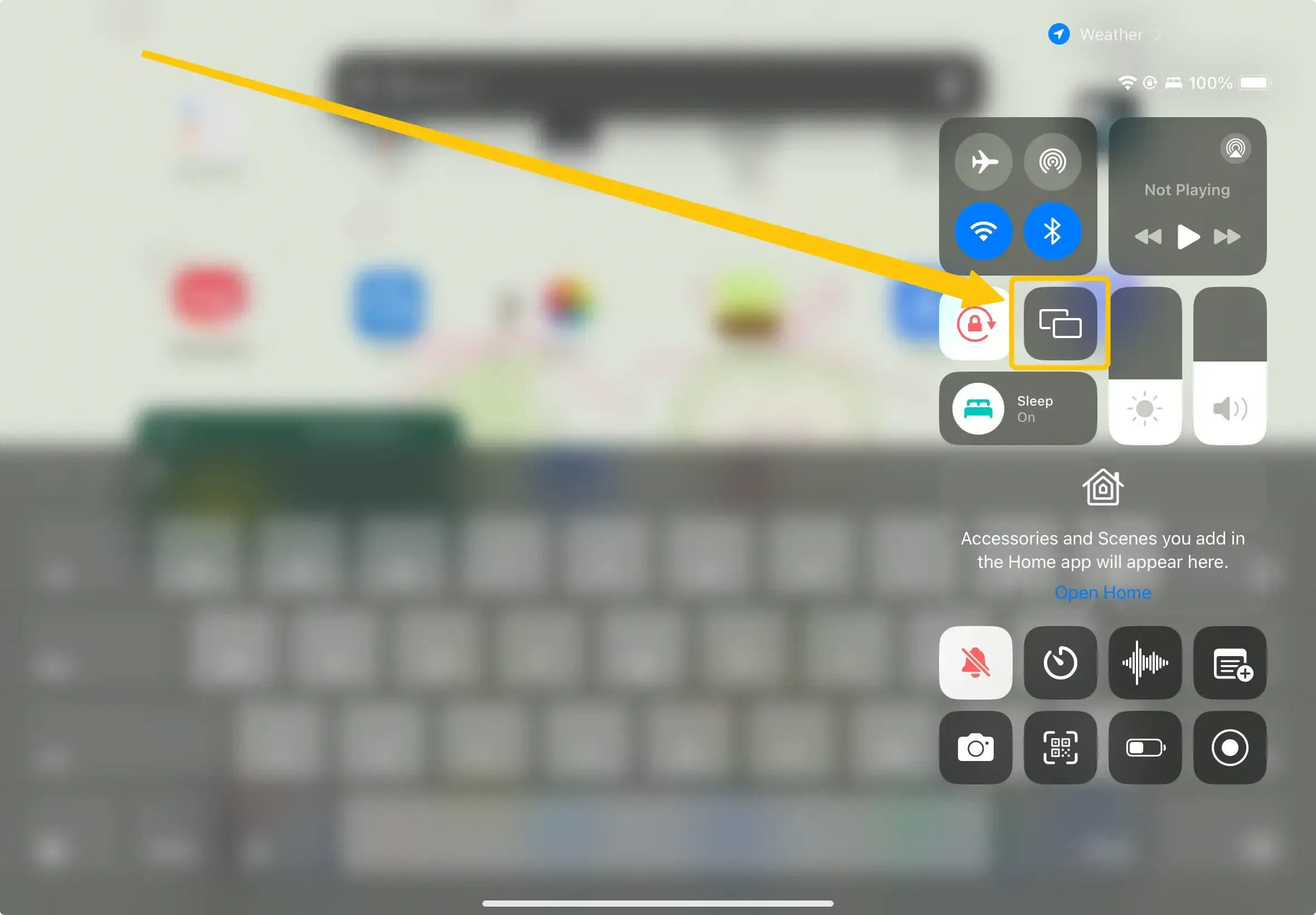
Step 4. On iPad, tap Control Center and Screen Mirroring.
Step 5. Choose your PC from the available list to connect.
Step 6. If prompted, enter the PIN code to finish the pairing process. Once you succeed, your iPad's screen will display on your PC screen.
Way 2. Wired Screen Sharing via a Cable
How to enable screen share on iPad to PC? If wireless mirroring is unstable or not possible, you can use a USB/Lightning cable to mirror your iPad to a PC: Wired connections are more stable, have lower latency, and are ideal for gaming, presentations, or streaming videos without lag.
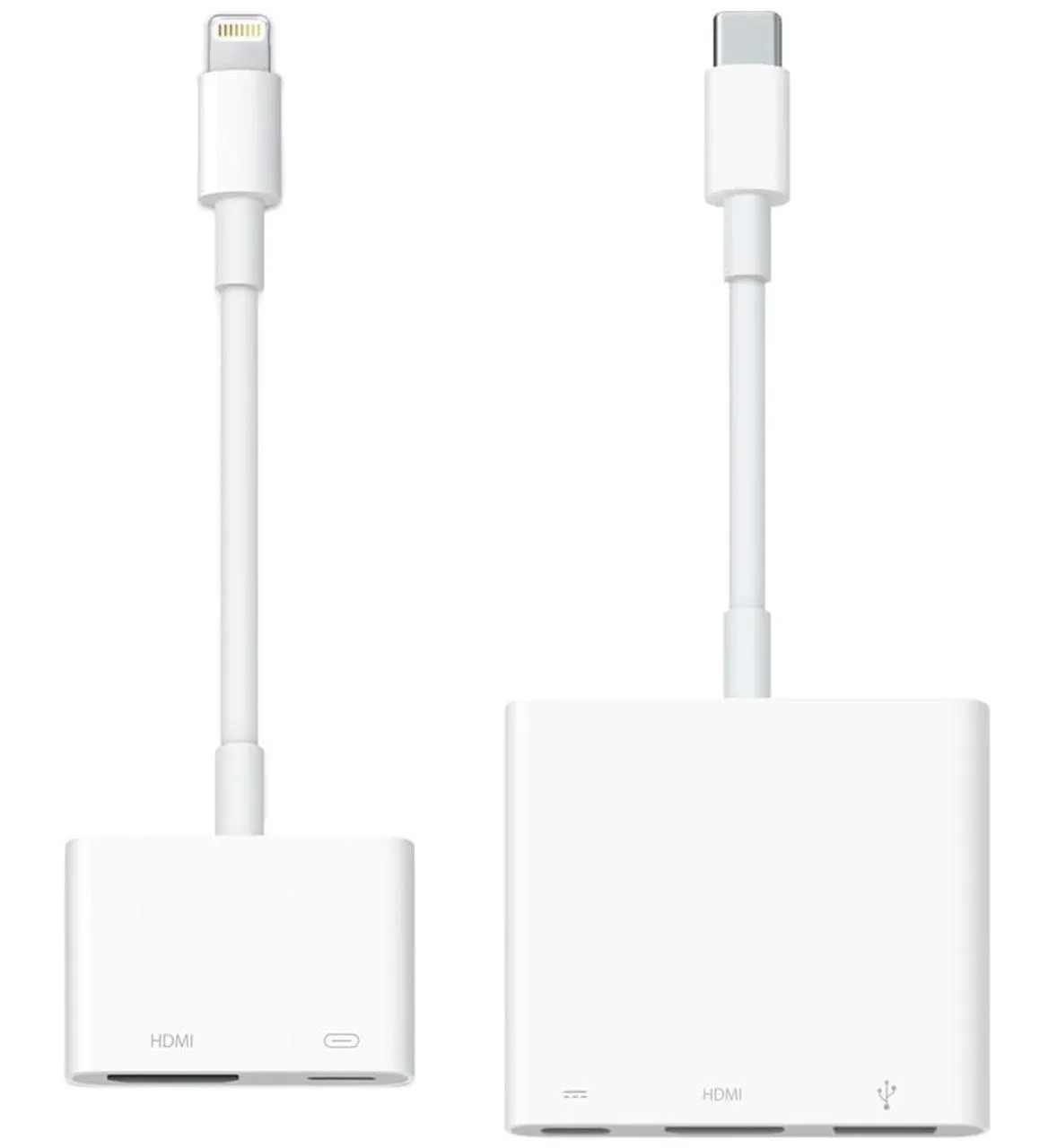
Step 1. For iPads with a Lightning port (older models), use a Lightning Digital AV Adapter and connect it to your iPad. For newer iPads with a USB-C port (such as iPad 10th generation or iPad Pro), use a USB-C to HDMI adapter instead.
Step 2. Connect the iPad to your PC or Mac using the appropriate cable.
Step 3. Unlock your iPad and tap Trust This Computer if prompted, then enter your passcode.
Step 4. Your iPad will now be recognized by the computer, allowing you to access or display its content through compatible system tools.
Conclusion
How to screen mirror on iPad? Screen sharing on an iPad is versatile, whether you want to mirror your display to a TV, share with a PC, or stream media using AirPlay. By using the built-in Screen Mirroring feature, HDMI adapters, or reliable third-party apps like PigeonCast, you can quickly share your iPad screen with minimal setup. Remember to ensure all devices are on the same network and updated for smooth performance.
How to Screen Share on iPad FAQ
Q: How do I enable screen share on my iPad?
Open Control Center by swiping down from the top-right corner, tap Screen Mirroring, and select the device you want to share your screen with. Make sure both devices are on the same Wi-Fi network.
Q: Is screen mirroring the same as AirPlay?
Not exactly. Screen mirroring duplicates your iPad's display on another device, while AirPlay is Apple's wireless streaming protocol that can also stream specific media (videos, music) in addition to mirroring.
Q: Can I screen mirror without AirPlay?
Yes. You can use HDMI adapters or third-party apps like PigeonCast, LetsView, ApowerMirror, or Reflector to mirror your iPad to TVs or PCs without relying on AirPlay.
Q: Where is the share button on my iPad?
The Share button on your iPad is typically located in the top-right corner of most apps. It looks like a square with an upward arrow. Tapping this icon allows you to share content via messages, email, social media, or other apps installed on your device.
Clara Rossi is an experienced technology editor and a seasoned expert in screen mirroring and casting technologies. With a keen eye for detail and a deep understanding of how to seamlessly connect devices, Clara excels at optimizing user experiences for effortless sharing and streaming. Whether you're seeking quick fixes or advanced tips, her expertise and responsiveness ensure that every query is met with a well-informed and efficient solution.