
Mobile phones, tablets, and PCs are some of the most commonly used devices for both work and entertainment. Imagine how much more convenient it would be if you could seamlessly connect and use them together, whether for sharing content, enjoying entertainment, or collaborating on work tasks. Sounds great, right? Let's take a closer look at the steps on how to cast Android screen to PC using WiFi.
How to Cast Android Screen to PC Using WiFi Windows 10
Casting your Android screen to a Windows 10 PC over WiFi is quite straightforward. Thanks to built-in features like Miracast and third-party apps like PigeonCast, it's easier than ever to mirror your Android phone to your PC wirelessly. Here's a step-by-step guide on how to set it up.
Way 1. Use Miracast
Miracast on Windows PC is a built-in wireless display feature in Windows 10 and Android devices, allowing you to mirror your Android screen to your PC using WiFi. However, you need to make sure your Windows PC and Android device support Miracast.
Step 1. Check Miracast support:
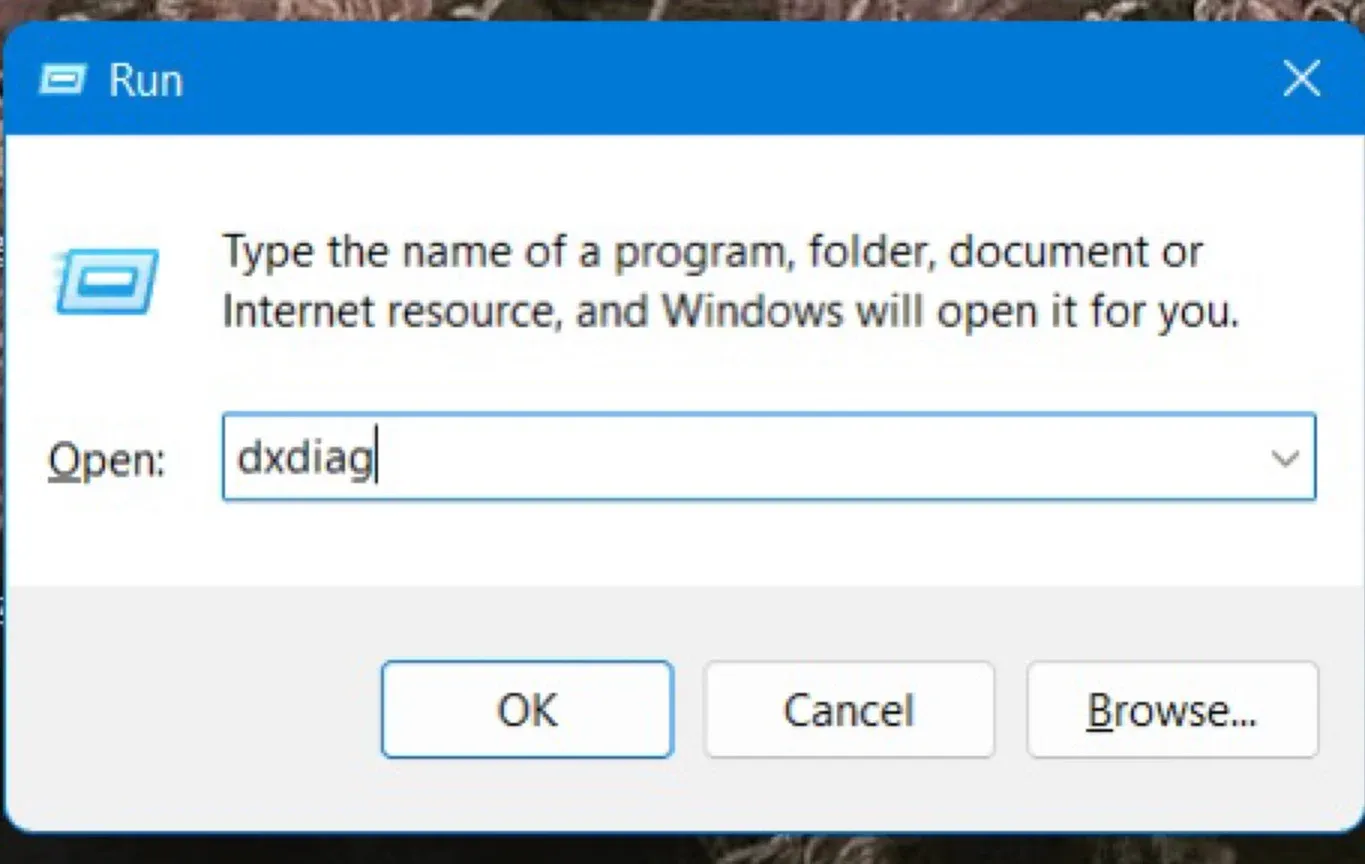
- Ensure your Windows 10 PC supports Miracast. You can check by pressing Windows + R, typing dxdiag, and pressing Enter. In the Display tab, look for "Miracast: Available" under the list of features.
- Ensure your Android device supports Miracast. Most Android devices running Android 4.2 or higher support it.
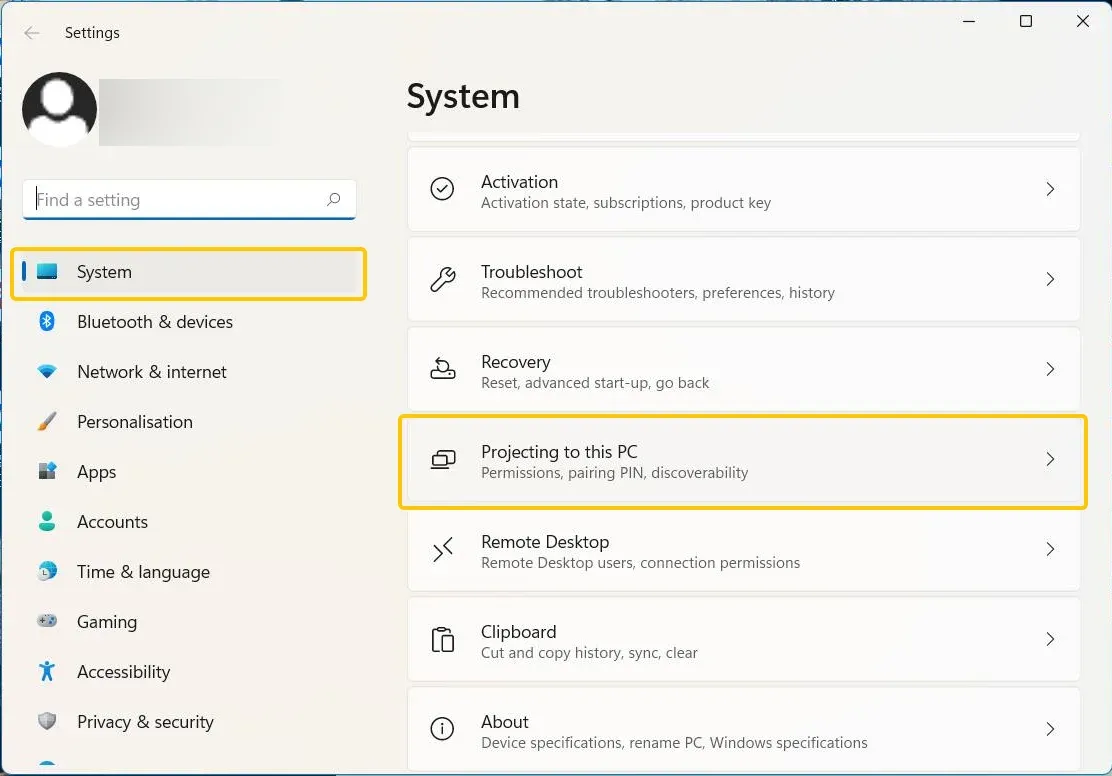
Step 2. On your Windows PC, select Start window > Settings > System > Projecting to this PC.
Step 3. Under Add the Wireless Display optional feature to project to this PC, select Optional features > Add a feature > wireless display.
Step 4. Select the check box next to Wireless Display from the list of results, then select Install.
Step 5. After "Wireless Display" is installed, manage your projecting preferences on the Projecting to this PC page in Settings.
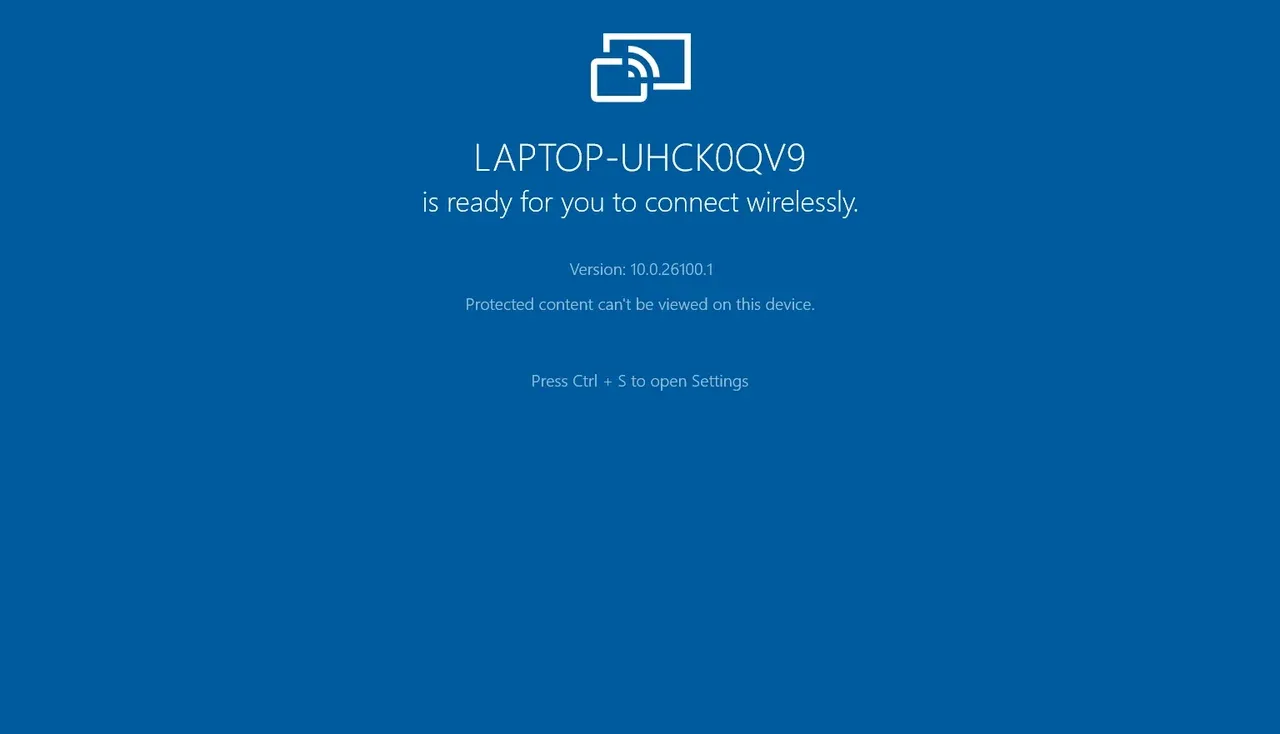
Step 6. On the PC you're projecting to, launch the Connect app by entering Connect app in the search box on the taskbar, and selecting Connect in the list of results.
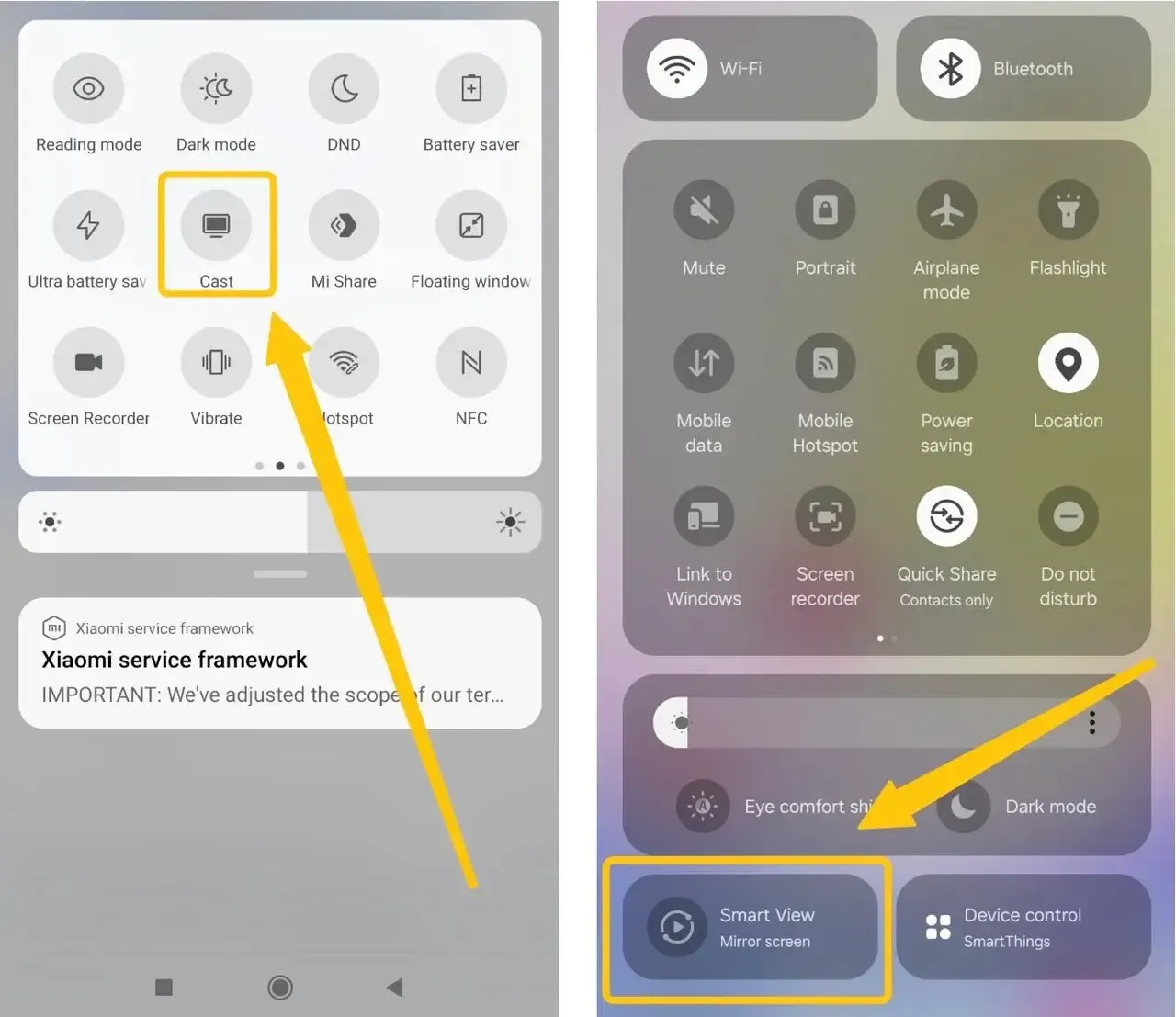
Step 7. On your Android phone, swipe down to open your Quick Panel > Cast/Smart View to choose your PC from the device list.
Step 8. A connection request will appear on your PC. Click Yes to accept.
Step 9. Your Android screen will instantly appear on your PC, either in a window or full-screen mode. You can interact with your phone as usual, with every tap and swipe mirrored in real time.
Way 2. Use PigeonCast
The free PigeonCast app is also a quick way to mirror your Android screen onto a Windows PC, completely free of charge. This ad-free app offers excellent compatibility across Android, iOS, Windows, and smart TVs, making it a versatile solution for all your screen mirroring needs. With no cables or adapters required, simply connect your devices over Wi-Fi for a seamless experience.

Step 1. Ensure your Android and Windows PC are connected to the same wireless network.


Overall Rating:



Step 2. Install PigeonCast on your Android from Google Play and Windows PC from the Microsoft Store, then launch the app.
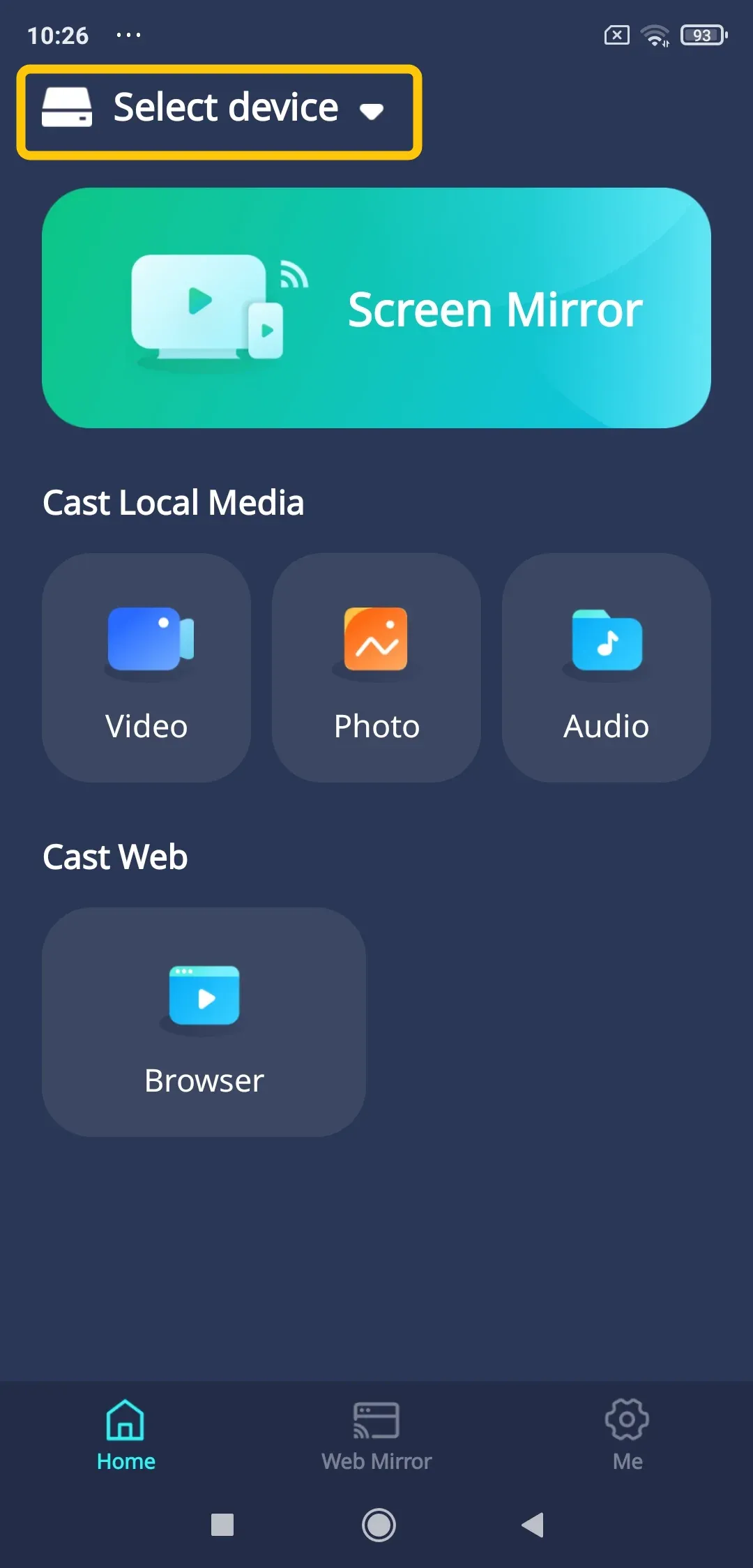
Step 3. On your Android, tap Select device to choose your Windows PC from the available list.
Step 4. Enter the onscreen PIN code to confirm the connection requisition.
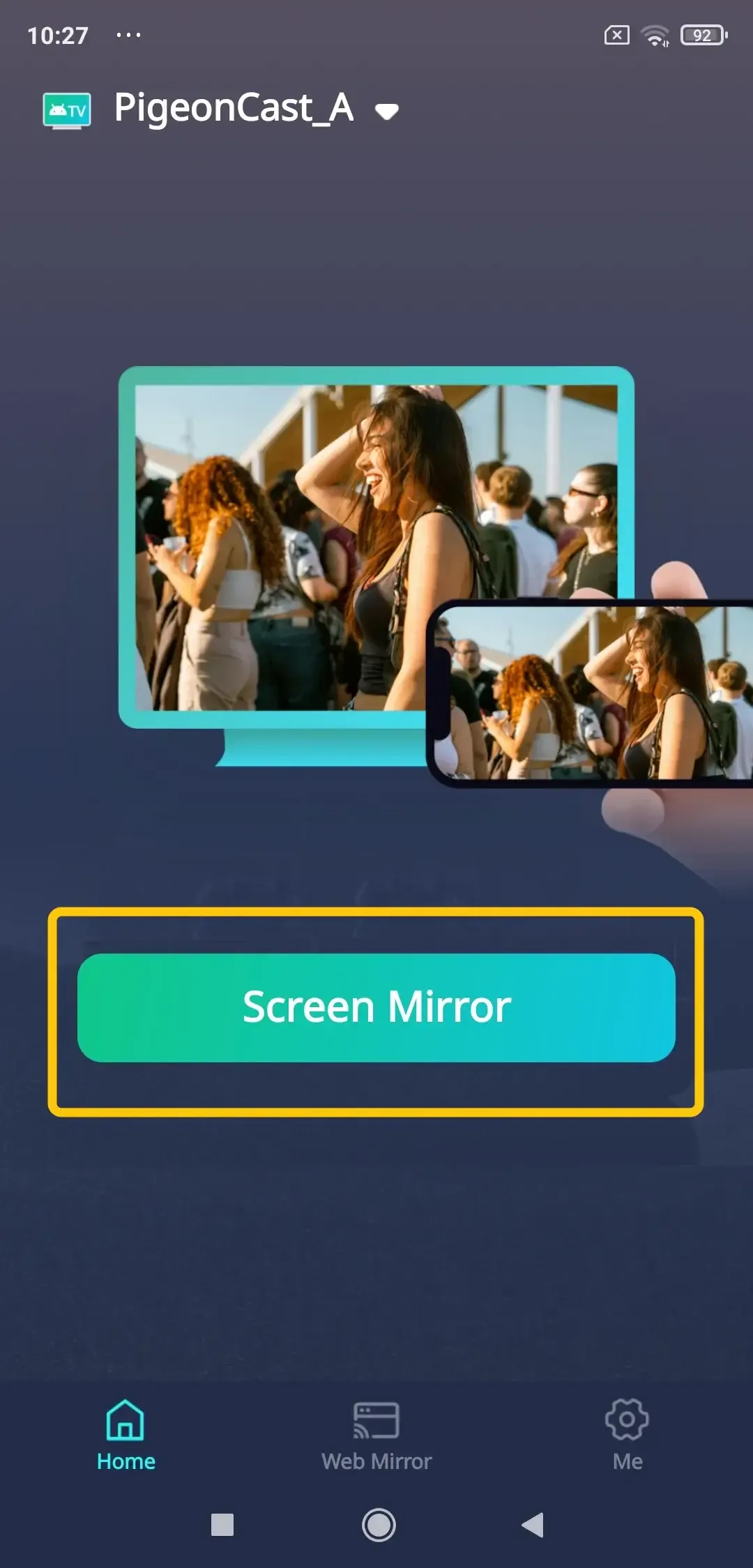
Step 5. When you finish the connection, you can tap Screen Mirror to begin your mirroring activities.
- Why Choose PigeonCast:
- Universal protocol support: PigeonCast supports a wider range of devices and operating systems, including Android, iOS, Windows, Mac, and TVs (tvOS, Android TV, etc.)
- Completely free access: PigeonCast provides full functionality without subscriptions, fees, or watermarks, making it accessible for all users.
- Simple connection process: The app utilizes a straightforward 9-digit code system for pairing devices, creating a reliable connection method that works consistently across different network environments.
- High-Quality streaming: PigeonCast delivers clear video and synchronized audio transmission, ensuring your content looks and sounds great during screen mirroring sessions.
Why Can't I Screen Mirror Android to PC
If you're having trouble mirroring your Android screen to your PC, it could be due to several reasons. Here are a few common issues and how to fix them:
- Miracast Hardware Support Missing: Your PC's WiFi adapter must support Miracast. Check by opening the Command Prompt and typing netsh wlan show driver. Look for "Wireless Display Supported: Yes". If it says "No", you'll need to use an app like PigeonCast or a USB method.
- Outdated or Faulty Drivers: Update your PC's WiFi and Graphics drivers from the manufacturer's website (Dell, HP, Lenovo, Intel, etc.).
- Network Firewall Blocking: Your Windows Firewall or third-party antivirus might be blocking the connection. Try temporarily disabling them to test.
- Feature Disabled on PC: Ensure you've properly enabled "Projecting to this PC" in Windows Settings as outlined in the Miracast section.
- Incorrect Phone Setting: On Android, the feature is often buried. Search your Settings for "Cast", "Screen mirroring", "Smart View", or "Wireless display".
Bottom Line
How to screen cast Android to Windows PC? Whether you're using the built-in Miracast feature or the versatile PigeonCast app, you can easily mirror your Android screen to your PC for seamless sharing of content, presentations, or gaming. If you encounter any issues, troubleshooting common problems like hardware support, outdated drivers, or network settings can help ensure a successful connection.
How to Cast Android Screen to PC Using WiFi FAQ
Can I screen mirror through Wi-Fi?
Yes, you can screen mirror through Wi-Fi. Many devices, including smartphones, tablets, and computers, offer the ability to wirelessly mirror your screen to a compatible TV or another device using Wi-Fi. Features like Miracast, AirPlay, and Google Cast allow for seamless wireless screen mirroring over the same Wi-Fi network, without the need for cables or adapters.
How to Cast Android screen to PC via USB?
Casting your Android screen to a PC via USB is a great way to display your mobile content on a larger screen with a stable connection and minimal lag. Here's how to do it:
- On your Android device, go to Settings > About Phone > Tap Build Number 7 times. Then, enable USB Debugging in Developer Options.
- Download and install Vysor on your PC.
- Plug your Android device into the PC via USB and allow USB debugging.
- Open Vysor, select your device, and click View to start casting.
How do I cast my Android phone screen wirelessly?
- Make sure your Android phone and the display you want to cast to are on the same Wi-Fi network.
- Make sure the display you'e casting to has casting or screen mirroring enabled.
- Swipe down on your Android phone to open Quick Settings and tap on Cast or Screen Mirroring.
- From the list of available devices, select the one you want to cast to.
- Your Android screen will be mirrored wirelessly onto the display.
How to connect Android phone to PC without cable?
To connect your Android phone to a PC without a cable, follow these steps:
- Ensure both your Android phone and PC are connected to the same Wi-Fi network.
- On Windows 10/11, go to Settings > System > Projecting to this PC and enable the option to allow your PC to be discoverable for wireless connections.
- On your phone, swipe down the notification panel and tap Cast or Screen Mirroring.
- Choose your PC from the list of available devices, and your phone's screen will now be mirrored to your PC wirelessly
How to cast Android screen to PC using Bluetooth?
You cannot truly mirror or cast your screen to a PC using only Bluetooth. Bluetooth technology lacks the necessary bandwidth (typically under 3 Mbps) for real-time video streaming, which requires 10-50+ Mbps depending on quality. For actual screen mirroring, you must use WiFi-based methods (Miracast or dedicated apps like PigeonCast) or a USB cable connection.
Clara Rossi is an experienced technology editor and a seasoned expert in screen mirroring and casting technologies. With a keen eye for detail and a deep understanding of how to seamlessly connect devices, Clara excels at optimizing user experiences for effortless sharing and streaming. Whether you're seeking quick fixes or advanced tips, her expertise and responsiveness ensure that every query is met with a well-informed and efficient solution.