

When it comes to steps to start screen mirroring, the first step is typically to connect your devices to the same WiFi network. However, your home WiFi network may sometimes be unavailable or unstable; how to bypass the first step? Yes, you can mirror without WiFi, and here it shows you how to mirror Android phone to TV without WiFi.
Can You Mirror Android Phone to TV Without WiFi
In most cases, WiFi is used for Android screen mirroring because it provides a fast, stable connection between your Android phone and TV. When both devices share the same network, the data transfer happens smoothly, resulting in better quality and minimal lag, ideal for streaming videos, playing games, or giving presentations.
However, WiFi isn't always available. Maybe your router is down, or you're traveling. In these cases, mirroring without WiFi becomes a practical alternative. Many modern TVs and Android devices now support wireless direct connections like Miracast, which let you mirror your screen even without internet access.
That said, each method has its trade-offs. WiFi-based mirroring offers a more stable and higher-quality experience. At the same time, WiFi-free options are better for quick sharing or when network access isn't possible, though they may come with minor latency or compatibility issues.
Well, how to mirror Android phone to TV without WiFi? If you find yourself without WiFi, don't worry; you still have several effective ways to mirror your Android to your TV. Let's explore the step-by-step methods below.
Method 1: Use Miracast (WiFi Direct Connection)
One of the easiest ways to mirror your Android phone to a TV without WiFi is by using Miracast, a wireless display standard built on WiFi Direct technology. Instead of relying on your home router, Miracast creates a direct connection between your phone and TV, allowing you to share your screen in real time.
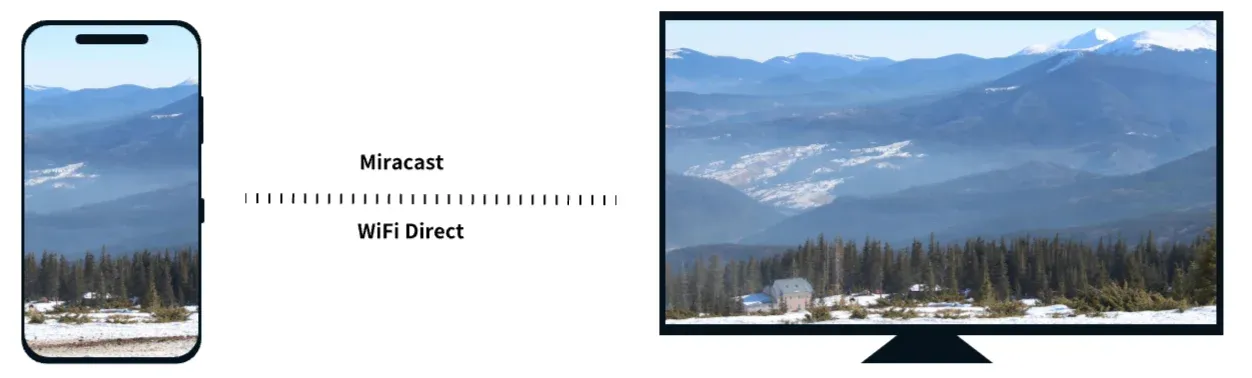
Most Android phones and many smart TVs support Miracast by default. If your TV doesn't, you can still use a Miracast-compatible wireless display adapter (such as Microsoft Wireless Display Adapter). Once the adapter is plugged into your TV's HDMI port, it acts as the Miracast receiver and connects directly to your phone.
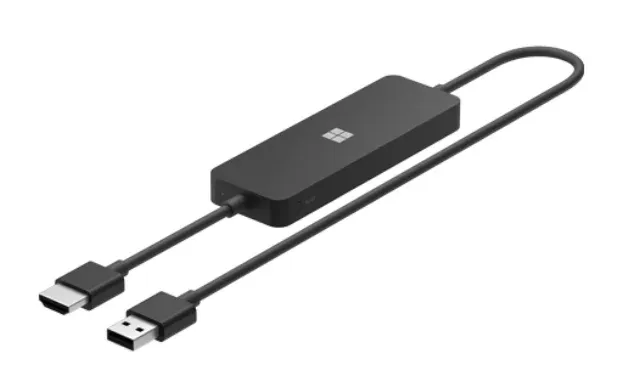 How to screen mirror Android to TV without WiFi? Try Miracast if possible:
Step 1. On your TV or Miracast adapter, enable Screen Mirroring or Miracast mode.
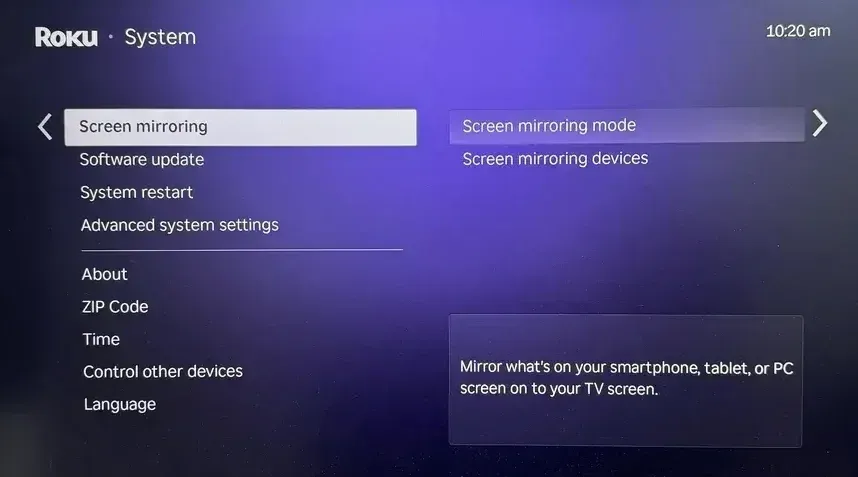
Step 2. On your Android phone, open Settings > Connections, Smart View or Cast, then select your TV or adapter from the list.
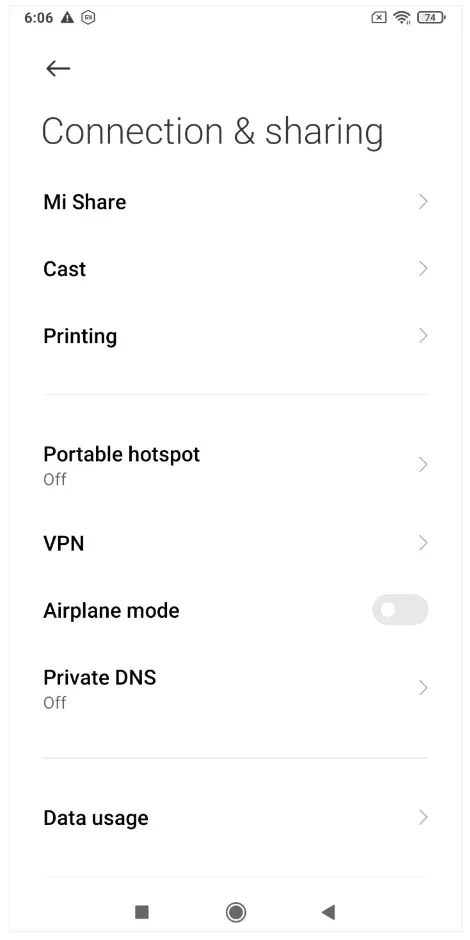
Step 3. Wait a few seconds. Once connected, your phone screen will appear on the TV.
Pros:
- No WiFi network or mobile data required
- Quick setup and stable short-range connection
- Ideal for watching offline videos or showing photos
Cons:
- Some older TVs or phones may not support Miracast
- Slight delay during fast-motion content
- Works best within a short distance
Miracast is the best choice if you want true wireless screen mirroring without WiFi, especially for offline videos, photos, or presentations.
Method 2: Use an HDMI Cable (Wired Connection)
If your TV doesn't support Miracast or you prefer a more stable connection, a wired setup is the most reliable option. By connecting your phone to the TV with an HDMI cable, you can instantly mirror your screen. This requires no WiFi or wireless setup.
Before proceeding, please ensure you have an HDMI cable and a USB-C to HDMI adapter for newer Android phones, or an MHL adapter for older phones that support MHL.
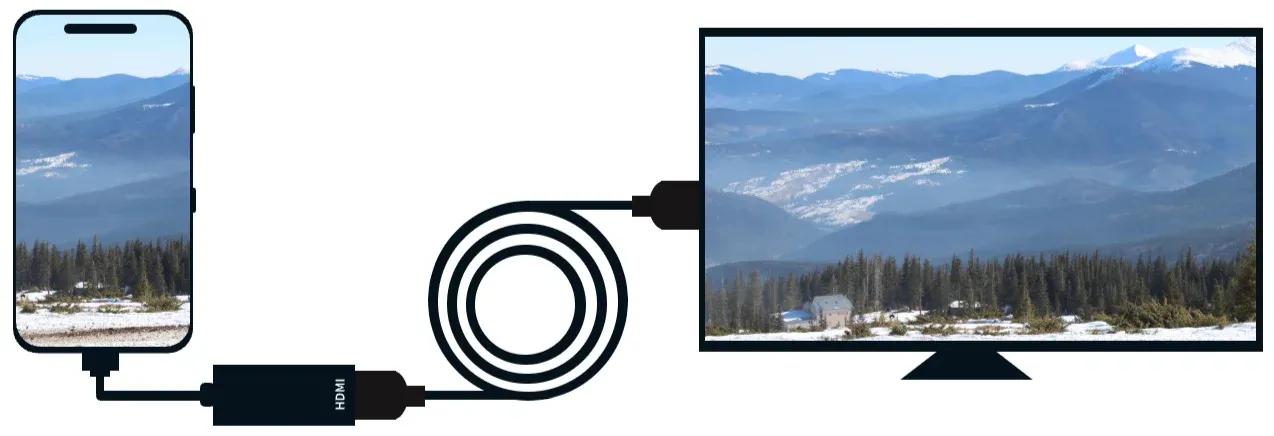
Here's how to mirror Android to TV without WiFi:
Step 1. Plug the HDMI adapter into your Android phone's charging port.
Step 2. Connect one end of the HDMI cable to the adapter and the other end to the TV's HDMI port.
Step 3. Switch your TV's input source to the corresponding HDMI channel.
Step 4. Your phone screen should now appear on the TV automatically.
Pros:
- Works without WiFi or wireless connection
- Offers stable, lag-free connection
- Supports high-quality video and audio output
Cons:
- Requires compatible ports and cables
- Limited mobility (your phone must stay connected)
- Some adapters may not support charging while in use
A wired Android-to-TV connection is especially useful for watching offline movies, giving presentations, or gaming when you want zero delay.
Method 3. Use a Mobile Hotspot Connection (with PigeonCast)
If your home WiFi isn't available but you still want to mirror your Android phone wirelessly, you can use your mobile hotspot to create a temporary local network. This allows both your phone and TV (or streaming device) to connect through the same network, enabling smooth, stable screen mirroring without relying on your home center.
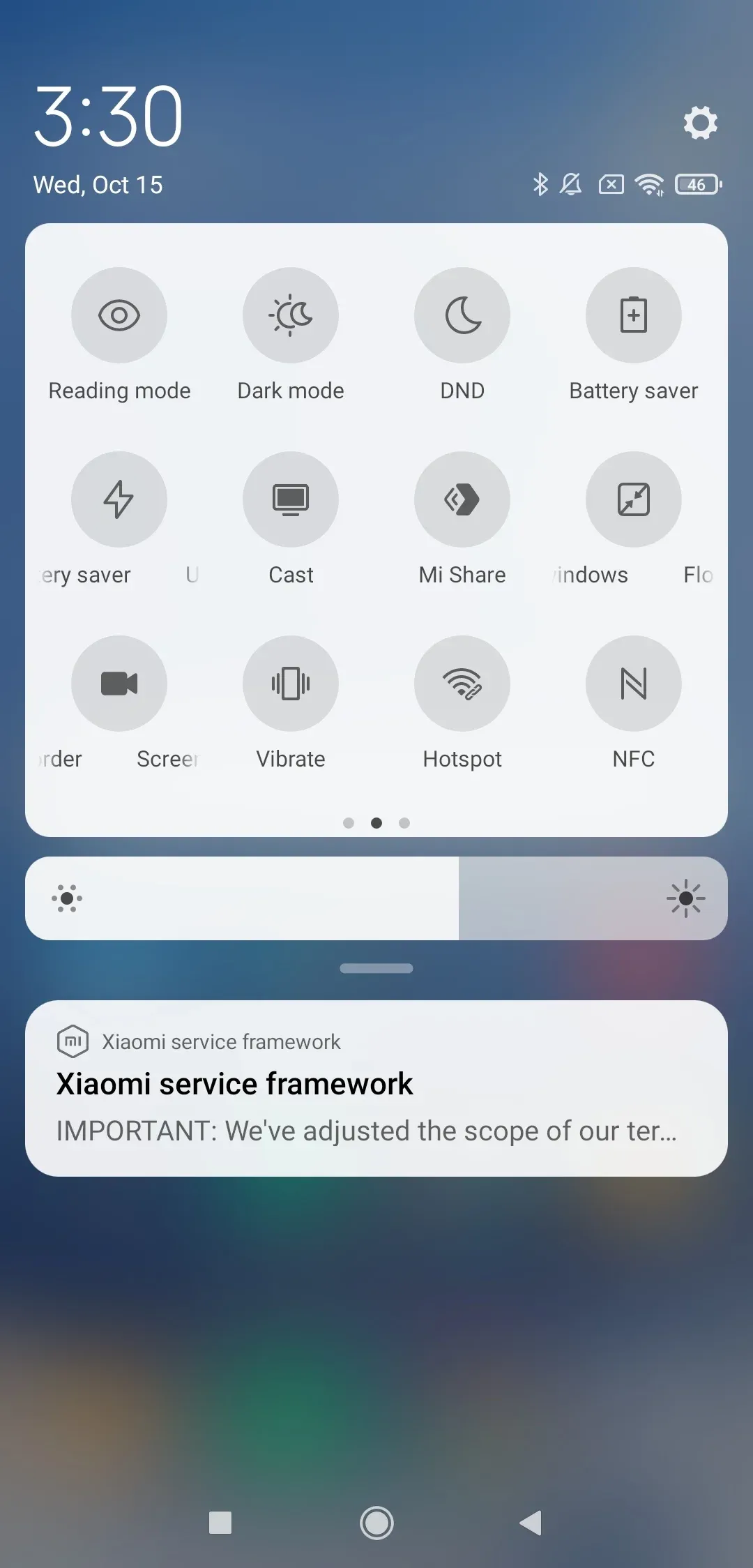
Here's how it works: your phone or another device acts as a WiFi hotspot, while the receiving device joins that hotspot. Once both are connected, apps like PigeonCast can establish a mirroring session over the local connection.


PigeonCast Screen Mirroring

Official Download



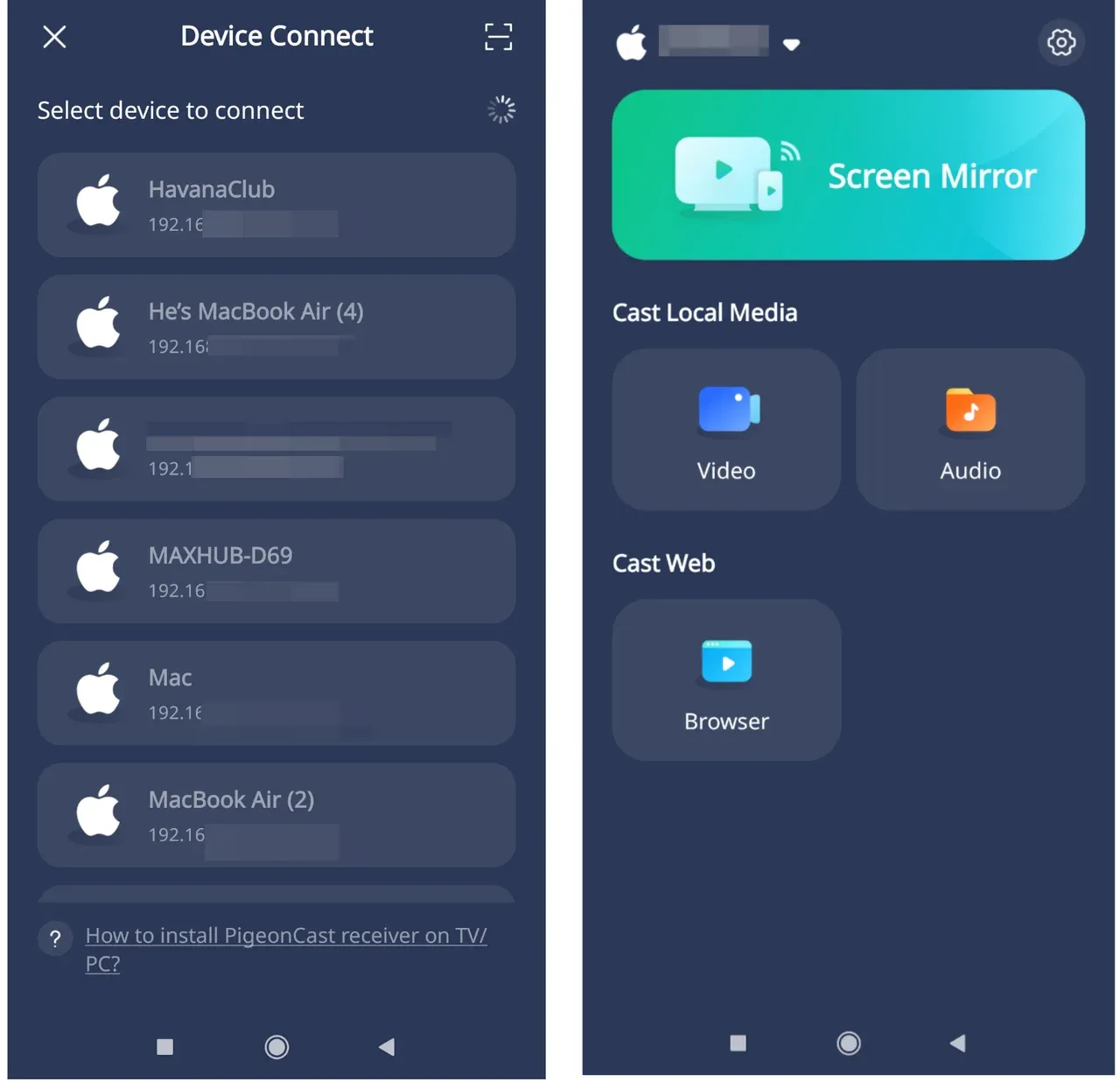
How to mirror your Android to TV using PigeonCast:
Step 1. Turn on the mobile hotspot feature on your Android phone.
Step 2. On your TV or streaming device, connect to that hotspot.
Step 3. Install PigeonCast on both devices and open the app.
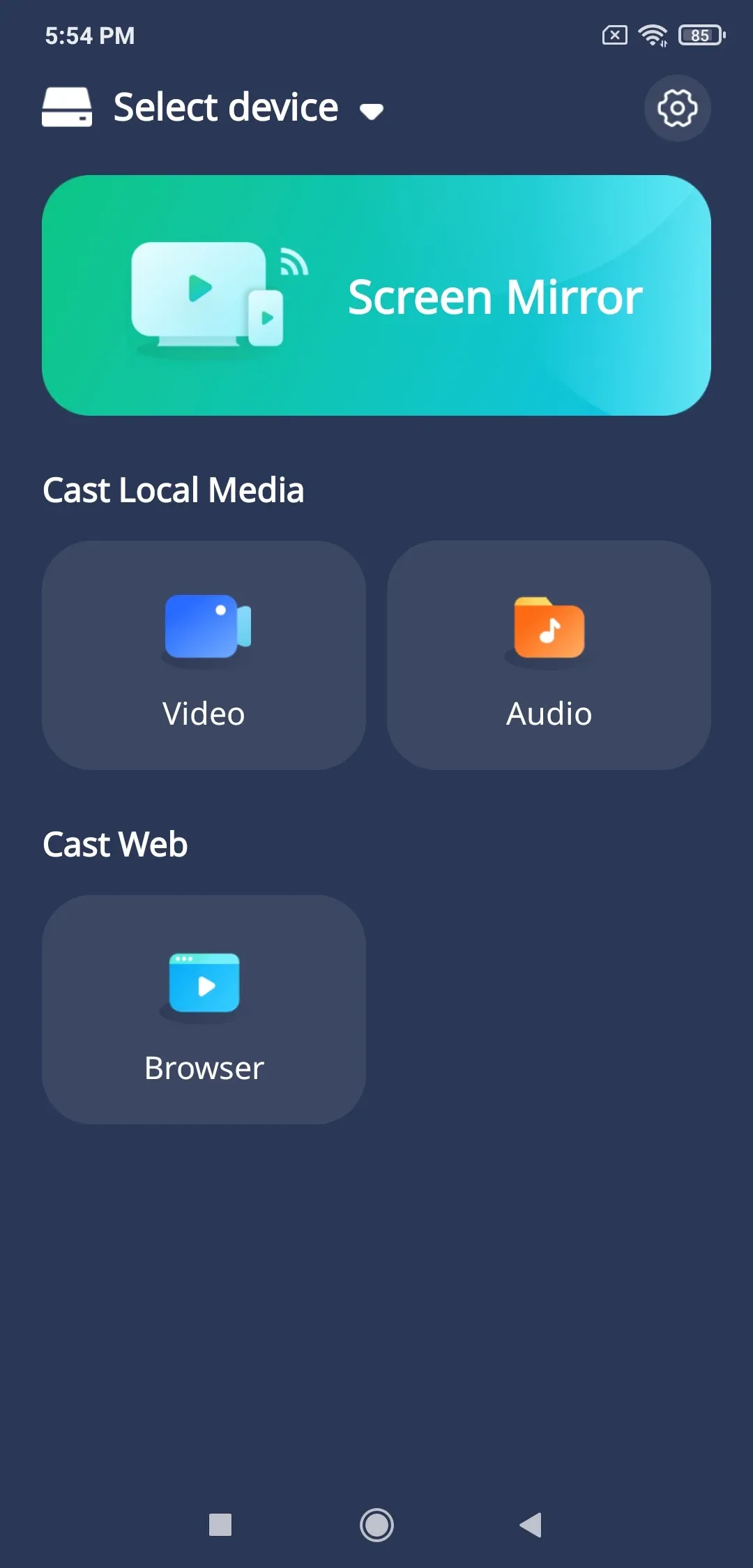
Step 4. Follow the in-app instructions to start mirroring.
- Choose your TV from the list of available devices.
- Once connected, tap the Screen Mirror feature.
- Start watching.
Pros:
- Works even without a home WiFi network
- Compatible across platforms - Android to Android TV, Fire TV, Windows, or Mac
- More stable than direct WiFi Direct connections over distance
Cons:
- Uses mobile data if your phone's hotspot is also online
- Slightly higher power consumption on your phone
Using a mobile hotspot with PigeonCast is ideal when you're away from home or your router isn't available. It gives you the flexibility of wireless mirroring without being locked to one ecosystem, perfect for Android users who want a simple, reliable, and cross-platform experience.
How to Screen Mirror Android to TV Without WiFi: Pros and Cons
Now that we've covered several ways to mirror our Android phone to a TV without WiFi, here's a quick comparison to help you decide which method best fits your needs. Each option has its own strengths, whether you prioritize stability, flexibility, or convenience.
| Method | Connection Type | No Home WiFi | Compatible Devices | Pros | Cons |
|---|---|---|---|---|---|
| Miracast (WiFi Direct) | Wireless (P2P) | Yes | Most Android phones and Miracast TVs | No router needed; easy setup | Limited range; not all TVs supported |
| HDMI Cable (Wired) | Wired | Yes | Any TV with an HDMI port | Stable, lag-free connection | Requires cable & adapter; less portable |
| Mobile Hotspot + PigeonCast | Wireless (local hotspot) | Yes | Android, Fire TV, Windows, Mac | Cross-platform; flexible; reliable | Uses mobile data if online; needs app installation |
How to choose:
- Choose Miracast if your TV supports it (it's the most direct WiFi-free option)
- Use an HDMI cable when you need zero delay and maximum stability
- Opt for PigeonCast via mobile hotspot for a cross-platform and portable solution that works almost everywhere.
Bottom Line
You don't always need a home WiFi network to mirror your Android phone to a TV. Depending on your setup, you can use Miracast (WiFi Direct) for a quick wireless link, connect directly with an HDMI cable, or rely on a mobile hotspot with PigeonCast for cross-platform flexibility.
Each option has its trade-offs: Miracast offers convenience, HDMI delivers stability, and PigeonCast ensures compatibility across different devices. Whether you're streaming videos, sharing photos, or giving a presentation, these solutions let you easily and effectively mirror your Android device to TV without WiFi, anytime and anywhere.
How to Mirror Android Phone to TV Without WiFi FAQs
How to connect Android phone to TV via Bluetooth?
Bluetooth is mainly designed for transferring small data like audio or files, not video. You can pair your Android phone with your TV via Bluetooth for music playback or remote control functions, but screen mirroring via Bluetooth isn't supported due to limited bandwidth. For mirroring, use Miracast, HDMI, or apps like PigeonCast instead.
Can I screen mirror if my TV is not connected to WiFi?
Yes. You can mirror your Android phone to your TV without WiFi using Miracast (Wi-Fi Direct) or a wired HDMI connection. Both methods create a direct link between the devices, so no internet access is required.
Can I connect my Android phone directly to my TV?
Absolutely. With a USB-C to HDMI adapter or MHL cable, you can plug your Android phone directly into your TV's HDMI port. This wired setup doesn't need WiFi and delivers stable, high-quality video output.
How to activate screen mirroring on Android?
Go to Settings → Connected Devices or Connections → Cast / Smart View. Then, select your TV or compatible device from the list. Depending on your phone brand, the feature may appear as Smart View, Wireless Display, or Cast Screen.
Why can't my Android phone find my TV when mirroring?
This usually happens if your TV doesn't support Miracast or both devices aren't on the same network (for network-based apps like Chromecast or PigeonCast). Check your TV's input mode and ensure the mirroring feature is enabled.
Does screen mirroring use mobile data?
Not necessarily. Miracast and HDMI connections don't consume mobile data. However, if you use a mobile hotspot or online streaming app during mirroring, your data plan may be used.
Is there any delay when mirroring without WiFi?
Some latency may occur with wireless connections like Miracast, especially for games or fast-motion videos. Wired HDMI connections generally offer the most stable, lag-free experience.
Will screen mirroring drain my phone's battery faster?
Yes, slightly. Mirroring — especially over wireless connections — requires constant data transmission and screen-on time. It's recommended to keep your phone plugged in during extended use.
Mia Clarke is a technology editor specializing in screen mirroring and casting solutions across multiple platforms. Mia provides clear, practical guides and in-depth insights to help users seamlessly connect their devices. Passionate about enhancing digital experiences, Mia is dedicated to keeping readers updated on the latest trends and tools in cross-platform screen sharing. Whether you’re looking to mirror your smartphone, laptop, or smart TV, Mia’s content delivers reliable, user-friendly advice to simplify your tech setup.