
Phones and laptops are everyday essentials, whether at home or at work. They make life easier, but have you thought about connecting them to boost efficiency? In today's guide, we'll show you how to cast phone to laptop using different methods, with step-by-step instructions for each device.
Why Cast Your Phone to a Laptop
Before we dive into the "how to cast from phone to laptop", let's take a moment to explore the many reasons why you might want to connect your phone to your laptop. Whether you're at home enjoying entertainment, working on a project, or presenting to a group, casting offers a variety of benefits.
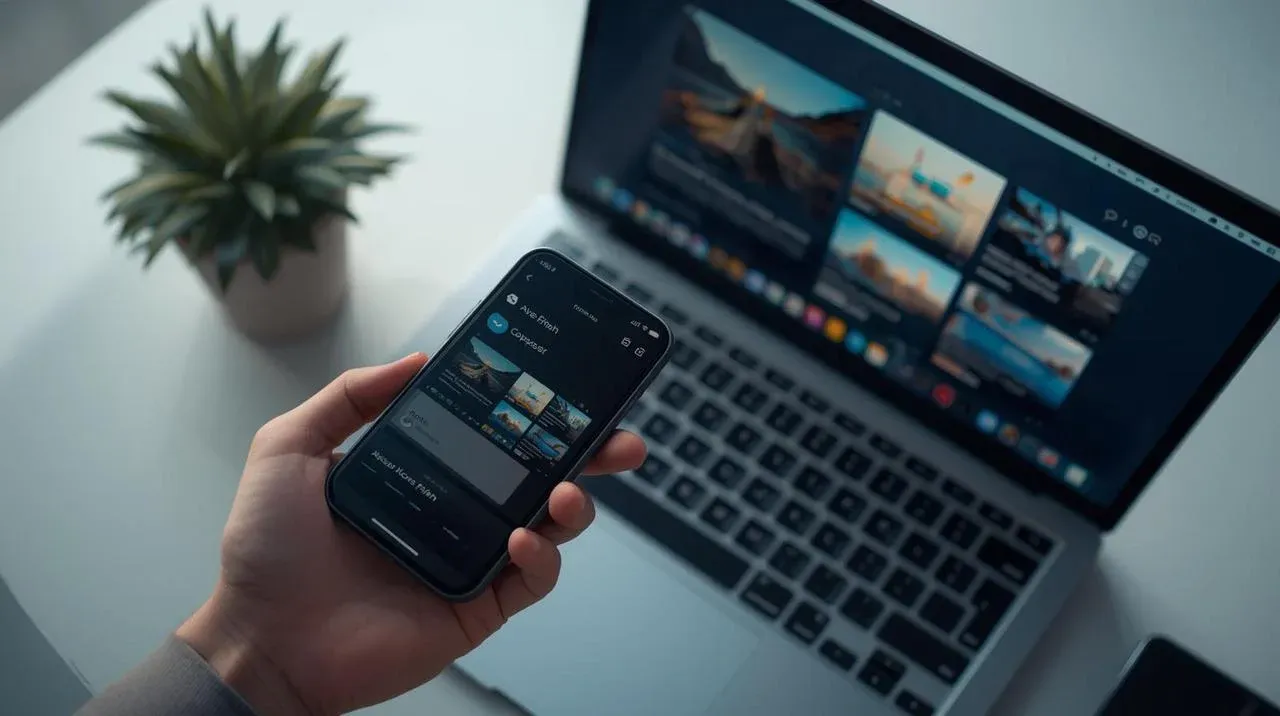
- Display Photos and Videos: Want to show off your vacation photos or watch a video on a larger screen? With just a few clicks, you can easily cast your phone to your laptop for a more immersive viewing experience.
- Mobile Gaming: If you're an avid mobile gamer, casting your phone to your laptop can take your gaming to the next level. Enjoy a bigger screen, better controls with a keyboard or mouse, and a more comfortable setup.
- Boost Work Efficiency: Whether it's editing documents, managing spreadsheets, or simply browsing apps, using your laptop's bigger display and full keyboard can drastically improve your productivity.
- Seamless Presentations: Have a presentation or content you want to share with a larger group? Casting your phone's screen to your laptop ensures that everyone can see your content clearly and easily, without the hassle of passing around a small phone screen.
How to Cast My Phone to My Laptop
Once you're familiar with the use cases, let's explore how to cast your phone to your laptop. We'll cover the process for casting from both iPhones and Android phones to Windows and Mac devices as the receiver.
Cast Phone to Laptop on Windows
Windows, developed by Microsoft, is one of the most widely used operating systems for both laptops and desktops. It supports several methods for casting your phone's screen to a laptop, including Miracast, Google Cast, AirPlay, and DLNA.
Each method offers flexibility depending on your device, the available receiver, and the content you want to display, including when you want to cast YouTube videos from your phone to a PC for viewing on a larger screen.
- Option 1. How to Cast Android Phone to Laptop (Windows)
How to cast phone screen to laptop? Now that you know why casting your Android phone to a Windows laptop can be useful, let's walk through the process of setting it up. Whether you're sharing content, playing games, or just using your phone's apps on a bigger screen, the steps are simple and quick.
Step 1. Make sure your Android phone and Windows laptop are connected to the same Wi-Fi network for seamless casting.
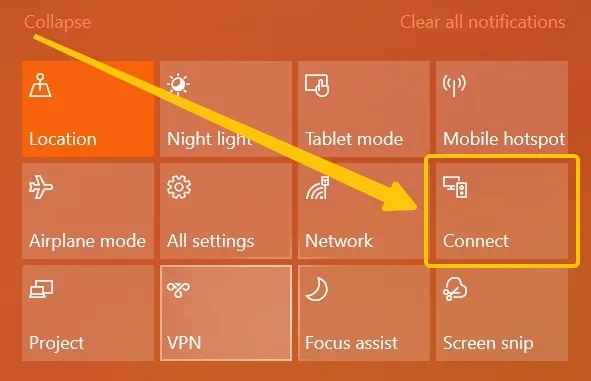
Step 2. On Windows, open the Start Menu and search for Connect choice. (If you don't see the app, your Windows does not support Miracast, and you will need third-party apps like PigeonCast apps to cast.
Step 3. On your Android phone, swipe down on your Android phone to open the Quick Settings menu.
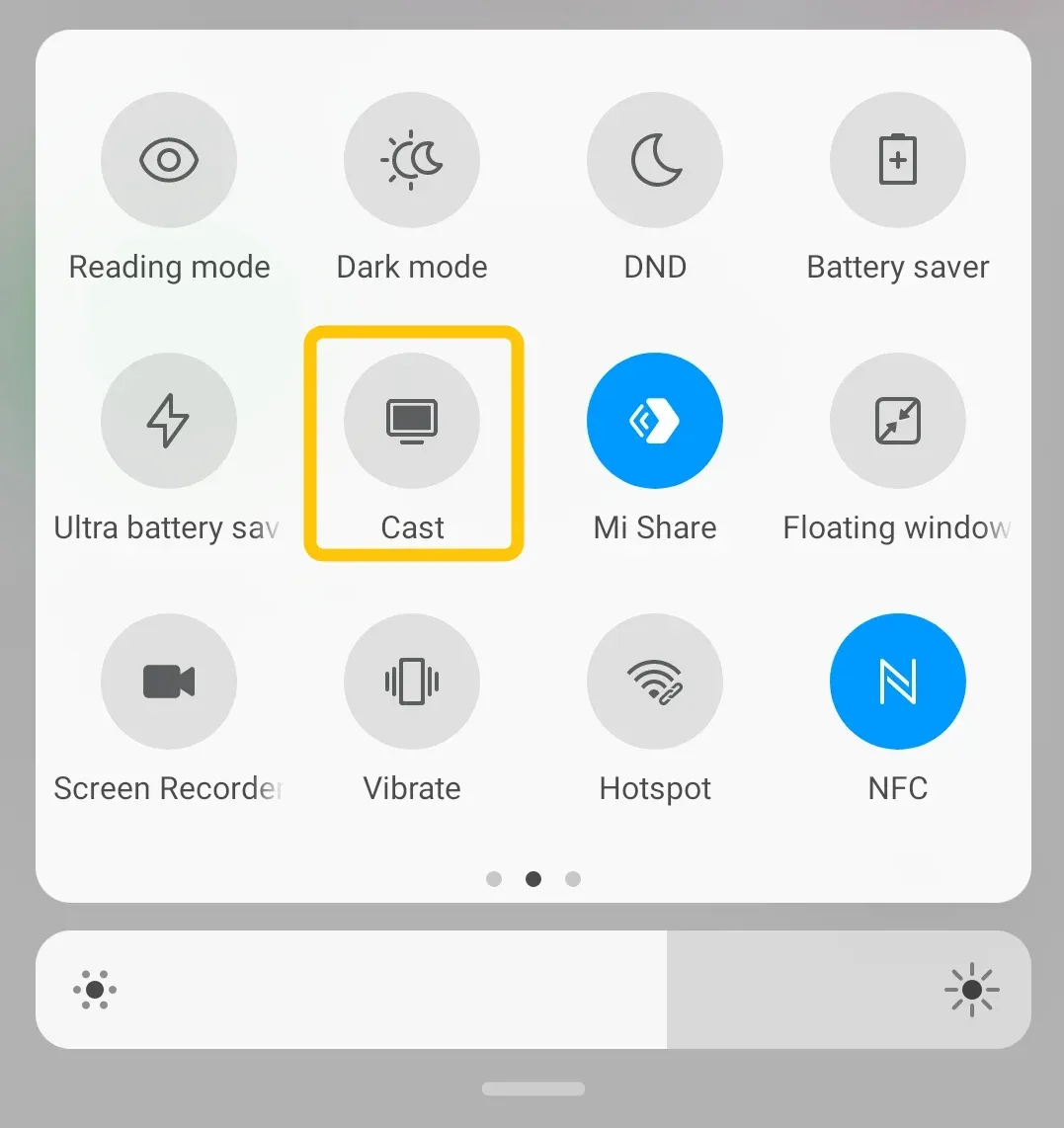
Step 4. Tap Cast, Screen Mirroring, or Smart View, depending on your phone's brand.
Step 5. Your phone will start searching for devices to connect to. Select your Windows laptop from the list of available devices.
Step 6. Your phone screen should now display on your Windows laptop. You can now use apps, view media, or even control your phone from the larger screen.
- Option 2. How to Cast iPhone to Laptop (Windows)
How to cast from my phone to my laptop? If you're an iPhone user looking to cast your screen to a Windows laptop, the process is a bit different compared to Android. Since Windows doesn't natively support AirPlay, you'll need to use a third-party app to bridge the gap.
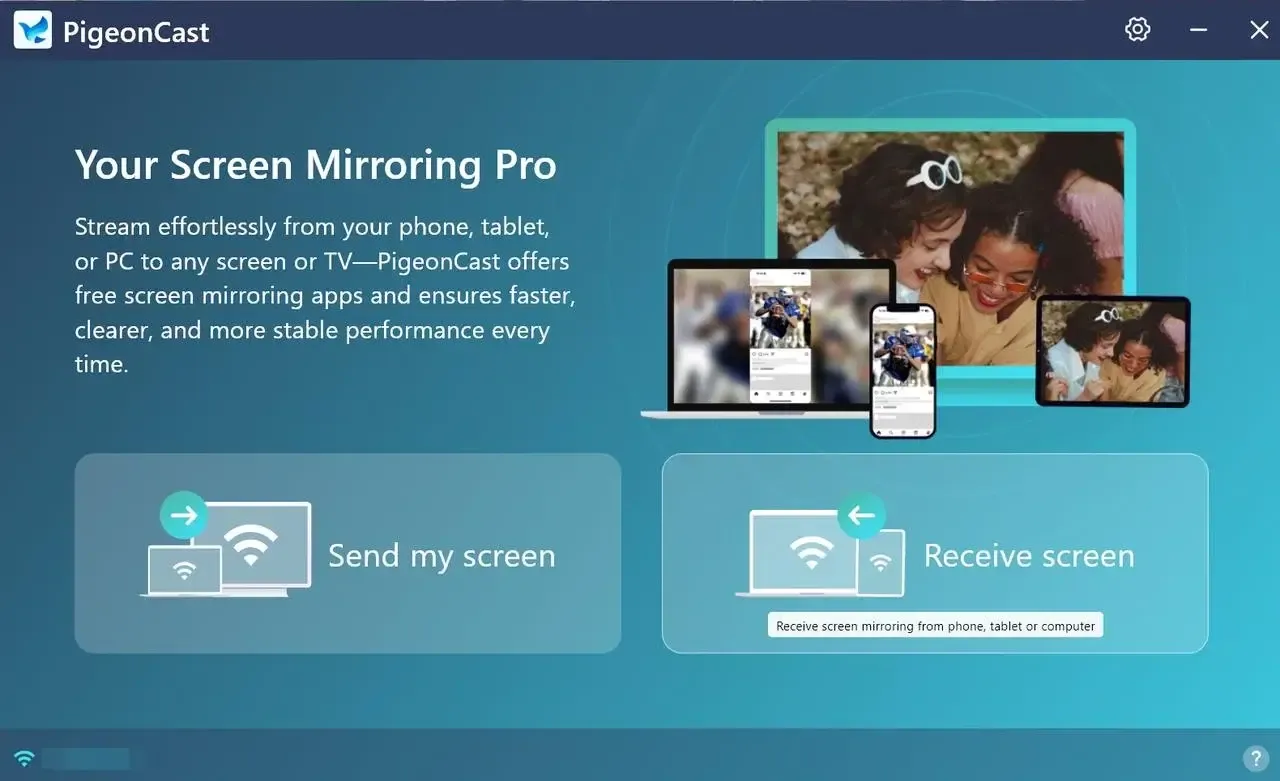
The software also supports multiple streaming protocols, making it also easy to connect with Android phones for screen mirroring or media casting. Whether you're sharing videos, games, or presentations, the setup is quick and works smoothly as long as both devices are on the same Wi-Fi network.
Step 1. Install PigeonCast's Windows screen mirroring app on your Windows.

PigeonCast Screen Mirroring

Official Download


Step 2. Ensure your iPhone and Windows are connected to the same wireless network.
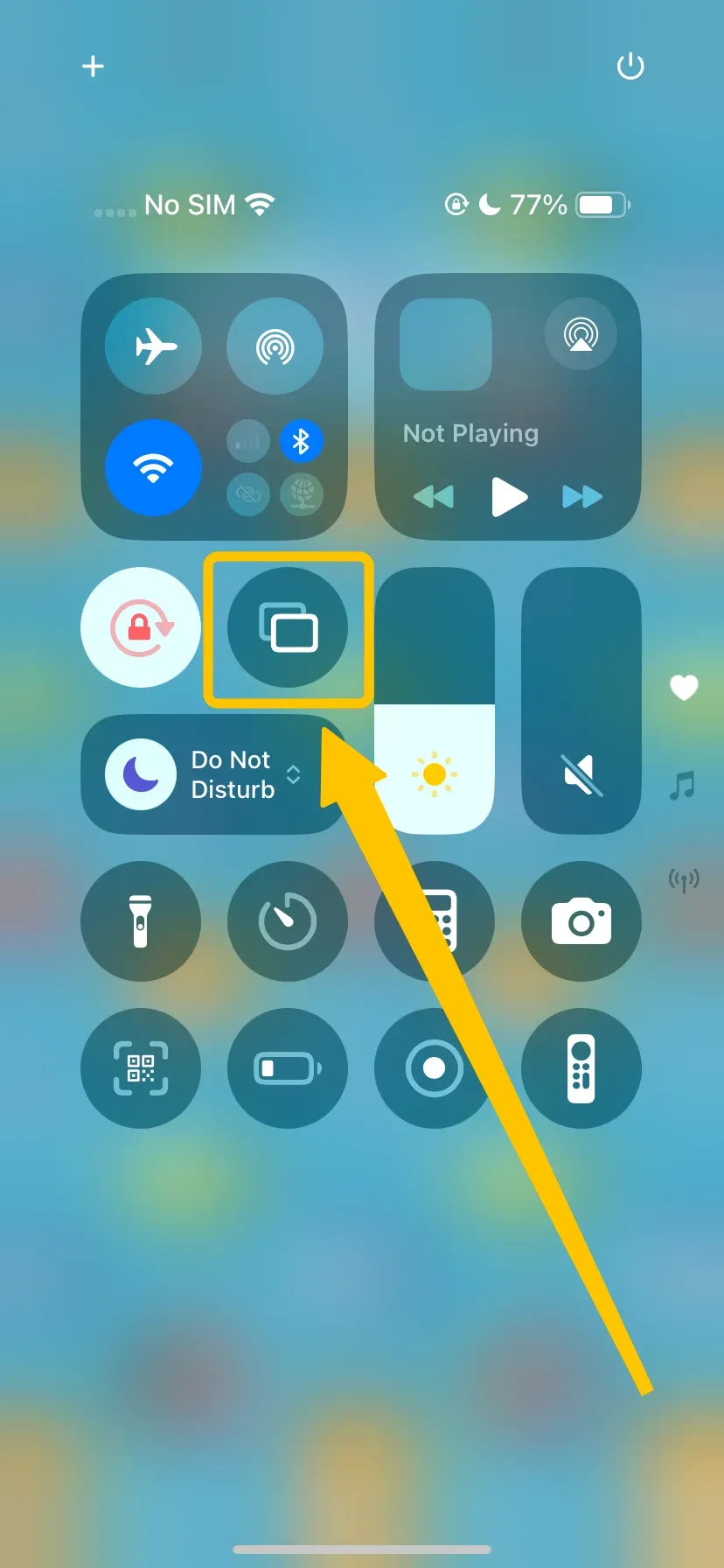
Step 3. Launch the casting app on your Windows, then tap Screen Mirroring from the Control Center on your iPhone to open the device list.
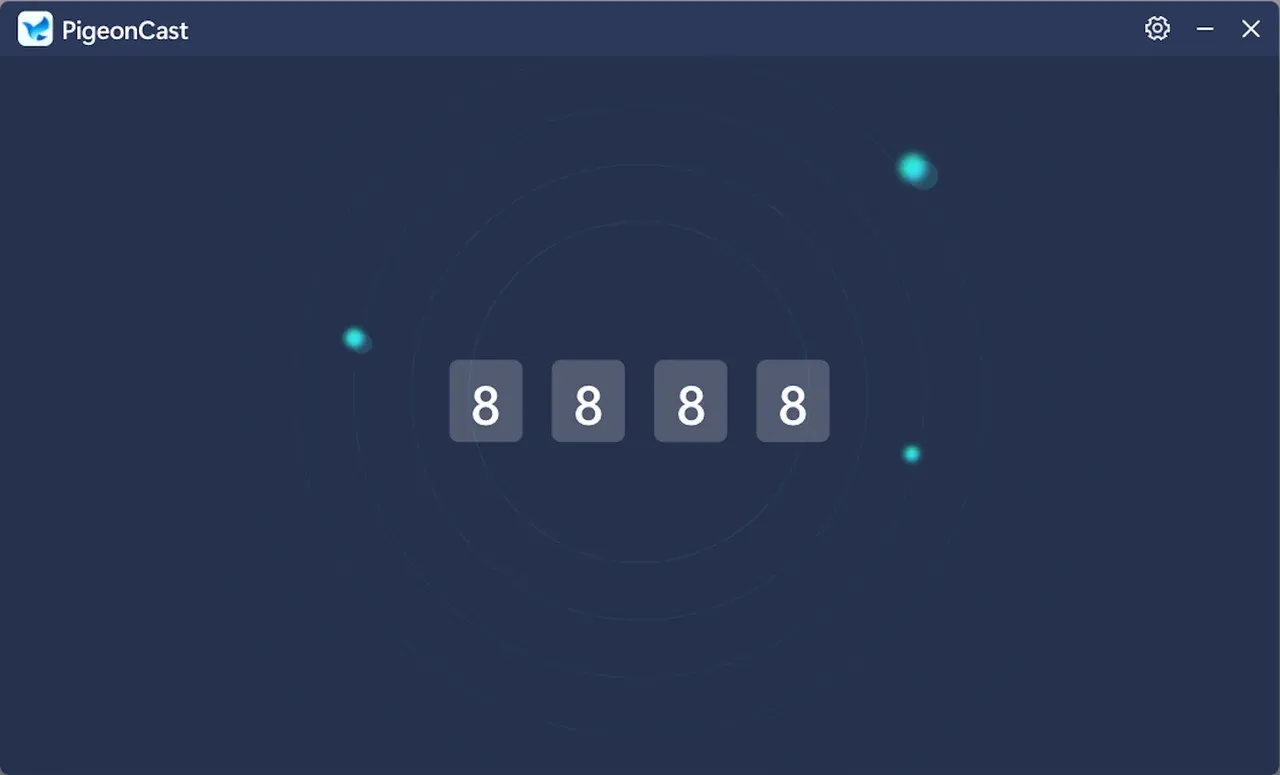
Step 4. Choose your Windows from the device list to connect to. If prompted, enter the onscreen code to finish the pairing process.
Step 5. Once you succeed, you can start casting or mirroring your iPhone to the Windows laptop.
Cast Phone to Laptop on Mac
A Mac is a personal computer designed by Apple, running on macOS. Macs support AirPlay for screen mirroring, allowing you to wirelessly stream content to other Apple devices like an Apple TV. For casting to non-Apple devices, third-party apps can be used.
- Option 1. How to Cast iPhone to Mac
How to screen cast phone to laptop? If you're an iPhone user and want to mirror your screen to a Mac, the process is simple thanks to AirPlay. Whether you're sharing content, displaying photos, or giving a presentation, AirPlay makes it easy to stream your iPhone's screen to your Mac.
Step 1. Make sure both your iPhone and Mac are connected to the same Wi-Fi network.
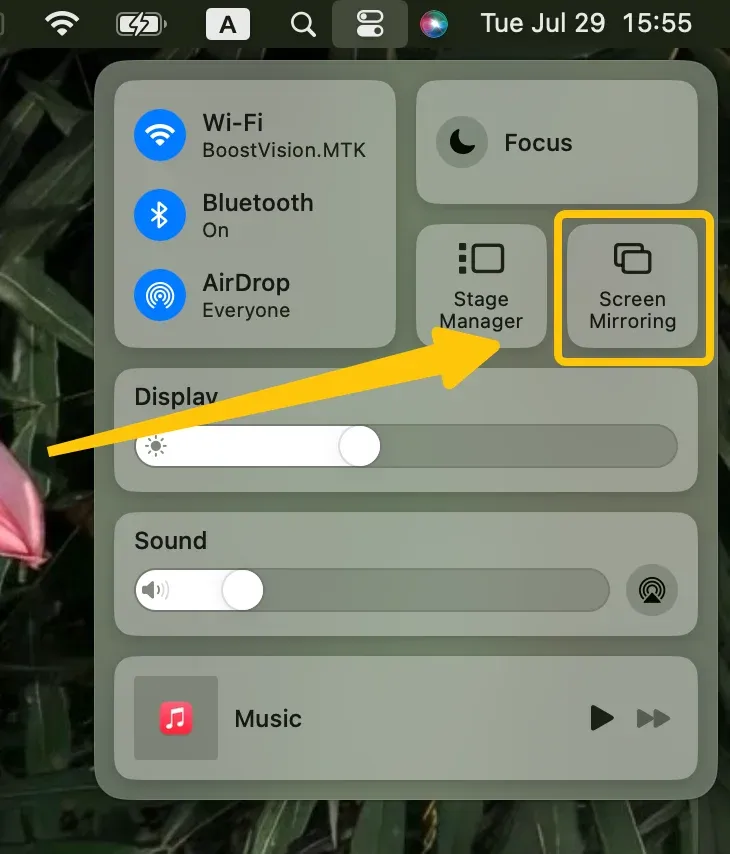
Step 2. On your Mac, click the Screen Mirroring from Control Center icon in the menu bar at the top-right of the screen.
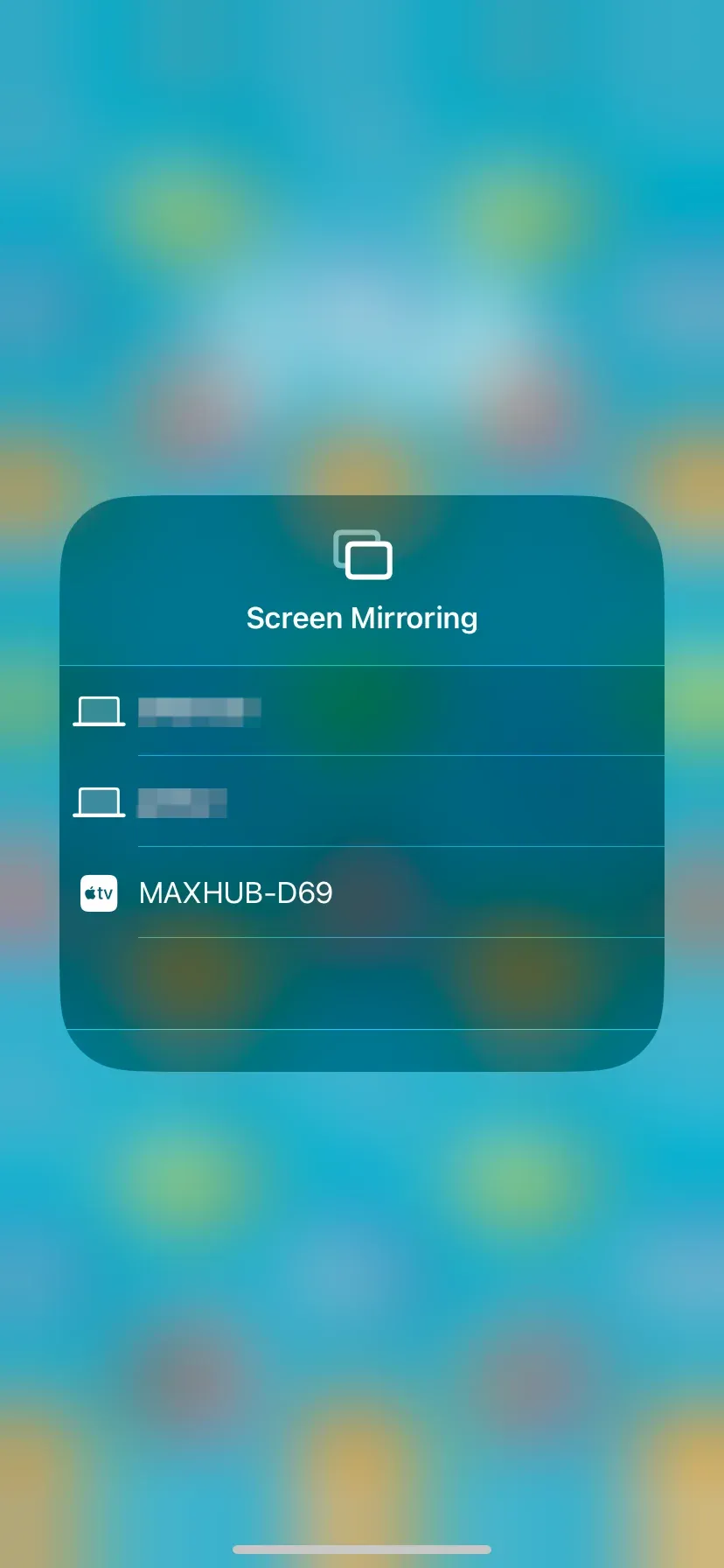
Step 3. On your iPhone, tap Screen Mirroring from Control Center and select your Mac from the list of available devices.
Step 4. Once paired successfully, your iPhone's screen will now appear on your Mac. You can now view apps, photos, or videos on the larger Mac screen.
- Option 2. How to Cast Android Phone to Mac
How do I cast my phone to my laptop? Unlike iPhones, Android devices do not have native support for AirPlay on a Mac, so you will need to use a third-party app to enable screen mirroring. Here's how you can do it:
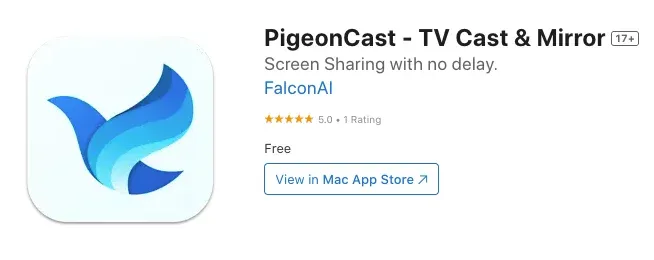
Step 1. Install a third-party app on your Mac: PigeonCast for Mac Screen Mirroring and launch it.
PigeonCast Screen Mirroring
Official Download

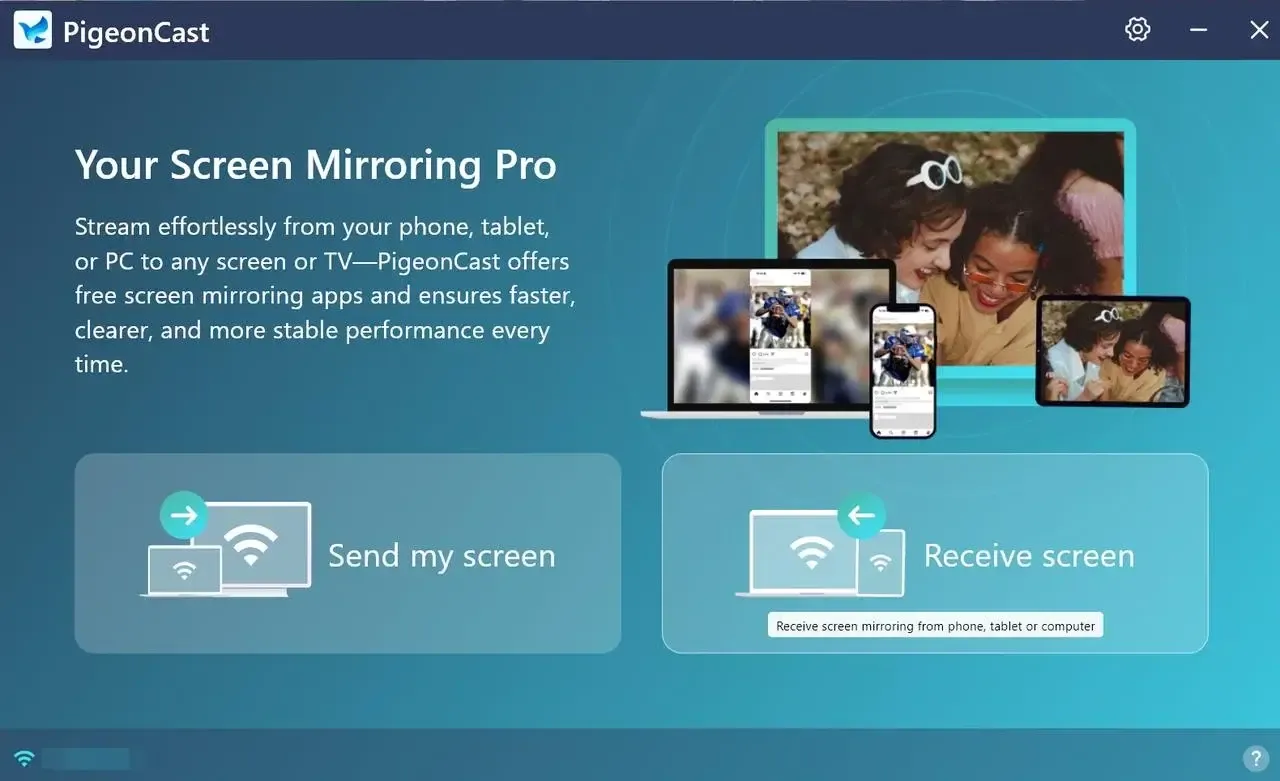
Step 2. Connect Your Android Phone and Mac to the Same Wi-Fi Network.
Step 3. Look for the Cast or Screen Mirroring option on your Android phone to connect your Mac from the device list.
Step 4. Once connected, your Android phone's screen will appear on your Mac. You can now interact with your phone's apps, display media, or use it for presentations.
Why Use the PigeonCast App for Casting
PigeonCast is a versatile, free app that turns your Windows PC, Mac, Android, or iOS device into a powerful screen mirroring hub. Whether you're sharing entertainment, presentations, or gaming, PigeonCast delivers smooth, high-quality streaming across platforms.
- Dual Mode (Send and Receive) On Windows and macOS, PigeonCast lets you both send and receive screen casts. You can stream from your device to a TV or mirror content from another device to your laptop.
- Supports Multiple Protocols It works with AirPlay, Google Cast (Chromecast), DLNA, and the proprietary PigeonCast protocol, ensuring wide compatibility.
- Cross-Device and Cross-Platform Support Compatible with Android, iOS, Windows, macOS, Apple TV, and Android TV. No extra hardware is required.
- High-Quality, Low-Latency Streaming Enjoy streaming in HD or 2K resolution with minimal lag. Ideal for watching videos, playing games, or giving presentations.
- Simple Setup and Usage Installation and setup are quick and user-friendly. Just connect your devices to the same Wi-Fi network and start casting.
- Secure and Private Features encryption, connection verification, and optional PIN protection to keep your casting sessions safe and private.
Final Verdict
How to cast my phone screen to my laptop? Casting your phone to your laptop is an incredibly useful feature for both work and leisure. Whether you're using Windows or Mac, there are several methods available, ranging from built-in solutions to third-party apps. The key to smooth casting is ensuring that both your devices are on the same network and using compatible software for your device.
How to Cast Phone to Laptop FAQ
Q: How do I cast my phone screen to my laptop?
To cast your phone screen to your laptop, you can use a few methods depending on your phone and laptop. You can choose the PigeonCast screen mirroring app for Mac or Windows.
- For Android devices, you can use USB or wireless methods like Google Cast or Miracast. On a Windows laptop, simply use the Connect app or third-party apps.
- For iPhones, you'll need AirPlay or third-party apps to cast to your laptop. Make sure both devices are connected to the same network or connected via USB, and follow the necessary steps for your device type.
Q: How do I cast my iPhone to my laptop?
- To cast your iPhone to your laptop, you can use AirPlay if you're casting to a Mac, or third-party apps like PigeonCast for Windows laptops.
- For AirPlay, just enable screen mirroring from the Control Center on your iPhone and select your Mac.
- For third-party apps, install the app on both your iPhone and laptop, then follow the on-screen instructions to connect and start mirroring your screen. Make sure both devices are on the same Wi-Fi network.
Q: How can I connect my Android phone to my laptop?
To connect your Android phone to your laptop, you can use a USB cable or wireless methods.
- For a wired connection, simply plug your phone into the laptop using a USB cable and enable file transfer or USB debugging if necessary.
- For wireless options, you can use Google Cast (via Chrome) or third-party apps like PigeonCast, Vysor, LetsView, or AirDroid to mirror your phone's screen or transfer files. Just make sure both devices are on the same Wi-Fi network for wireless methods.
Q: Can I cast my phone to a laptop without Wi-Fi?
Yes! You can cast your phone to a laptop without Wi-Fi using methods such as USB cable connections, USB tethering, or even HDMI cables. For Android, you can use Scrcpy over USB, and for iPhones, LetsView via USB works well for casting without Wi-Fi.
Q: Do I need a third-party app to cast my phone to my laptop?
It depends on the operating system. Windows and Mac don't have built-in mirroring for Android (except Windows 10 and 11 with the Connect app). Therefore, you'll need third-party apps like PigeonCast, Scrcpy, ApowerMirror, or AirDroid for screen mirroring. iPhones can use AirPlay natively on Mac, but third-party apps are needed for Windows.
Q: Why is my phone not connecting to my laptop while casting?
If your phone is not connecting to your laptop, consider the following:
- USB cable issue: Try using a different cable or port.
- App permissions: Make sure both devices have the necessary permissions enabled.
- Network issues: Ensure both devices are on the same network for Wi-Fi-based casting.
- App compatibility: Check that the casting app is installed correctly and updated on both devices.
Clara Rossi is an experienced technology editor and a seasoned expert in screen mirroring and casting technologies. With a keen eye for detail and a deep understanding of how to seamlessly connect devices, Clara excels at optimizing user experiences for effortless sharing and streaming. Whether you're seeking quick fixes or advanced tips, her expertise and responsiveness ensure that every query is met with a well-informed and efficient solution.