
Ever found yourself watching a great YouTube video on your phone and thought, 'This would be so much better on a bigger screen'? We've all been there. Whether you're diving into a DIY tutorial, catching the latest show, or simply craving a larger display, to cast YouTube from phone to PC is the perfect way to enhance your viewing experience. Lucky for you, it's easier than you might think. Let's explore the best ways to bring your YouTube videos to life on your PC.
Way 1: Use Free PigeonCast
One of the easiest and most reliable ways to cast YouTube from phone to PC is using PigeonCast. This free tool is perfect for users who want a cross-platform solution: whether you're streaming from an Android phone to a MacBook or an iPhone to a Windows PC, PigeonCast makes the process seamless.
How to cast YouTube with PigeonCast:
Step 1. Install PigeonCast on both devices, such as Android phone and MacBook or iPhone and Windows 10/11 laptop.


Overall Rating:



Step 2. Connect both devices to the same Wi-Fi network.
Step 3. Open the PigeonCast app on your PC and click the Receive screen option.
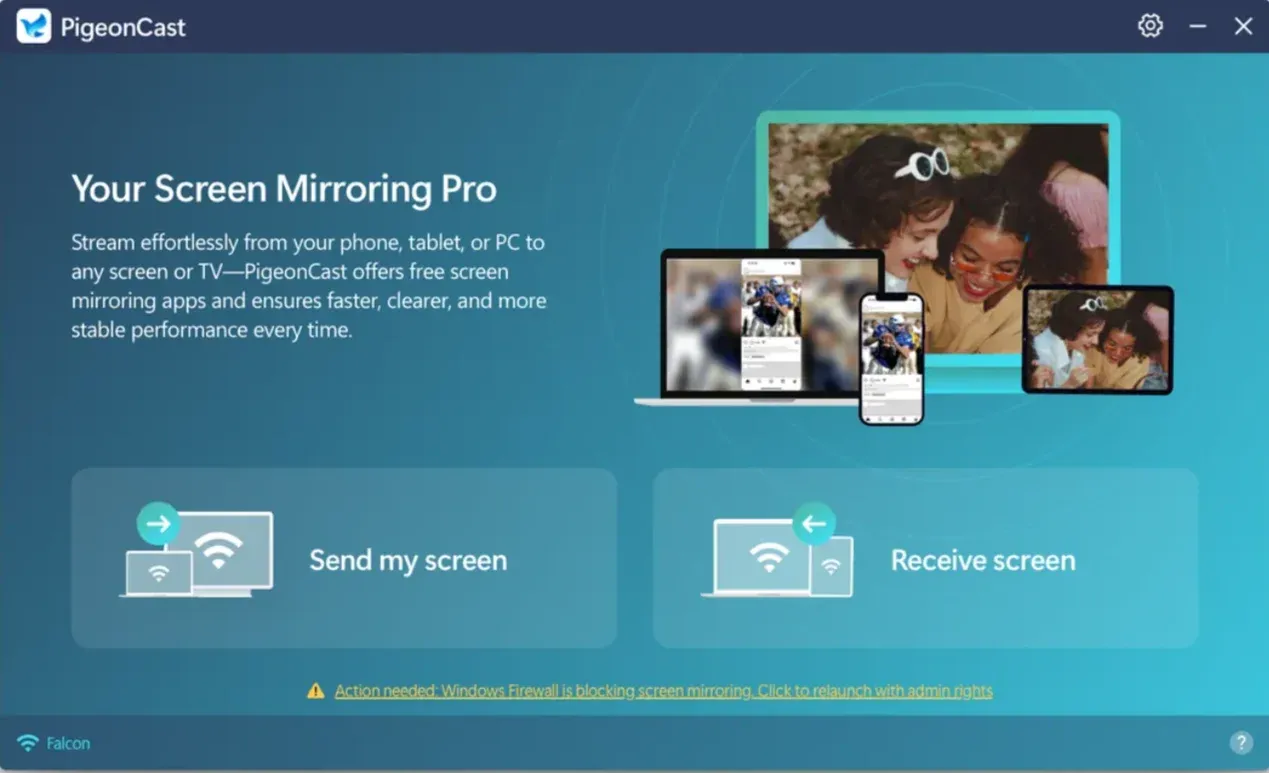
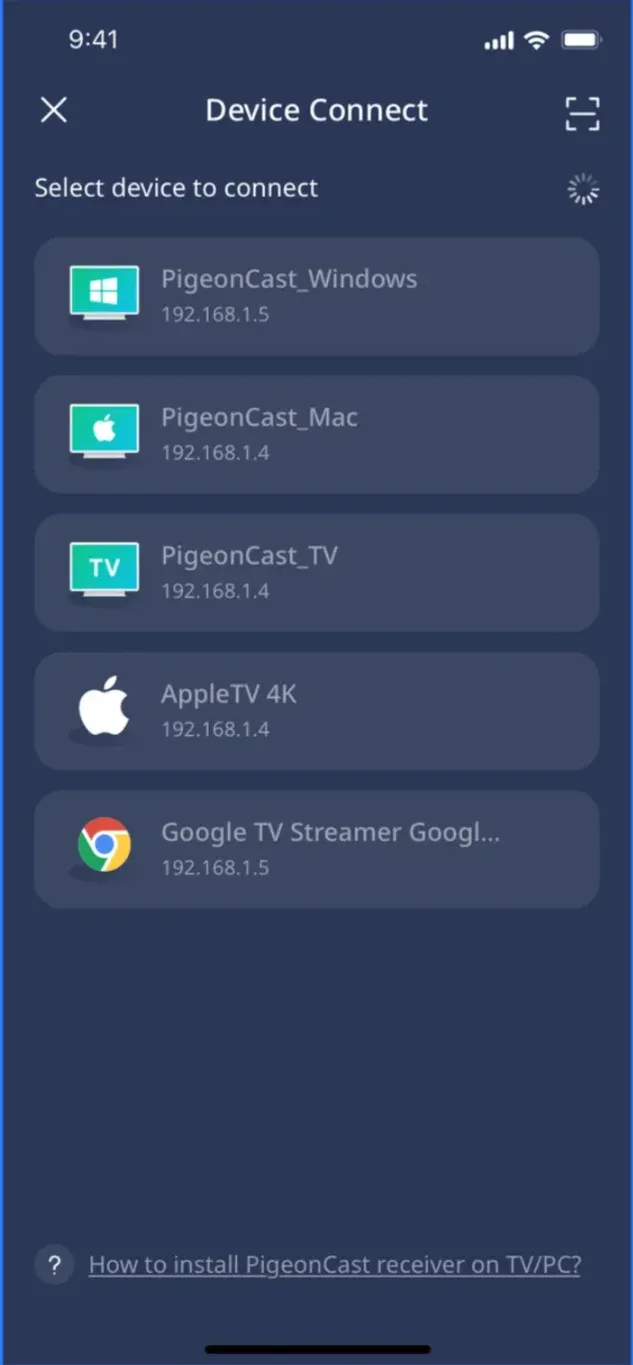
Step 4. Open the PigeonCast on your phone, choose your PC from the device list or tap the Scan icon to scan the displayed QR code on your PC.
Step 5. Once connected, you can choose to mirror your phone screen, then open the YouTube app. Alternatively, tap the Browser option and cast the YouTube website from your phone.
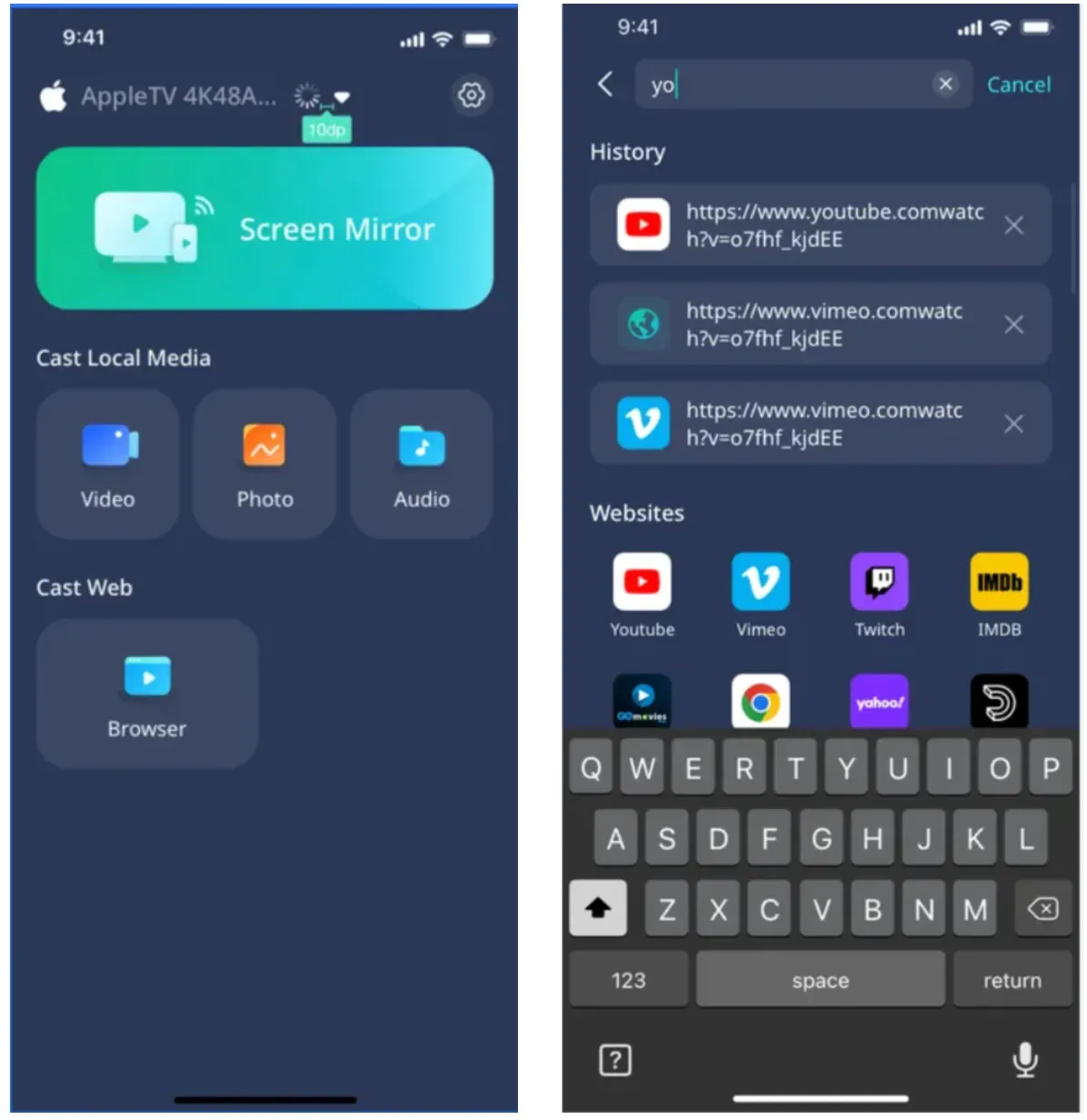
With PigeonCast, you can cast YouTube seamlessly, even across different operating systems, making it a top choice for cross-platform mirroring.
Way 2: Use AirPlay
If you're using an iPhone and want to cast YouTube to a Mac, AirPlay offers a simple solution.
How to cast YouTube with AirPlay:
Step 1. Both your iPhone and Mac should be connected to the same Wi-Fi network for AirPlay to work.
Step 2. Launch the YouTube app and tap the Cast icon.
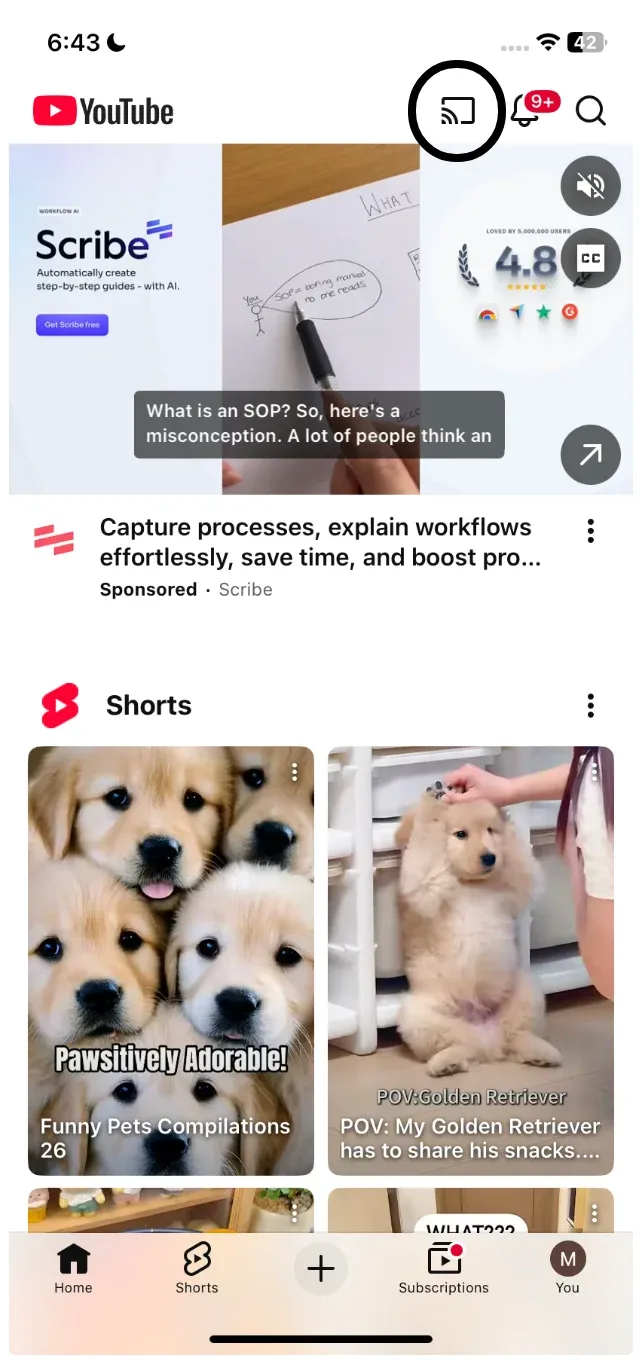
Step 3. Choose AirPlay & Bluetooth devices from the pop-up menu.
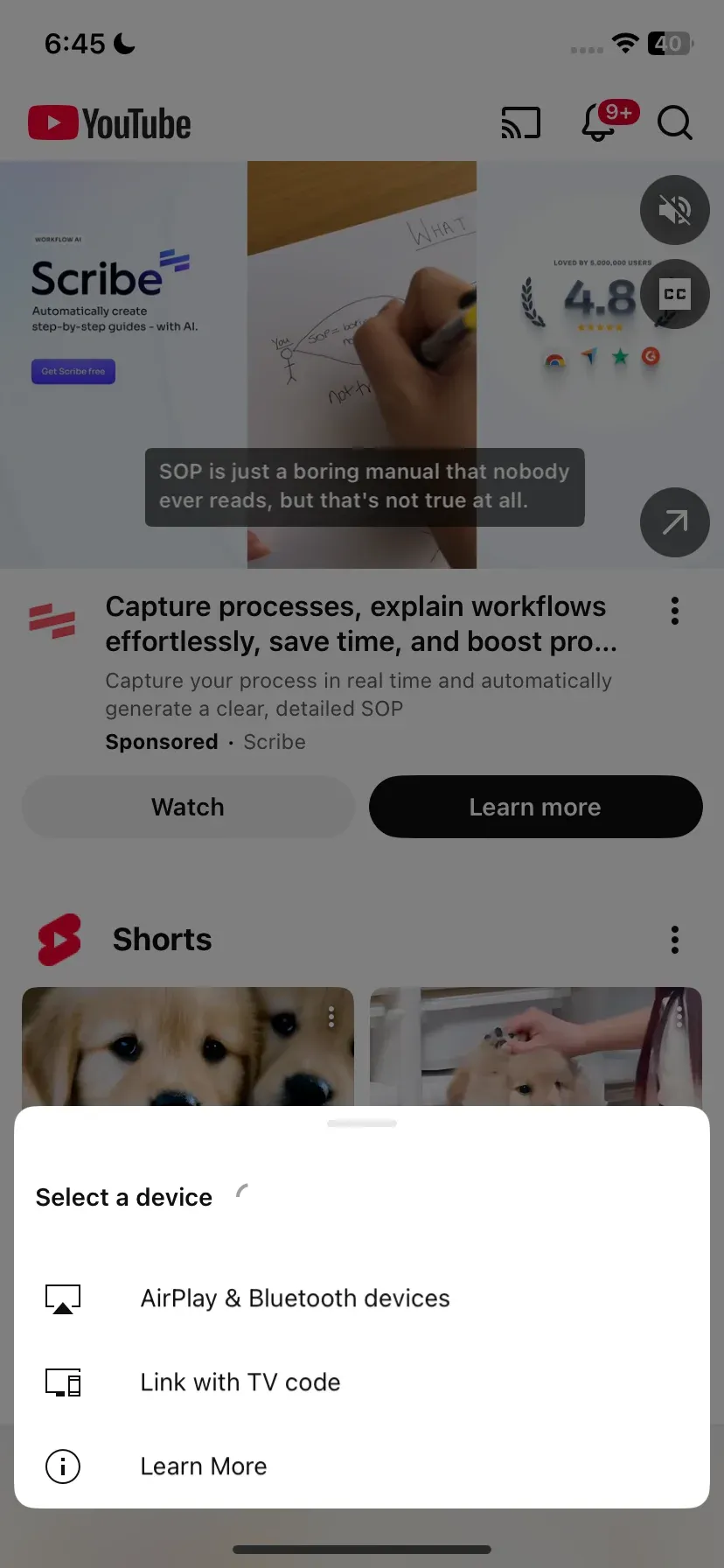
Step 4. Choose your Mac from the AirPlay menu and click Accept on your Mac.
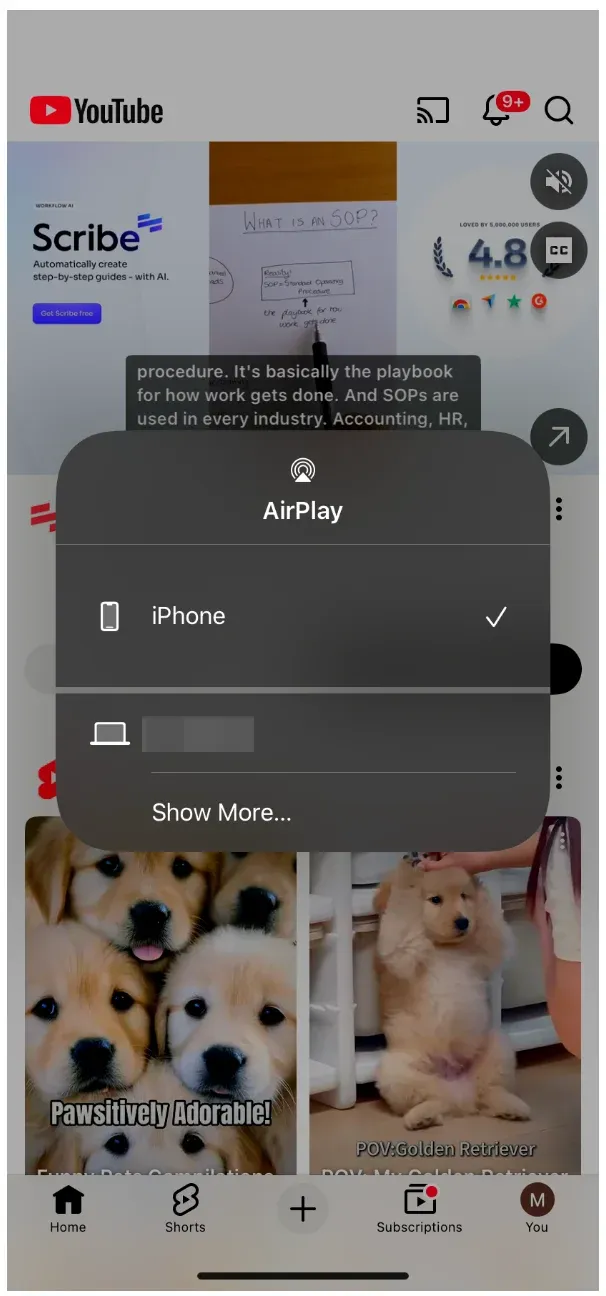
The YouTube video will start playing on your Mac. AirPlay provides a smooth, wireless way to cast YouTube from iPhone to Mac, offering high-quality streaming with minimal lag.
Way 3: Use Miracast
For those with an Android phone looking to cast YouTube to PC, Miracast is an excellent option. While Windows PCs can't act as a native YouTube/Chromecast target, you can still mirror your phone's screen or use a special receiver app to stream the video directly.
Option 1: Mirror Your Phone's Screen Using Miracast
Step 1. On your PC, go to Settings > Optional Features and select View Features.
Step 2. Scroll down to the Wireless Display option or search for it directly, click the checkbox, and choose Next.
Step 3. Choose the Add button, and Windows downloads and installs the feature.
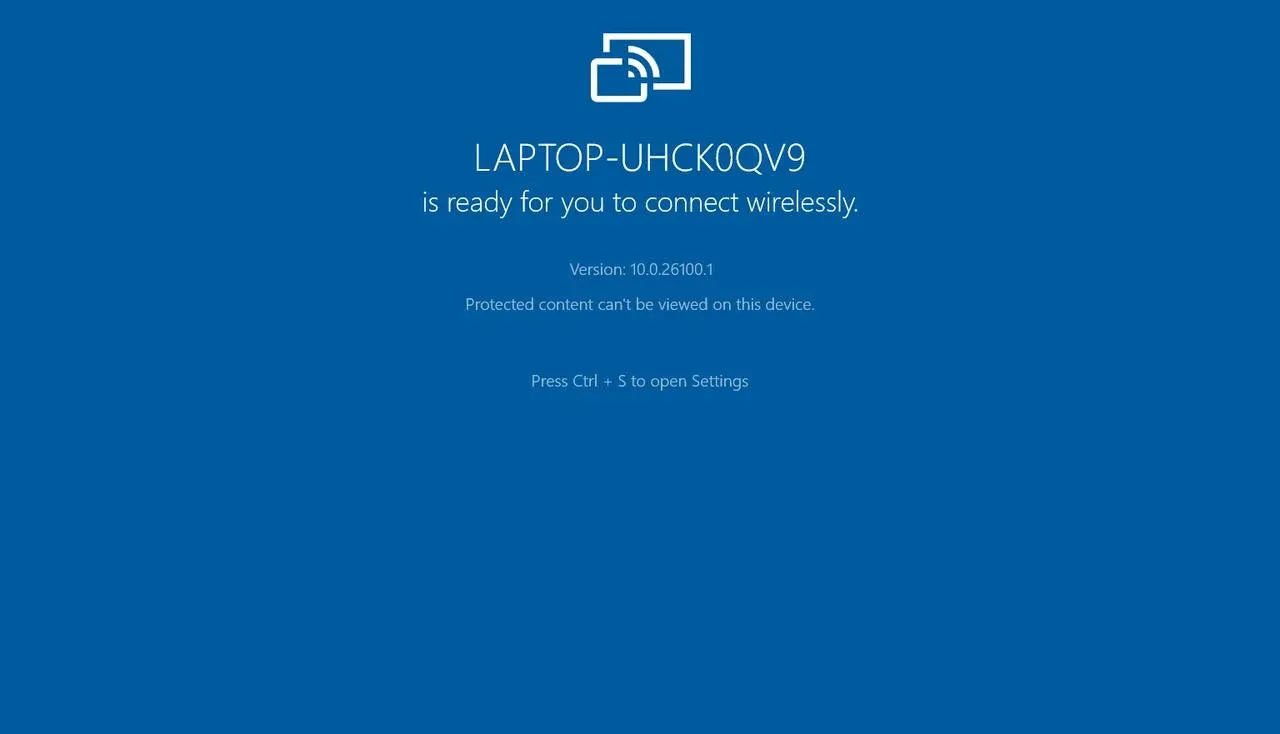
Step 4. Find the Wireless Display app on your PC and run it.
Step 5. On your Android phone, go to Settings > Connected devices > Cast (or Smart View).
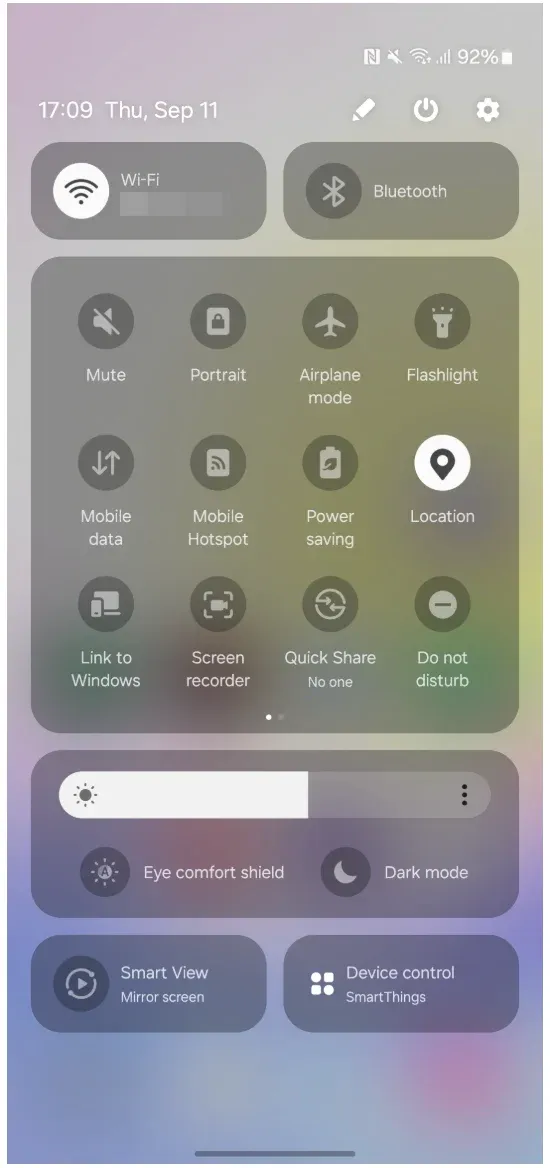
Step 6. Select your PC from the available devica es.
Step 7. Open YouTube on your phone and play a video; it will appear on your PC screen via Miracast.
Option 2: Use a Cast-Receiver App on Windows
Without Miracast support on your Windows PC, you can install a receiver app, like PigeonCast for Windows, to bypass protocol limits.
Here's how to cast YouTube from phone to PC:
Step 1. Download a Miracast or Google Cast receiver app like PigeonCast from the Microsoft Store and launch it.
Overall Rating:

Step 2. Ensure both your Android phone and PC are on the same Wi-Fi network.
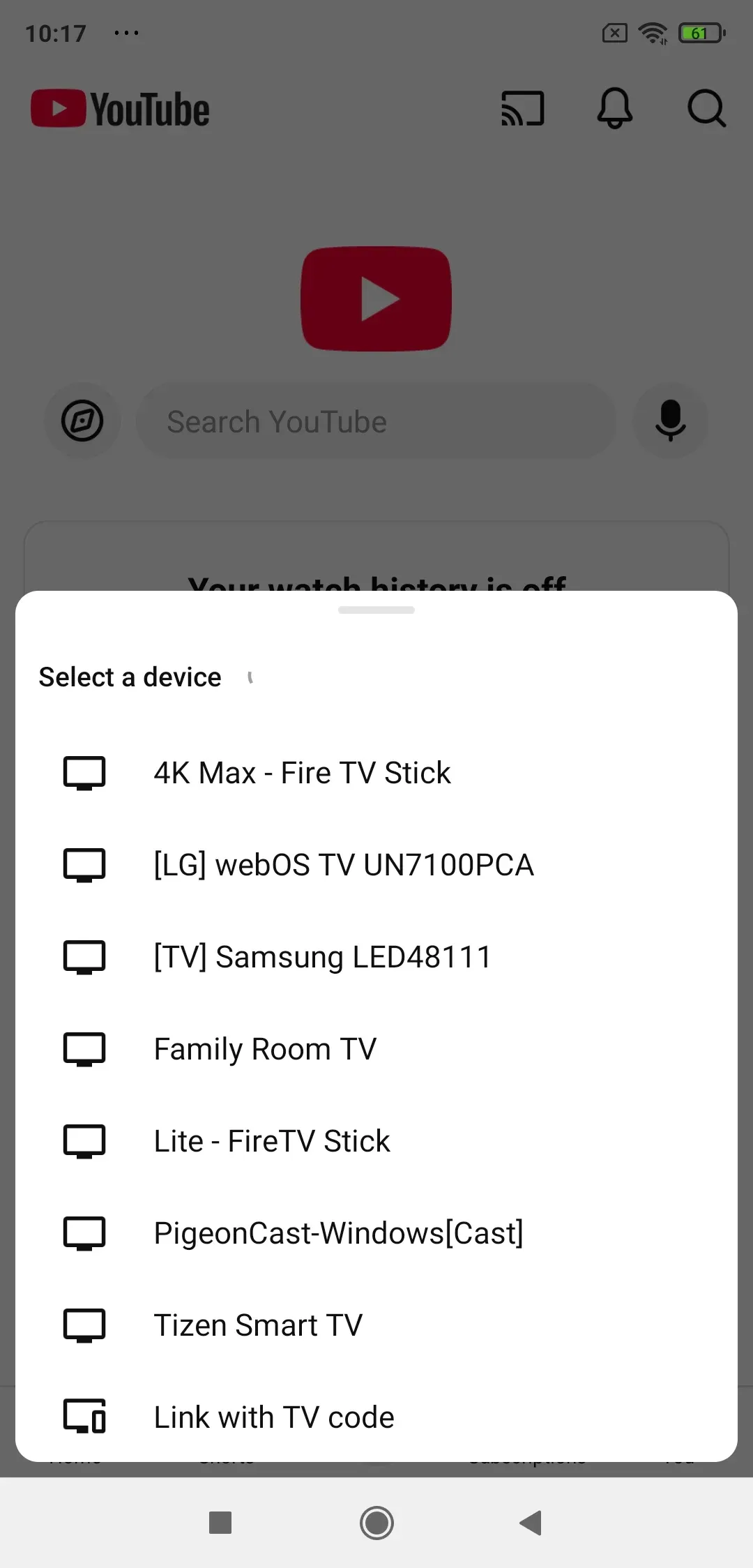
Step 3. Open the YouTube app on your Android device, tap the Cast icon.
Step 4. Select your PC from the list. The video will stream directly to your PC.
Way 4: Use Phone Link
Windows 10 and later versions have a Phone Link app that allows you to control YouTube on PC from phone and manage notifications, messages, and apps between your devices. While this method doesn't directly cast YouTube, it allows for more integrated control, including casting.
How to use Phone Link for YouTube casting:
Step 1. Set up the Phone Link app on your Windows PC from the Microsoft Store and set it up.
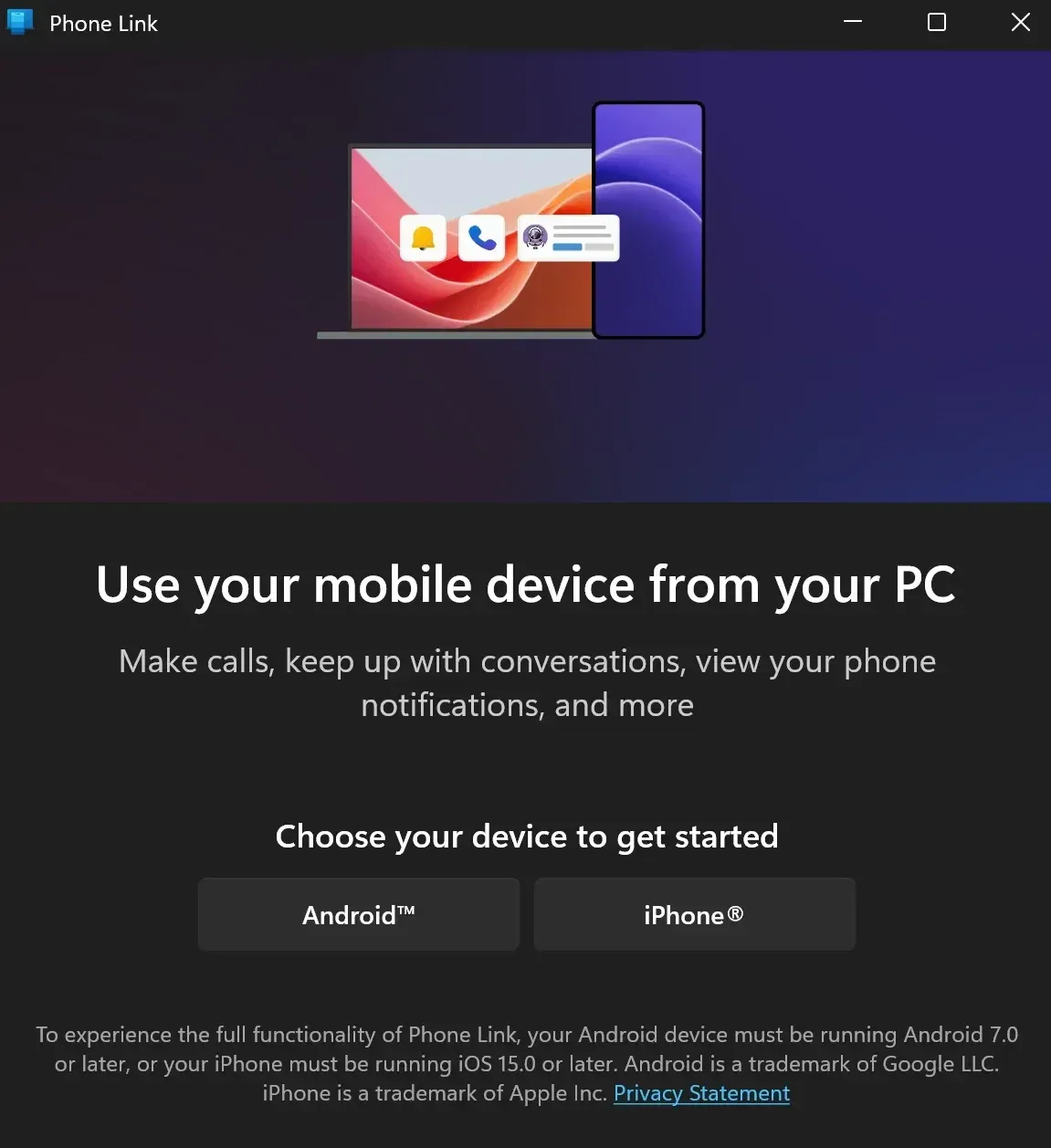
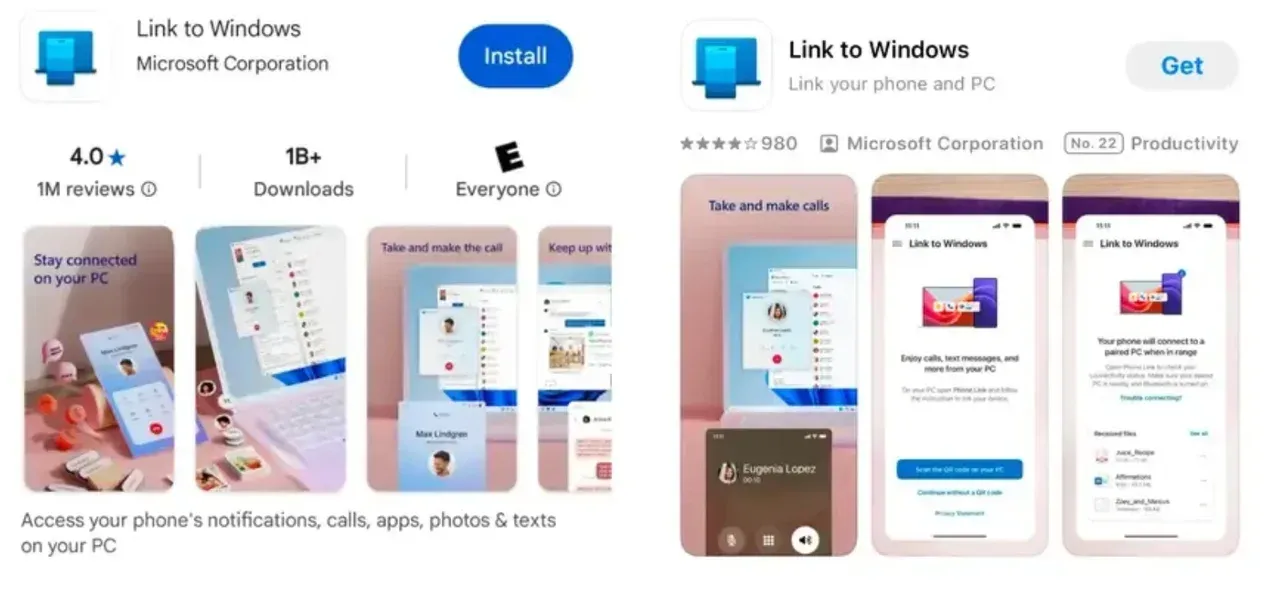
Step 2. Pair your Android phone or iPhone with the Phone Link app on your PC by following the instructions on-screen (You'd better set up Link to Windows app on your phone for smooth pairing process).
Step 3. Once paired, you can use your PC's interface to interact with apps on your phone, including YouTube, making it easy to play videos on your PC from your phone.
Final Thoughts
While casting YouTube from phone to PC might seem like a complicated task, it's actually quite straightforward with the right tools. Whether you choose PigeonCast, AirPlay, Miracast, or Phone Link, each method provides a simple way to enjoy YouTube on your PC. And if you ever want a direct solution, you can always access YouTube's website directly on your PC browser to watch content without any casting.
Cast YouTube from Phone to PC FAQs
Does YouTube allow casting?
Yes, YouTube supports casting to compatible devices like smart TVs, streaming sticks, and even PCs using apps like PigeonCast.
Where is the cast icon on the YouTube website?
On the YouTube website, the cast icon appears in the top-right corner of the video player when casting is available.
How to connect mobile YouTube with laptop?
You can either use a cast button within the YouTube app or mirror your phone screen using options like Miracast or PigeonCast.
How can I cast my phone screen on my PC?
You can use apps like PigeonCast, Miracast, AirPlay, or the Phone Link app to cast or mirror your phone's screen to your PC, including YouTube videos.
Mia Clarke is a technology editor specializing in screen mirroring and casting solutions across multiple platforms. Mia provides clear, practical guides and in-depth insights to help users seamlessly connect their devices. Passionate about enhancing digital experiences, Mia is dedicated to keeping readers updated on the latest trends and tools in cross-platform screen sharing. Whether you’re looking to mirror your smartphone, laptop, or smart TV, Mia’s content delivers reliable, user-friendly advice to simplify your tech setup.