
In today's digital age, our smartphones and PCs are more interconnected than ever. Microsoft's Phone Link app (formerly known as Your Phone) bridges the gap between mobile devices and Windows PCs, enabling you to manage messages, calls, notifications, and even mobile apps directly from your computer. This guide will dig into the question, "What is Phone Link?" and share better ways to view your phone on your Windows PC.
What Is Microsoft Phone Link
Phone Link is a Microsoft-developed app built into Windows 11. It allows you to connect your Android or iPhone to a Windows computer and perform many phone functions without reaching for your mobile device when you set up its companion app, called Link to Windows, on your phone.
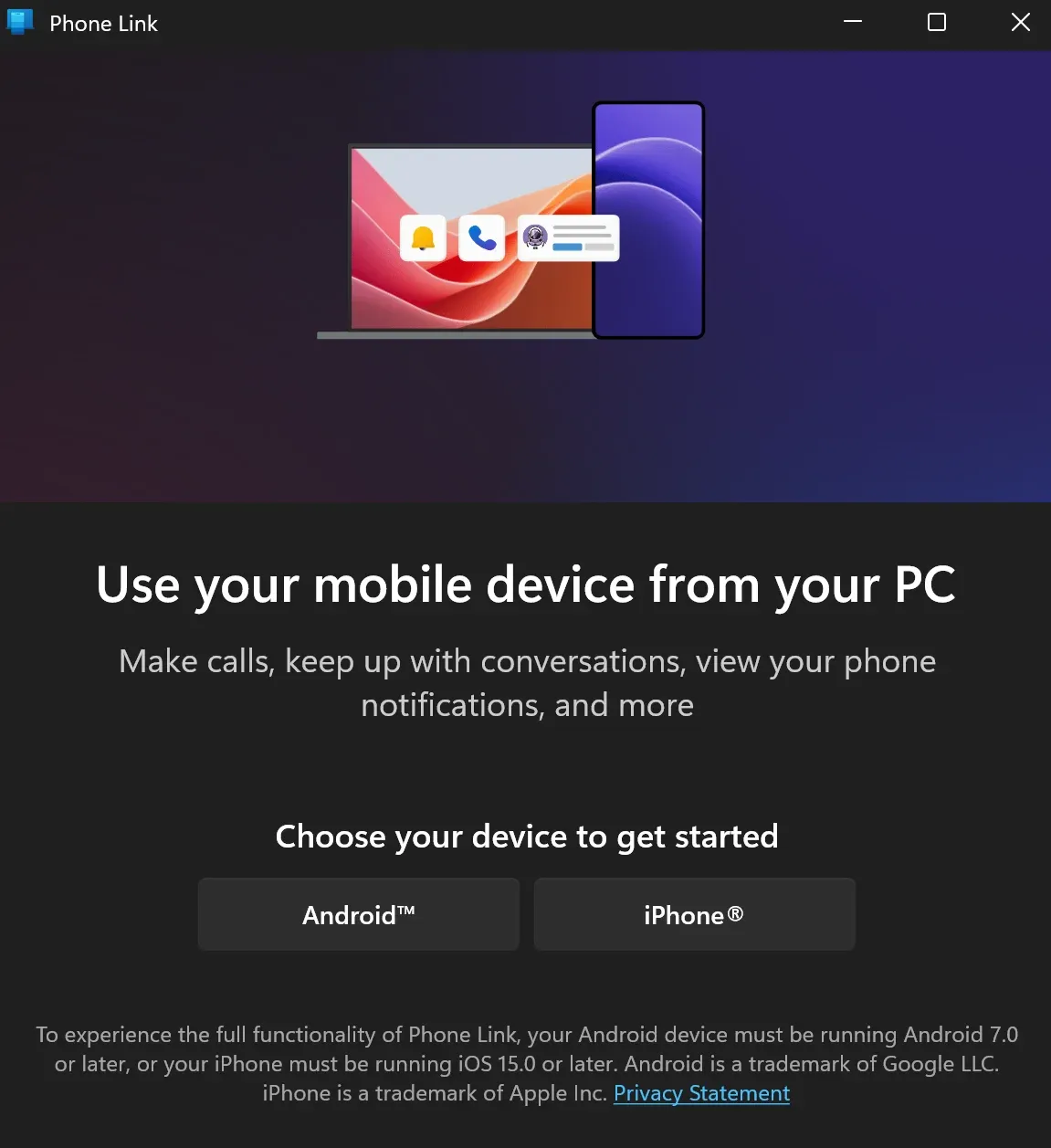
When Microsoft introduced the app in 2018, it was known as Your Phone. Back then, the features were basic (users could view text messages and recent photos on their PCs). On Android devices, the companion app was called Your Phone Companion. The branding, according to Microsoft, is to better reflect the app's purpose.
What does this evolution bring? At its core, Phone Link aims to improve productivity by unifying mobile and desktop experiences. Once connected, you can read and send messages, check notifications, access photos, take calls, and even run Android apps on your PC.
Plus, Microsoft deepened integration with select Android manufacturers, like Samsung, Honor, Surface Duo, and OPPO, even preinstalling Link to Windows on their devices for out-of-box connectivity.
Why Use Microsoft Phone Link
Microsoft has packed Phone Link with features designed to reduce device switching and increase efficiency. Depending on your phone model and brand, you can experience different charms of the Microsoft app. For example:
- On Android 7.0+ phones, the core features are:
- Texting: send and receive SMS and MMS messages
- Calls: make and receive phone calls via your PC's microphone and speakers
- Notifications: view, manage, and dismiss real-time phone notifications
- Photos: instantly access your phone's most recent photos (without a USB cable)
- On Samsung/Honor/OEM phones, the advanced features include:
- Screen mirroring: mirror your phone's screen and interact with it on your PC
- Run Android apps: open and use mobile apps in resizable windows.
- Drag-and-Drop files: easily move files between your phone and Windows PC
- Copy and paste across devices: copy text or images from one device and paste them on the other
While its primary focus is Android integration, Microsoft has also introduced limited iPhone support, although core features like screen mirroring and app access remain Android-exclusive.
Is Phone Link Safe
Yes, Windows Phone Link is safe to use. You can link your phone to a Windows PC over the official app without worries.
First, it is developed by Microsoft, a trusted software provider with enterprise-level security standards. Secondly, the app uses secure, encrypted connections between your phone and PC over Wi-Fi or mobile data. Thirdly, it requires your permission to access your messages, calls, photos, and notifications. Last but not least, no data will be stored on Microsoft servers (everything is kept locally between your devices).
However, as with any app that accesses sensitive data, you should ensure involved devices are secure and avoid public Wi-Fi when using the Phone Link Windows 11 app for sensitive tasks.
How to Use Microsoft Phone Link
Setting up Phone Link is straightforward. The Phone Link app allows you to bridge the gap between your phone and PC, enabling you to access phone features directly from your PC. However, the premises are:
- Your computer must have Windows 10 (May 2019 Update or later) or Windows 11
- Your computer must have Bluetooth capability and Wi-Fi connectivity
- Your Android phone runs Android 7.0 or later
- Your iPhone runs iOS 14.0 or later
Ensure that your devices meet these system requirements, then follow the steps to connect phone to computer through the Microsoft Phone Link app.
Step 1. Ensure both your devices are on the same Wi-Fi network.
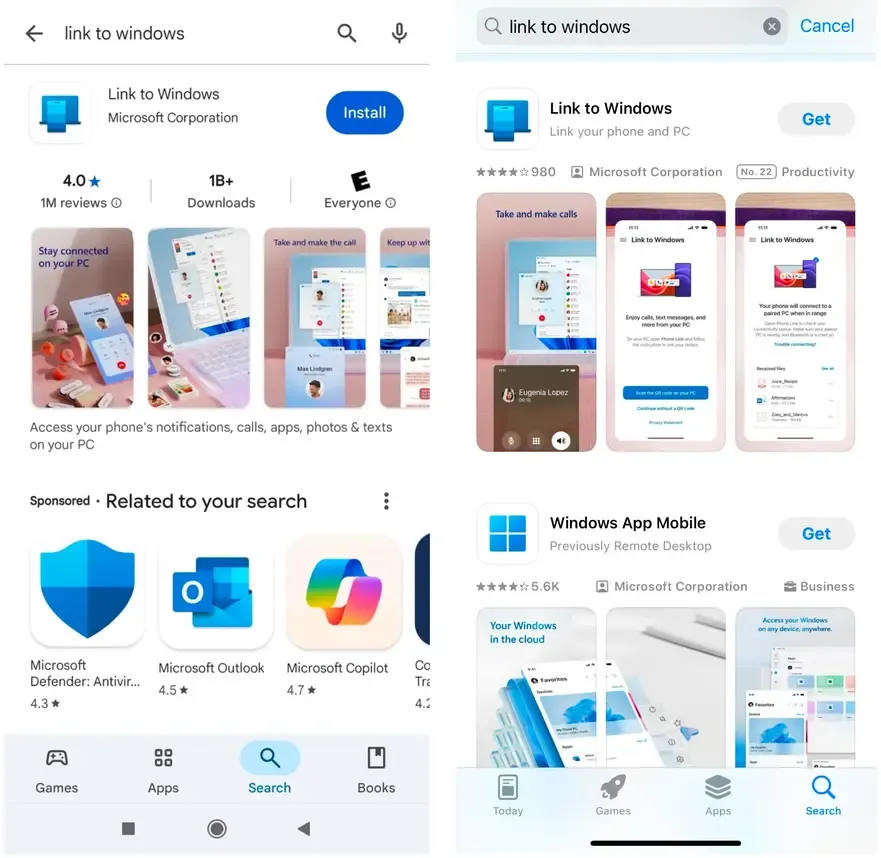
Step 2. Download and install the companion app Link to Windows from the Google Play Store or App Store.
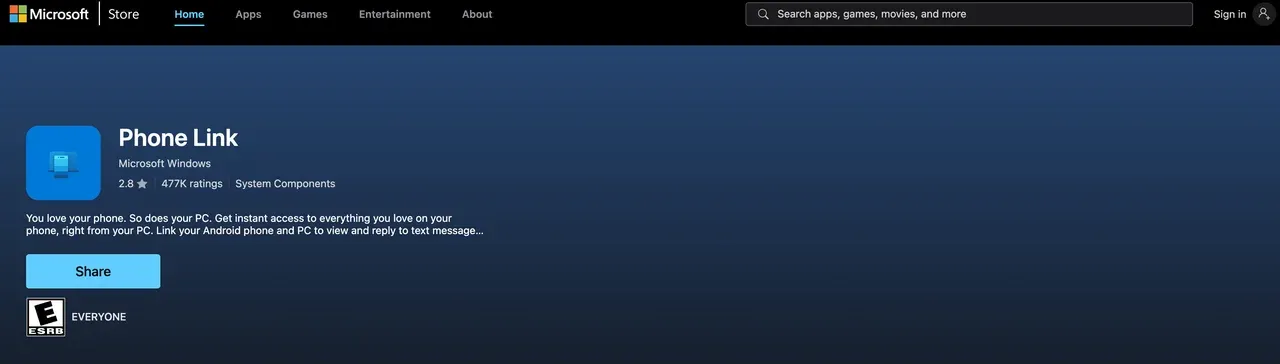
Step 3. On your Windows PC, search for the Phone Link app. The app is preinstalled on Windows 11; if you're using Windows 10, download the app from the Microsoft Store.
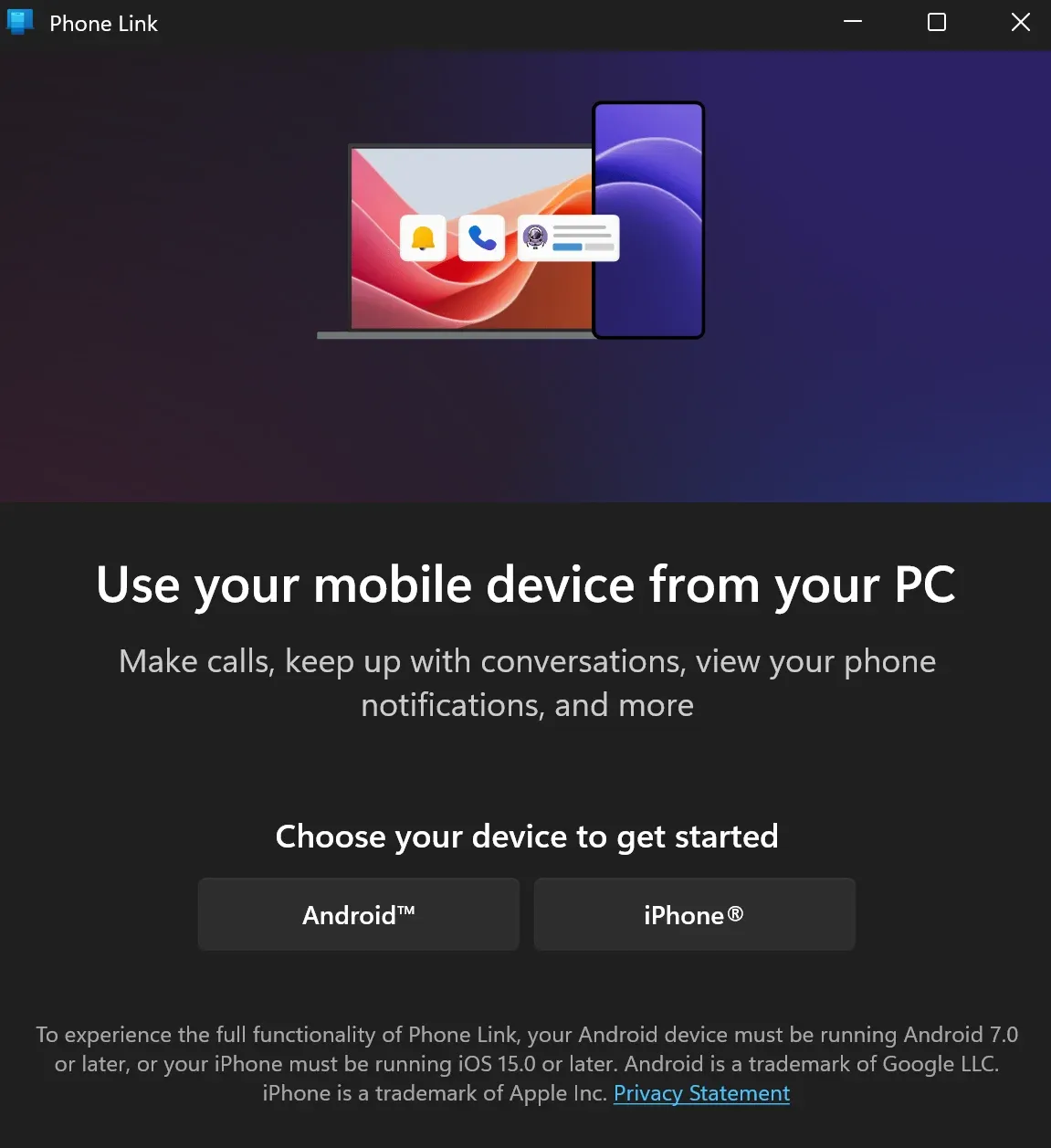
Step 4. Launch the Windows Phone Link app and click on Android or iPhone.
Step 5. Open the Link to Windows app on your phone and tap the Scan the QR code on your PC option.
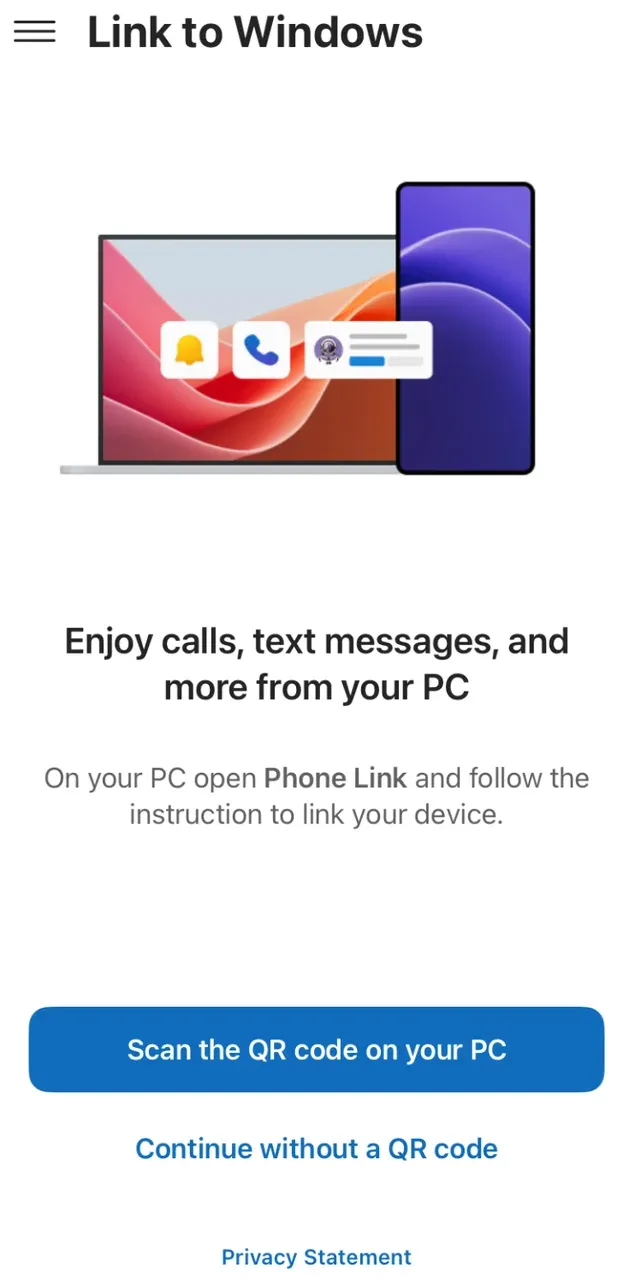
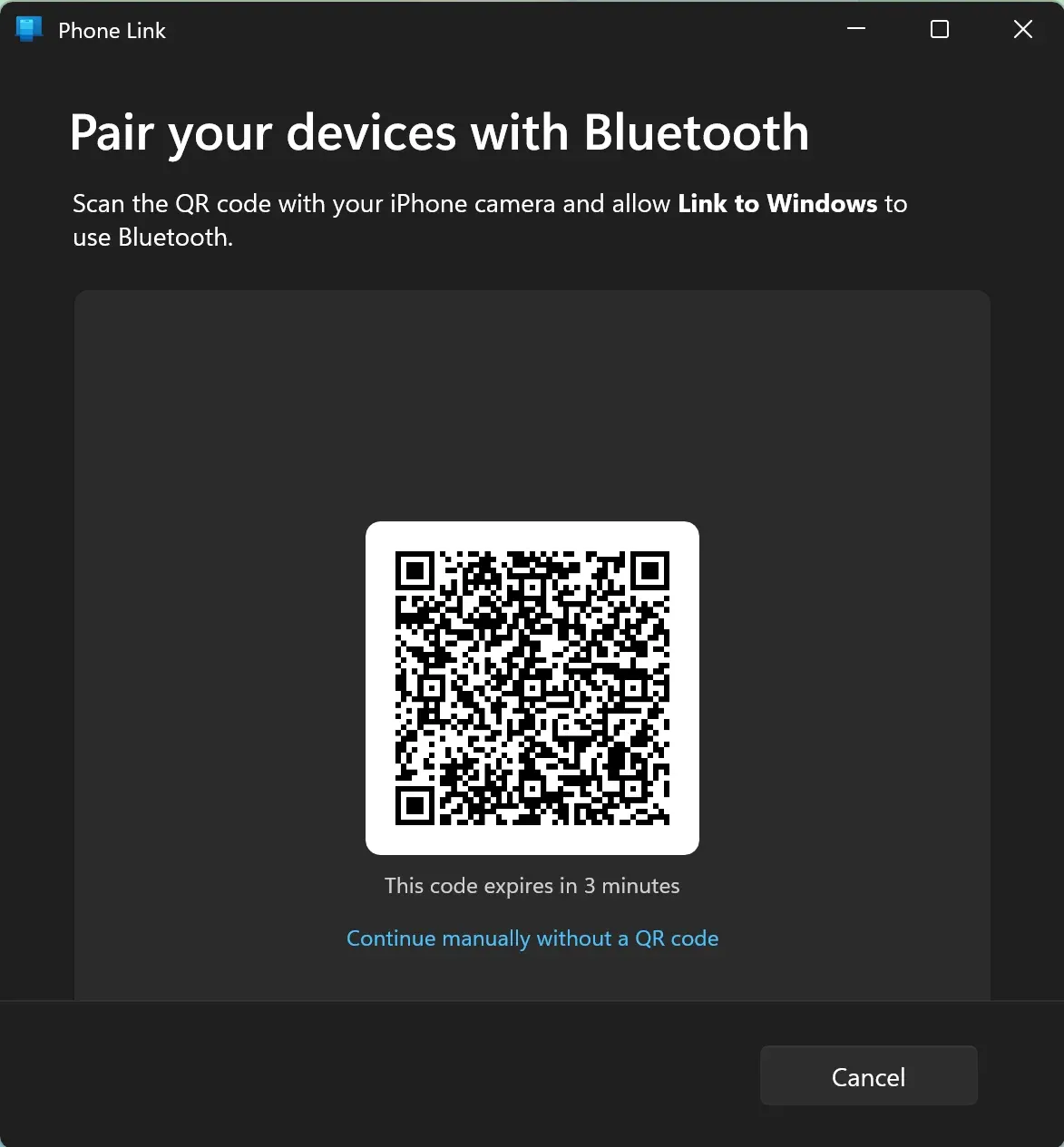
Step 6. Scan the QR code displayed on your computer using the app's built-in camera function to pair your devices.
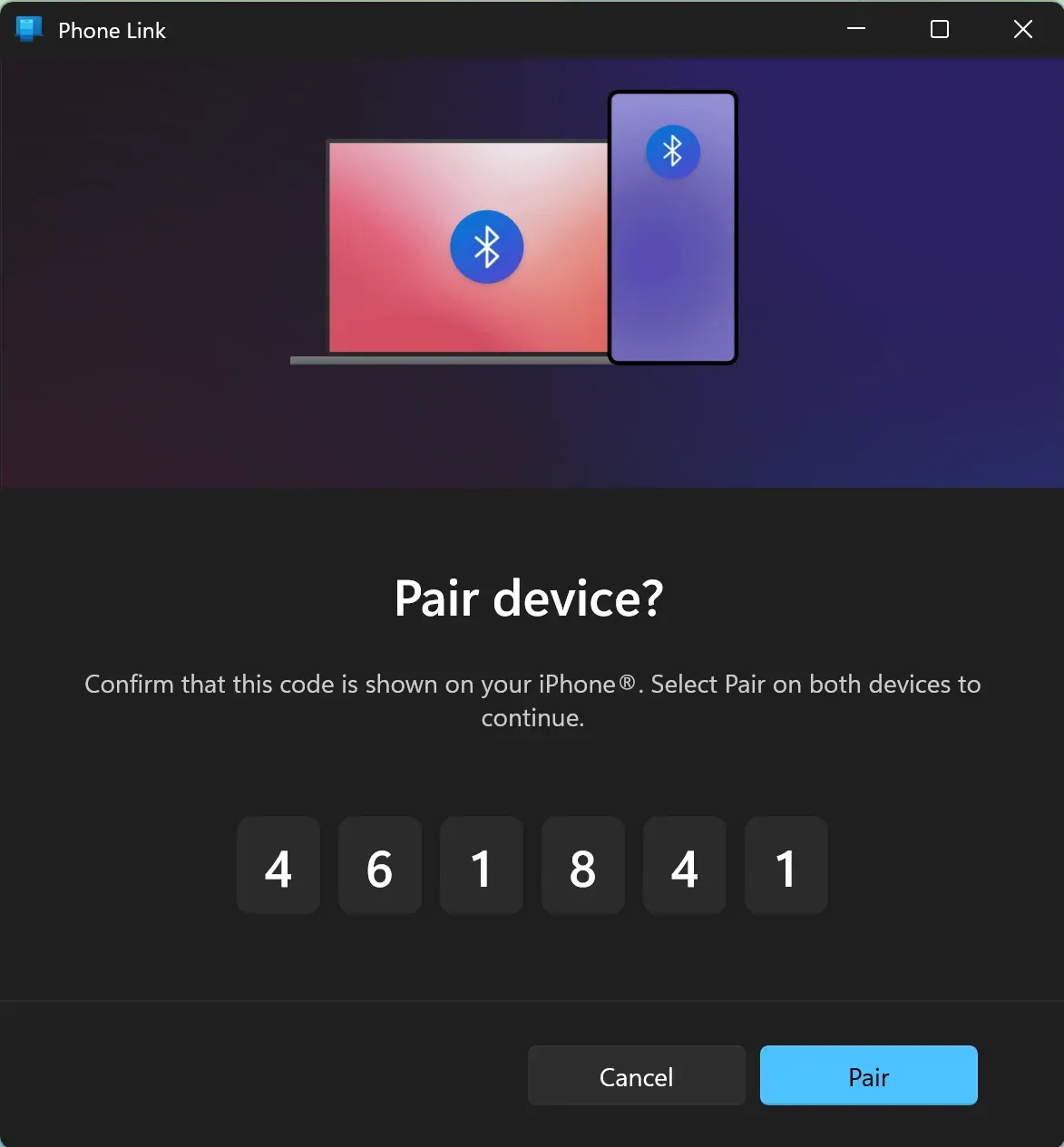
Step 7. Tap the Continue option on your phone, enter the 6-digit code displayed on your Windows PC, and click on the Pair button.
Step 8. Allow the app to access your messages, contacts, and so forth.
Step 9. Tap the Down button, click on the Continue button on your PC, and sign in to your Microsoft account.
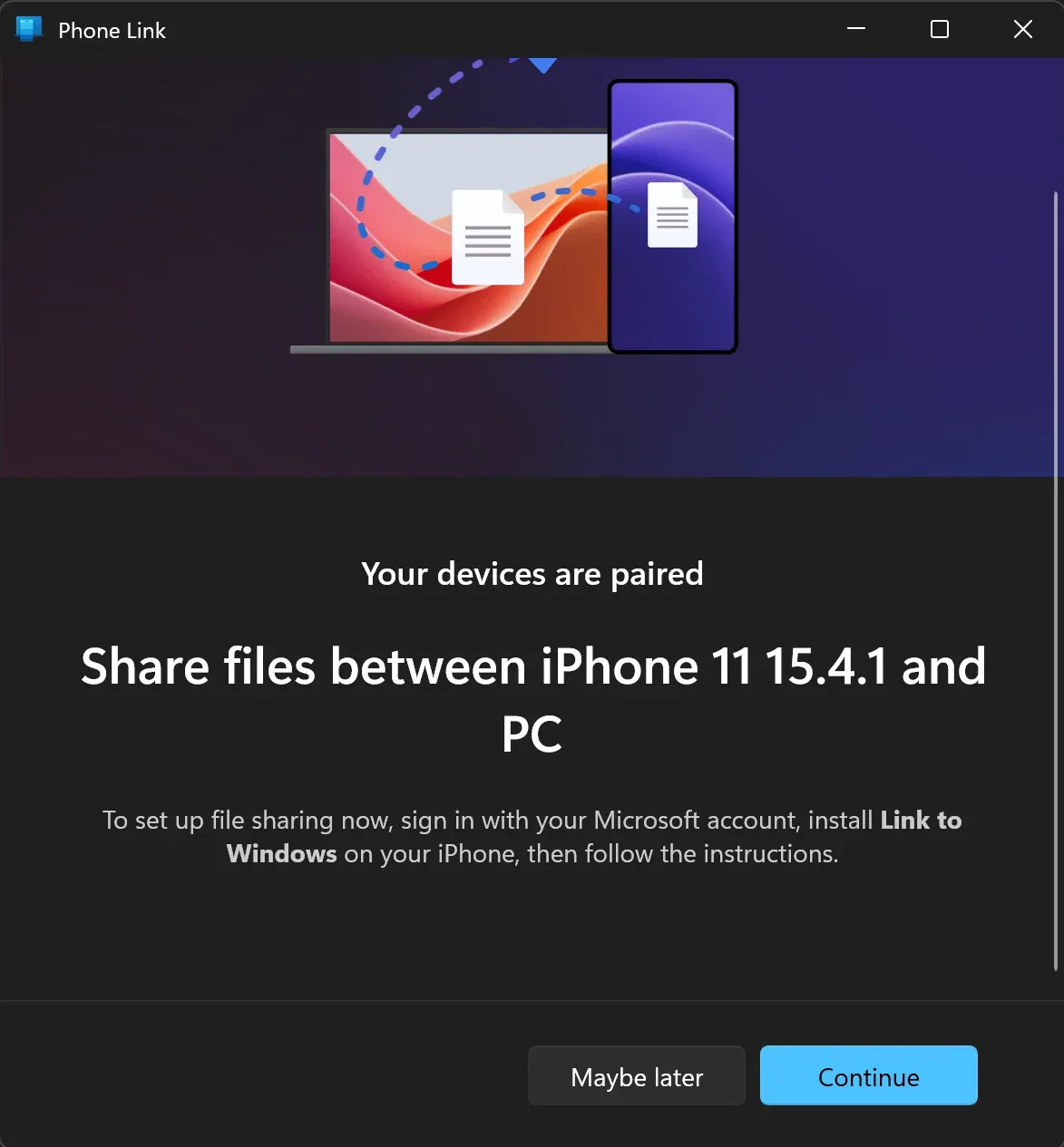
Step 10. Now your devices are connected, and you can view your phone on your PC.
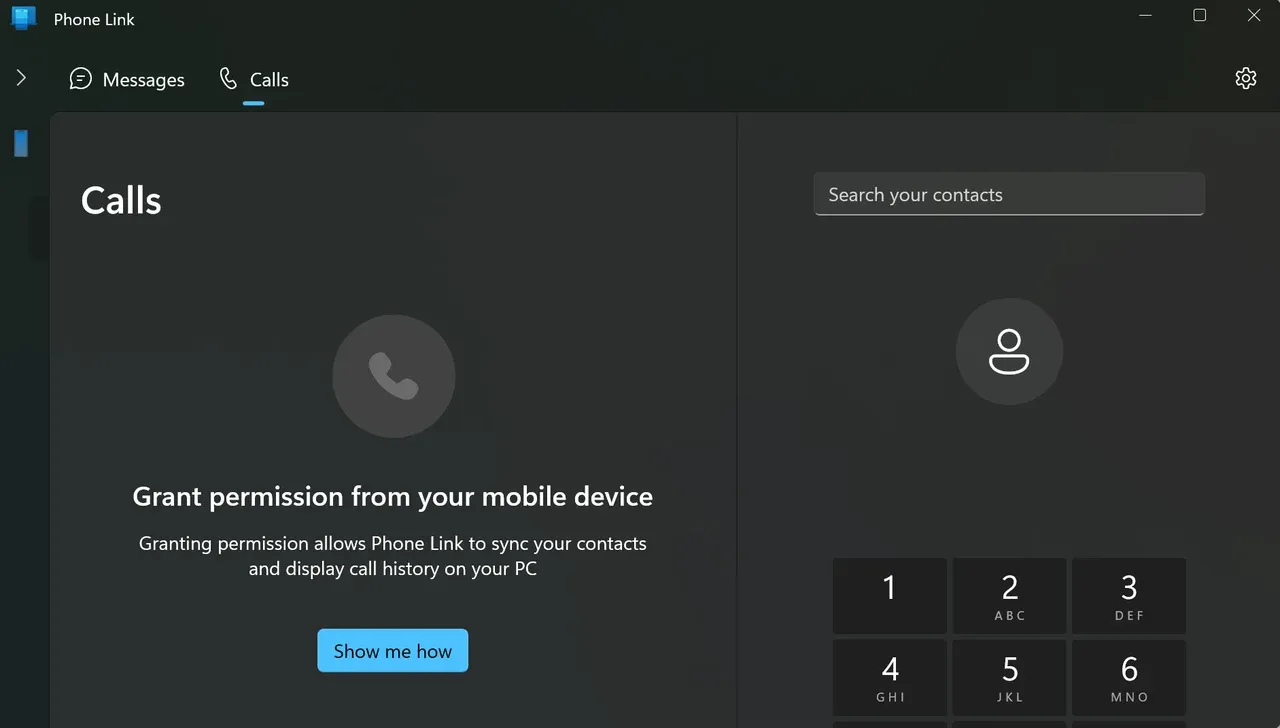
How to View Your Phone on PC Without Phone Link
If you want to mirror or control your phone screen on a PC but don't want to use Microsoft Phone Link, consider using Windows Screen Mirroring by PigeonCast. This app transforms your Windows PC into a universal wireless receiver, compatible with Android, iPhone, iPad, and MacBook.
In other words, with the third-party app on your Windows PC, you can link your Android, iPhone, or MacBook to your Windows PC effortlessly. Then, you can view anything on your phone or laptop screen on your Windows, from movies to music, games, and photos.
The app is safe to use, securing your data and privacy. Here's how to link your devices through the app.
Step 1. Set up the PigeonCast for Windows Screen Mirroring app on your Windows PC.

PigeonCast Screen Mirroring

Official Download


Step 2. Ensure that your device will be linked to your Windows PC is connected to the same Wi-Fi network as the PC.
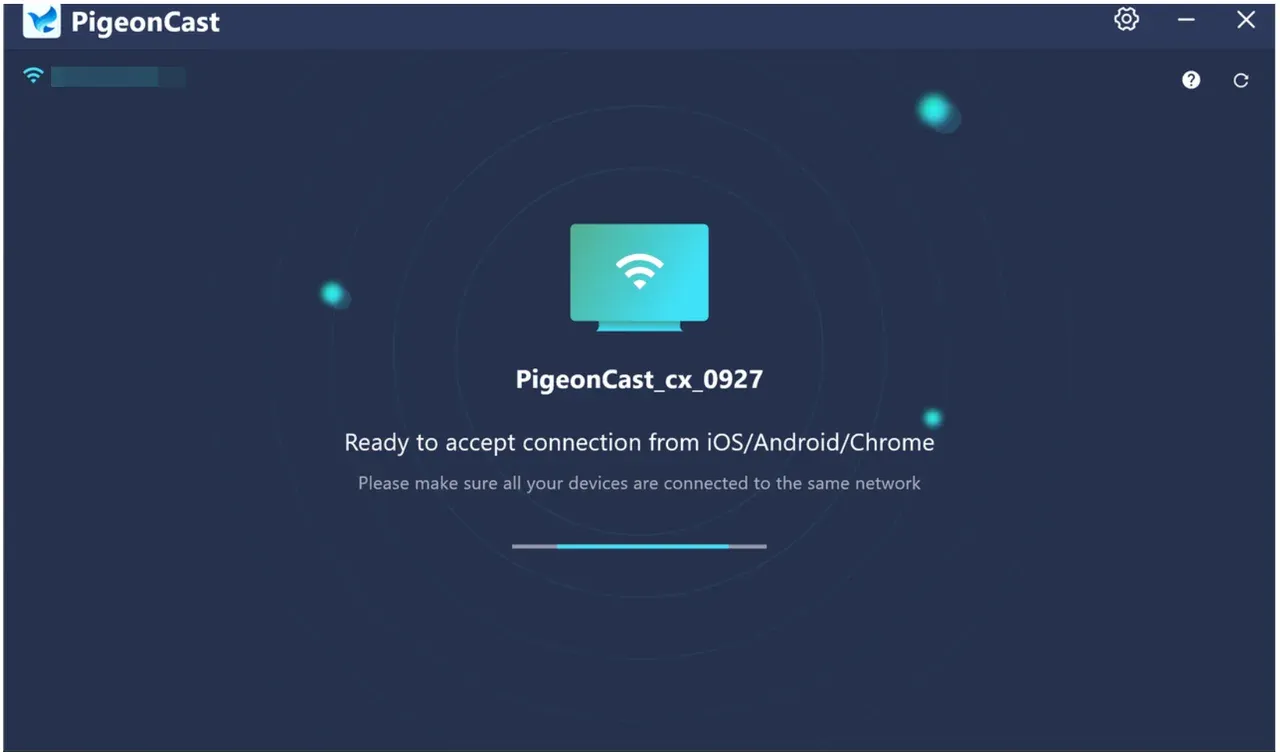
Step 3. Open the PigeonCast app on your Windows PC. Now your PC is ready for screen mirroring from your device.
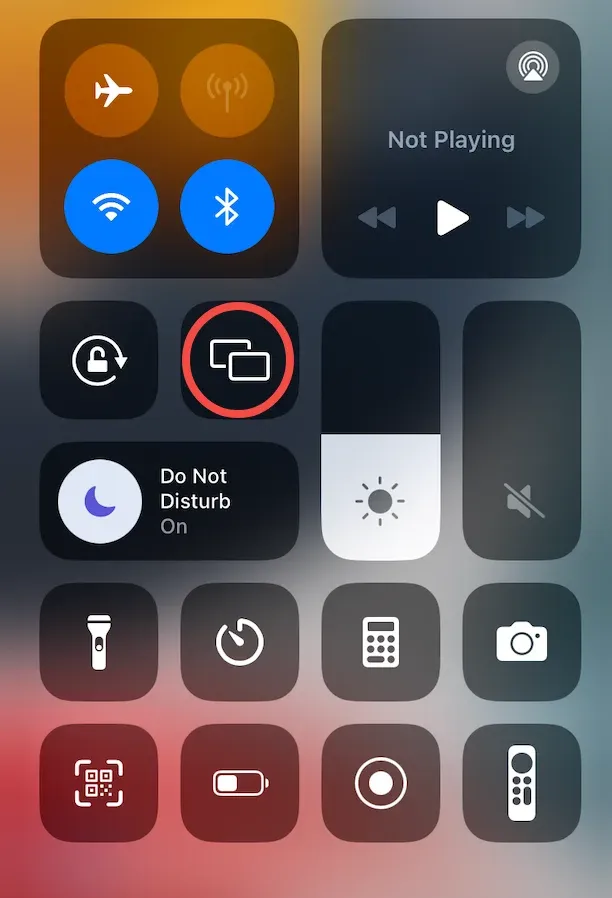
Step 4. Enable the Cast feature on your Android device or AirPlay feature on your iPhone or MacBook.
Step 5. Tap the device name related to PigeonCast and enter the PIN code if asked.
Step 6. Once connected, you can view your phone or MacBook on Windows.
Bottom Line
What is Phone Link? Microsoft Phone Link is a powerful tool that enhances productivity and bridges the gap between Android or iOS devices and Windows laptops. Whether you're responding to messages during a work session or accessing your photos without cables, it makes multitasking smoother. If you need more flexibale or cross-platform solutions for screen mirroring, the PigeonCast app offer a solid alternative.
What Is Phone Link FAQs
Q: What does Link to Windows do?
Link to Windows is the companion app for Android and iOS devices that connects your phone to the Phone Link app on a Windows PC. It allows you to sync and access your Android phone's calls, messages, notifications, photos, and apps directly from your computer (features on iPhone are limited). On some Android devices, like Samsung Galaxy or Surface Duo, it's preinstalled and offers advanced features like screen mirroring and file drag-and-drop.
Q: What happens if you link your phone to Windows?
When you link your Android phone to Windows using Phone Link, you gain the ability to send texts, make and receive calls, check notifications, view photos, and even use mobile apps from your PC. Your devices sync over Wi-Fi or mobile data, helping you stay focused without constantly picking up your phone. All interactions are permission-based and secure.
Q: Can I send messages through a Phone Link?
Yes. Once connected, Phone Link lets you send and receive SMS and MMS messages directly from your PC. You can type using your keyboard and even reply to group messages. The messaging feature works best on Android phones running Android 7.0 or later and requires proper permission during setup.
Q: Why doesn't my Phone Link show my messages?
Phone Link allows you to see your SMS and MMS messages on your PC. If you are using a third-party app as your primary messaging platform, you may miss the messages. However, if you still can't view SMS or MMS messages, you need to check permissions and restart both Phone Link and Link to Windows.
Mia Clarke is a technology editor specializing in screen mirroring and casting solutions across multiple platforms. Mia provides clear, practical guides and in-depth insights to help users seamlessly connect their devices. Passionate about enhancing digital experiences, Mia is dedicated to keeping readers updated on the latest trends and tools in cross-platform screen sharing. Whether you’re looking to mirror your smartphone, laptop, or smart TV, Mia’s content delivers reliable, user-friendly advice to simplify your tech setup.