
Link to Windows Samsung helps sync your Samsung devices with your Windows PC for smoother multitasking. This guide will introduce "what is link to Windows Samsung", show you how to set up the connection, and fix any issues along the way. Ready? Let's go!
What Is Samsung Link to Windows
Why juggle between your phone and computer all day? With a Windows 10 or 11 PC, you can easily connect your Samsung Galaxy phone right from your desk using Phone Link and Link to Windows. Whether you're answering messages, checking notifications, or dragging files between devices, it all works smoothly without extra steps or switching screens.
If you have a newer Samsung Galaxy phone, the Link to Windows feature is likely built in, so connecting to your Windows 10 or 11 PC is simple. For other supported devices, including select models from HONOR, OPPO, ASUS, Xiaomi, and the Surface Duo, the feature may be pre-installed or available for download from the Play Store, depending on your market and device.
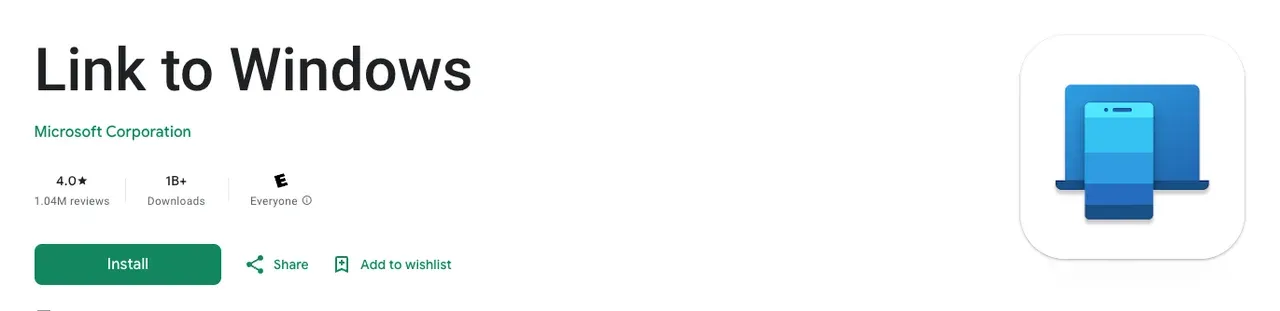
For Samsung Link to Windows, a feature that lets you connect your Samsung phone to your Windows PC using the Phone Link app, developed by Microsoft. This integration allows you to view notifications, reply to messages, make calls, and even mirror your phone's screen on your PC, making it easier to stay productive without switching between devices.
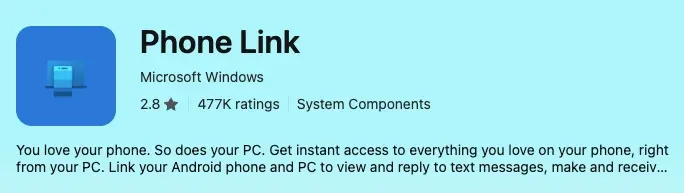
How to Use Samsung Link to Windows
Here's a step-by-step guide to connect your Samsung device to Windows and make the most of this powerful connection feature. Whether you want to access your phone's notifications, send messages, or even mirror your screen, we'll walk you through everything you need to get started and fully utilize the connection. Let's dive in!
Way 1. Link Samsung Phone to Windows via Link Phone
By linking your Samsung phone to your Windows PC, you can easily access your phone's content, including notifications, messages, and apps, all from your computer. Here's how to set it up:
Step 1. Ensure both your phone and PC are connected to the same wireless network.
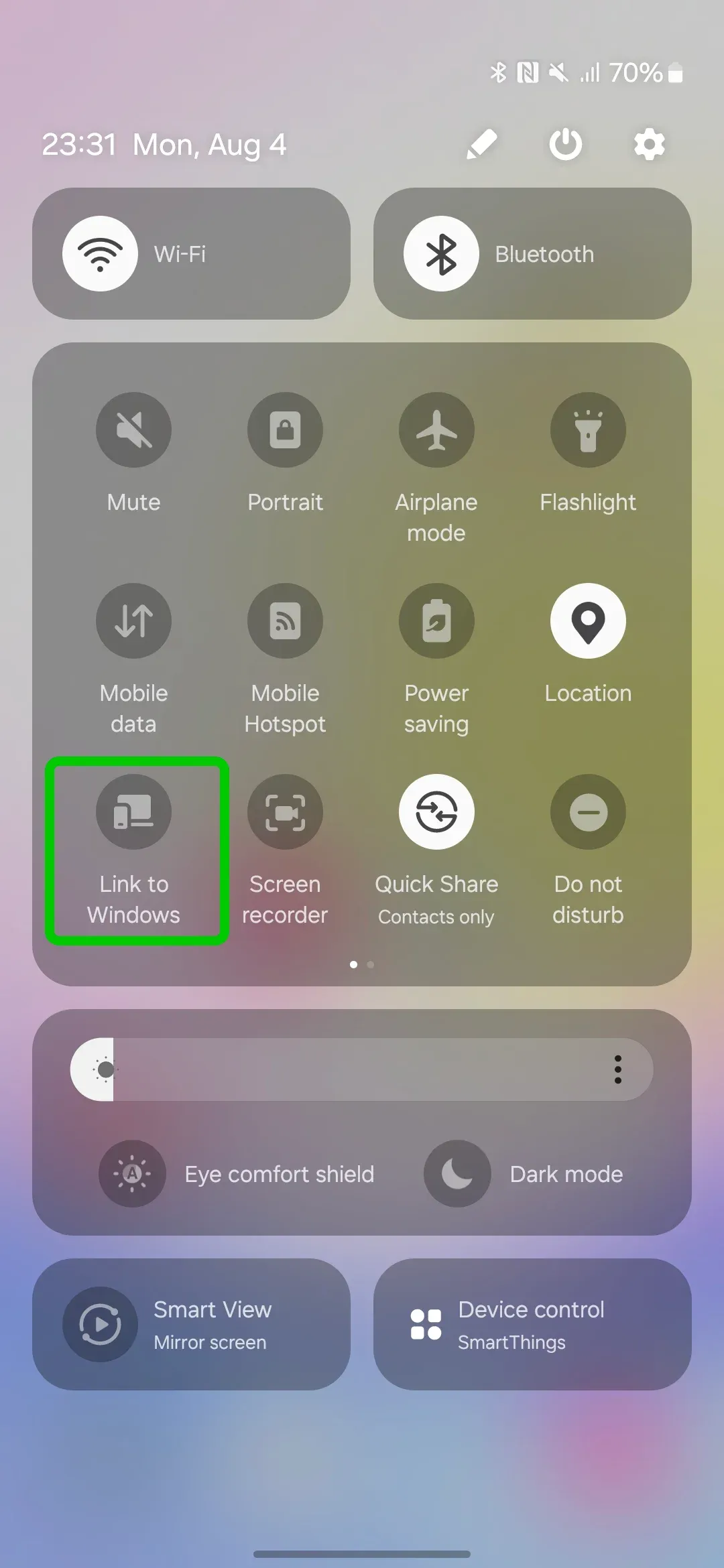
Step 2. Open the Settings app on your Samsung phone, scroll down to Connections, and select Link to Windows. Toggle the switch to turn on Link to Windows.
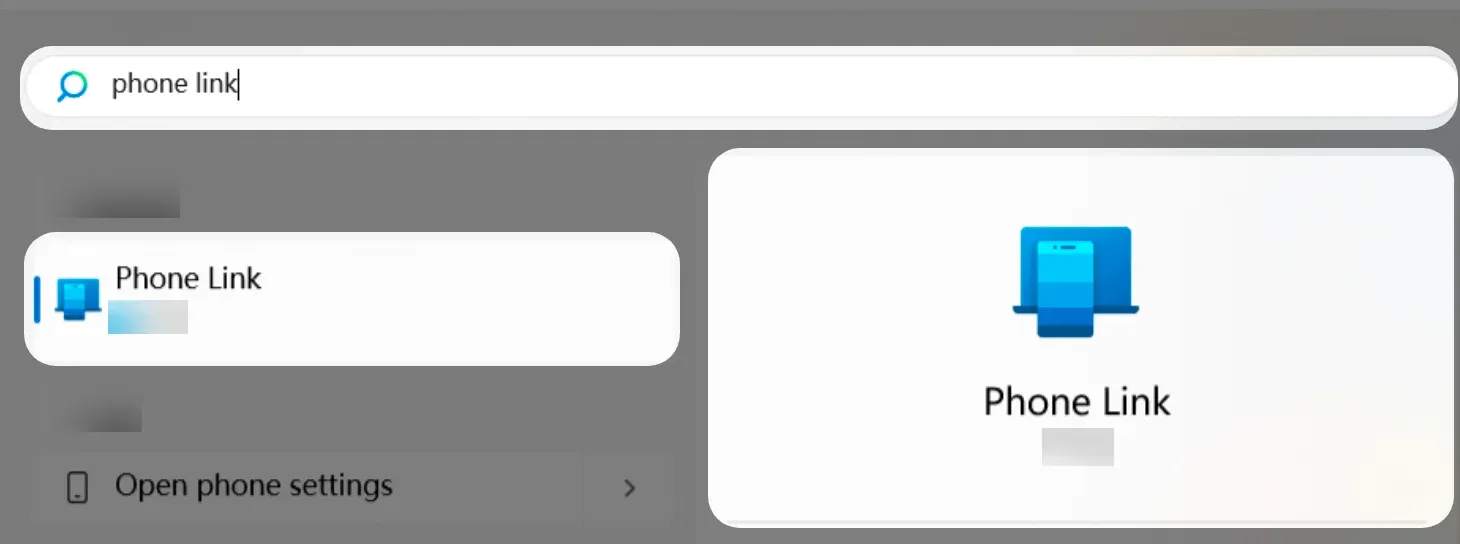
Step 3. Make sure you're signed in with a Microsoft account on your PC and install the Phone Link app on your Windows (this is pre-installed on most Windows 10/11 PCs).
Step 4. Select Link Phone on your PC and follow the on-screen prompts, then select Android option.
Step 5. Scan the provided QR code using your phone and follow the prompts to allow permissions on the phone you'd like to connect. Tap Done on your phone.
Step 6. On your PC, select Continue. Now you'll be able to access your Samsung phone's notifications, apps, and even make calls directly from your PC.
Way 2. Link Samsung Phone to Windows via PigeonCast Windows App
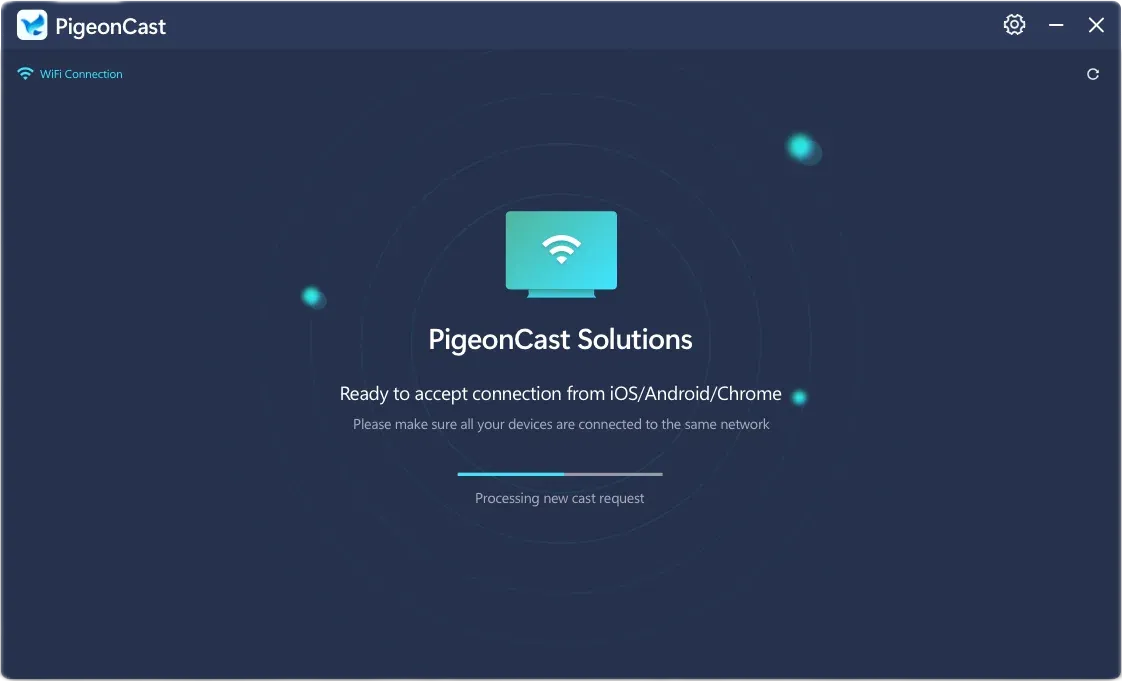
If the Link Phone isn't working properly, there's still a wonderful Windows screen mirroring app from PigeonCast that you're allowed to adopt to screen mirror your Samsung mobile device, or even any Android mobile device.

PigeonCast Screen Mirroring

Official Download



Step 1. Install the Windows screen mirroring app on your Windows PC and follow the setup introduction.
Step 2. Ensure your mobile device and PC are connected to the same wireless network.
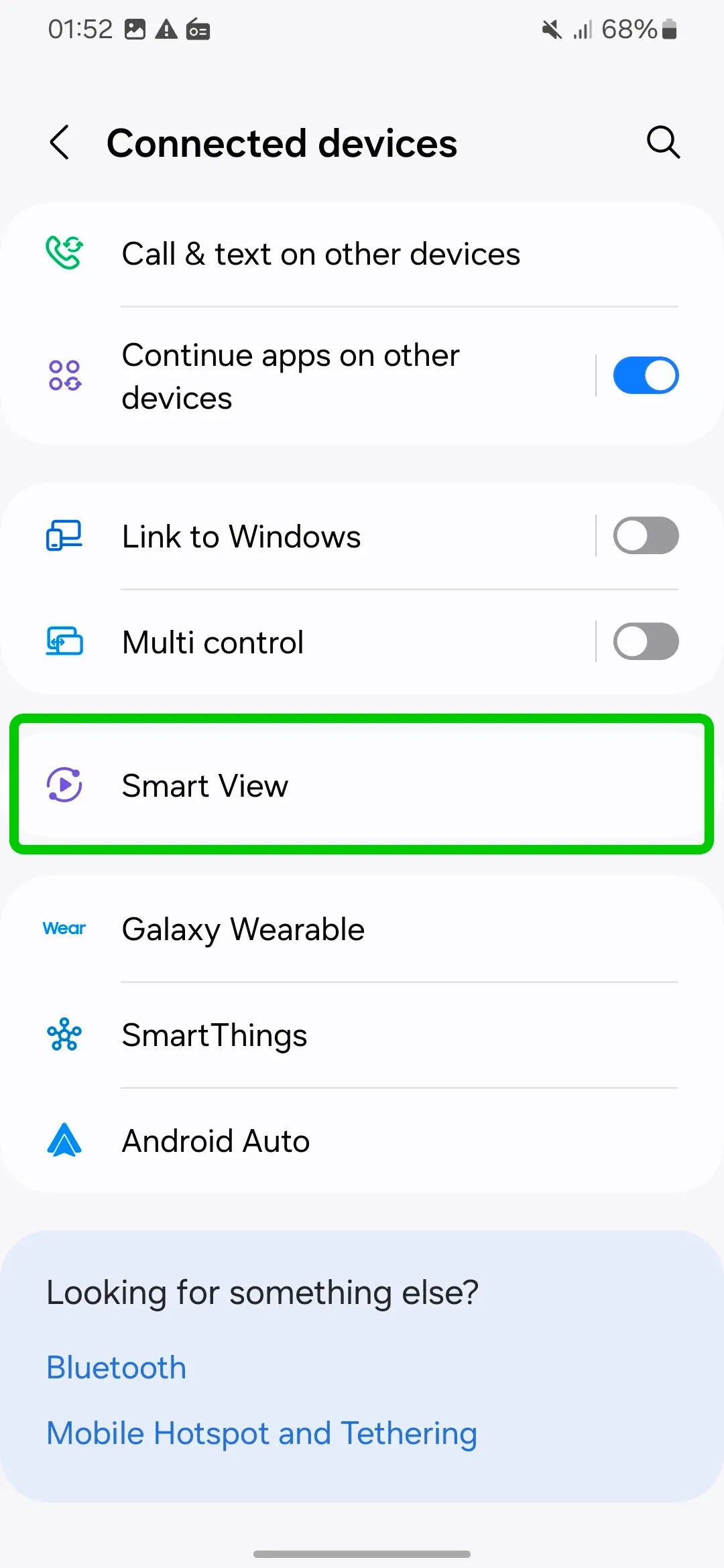
Step 3. Tap Cast or Screen Mirror option on your Samsung phone to find your PC computer from the device list.
Step 4. Scan or input digit code to connect your two devices. When pairing successfully, you can start casting or screen mirroring your mobile device to the PC.
Why Can't Samsung Phone Link to Windows
If you're having trouble linking your Samsung phone to your Windows PC, there could be several reasons behind it. Here's a quick checklist to help troubleshoot:
- Outdated Software: Make sure both your phone and PC have the latest software updates installed.
- Connectivity Issues: Ensure both devices are connected to the same Wi-Fi network. A weak or unstable connection can interfere with the linking process.
- Link to Windows Feature Disabled: Double-check that the Link to Windows feature is turned on in your phone's Settings > Connections.
- App Issues: Verify that the Phone Link app is installed and up to date on your PC.
- Compatibility: Some older phone models may not support Link to Windows. Check Samsung's website for device compatibility.
Closing Words
Samsung's Link to Windows feature is an incredibly useful tool for anyone looking to make their phone and PC work seamlessly together. In addition, you can still use a powerful Windows screen mirroring from PigeonCast to cast or screen any mobile device to your Windows PC.
Link to Windows Samsung FAQ
Q: What does Link to Windows do on Samsung?
Link to Windows allows you to sync your Samsung phone with your Windows PC. This includes managing notifications, responding to messages, making calls, and mirroring your phone's screen on your PC.
Q: How do I link my Samsung phone to my PC?
To link your Samsung phone to your PC, go to Settings on your phone, tap Connections, and enable Link to Windows. Then, open the Phone Link app on your PC, select Link phone, and follow the prompts to pair both devices.
Q: What happens if you link your phone to Windows?
When you link your phone to Windows, you can interact with your phone from your PC. This includes sending texts, accessing photos, or files without having to pick up your phone. It also lets you mirror your phone's screen, making it easier to work and stay connected.
Q: What is the difference between Samsung Dex and Link to Windows?
These are both tools that help connect your Galaxy phone to your PC, but they work differently:
- Samsung DeX turns your phone into a desktop-like experience, letting you use apps, open files, and navigate with a mouse and keyboard, as if you're working on a full computer.
- Link to Windows, on the other hand, allows you to mirror your phone's notifications, messages, and apps directly onto your PC, so you can easily interact with your phone's content without switching devices.
DeX is more focused on creating a desktop experience, while Link to Windows is about seamless integration and multitasking across devices.
Q: How did Link to Windows get on my phone?
Link to Windows is likely pre-installed on your phone if you have a newer Samsung Galaxy device. It's built into the phone's software as part of the integration with Windows PCs. If it's not already on your phone, you can easily download the Link to Windows app from the Google Play Store to get started.
Q: How do I disable Link to Windows on my phone?
To disable Link to Windows on your phone, go to Settings, then tap on Connections and select Link to Windows. From there, you can toggle off the option to connect your phone to your PC. If you want to fully remove the app, you can uninstall it by going to Settings > Apps > Link to Windows, and choosing Uninstall.
Q: Does Windows Phone Link use the internet?
Yes, Windows Phone Link requires an internet connection to sync your phone and PC. It uses Wi-Fi or mobile data to connect your devices, allowing you to access your phone's notifications, messages, and apps on your computer. However, once set up, it doesn't always require a constant internet connection to work, but an initial setup or syncing might need one.
Clara Rossi is an experienced technology editor and a seasoned expert in screen mirroring and casting technologies. With a keen eye for detail and a deep understanding of how to seamlessly connect devices, Clara excels at optimizing user experiences for effortless sharing and streaming. Whether you're seeking quick fixes or advanced tips, her expertise and responsiveness ensure that every query is met with a well-informed and efficient solution.