
Watching YouTube on your phone or laptop is convenient, but nothing beats enjoying videos on a big screen. If you've ever searched for how to cast YouTube to TV, you may have noticed there are different ways to do it. In this guide, we'll explain these methods step by step, highlight the differences, and also cover what to do if the YouTube cast button is missing.
Quick Answer to Cast YouTube to TV
There are several ways to cast YouTube to a TV, depending on your device and setup:
| Scenario | Best Method |
|---|---|
| YouTube app is available on both your phone and TV | Use the built-in YouTube Cast button |
| Casting from an Android phone or tablet | Use Chromecast (Google Cast) |
| Casting from an iPhone or iPad to Apple TV or an AirPlay-compatible TV | Use AirPlay |
| Watching YouTube from a Windows PC, Mac, or Chromebook | Use Google Chrome Cast |
| Your TV doesn't support casting or devices are on different platforms | Use PigeonCast screen mirroring |
| You want the most stable connection and highest video quality | Use an HDMI cable |
Choose the method that matches your device and TV compatibility. For most users, the YouTube Cast button is the quickest option, while HDMI provides the most reliable connection. If native casting isn't available, screen mirroring tools like PigeonCast offer a simple alternative.
Method 1: Use Chromecast (for Phone)
YouTube is a Chromecast-enabled app, which makes casting very straightforward. If your TV has Chromecast built in (common in Google TV and Android TV) or you've plugged in a Chromecast dongle, you can cast directly.
How to connect YouTube to TV from phone:
Step 1. Connect your phone and TV to the same Wi-Fi network.
Step 2. Open the YouTube app on your phone.
Step 3. Tap the Cast button in the upper-right corner to Chromecast YouTube.
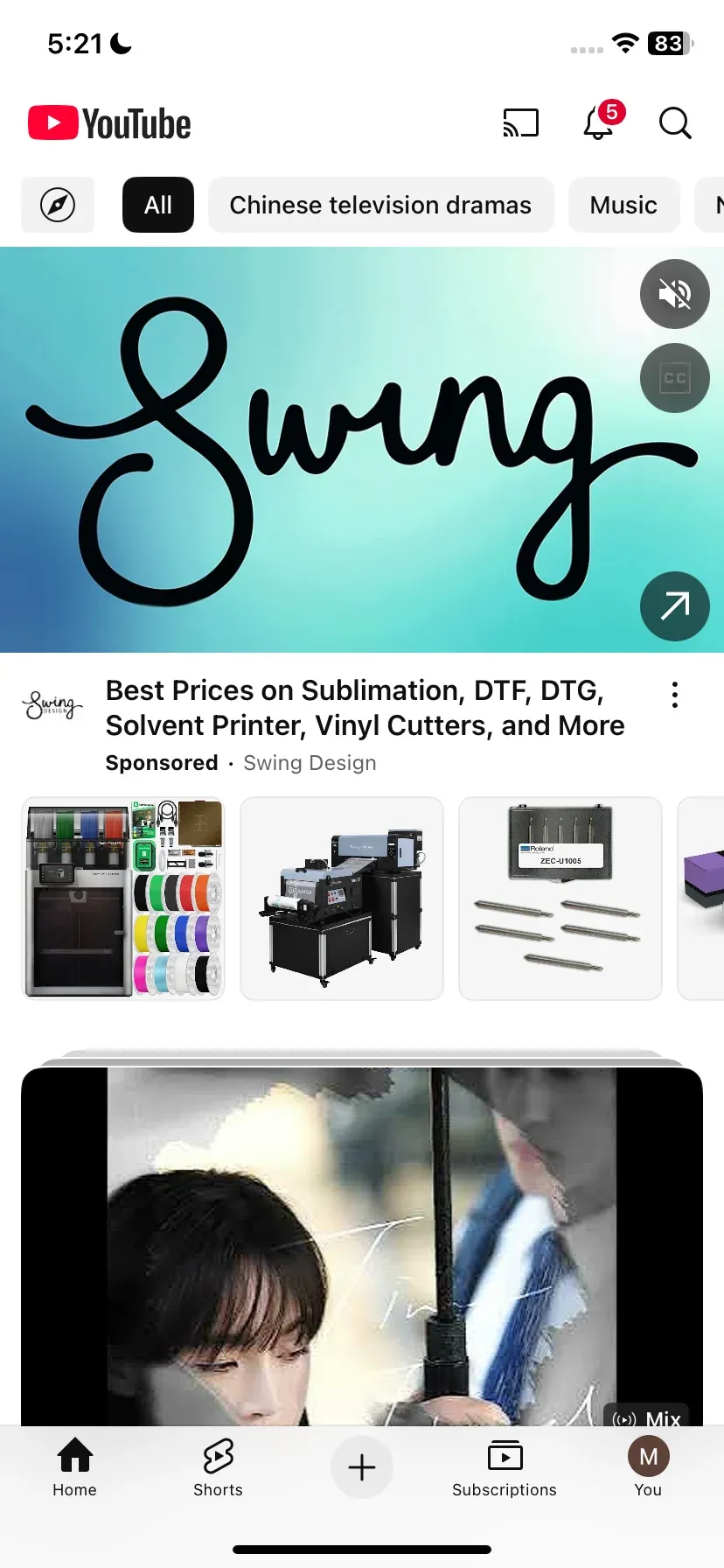
Step 4. Choose your Chromecast device or TV from the list.
Step 5. Play a video, and it will stream directly to your TV.
Wondering how to connect YouTube to TV from iPhone when your TV doesn't support Chromecast? YouTube on iPhone also supports AirPlay. If your streaming device or TV supports AirPlay (such as Apple TV, or smart TVs from Samsung, LG, and Sony), you can cast YouTube videos directly from your iPhone or iPad by tapping the Cast button.
Method 2: Use a Browser (for Laptop)
If you're asking how to cast YouTube to TV from laptop, the easiest option is a browser like Google Chrome or Microsoft Edge. To use Google Chrome, ensure your TV is compatible with Chromecast; to use Microsoft Edge, ensure your TV supports Miracast (older Samsung, LG, Sony, and Toshiba models do).
Step 1. Open the YouTube website in Chrome or Edge.
Step 2. Choose the video you want to cast.
Step 3. Choose the Cast feature from the browser menu.
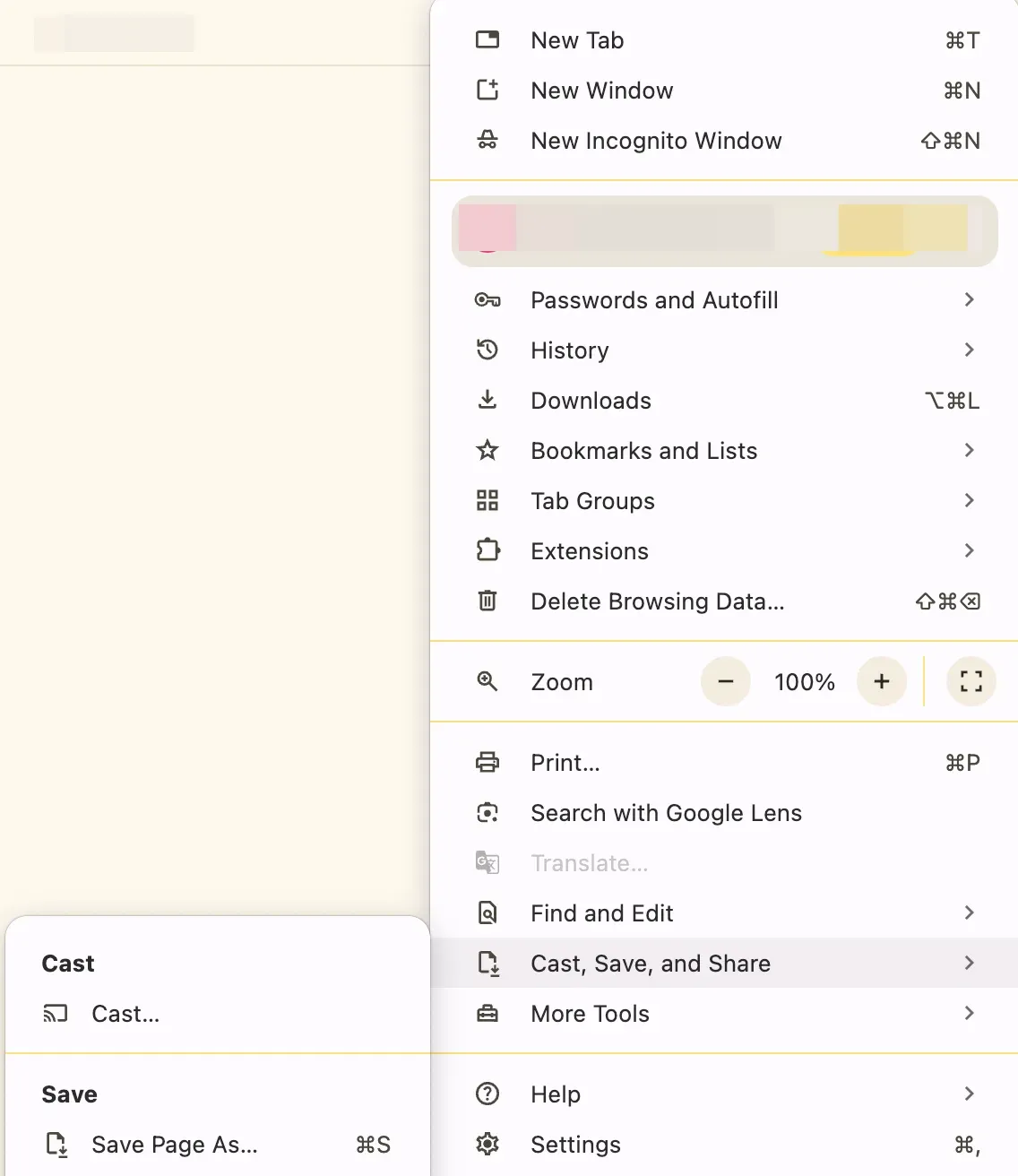
Step 4. Choose your Chromecas-enabled or Miracast-enabled TV or device from the list.
Step 5. Choose to cast the YouTube tab, and your video plays on the large screen.
Method 3: Use DIAL (YouTube App Connection)
Some smart TVs come with the YouTube app pre-installed. If you open YouTube on your TV and phone simultaneously, they can connect using the DIAL protocol.
Step 1. Make sure your phone or laptop and TV are on the same Wi-Fi network.
Step 2. Open the YouTube app on your smart TV.
Step 3. Open the YouTube app on your phone and access the YouTube website on your laptop.
Step 4. Select the video you want to cast to and tap the Cast icon in the video player.
Step 5. Choose the TV that you want to cast to, and wait for it to connect. Once connected, the video will play on your TV.
Method 4: Use PigeonCast (All-in-One Solution)
Casting methods vary depending on device support, which often leads to compatibility issues. An all-in-one app like PigeonCast simplifies the process.

The screen mirroring app helps you cast YouTube from your phone to many devices, including computer and TV. If you also wonder how to watch YouTube on computer, check our another guide on 4 Ways to Cast YouTube from Phone to PC.
Step 1. Download the PigeonCast app and install it on your phone (or laptop) and TV.
Step 2. Ensure the two devices are on the same network and launch the app.
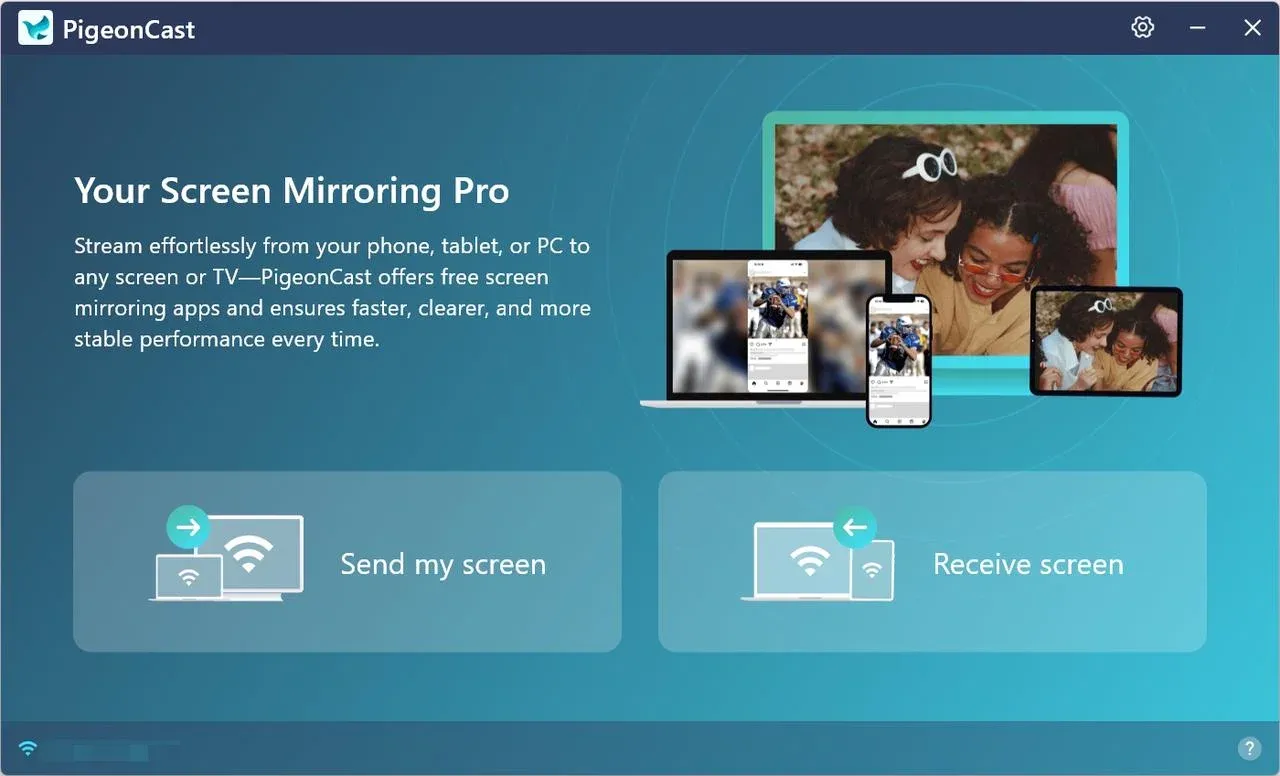
Step 3. Follow the onscreen instructions to connect your devices and cast YouTube to TV from your phone or laptop.
By installing it on both your devices, you can cast YouTube to TV without worrying about whether your TV supports Chromecast, AirPlay, or Miracast. It works as a universal bridge, making casting YouTube to TV more reliable across different brands.
Method 5: Use Miracast (for Windows PC)
Windows laptops don't have native Chromecast, but most support Miracast. This lets you mirror your screen wirelessly to a Miracast-enabled TV.
Step 1. On your PC, press Windows + K shortcut to open the casting menu.
Step 2. Choose your Miracast-compatible TV from the list. Once connected, your whole desktop, including YouTube, will display on the TV.
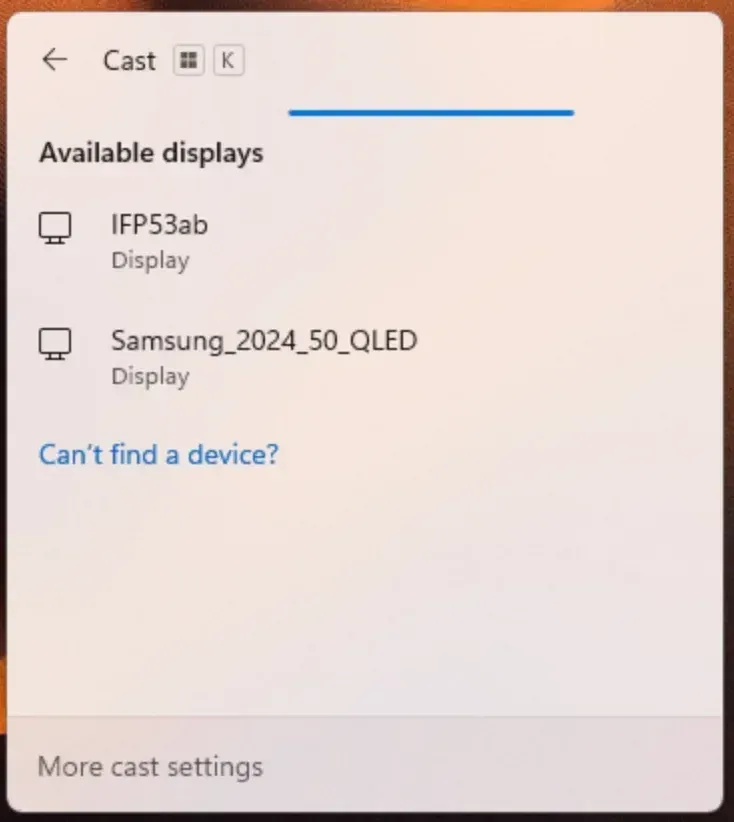
Step 3. Open YouTube in a browser, and you can watch it on your TV.
Note: Miracast mirrors your screen rather than streaming only YouTube. Quality may vary depending on your Wi-Fi connection.
Method 6: Use AirPlay (for MacBook)
If you're using a MacBook and your TV supports AirPlay, you can mirror or stream YouTube directly.
Step 1. Ensure your MacBook and TV/Apple TV are on the same Wi-Fi network.
Step 2. Open YouTube in Safari or Chrome.
Step 3. Enable AirPlay on Mac (in the top menu bar or the Control Center).
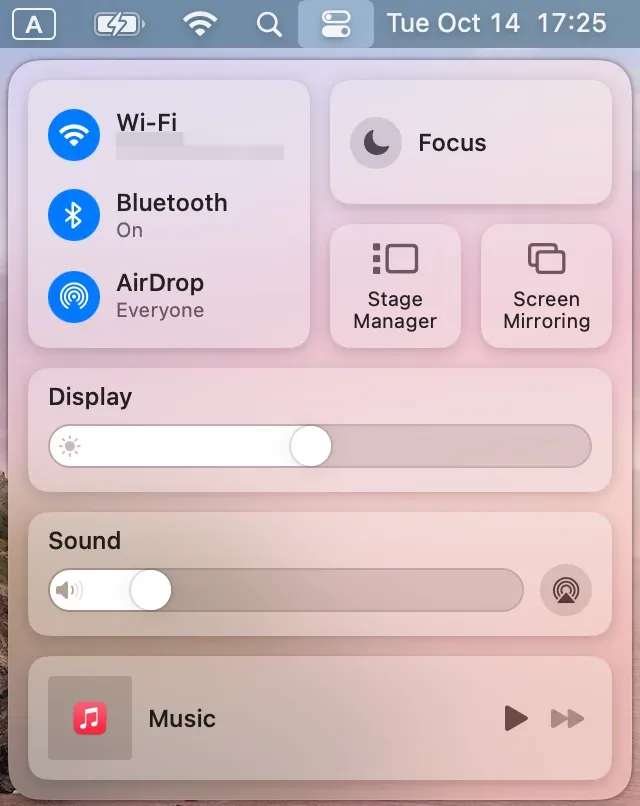
Step 4. Choose your TV from the list.
Step 5. Once connected, switch to your browser, and YouTube is displayed on the TV.
This is technically screen mirroring, but it's a quick way to enjoy YouTube on a larger screen if Chromecast isn't available.
Fixed: YouTube Casting Issues
If YouTube won't cast to your TV, the problem is usually related to network connectivity, device compatibility, or software settings. Before trying a different casting method, it's worth checking a few common causes.
1. Your Devices Are on Different Wi-Fi Networks
Most casting technologies, including Chromecast, AirPlay, and many smart TV casting protocols, require your phone, tablet, or computer and your TV to be connected to the same local network.
If your router broadcasts separate 2.4 GHz and 5 GHz networks, make sure both devices are connected to the same one. You should also disable mobile data temporarily, as some phones may switch between Wi-Fi and cellular data during the casting process.
2. The TV Doesn't Support Your Casting Protocol
Not every TV supports every casting technology.
- Chromecast (Google Cast) works with Chromecast devices, Google TV, Android TV, and selected smart TVs.
- AirPlay works with Apple TV and compatible smart TVs from brands like Samsung, LG, Sony, and Vizio.
- Miracast is supported by some Windows PCs and smart TVs but is unavailable on iPhones and many newer Android devices.
If your TV doesn't support the protocol your device is trying to use, the TV may never appear in the available devices list.
3. The YouTube Cast Button Is Missing
A missing Cast button doesn't always mean casting is unavailable.
First, verify that:
- Both devices are online.
- The YouTube app is updated.
- The TV is powered on and connected to the network.
- The casting feature is enabled on the TV.
If the Cast icon still doesn't appear, signing out of YouTube and signing back in or reinstalling the app often resolves account-related glitches.
4. Outdated Apps or TV Firmware
Older software versions can cause discovery and connection failures.
So, check your
- YouTube app updates
- Google Play Services updates (Android)
- Smart TV firmware updates
- Streaming device updates (Chromecast, Fire TV, Apple TV, Roku)
Manufacturers frequently release updates that improve casting compatibility and fix connection bugs.
5. VPNs, Firewalls, or Network Restrictions
Casting relies on local network discovery protocols. VPN services, guest Wi-Fi networks, enterprise networks, and strict firewall settings can prevent devices from detecting each other.
If you're using a VPN, disconnect it temporarily and try again. If you're on a hotel, campus, or office network, casting may be blocked entirely by network administrators.
6. Restart the Devices
It sounds simple, but restarting often resolves temporary network conflicts.
Try this order:
- Close and reopen the YouTube app.
- Restart your phone or computer.
- Restart your TV or streaming device.
- Reboot your router.
This refreshes device discovery and network connections without requiring any additional troubleshooting.
Still Can't Cast YouTube?
If native casting methods still do not work, determine whether the failure is limited to device discovery or affects playback on the TV as well. When YouTube keeps failing on your smart TV, problems such as corrupted app data, outdated TV firmware, account errors, or insufficient storage may need to be resolved before casting can work normally.
When the TV app works but the Cast feature does not, screen mirroring can be a practical alternative because it does not rely on YouTube’s built-in Cast button. PigeonCast can mirror a phone or computer to the TV, while HDMI remains the most stable option for longer playback.
The End
Casting YouTube to a TV is usually simple once you match the method to your device and TV compatibility. If your TV supports Chromecast or Google Cast, Android devices and Chrome browsers can connect quickly through the YouTube Cast button. If you're using an iPhone, iPad, or Mac, AirPlay is often the smoothest option when paired with an Apple TV or an AirPlay-compatible smart TV.
For older TVs or devices that do not appear in YouTube's casting list, screen mirroring can be a more flexible workaround. A tool like PigeonCast is useful when native casting is limited, unavailable, or unstable across different platforms. And when you need the most reliable setup, such as for long videos, lessons, meetings, or presentations, an HDMI cable is still the safest choice because it avoids Wi-Fi interruptions and compatibility issues.
In short, there is no single best way to cast YouTube to TV for everyone. Start with the built-in YouTube Cast button, use AirPlay or Chromecast when your devices support them, try screen mirroring when compatibility gets in the way, and choose HDMI when stability matters most. With the right method, you can watch YouTube videos, tutorials, music playlists, and live streams on a larger screen with fewer interruptions.
How to Cast YouTube to TV FAQs
Why is there no Cast button on YouTube?
If the YouTube Cast button is missing, your phone, tablet, or computer may not be able to detect a compatible TV or streaming device. The most common causes are devices being on different Wi-Fi networks, disabled casting services, or outdated software. Make sure both devices are connected to the same network and update the YouTube app before troubleshooting further.
How do I cast YouTube from my Mac to my TV?
The easiest way to cast YouTube from a Mac is through AirPlay. Open YouTube in Safari, click the AirPlay icon, and select your TV or Apple TV. If your TV doesn't support AirPlay, you can use Google Cast from Chrome, screen mirroring software, or an HDMI connection. The best option depends on your TV model and compatibility.
How do I watch YouTube on a smart TV?
Most smart TVs come with the YouTube app preinstalled or available for download from the app store. Simply open the app, sign in to your Google account, and start watching. You can also link your phone to the TV through the YouTube app, making it easier to browse videos and control playback from your mobile device.
What do I need to cast YouTube to a TV?
To cast YouTube successfully, you need a compatible TV or streaming device, such as Chromecast, Apple TV, or a smart TV with built-in casting support. You'll also need a stable Wi-Fi connection, with both devices connected to the same network. Without network visibility, your phone or computer may not be able to discover the TV.
Why can't I cast YouTube from my phone to my TV?
If YouTube won't cast from your phone, the issue is usually related to network settings, device compatibility, or outdated software. Verify that both devices are on the same Wi-Fi network, restart the YouTube app, and check for software updates. If your TV doesn't support Chromecast or AirPlay, screen mirroring or HDMI may be better alternatives.
How do I disconnect YouTube from my TV?
To stop casting, tap the Cast button in the YouTube app and select Disconnect or Stop Casting. You can also stop playback directly from the TV. Disconnecting only ends the current casting session—it won't remove the TV from your account or prevent you from reconnecting later.
Do I need the YouTube app on my TV to cast?
Not always. If you're using YouTube's traditional TV pairing or DIAL-based casting, the YouTube app must be installed on the TV. However, Chromecast and AirPlay work differently, allowing the TV or streaming device to receive the video stream directly. The exact requirement depends on the casting technology you're using.
Mia Clarke is a technology editor specializing in screen mirroring and casting solutions across multiple platforms. Mia provides clear, practical guides and in-depth insights to help users seamlessly connect their devices. Passionate about enhancing digital experiences, Mia is dedicated to keeping readers updated on the latest trends and tools in cross-platform screen sharing. Whether you’re looking to mirror your smartphone, laptop, or smart TV, Mia’s content delivers reliable, user-friendly advice to simplify your tech setup.