
If you've ever stood up just to pause a video or skip a track, you already know the pain point. That's exactly why people look up ways to control YouTube on PC from phone. The intent is simple: turn your phone into a remote and make playback effortless.
There isn't just one solution, though. Some tools focus on simplicity, others give you deeper control over your entire PC. The real difference lies in how much setup you're willing to tolerate and how often you plan to use it. Below, I'll walk you through five methods that actually work in real-life scenarios, not just in theory.
Method 1: Control YouTube on PC from Phone via PigeonCast
PigeonCast is a free phone and Windows screen mirroring app that connects your phone to your computer wirelessly. Once connected, your phone acts like a dedicated media remote. You can play, pause, skip forward, and even manage playback without touching your keyboard. It doesn't try to do too much, and that's exactly why it works so well.
Step 1. Download PigeonCast on both your phone and PC from the official website or the app store.


Overall Rating:



Step 2. Install and open the screen mirroring app on your PC and click Receive screen.
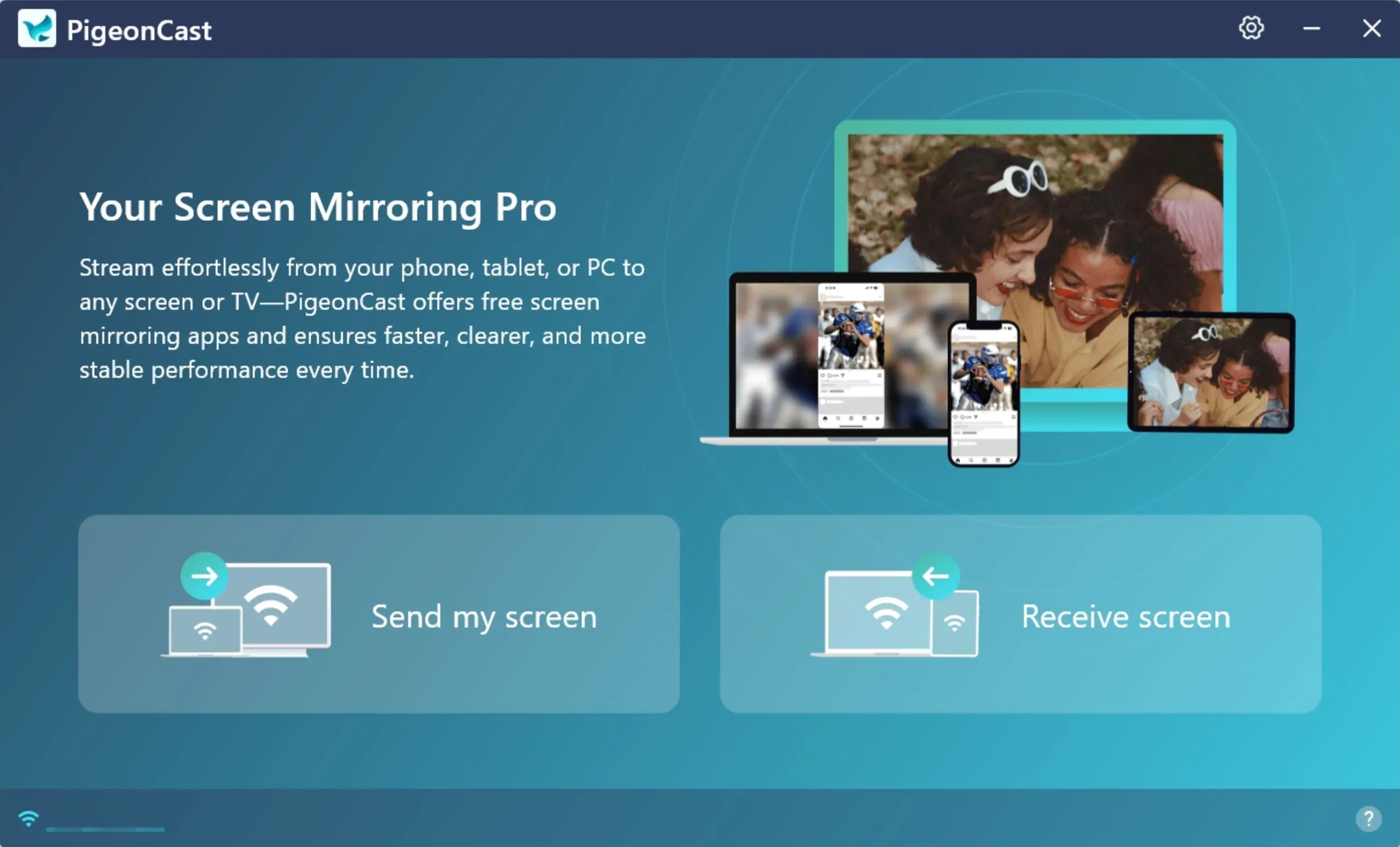
Step 3. Confirm that your phone and PC are connected to the same Wi-Fi network.
Step 4. Open the app on your phone and tap Select device at the top.
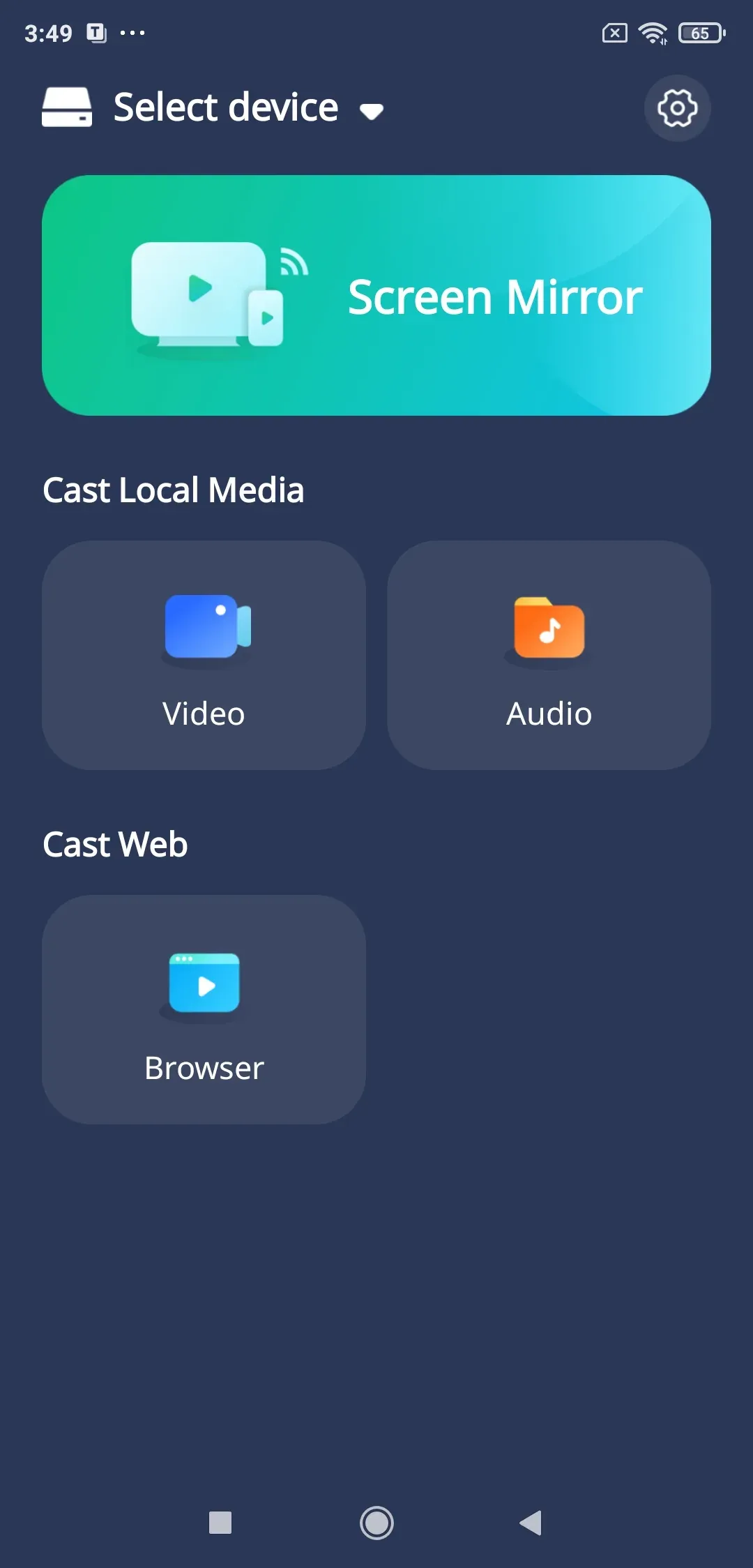
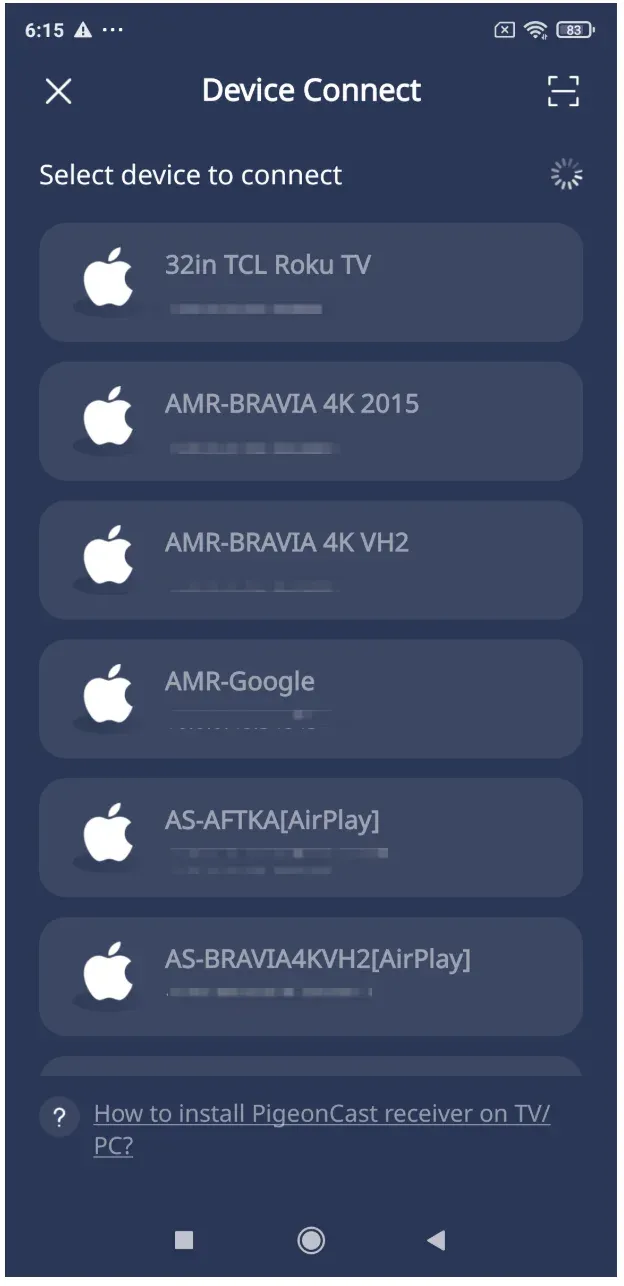
Step 5. Choose your PC from the list. If you have too many devices under the same network, for a quick connection, tap the Scan button in the top right corner and scan the QR code displayed on your PC.
Step 6. Once the connection is established, your phone screen will appear on the PC. Open YouTube on your phone, choose a video, and cast YouTube from your phone to the PC for playback on the larger screen.
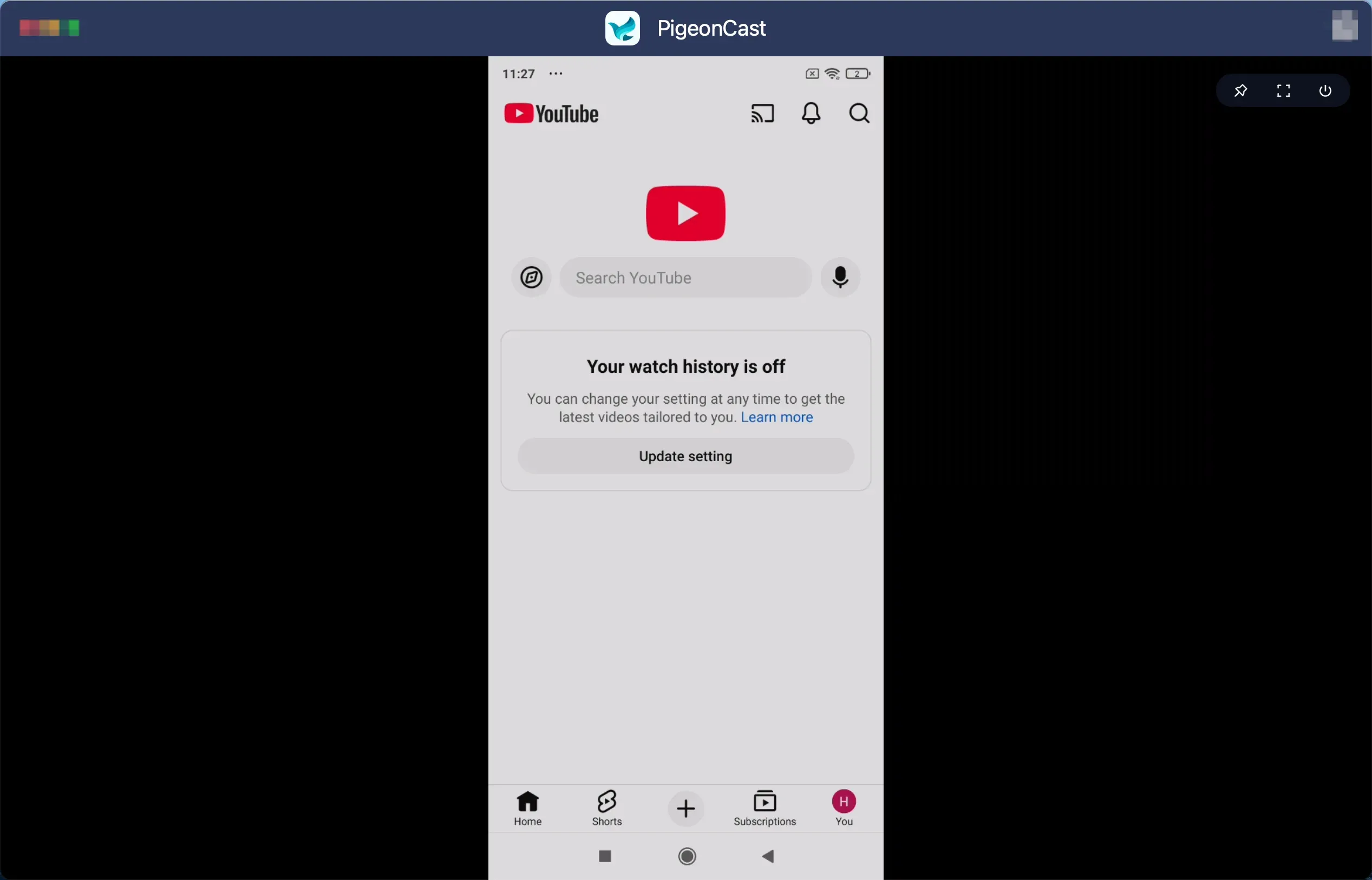
Step 7. To control YouTube from your phone on PC, just tap the buttons on your phone screen.
Can you control YouTube Music on PC from phone? Yes, the steps are similar. With PigeonCast, you can either pause a video or skip a song on your PC without trouble.
Method 2: Control YouTube on PC from Phone via Phone Link
Phone Link takes a different approach. Instead of controlling YouTube directly, it connects your phone and PC at a system level. You're essentially extending your phone's capabilities onto your computer.
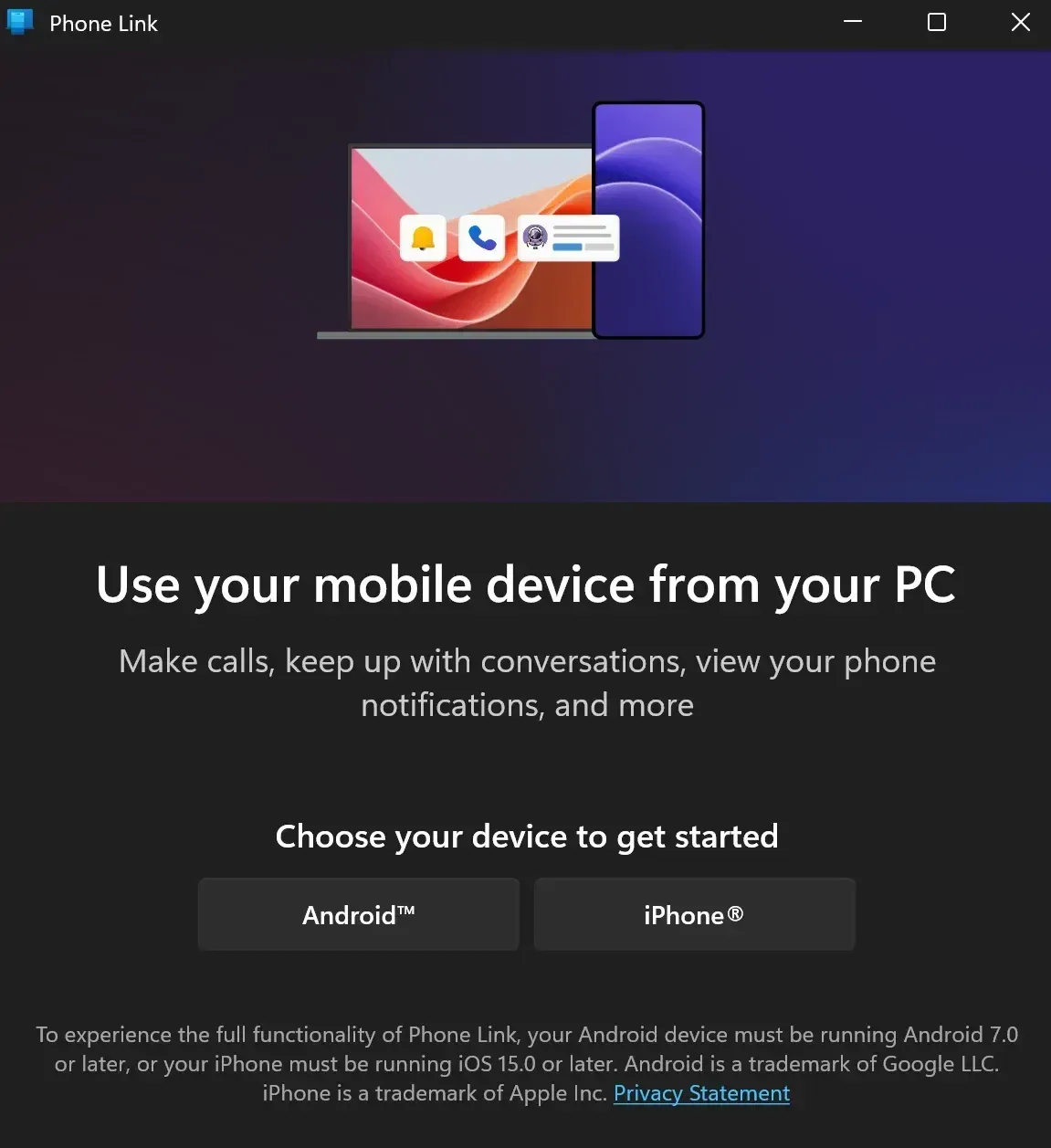
This works through screen mirroring and device syncing. You can see your phone interface on your PC and interact with it, which indirectly lets you manage media playback. It's more like controlling your phone from your PC, then using that to influence YouTube.
Before trying, check the setup requirements:
-
Windows 10 or 11 PC
-
Android phone (Android 8.0 or later recommended)
-
Both devices connected to the same WiFi network
Step 1. Open Phone Link on your Windows PC (download it from Microsoft Store if it is unavailable)
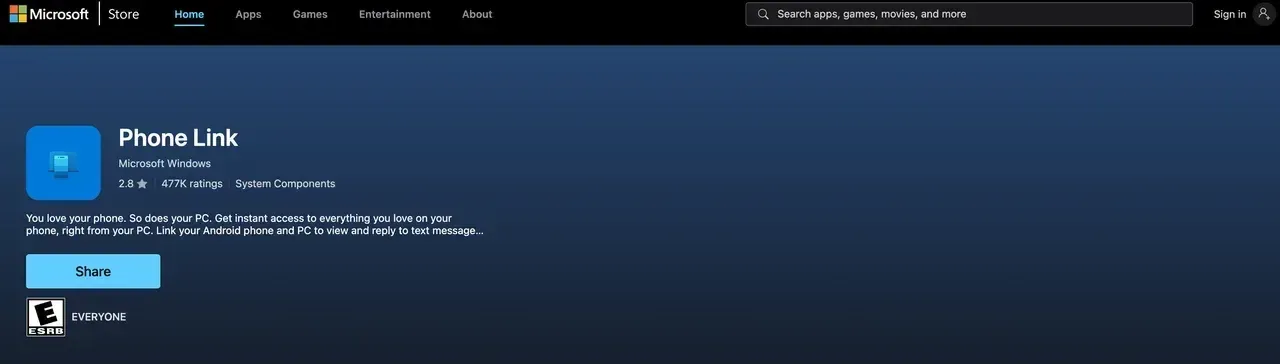
Step 2. Install the companion app called Link to Windows on your phone and open it.
Step 3. Sign in with the same Microsoft account on both devices.
Step 4. On your PC, select Android as your device type.
Step 5. Scan the QR code shown on your PC using your phone
Step 6. Follow the prompts and grant all required permissions (notifications, screen access, app access).
Step 7. Control your YouTube app from your phone on PC:
-
In Phone Link on your PC, click Open phone screen (located in the top-left corner, represented by a small smartphone icon).
-
Your phone screen will appear in a window on your PC.
-
Launch YouTube or YouTube Music on your phone and play a video.
-
At this point, you are controlling YouTube through your phone interface, just displayed on your PC.
This method works best if you want full access to your phone while still being able to control YouTube on PC from phone.
Method 3: Control YouTube on PC from Phone via Unified Remote
Unified Remote is more like a full remote control system for your computer. You're not just controlling YouTube, you're controlling your entire PC from your phone.
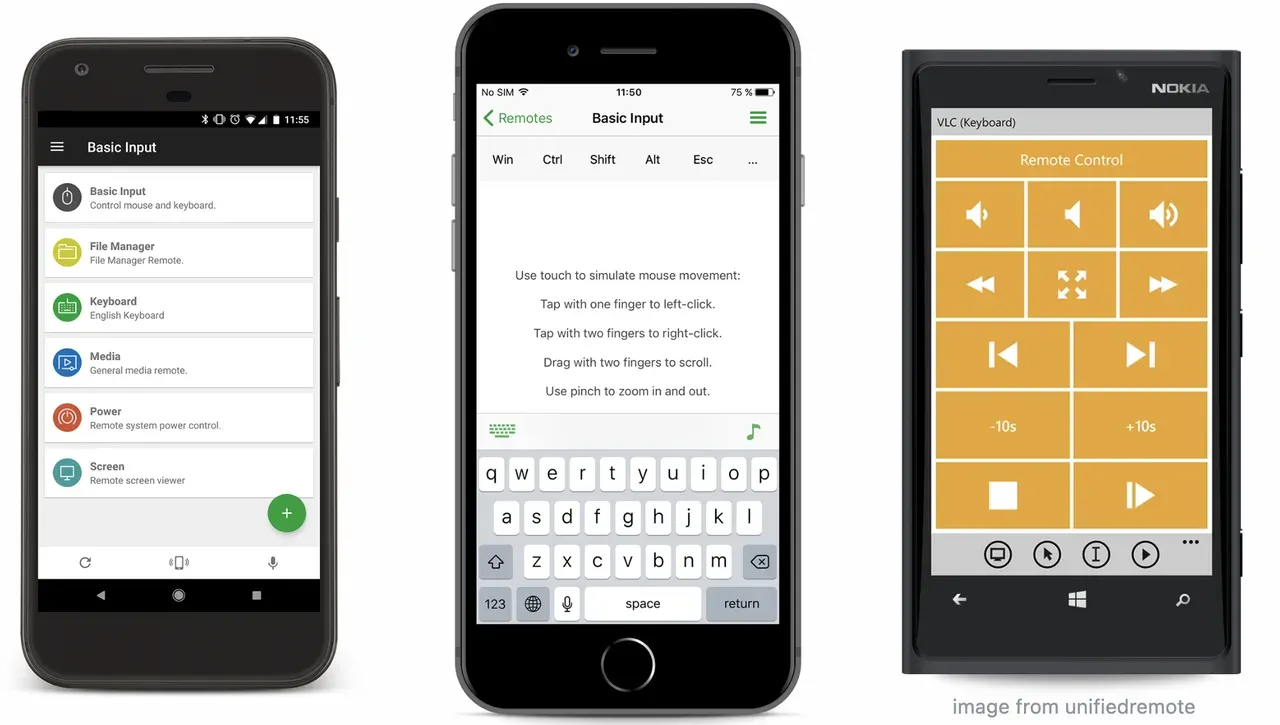
Once connected, it offers different remote layouts. The "Media Remote" is the one you'll use most for YouTube. It sends commands like play, pause, volume, and navigation directly to your system, which works nicely with browser playback.
Step 1. Download the Unified Remote app on your smartphone and PC.
Step 2. Open the app on your phone and select Servers to find your PC.
Step 3. Tap your PC name to connect. Then, you can view your phone's screen on your PC. You can access and control YouTube or YouTube Music on your phone while enjoying it on your PC's display.
If you like having one tool for everything, the paid app is a strong option. But if you only want YouTube control, it may feel a bit heavy.
Method 4: Control YouTube on PC from Phone via VLC Media Player
This method works differently because it changes how you watch YouTube on your PC. Instead of using a browser, you stream YouTube videos through VLC.
Why does that matter? VLC has a built-in web interface that can be accessed from your phone browser. Once enabled, your phone becomes a control panel for playback.
How to control YouTube on PC from phone via VLC:
Step 1. Install VLC Media Player on your two devices.
Step 2. Open the app on your phone and navigate to Settings.
Step 3. Tap Remote Access and turn on Enable Remote Access.
Step 4. Enter your PC's IP address in the Remote Host field.
Step 5. Tap Connect to link your phone and PC, and then you can control YouTube on your computer using your mobile phone through the media player.
Still, it's not ideal for casual browsing. You're trading convenience for control, so only go this route if you already like using VLC.
Method 5: Control YouTube on PC from Phone via BlueStacks
BlueStacks takes a different angle. Instead of controlling your PC browser, it lets you run Android apps on your PC. That includes YouTube and YouTube Music.
Once installed, your PC behaves like a large Android device. You can then use syncing features, casting, or shared accounts to control playback from your phone.
Step 1. Download and install the app on your PC.
Step 2. Sign in to the Google Play, search for YouTube, and download the app.
Step 3. Open YouTube from the home screen and control YouTube on your PC.
The downside is obvious. It's resource-heavy and not the fastest option. Still, it can feel surprisingly natural once everything is set up.
Which Is the Best Way to Control YouTube from Phone on PC
| Method | Ease of Use | Features | Best For |
|---|---|---|---|
| PigeonCast | ⭐⭐⭐⭐⭐ | ⭐⭐⭐⭐ | Fast, simple control |
| Phone Link | ⭐⭐⭐ | ⭐⭐⭐ | Windows users |
| Unified Remote | ⭐⭐⭐⭐ | ⭐⭐⭐⭐⭐ | Advanced control |
| VLC | ⭐⭐ | ⭐⭐⭐⭐ | Power users |
| BlueStacks | ⭐⭐ | ⭐⭐⭐ | App-based experience |
If you want my honest take, PigeonCast is the easiest to recommend. It focuses on exactly what you need and avoids unnecessary complexity. Unified Remote is great, but only if you actually need those extra features.
Wrapping Up
So, how to control YouTube on PC from phone without frustration? Keep it simple. Choose a method that matches your habits instead of forcing yourself into a complicated setup.
For most people, a lightweight tool will do the job perfectly. Once you get used to controlling playback from your phone, it quickly becomes something you don't want to give up.
Control YouTube on PC from Phone FAQ
Can you control YouTube Music on PC from phone?
Yes. Several tools let you control YouTube music on PC from phone, including playback and volume adjustments. The experience depends on the tool you choose.
Can I use my phone as a remote for YouTube?
Yes, you can. Apps like PigeonCast or Unified Remote turn your phone into a media controller, letting you play, pause, skip, and adjust volume on your PC. Some methods feel like a real remote, while others work more like screen control.
Is there anyway to control my PC from my phone?
There is. Tools such as Unified Remote or Phone Link allow you to control your entire PC, not just YouTube. You can move the cursor, open apps, and manage playback, all from your phone.
How do I connect what I'm watching on my phone to my computer?
You have a few options. You can mirror your phone screen using PigeonCast, Phone Link, or similar tools, or use apps that sync playback between devices. If both devices are on the same network, the connection is usually faster and more stable.
Can I wirelessly connect my phone to my PC?
Yes. Most modern tools like PigeonCast rely on WiFi to connect your phone and PC. As long as both devices are on the same network, you can control content or mirror your screen without cables.
How do I mirror my Android to my PC Smart View?
On some Android devices, you can use Smart View or built-in casting features. Open Smart View on your phone, select your PC if it's available as a receiver, and start mirroring. Alternatively, use PigeonCast for a more consistent setup across Windows devices.
Mia Clarke is a technology editor specializing in screen mirroring and casting solutions across multiple platforms. Mia provides clear, practical guides and in-depth insights to help users seamlessly connect their devices. Passionate about enhancing digital experiences, Mia is dedicated to keeping readers updated on the latest trends and tools in cross-platform screen sharing. Whether you’re looking to mirror your smartphone, laptop, or smart TV, Mia’s content delivers reliable, user-friendly advice to simplify your tech setup.