
As one of the most popular streaming platforms, YouTube is a major source of entertainment for millions. However, watching on a small phone screen can impact your viewing experience and strain your eyes. The good news is that you can easily do YouTube AirPlay to your TV for a bigger, more comfortable screen.
Can You AirPlay YouTube to TV
Yes, absolutely. AirPlay is fully supported for streaming YouTube content from Apple devices (iPhone, iPad, and Mac) to compatible receivers. This functionality is built directly into the YouTube app on iOS and the YouTube website in Safari on Mac. With just a few taps, you can send a single video or mirror your entire screen, transforming your TV into a portal for endless content.
How to AirPlay from YouTube
The process is nearly the same across devices, whether you're using an iPhone, iPad, or Mac. The key step is finding the AirPlay icon within the YouTube app to start streaming to your TV, or selecting your TV from the device list for screen mirroring.
How to AirPlay YouTube to AirPlay Compatible Device
If you have a newer smart TV, the process is just like using an Apple TV, but it's important to first check if your TV supports AirPlay. AirPlay compatibility has grown beyond Apple TV, with many recent smart TVs from brands like Sony, Samsung, LG, and Vizio now featuring AirPlay 2 built into their operating systems (check AirPlay vs AirPlay 2). Here's a quick guide to set up YouTube AirPlay to TV:
Step 1. Check that both your Apple device and your TV are connected to the same Wi-Fi network.
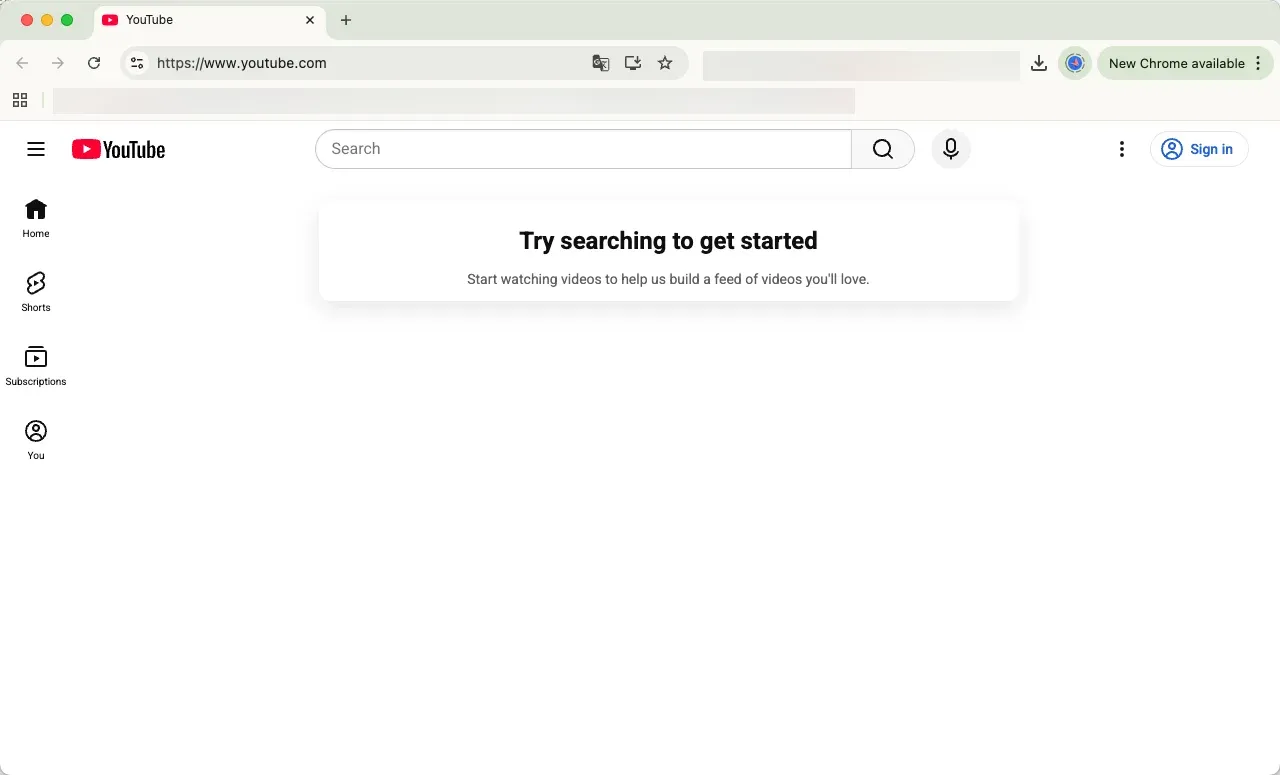
Step 2. Launch the YouTube app on your iOS device or navigate to YouTube.com in a web browser on your Mac.
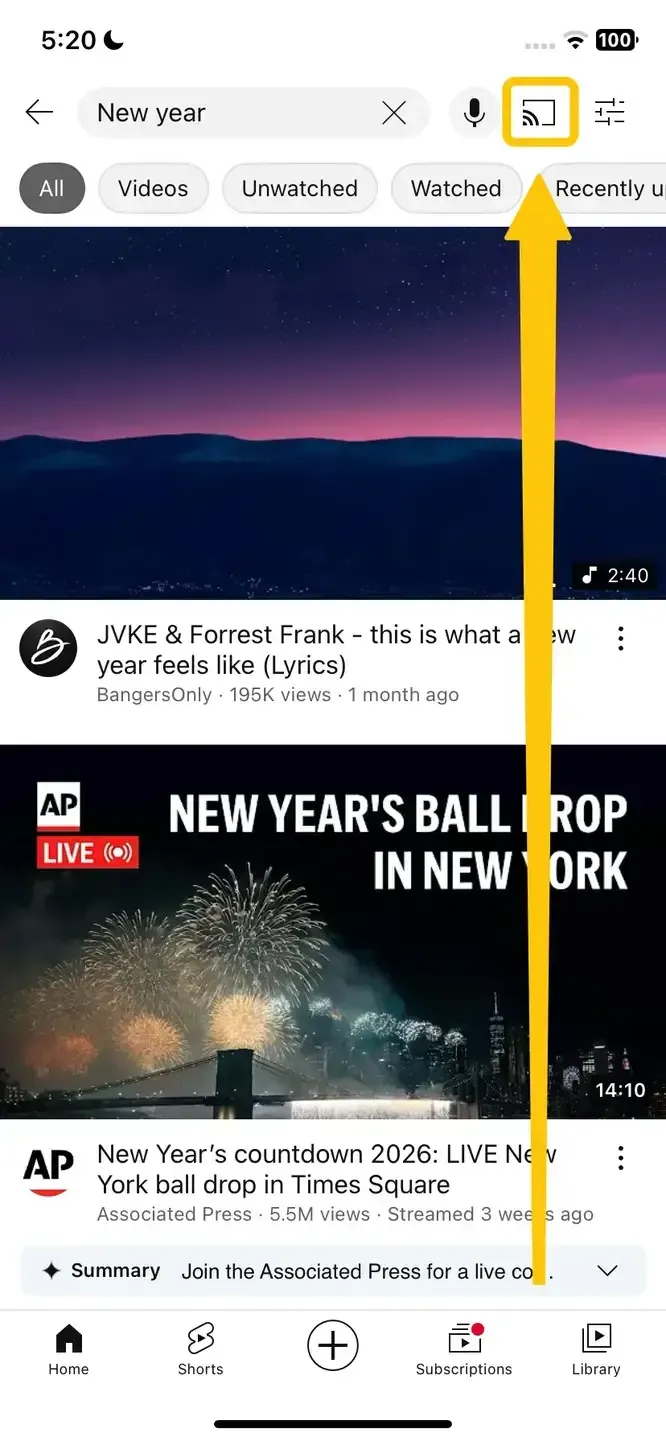
Step 3. Find and play the video you want to stream, tap the AirPlay icon in the YouTube (it looks like a rectangle with a triangle).
Step 4. From the list of available devices, select your AirPlay-compatible TV. Your YouTube video will start playing on the TV, and you can control playback directly from your device.
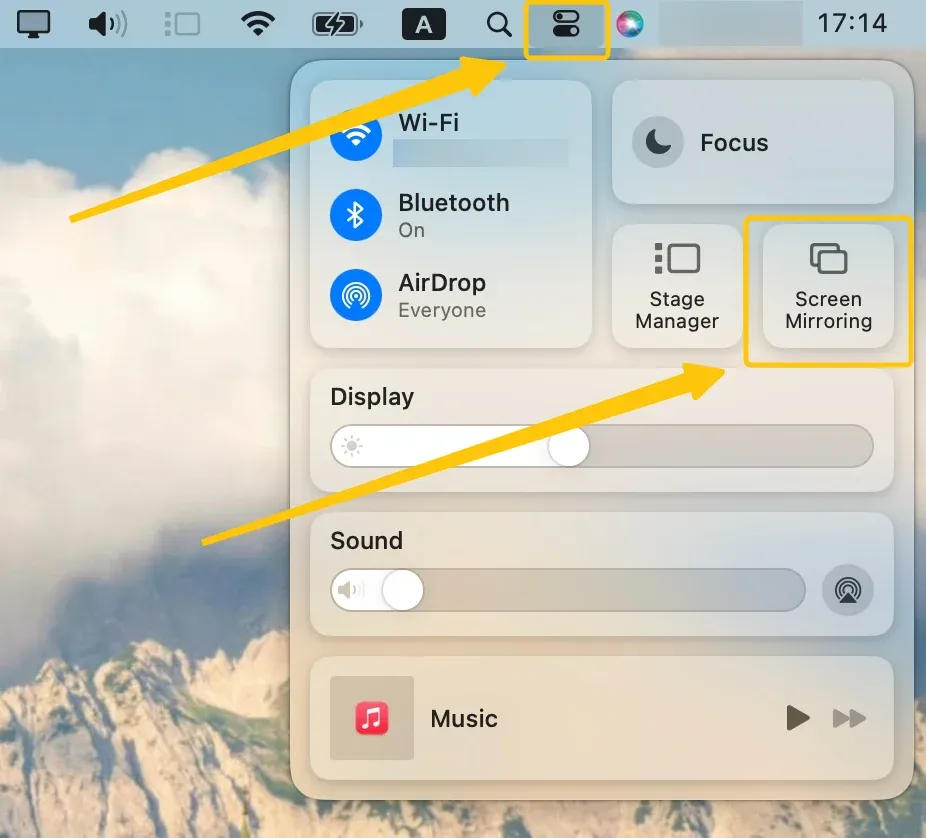
Alternatively, you can mirror the whole screen of your Apple device by tapping the Screen Mirroring option from the Control Center menu, then choose your smart television from the available list.
How to AirPlay YouTube to Android TV/Windows PC
Since AirPlay is an Apple protocol, it's not natively supported on Windows PCs or most Android TVs. However, with a simple workaround, you can still stream YouTube from your Apple device to these screens. Here's how to make it happen.
- Use Built-in Chromecast Feature
For YouTube, the most straightforward solution is to use Google Cast, also known as Chromecast. This feature is built into most Android TVs, making it a seamless way to Chromecast YouTube. Here are the steps:
Step 1. Make sure your TV is powered on and connected to the same Wi-Fi network as your Apple device.
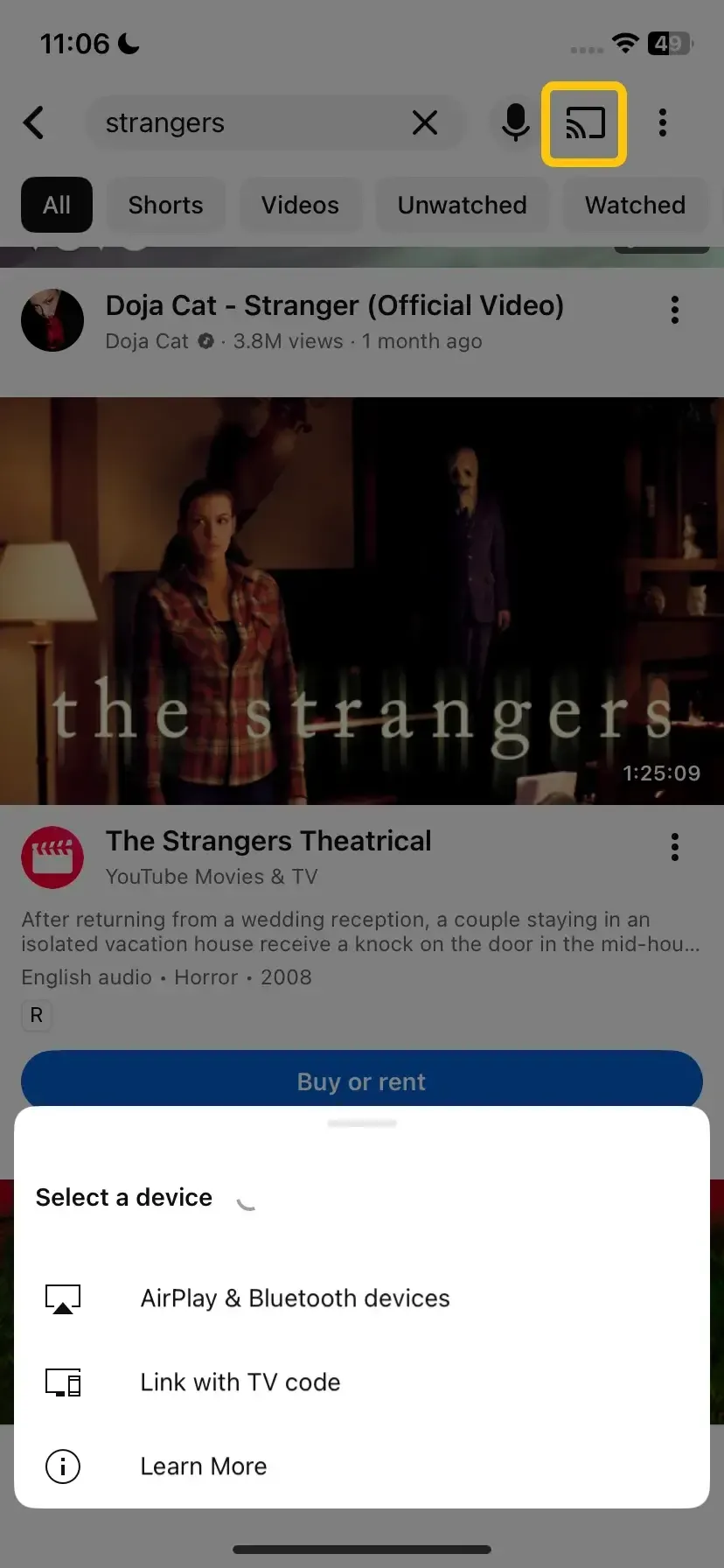
Step 2. Open YouTube from the mobile device, tap the Cast icon, and select your Android TV from the list of devices.
Step 3. Your video will begin streaming on your Android TV.
- Use PigeonCast
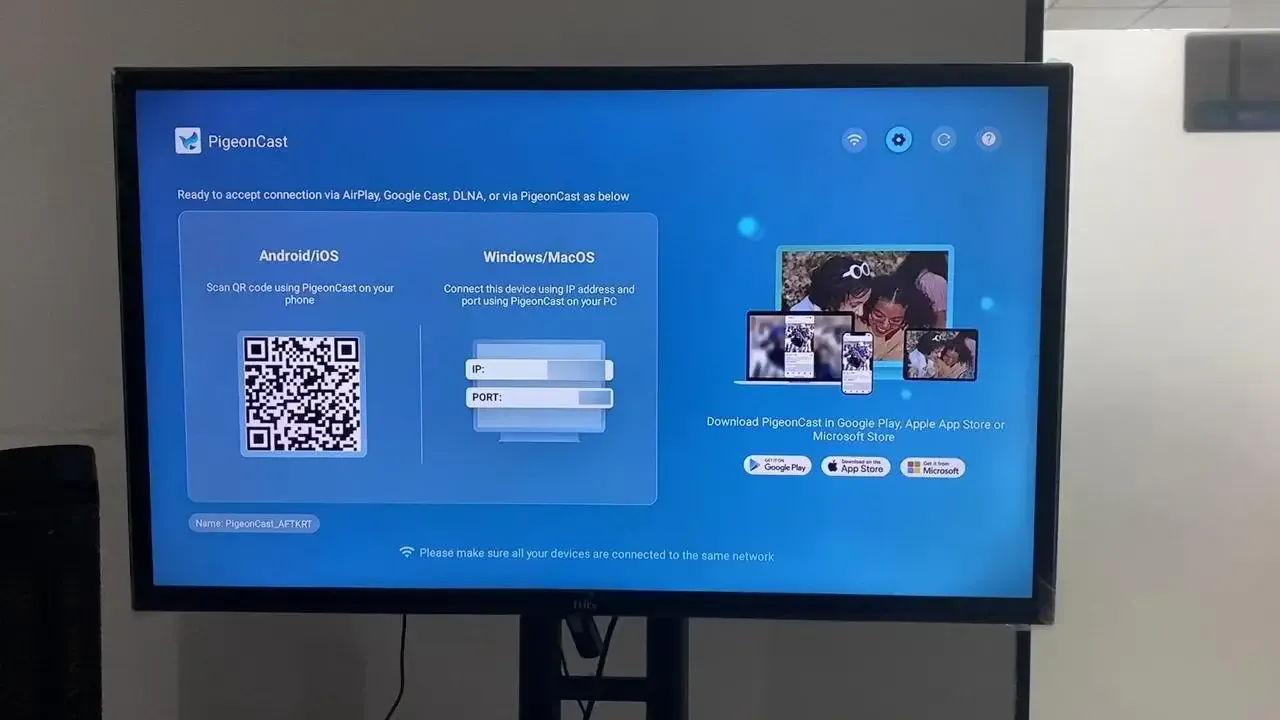
Step 1. Ensure both your devices are under the same WiFi network.


Overall Rating:


Step 2. Install PigeonCast on your mobile device, like a phone, tablet, or laptop, and open it.
Overall Rating:


Step 3. Install PigeonCast on your Android TV or Windows PC from Google Play, and open it.
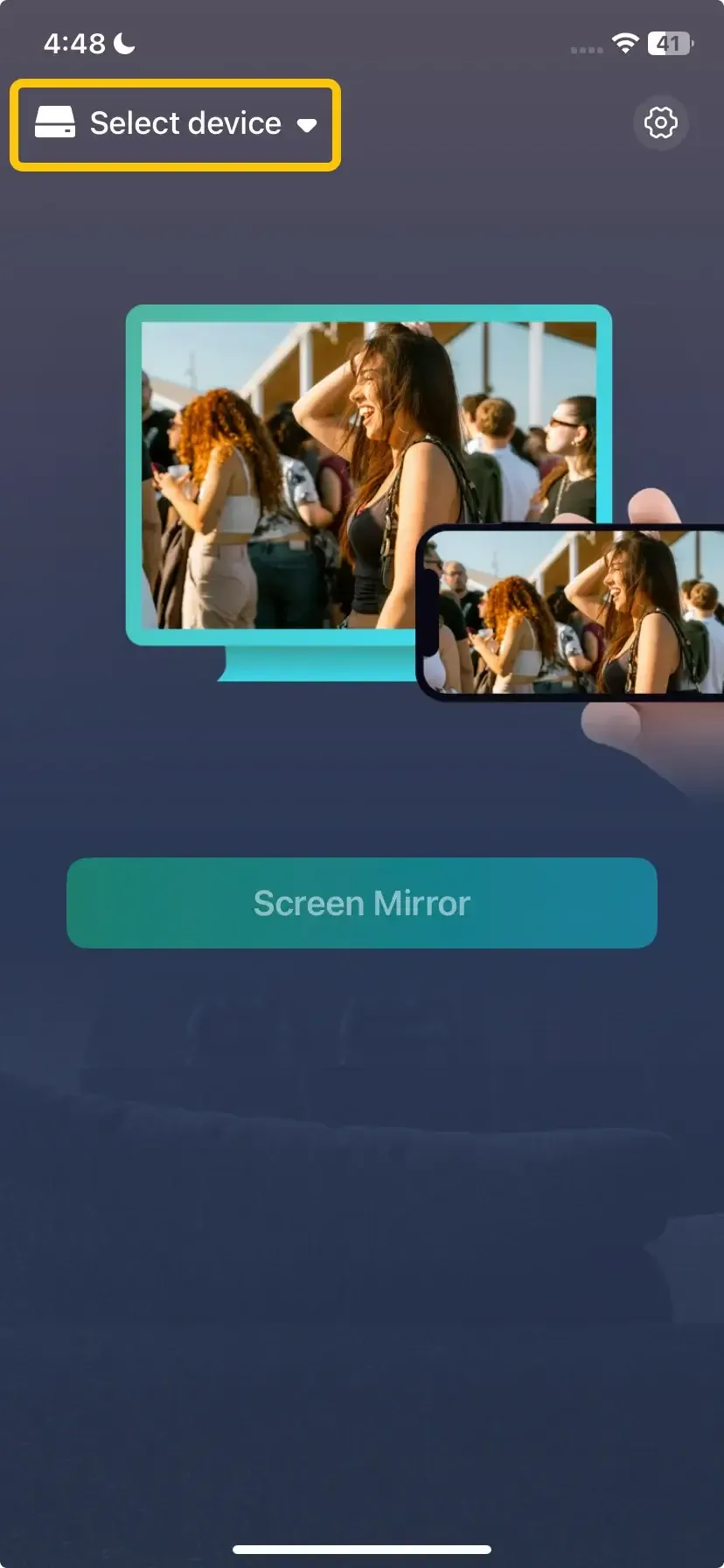
Step 4. On the mobile device, tap Select device to choose your TV or computer from the available list. Or you can scan the onscreen QR code shown on your television.
Step 5. Enter the onscreen PIN code to finish the pairing process.
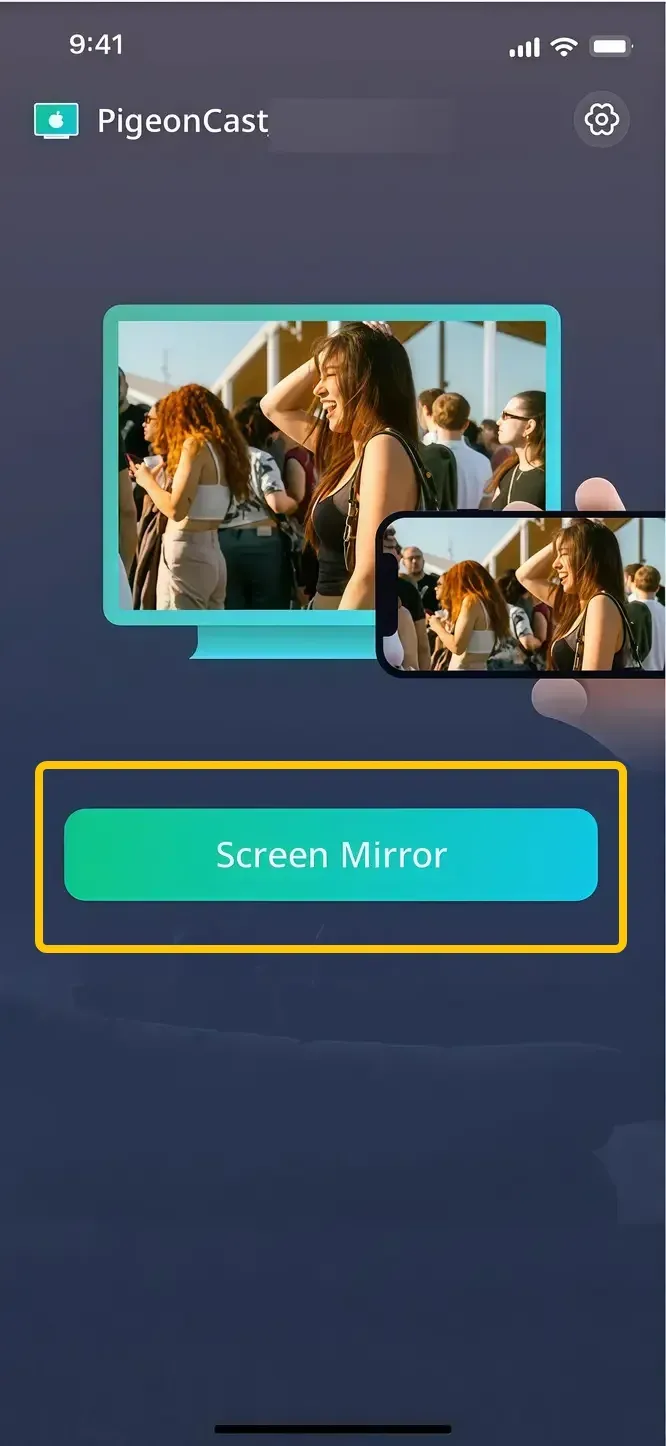
Step 6. When you complete the connection, you can then tap Screen mirror to begin your mirroring activities. For a laptop, you can even choose either to mirror the full screen or a single app window.
Common Troubleshooting for YouTube AirPlay Not Working
Now that you know how to AirPlay on YouTube, read on for a helpful troubleshooting checklist. This will guide you through identifying and fixing any issues, so you can get everything back on track.
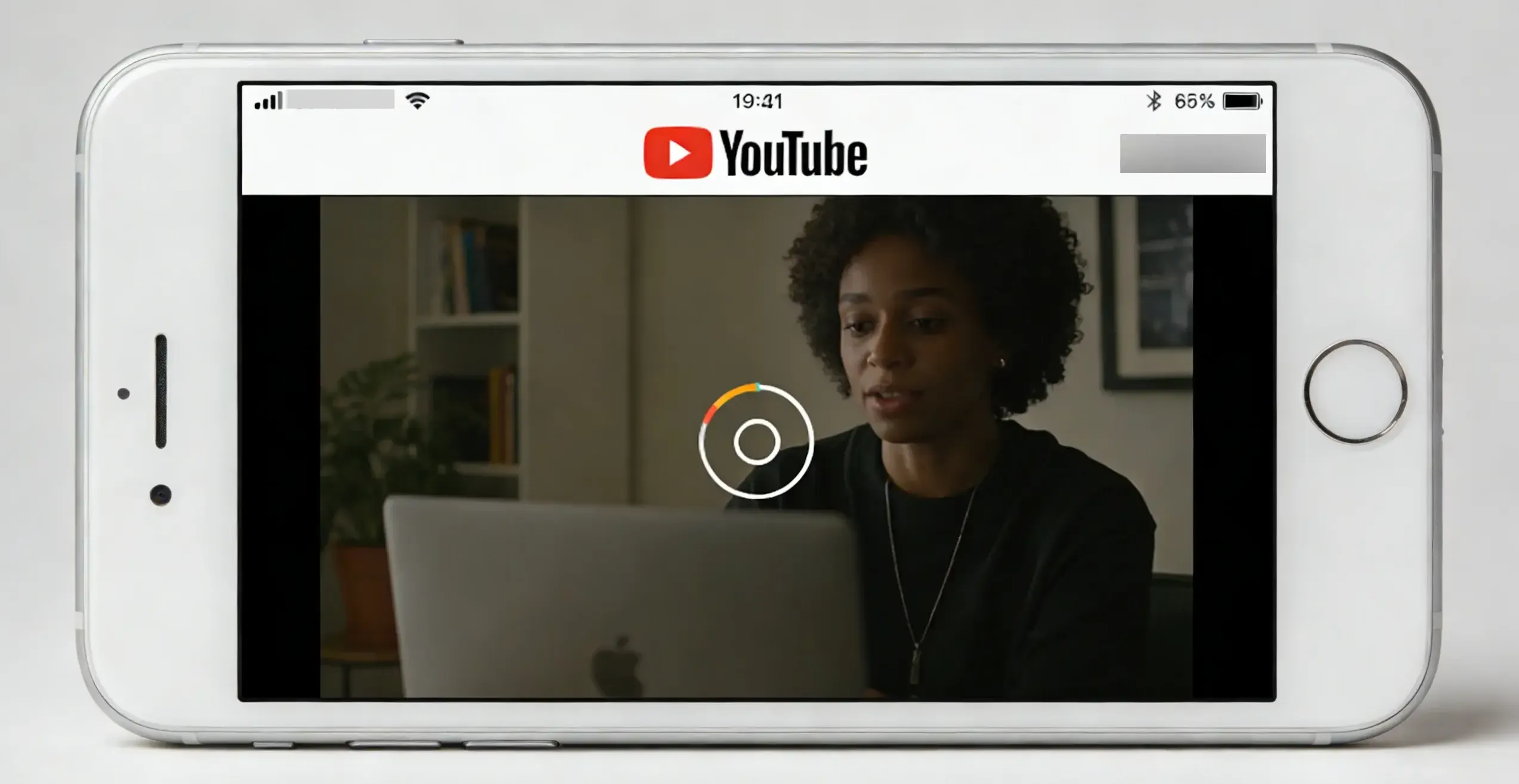
- AirPlay Button Missing: If you don't see the AirPlay icon, ensure both devices are on the same Wi-Fi network. Restart the YouTube app and your Apple device if necessary.
- AirPlay No Audioor Video: If you're only hearing audio but not seeing video, try restarting both your TV and device. Check that your HDMI connection is properly set up if you're using a physical connection.
- Poor Quality or AirPlay Lag: Make sure both devices have a strong Wi-Fi connection. If necessary, move your devices closer to the router to ensure the connection is stable.
- AirPlay Not Connecting: If AirPlay is not connecting to your TV, restart both the Apple device and the TV, and verify that AirPlay is enabled on the TV.
Bottom Line
How to AirPlay YouTube to TV? For compatible smart TVs, you can use AirPlay, while Android TVs and Windows PCs can rely on Chromecast or PigeonCast. If you run into any issues, there are simple troubleshooting tips to help you get back on track. With these methods, you'll be able to enjoy YouTube on the big screen in no time.
YouTube AirPlay FAQ
Does YouTube support AirPlay?
Yes, YouTube supports AirPlay. You can stream YouTube videos from your Apple device (iPhone, iPad, or Mac) to any AirPlay-compatible device, such as an Apple TV or supported smart TVs, with just a few taps.
How to turn off YouTube AirPlay
To turn off YouTube AirPlay, simply tap the AirPlay icon again and select "Stop Mirroring" or "Stop AirPlay" on your device. Alternatively, you can stop the video or disconnect the AirPlay session from the settings menu.
Why is the YouTube AirPlay button missing?
The YouTube AirPlay button may be missing for several reasons:
- Network issues
- App or device glitch
- AirPlay not enabled
- Outdated software
- Device compatibility
How to Chrome YouTube AirPlay?
To AirPlay YouTube from Chrome, follow these steps:
- Make sure both your Apple device (Mac, iPhone, or iPad) and the TV or AirPlay-compatible device are connected to the same Wi-Fi network.
- On your Mac, open Google Chrome and go to the YouTube website.
- Find and start the YouTube video you want to stream.
- On your Mac, click the AirPlay icon in the top menu bar (or from the video player on YouTube). If you're using Chrome, you may need to click the three-dot menu in Chrome, choose Cast, and select your AirPlay-compatible device from the list.
- From the list of available devices, select your AirPlay-compatible TV or device. The YouTube video will start playing on the TV.
How to fix the YouTube TV AirPlay black screen?
If you're experiencing a black screen when trying to AirPlay YouTube to your TV, here are some common solutions to fix the issue:
- Ensure both your Apple device and TV are connected to the same Wi-Fi network. A poor or unstable connection could cause issues.
- Restart both your Apple device (iPhone, iPad, or Mac) and your TV. This can help resolve any temporary glitches.
- Make sure that both the YouTube app and your TV's firmware are up-to-date. Outdated software can cause compatibility issues.
- If you're using a VPN on your device, try disabling it. Sometimes VPNs can interfere with AirPlay connections.
- Make sure AirPlay is enabled on your TV. Navigate to Settings > AirPlay & HomeKit on your TV and ensure AirPlay is turned on.
- Close the YouTube app and reopen it. Sometimes restarting the app can resolve display issues.
- If AirPlay is still showing a black screen, try using Screen Mirroring from your iPhone, iPad, or Mac's Control Center instead of streaming directly through the YouTube app.
- If you're using an Apple TV or a physical connection, ensure the HDMI cable is properly connected and that the TV is set to the correct input.
Why does YouTube AirPlay only audio?
If YouTube is only playing audio and not video when using AirPlay, here are a few possible reasons and solutions:
- Network issues
- Outdated software
- AirPlay Settings
- Video Resolution compatibility
- App or device glitch
- HDCP issues
Clara Rossi is an experienced technology editor and a seasoned expert in screen mirroring and casting technologies. With a keen eye for detail and a deep understanding of how to seamlessly connect devices, Clara excels at optimizing user experiences for effortless sharing and streaming. Whether you're seeking quick fixes or advanced tips, her expertise and responsiveness ensure that every query is met with a well-informed and efficient solution.