
YouTube TV is one of the most popular streaming services, offering live TV, on-demand shows, and cloud DVR. While it's great on mobile devices, many users prefer watching on a bigger screen using Chromecast. In this guide, we'll walk you through how to watch YouTube TV Chromecast on your TV, troubleshoot common issues, and answer frequently asked questions.
How to Watch YouTube TV on Chromecast
Chromecast with YouTube TV is a simple way to watch your favorite shows on the big screen without messy cables. It works with almost any modern TV that has a Chromecast device and offers a convenient, flexible viewing experience. In the section below, we'll guide you through how to Chromecast YouTube to TV in 2 ways.
Way 1. Tap Cast Icon in YouTube TV
If you're looking for a quick and easy way to stream content from YouTube TV to your TV, using the Cast feature is a great option. Whether you're watching on your phone, tablet, or computer, casting lets you send video and audio directly to a compatible device, like a smart TV or streaming device, without the need for cables. Here's how to do it:
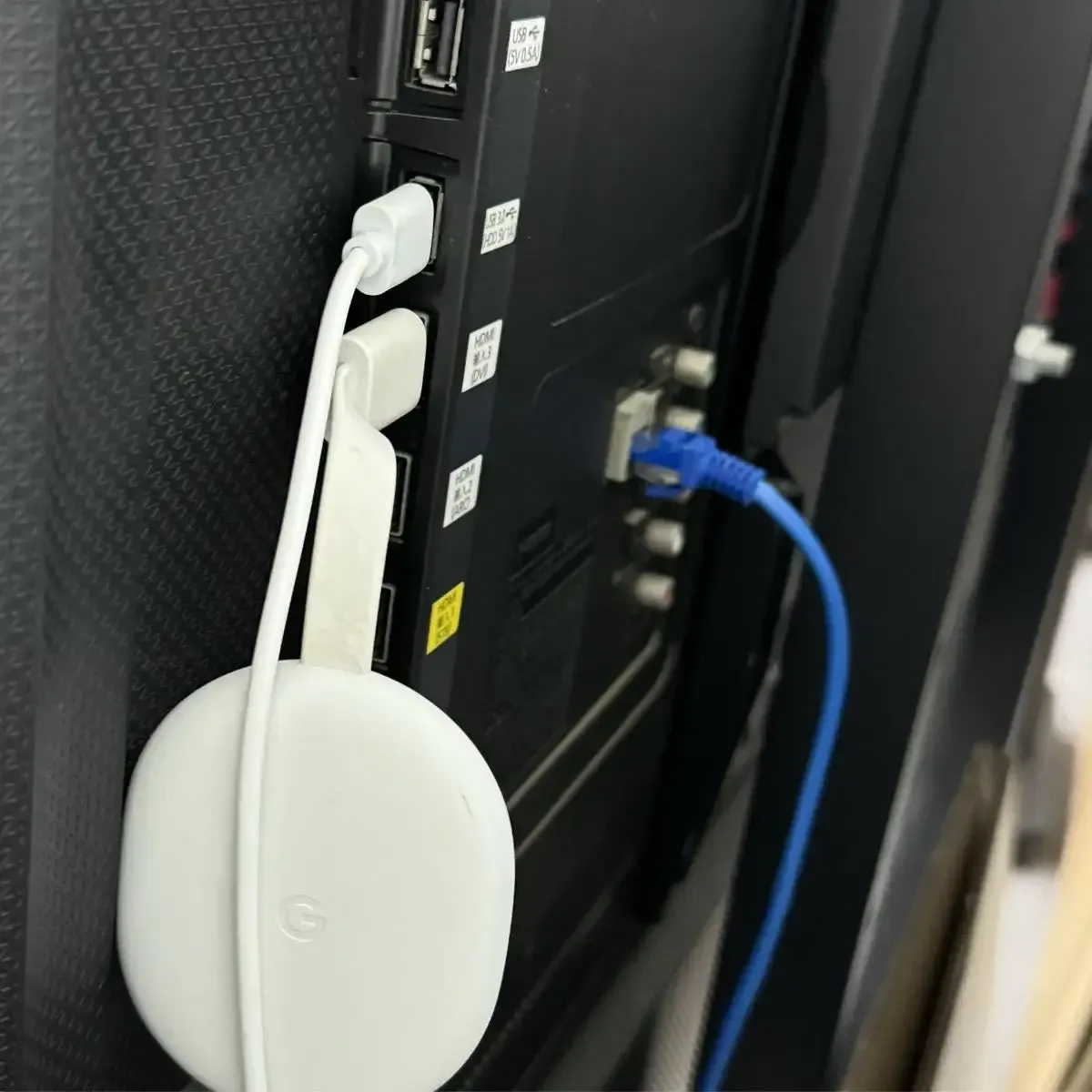
Step 1. Make sure your Chromecast is plugged into your TV and powered.
Step 2. Connect both your phone, tablet, or computer and Chromecast to the same WiFi network.
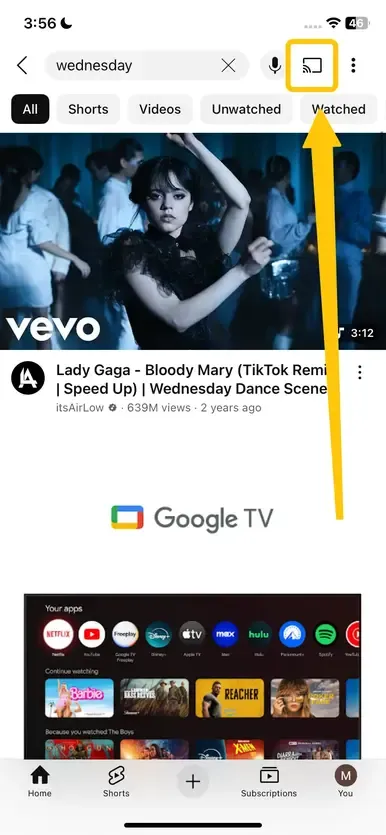
Step 3. Open YouTube TV on your device, find the Cast icon in the app or in the desktop browser.
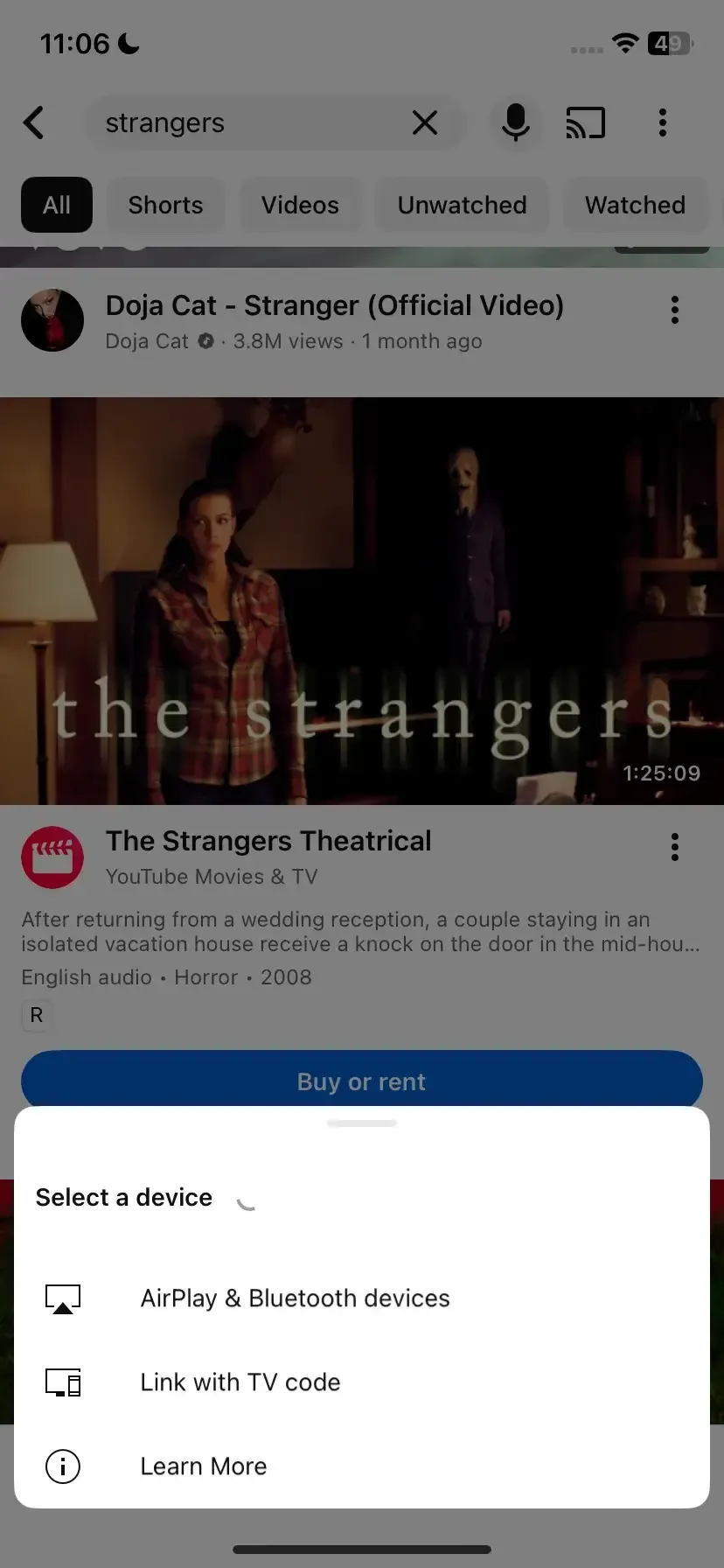
Step 4. Tap the Cast icon and select your Chromecast device from the list. Once connected, your YouTube TV screen will appear on your TV.
Step 5. Use your phone, tablet, or computer to browse content, pause, rewind, or change channels. The TV acts as a display, while the device controls playback.
Way2. Set Up PigeonCast
To cast YouTube TV to Google Chromecast, you can also use PigeonCast, an all-in-one and free app that supports AirPlay, DLNA, and Google Cast. It works smoothly across Android, iOS, Windows, Mac, and TVs, including tvOS and Android TV.
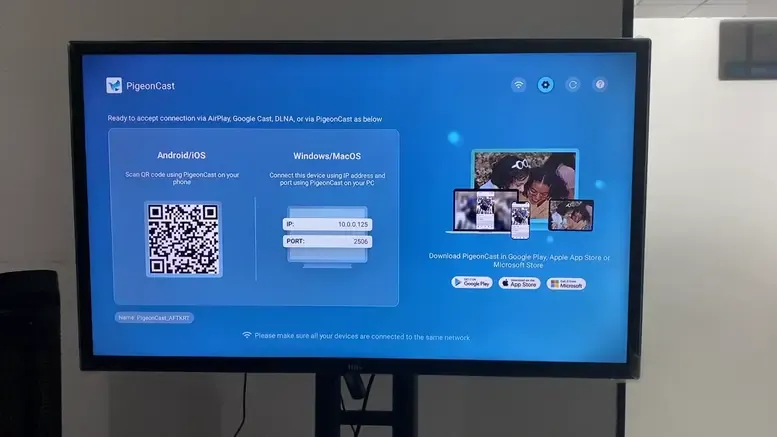
Using Google Chromecast YouTube TV with PigeonCast allows you to extend and unify your screen mirroring experience, making it easy to stream content across devices with different operating systems.
Step 1. Install PigeonCast and open it on your smart television.
Step 2. Ensure your mobile device and TV are connected to the same wireless network.
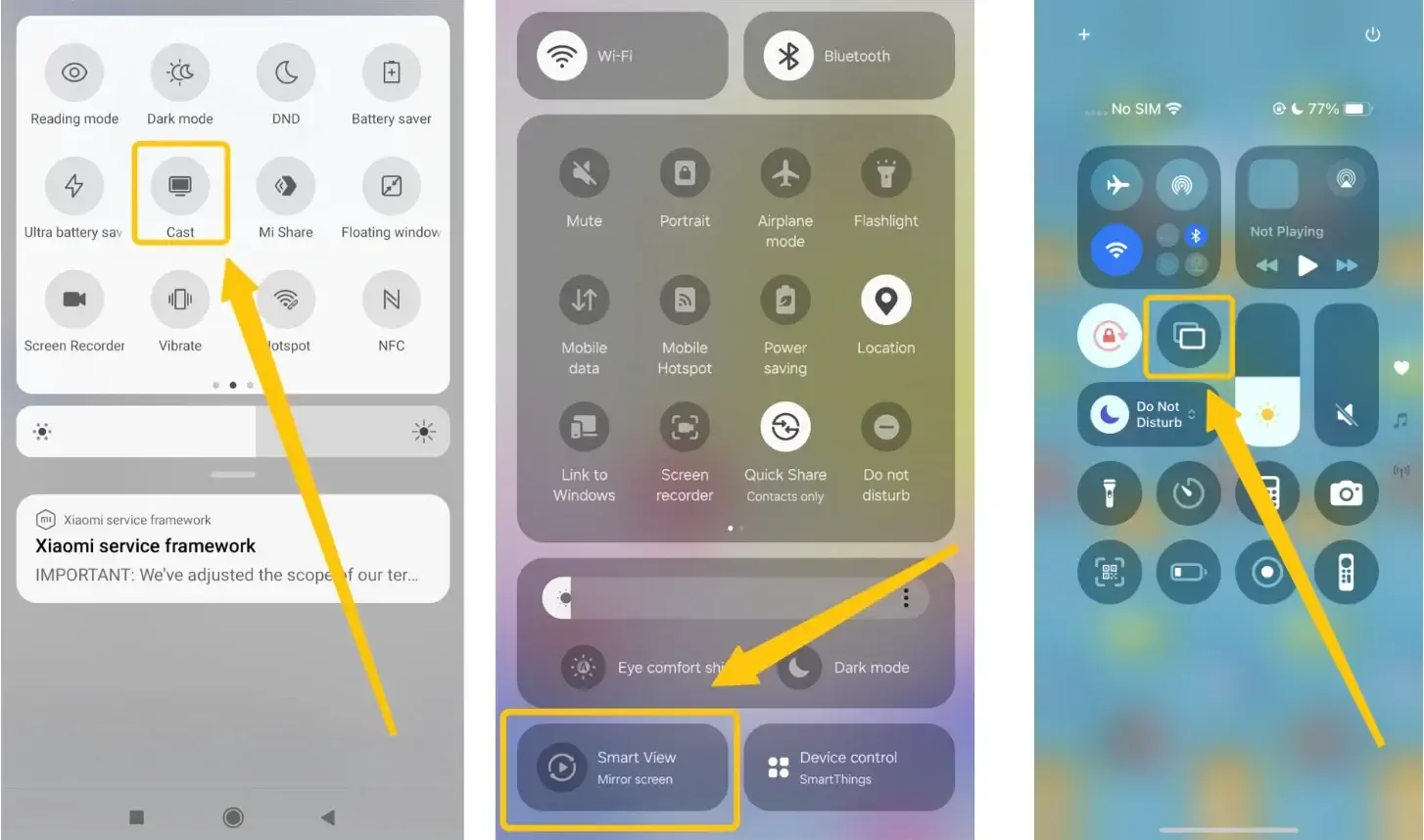
Step 3. Tap the Cast, Smart View, or Screen Mirroring button on your mobile device, then choose your TV from the device list to connect.
Step 4. If prompted, enter the onscreen PIN code to confirm your connection.
Step 5. When you finish the pairing, tap YouTube app on your mobile device, and your TV will also display the same content simultaneously.
If you also use a personal media server, see how to cast Jellyfin to Chromecast for movies and other content from your own library.
Fix: YouTube TV Chromecast Not Working
Sometimes, YouTube TV fails to cast because of Wi-Fi problems, outdated software, or incorrect device settings. First, check whether the issue only occurs during casting or whether YouTube is not working on the TV itself. If the TV app also crashes, buffers, or shows a black screen when opened directly, troubleshoot the YouTube app and TV before resetting Chromecast.
You may find: Chromecast Not Showing Up - Troubleshooting Guide in 2025
- Check WiFi Connection
Make sure your Chromecast and the device you're casting from are connected to the same Wi-Fi network. If you notice connectivity issues, try restarting your router to refresh the connection.
- Update Software
Ensure your YouTube TV app, Chromecast firmware, and your device's operating system are all updated to the latest versions. Updates often fix bugs that can interfere with casting.
- Restart Devices
Power cycle your TV, Chromecast, and phone or tablet. Restarting helps refresh connections and can resolve temporary glitches.
- Reinstall the App
If casting issues continue, uninstall and reinstall the YouTube TV app on your device. This clears corrupted data that may be causing problems.
- Factory Reset Chromecast (Optional)
As a last resort, perform a factory reset on your Chromecast by holding the button until the LED starts blinking. After resetting, set it up again to restore full functionality.
Closing Words
Smart YouTube TV Chromecast makes it easy to enjoy your favorite shows on the big screen with convenience and flexibility. By following the setup steps, using tools like PigeonCast for extended mirroring, and applying simple troubleshooting tips, you can ensure smooth and uninterrupted streaming. Whether casting from a phone, tablet, or computer, these methods turn any TV into a seamless entertainment hub for YouTube TV.
YouTube TV Chromecast FAQ
Q: How to connect YouTube to TV from a phone without Chromecast?
You can connect YouTube to your TV from a phone without Chromecast using these methods:
- HDMI Cable: Use a Lightning-to-HDMI (iPhone) or USB-C-to-HDMI (Android) adapter to connect your phone directly to the TV. Switch the TV input to the correct HDMI port.
- Smart TV Apps: Open the YouTube app on your smart TV and sign in with the same account as your phone. You can control playback from your phone via the app.
- Third-Party Casting Apps: Use apps like PigeonCast that support screen mirroring via Wi-Fi or network connections, compatible with Android, iOS, Windows, Mac, and smart TVs.
Q: Can you Chromecast YouTube TV?
Yes, you can Chromecast YouTube TV. Simply ensure your Chromecast is plugged into your TV and connected to the same Wi-Fi network as your phone, tablet, or computer. Open the YouTube TV app, tap the Cast icon, select your Chromecast device, and your content will appear on the TV. You can then control playback directly from your device.
Q: Where is the Cast button on YouTube TV?
The Cast button on YouTube TV is located in the top-right corner of the app on your phone, tablet, or computer. It looks like a small rectangle with a Wi-Fi signal in the corner. Tap the icon to see a list of available devices, then select your TV or Chromecast to start streaming.
Q: Why can't I cast YouTube to Chromecast?
You might not be able to cast YouTube to Chromecast for several reasons:
- Wi-Fi Issues: Your device and Chromecast must be on the same Wi-Fi network.
- Outdated Software: The YouTube app, Chromecast firmware, or your device’s OS may need updates.
- App Glitches: Temporary bugs in the YouTube app can prevent casting. Restarting or reinstalling the app often helps.
- Network Restrictions: Some public or hotel networks block device-to-device casting.
- Chromecast Problems: Your Chromecast may need a restart or, in rare cases, a factory reset.
Clara Rossi is an experienced technology editor and a seasoned expert in screen mirroring and casting technologies. With a keen eye for detail and a deep understanding of how to seamlessly connect devices, Clara excels at optimizing user experiences for effortless sharing and streaming. Whether you're seeking quick fixes or advanced tips, her expertise and responsiveness ensure that every query is met with a well-informed and efficient solution.