
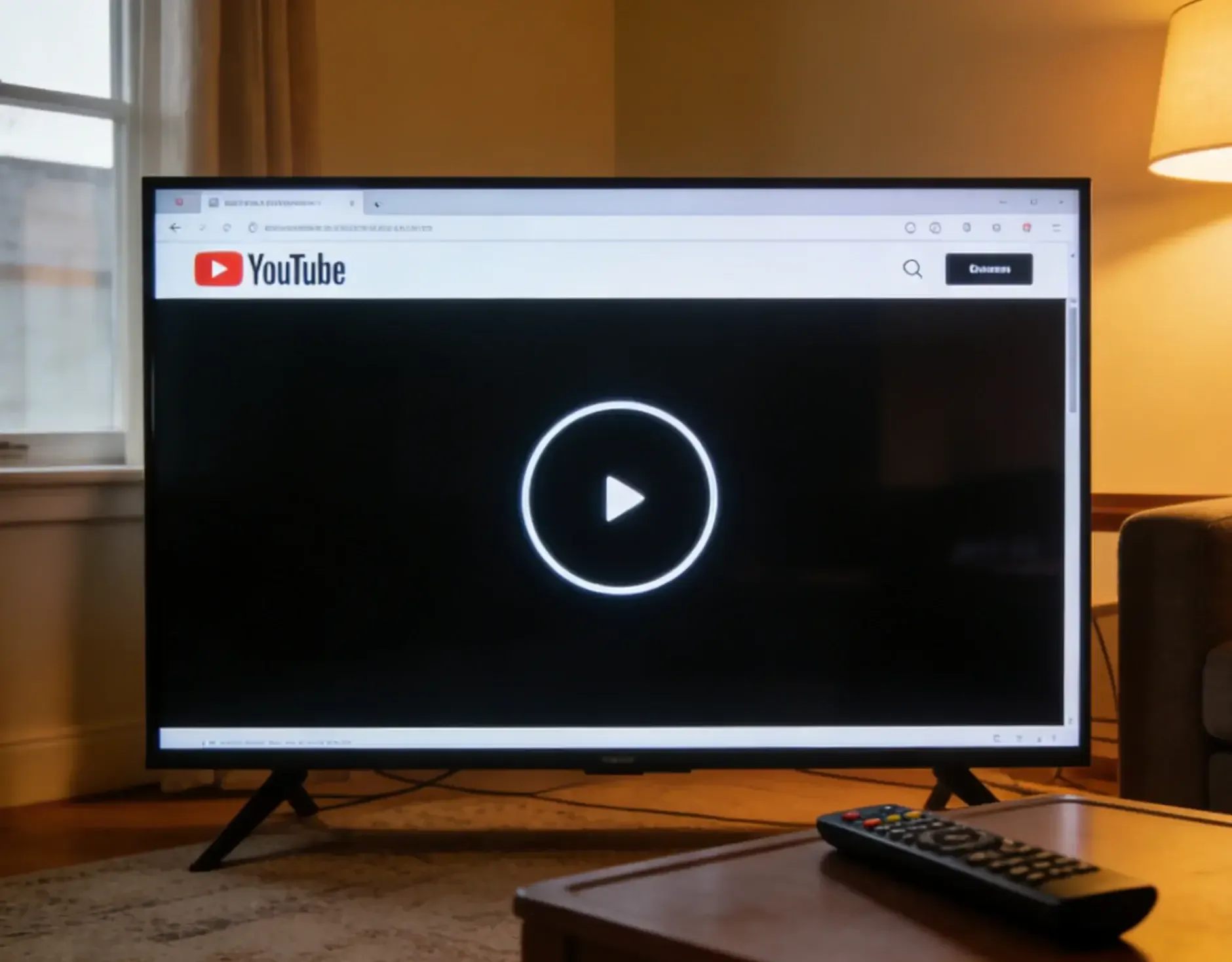
Why is YouTube not working on my TV? YouTube issues are common across brands like Samsung, LG, Sony, and Roku, and are usually caused by the interaction between YouTube updates, your TV's OS, and your network. Before assuming your TV is broken, this guide covers easy troubleshooting steps to fix 95% of YouTube issues, including a smart workaround that bypasses the TV apps entirely.
Why Isn't YouTube Working on My TV
When YouTube stops working on your TV, the problem usually comes from one of four places: your internet connection, the YouTube app itself, the TV system, or the device YouTube is running on. If any one of these fails, streaming won't work properly.
- YouTube's Service: This includes YouTube's servers, content delivery networks (CDNs), and account systems. If YouTube is having widespread issues (which happens surprisingly often), no amount of troubleshooting your TV will help.
- Network: Your home Wi-Fi or Ethernet connection acts as the bridge between YouTube's servers and your TV. Network problems are the #1 cause of streaming issues, accounting for approximately 60% of all YouTube problems on smart TVs.
- TV's Software: Your smart TV's operating system (whether it's Tizen, webOS, Android TV, or Roku OS) and the YouTube app itself must be compatible and up-to-date. Outdated software causes crashes, freezes, and playback errors.
- Account and Content: Your YouTube account status, regional restrictions, and even specific video availability can prevent playback. A single problematic video or channel might work fine on your phone but not on your TV.
What to Do When YouTube Is Not Working
If you encounter YouTube TV problems today, there's no need to stress. Here we'll begin with a quick fix that often resolves the problem when nothing else seems to work. After each solution, try using YouTube again to see if the YouTube TV issues are resolved.
Fix 1. Use PigeonCast to Mirror YouTube to TV
If you're in a hurry to watch YouTube or have already tried several solutions without success, we recommend giving PigeonCast a try. This free, ad-free mirroring app works effortlessly across Android, iOS, Windows, Mac, and TVs (including tvOS and Android TV) without the need for any cables. You can easily stream YouTube videos, photos, music, and apps from your device to any screen.

Step 1. Ensure your mobile device, such as a smartphone, tablet, or laptop, and TV are covered by the same wireless network.


Overall Rating:



Step 2. Install PigeonCast on your mobile device from App Store, Google Play, or Microsoft Store, then open it.
Overall Rating:
Step 3. Install PigeonCast on your TV from the app store if available, then launch it.
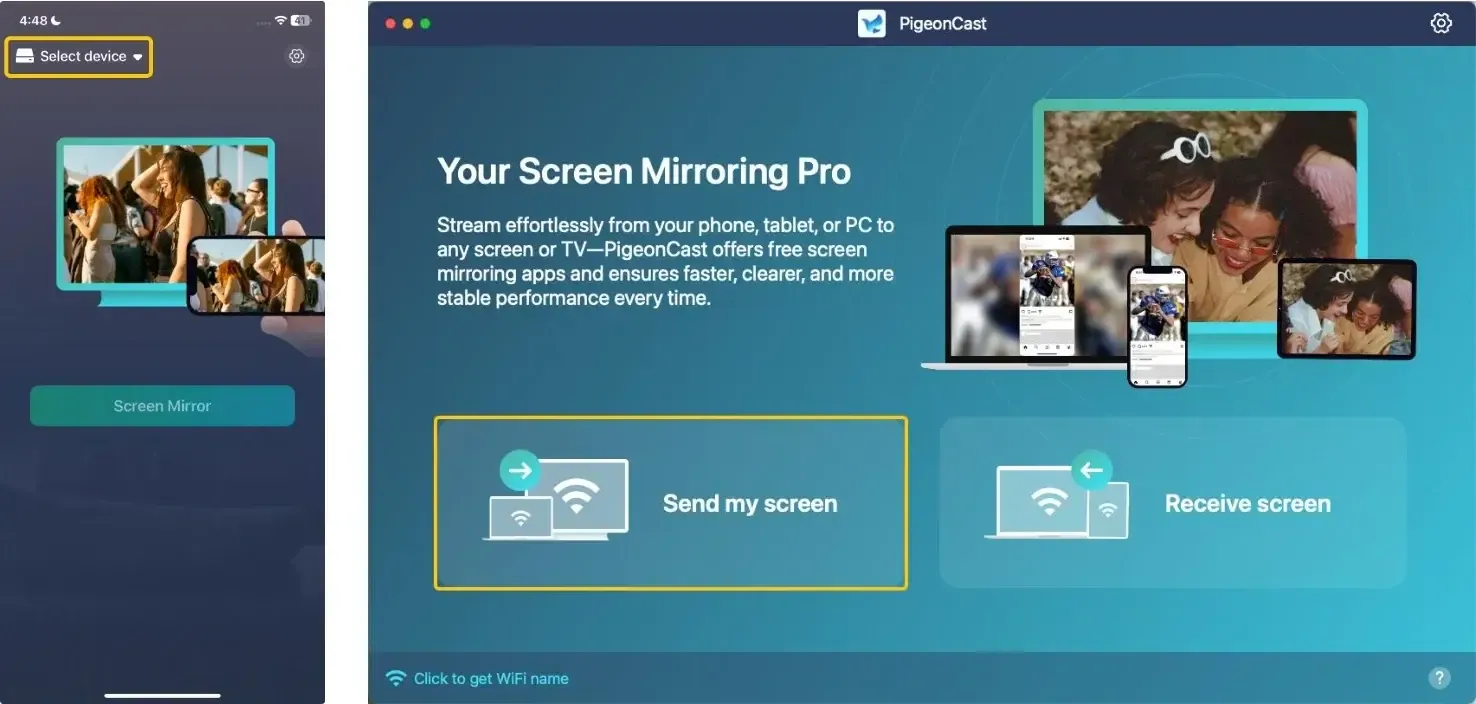
Step 4. Tap Select device or Send my screen to choose your TV from the available list. Or you can scan the onscreen QR code on the television screen to build the connection.
Step 5. Enter the onscreen PIN code to confirm the pairing process.
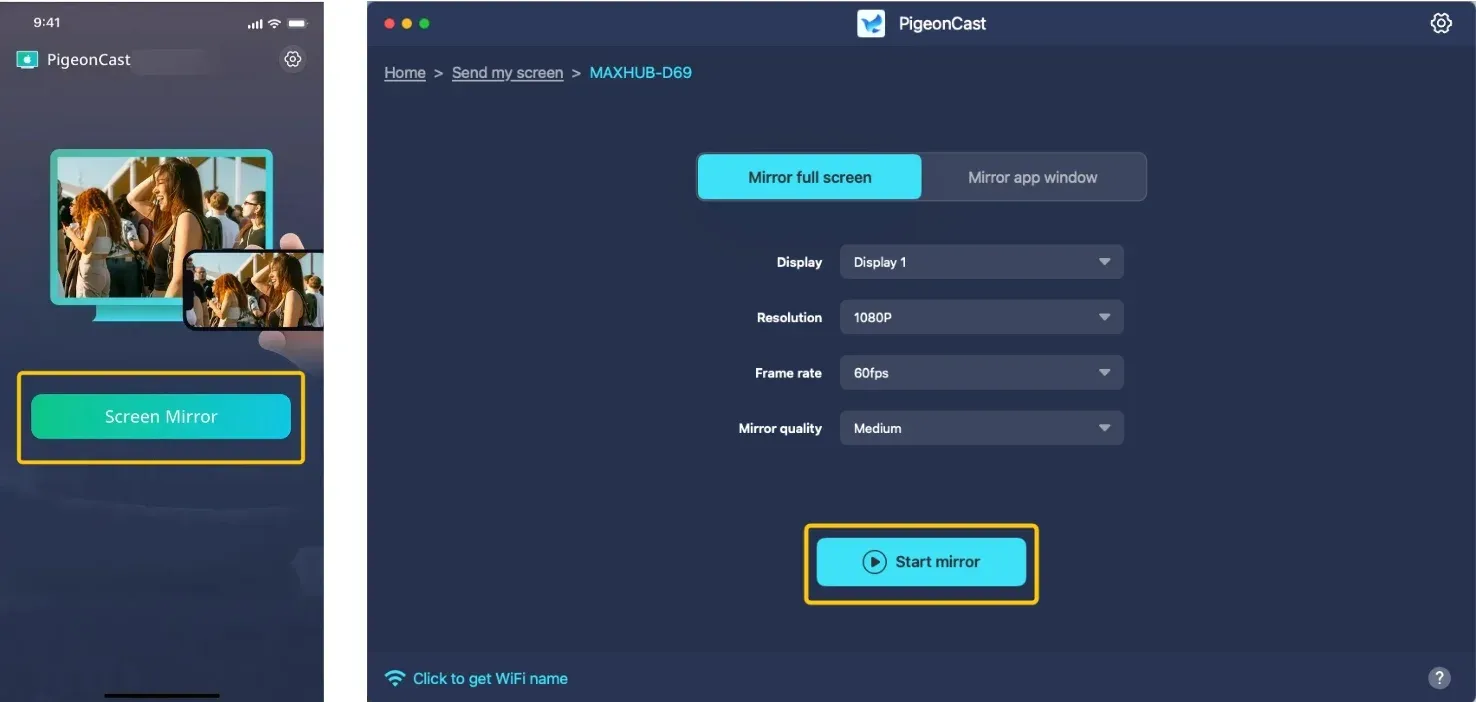
Step 6. When the connection completes, tap Screen Mirror or Start mirror to begin the mirroring activities.
Step 7. Open the YouTube app to cast to TV, and enjoy it on your larger television screen simultaneously.
Fix 2. Do Basic Checks
About 40% of YouTube TV app not working on Smart TV issues can be solved with a few basic checks. Begin with the basics to rule out any obvious issues, and if the problem persists, just move on to more advanced YouTube TV troubleshooting.
- Check Network Connection
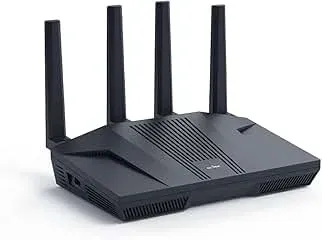
Why is my YouTube TV not working on Smart TV? A weak or unstable network connection is one of the most common reasons why YouTube isn't working on your Smart TV. Follow these steps to ensure your connection is strong:
-
Test Network Speed: Use a speed test app or website to check if your internet speed is fast enough to stream YouTube. Ideally, you should have at least 3 Mbps for SD content and 25 Mbps or higher for HD and 4K content.
-
Remove Interference: Ensure that there are no devices or objects causing interference with your Wi-Fi signal.
-
Use Ethernet Connection: If possible, use a wired Ethernet connection instead of Wi-Fi with a more stable connection for streaming.
-
Reset TV Network Settings: If your TV's network settings are misconfigured, reset them by going to the settings menu and selecting the option to reset network settings.
-
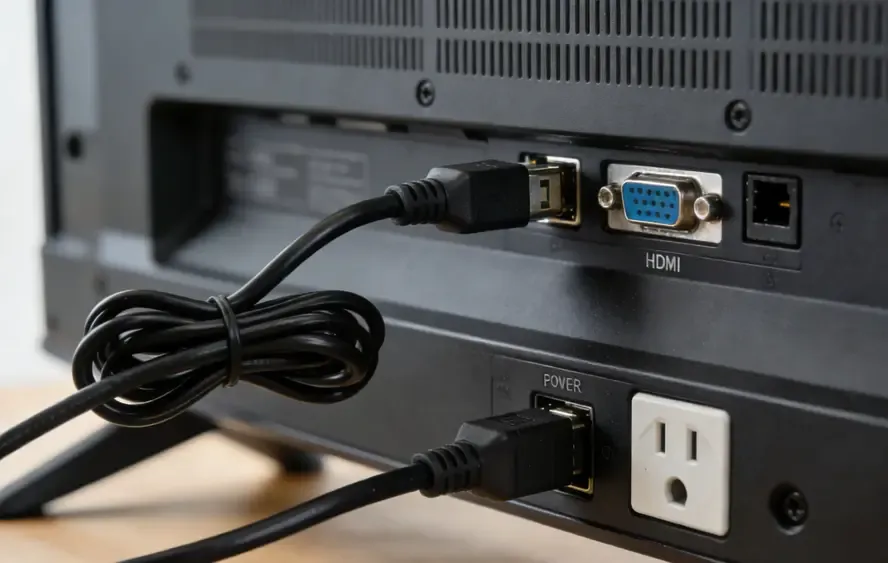
Check Cable Connections
Loose or disconnected cables can also prevent YouTube from working. Check that all HDMI or power cables are properly connected to your TV and remove any necessary external devices.
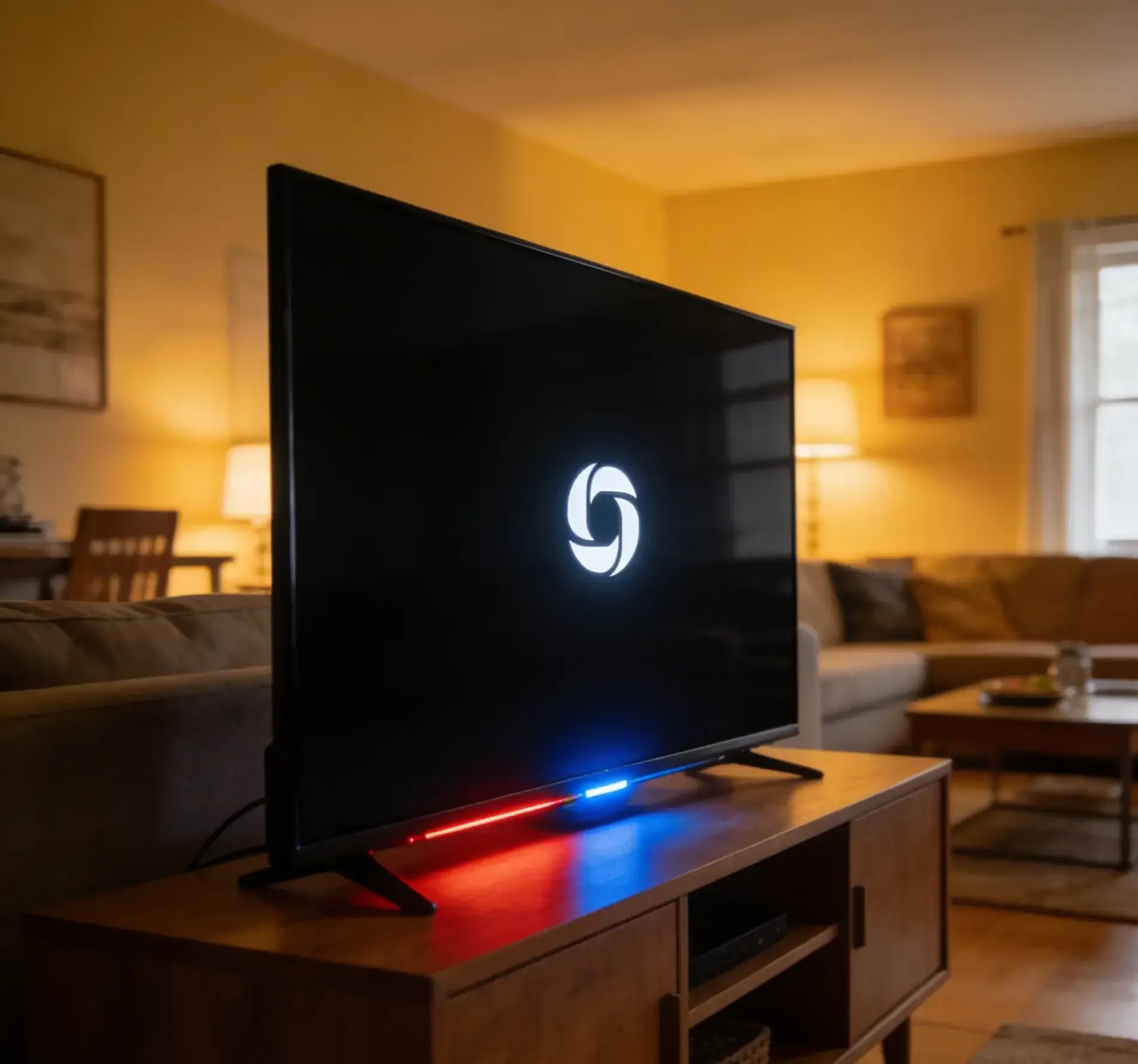
- Restart Devices
Sometimes, a simple restart can solve many problems. Turn off both your TV and modem/router, wait for 30 seconds, and then turn them back on. This can resolve network or software glitches that may be causing YouTube to malfunction.
Fix 3. Check for Updates
Performance issues with YouTube can often be traced back to outdated software. If your YouTube app or TV firmware isn't up to date, it could cause YouTube on Smart TV not working problems.
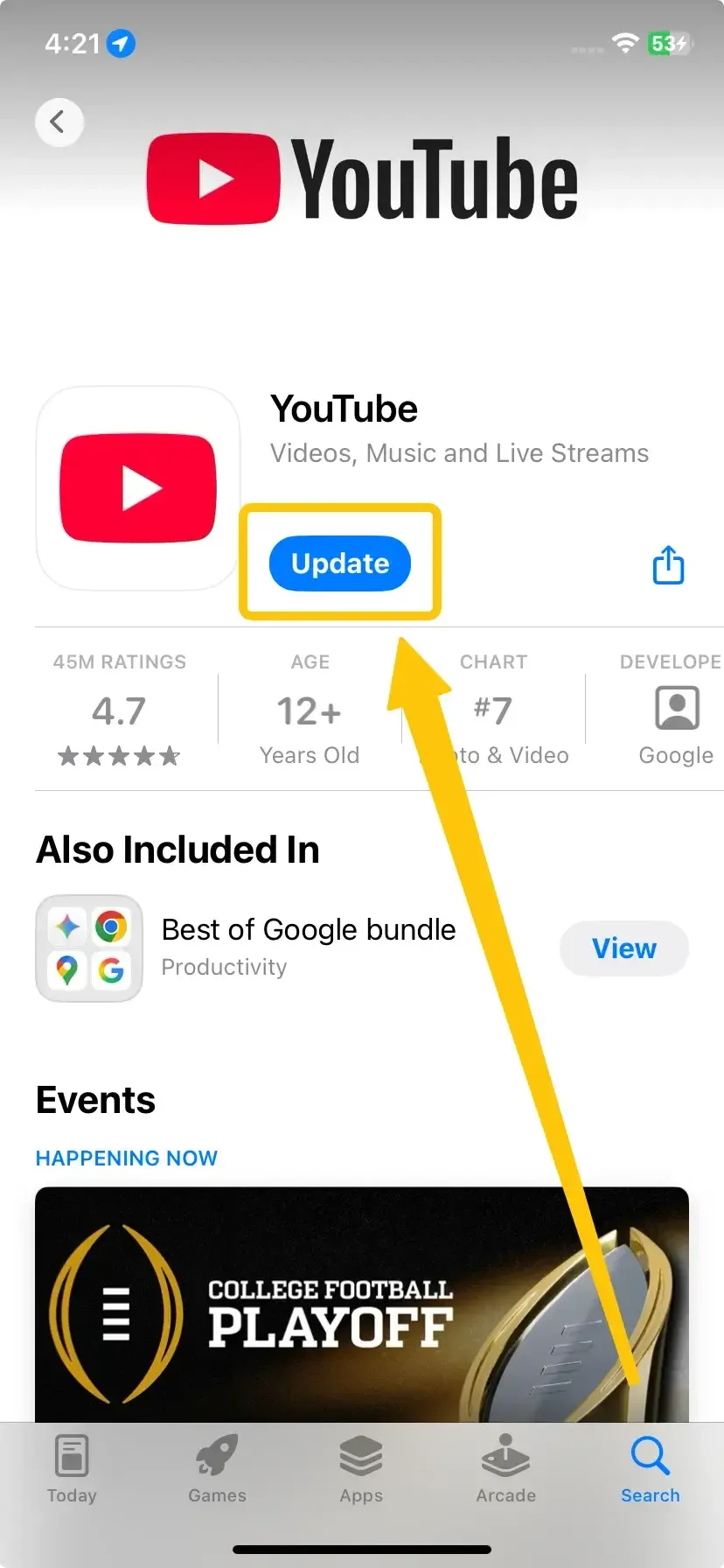
- Update YouTube App: Go to the app store on your TV and check if there's an update available for YouTube.
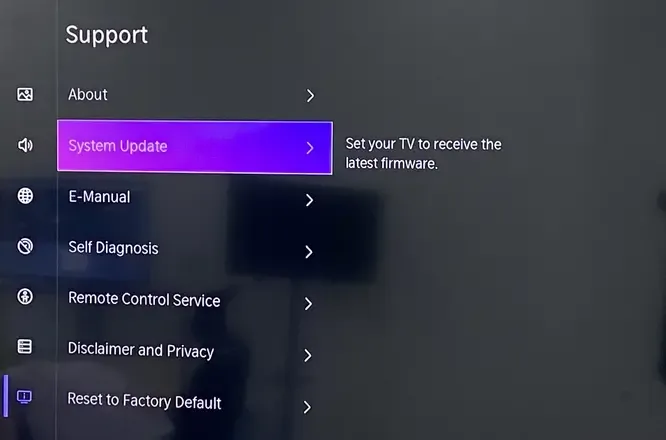
- Update TV Firmware: Head to the Settings menu of your Smart TV and check if any firmware or software updates are available. Updating to the latest version can often resolve compatibility issues.
Fix 4. Check YouTube Server Status
Why is YouTube not working on my Smart TV? The issue may not be your end, but with YouTube's servers. Before spending hours troubleshooting your equipment, check if YouTube is down globally.
- Visit YouTube's Status Page: You can check social media or websites like DownDetector to see if YouTube is having issues.
- Check YouTube's Official Status: Visit youtube.com/yt/policyandsafety/emergency/ and check @TeamYouTube on Twitter for service announcements.
- Test on Multiple Devices: Try YouTube on your phone, tablet, or computer. Plus, if you have other YouTube accounts, switch the account to check whether the YouTube app not working on TV has been solved.
Fix 5. Clear Cache
Over time, the YouTube app's cache can build up and cause crashes, errors, freezing, and playback issues. Clearing the cache forces the app to rebuild fresh data, often resolving the YouTube TV not working on my Smart TV problem. It's also a good habit to regularly clear the cache, as it can help improve performance and extend the lifespan of your devices.
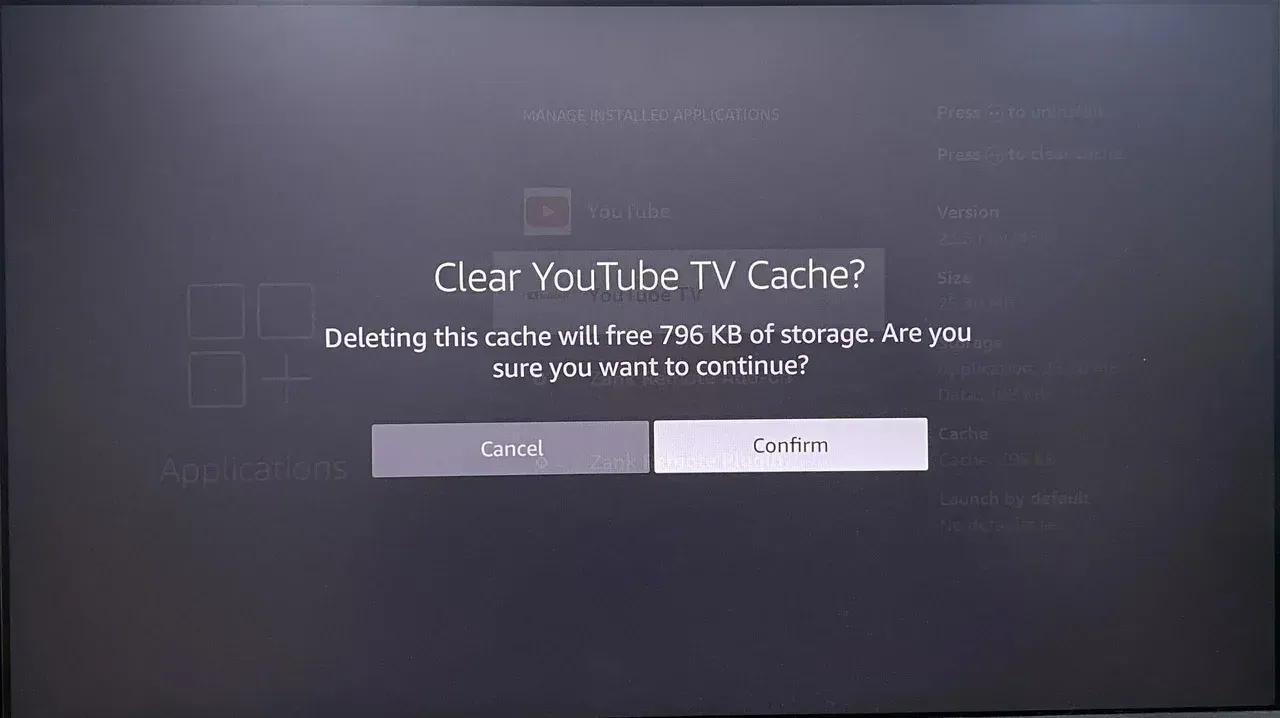
Step 1. On your TV, move to the Settings menu.
Step 2. Find the YouTube app in the list of installed apps.
Step 3. Select the option to clear cache or data, which will remove stored files and force the app to reload.
Fix 6. Delete and Reinstall YouTube
Why isn't YouTube working? Once clearing the cache doesn't resolve the issue, a more thorough solution may be needed. When an app becomes corrupted, reinstalling it is often the best way to restore proper functionality.
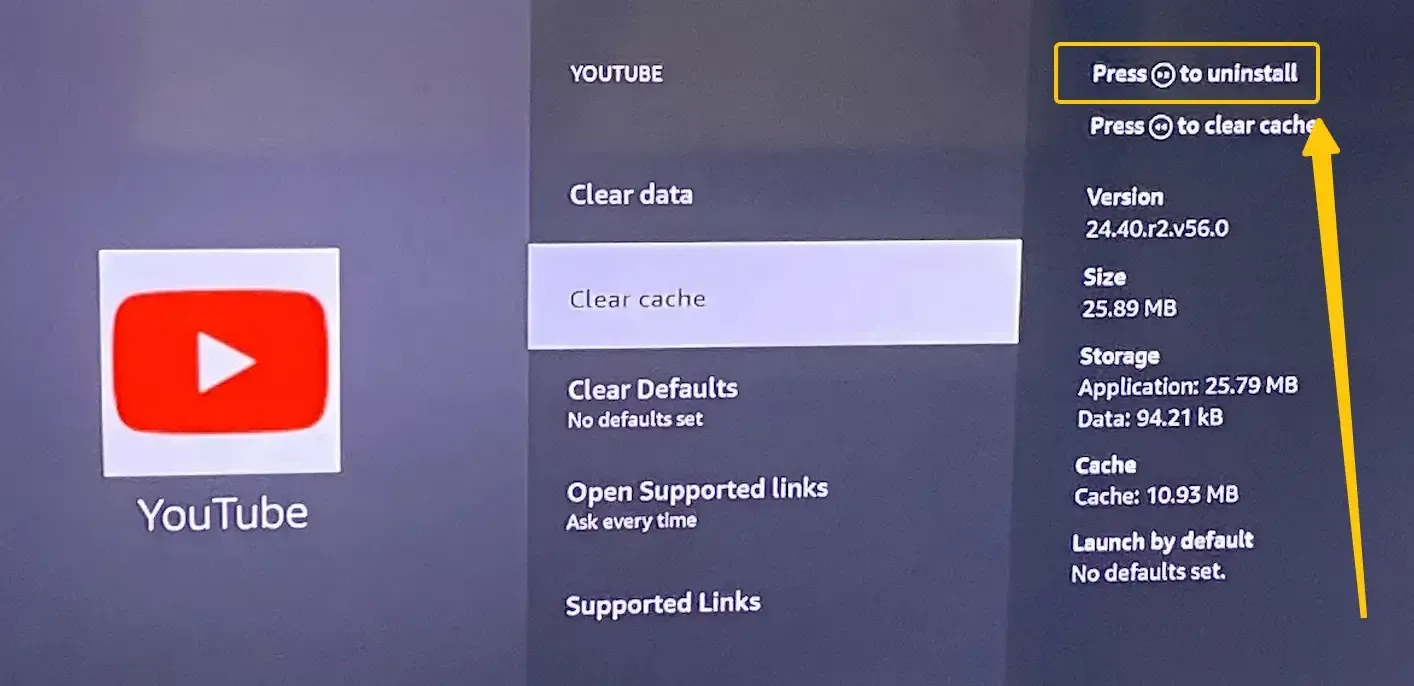
Step 1. Uninstall YouTube from your TV app menu.
Step 2. Restart your TV by unplugging the power cable for about 30 seconds.
Step 3. Reinstall YouTube from your TV's official app store, then log in with your Google account.
Step 4. Test the app before making any extensive customizations to settings.
Fix 7. Check Regional Restrictions & VPN Conflicts
Geographical and network configuration issues can still block YouTube even when everything else seems perfect. These problems require different solutions than technical fixes. Here's what to do:
Step 1. If you're using a VPN on your router or TV, disable it temporarily from the Settings > Network menu. VPNs can cause regional restrictions or network conflicts, affecting YouTube access.
Step 2. Some ISPs provide security services that might block streaming content. If you suspect this is the case, contact your ISP or temporarily disable any security services.
Step 3. Check your router settings for any content filtering or restrictions that might be blocking YouTube. Disable any filters or parental controls that may be in place.
Step 4. Certain countries restrict or block YouTube entirely, and specific videos may be region-locked. Try accessing YouTube on a mobile device using cellular data (not Wi-Fi) to verify if the issue is region-related.
Step 5. Incorrect DNS settings can redirect or block access to YouTube. To resolve this:
- Change to Google's DNS: 8.8.8.8 and 8.8.4.4
- Update your DNS settings in your TV Network settings.
Fix 8. Factory Reset Smart TV
When all other software fixes fail, a more drastic solution may be necessary. A factory reset should be the last resort for fixing a YouTube app on TV not working, and it's best to try this before contacting support. Before resetting, be sure to note all your settings and back up any important data, if your TV allows it.
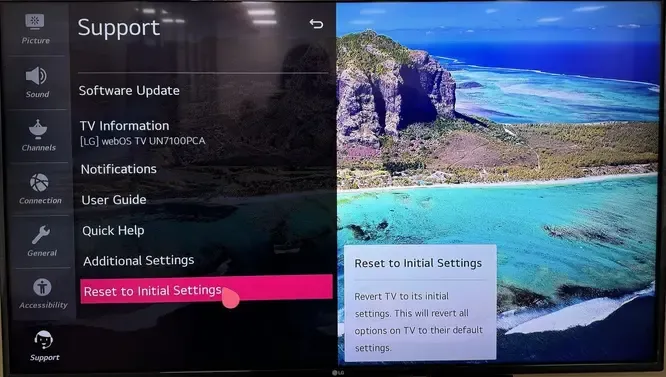
Step 1. Open the Settings menu on your Smart TV.
Step 2. Look for the option to reset the TV to its factory settings and confirm.
Step 3. Once the reset is complete, you'll need to set up your TV from scratch, including reinstalling YouTube and other apps.
Fix 9. Contact Support
Once a factory reset doesn't resolve the issue that YouTube is not working on Smart TV, it may be time to seek professional help. Reach out to your TV's official support center and let them know what troubleshooting steps you've already tried.
Wrapping Up
If YouTube won't load on TV, it's typically due to network issues, outdated software, or app glitches. Try simple fixes like checking your connection, updating the app/TV firmware, clearing the cache, or reinstalling YouTube. You can also use PigeonCast to mirror YouTube from another device if needed. If all else fails, a factory reset may be the last resort. Most problems can be solved with basic troubleshooting.
Why Is YouTube Not Working on My TV FAQ
How to fix YouTube not working on Samsung TV?
To fix YouTube not working on a Samsung TV, follow these steps:
- Ensure your TV is connected to a stable Wi-Fi or Ethernet network. Test the speed to make sure it meets the required minimum for streaming.
- Go to Settings > Support > Software Update to ensure your TV's firmware is up-to-date. Also, check for updates in the YouTube app from the Samsung Smart Hub.
- Navigate to Settings > Apps > YouTube > Clear Cache to remove any corrupted data that may be causing issues.
- Uninstall and reinstall the YouTube app from the Samsung App Store to resolve any app-related problems.
- Power off both your TV and router for 30 seconds, then restart them to fix network or software glitches.
If the problem persists, consider performing a factory reset or contacting Samsung support for further assistance.
Why is YouTube not working on LG Smart TV?
YouTube may not be working on your LG Smart TV for the following reasons:
- Network Issues
- Outdated Software
- App Cache Corruption
- Server Issues
- Account or Content Restrictions
- App Bugs or Glitches
How to solve YouTube not working on Vizio Smart TV?
To solve YouTube not working on a Vizio Smart TV, follow these steps:
- Make sure your TV is connected to a stable Wi-Fi or Ethernet network. A slow or unstable connection can prevent YouTube from loading properly.
- Go to Settings > System > Check for Updates to ensure your TV's firmware is up-to-date. You should also check for updates to the YouTube app in the Vizio app store.
- In the Settings > Apps menu, clear the cache for the YouTube app to remove any corrupted data that might be causing issues.
- Uninstall and reinstall the YouTube app through the Vizio App Store to fix any app-related issues.
- Power cycle your TV and router by turning them off for 30 seconds and then restarting. This can help resolve network or software glitches.
If the issue persists, you might want to consider resetting your TV or contacting Vizio support.
Why is YouTube not working on Sony Smart TV?
YouTube may not be working on your Sony Smart TV for the following reasons:
- Weak or unstable Wi-Fi or Ethernet connection.
- The TV's firmware or the YouTube app is not up to date.
- Temporary malfunctions or bugs in the YouTube app.
- Accumulated cache data is causing the app to freeze or crash.
- YouTube servers are experiencing outages or disruptions.
- Problems with your YouTube account or login.
- Region-based restrictions or specific videos are unavailable in your area.
How to restore YouTube not working on Smart TV Roku?
To restore YouTube on a Roku Smart TV, follow these steps:
- Make sure your Roku is connected to a stable Wi-Fi or Ethernet network. A weak connection can prevent YouTube from loading.
- Go to Settings > System > System Update and check for updates to ensure your Roku device is running the latest version.
- Remove the YouTube channel by selecting Settings > System > Advanced System Settings > Manage Installed Channels. Reinstall the YouTube app from the Roku Channel Store.
- Go to Settings > System > System Restart to restart your Roku, which can help resolve temporary glitches.
- Ensure there are no ongoing outages with YouTube's servers by checking social media or sites like DownDetector.
These steps should help restore YouTube on your Roku Smart TV. If the problem persists, consider performing a factory reset or contacting Roku support.
YouTube is not working on Philips Smart TV?
If YouTube isn't working on your Philips Smart TV, here are the potential reasons:
- Network Connection Issues
- Outdated Software
- App Corruption or Glitches
- Server Problems
- Cache or Data Issues
- Account Issues
How do I reset YouTube on my TV?
To reset YouTube without affecting other apps:
- First, force stop the app through your TV's application manager.
- Then clear cache (and data if the option exists).
- Finally, update or reinstall the app.
On most TVs, you can access these options through Settings > Apps > YouTube. If your TV lacks these controls, uninstalling and reinstalling achieves the same result.
Clara Rossi is an experienced technology editor and a seasoned expert in screen mirroring and casting technologies. With a keen eye for detail and a deep understanding of how to seamlessly connect devices, Clara excels at optimizing user experiences for effortless sharing and streaming. Whether you're seeking quick fixes or advanced tips, her expertise and responsiveness ensure that every query is met with a well-informed and efficient solution.