
While wireless mirroring options are available, they often come with lag or unreliable connectivity. Mirroring your PC to your Android device via USB provides a stable, high-quality, and secure connection, eliminating the need for Wi-Fi. In this guide, we'll show you how to mirror PC screen to Android via USB cable, and with a wireless option, PigeonCast as a backup.
How to Mirror PC to Android via USB
One of the most developer-friendly and free approaches to screen mirroring Android to PC via USB is using an open-source tool called SCRCPY. Though it requires a bit of initial setup, scrcpy delivers excellent performance, enabling you to control your Android device directly from your computer. You can do everything from clicking and scrolling to typing without any hassle. Here's how to screen mirror Android device to PC laptop via USB cable:
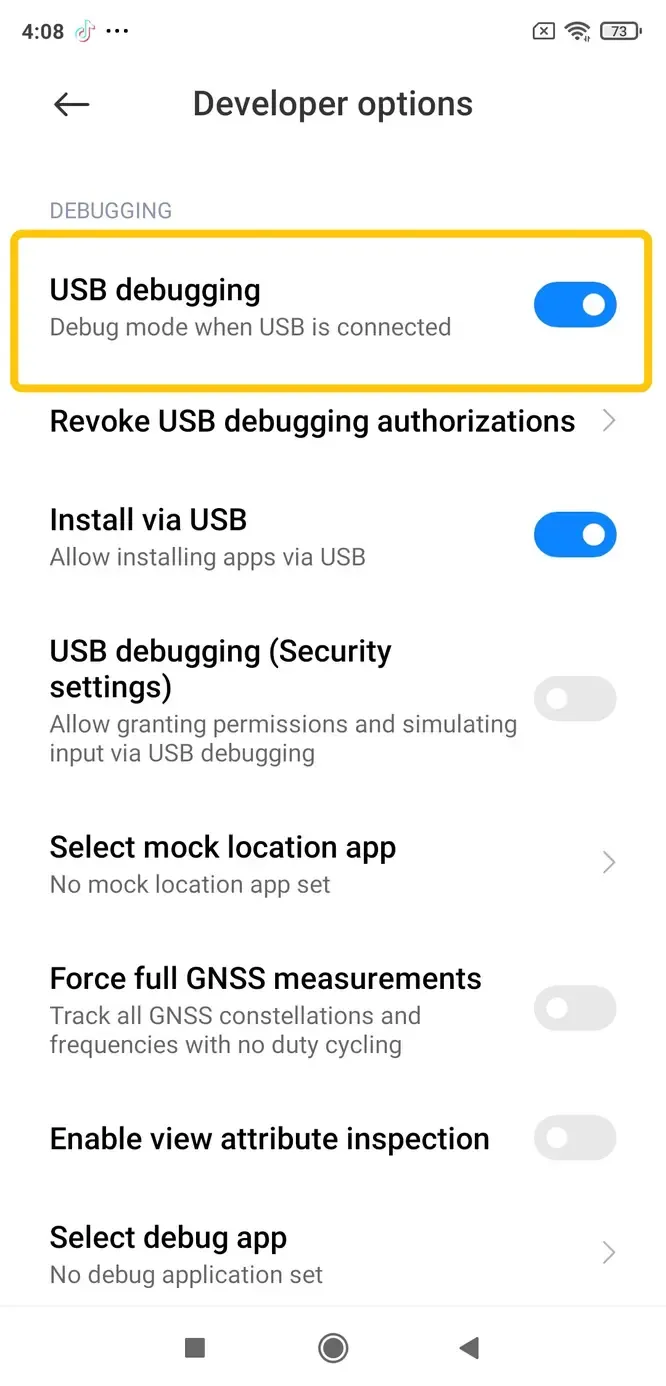
Step 1. On your Android device, navigate to Settings > About phone > Build number seven times to unveil Developer Options > USB Debugging. Alternatively, move to Settings > Additional settings > Developer options > Debugging.
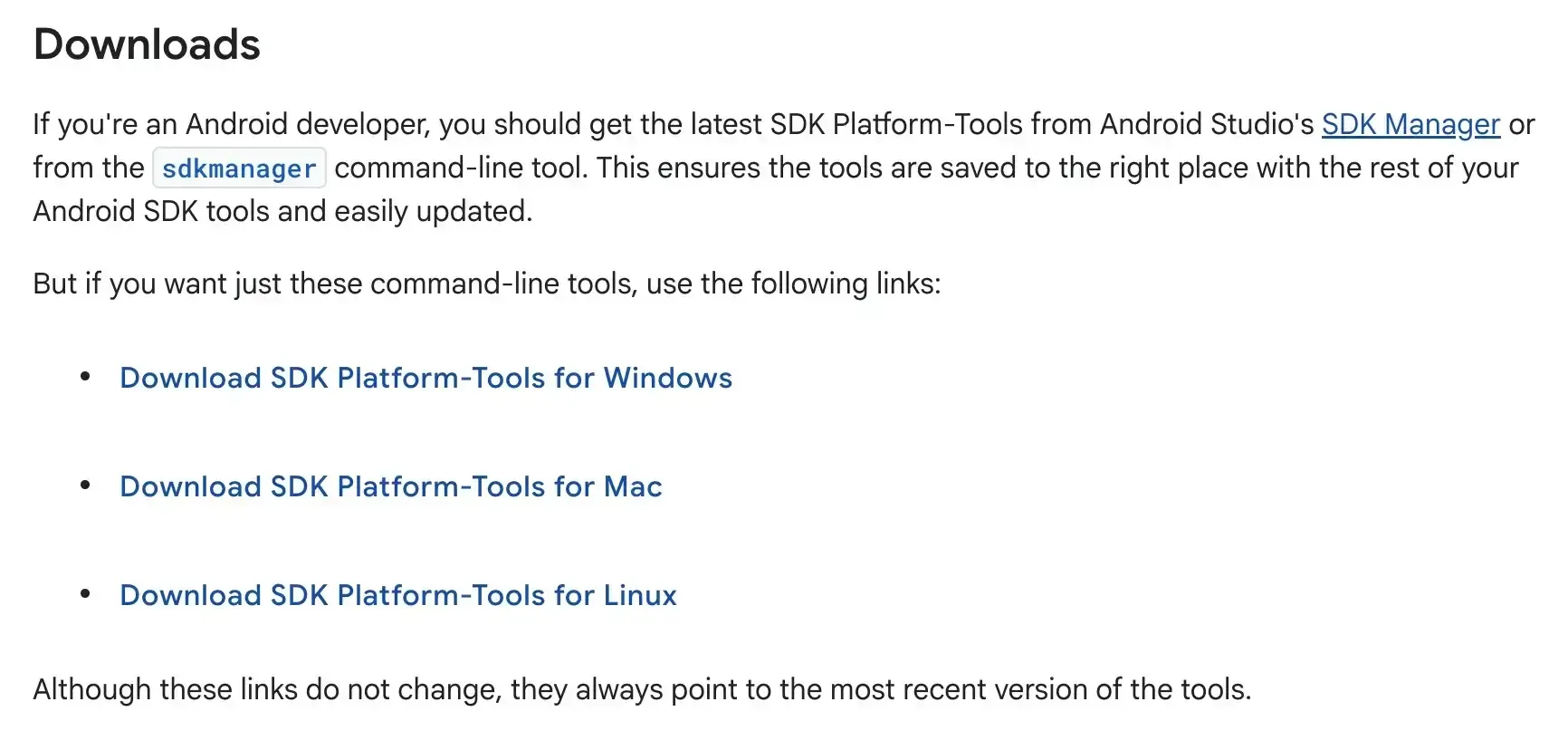
Step 2. Download the Android SDK Platform Tools corresponding to your operating system. For Windows users, opt for "Download SDK Platform-Tools for Windows".
Step 3. Connect your Android to the Windows PC via the corresponding USB cable.
Step 4. Download scrcpy from its official website. Once downloaded, extract the ZIP file and run the scrcpy.exe executable to get started.
Step 5. In the command prompt that opens, type scrcpy and press Enter. Your PC screen should now begin mirroring on your Android device.
2026 Bonus: How to Mirror Android to PC via PigeonCast
If the technical setup of scrcpy feels a bit overwhelming, a wireless option is to use dedicated apps like PigeonCast. PigeonCast is a free, versatile screen mirroring app that works across multiple platforms, including Android, iOS, Windows, Mac, and even TVs. While it's best known for casting to TVs, it also lets you easily mirror your Android device to a PC without the need for any cables or adapters.
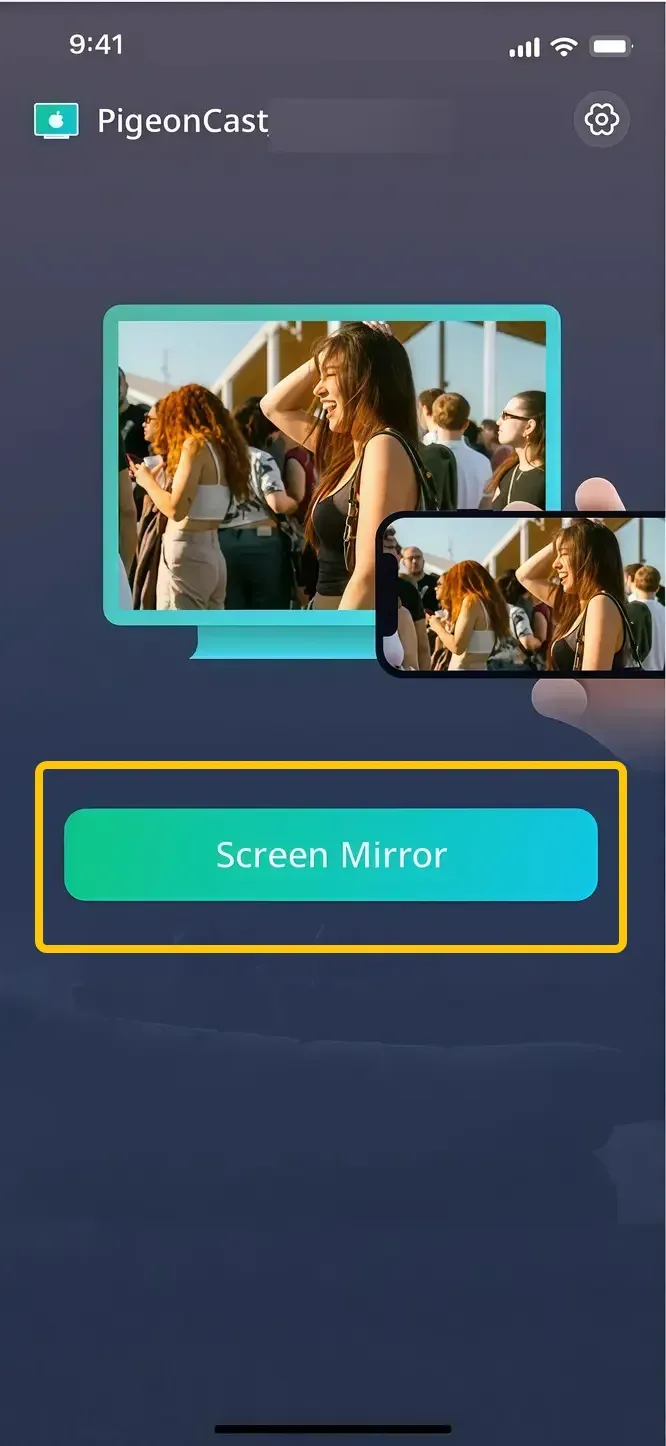
Step 1. Ensure your Android phone and Windows PC are connected to the same wireless network.


Overall Rating:



Step 2. Install PigeonCast on both your Android and Windows PC from the app store, then launch it.
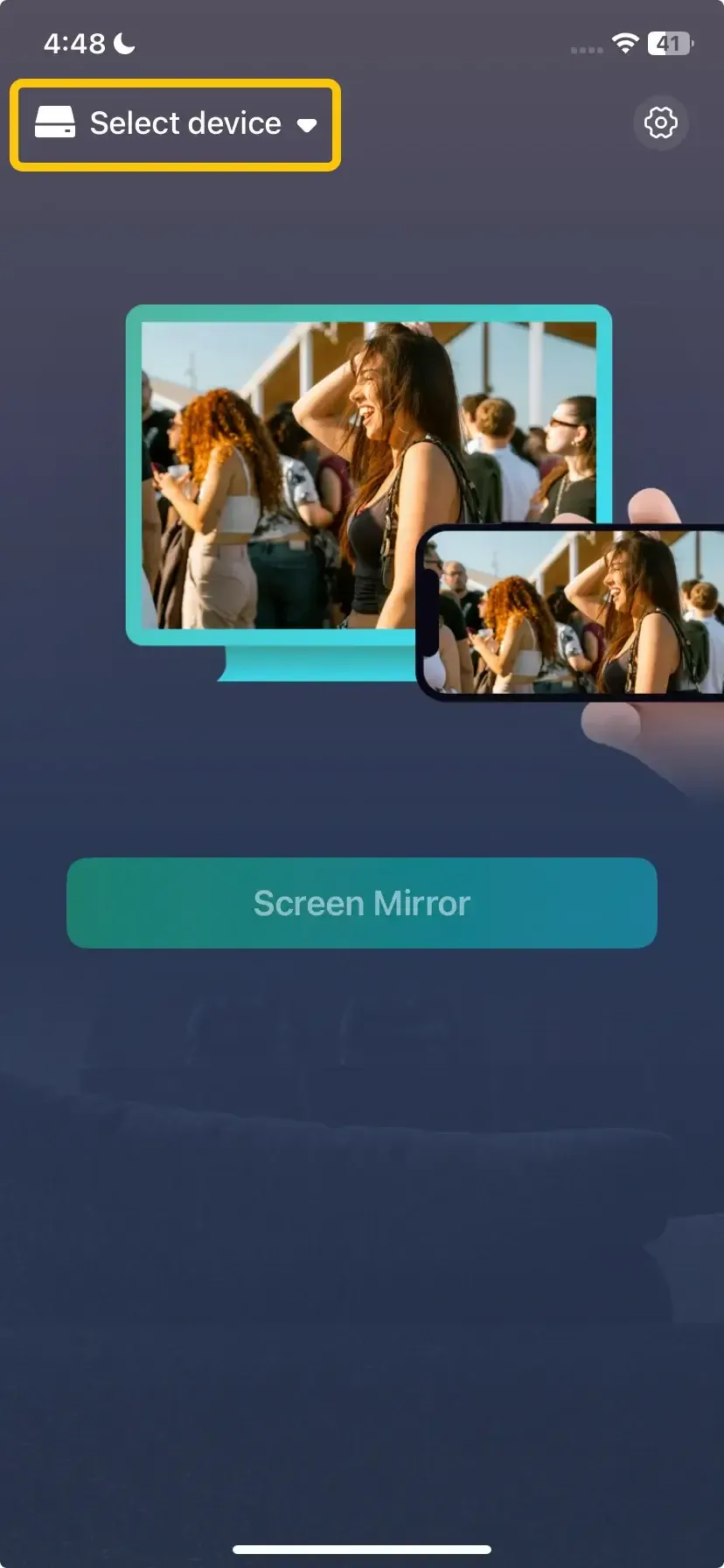
Step 3. On your Android, tap Select device to choose your Windows PC from the available list.
Step 4. Enter the onscreen PIN code to finish the connection.

Step 5. Once you pair successfully, you can then tap Screen Mirror to start mirroring activities on the PC.
Wrapping Up
How to mirror your Android screen phone to PC via USB? While wireless options like PigeonCast provide a convenient alternative, using a USB connection for screen mirroring offers a more stable, high-quality, and secure experience. Whether you choose the developer-friendly scrcpy for a wired connection or PigeonCast for a simple wireless solution, both methods allow you to seamlessly mirror your Android device to your PC.
Mirror PC Screen to Android via USB FAQ
Can you mirror Android to PC via USB broken screen?
Yes, you can mirror your Android screen to a PC via USB, even with a broken screen, as long as the phone is still responsive to touch and USB debugging was enabled beforehand. Tools like SCRCPY can facilitate this process, allowing you to control and view your Android device on a PC.
How to mirror mobile screen to PC using USB cable?
This is the more common direction. Use scrcpy (as described above in its standard mode). Connect via USB, enable USB debugging, and the app will display your phone's screen on your PC with low latency.
What's the best screen mirroring app for Android to PC via USB?
For a free option, scrcpy is widely considered the best due to its high performance, low latency, and no quality loss. For a user-friendly GUI and extra features, Vysor is an excellent paid alternative.
Why is my Android not showing up on my PC via USB?
Here are the possible reasons why your Android might not show up on your PC via USB:
- USB Debugging is Disabled
- USB Cable or Port Issues
- Device Not Set to File Transfer Mode
- Outdated or Missing Drivers
- Faulty USB Port or Computer Settings
- Phone Screen is Locked
- Developer Options Misconfiguration
- Operating System Compatibility Issues
- USB Connection Conflicts
Can you mirror Android screen on PC via USB without app?
Yes, you can use the built-in Windows "Your Phone" app with supported Samsung devices, which uses a USB connection for screen mirroring. For other Android phones, the most direct "app-less" method is to use the raw ADB commands to initiate a screen capture stream, but this is complex and not practical for daily use.
Clara Rossi is an experienced technology editor and a seasoned expert in screen mirroring and casting technologies. With a keen eye for detail and a deep understanding of how to seamlessly connect devices, Clara excels at optimizing user experiences for effortless sharing and streaming. Whether you're seeking quick fixes or advanced tips, her expertise and responsiveness ensure that every query is met with a well-informed and efficient solution.