
When it comes to Chromecast, a stable and reliable WiFi connection is essential for seamless streaming. Whether you're watching your favorite show, playing games, or casting presentations, your Chromecast's performance largely depends on the strength and stability of your WiFi network. If you're moving to a new home, upgrading your router, or simply changing your WiFi provider, you'll need to know how to change WiFi on Chromecast.
In this guide, we'll walk you through step-by-step instructions on how to change WiFi on various Chromecast models, provide solutions if you're having trouble, and introduce an easy-to-use alternative for quick casting.
How to Change WiFi on Chromecast
Chromecast change WiFi may sound complicated, but it's a straightforward process. However, the steps differ slightly depending on the model you're using. Let's explore how to update Chromecast WiFi (Chromecast 1st/2nd/3rd Gen and Chromecast with Google TV).
Change WiFi on Chromecast 1st/2nd/3rd Gen
For older Chromecast models (Gen 1, 2, 3), the process of how to connect Chromecast to new WiFi is relatively simple, but it does require some manual steps in the Google Home app. Here's how you can do it:
Step 1. Open the Google Home app on your smartphone or tablet.
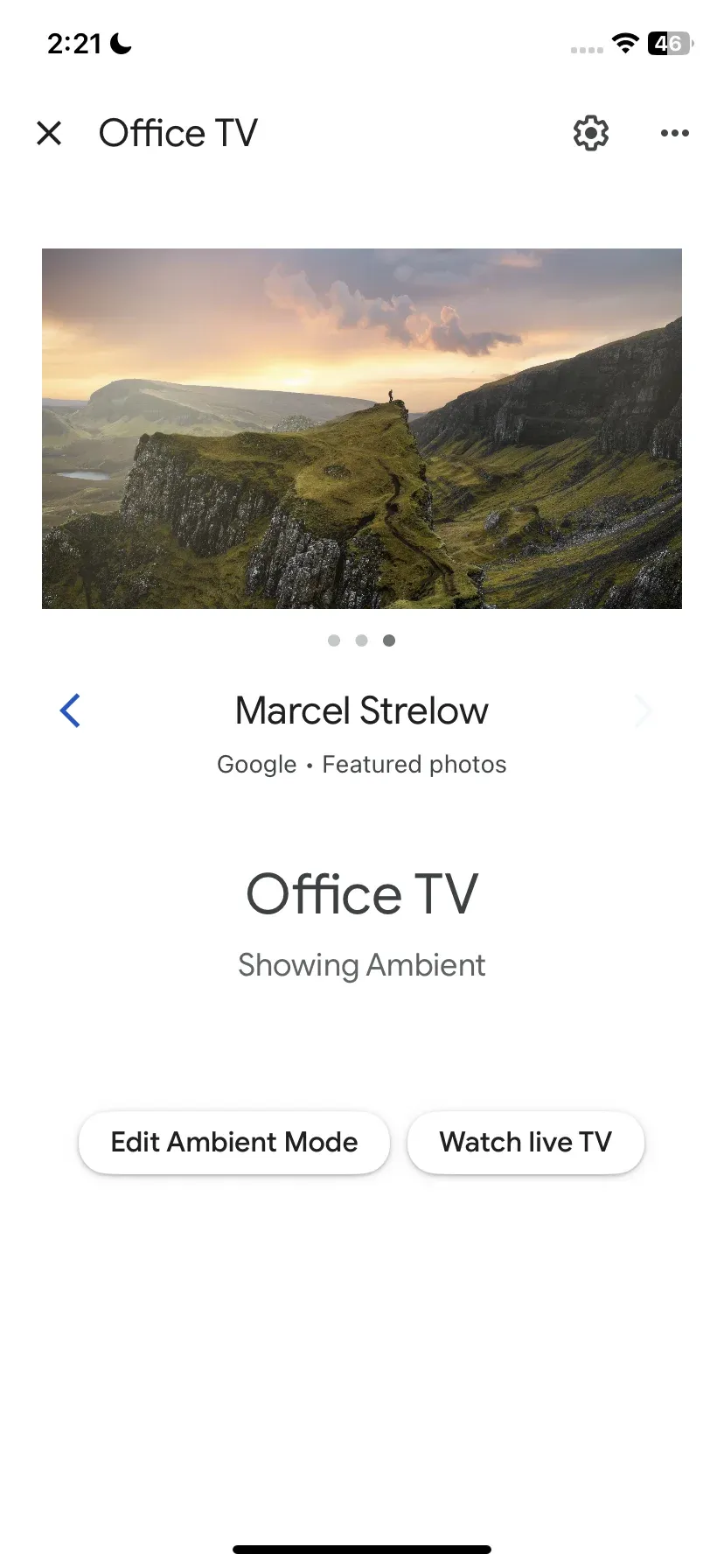
Step 2. Tap the device you want to change the WiFi for.
Step 3. Tap the settings (gear) icon in the top-right corner of the screen.
Step 4. Tap Device information > Wi-Fi, and tap Forget this Network.
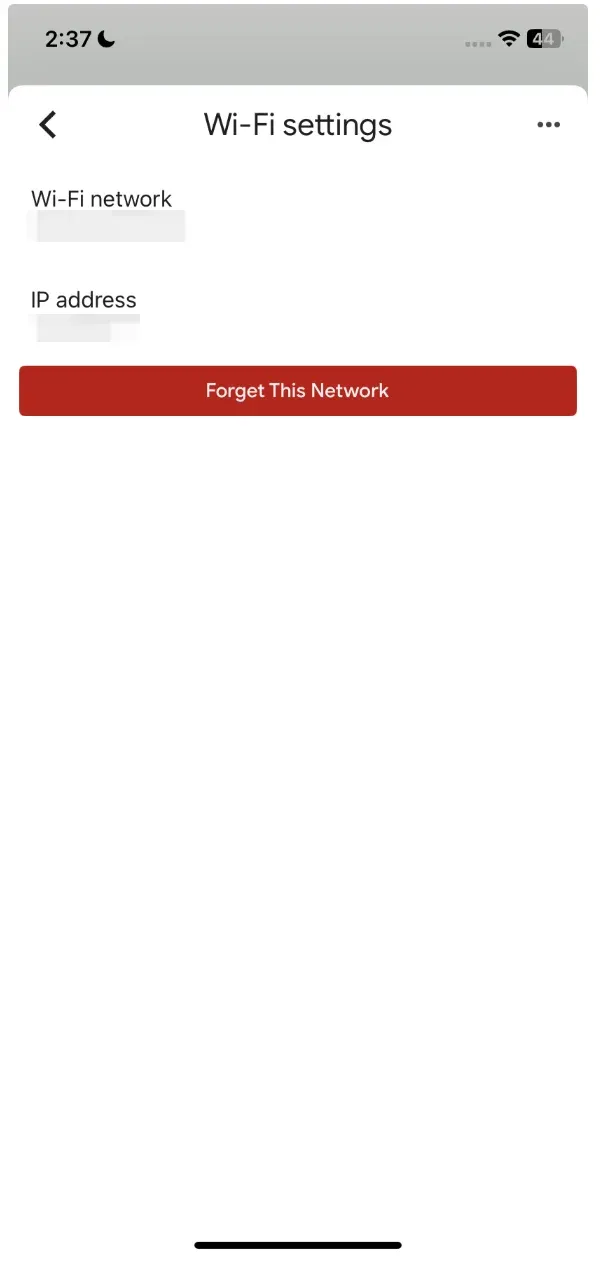
Step 5. Once your Chromecast forgets the old network, go back to the home screen in the Google Home app, select your Chromecast, and follow the step instructions to connect your new WiFi network.
If the process isn't working as expected, you can perform a factory reset by holding the button on the Chromecast for about 25 seconds, which will allow you to set up Chromecast on new network.
Change WiFi on Chromecast with Google TV
Chromecast with Google TV, being a newer model, has an updated interface and offers a slightly different process for changing networks. Here's what you need to do:
Step 1. On the home screen of your Chromecast device, go to the Settings menu by scrolling down and selecting the gear icon.
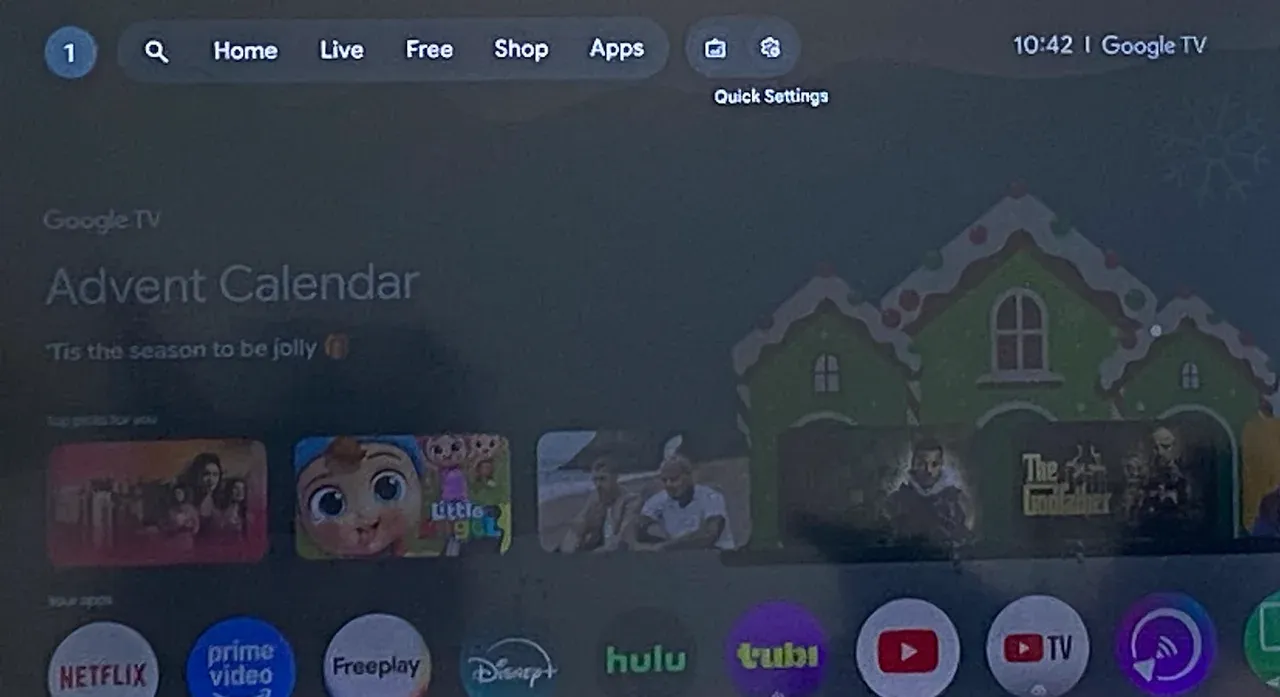
Step 2. From the Settings menu, select Network.
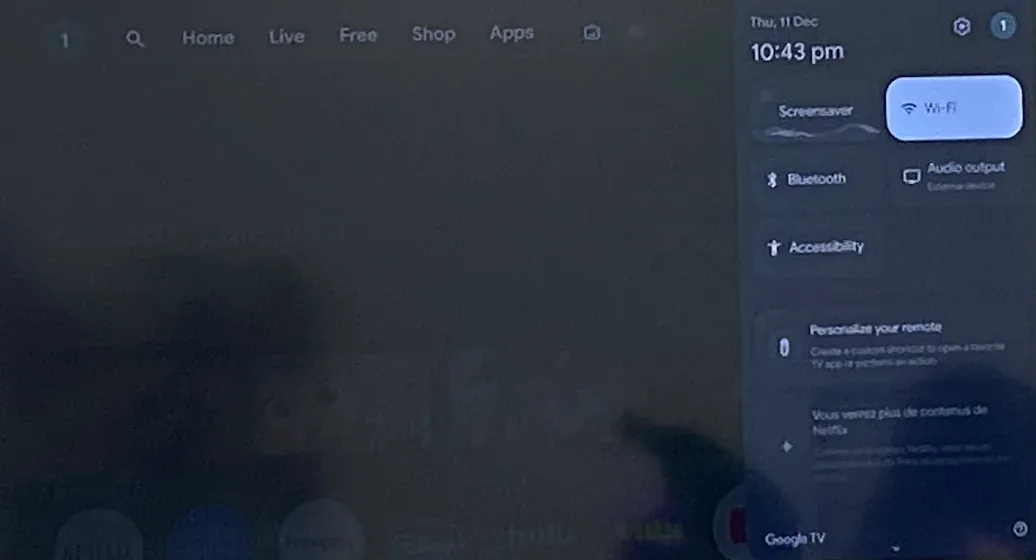
Step 3. Under the Wi-Fi settings, you'll see the network you are currently connected to. Select it to open network details.
Step 4. Click on Forget Network to disconnect from your current Wi-Fi.
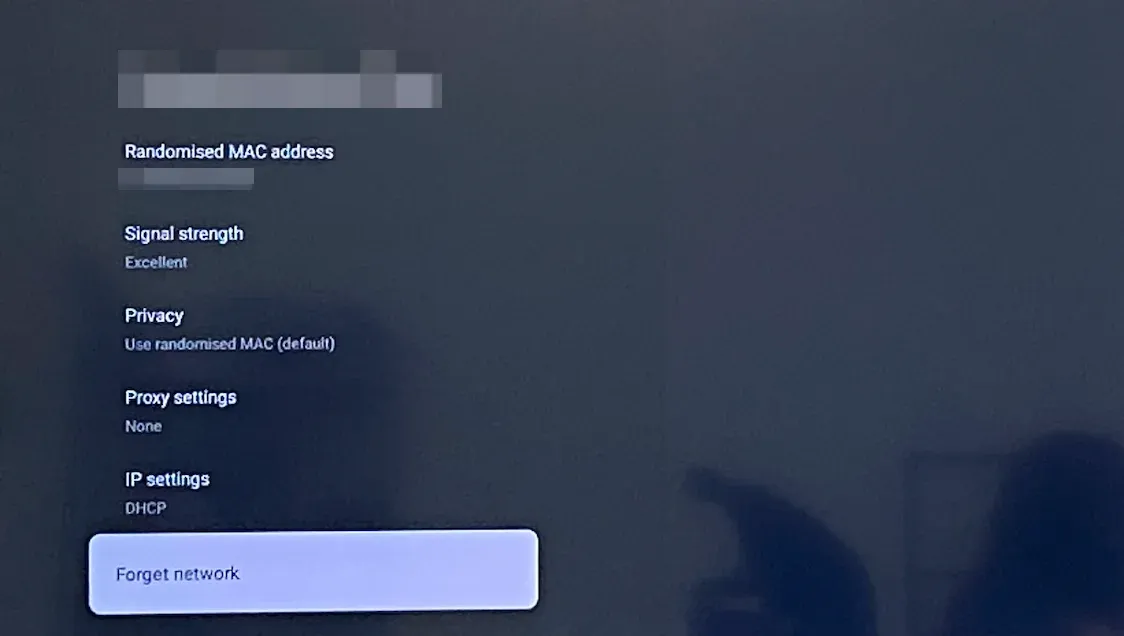
Step 5. Select the new Wi-Fi network from the available list and enter the network password when prompted.
That's how to change Chromecast WiFi. This process will automatically reconnect your Chromecast to the new WiFi.
Can't Change WiFi on Chromecast
If you're having trouble changing the WiFi on your Chromecast, several factors could be causing the issue. Here are some common reasons and how to fix them:
- Chromecast Not Resetting Properly: If the device doesn't forget the old network, try performing a full factory reset. To do this, press and hold the button on the Chromecast for about 25 seconds, then release it when the LED starts blinking. This will erase all settings and allow you to reconnect to a new WiFi network.
- Google Home App Issues: Ensure you're using the latest version of the Google Home app. An outdated app can sometimes cause connectivity issues. Go to the Google Play Store or Apple App Store to update it.
- Router Compatibility: Ensure that your router is compatible with Chromecast. Some routers may have settings like "guest mode" that can prevent the Chromecast from connecting properly. In this case, try switching to your primary network or adjusting your router's settings.
- Interference from Other Devices: Devices like smart speakers or other streaming devices connected to the same network might interfere with Chromecast's Wi-Fi connection. Try turning them off temporarily and then reconnecting Chromecast.
If these steps don't solve the issue, consider performing a full factory reset on your Chromecast, which will erase all current settings and allow you to start fresh with the new network.
2025 Solution: Try PigeonCast for Easy Casting
If you're tired of dealing with Wi-Fi connection issues and want a simple and reliable alternative to Chromecast, consider using PigeonCast. This powerful tool allows you to cast content from your devices to your TV wirelessly with ease.
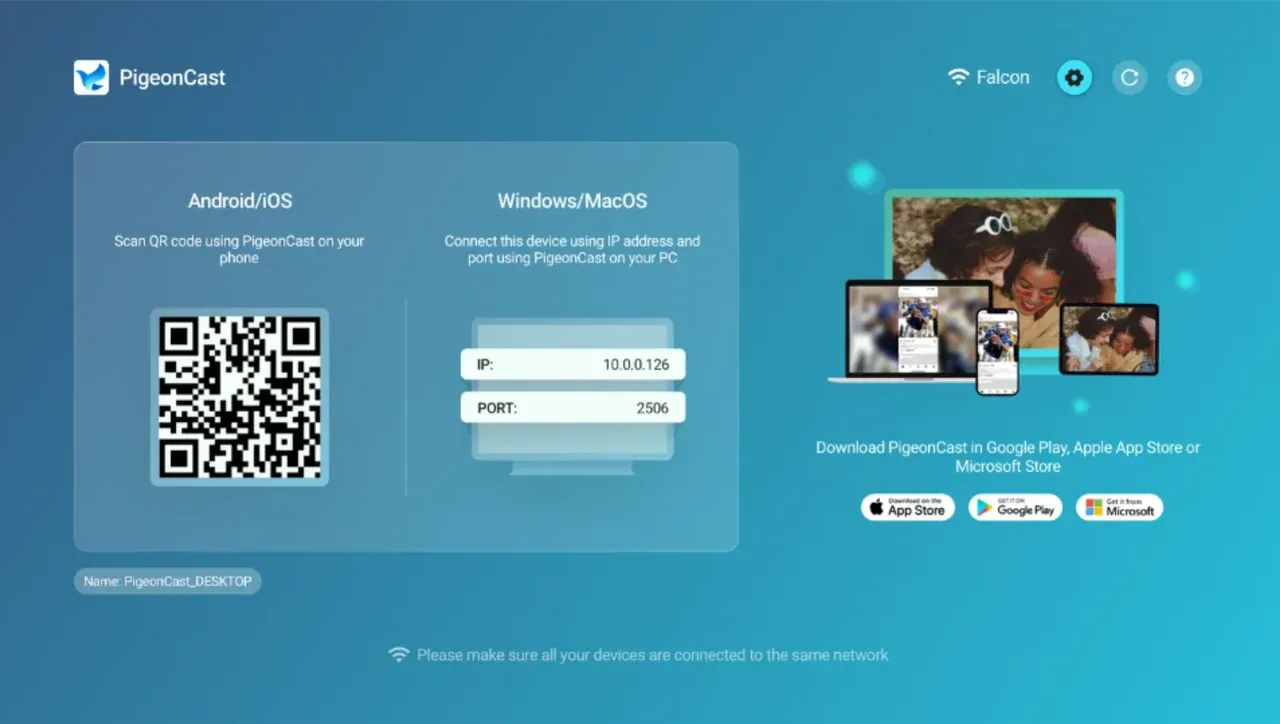
Why choose PigeonCast:
- Automatic Network Detection: PigeonCast automatically detects and connects to the network your device is on, ensuring smooth and uninterrupted casting.
- Free and Easy to Use: PigeonCast is completely free, without any ads, and offers one-click casting for an effortless experience.
- Wide Device Compatibility: Whether you're using Windows, Mac, or Android, PigeonCast works seamlessly across a range of devices without the need to constantly fiddle with Wi-Fi settings.
If you find that changing Wi-Fi on Chromecast is too cumbersome or unreliable, PigeonCast offers a fantastic, no-fuss solution for all your casting needs.


Overall Rating:



Conclusion
Changing the Wi-Fi on your Chromecast is typically a simple process, but it does vary depending on the model you're using. If you're having trouble, make sure your devices are up-to-date, connected to the same Wi-Fi network, and try troubleshooting steps like resetting your Chromecast or restarting your router.
However, if you prefer a hassle-free solution, using PigeonCast can help you cast content easily without worrying about network settings.
How to Change WiFi on Chromecast FAQs
How do I reset my Chromecast WiFi?
To reset your Chromecast's Wi-Fi settings, open the Google Home app, select your device, go to settings, and choose Forget Network. You can also perform a factory reset by holding down the button on the Chromecast for 25 seconds.
How do I check my Chromecast WiFi settings?
In the Google Home app, select your Chromecast device, then go to Device Settings > Network. This will show you the current Wi-Fi network that your Chromecast is connected to.
What should I do if Chromecast can't find my Wi-Fi?
If Chromecast cannot find your Wi-Fi network, there are a few things you can try:
- Check the Network: Ensure your Chromecast and device are on the same Wi-Fi network.
- Restart Devices: Restart your router, Chromecast, and device to clear any temporary network issues.
- Update Google Home App: Make sure your Google Home app is up to date, as outdated apps can cause connectivity issues.
Why won't my Chromecast connect to my new Wi-Fi?
If Chromecast isn't connecting to your new Wi-Fi, it's usually due to one of the following reasons:
- Incorrect Wi-Fi Settings: Double-check that both your Chromecast and device are on the same network. Ensure the Wi-Fi password is correct.
- Network Compatibility: Some routers may have different settings that prevent connection, such as separate 2.4GHz and 5GHz bands. Make sure Chromecast is compatible with the network band you're using.
- App Update: Ensure your Google Home app is updated to the latest version.
Is PigeonCast a good Chromecast alternative?
Yes, PigeonCast is an excellent alternative to Chromecast. It simplifies casting without needing complex network configurations and works across different platforms with minimal setup.
Mia Clarke is a technology editor specializing in screen mirroring and casting solutions across multiple platforms. Mia provides clear, practical guides and in-depth insights to help users seamlessly connect their devices. Passionate about enhancing digital experiences, Mia is dedicated to keeping readers updated on the latest trends and tools in cross-platform screen sharing. Whether you’re looking to mirror your smartphone, laptop, or smart TV, Mia’s content delivers reliable, user-friendly advice to simplify your tech setup.