
If you've encountered the frustrating "could not communicate with your Chromecast" error, you're not alone. The issue typically arises during setup, streaming, or factory reset, and it can prevent you from casting content to your TV. This guide will help you understand why this error occurs and provide step-by-step solutions to resolve it. We will also discuss PigeonCast as a free alternative solution for smooth wireless casting, especially when the usual methods fail.
What Does "Could Not Communicate with Your Chromecast" Mean
The "could not communicate with Chromecast" message generally indicates that there's an issue with the connection between your Chromecast and the device you are trying to cast from or the network. This can happen during the initial setup process, after a factory reset, or even when you're actively casting content.
Why Can't Your Device Communicate with Your Chromecast
The issue often stems from network problems, device compatibility, or software glitches:
- Network issues: Chromecast requires a stable Wi-Fi connection to communicate with your devices. If there's a weak or unstable network connection, it may fail to connect.
- Device compatibility: Outdated apps or firmware can cause compatibility issues between your Chromecast and the device you're trying to cast from.
- Wi-Fi network configuration: If your Chromecast and casting device are on different Wi-Fi networks (e.g., 2.4GHz vs 5GHz), communication may fail.
- Factory reset glitches: If you've recently reset your Chromecast, the device might fail to reconnect properly, resulting in the error "could not communicate with Chromecast after factory reset".
How to Fix "Could Not Communicate with Your Chromecast" Error
Whether you ran into the error "could not communicate with your Chromecast during setup or after factory reset", you can try to deal with it with the following step-by-step troubleshooting guide:
Fix 1: Check Network Connection
A stable Wi-Fi connection is essential for successful communication between Chromecast and your device. So,
Step 1. Ensure your Chromecast and the other device (like your phone or laptop) are on the same Wi-Fi network.
Note: If you have a dual-band router, ensure both devices are connected to the same frequency (either 2.4GHz or 5GHz).
Step 2. Restart your router and devices, which can solve temporary network issues.
Fix 2: Reboot Your Chromecast
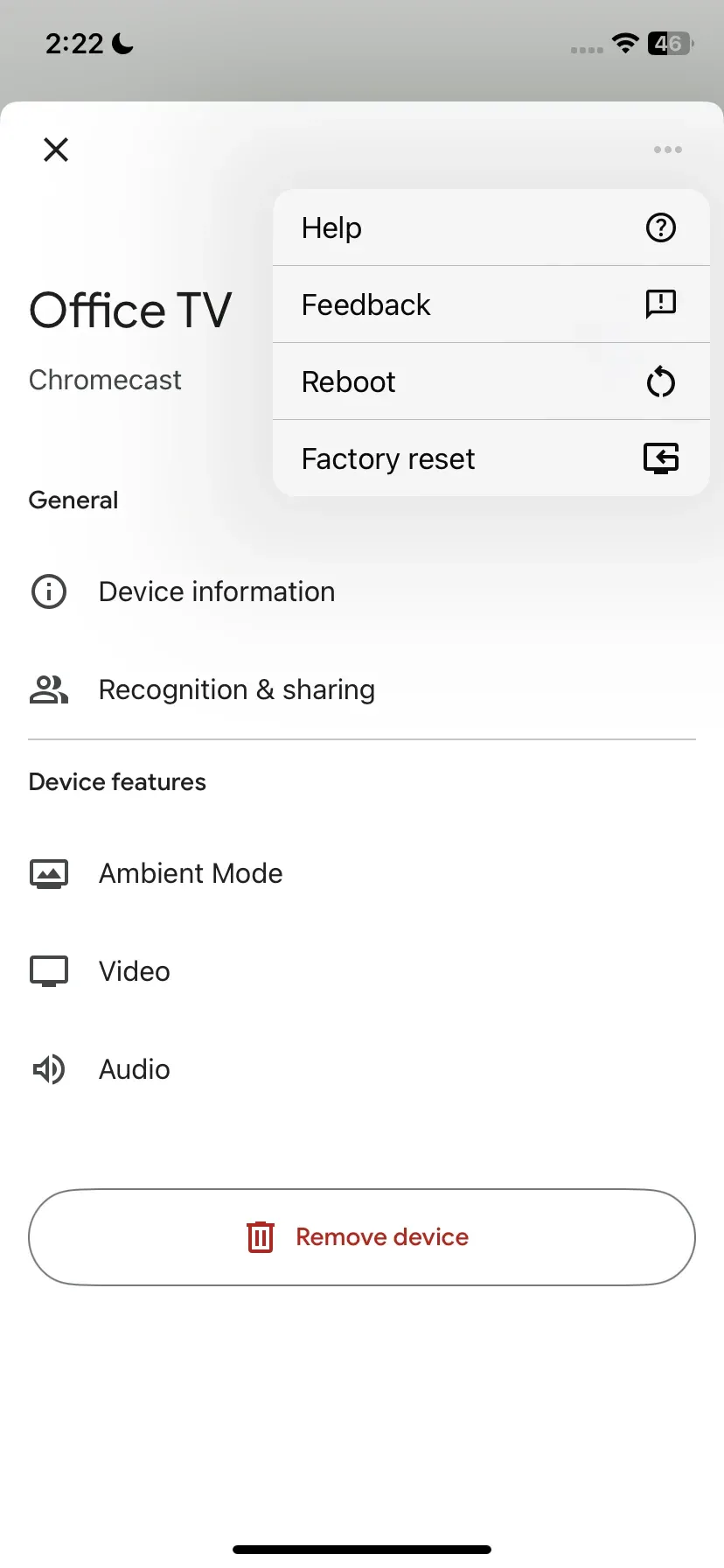
Restarting your Chromecast helps reset the connection and clears any temporary glitches. You can either reboot it from the Google Home app or reboot it manually.
- Reboot Chromecast from the Google Home app:
Step 1. Open the Google Home app.
Step 2. Choose your Chromecast device.
Step 3. Tap the three-dot menu in the top right corner.
Step 4. Tap Reboot and wait for the device to restart.
- Reboot Chromecast Manually:
Step 1. Unplug the Chromecast from the TV and power source.
Step 2. Wait for 10 seconds, then plug it back in.
Fix 3: Factory Reset Chromecast
A factory reset will erase all settings and restore your Chromecast to its default configuration, which can fix persistent issues. To perform a factory reset:
Step 1. Press and hold the reset button on your Chromecast for about 10-15 seconds until the LED starts blinking.
Step 2. Follow the setup process again using the Google Home app.
If you're still getting the "could not communicate with Chromecast after factory reset" error, you may want to check the other methods below.
Fix 4: Update Chromecast Firmware
Ensuring both your Chromecast and the casting device have the latest firmware can resolve compatibility issues.
Step 1. Update your Chromecast through the Google Home app.
- Open the Google Home app.
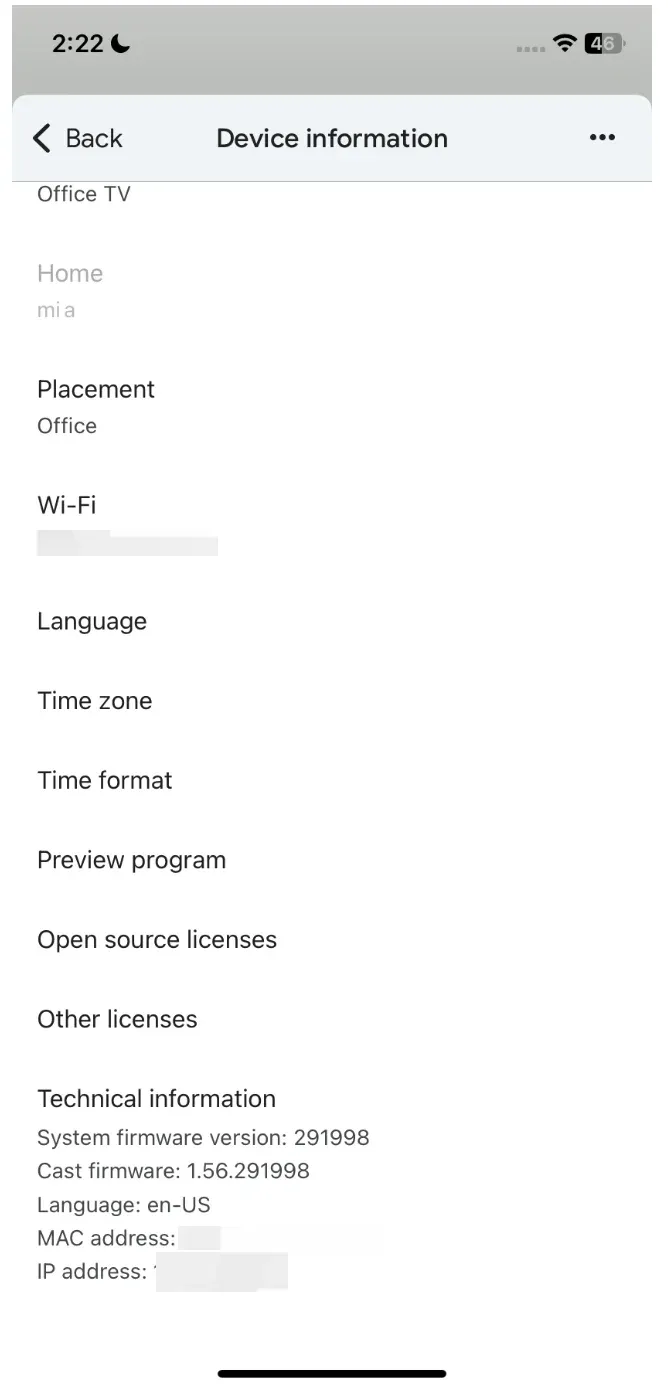
- Tap on your Chromecast device, go to Settings, and select Device Information.
- Compare the firmware version with the latest available version on Google's support page. If your Chromecast is outdated, it may be causing issues.
Step 2. Ensure that the apps you are using to cast are up to date on your mobile device or computer.
Fix 5: Switch to PigeonCast
If you continue experiencing issues with "could not communicate with Chromecast", consider using PigeonCast, a free, reliable alternative for wireless casting.

PigeonCast works across multiple platforms, allowing you to cast from iOS, Android, Windows, and Mac without relying on Chromecast or the native Google ecosystem.
For example, to cast a laptop to a TV without Chromecast, you can:
Step 1. Download and install PigeonCast on your laptop and TV.


Overall Rating:



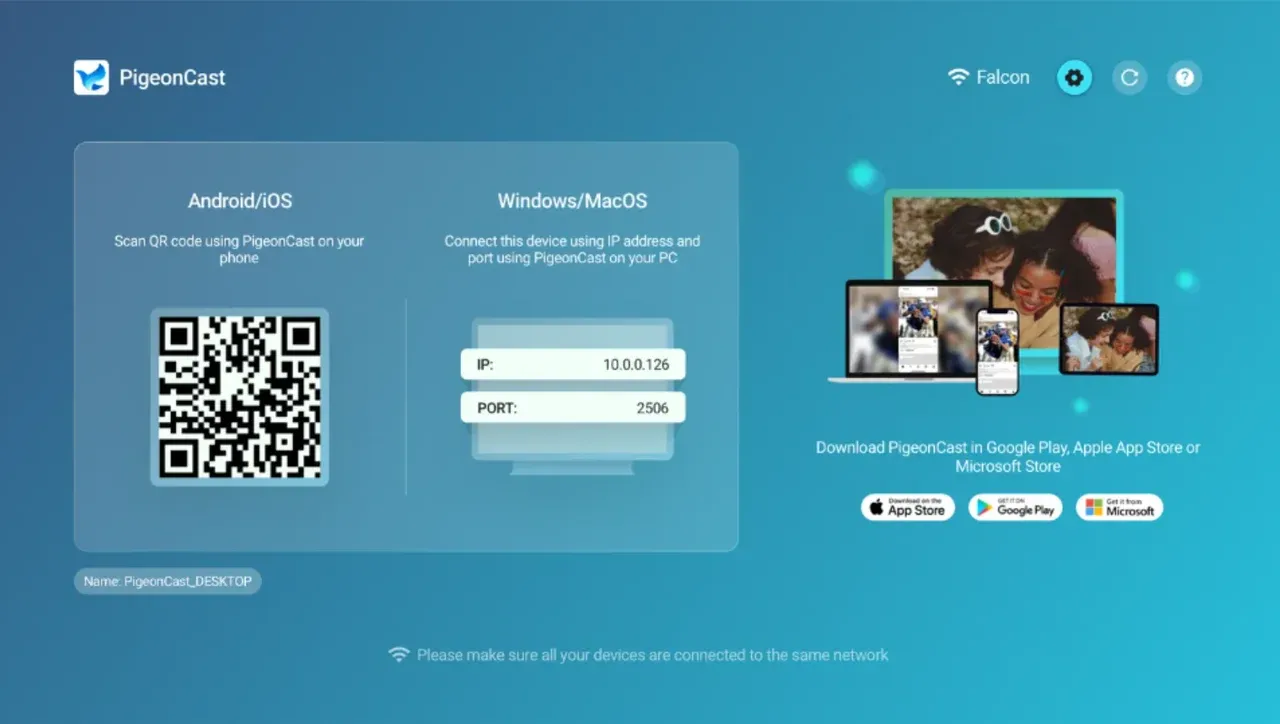
Step 2. Ensure your laptop and TV are connected to the same Wi-Fi network and launch PigeonCast on the two devices.
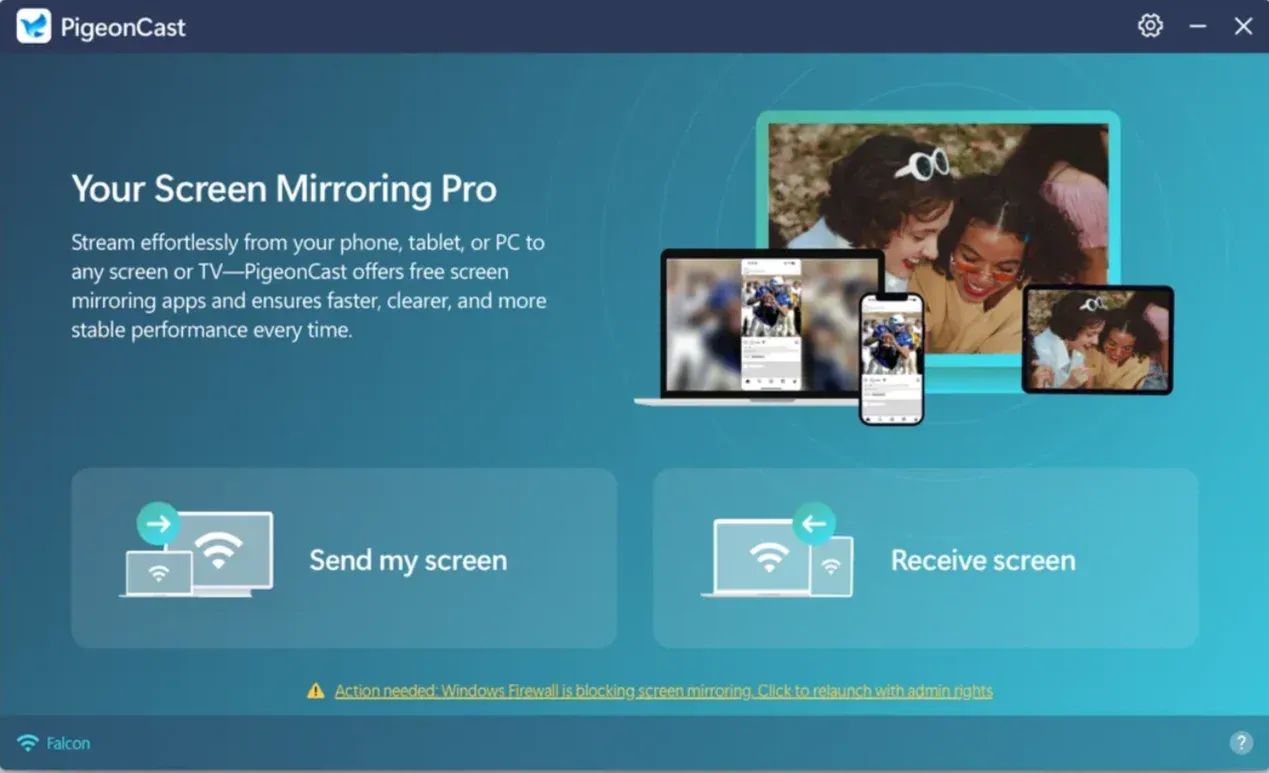
Step 3. On your laptop, click the Send my device option, choose your TV from the list, and click Start mirror.
Step 4. Enjoy on your large screen even without Chromecast.
Final Thoughts
Fixing the could not communicate with your Chromecast error often comes down to stabilizing your network, resetting your device, or refreshing the Google Home setup process. Most issues can be solved with simple steps, but some situations, such as could not communicate with your Chromecast after factory reset, may require extra patience while the device reconnects to your network.
If you prefer a more reliable and device-independent solution, PigeonCast offers a smooth alternative for streaming from iPhone, Android, Windows, and Mac without depending on Chromecast compatibility. With the right approach, you can eliminate connection interruptions and enjoy consistent wireless casting at home.
Could Not Communicate with Your Chromecast FAQs
Why does my Chromecast keep saying it cannot communicate with my device?
This can happen due to network issues, outdated firmware, or compatibility errors. Ensure both your Chromecast and casting device are on the same network and are updated.
Why does the "Could Not Communicate with Chromecast" error appear after a factory reset?
After a factory reset, Chromecast may take time to reconnect to the network. Ensure your device settings and Wi-Fi connection are correct and stable.
What can I do if my Chromecast doesn't show up during setup?
When Chromecast doesn't show up, check your Wi-Fi connection and restart your router, Chromecast, and casting device. You can also try using a different Wi-Fi frequency band (2.4GHz or 5GHz).
Why is my Chromecast not connecting?
Chromecast may fail to connect when the device and your phone or laptop are not on the same Wi Fi network. This problem also appears when the router blocks new devices, the signal is too weak, or the Chromecast is still finishing a background update.
Can I use PigeonCast as an alternative to Chromecast?
Yes. PigeonCast is a versatile casting tool that works across platforms, providing a stable connection for screen mirroring, even when Chromecast isn't working.
Does Chromecast use Bluetooth to connect?
Chromecast may use Bluetooth during setup or for connecting accessories, but casting itself mainly relies on Wi-Fi. So if you see a communication error, Bluetooth usually isn't the main connection path to troubleshoot. You can check how Chromecast Bluetooth works and what it is actually used for.
Mia Clarke is a technology editor specializing in screen mirroring and casting solutions across multiple platforms. Mia provides clear, practical guides and in-depth insights to help users seamlessly connect their devices. Passionate about enhancing digital experiences, Mia is dedicated to keeping readers updated on the latest trends and tools in cross-platform screen sharing. Whether you’re looking to mirror your smartphone, laptop, or smart TV, Mia’s content delivers reliable, user-friendly advice to simplify your tech setup.