
Have you ever wondered what Chromecast Bluetooth is? Does Chromecast have Bluetooth? Or if Chromecast supports screen mirroring over Bluetooth? Don't worry! This guide will clear up any confusion and introduce you to an all-in-one mirroring tool that can bypass most casting and mirroring limitations.
Does Chromecast Have Bluetooth
Yes, most modern Chromecast devices have Bluetooth. Specifically, from the 3rd generation onward, Google has included Bluetooth functionality in its streaming devices. This includes the popular Chromecast with Google TV models.
However, it's crucial to understand that this Bluetooth functionality is designed for specific purposes, primarily audio enhancement and limited peripheral support, rather than serving as a universal wireless solution.
If you're holding a Chromecast right now and wondering how to access this feature, you'll need to use the Google Home app on your smartphone or tablet. The Bluetooth settings aren't accessible directly from your TV interface, which is why many users remain unaware that this functionality even exists.
How Does Bluetooth Chromecast Work
The Bluetooth feature on Chromecast isn't used for streaming content. Instead, it plays a role in the initial setup and connecting peripherals. Here's how does Chromecast use Bluetooth:
- Initial Setup: Bluetooth helps to pair your Chromecast device with your Wi-Fi network and connect it to your mobile device for casting setup.
- Peripheral Connectivity: Chromecast can connect to Bluetooth-enabled devices like speakers or headphones, allowing for wireless audio output.
For casting video or screen mirroring, Chromecast shifts from Bluetooth to Wi-Fi, which provides the bandwidth necessary for smooth HD streaming. The Bluetooth connection simply helps with peripheral pairing but does not handle the actual streaming data.
The Limits of Chromecast's Bluetooth: What It Can't Do for Mirroring
While Bluetooth works well for setting up Chromecast and connecting audio devices, it has notable limitations when it comes to mirroring or streaming content. Let's have a quick check on the limitations of Google Chromecast Bluetooth:
- Protocol Limitations
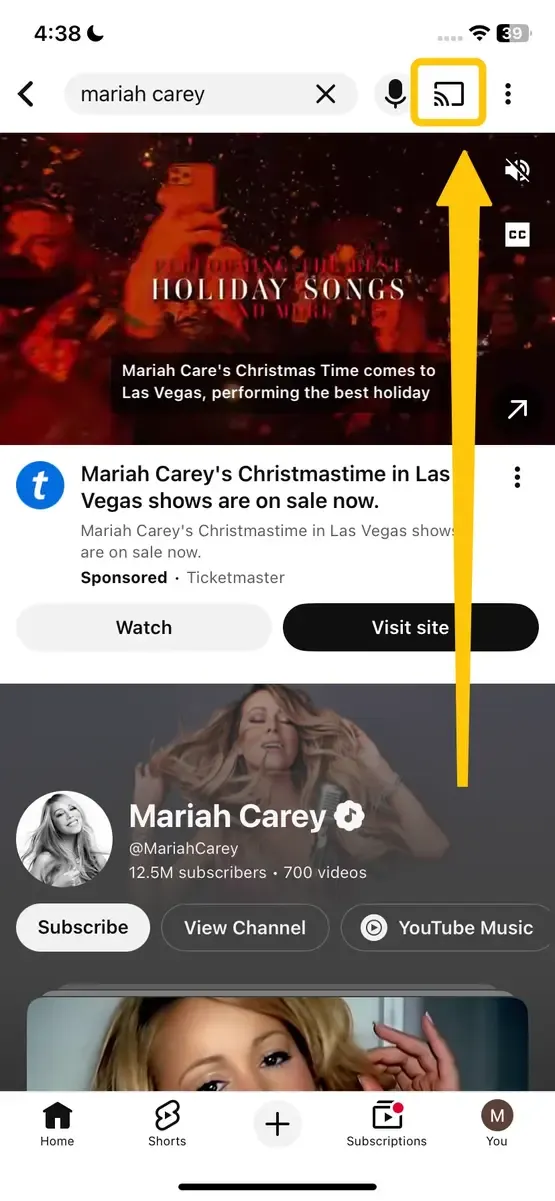
Chromecast primarily relies on Wi-Fi networks and specific streaming protocols (like Google Cast) to transmit content. When you "cast" from apps like YouTube or Netflix, you're essentially instructing Chromecast to fetch the stream directly from the internet or your local network, rather than pushing video from your device via Bluetooth.
Bluetooth technology was designed for short-range, low-power data transfer, excellent for audio streaming and peripheral connections, but its bandwidth and latency characteristics make it unsuitable for high-quality, real-time video transmission.
- Platform Limitations for Apple Devices
For iPhone and iPad users, Chromecast's limitations are particularly apparent. Apple devices use the proprietary AirPlay protocol for screen mirroring and media playback, which Chromecast doesn't natively support. You cannot simply select "Screen Mirroring" from your iOS Control Center and see your device's display on your TV as you would mirror to Apple TV via Chromecast.
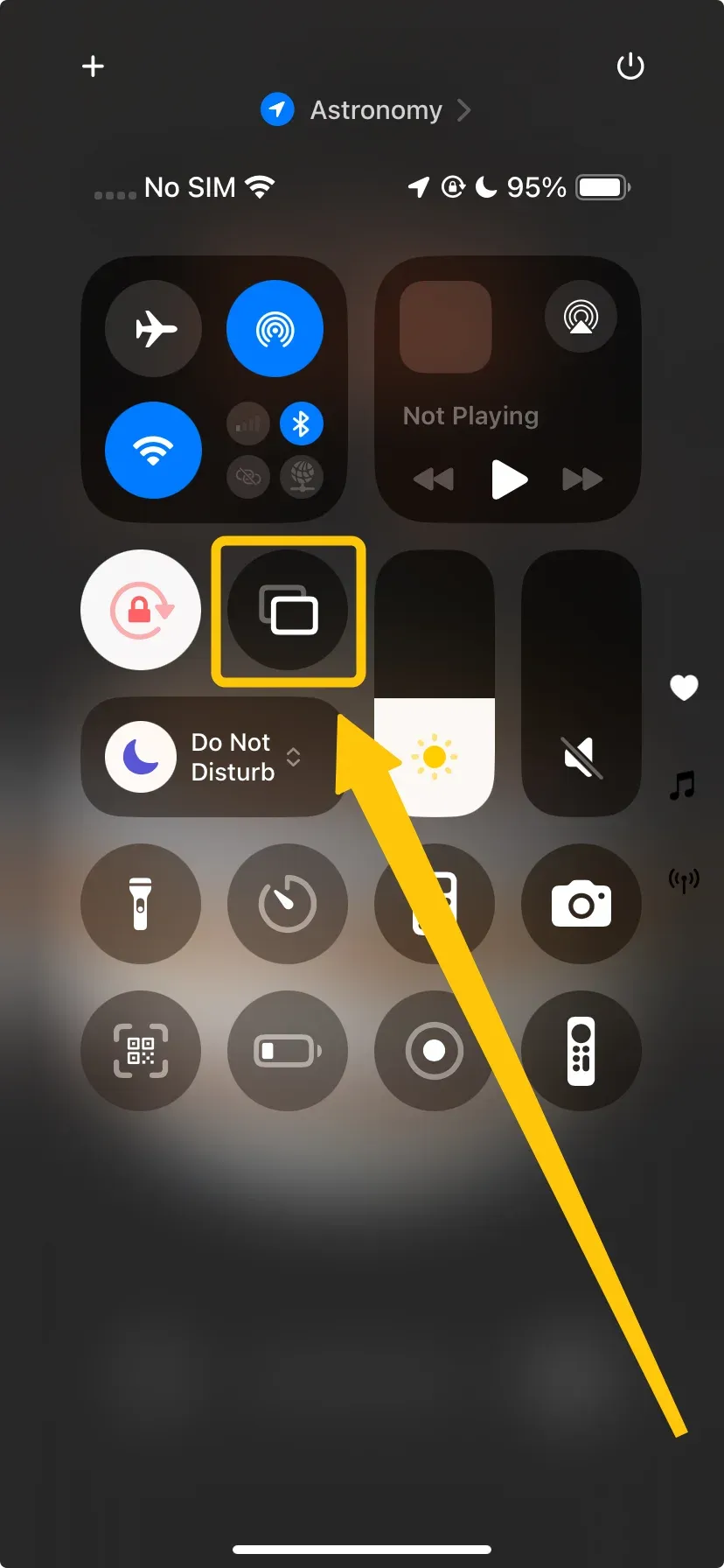
While some apps (including YouTube and Netflix) offer Chromecast support within their iOS versions, this is limited to sharing content from within those specific apps, not full-screen mirroring. For Apple users wanting to display photos, present documents, or play mobile games on a larger screen, this limitation is particularly frustrating.
Check: How to Chromecast from iPhone to TV: 2 Easy Methods
Beyond Bluetooth: PigeonCast as Your True Universal Mirroring Solution
After exploring Chromecast's Bluetooth and screen mirroring limitations, you may be wondering what alternatives exist for users who need to wirelessly project their device's screen to a TV. This is where specialized solutions like PigeonCast come in.

PigeonCast is a free, multi-protocol wireless display app designed to bridge device compatibility gaps. It excels in real-time screen mirroring and supports a variety of protocols, including AirPlay, Google Cast, and DLNA, making it a versatile solution for iPhone, Android, Windows, and Mac users. Whether you're using a smartphone or a laptop, PigeonCast offers a seamless way to mirror your phone screen to TV, no matter the device.
Step 1. Ensure your mobile device, such as your phone, tablet, or laptop, connects to the same wireless network as your smart television or even another laptop.


Overall Rating:



Step 2. Install PigeonCast on your mobile device from the App Store, Play Store, or Microsoft Store, then open it.
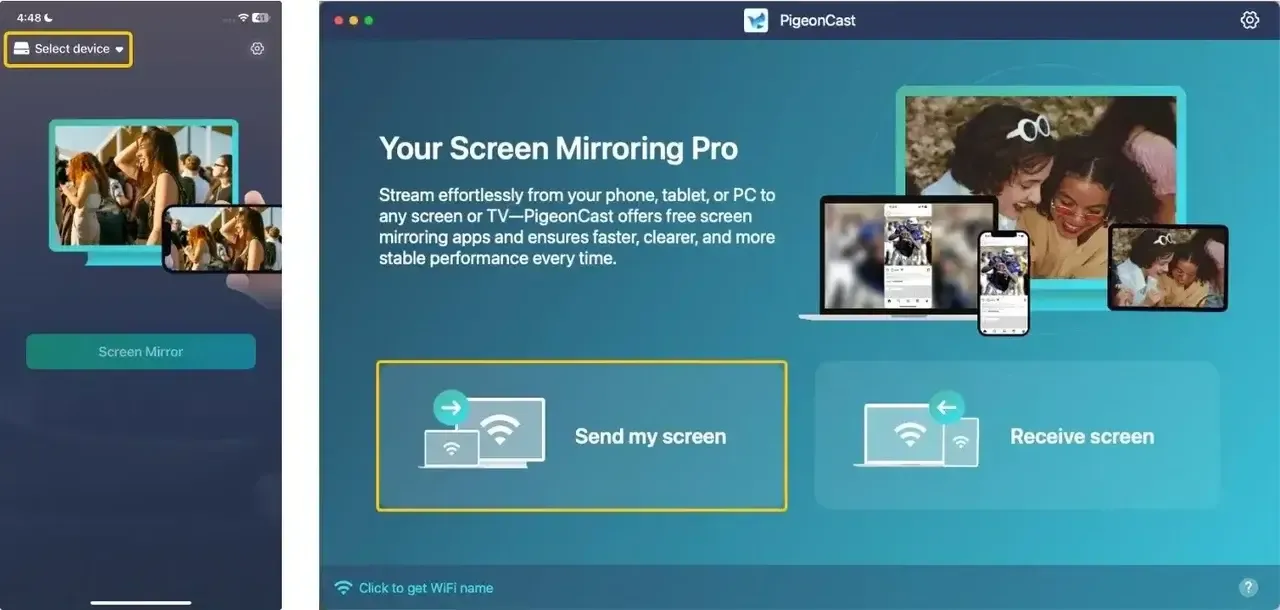
Step 3. Tap Select device to choose your receiver device from the available list to connect. If you use an Android device, click the onscreen button to cast the corresponding media.
Step 4. Enter the onscreen code to confirm the pairing requisition.
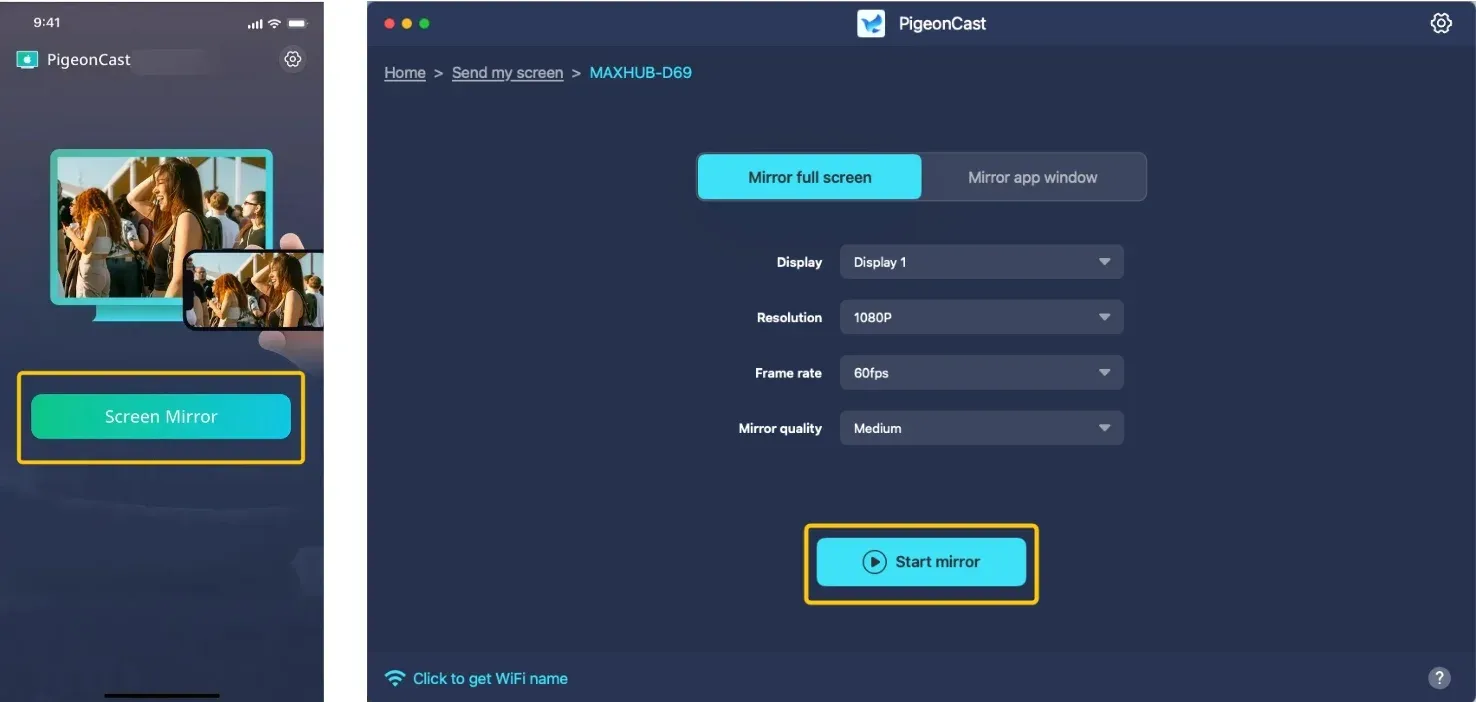
Step 5. Once you succeed, tap Screen Mirror or Start mirror to begin your mirroring activities. If you use a laptop, you are allowed to choose whether to mirror the whole screen or just a single app window.
Wrapping Up
Does Google Chromecast have Bluetooth? Yes, it does, but its Bluetooth feature is limited to setup and peripheral connectivity, such as pairing with Bluetooth speakers or headphones. It does not support screen mirroring or video streaming via Bluetooth due to its bandwidth limitations. For a more versatile solution, PigeonCast offers better compatibility, supporting AirPlay, Google Cast, and DLNA for seamless screen mirroring from iPhone, Android, Windows, or Mac to your TV.
Does Chromecast Have Bluetooth FAQ
Does Chromecast have Bluetooth audio?
Yes, most modern Chromecast devices (from 3rd generation onward) support Bluetooth audio. You can connect Bluetooth headphones or speakers through the Google Home app for private listening or enhanced TV audio. It's important to note that Bluetooth audio connections are primarily for improving sound when playing content through Chromecast itself, not for streaming audio from other devices to your TV.
Is Chromecast Bluetooth or WiFi?
Chromecast uses both technologies for different purposes. For streaming content from apps like Netflix and YouTube, it relies on Wi-Fi to connect to your home network and the internet. Bluetooth, on the other hand, is used primarily for connecting audio accessories like headphones and speakers, and sometimes other peripherals like game controllers.
Why is Chromecast Bluetooth not working?
Here are the reasons why Chromecast Bluetooth might not be working:
- Improperly paired Bluetooth device
- Outdated Chromecast firmware
- Bluetooth range issues
- Interference from other wireless devices
- Incompatible Bluetooth device
- Chromecast is in setup mode
- Technical glitch or software bug
- Hardware failure
Does Chromecast have Bluetooth on TV?
The Bluetooth capability is built into the Chromecast device itself, not your TV. When you connect Chromecast to your TV's HDMI port, it adds Bluetooth functionality to your television. Your TV doesn't need built-in Bluetooth for this to work. Chromecast manages all the Bluetooth connectivity independently.
Does Google Chromecast TV have Bluetooth?
Yes, Google Chromecast TV models from the 3rd generation onward have Bluetooth functionality. However, Bluetooth is primarily used for connecting audio devices, like speakers and headphones, and for pairing with other peripherals. It is not used for streaming content, which relies on Wi-Fi for connectivity.
How to connect Bluetooth to Chromecast?
To connect Bluetooth to Chromecast, follow these steps:
- Activate pairing mode on your headphones or speaker (check its manual, which often involves holding a button).
- From the Home screen, go to your profile picture > Settings (gear icon) > Remotes & accessories.
- Select the Pair remote or accessory and choose your Bluetooth device from the list that appears.
- Select Pair on the prompt to connect.
Clara Rossi is an experienced technology editor and a seasoned expert in screen mirroring and casting technologies. With a keen eye for detail and a deep understanding of how to seamlessly connect devices, Clara excels at optimizing user experiences for effortless sharing and streaming. Whether you're seeking quick fixes or advanced tips, her expertise and responsiveness ensure that every query is met with a well-informed and efficient solution.