
If you want to know how to AirPlay TikTok to TV, you can do it directly from iPhone or iPad when your TV supports AirPlay and both devices share the same Wi-Fi network. If your TV does not support AirPlay, you can still watch TikTok on the big screen. Follow the guide below to mirror or cast TikTok to your TV and enjoy your videos on the big screen.
Prerequisites Before You AirPlay TikTok to TV
- Most AirPlay failures happen before playback starts, not during playback. The common trigger is network mismatch or disabled AirPlay settings, which blocks TV discovery and causes endless retry loops. Verify these prerequisites first, then move to the correct connection path for your TV type.
-
Confirm device basics:
-
iPhone or iPad with current iOS/iPadOS.
-
TikTok app updated to the latest version.
-
-
Put both devices on the same Wi-Fi:
-
Same SSID, not guest network.
-
Avoid VPN during setup.
-
-
Turn on AirPlay on the TV or streaming device:
-
Apple TV: Settings > AirPlay and HomeKit > AirPlay: On
-
Smart TVs (Roku/Samsung/LG/others): Settings > Apple AirPlay and HomeKit > AirPlay: On
-
-
Check software versions:
- Update TV firmware and streaming device OS.
-
Keep iPhone Wi-Fi and Bluetooth enabled:
- Discovery can fail when wireless radios are partially disabled.
How to AirPlay TikTok to TV
Now that discovery blockers are removed, the goal changes from setup to playback by target device type. Start with the matching path below so you do not waste time testing the wrong workflow. If one path fails after a full attempt, switch to the next appropriate method immediately.
AirPlay TikTokto Apple TV
Use Apple TV first when available because AirPlay reliability is usually highest in Apple-to-Apple setups. The key condition is that Apple TV must stay visible in your AirPlay list after one restart cycle. Once visibility is stable, complete one clean playback test from TikTok.
Here's how to AirPlay TikTok to Apple TV:
Step 1. On Apple TV, confirm:
-
AirPlay is On.
-
Require Code is set to First Time Only for home use.
Step 2. On iPhone/iPad, open TikTok and start a video.
Step 3. Tap Share, then tap AirPlay or Cast (label varies by app version).
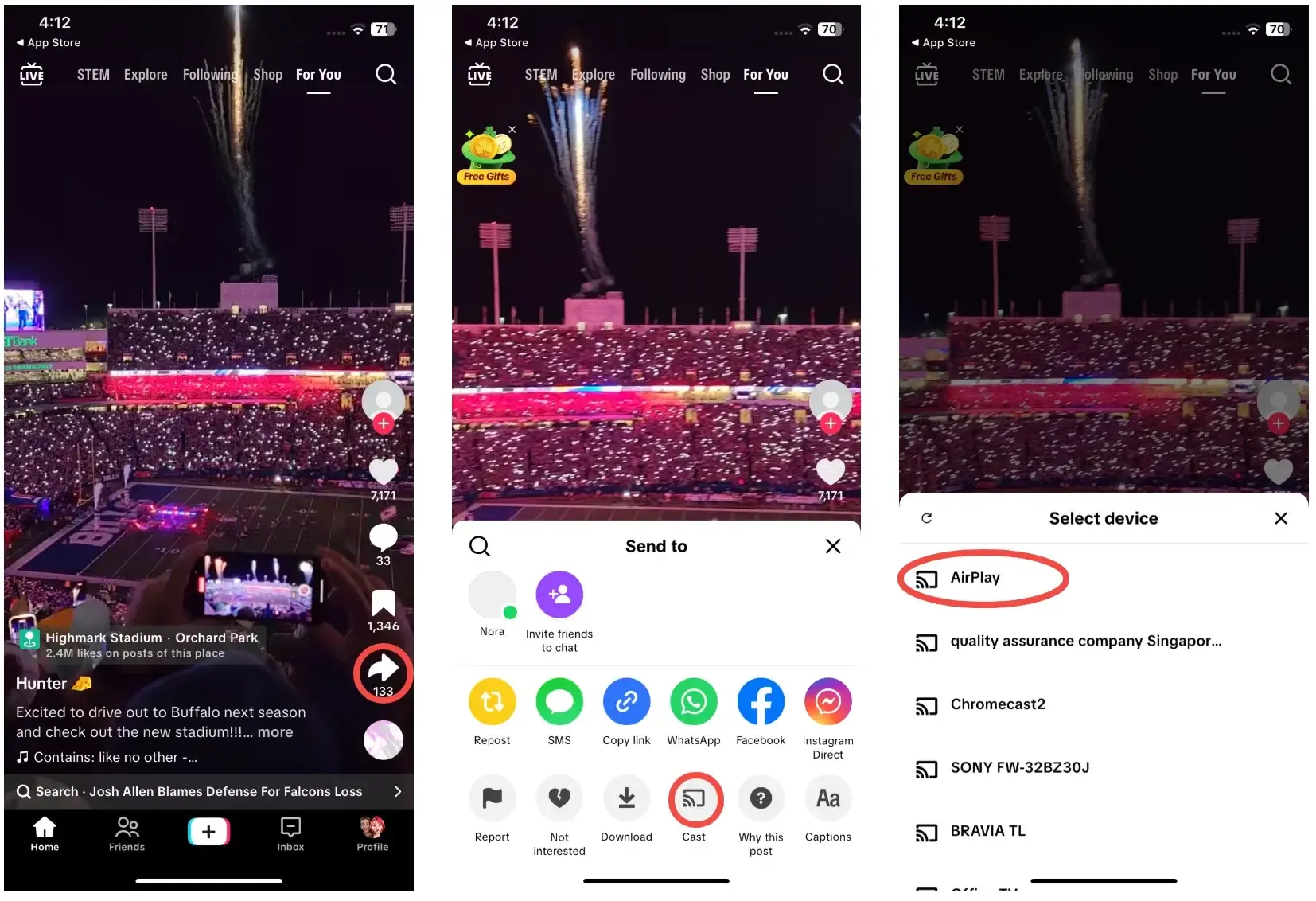
Step 4. Select your TV from the list.
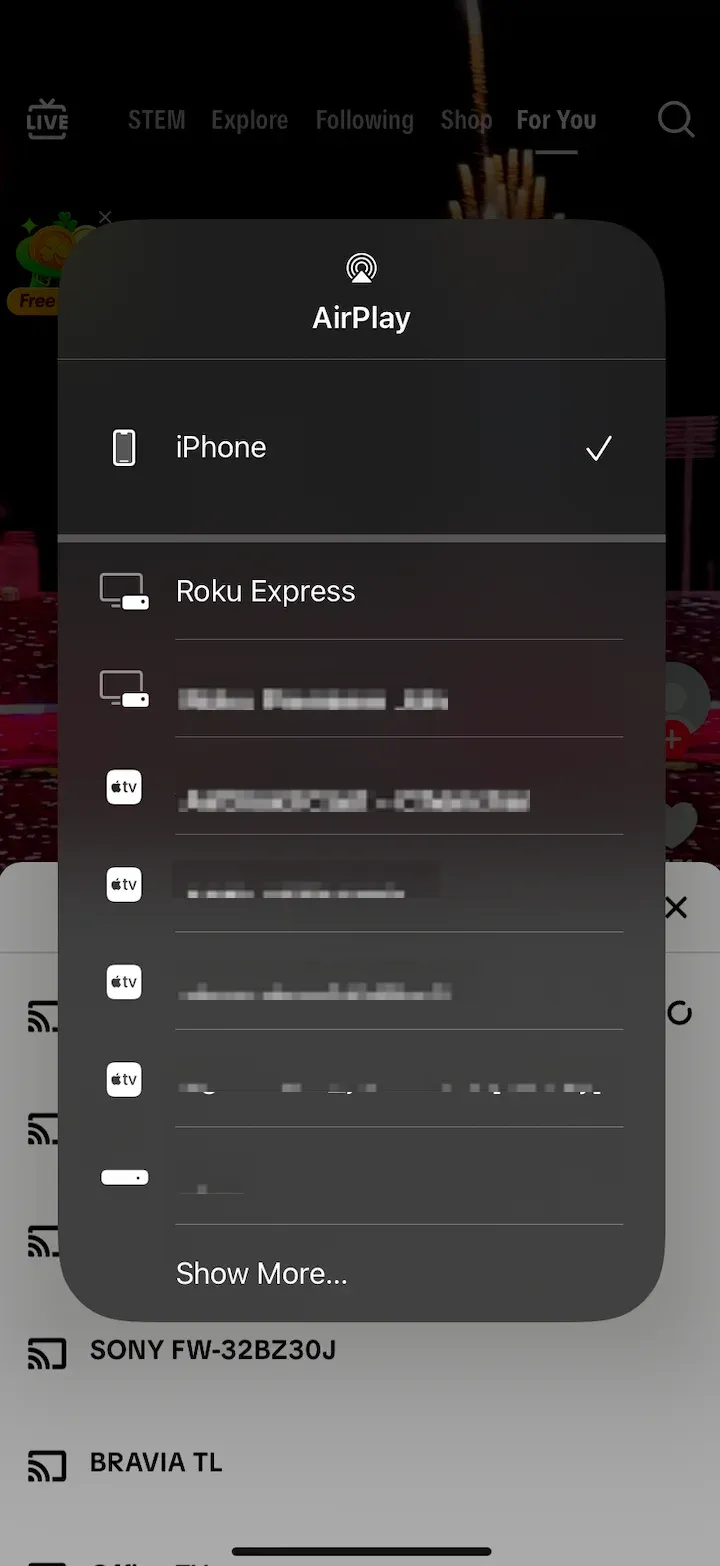
Step 5. Enter the AirPlay code shown on TV if prompted.
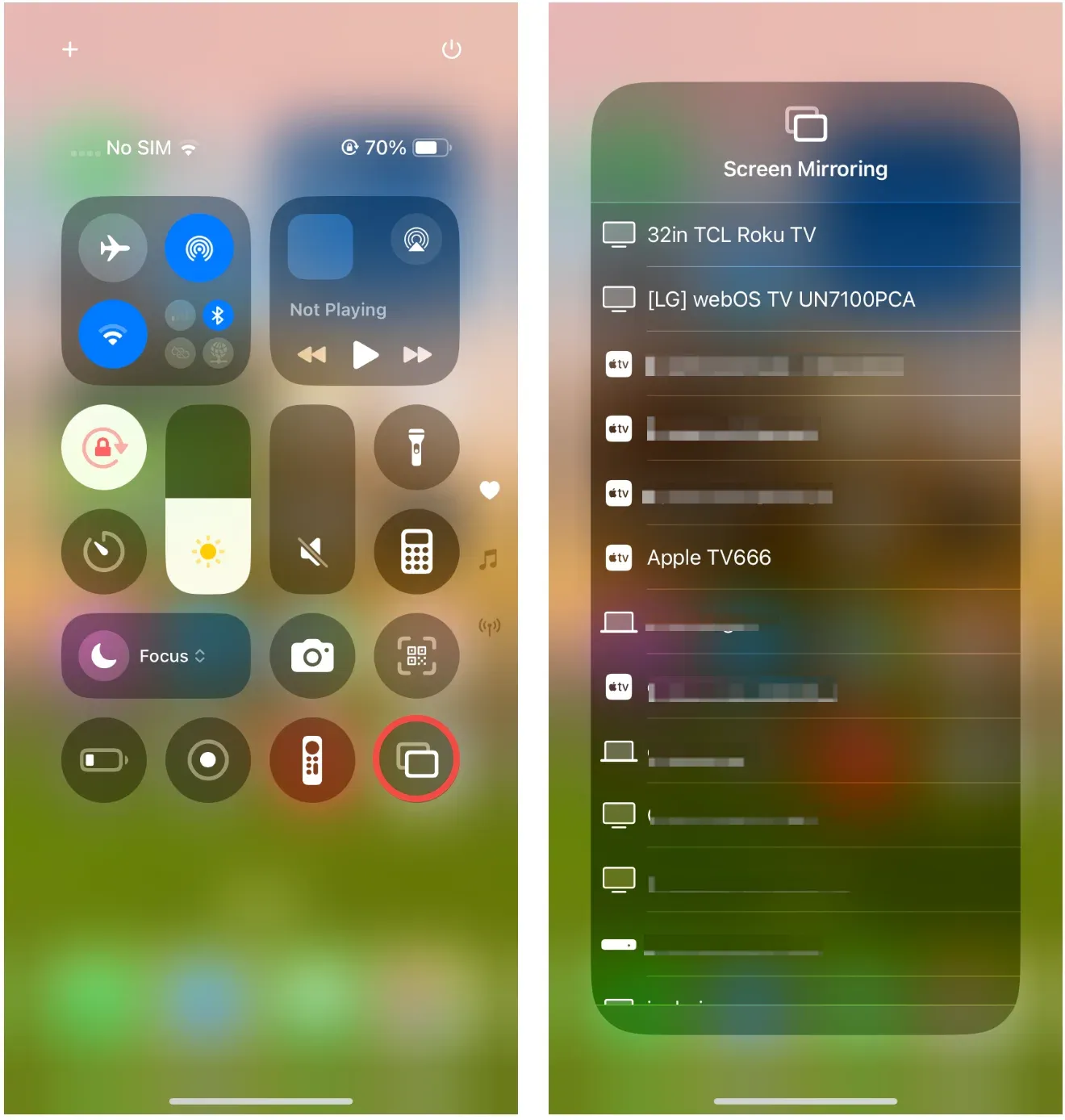
Step 6. If in-app casting is missing, use iOS Screen Mirroring from Control Center.
AirPlay TikTok to AirPlay-Compatible TV
If you want to AirPlay TikTok without using Apple TV, many modern smart TVs already support AirPlay. Recent models from Samsung, LG, Sony, and Roku include AirPlay built in, allowing you to stream or mirror TikTok directly from your iPhone or iPad as long as both devices are connected to the same Wi-Fi network.
-
=Enable AirPlay in the TV settings menu.
-
Open TikTok on iPhone/iPad and play a video.
-
Tap Share, then AirPlay/Cast, and choose your TV.
-
If the cast option is unavailable in TikTok:
-
Open Control Center.
-
Tap Screen Mirroring.
-
Select your TV.
-
-
Start enjoying short videos on the big screen.
AirPlay TikTok to AirPlay-Incompatible TV
When your TV has no AirPlay receiver, repeated AirPlay retries only increase setup time with no chance of success. The practical switch trigger is simple: if your TV never appears because it is not AirPlay-capable, move to a compatible receiver path. On Android TV or Google TV, a receiver app like PigeonCast can provide a straightforward fallback route.
Step 1. Install PigeonCast on your smart TV from the app store.
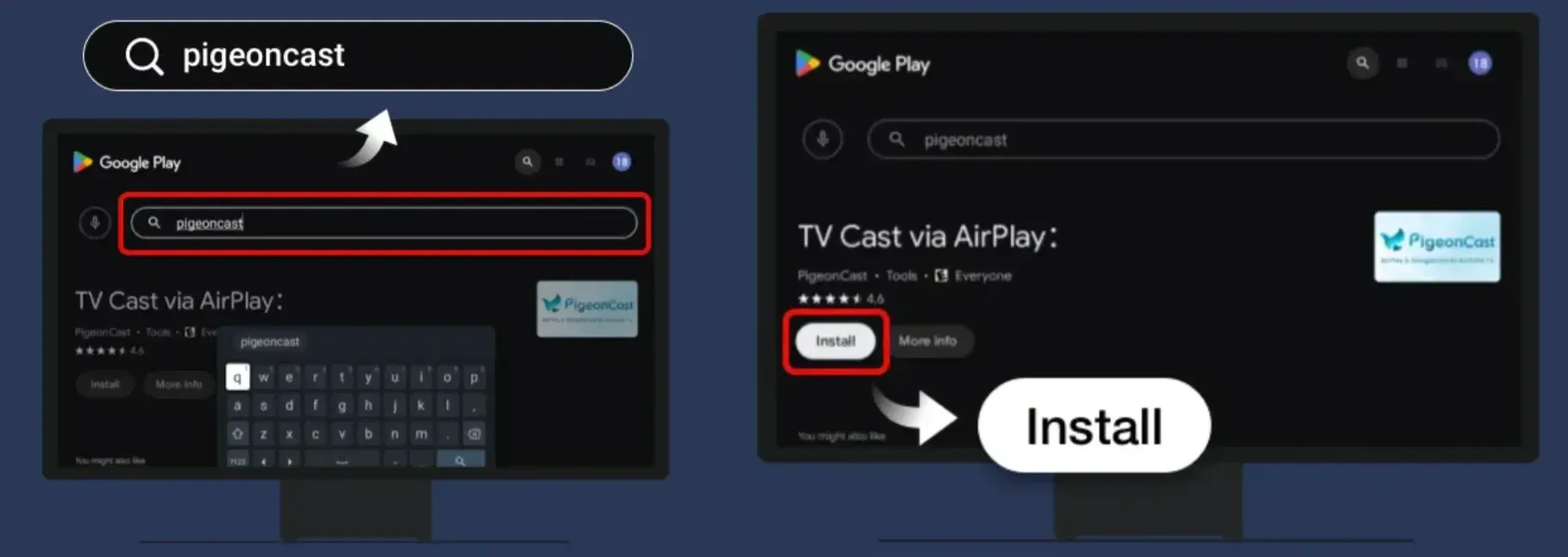
Step 2. Open PigeonCast on the TV and keep the receiver screen active.
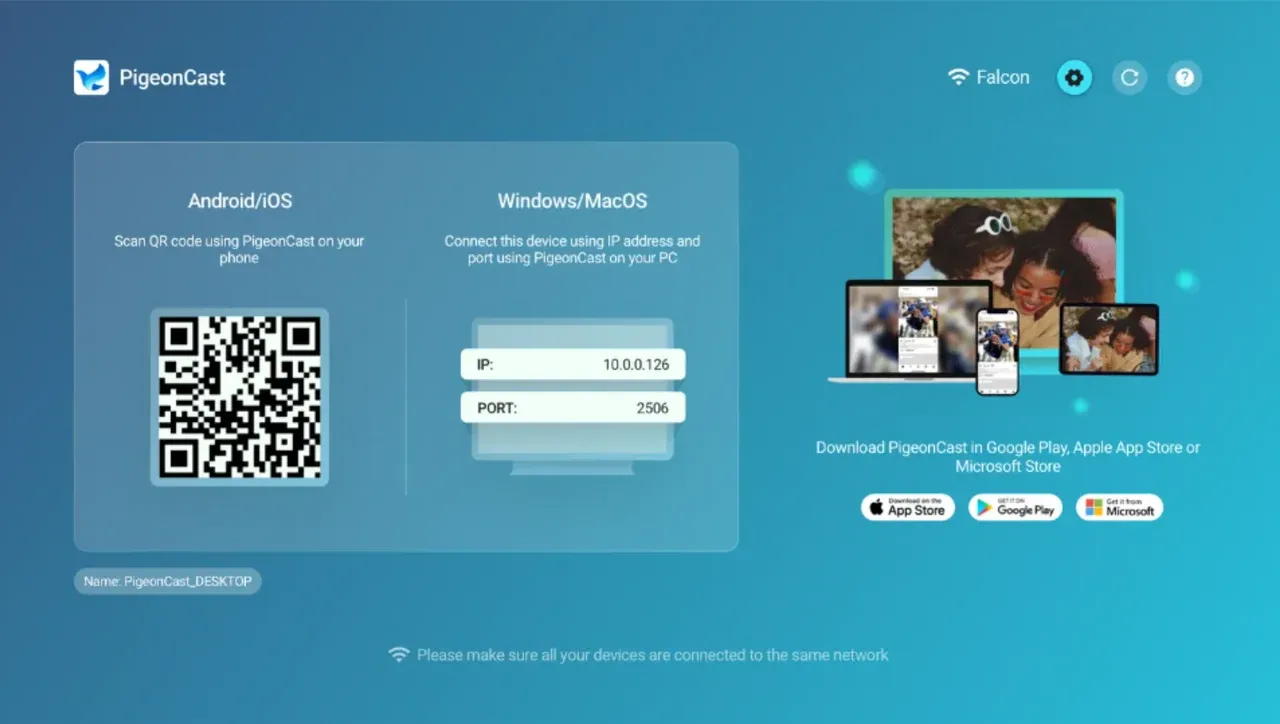
Step 4. On iPhone/iPad, open TikTok and play a video.
Step 5. Tap Share, then AirPlay/Cast, and choose your TV.
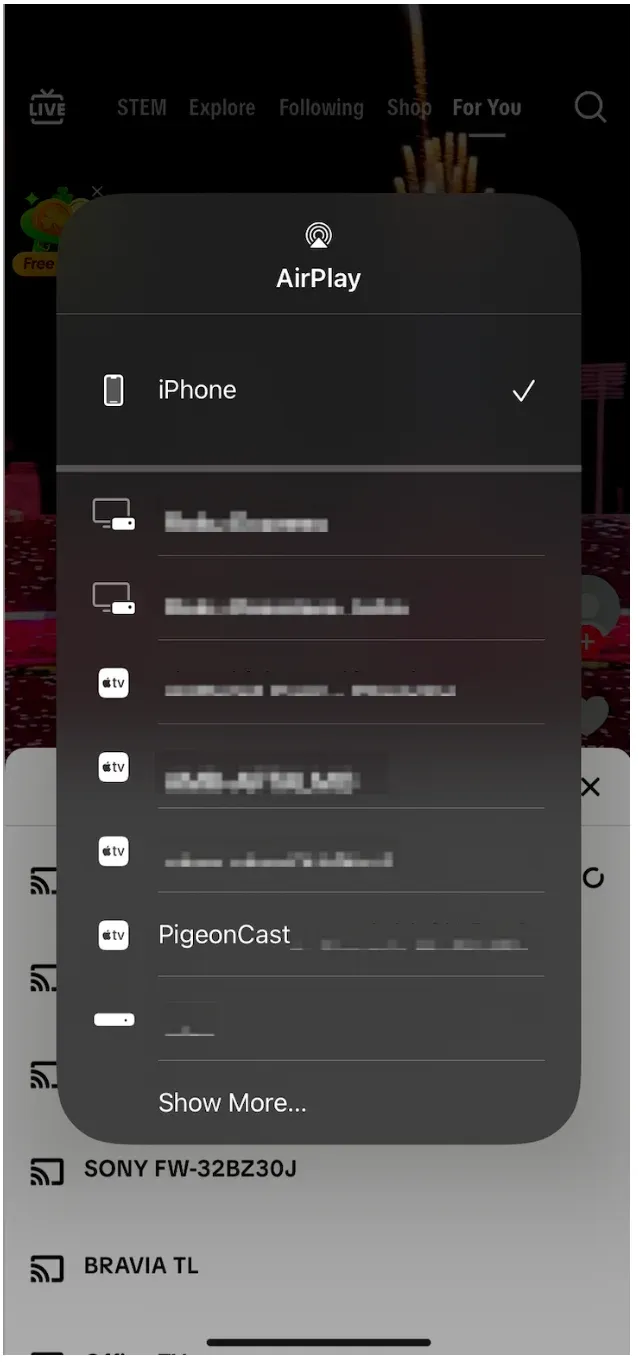
Step 6. Start enjoying yourself on the big screen.
For households with mixed devices, an AirPlay alternative like PigeonCast can be useful when native AirPlay is unavailable and you want to avoid using adapters. PigeonCast works on both iPhone and iPad. Simply install it on your Apple device, follow the in-app connection steps, and start sending TikTok playback to your TV.


Overall Rating:


Fix TikTok AirPlay Problems: TV Not Showing, Black Screen, or No Sound
If casting still fails, stop repeating setup steps and diagnose by symptom. Each symptom has a different cause, and using the wrong fix wastes time and can mask the actual issue. Match your symptom below, run the corresponding fix once, then retest.
TV not showing in AirPlay list
-
Reconfirm same Wi-Fi SSID on both devices.
-
Disable VPN and Private Relay temporarily.
-
Restart router, TV, and iPhone.
-
Re-enable AirPlay on TV after reboot.
Black screen after connection
-
Test another TikTok video first.
-
Switch from in-app cast to iOS Screen Mirroring.
-
Update TikTok and iOS.
-
Power cycle TV and retry.
No sound on TV
-
Raise TV volume and confirm the correct input profile.
-
In iPhone Control Center, set audio output target to TV.
-
Disconnect AirPlay and reconnect once.
-
Test another app to confirm whether issue is TikTok-specific.
Frequent disconnects or lag
-
Move devices closer to router.
-
Pause heavy downloads or cloud backups.
-
Keep TV on Ethernet when possible.
-
If instability continues, switch to HDMI for guaranteed playback.
Conclusion
For most iPhone and iPad users, the fastest way to AirPlay TikTok to TV is to start with compatibility checks, then follow the device-specific path for Apple TV or AirPlay-enabled smart TVs. If your TV is incompatible or AirPlay remains unstable after one full fix cycle, switch quickly to an alternative like PigeonCast on Android TV/Google TV, Chromecast, or HDMI to get consistent playback.
How to AirPlay TikTok to TV FAQ
Can you AirPlay TikTok to TV without Apple TV?
Yes. Start by checking whether your smart TV has built-in AirPlay support, then cast from TikTok or use iOS Screen Mirroring. If your TV does not support AirPlay, try alternatives like PigeonCast, Chromecast or HDMI.
How to AirPlay TikTok on Apple TV if no cast button appears?
Open TikTok and try Share first. If AirPlay/Cast is missing, use iPhone Control Center and start Screen Mirroring to Apple TV. This usually works even when in-app cast UI changes between TikTok versions.
How to AirPlay TikTok on Roku?
-
Enable AirPlay on Roku in Settings > Apple AirPlay and HomeKit.
-
Connect Roku and iPhone to the same Wi-Fi.
-
Open TikTok and cast, or use Screen Mirroring if direct cast options are not visible.
Why does TikTok AirPlay connect but show a black screen?
Switch to another TikTok video and retry using Screen Mirroring. Some playback cases fail in direct in-app casting but work with full-device mirroring. Keep TikTok and iOS updated to reduce compatibility issues.
How to AirPlay TikTok on TV when TV is never discovered?
-
Check Wi-Fi SSID match
-
Disable VPN
-
Restart router and devices
-
Verify AirPlay is enabled on TV.
-
If the TV is not AirPlay-compatible, stop troubleshooting AirPlay and switch to a screen mirroring app like PigeonCast.
Can I AirPlay TikTokto TV with unstable home Wi-Fi?
You can, but unstable Wi-Fi often causes lag or disconnects. Reduce network load and keep the receiver close to the router. For important viewing sessions, use Ethernet on the TV side or switch to HDMI for the most stable result.
Mia Clarke is a technology editor specializing in screen mirroring and casting solutions across multiple platforms. Mia provides clear, practical guides and in-depth insights to help users seamlessly connect their devices. Passionate about enhancing digital experiences, Mia is dedicated to keeping readers updated on the latest trends and tools in cross-platform screen sharing. Whether you’re looking to mirror your smartphone, laptop, or smart TV, Mia’s content delivers reliable, user-friendly advice to simplify your tech setup.