
Many users wonder whether they can bring the familiar iMessage experience to a Windows PC. The short answer is yes. While Apple does not offer an official iMessage app for Windows, several reliable methods allow you to read and send messages from Windows 10 or Windows 11. This guide explains everything about iMessage on Windows you need to know, from official tools to easy third-party options, and helps you decide which method fits your daily workflow.
Can You Get iMessage on Windows
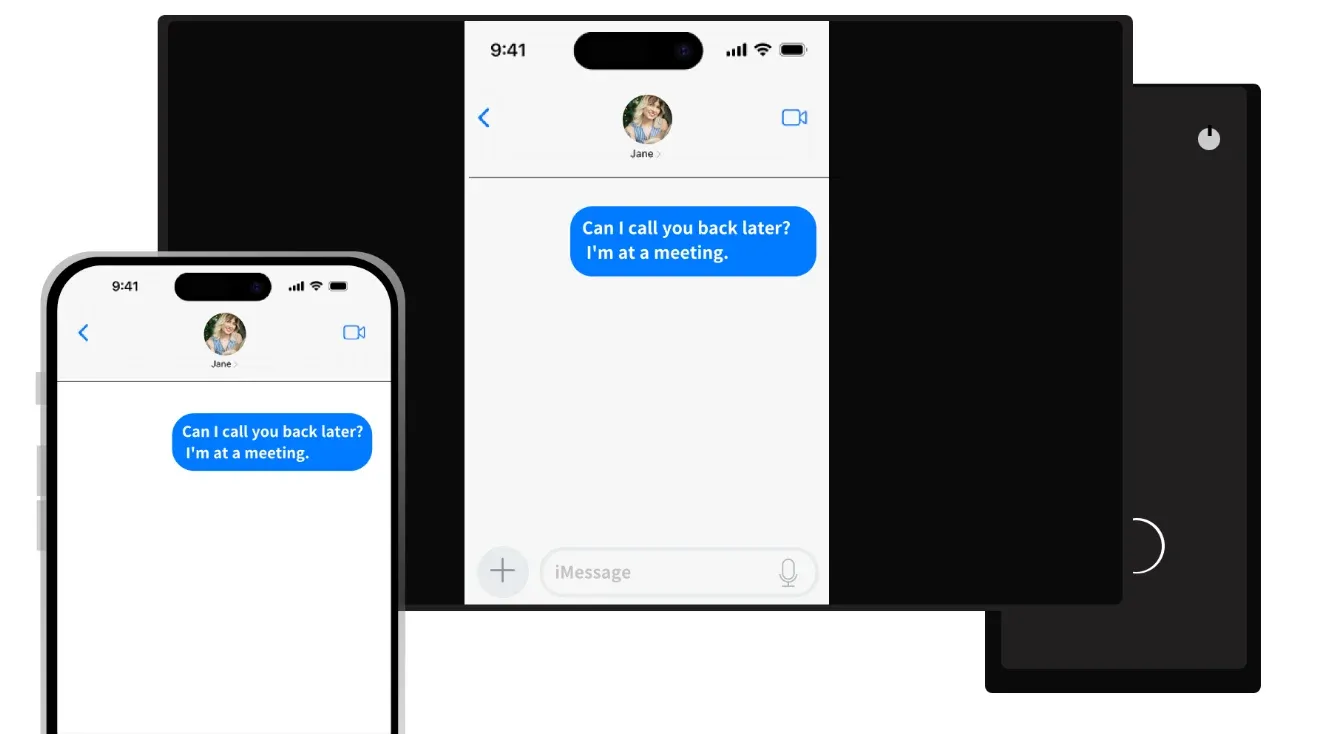
Although iMessage is an Apple-exclusive app, you can use iMessage on Windows through services that connect your iPhone to your Windows PC. These tools mirror your phone's messages or relay them through a secure connection. Apple does not offer iMessage for Windows, so you need a workaround, but the experience can still be surprisingly smooth. The sections below explain how to have iMessage on Windows in a way that feels close to the native experience on a Mac.
How to Get iMessages on Windows 10/11
If you want iMessage on Windows 10 or Windows 11, you can choose from several methods. Each works differently and has its own strengths. Beginners usually prefer the official Microsoft Phone Link, while users who want fewer restrictions look for alternatives such as Intel Unison or PigeonCast (a free screen mirroring app).
Method 1: Use Microsoft Phone Link [Official]
Microsoft Phone Link provides a straightforward way to access iMessage on Windows PCs (compatible with Windows 11 only). It connects your iPhone and Windows device via Bluetooth and allows you to send and receive messages within the Phone Link app. The setup only takes a few minutes.
How to get iMessage on Windows with Phone Link:
Step 1. Download and install the Microsoft Phone Link app on your Windows 11 computer.

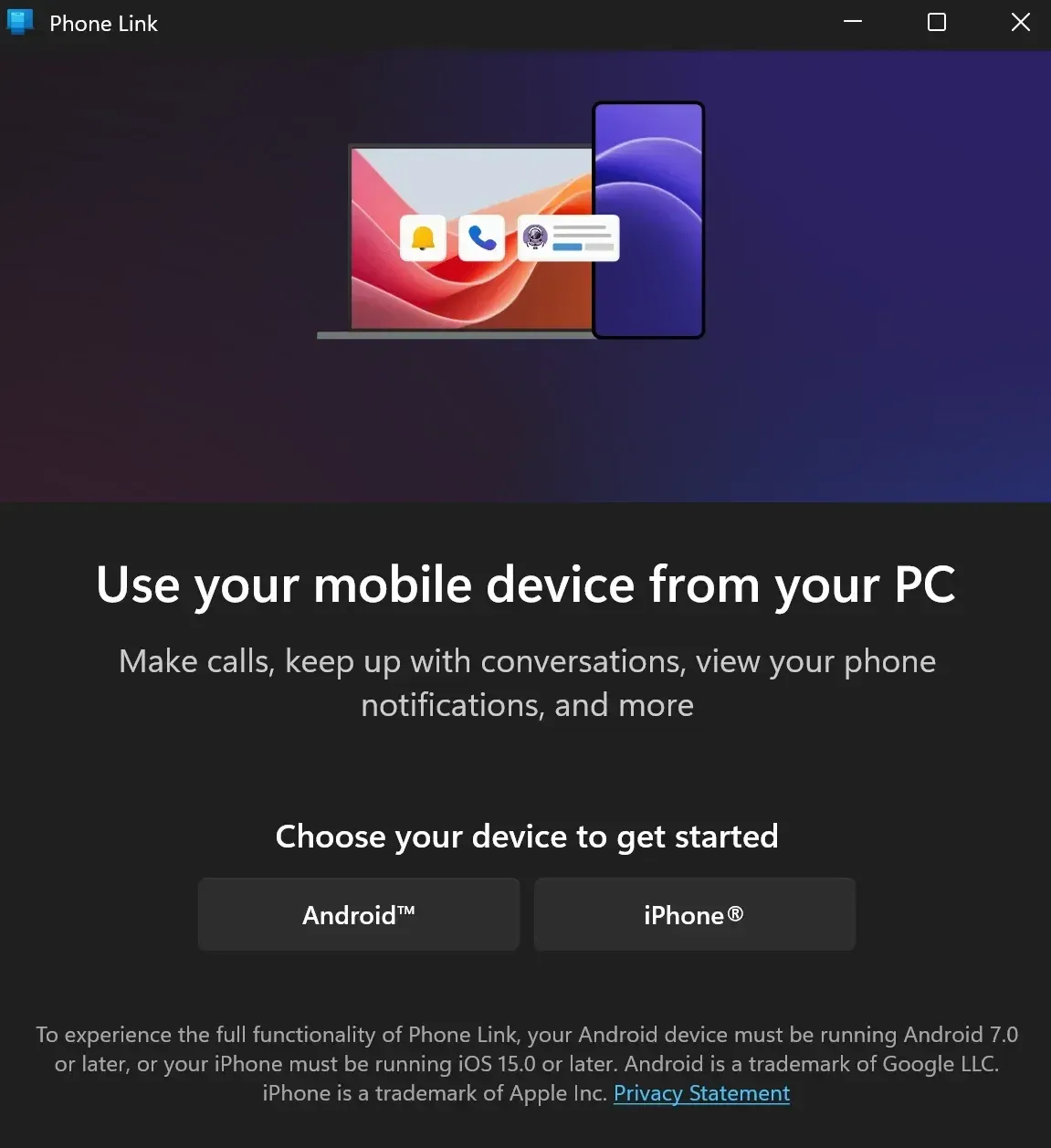
Step 2. Launch the Phone Link app on your PC, and click the iPhone option on the screen.
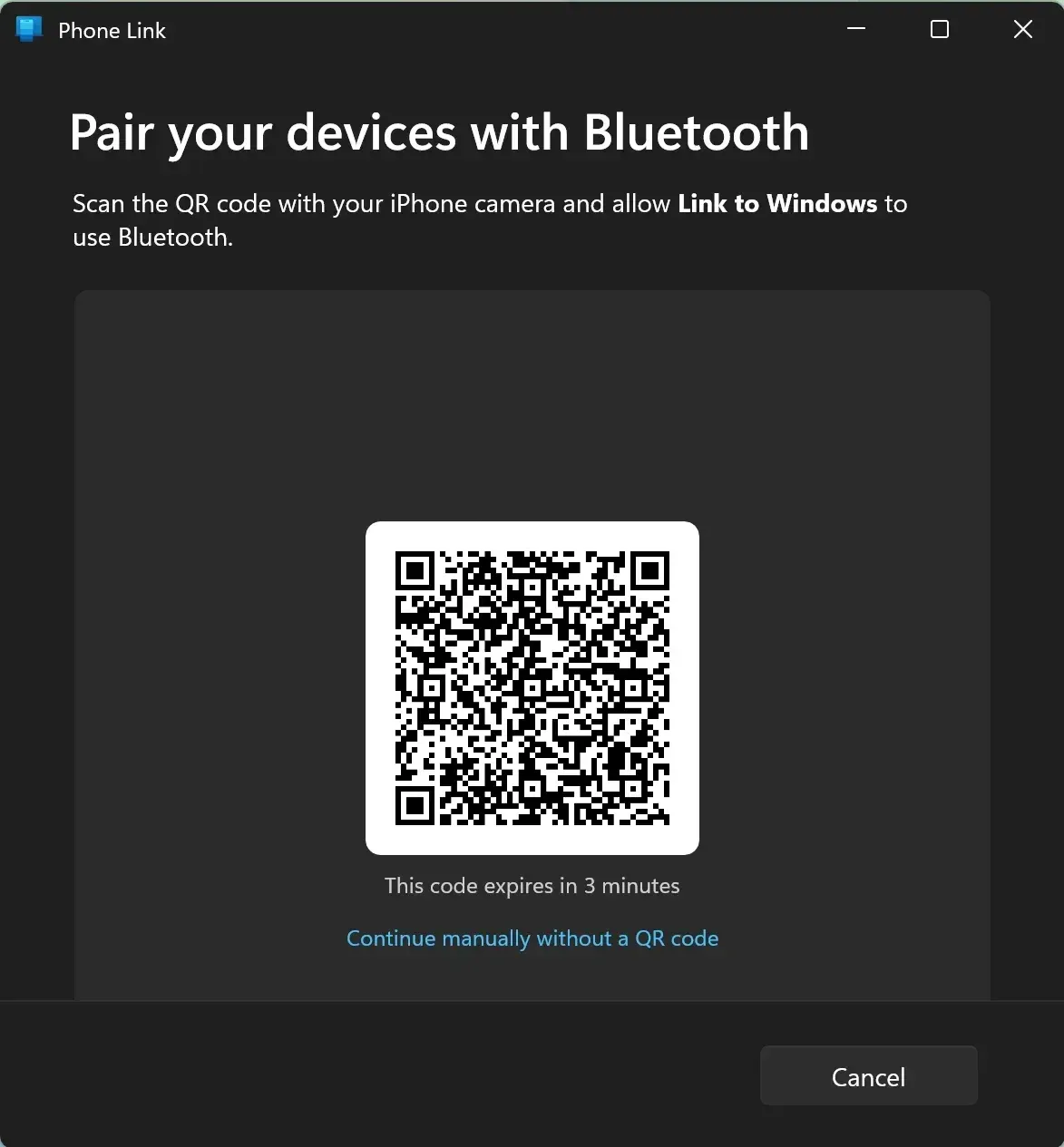
Step 3. Scan the QR code with your iPhone's Camera app. If you want to access iMessage on Windows frequently, you can get the Link to Windows app for more convenience.
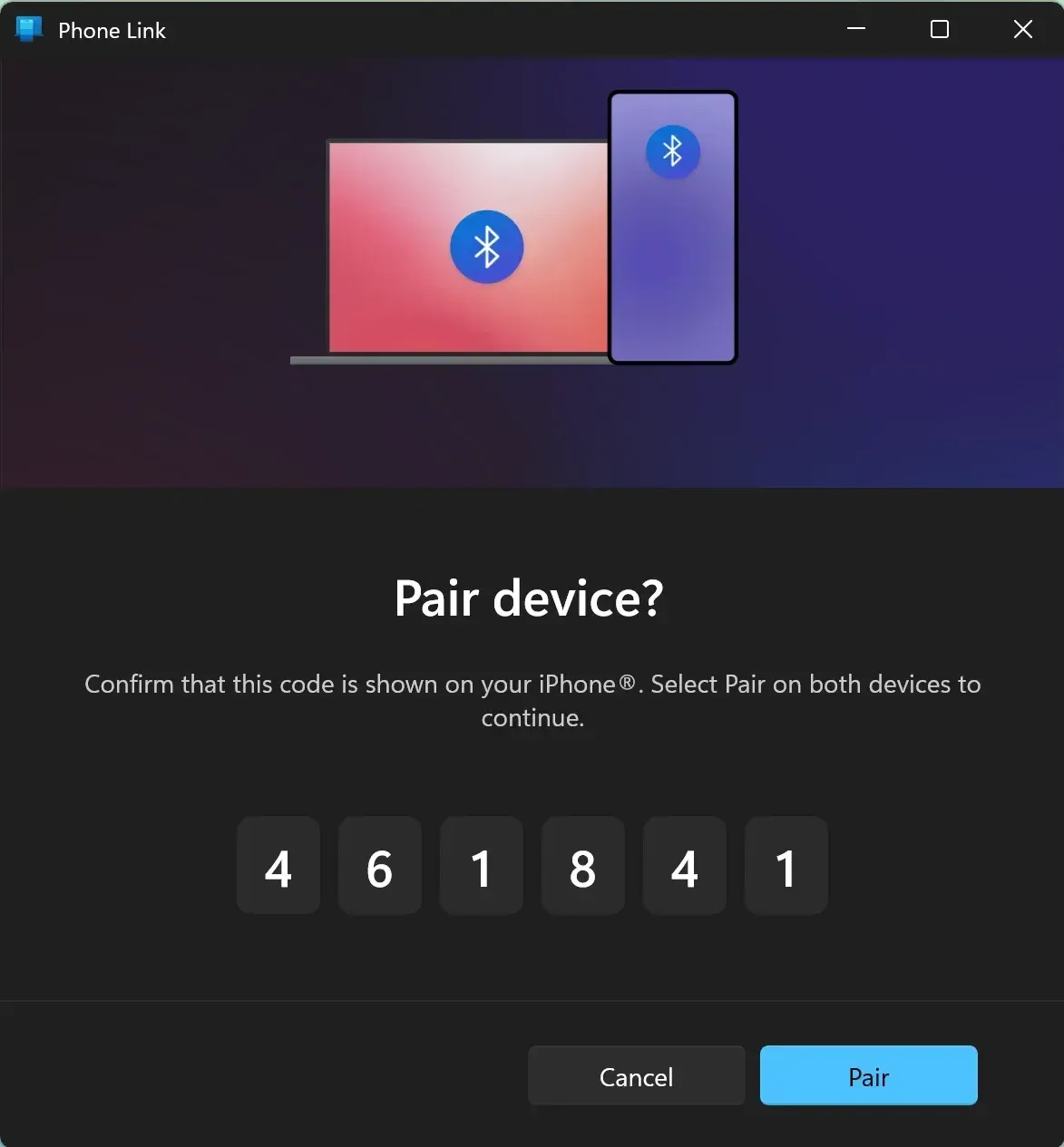
Step 4. Tap Continue on your iPhone to connect via Bluetooth, then choose Pair on both devices.
Step 5. Allow the requested prompts on both your devices and wait for the two to connect.
Step 6. On your Windows 11 PC, tap Continue.
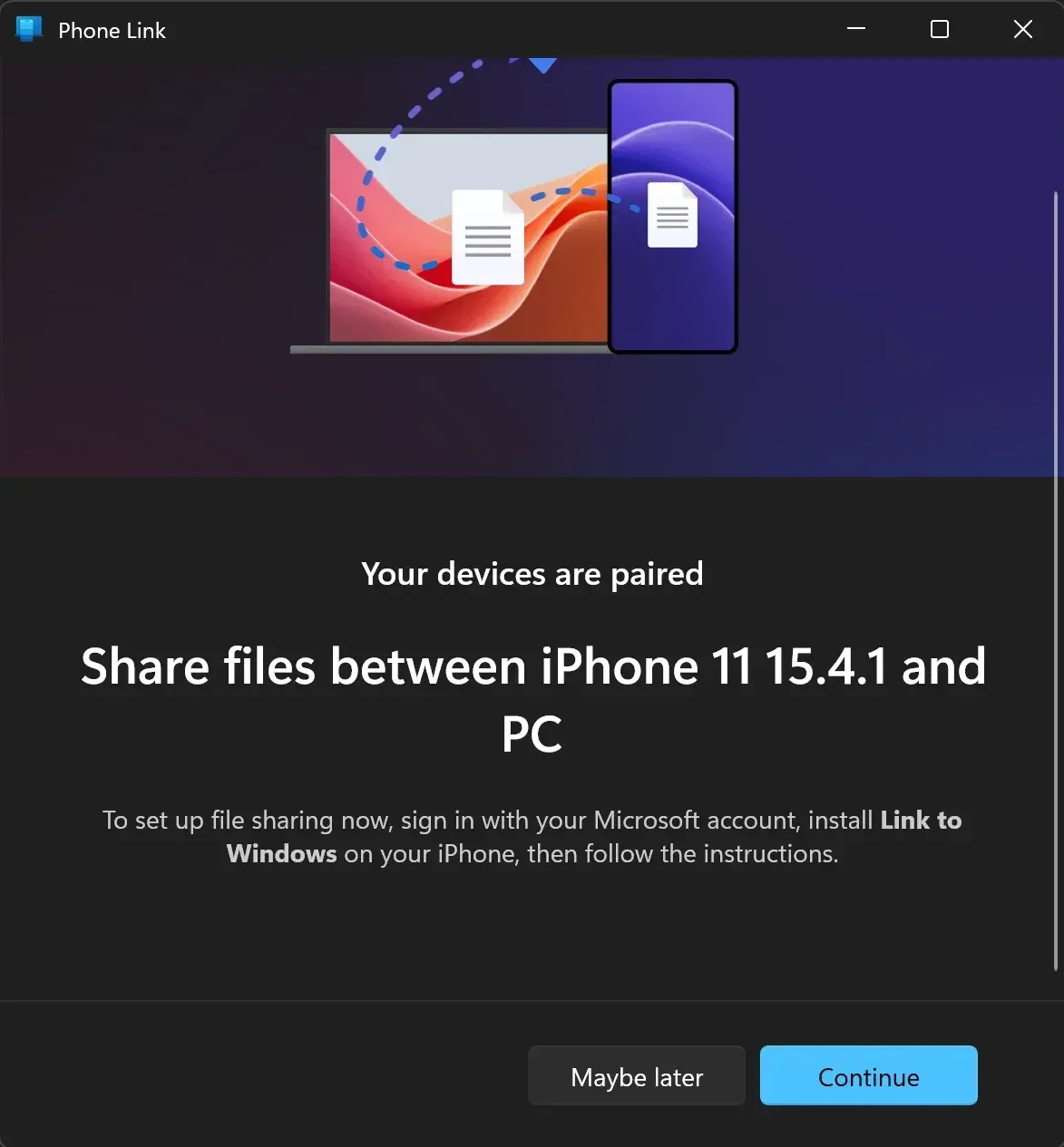
Step 7. Follow the on-screen instructions on your PC to grant permissions.
Step 8. Now you can browse iMessage on your Windows PC.
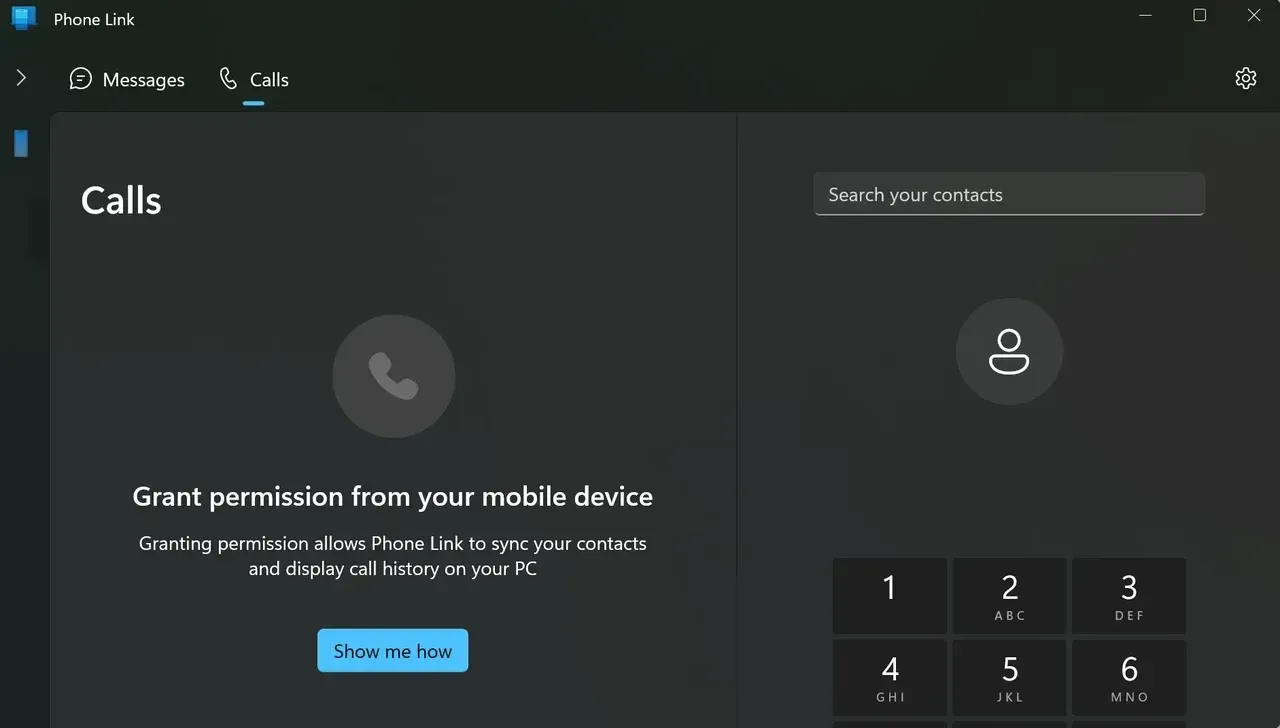
Phone Link has some limits because of Apple's restrictions. You cannot send full-resolution images or join group chats. Even with these limits, it remains the easiest way to get iMessage on Windows 11 for most people.
Method 2: Use PigeonCast [Free]
PigeonCast offers a simple, free way to view and send iMessages on your Windows PC. Instead of relying heavily on Bluetooth, it connects your iPhone to Windows through a stable local network, which can provide a smoother experience. It also works on both Windows 10 and Windows 11.
How to use PigeonCast to display iMessage on your Windows computer:
Step 1. Download and install PigeonCast on your iPhone and Windows PC.


Overall Rating:



Step 2. Connect your iPhone and Windows PC to the same Wi-Fi network.
Step 3. Launch PigeonCast on your iPhone and Windows PC, and on your Windows PC, click Receive screen.
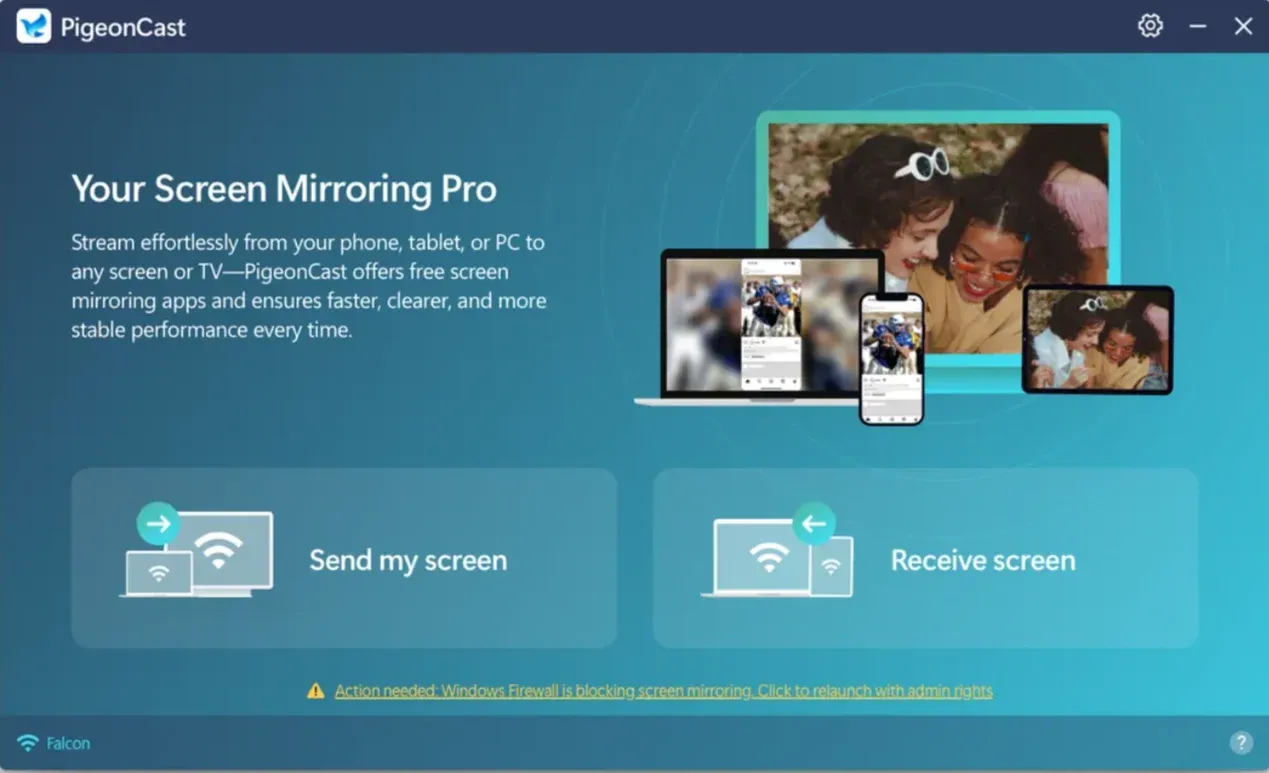
Step 4. Your Windows PC is ready to receive any content from your iPhone. So, on your iPhone, choose your Windows laptop from the device list, and connect to it.
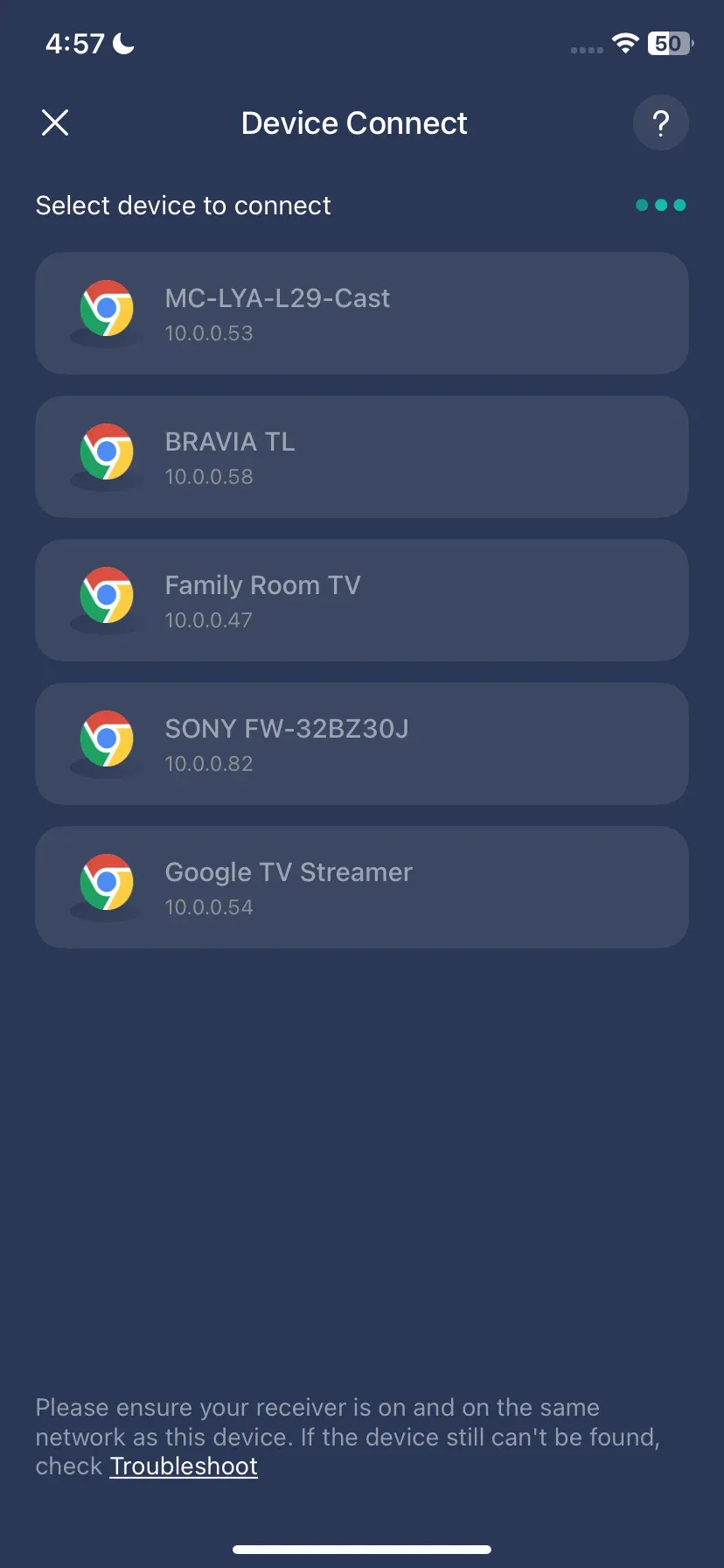
Step 5. Once connected, tap Screen Mirror and follow the on-screen instructions to start mirroring.
Step 6. Everything on your iPhone will be displayed on your Windows. So, to view iMessage on Windows PC, just open iMessage on your iPhone.
PigeonCast offers more flexibility than the official Phone Link method and does not limit group chats or attachments in the same way. If you are looking for a stable and free iMessage on PC solution, PigeonCast is a strong option.
Method 3: Use Intel Unison [Stable]
Intel Unison is another tool that brings your phone's messages to your Windows PC. It works on many modern laptops with Intel processors, and the pairing experience is smooth. Some users prefer it becuase it delivers a more consistent connection compared to Bluetooth based tools.
Here is how to have Apple Messages for PC:
Step 1. Install Intel Unison on your Windows computer from the Microsoft Store.
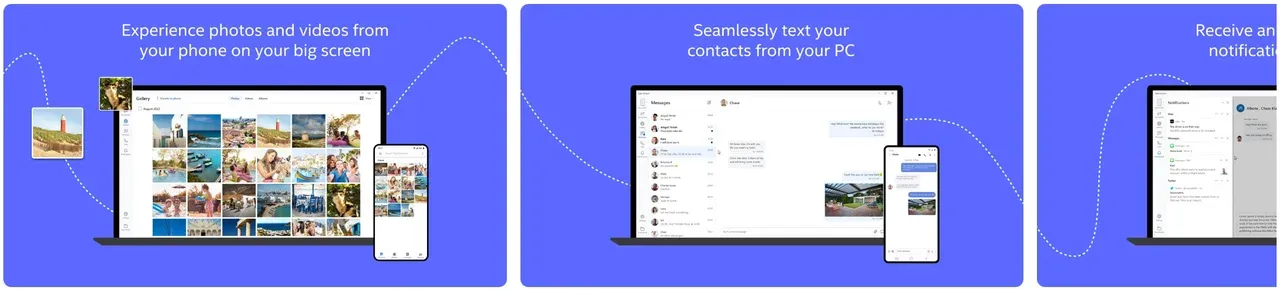
Step 2. Download the companion app on your iPhone from the App Store.
Step 3. Open both apps and scan the pairing code.
Step 4. Wait for the connection to complete and check your incoming messages.
Unison generally handles notifications faster than Phone Link. It is a good choice if you want iMessage on Windows PCs without the typical Bluetooth delays or disconnections.
Final Words
You can get iMessage on Windows even without an official Apple Messages for PC app. Whether you pick the convenience of Microsoft Phone Link, the steady performance of Intel Unison, or the flexibility of PigeonCast, you have several reliable ways to bring iMessage to your Windows desktop. Choose the method that matches your workflow and enjoy a smoother across latform messaging setup.
iMessage on Windows FAQs
Can I use iMessage on a browser?
There is no direct way to use iMessage in a browser. Apple does not offer iMessage on the web, so you need a tool that connects your phone to your Windows PC. Any method that claims full web access to iMessage is usually unsafe or unsupported.
How do I see my phone messages on my computer?
You can view your messages on your computer by linking your iPhone to your Windows PC through Phone Link, Intel Unison, or PigeonCast. These tools mirror your conversations and allow you to read and reply without picking up your phone.
Why can't I get iMessage on Windows directly?
Apple does not offer an official iMessage app for Windows, so you cannot install iMessage on Windows in the same way you install other chat apps. The only way to have iMessage on Windows PC is through tools that connect your iPhone to your computer. These tools give you access to your messages without changing how iMessag works on your phone.
How do I get my iPhone messages on my computer without a Mac?
You can get your iPhone messages on a Windows computer by linking your phone with a companion app. Phone Link is the simplest, while PigeonCast offers more freedom with group chats and attachments. Both provide an easy way to start using iMessage on Windows PCs without needing a Mac.
Is it safe to use iMessage on Windows with third party apps
Most well known apps that support iMessage on PC use secure pairing methods and locak network communication. For example, PigeonCast runs on your local Wi-Fi network rather than routing your data through outside servers. Even so, it is important to use trusted apps and avoid unknown services that claim full web based iMessage access.
Can I send pictures through iMessage on Windows?
You can send pictures from Windows through iMessage, but the quality depends on the method. Phone Link reduces image quality due to Apple's restrictions. PigeonCast sends higher quality images because it uses a different connection process.
Can I join group chats when using iMessage on Windows?
Yes, you can join group chats when connecting your iPhone to your Windows laptop through PigeonCast or Intel Unison. If group messaging matters to you, it is better to avoid tools that rely only on Bluetooth.
Can I use iMessage on Windows without an iPhone?
No. You cannot use iMessage on any Windows PC without an iPhone. iMessage always requires an Apple device because the messages must still pass through Apple's servers. Any service that claims to offer iMessage on Windows without an iPhone is unsafe or misleading.
Will iMessage on Windows sync all my old messages?
Most tools only sync new messages after you connect your iPhone to your Windows PC. Phone Link, for example, does not load your full message history. PigeonCast works differently because it mirrors the content on your iPhone, so you can view everything that already appears on your phone screen.
Is using iMessage on PC worth it?
If you spend long hours on your laptop and want to read and reply to messages without switching devices, using iMessage on PC is helpful. It keeps your workflow smoother and reduces distractions. Many users find it especially useful for work or study.
Does using iMessage on Windows drain battery faster?
Using iMessage on Windows can increase battery usage slightly because your iPhone stays connected to your PC. The difference is usually small, but keeping your phone near a charger during long work sessions is a good idea.
Mia Clarke is a technology editor specializing in screen mirroring and casting solutions across multiple platforms. Mia provides clear, practical guides and in-depth insights to help users seamlessly connect their devices. Passionate about enhancing digital experiences, Mia is dedicated to keeping readers updated on the latest trends and tools in cross-platform screen sharing. Whether you’re looking to mirror your smartphone, laptop, or smart TV, Mia’s content delivers reliable, user-friendly advice to simplify your tech setup.