
Facebook has become a major hub for video content, from personal updates to live streams and shows on Facebook Watch. Whether you're sharing vacation videos, watching a live stream, or checking community updates, casting to a larger screen enhances the experience. Luckily, there are simple methods for learning how to cast Facebook to TV and enjoy its diverse content on a bigger screen.
Can You Cast Facebook Live to TV
Yes, you can easily cast Facebook Live videos, along with other Facebook content, to your TV. Facebook supports popular casting protocols, making it compatible with many modern devices, like smart TVs and streaming sticks. Whether you're using a smart TV or a Chromecast, you can enjoy Facebook Live on the big screen. However, keep in mind that you can't access Facebook Watch on TV directly.
How to Watch Facebook Live on TV
How to stream Facebook Live on TV? There are several methods to watch Facebook Live on your TV. Depending on your TV's capabilities and the devices you have at home, you can select the best solution for you. Let's explore some of the most popular options to cast Facebook content on your TV.
#1. Facebook Cast to TV via Built-in Streaming
The simplest way to cast Facebook to your TV is by using the built-in streaming features in the Facebook app. This method typically offers the best integration and a smooth user experience when supported. Some TVs that are compatible with Facebook streaming include:
- Chromecast/Google TV
- Samsung Smart TVs
- Apple TV
- Amazon Fire TV
- Roku TV
- Android TVs (such as Hisense, Sony, and Sharp)
Once you've confirmed you have one of the compatible devices, let's read on to learn about how to cast Facebook Live to tv:
Step 1. Ensure your mobile device and TV are under the same wireless network.
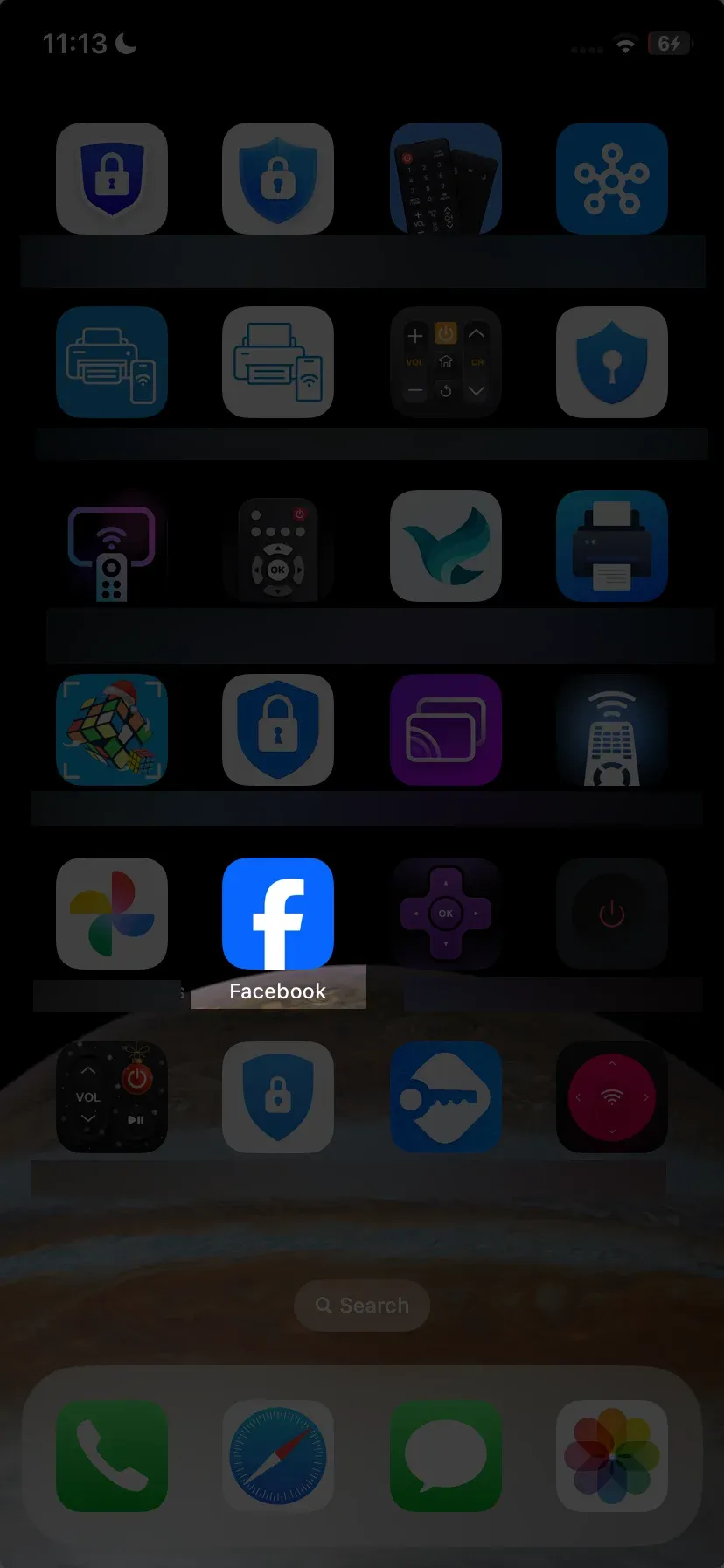
Step 2. Open the Facebook app on your iOS/Android device.
Step 3. Select the Video tab in the bottom left-hand corner of the screen, then choose a video to play.
Step 4. Tap on the ... icon in the bottom right-hand corner of the media player.
Step 5. Select the Cast Video button.
Step 6. Depending on your device, select AirPlay or Chromecast and choose your TV from the device list.
Step 7. If prompted, follow the on-screen instructions to allow the connection.
However, this method will only work if you have a compatible smart TV or streaming device. Check the AirPlay and Chromecast-compatible TV list for more details.
#2. Facebook Cast to TV via Web Browser
If you're unsure about the casting protocol your TV uses, or if your smartphone/tablet doesn't support your TV's casting feature, you can still watch Facebook streams directly on your TV's web browser. This method is easy to use and works on any smart TV with access to a web browser. Here's the step on how to mirror Facebook to TV:
Step 1. Open the Web Browser on your smart TV.
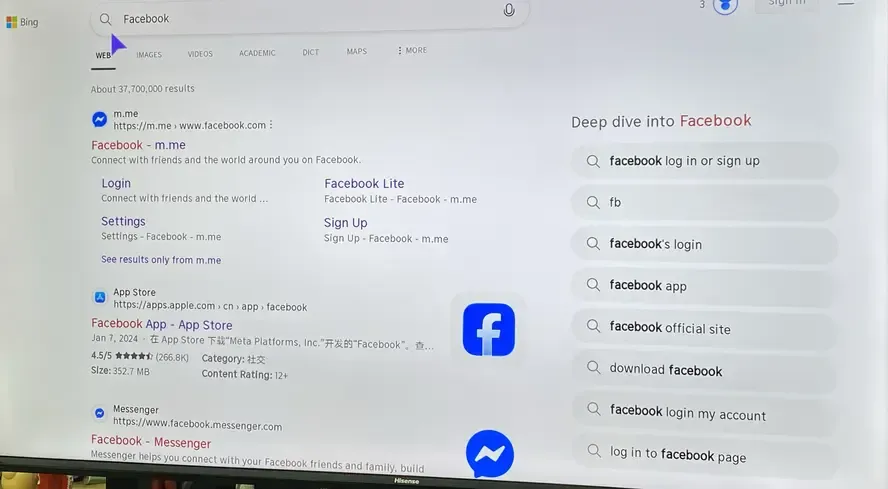
Step 2. Type in Facebook, search for it, and select Facebook.
Step 3. Log in to your Facebook account, then select the Video tab in the center of the screen.
Step 4. Select Live or use the Search feature in the top-left corner of the screen to find a streamer.
Step 5. Next, select a live stream and enjoy it on your TV screen.
Unfortunately, not all TV or streaming devices come with a built-in browser. For example, Roku and Apple TV devices typically lack a native web browser. Additionally, navigating through Facebook using a remote control can be frustrating, especially when it comes to typing.
#3. Facebook Cast to TV via PigeonCast
The last method uses PigeonCast, a free and ad-free third-party solution for wireless screen casting. It's an all-in-one tool with multi-platform support, available on iOS, Android, Windows, macOS, and Android TV. This makes it easy to stream content, browse videos, or catch up on Facebook posts without interruptions. Read on to check how to watch Facebook on smart TV:



Overall Rating:



Step 1. Install PigeonCast on your mobile device from the app store.
Step 2. Ensure your mobile device and TV are connected to the same wireless network.
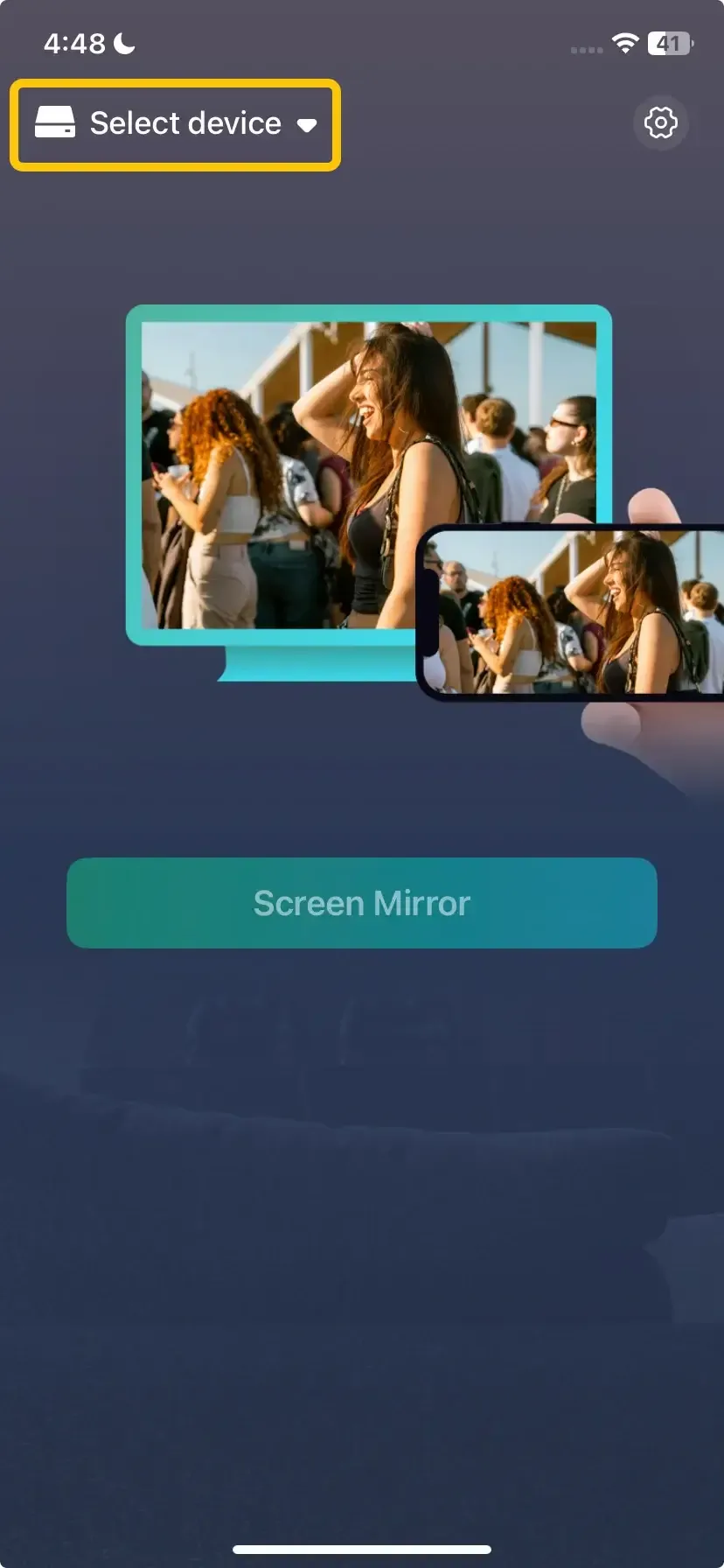
Step 3. Launch the app, tap Select device to choose your TV from the available list to connect.
Step 4. Enter the onscreen PIN code to finish the pairing process.
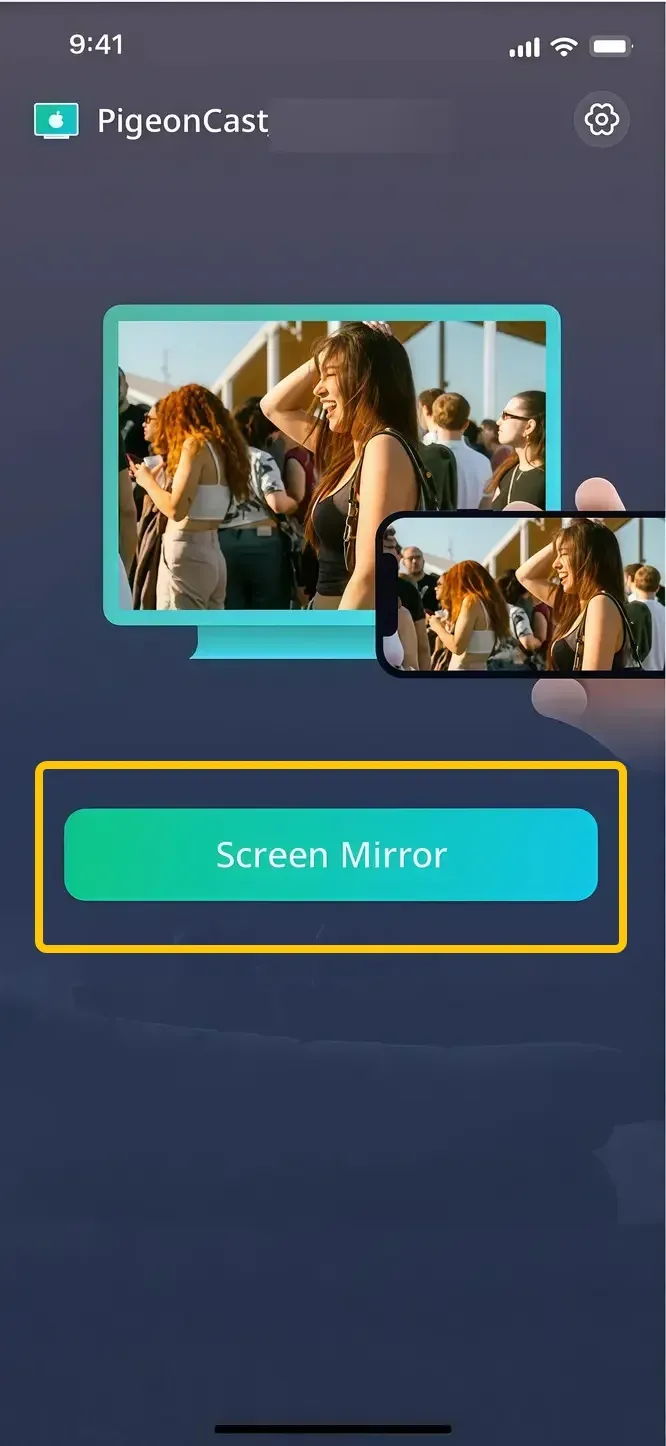
Step 5. When you finish, you can then tap Screen Mirror to share your mobile screen on the TV.
Step 6. Open Facebook, and it will automatically display on the television screen at the same time.
Why Can't I Cast Facebook to My TV
Several common issues can prevent successful casting from Facebook to your television. Understanding these potential roadblocks can help you troubleshoot effectively when problems arise.
- Different Networks: Your phone and TV must be on the same Wi-Fi network for casting to work.
- Weak Signal: A poor Wi-Fi connection can cause stuttering, disconnections, or failure to detect devices.
- Router Settings: Some routers have "AP Isolation" enabled, which prevents devices on the same network from communicating with each other.
- Outdated Apps: An old version of the Facebook app may lack current casting features or contain bugs.
- Incompatible TV: Older TVs may not support modern casting protocols.
- Operating System Issues: An outdated OS on your phone or TV can cause compatibility problems.
- DRM Protection: Some licensed content may have restrictions that prevent casting.
- Privacy Settings: Videos with strict privacy settings (like "Only Me" or specific friend lists) may not cast properly.
To Sum Up
How to connect Facebook to TV? With a range of methods available, from built-in streaming options to third-party apps like PigeonCast, there's a solution for virtually every device and setup. By following the steps outlined above, you can seamlessly enjoy Facebook's diverse content on the big screen. Just ensure your devices are compatible and connected to the same network, and you'll be all set for a smooth viewing experience.
How to Cast Facebook to TV FAQ
How to cast Facebook to TV from iPhone?
To cast Facebook to your TV from an iPhone, follow these steps:
- Ensure your iPhone and TV are on the same Wi-Fi network.
- Open the Facebook app on your iPhone and go to the video you want to watch.
- Tap the ... icon in the bottom-right corner of the video player.
- Select the Cast option (AirPlay or Chromecast, depending on your TV).
- Choose your TV from the device list.
- If prompted, follow the on-screen instructions to complete the connection.
How to cast Facebook to TV Android phone?
To cast Facebook to your TV from an Android phone, follow these steps:
- Ensure your Android phone and TV are connected to the same Wi-Fi network.
- Open the Facebook app on your Android phone and find the video you want to watch.
- Tap the ... icon in the bottom-right corner of the video player.
- Select the Cast option (Chromecast or other supported casting protocols).
- Choose your TV or streaming device from the list of available devices.
- If prompted, follow any on-screen instructions to complete the connection.
How to cast Facebook to TV with Chromecast?
To cast Facebook to your TV using Chromecast, follow these steps:
- Connect your Chromecast to your TV and ensure it's powered on.
- Connect your phone or tablet and Chromecast to the same Wi-Fi network.
- Open the Facebook app on your mobile device and find the video you want to watch.
- Tap the ... in the bottom-right corner of the video player.
- Select the Cast button (this may show as a Chromecast or "Cast" icon).
- Choose your Chromecast device from the list of available devices.
- The Facebook video will now begin playing on your TV.
Clara Rossi is an experienced technology editor and a seasoned expert in screen mirroring and casting technologies. With a keen eye for detail and a deep understanding of how to seamlessly connect devices, Clara excels at optimizing user experiences for effortless sharing and streaming. Whether you're seeking quick fixes or advanced tips, her expertise and responsiveness ensure that every query is met with a well-informed and efficient solution.