
Zoom is one of the most widely used platforms for online meetings, classes, and webinars. While it works great on laptops, tablets, and smartphones, sometimes you may want a bigger screen for a more comfortable experience. This brings us to the question: Can you cast Zoom to TV?
Can You Cast a Zoom Meeting to a TV
Yes, you can cast Zoom to your TV! Whether you're using an iPhone, Android, Windows PC, or Mac, there are simple ways to bring your meetings to the big screen. You can rely on built-in options like AirPlay, Miracast, or Chromecast, or choose third-party tools such as PigeonCast. In this guide, we'll walk you through different methods step by step, so you can find the best for your device and enjoy Zoom on a larger display.
How Can You Cast Zoom to Your TV
Before casting Zoom to your TV, it's essential to understand that the method you choose depends on the devices you're using and the technology they support.
- PigeonCast: works with TV Windows, Mac, iOS, and Android
- Chromecast: compatible with Windows, Mac, iOS, and Android
- AirPlay: for iOS and Mac devices
- Miracast: for Android and Windows devices
Cast Zoom to TV with PigeonCast
If you're looking for a universal, hassle-free way to cast Zoom to your TV, PigeonCast is one of the best options. Unlike platform-specific tools, it supports AirPlay, Google Cast, and DLNA, making it compatible with almost any device.
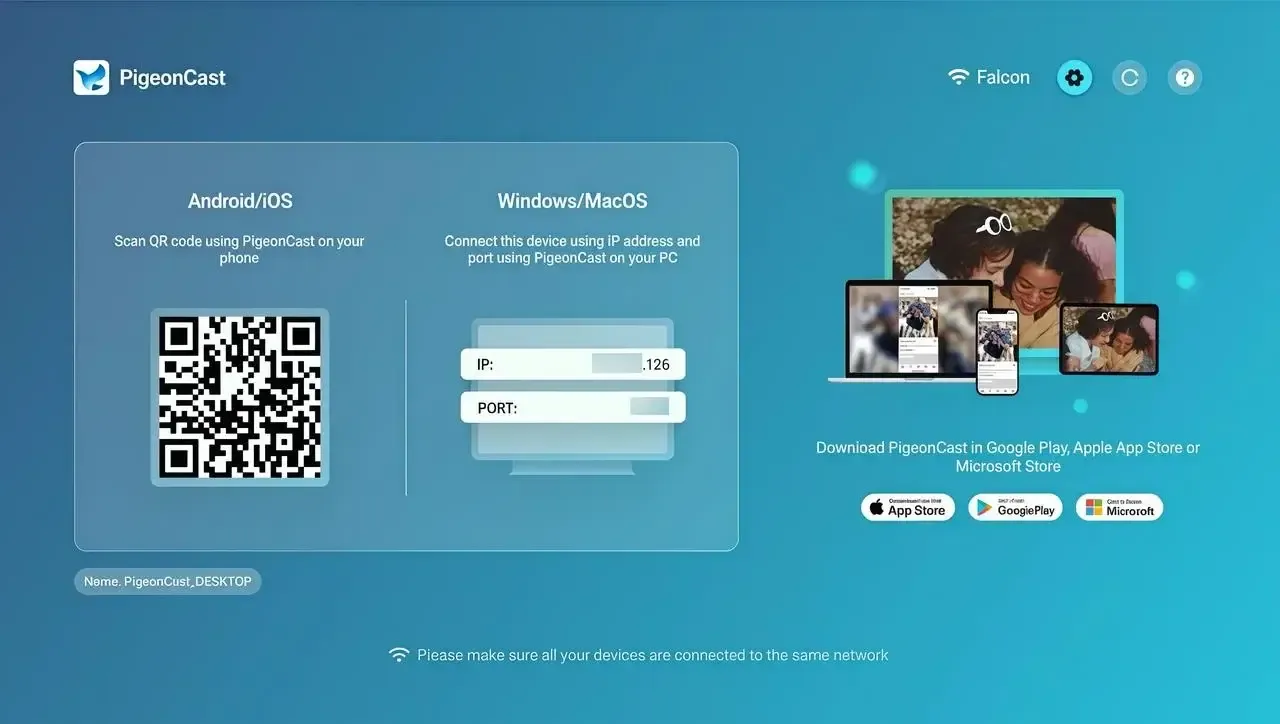
Plus, PigeonCast has its own private protocol that allows its senders to connect the receivers smoothly. This app also offers additional features, such as private PIN protection, low-latency streaming, and cross-platform control, ensuring your Zoom meetings remain secure and seamless on the big screen.

PigeonCast Screen Mirroring

Official Download



Step 1. Install PigeonCast on your smart TV from the app store.
Step 2. Connect your iPhone, Android phone, Windows PC, or Mac to the same Wi-Fi network as your TV.
Step 3. Open the Zoom app on your device and join a meeting.
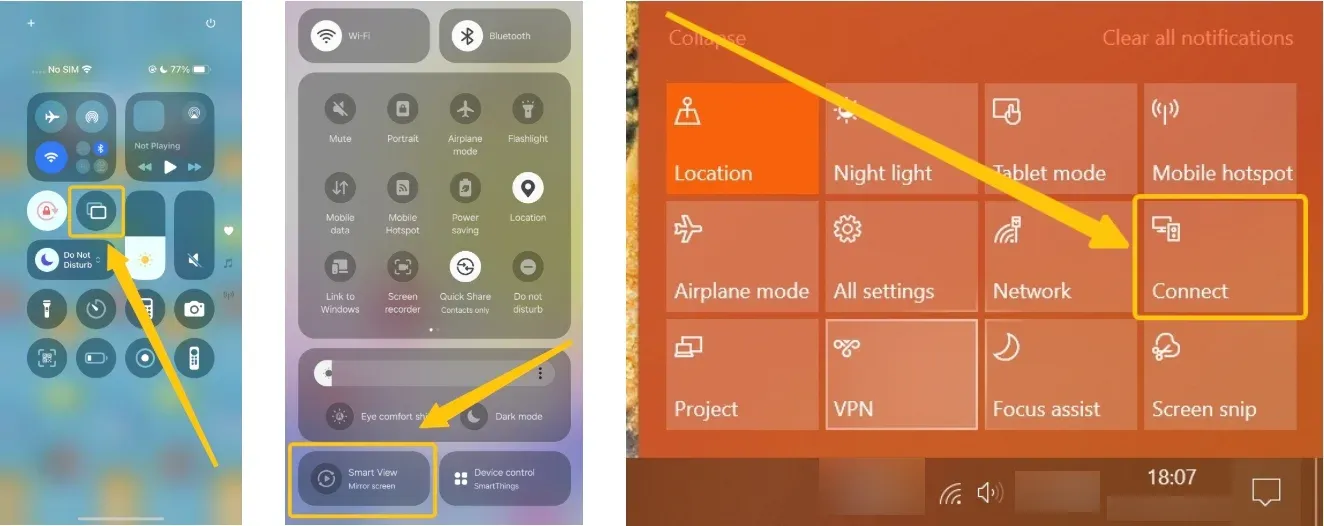
Step 4. On your device, select the casting option: Screen Mirroring on iOS/Mac, Cast on Android, or Connect button on PC.
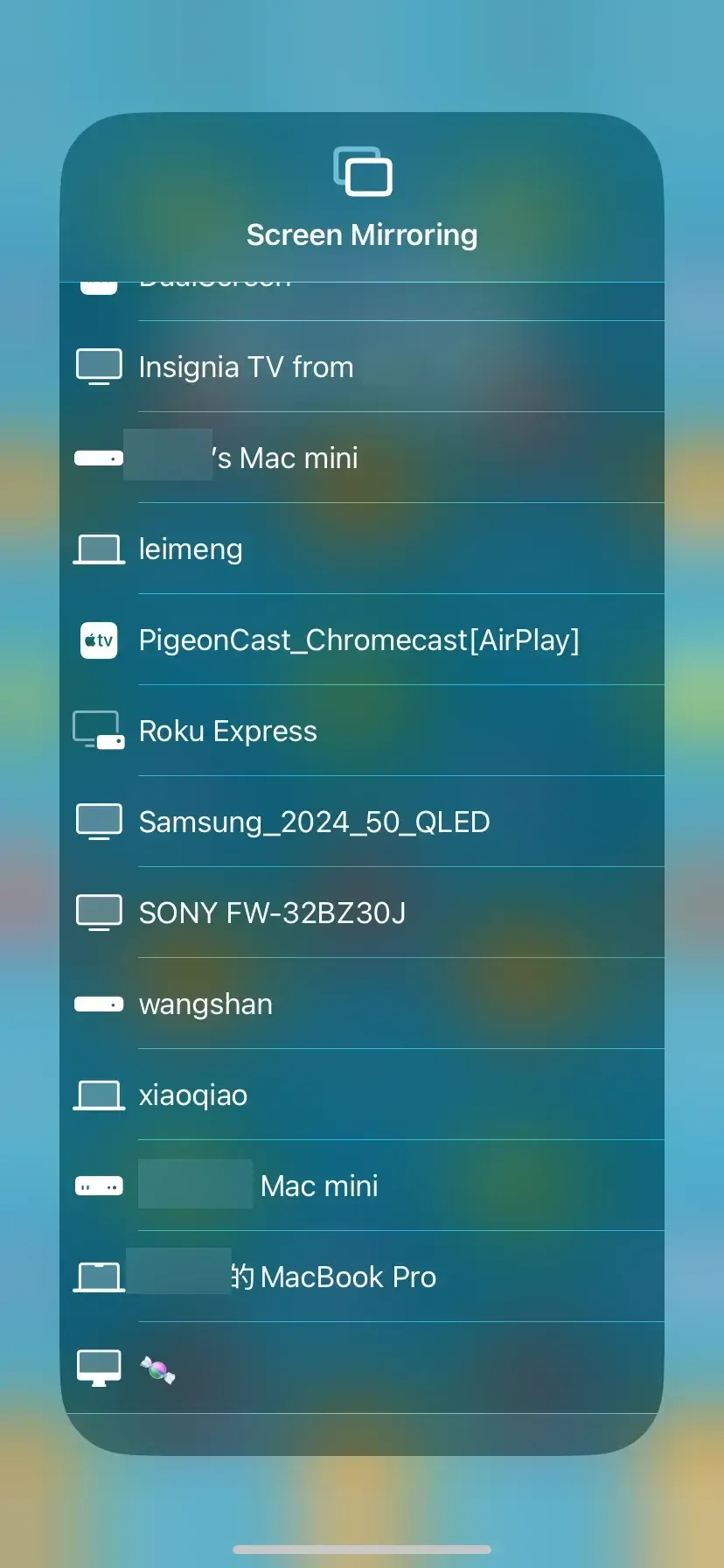
Step 5. Select your TV from the available devices and enter the PIN if prompted.
Step 6. Your Zoom meeting will now appear on the TV, letting you enjoy a larger view and a better collaboration experience.
Cast Zoom to TV with Chromecast
How to connect Zoom to smart TV? Chromecast is a flexible and widely compatible option, working across iPhone, Android, Windows, and Mac. With Chromecast, you can easily mirror your Zoom meetings using the Google Home app or the Chrome browser, making it simple to enjoy your calls on a bigger screen. Let's see the specific step on Zoom Chromecast:
Before you start: ensure your TV either supports Chromecast natively or has a Chromecast device plugged in. Both your TV and casting device must be connected to the same Wi-Fi network.
- On iPhone/Android:
Step 1. Install the Google Home app from the App Store or Google Play.
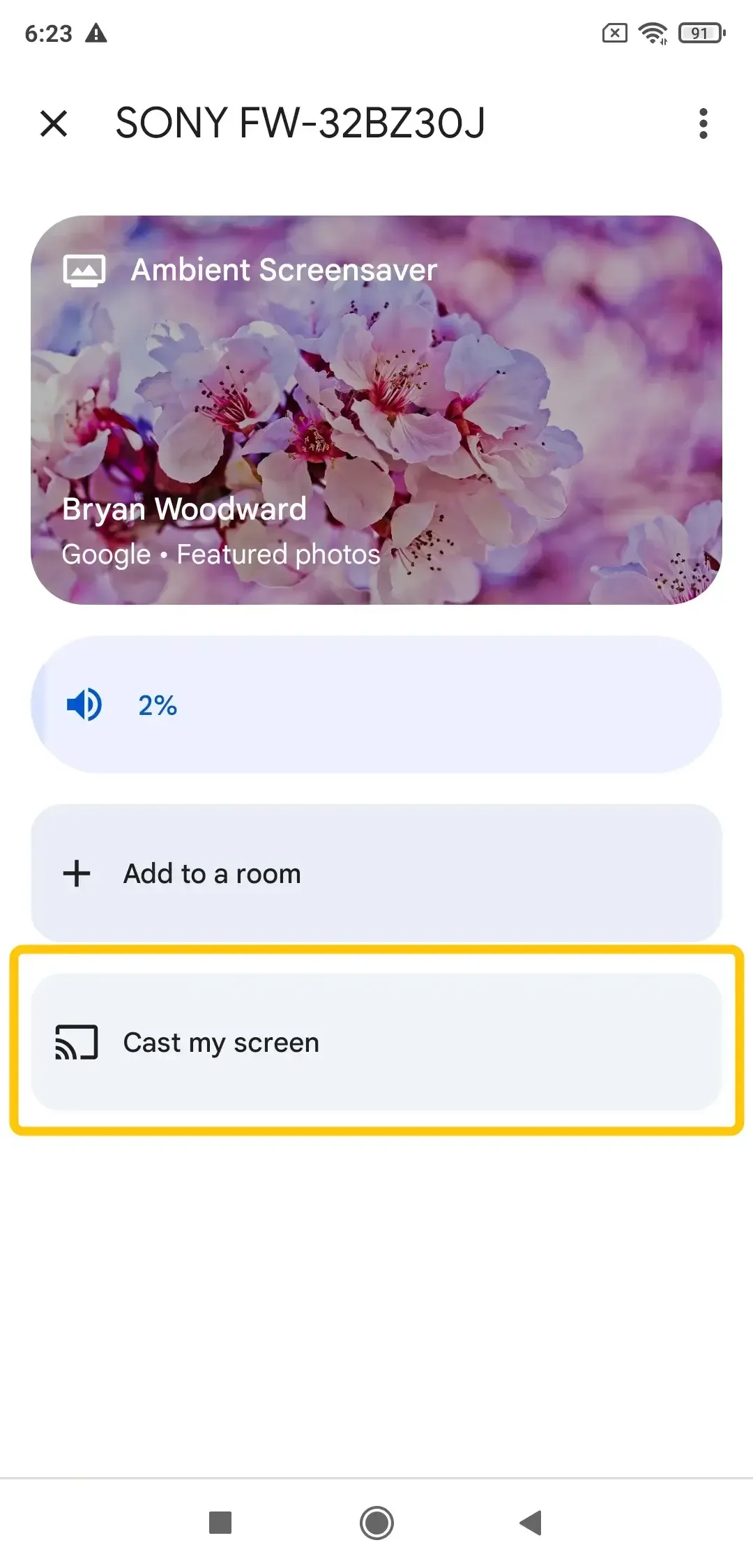
Step 2. Open Google Home on your mobile, select the casting device you want, and click Cast my screen at the bottom of your mobile.
Step 3. Launch Zoom, and your meeting will appear on the TV.
- On Windows/Mac (via Chrome Browser):
Step 1. Open Google Chrome and join your Zoom meeting in the browser.
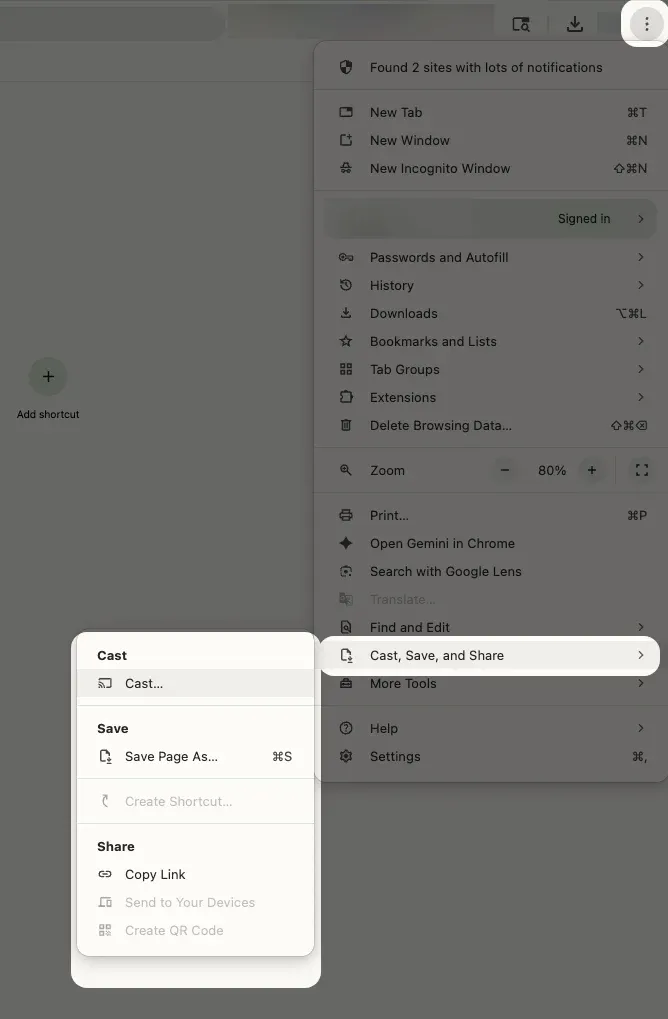
Step 2. Click the three-dot menu in the top-right corner and select Cast.
Step 3. Choose your Chromecast device from the list. Your Zoom meeting will now display on the TV, giving you a larger view for easier collaboration.
Cast Zoom to TV with AirPlay
Can you cast Zoom to TV from iPhone or a Mac? AirPlay is Apple's built-in feature for screen mirroring, available on iPhones, iPads, and MacBooks. It works with Apple TVs and AirPlay-compatible smart TVs, including Samsung, LG, Roku, and others. Once your devices are compatible, you can Zoom AirPlay and here's the steps on how to cast Zoom to TV from iPhone:
Step 1. Make sure your TV supports AirPlay, and both your Apple device and TV are connected to the same Wi-Fi network.
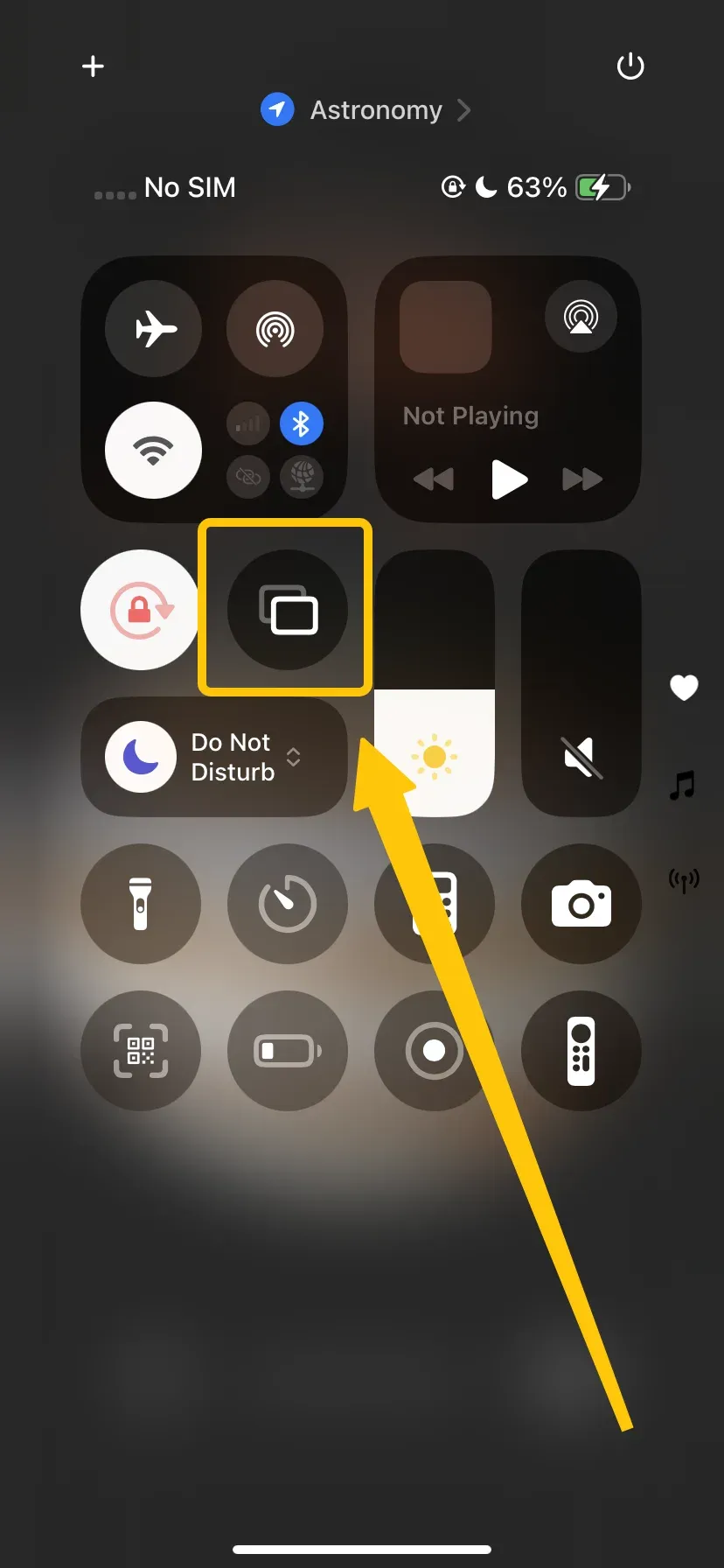
Step 2. Open Control Center and tap Screen Mirroring to select your TV from the list of available devices.
Step 3. Enter the PIN code displayed on the TV screen to confirm the mirroring requisition.
Step 4. Launch Zoom, and your meeting will now mirror to the TV.
Cast Zoom to TV with Miracast
How to get Zoom on TV? Miracast is a widely used wireless display technology built into most modern Android devices and Windows PCs. It allows you to mirror your device screen directly to a compatible TV without needing any additional apps. Before getting started, make sure your devices support Miracast:
| TV | Check the Settings menu for Cast, Screen Mirror, Miracast, or similar options. |
|---|---|
| Android | Go to Settings > Display and look for options like Smart View, Wireless Display, or Screen Mirroring. |
| Windows | Go to Settings > System > Display > Multiple Displays, click Detect, and check for Connect to a wireless display. |
Once your devices are compatible, you're ready to mirror your Zoom meetings to the big screen. Follow the detailed guide to conduct how to cast Zoom to TV from Android or Windows:
- Cast Zoom Meeting to TV from Android
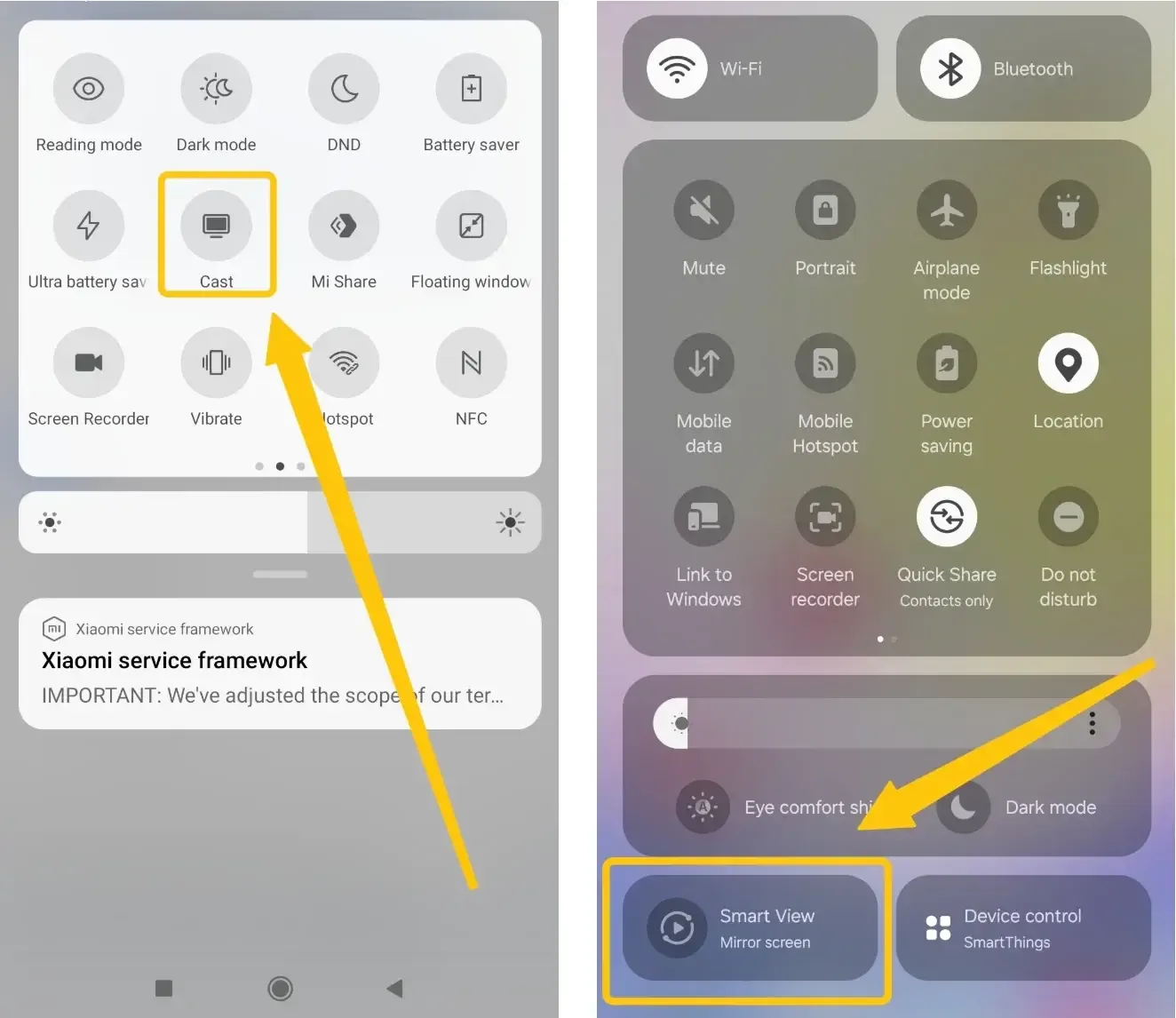
Step 1. Go to Settings > Connected Devices > Cast (or Screen Mirroring/Smart View depending on your device).
Step 2. Select your Miracast-compatible TV from the list. If prompted, enter the code to finish the connection.
Step 3. Open Zoom, and your meeting will now appear on the TV.
- Cast Zoom Meeting to TV from Windows
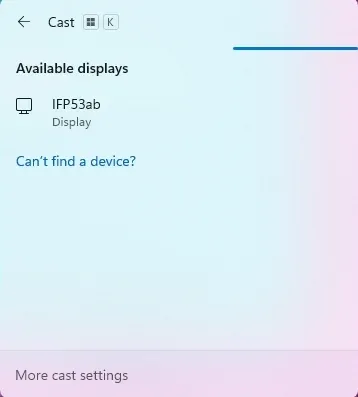
Step 1. Press Windows + K to open the Cast menu.
Step 2. Choose your Miracast-enabled TV from the available devices.
Step 3. Start Zoom, and your meeting will now be mirrored to the TV.
Closing Words
Can you cast Zoom to a smart TV? Absolutely. With options like PigeonCast, Chromecast, AirPlay, and Miracast, you can Zoom cast from almost any device to a TV. Whether you're on an iPhone, Android, Windows PC, or MacBook, these methods give you the flexibility to enjoy Zoom meetings on a larger screen for better visibility and comfort.
Can You Cast Zoom to TV FAQ
Q: Can Zoom be connected to a TV?
Yes, Zoom can be connected to a TV. You can do this using built-in features like AirPlay (for Apple devices), Miracast (for Android and Windows), or Chromecast, as well as third-party apps like PigeonCast. These methods allow you to mirror your device screen or cast Zoom meetings directly to a compatible TV, providing a larger and more comfortable viewing experience.
Q: How do I cast my screen to my TV?
You can cast your screen to your TV using several methods, depending on your device and TV:
- AirPlay (iPhone/iPad/Mac): Use AirPlay to mirror your Apple device to an Apple TV or AirPlay-compatible smart TV. Open Control Center, select Screen Mirroring, and choose your TV.
- Miracast (Android/Windows): On Android, go to Settings > Display > Cast/Screen Mirroring. On Windows, press Windows + K and select your Miracast-enabled TV.
- Chromecast: Install the Google Home app (mobile) or use Google Chrome (PC/Mac), then select your Chromecast device to mirror your screen.
- Third-party apps (e.g., PigeonCast): These apps work across most devices and TVs, often offering extra features like PIN protection and cross-platform compatibility.
Q: Can I put Zoom on my Roku TV?
Yes, you can use Zoom on a Roku TV, but Roku doesn't have a native Zoom app. To use Zoom on your Roku TV, you need to mirror or cast your device's screen to the TV. Here's how:
- From an iPhone or iPad: Use AirPlay to mirror your screen to an Apple TV or an AirPlay-compatible Roku model.
- From an Android device or Windows PC: Use Miracast or the Cast feature to mirror your screen to Roku.
- Using third-party apps like PigeonCast: These apps let you cast your Zoom meetings from iOS, Android, Windows, or Mac directly to Roku with added features like PIN protection for privacy.
Q: Does Zoom allow screen mirroring?
Yes, Zoom allows screen mirroring. You can share your device's screen, including iPhone, iPad, Android, or computer, during a Zoom meeting using the built-in Screen Share feature.
Q: How to cast Zoom to Roku TV from iPhone?
- Launch the Zoom app on your iPhone and either start or join the meeting you want to display on your TV.
- Open Control Center and tap Screen Mirroring on your iPhone by swiping down from the top-right corner (iPhone X or later) or swiping up from the bottom (older models).
- Select your Roku TV from the list. Your iPhone will then connect and start mirroring the Zoom meeting to the TV screen.
Q: Can I cast Zoom to TV without Chromecast?
Yes, you can cast Zoom on a TV without Chromecast. Options include using screen mirroring from your iPhone, iPad, or computer via AirPlay (for Apple devices), Miracast/Wi-Fi Direct (for compatible devices), or third-party apps like PigeonCast. Wired connections using HDMI or USB-to-HDMI adapters also allow you to display Zoom on your TV without relying on Chromecast.
Q: Why is Zoom not casting to my TV?
Here are the main reasons Zoom might not cast to your TV:
- Devices are not on the same Wi-Fi network
- Screen mirroring or casting is disabled on the TV or device
- Outdated software on Zoom, the TV, or your device
- Weak or unstable network connection
- App or device restrictions preventing casting
- Temporary glitches or device bugs
Q: Does casting Zoom to TV show both video and audio?
Yes, casting Zoom to a TV can show both video and audio, but it depends on the casting method. Most screen mirroring and casting options, including AirPlay, Miracast, and third-party apps like PigeonCast, transmit both video and audio. However, some wired connections or older devices may require additional setup to ensure audio is also played through the TV.
Clara Rossi is an experienced technology editor and a seasoned expert in screen mirroring and casting technologies. With a keen eye for detail and a deep understanding of how to seamlessly connect devices, Clara excels at optimizing user experiences for effortless sharing and streaming. Whether you're seeking quick fixes or advanced tips, her expertise and responsiveness ensure that every query is met with a well-informed and efficient solution.