
There's a huge difference between watching your favorite streamer on a phone screen and enjoying their content on a large TV. Fortunately, you don't need a fancy setup to make it happen. With Chromecast, you can easily bring the vibrant world of Twitch to your living room. This guide will walk you through every method to Twitch Chromecast to your TV from different devices.
How to Chromecast Twitch to TV
Twitch is a popular platform for streaming video games, music, art, and casual "just chatting" sessions. With a Chromecast, you can easily cast the dynamic, live Twitch experience from your phone or computer to your TV, letting you enjoy content on a larger screen with minimal hassle. Here's a simple guide to help you stream Twitch Chromecast.
How to Cast Twitch to TV from iPhone/Android
Mobile devices provide the easiest casting experience with Twitch's built-in functionality. The process is almost identical to both iOS and Android, with only slight differences in interface design. This method allows you to use your device as a controller while streaming high-quality video to your TV. Now, let's dive into how to cast Twitch Chromecast on your mobile device:
Step 1. Ensure your mobile device and TV are covered by the same wireless network.
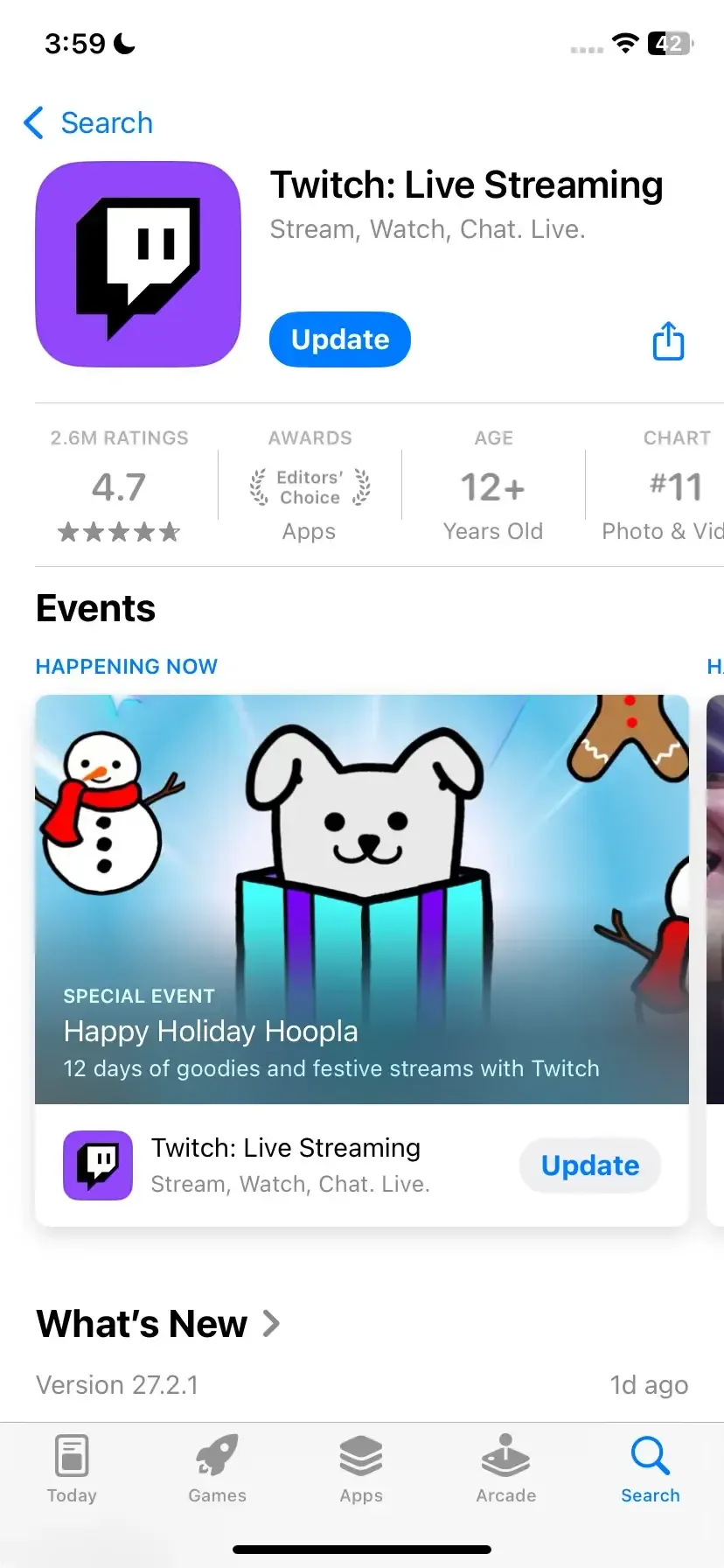
Step 2. Download the Twitch app on your iPhone or Android and launch it.
Step 3. Sign in to your account and select one video you want to cast to the smart television.
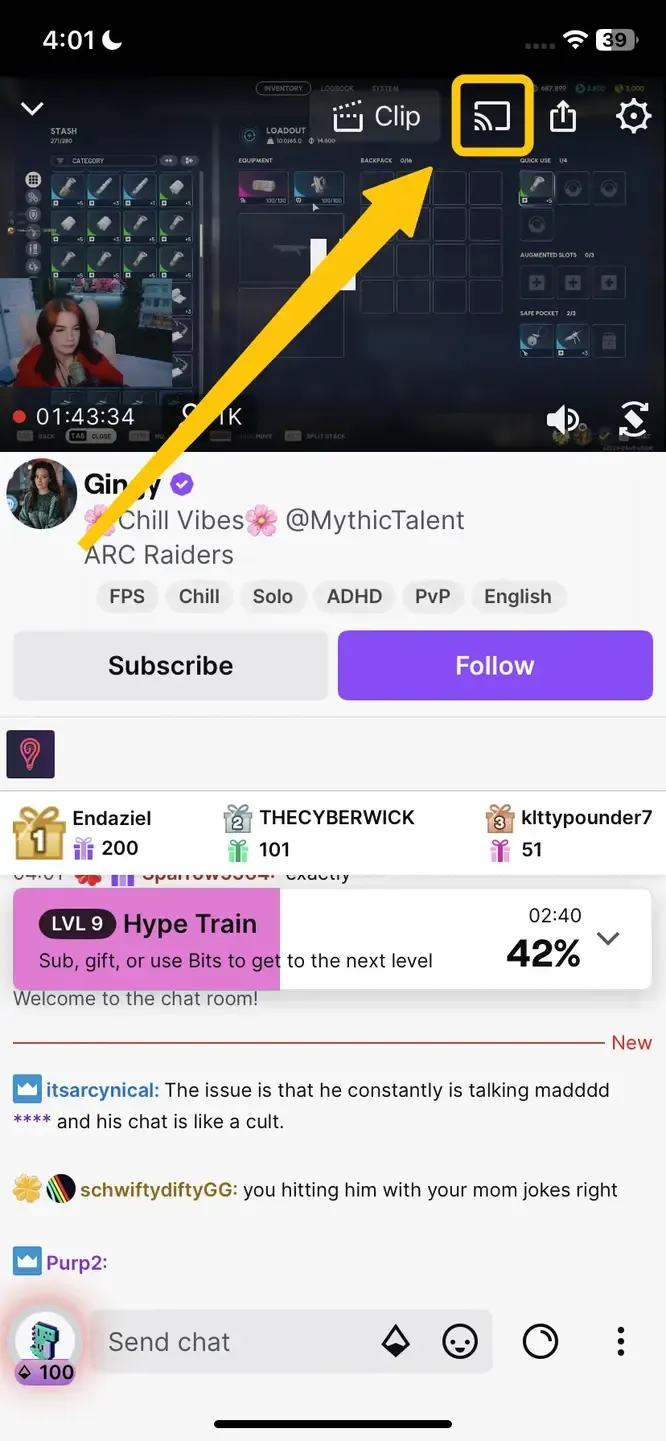
Step 4. Tap the Cast icon located in the top right or bottom right corner of the screen.
Step 5. Choose your Chromecast from the available list to connect.
How to Cast Twitch to TV from Win/Mac
Desktop users can also stream Twitch to their TVs using browser-based casting solutions. Although the Twitch website doesn't have a direct Cast button, Google Chrome's built-in casting feature offers a simple and effective workaround. Here's the step on Twitch Google Chromecast via Chrome:
Step 1. Make sure both your computer and Chromecast are connected to the same Wi-Fi network.
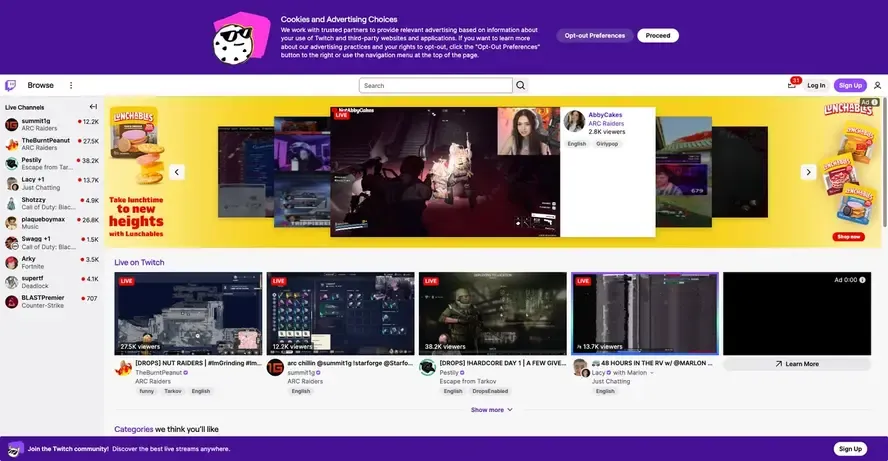
Step 2. Open the Google Chrome browser on your Windows or MacBook computer and go to the Twitch website.
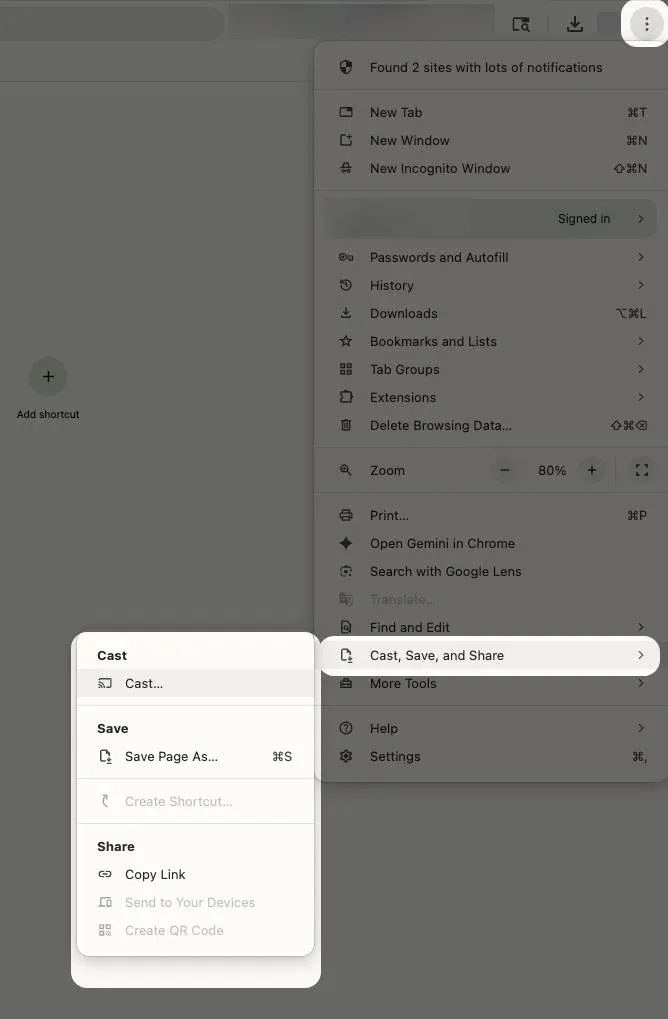
Step 3. Select the stream you want to watch and click the three dots menu located in the top-right corner of the Chrome browser, and select Cast.
Step 4. From the list of available devices, select your Chromecast device. You can either cast the entire desktop or just a specific tab.
Step 5. Once connected, your Twitch stream will be displayed on your TV.
Best Screen Mirroring Apps to Cast Twitch to TV
Unfortunately, Twitch doesn't offer an easy way to stream on all larger screens. The app's casting feature doesn't support DLNA devices, like smart TVs, making it tricky to cast directly. To bypass this limitation, we recommend using the PigeonCast screen mirroring app, which provides a simple solution for streaming Twitch content to your TV.

PigeonCast is a free, ad-free app that works seamlessly across Android, iOS, Windows, Mac, and TVs running tvOS or Android TV. It supports AirPlay, DLNA, and Google Cast, offering maximum flexibility for casting. Once you encounter the Twitch app Chromecast not working, it's undoubtedly a wonderful alternative mirroring tool.

PigeonCast Screen Mirroring

Official Download



Step 1. Install PigeonCast on your mobile device or desktop.
Step 2. Ensure your device and TV are under the same wireless network.
Step 3. Launch the app on your device and choose your TV from the available list.
Step 4. Enter the onscreen code to confirm your pairing process.
Step 5. Once connected successfully, you can begin your whole screen mirroring and choose Twitch to display on your television.
Common Issues: Twitch Chromecast Not Working
Even with the most reliable technology, occasional hiccups can occur that prevent Twitch from casting properly to your Chromecast. Understanding these common issues is the first step toward resolving them quickly and getting back to your streams. Read on to check some simple solutions to Twitch not casting to Chromecast:
- Twitch Stream Not Casting to TV
If Twitch isn't casting to your TV, make sure your Chromecast and the device you're using to cast are on the same Wi-Fi network. Restart both your Chromecast and the device you're casting from, as this often fixes minor connection problems. Also, check that your Twitch app and Google Chrome (if casting from a computer) are updated to the latest versions.
- No Sound on Twitch Stream
If you're not hearing anything, first check that the volume on your TV is up and that it isn't muted. Make sure the audio settings on your TV are set correctly, especially if you're using external speakers or a soundbar. Restarting both your Chromecast and the device you're casting from can often help restore sound. Finally, ensure the sound isn't muted in the Twitch app on your device.
- Lag or Buffering on Twitch
Check your internet speed to make sure it's fast enough for smooth streaming. If your internet is slow, try closing any apps or devices that are using the same Wi-Fi network. Lowering the stream quality in the Twitch app can also reduce the load on your connection and help with buffering.
- Poor Video Quality or Pixelation
If the video quality is poor, try moving your Chromecast closer to your Wi-Fi router to strengthen the signal. You can also lower the video quality in the Twitch app if your connection is slow or inconsistent. If you continue to experience pixelation, consider upgrading your internet plan to handle higher-quality streams.
- Twitch Stream Disconnecting
Twitch not connecting to Chromecast? A stream that keeps disconnecting can usually be fixed by rebooting both your Chromecast and your router. Also, disconnecting other devices from the Wi-Fi network can help improve your connection stability.
- Chromecast Not Showing Up in Twitch App
If your Chromecast isn't showing up in the Twitch app, try restarting both the Chromecast and your casting device. Ensure both are connected to the same Wi-Fi network.
- Twitch Stream Not Loading on Chromecast
If the Twitch won't Chromecast, clearing the cache and cookies in Google Chrome (if casting from a PC) can resolve the issue. Make sure the Twitch app on your mobile device is up-to-date. If the problem persists, check Twitch's status page for any ongoing server issues.
Bottom Line
Twitch cast to Chromecast is a simple and effective way to enjoy your favorite streams on a larger screen. If you run into any limitations, such as the app not supporting DLNA devices, PigeonCast offers a seamless alternative for screen mirroring. With these methods, you can enjoy high-quality Twitch content on your TV with minimal effort. Happy streaming!
Twitch Chromecast FAQ
Can Twitch Chromecast?
Yes, you can Chromecast Twitch. While the Twitch app doesn't have a direct Cast button for all devices, you can easily stream Twitch to your TV using Google Chromecast. Simply use the built-in casting feature on mobile devices or Google Chrome on a desktop to cast content to your TV.
Why won't Twitch let me cast to TV?
Twitch may not let you cast to your TV due to the following reasons:
- Lack of DLNA Support
- Network Issues
- App Limitations
- Incompatibility
How to solve Twitch lagging on Chromecast?
To solve Twitch lagging on Chromecast, try the following steps:
- Ensure both your Chromecast and casting device (phone or computer) are connected to the same, stable Wi-Fi network with sufficient speed.
- Lower the video resolution in the Twitch app or browser to reduce bandwidth demand. For example, switch from 1080p to 720p or 480p.
- Close other apps or devices using the same Wi-Fi network to free up bandwidth.
- Ensure both the Twitch app and your Chromecast device are updated to the latest versions, as updates often include bug fixes and performance improvements.
- Restart your router, Chromecast, and casting device to refresh the connection and clear any temporary issues.
- If possible, connect your Chromecast to your router via Ethernet (using a Chromecast Ethernet adapter) for a more stable connection.
- On your casting device, close background apps that could be consuming resources and affecting performance.
Why is Twitch Chromecast no sound?
If you're experiencing no sound while casting Twitch to Chromecast, here are some common causes and fixes:
- Volume on Chromecast
- Audio Settings on Your Device
- App or Browser Issues
- Chromecast Firmware
- Network Issues
- Audio Output Settings
- Browser/Device Compatibility
Clara Rossi is an experienced technology editor and a seasoned expert in screen mirroring and casting technologies. With a keen eye for detail and a deep understanding of how to seamlessly connect devices, Clara excels at optimizing user experiences for effortless sharing and streaming. Whether you're seeking quick fixes or advanced tips, her expertise and responsiveness ensure that every query is met with a well-informed and efficient solution.