
Twitch has grown into the go-to platform for gamers, creators, and live stream enthusiasts. While watching on a phone or laptop is convenient, nothing beats the immersive experience of viewing Twitch streams on a bigger screen. If you've ever wondered how to cast Twitch to TV, this guide will walk you through all the practical methods. Whether you're using an iPhone, Android device, or a computer, you'll find step-by-step solutions here.
Can You Cast Twitch to TV
Yes, you can. Twitch doesn't always make it straightforward, but there are several ways to enjoy streams on TV. Native casting options exist within the Twitch app, and browsers like Chrome can mirror your screen. For those who run into limitations, third-party solutions like PigeonCast allow Twitch cast on TV without restrictions.
Note: Whichever method you choose, ensure your phone or laptop and TV are on the same Wi-Fi network. Otherwise, your device won't detect the TV.
Method 1: Use the Twitch App (for Android/iOS)
The Twitch app is a Chromecast-compatible app, which means it supports direct casting to Chromecast-enabled TVs and streaming devices. If you're wondering how to cast Twitch to TV from iPhone or Android, this is the simplest and most direct method.
Step 1. Download and install the Twitch app from the App Store (iPhone) or Google Play Store (Android).
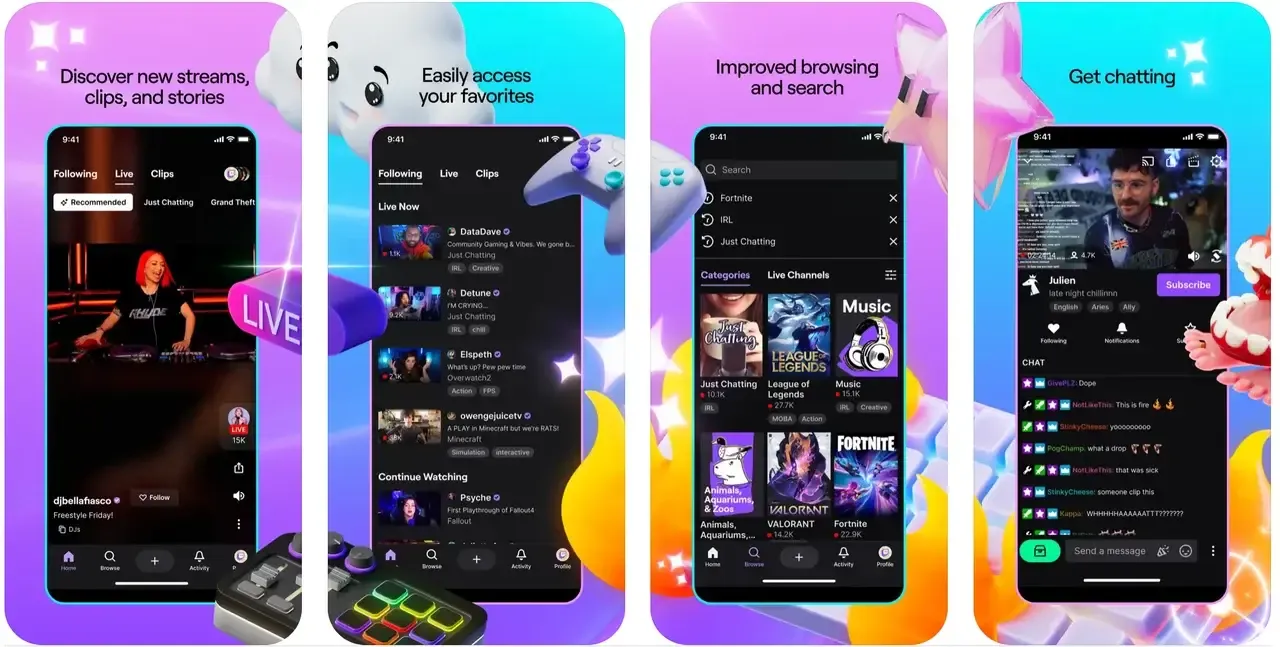
Step 2. Open the app, sign in, and start playing the stream you want to watch.
Step 3. Tap the cast icon (usually located at the top of the video player) and select your Chromecast-enabled TV or streaming device.
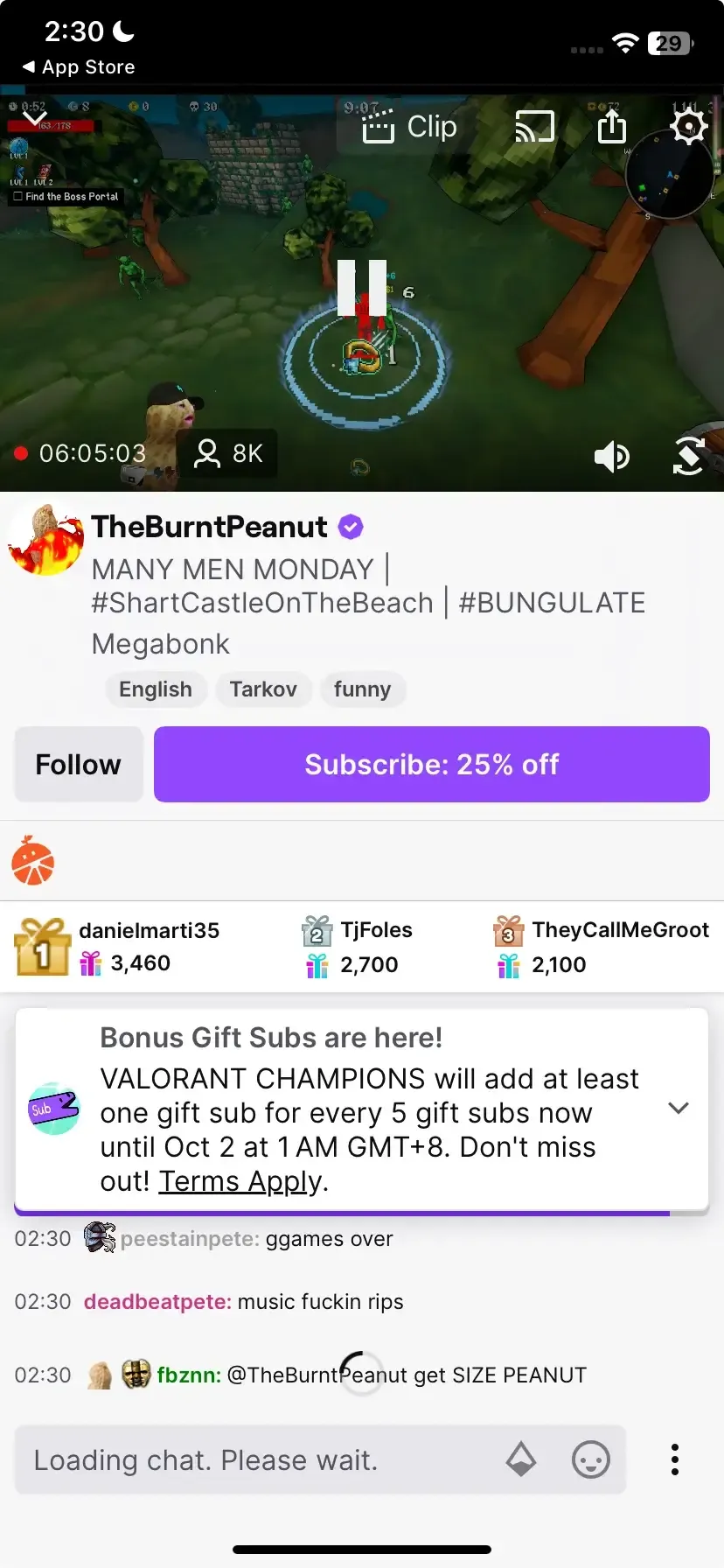
That's it—you're now watching Twitch on your TV. Since Twitch is Chromecast-compatible by default, casting works seamlessly as long as you have a supported device. If you can't cast Twitch to TV because your device doesn't support Chromecast, don't worry; there are alternative methods you can try.
Method 2: Use the Chrome Browser (for Windows/Mac)
If you're on a computer (Windows PC or MacBook) and want to know how to stream Twitch on TV, the Chrome browser's built-in Cast feature is a reliable choice. With Chromecast support, you can connect your laptop to the TV in just a few steps.
Step 1. Open Chrome on your Windows PC or Mac and navigate to Twitch.tv.
Step 2. Click on the three-dot menu in the upper-right corner and select Cast, Save, and Share > Cast.
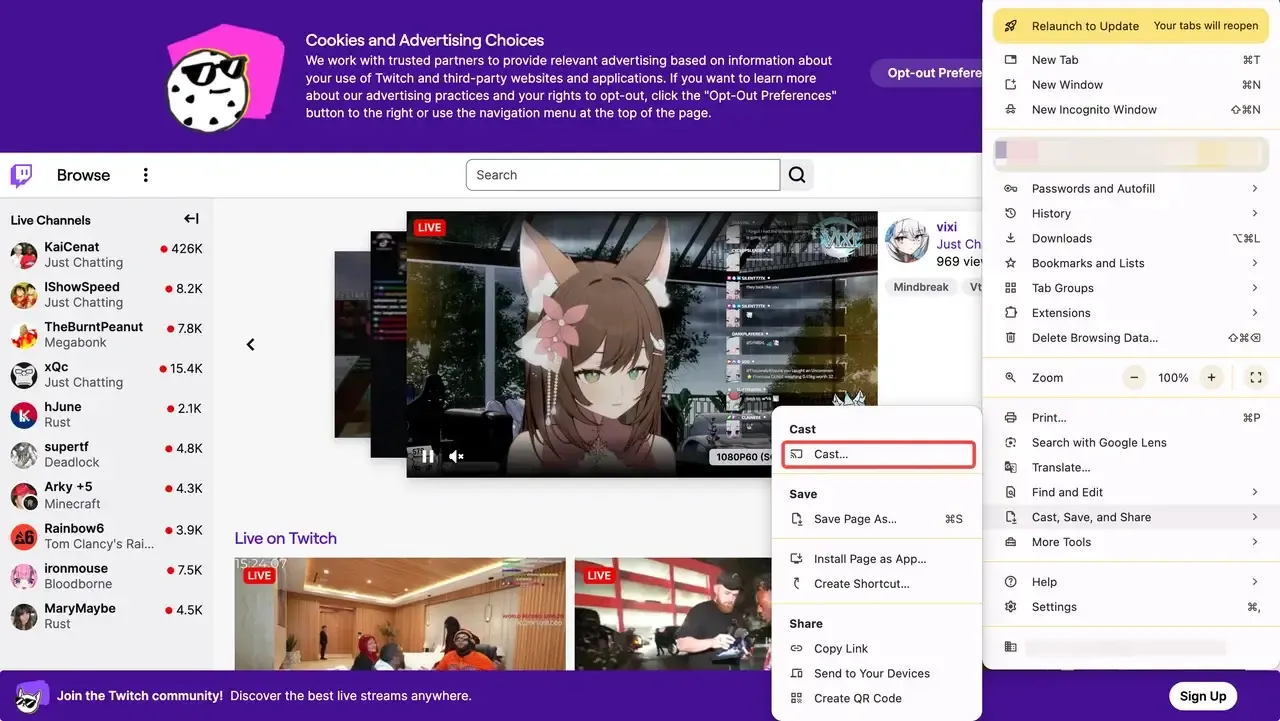
Step 3. Choose your smart TV or Chromecast-enabled device from the list and choose Cast tab in the Source menu.
Step 4. The Twitch tab will start streaming on your TV.
This is a convenient way to enjoy Twitch on the big screen without extra apps. However, it depends heavily on Wi-Fi stability and is limited to Chromecast or cast-enabled TVs.
Method 3. Use the PigeonCast App (Without Chromecast)
The first two methods work well, but they come with limitations. The Twitch app requires Chromecast support, and Chrome casting isn't always stable. If you're looking for a more flexible option (watch Twitch on TV without Chromecast), the PigeonCast app is designed exactly for this.

PigeonCast turns any TV with Firestick, Android TV, or Apple TV into a receiver for casting. This means you can stream Twitch seamlessly from iPhone, Android, Windows, or Mac without worrying about compatibility issues.
- How to cast Twitch on TV from laptop with PigeonCast:
Step 1. Download the PigeonCast app on your devices and open it.

PigeonCast Screen Mirroring

Official Download



Step 2. Go to Chrome, access the Twitch webpage, and select your stream.
Step 3. Click the Send my screen option in PigeonCast on your laptop.
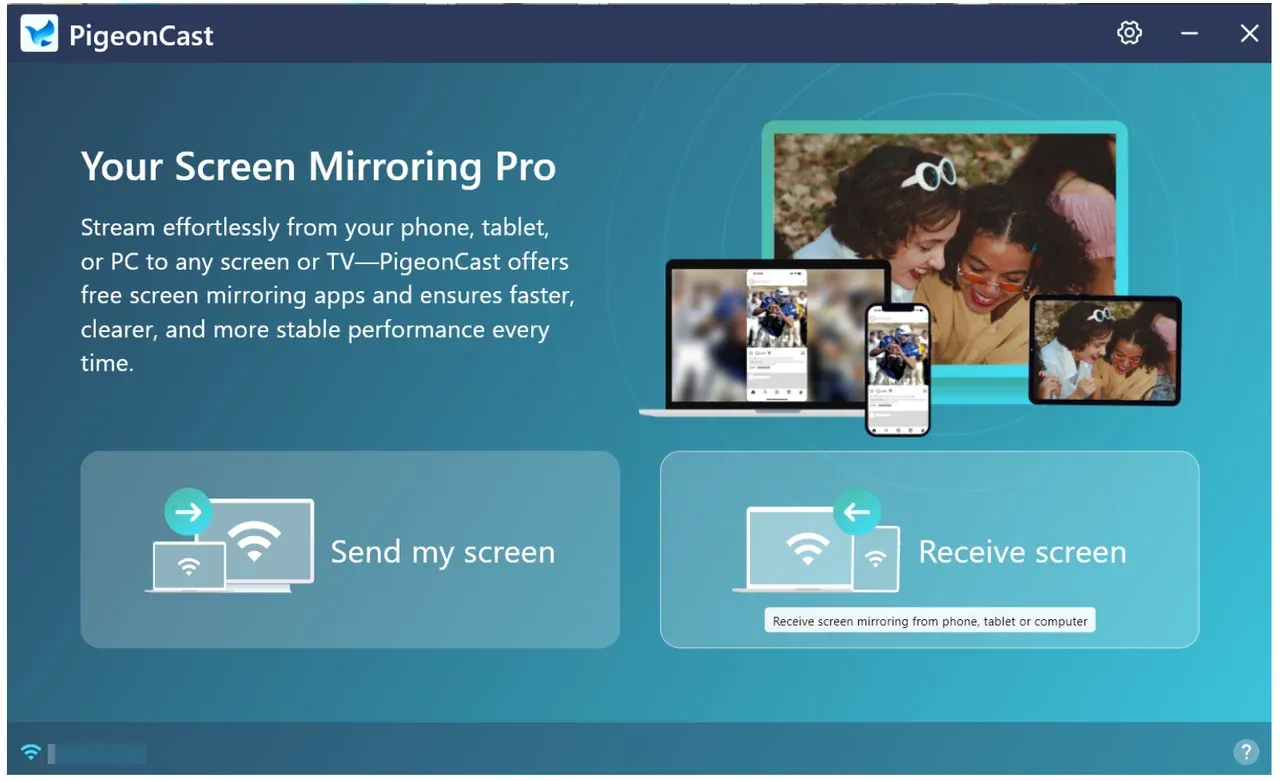
Step 4. Choose the other device you want to cast Twitch to.
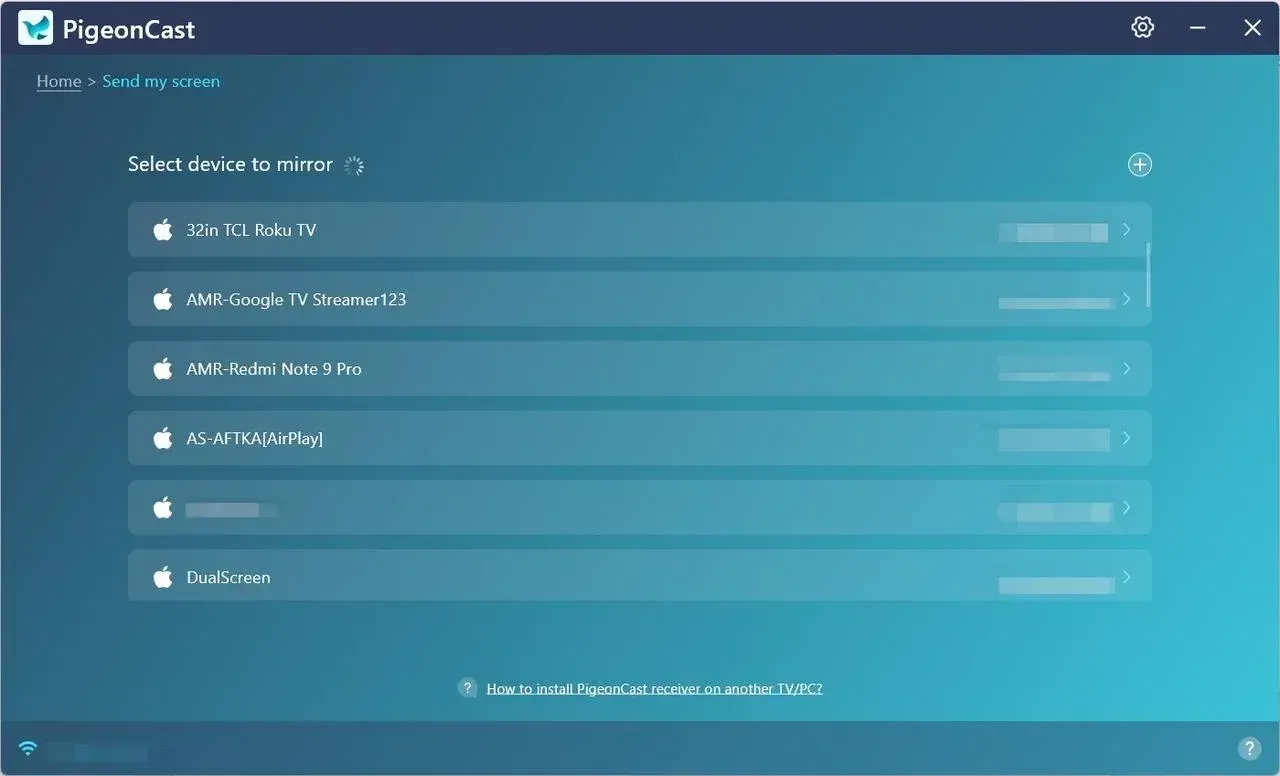
Step 5. Once connected, switch to the Mirror app window and choose Chrome in the Window menu.
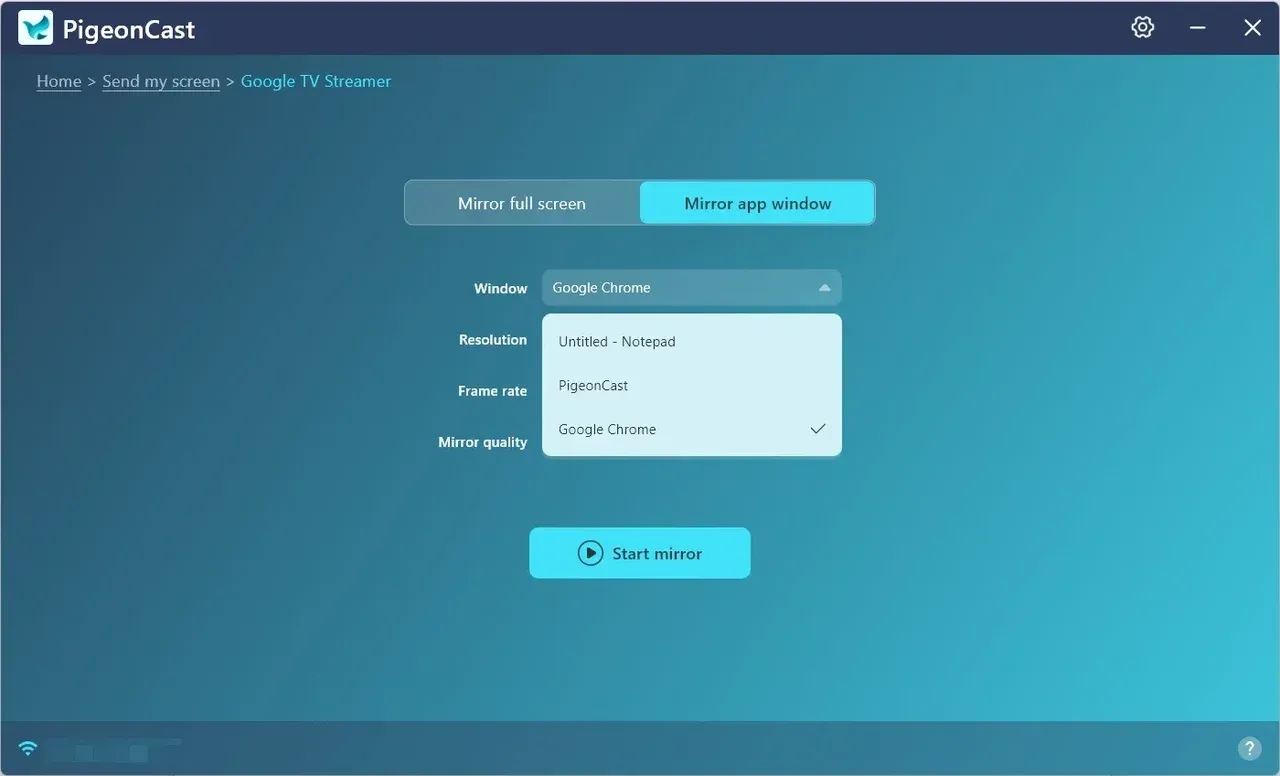
Step 6. Your stream will be displayed on your TV.
- How to cast Twitch to TV from Android with PigeonCast
Step 1. Launch the PigeonCast app on your Android phone.
android-download-button
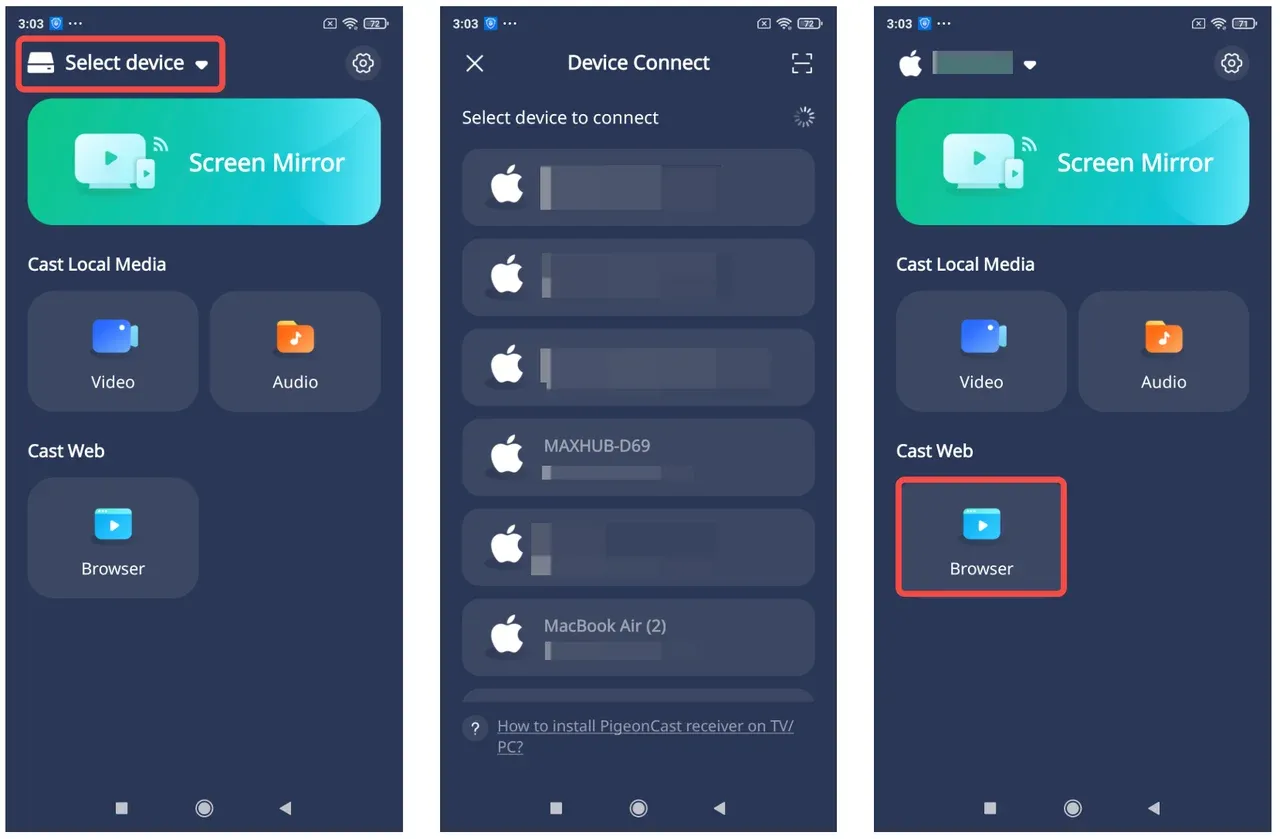
Step 2. Tap Select device at the top, choose the device where you want to watch Twitch, then tap Browser.
Step 3. Tap Twitch in the menu. Here, other options include TikTok, ESPN, Facebook, and Chrome, among others.
Step 4. Choose the stream you want to watch and tap the link that appears at the bottom.
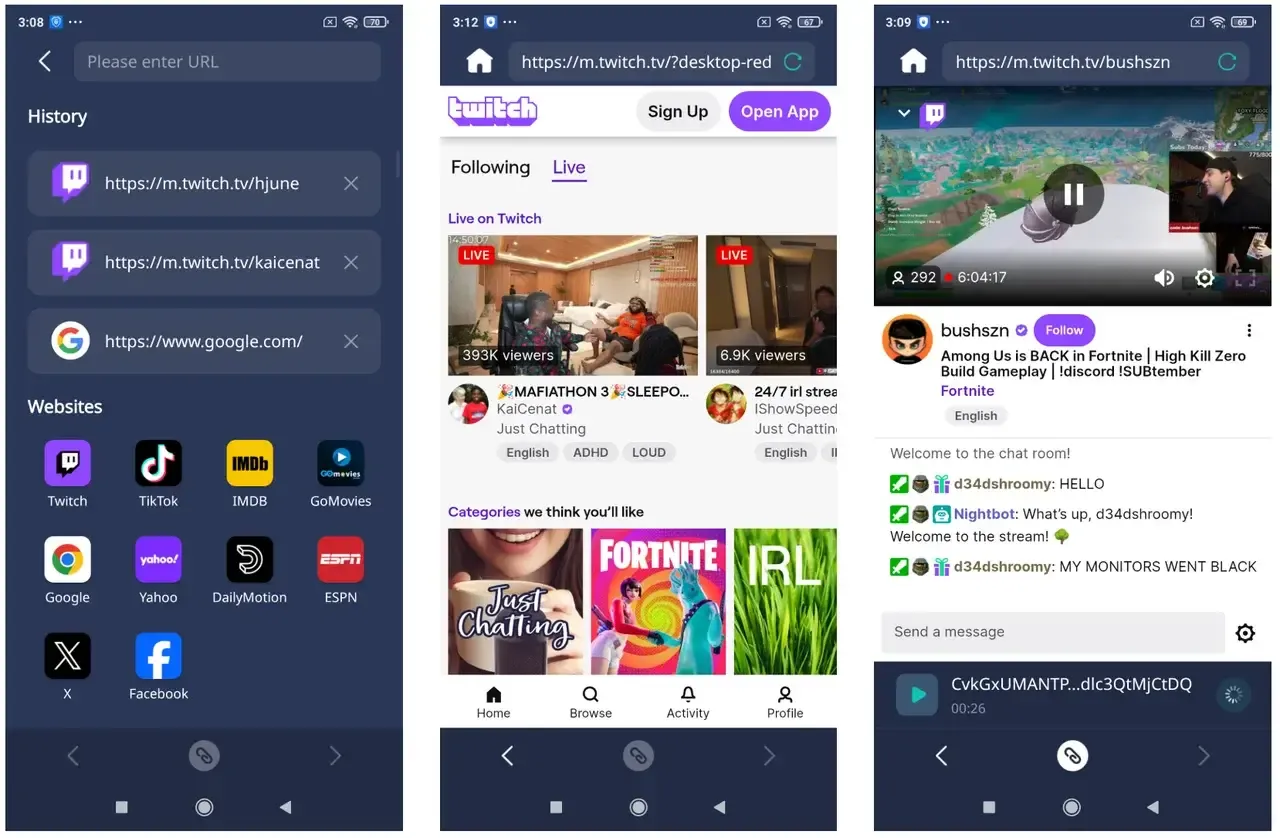
Step 5. Enjoy the stream on the large screen.
PigeonCast works across platforms, doesn't rely on Chromecast, and ensures better stability for long viewing sessions. It's the easiest answer if you've struggled with can't cast Twitch to TV issues before.
The End
Casting Twitch to your TV doesn't have to be complicated. From the Twitch app's built-in casting feature, to Chrome browser mirroring, and finally to cross-platform solutions like PigeonCast, you now know how to watch Twitch on TV in multiple ways. Choose the method that matches your device and enjoy your favorite streams on the big screen.
How to Cast Twitch to TV FAQs
Q: Can you watch Twitch on Roku?
Yes. Roku doesn't have a native Twitch app anymore, but you can still watch Twitch on Roku using screen mirroring or third-party apps like PigeonCast.
Q: Can you cast Twitch to TV without Chromecast?
Absolutely. While the Twitch app and Chrome browser mainly rely on Chromecast, third-party apps like PigeonCast let you cast Twitch to almost any TV.
Q: Why won't the Twitch app cast to TV?
If casting isn't working, check if your TV supports Chromecast, if both devices are on the same Wi-Fi network, or if the app is up to date. If the issue persists, a cross-platform casting app can solve the problem.
Q: Is Twitch an app on TV?
Yes, but it depends on your TV brand. Some smart TVs (like certain Samsung or LG models) once supported the official Twitch app, but in many cases, it has been removed from their app stores. If your TV doesn't have the app, you can still watch Twitch on TV by casting it from your phone or laptop.
Q: Can you mirror Twitch to TV?
Absolutely. If you don't have native casting or the Twitch app on your TV, screen mirroring is a practical option. Both iPhone (via AirPlay) and Android phones (via Smart View or Cast Screen) can mirror Twitch streams to a compatible TV. Keep in mind that mirroring is not the same as casting—mirroring duplicates your entire screen, while casting streams the video directly.
Mia Clarke is a technology editor specializing in screen mirroring and casting solutions across multiple platforms. Mia provides clear, practical guides and in-depth insights to help users seamlessly connect their devices. Passionate about enhancing digital experiences, Mia is dedicated to keeping readers updated on the latest trends and tools in cross-platform screen sharing. Whether you’re looking to mirror your smartphone, laptop, or smart TV, Mia’s content delivers reliable, user-friendly advice to simplify your tech setup.