
Want to share videos, games, or photos from your Android phone to your Roku TV? While Roku offers built-in screen mirroring, a dedicated app can serve as a reliable backup when the native feature isn't working properly. If you're looking for the best screen mirroring app for Android to Roku, we've tested the top options to bring you the best picks for a smooth, hassle-free experience.
Our Picks: Best Screen Mirroring App for Android to Roku TV
The best app for you to cast Roku from Android devices depends on what you need most: smooth screen mirroring, easy media sharing, or an all-in-one remote control. Here are our top three picks, each shining in a different area.
1. PigeonCast
PigeonCast is an Android-to-Roku mirroring app known for its smooth performance and simple interface. It supports high-quality screen mirroring across a wide range of Android devices and Roku TV models, including setups where users need to cast a Google Pixel to a Roku TV without relying on native Google Cast support.
The app also works with iOS, Windows, and Mac, making it suitable for mixed-device households. You can stream content in up to 4K resolution with minimal latency, while end-to-end encryption helps keep your content secure and private. No cables or adapters are required; simply connect both devices over Wi-Fi to get started.
How to mirror Android to Roku via PigeonCast:
Step 1. Ensure your Android connects to the same wireless network as your Roku TV.


Overall Rating:


Step 2. Install PigeonCast on your Android device from the Google Play.
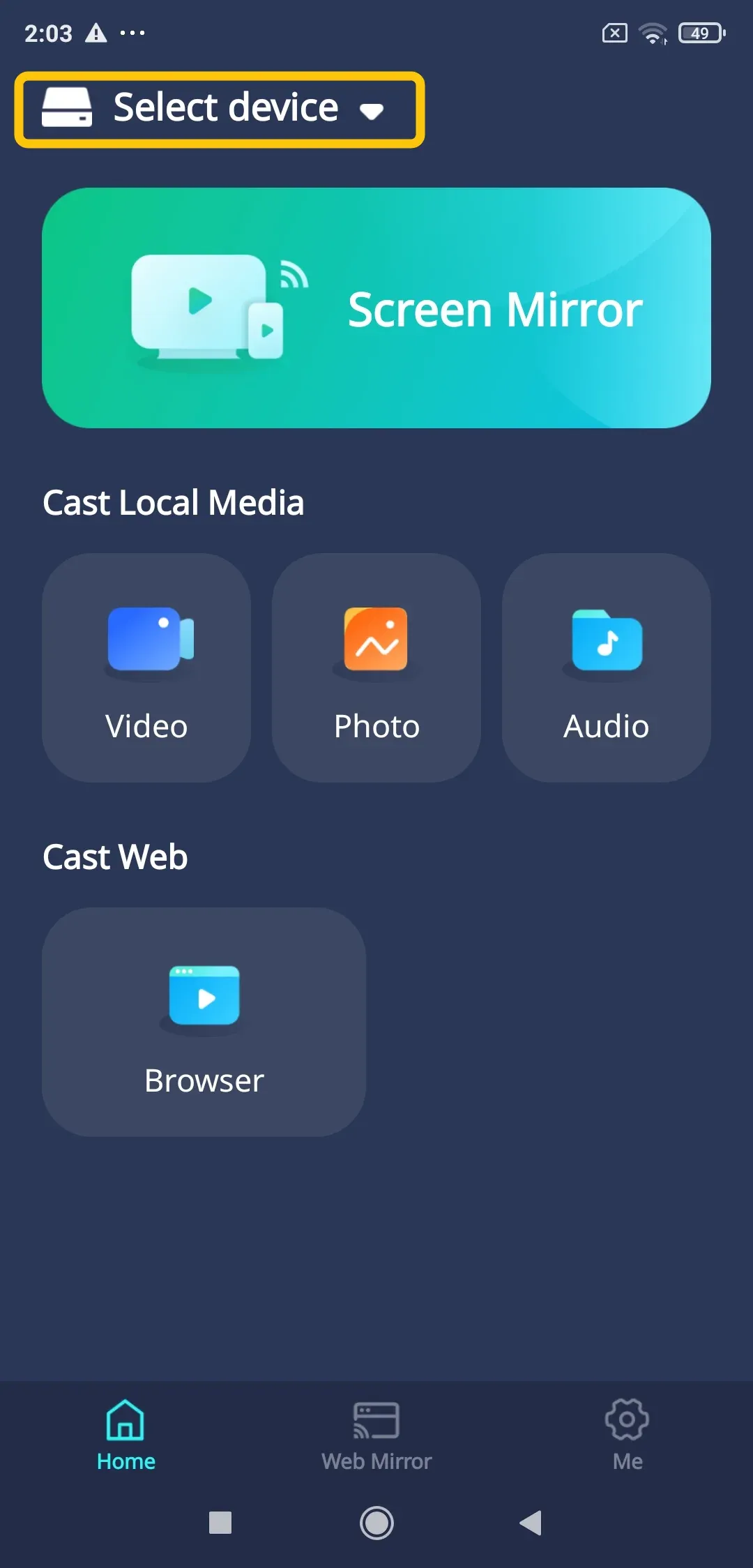
Step 3. Open the app, tap Select device to choose your Roku TV from the available list. You can also tap the onscreen choices to cast the corresponding content.
Step 4. Enter the onscreen code to confirm the pairing performance.
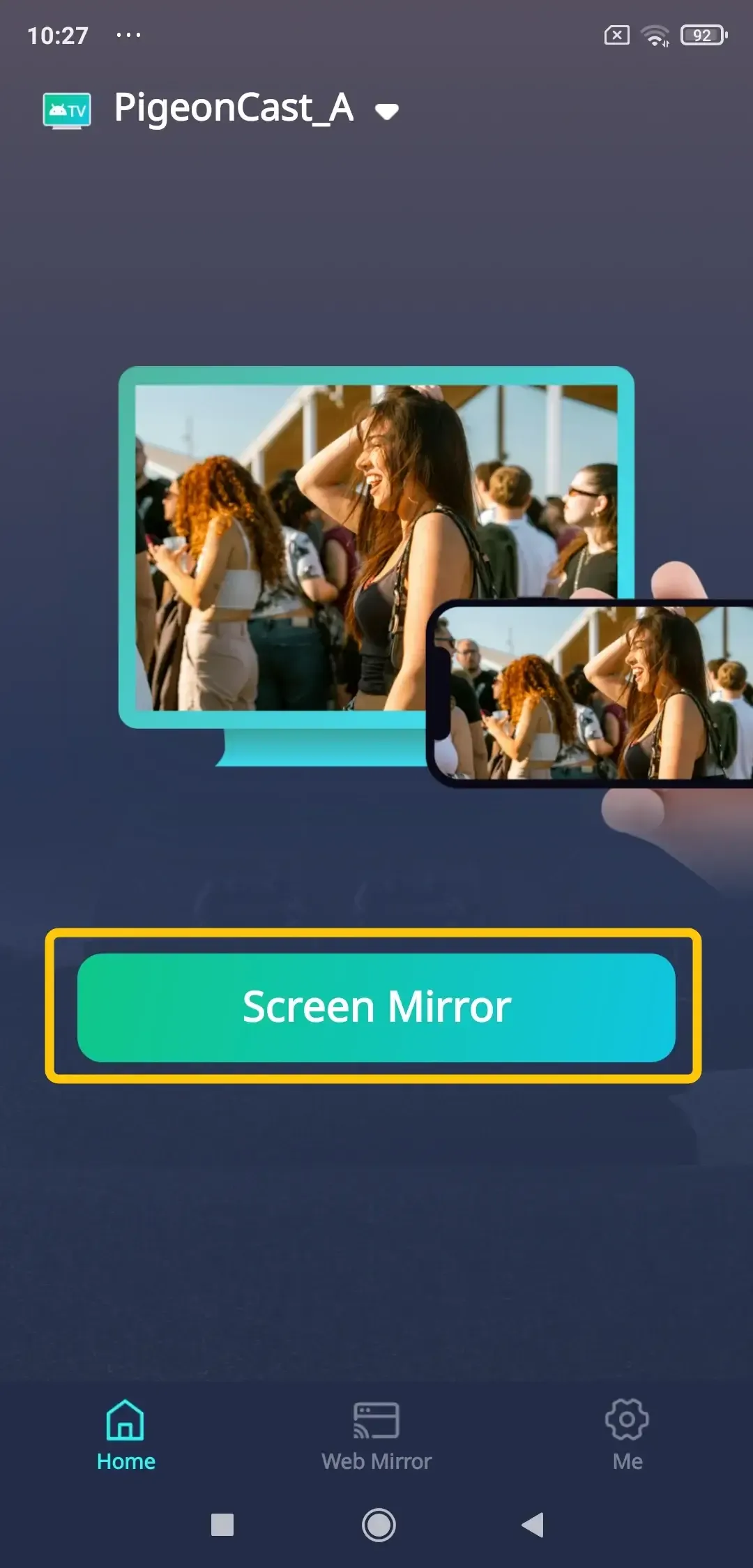
Step 5. When you finish the connection, simply click Screen Mirror to start mirroring your Android to your Roku TV.
2. The Roku App
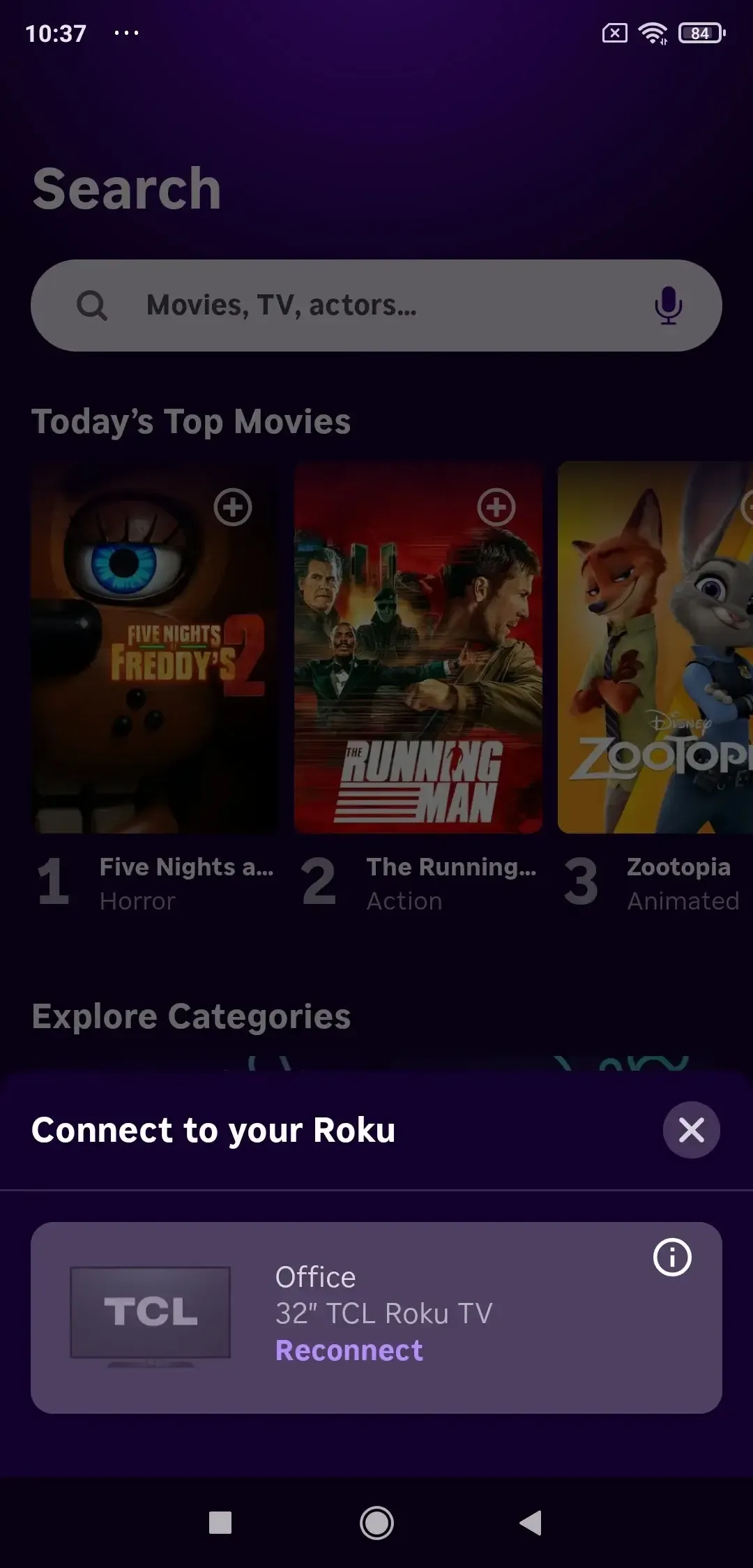
The official Roku app is a simple and reliable way to cast content from your Android phone to your Roku TV. While it doesn't support full-screen mirroring, it lets you easily cast videos, photos, and more. You can also use it as a replacement for your physical Roku remote.
This free app also offers private listening on compatible devices like the Roku Express, Express +, Roku Streaming Stick, Streaming Stick +, Roku Premiere, Roku Premiere +, and Roku TVs. With private listening, you can listen to your content through your phone's headphones, giving you a more personal experience without disturbing anyone else.
How to mirror Android to Roku via The Roku App:
Step 1. Install the Roku app on your Android device.
Step 2. Launch your app and connect your Roku official app to Roku.
Step 3. Choose a video or image that you want to view.
Step 4. Now you can successfully watch movies or photos on the big screen.
3. Cast to TV App
If you're looking for a third-party app with solid screen mirroring features, Cast to TV by Boostvision is a great option. This app works not only with Roku but also with other smart TVs, Chromecast, and more. With its simple and intuitive interface, you can cast to Roku from Android with just a few taps.
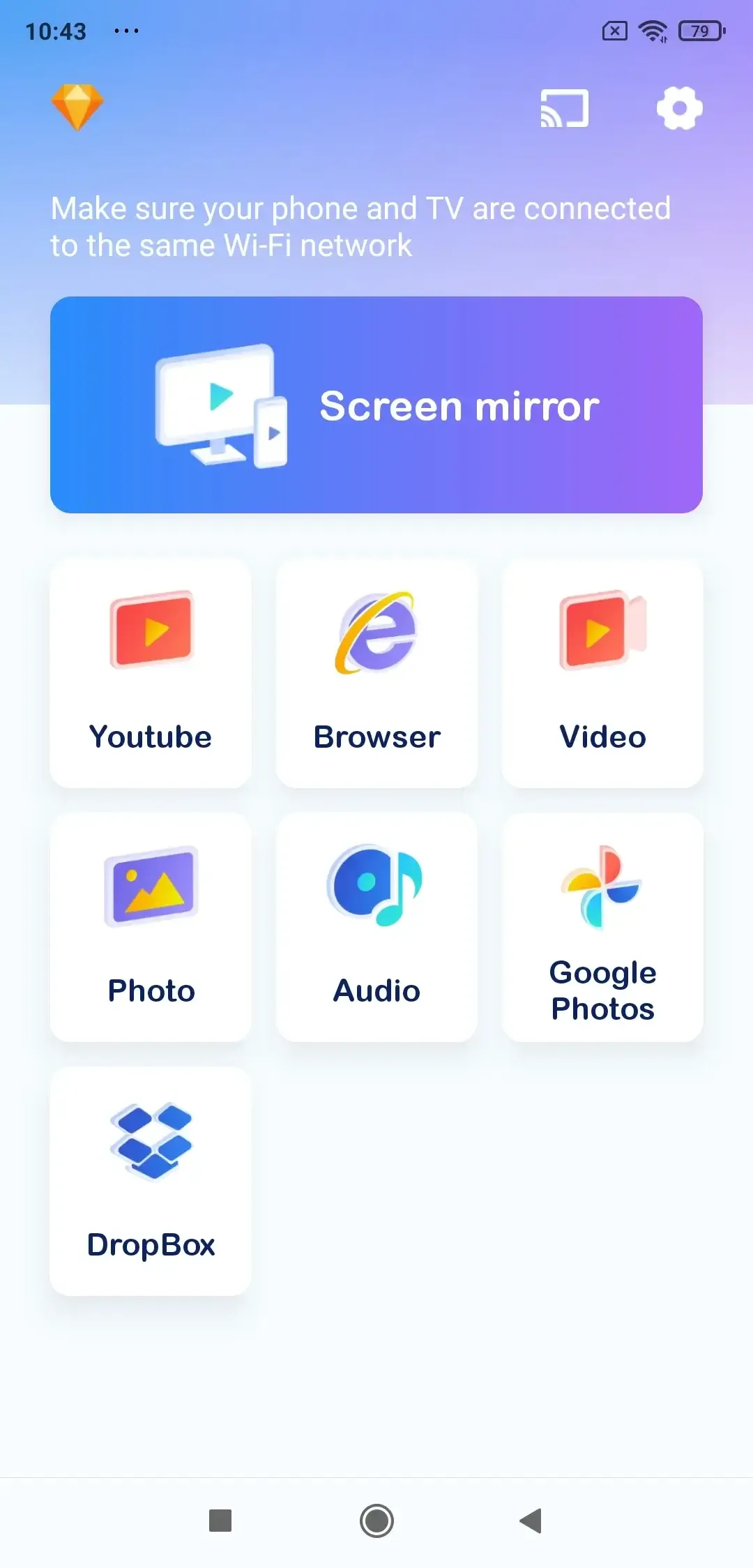
One of the standout features of Cast to TV is its support for a wide range of media formats, making it perfect for streaming music, videos, and even playing games. It also allows you to cast directly from your phone's storage, even without a Wi-Fi connection, giving you more flexibility compared to other apps.
How to mirror Android to Roku via Cast to TV App:
Step 1. Ensure your devices are connected to the same WiFi network.
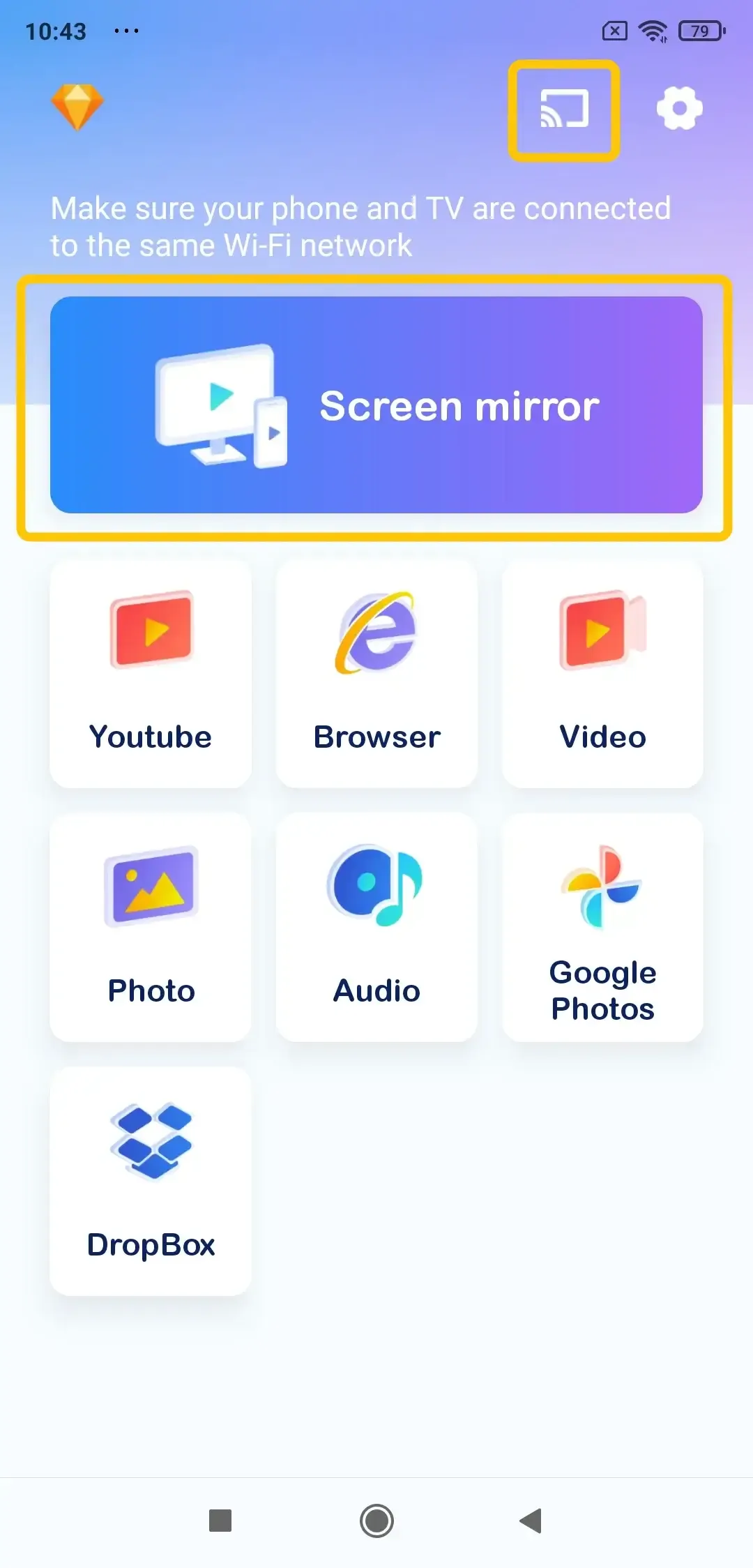
Step 2. Open the app, click the Pairing entry in the upper right corner of the home menu to choose your Roku.
Step 3. If prompted, enter the onscreen code to finish the connection.
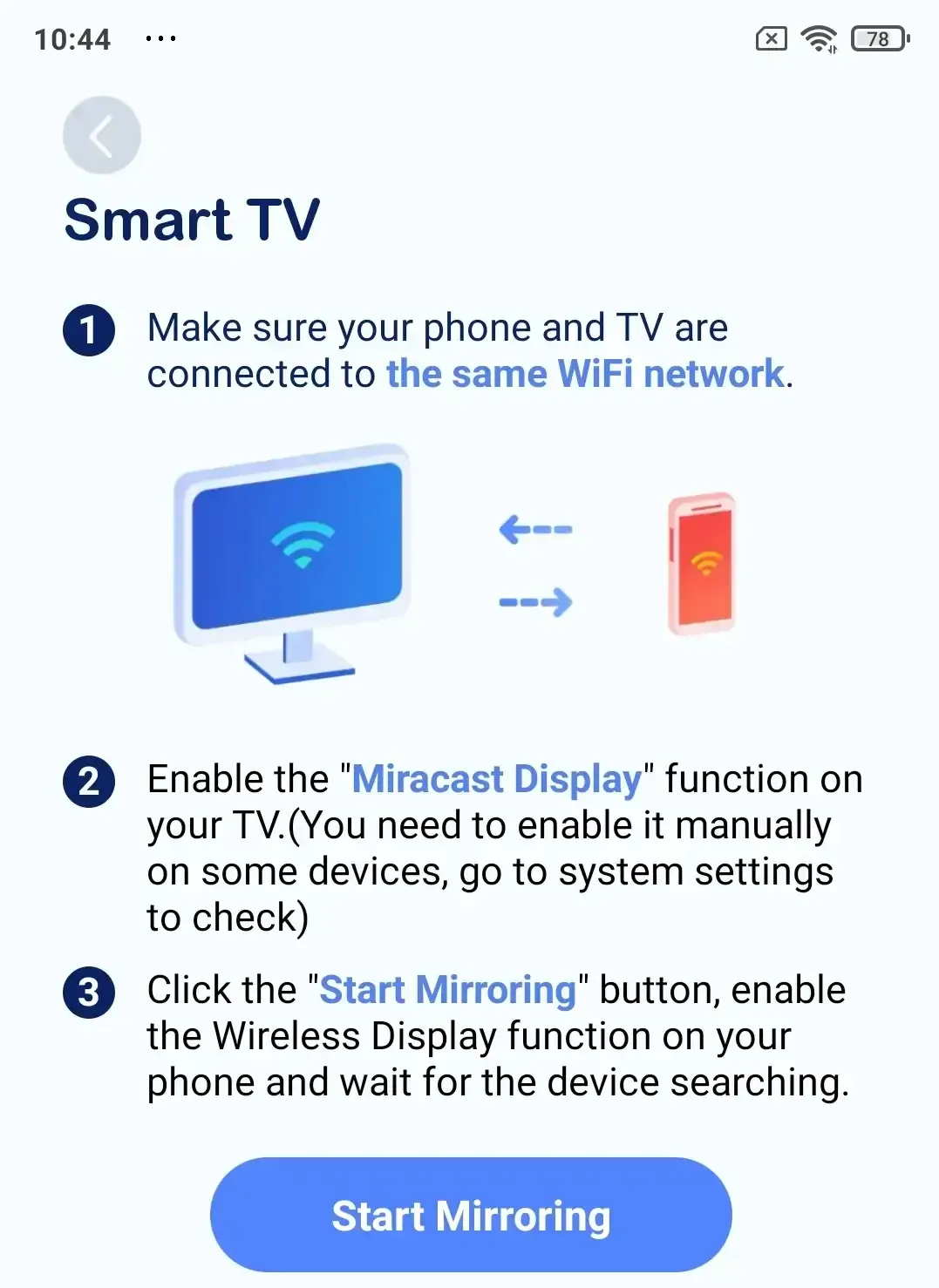
Step 4. Once you finish the pairing process, tap Start Mirroring or other onscreen mirroring options to begin the casting activities on the Roku.
Choose the Best Free Screen Mirroring App for Android to Roku
When picking the best free screen mirroring app for your Android to Roku setup, it's important to consider what matters most to you. Whether you need smooth gaming performance, simple media sharing, or the ability to cast content from websites, the right app will depend on your needs. Here's what you should keep in mind:
- Compatibility: Not all apps work seamlessly with every Android phone or Roku model. Make sure the app you choose explicitly supports your specific devices.
- Performance: Look for an app that minimizes lag and maintains video/audio sync. For gaming or video streaming, smooth, high-quality casting is essential.
- Ease of Use: The setup should be straightforward. A good app connects quickly and intuitively, enhancing your experience rather than complicating it.
- Features: Consider what you need: full-screen mirroring, selective media casting, or support for casting from websites and apps not natively on Roku. Some apps offer premium upgrades for advanced functionality.
- Cost: While many apps are free, they may include ads or restrict certain features to paid versions. Determine if the free tier meets your needs or if a one-time upgrade is worthwhile.
To help you compare our top picks at a glance, here is a breakdown of how they stack up against these important factors:
| App | Compatibility | Performance (Lag) | Ease of Use | Key Features | Cost |
|---|---|---|---|---|---|
| PigeonCast | Excellent, works with most Android & Roku devices | Excellent, with 4K support and minimal lag | Very easy, with simple code-based pairing | Full-screen mirroring, ad-free, secure encryption | Free |
| Roku App | Perfect, official app for all Roku devices | N/A, as it supports media casting only (not live mirroring) | Extremely easy, with seamless integration | Media sharing, remote control, private listening | Free |
| Universal TV Cast | Very good, as it supports Roku, plus other platforms | Good, reliable for video casting with minimal lag | Easy, with an intuitive interface | Broad format support, works without Wi-Fi in some modes | Free (with ads/in-app purchases) |
Closing Words
What's the best screen mirroring app for Android to Roku free? While Roku's built-in mirroring works, third-party apps like PigeonCast, the Roku app, and Cast to TV can offer a smoother, more feature-packed experience. Each app has its strengths, whether it's smooth gaming performance, easy media casting, or broad device compatibility.
Best Screen Mirroring App for Android to Roku FAQ
Is there a free screen mirroring app for Roku?
Yes, there are free screen mirroring apps available for Roku. Some popular options include the Roku app, which allows media casting and basic mirroring, and PigeonCast, which offers high-quality casting with minimal lag. These apps let you easily mirror your Android device to Roku without requiring additional hardware.
What is the best screen mirror app for Android?
The best screen mirroring app for Android depends on your specific needs, but some of the top options include:
- PigeonCast: Known for its smooth performance, 4K support, and simple interface. It works well for streaming videos, games, and photos on a variety of devices, including Roku.
- Google Home: Great for casting content from Android devices to Chromecast or other Google-enabled devices. It's simple to use and reliable for media streaming.
- Cast to TV: Ideal for casting media to multiple devices like smart TVs, Roku, and Chromecast. It supports a wide range of file formats and can even cast without Wi-Fi.
What's the best screen mirroring app for Android to Roku without WiFi?
If you're looking to mirror your Android device to Roku without Wi-Fi, you would typically need to use a wired solution, such as connecting your phone via an HDMI adapter. However, for wireless mirroring, apps like PigeonCast or the Roku app are great options that rely on a Wi-Fi connection for smooth and reliable performance.
Clara Rossi is an experienced technology editor and a seasoned expert in screen mirroring and casting technologies. With a keen eye for detail and a deep understanding of how to seamlessly connect devices, Clara excels at optimizing user experiences for effortless sharing and streaming. Whether you're seeking quick fixes or advanced tips, her expertise and responsiveness ensure that every query is met with a well-informed and efficient solution.