
Trying to mirror your Motorola phone to a TV usually comes down to one question: what actually works with your setup?
Some users want a quick wireless option. Others just want something stable that won't freeze mid-video. The truth is, Motorola screen mirroring isn't one-size-fits-all. Your TV type, phone model, and even your Wi-Fi quality all play a role.
Below are the most practical ways to get it done, including solutions for Roku users and those figuring out Motorola screen mirroring Roku compatibility.
Method 1: Using Wireless Display (Miracast) for Quick Screen Sharing
If your TV (like Roku TV) supports Miracast or Wireless Display, this is often the fastest way to start.
See how to cast Motorola phone to Roku TV or other compatible TVs:
Step 1. Connect both devices to the same Wi-Fi network.
Step 2. Open Settings on your phone.
Step 3. Tap Connected devices > Cast.
Step 4. Select your TV from the list.
Within seconds, your screen should appear.
This Android-to-Roku TV mirroring method is ideal for casual streaming or sharing photos. However, performance can fluctuate depending on your network.
Method 2: Casting with PigeonCast When Devices Don't Cooperate
Let's be honest. Native casting doesn't always behave. Some Motorola models limit features, especially when dealing with newer TVs. That's where tools like PigeonCast come in:
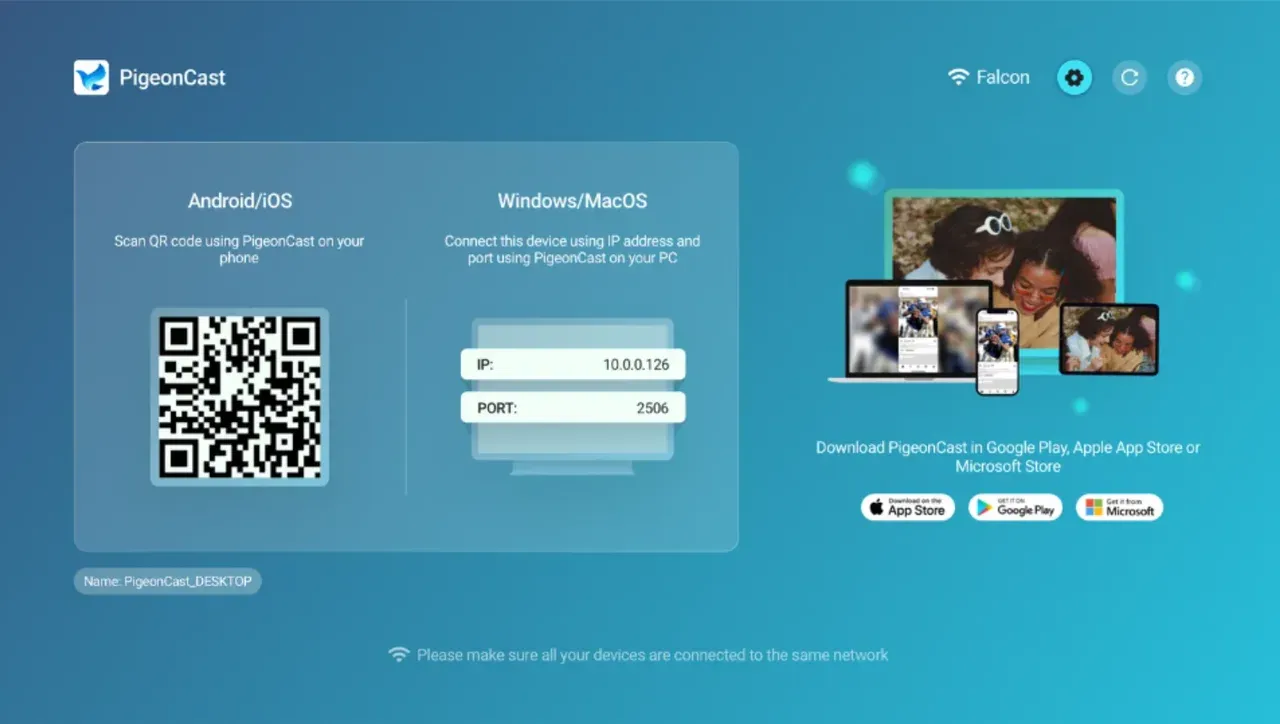
- Works across devices that don't officially support each other
- Simple setup with minimal configuration
- More consistent than many generic casting apps
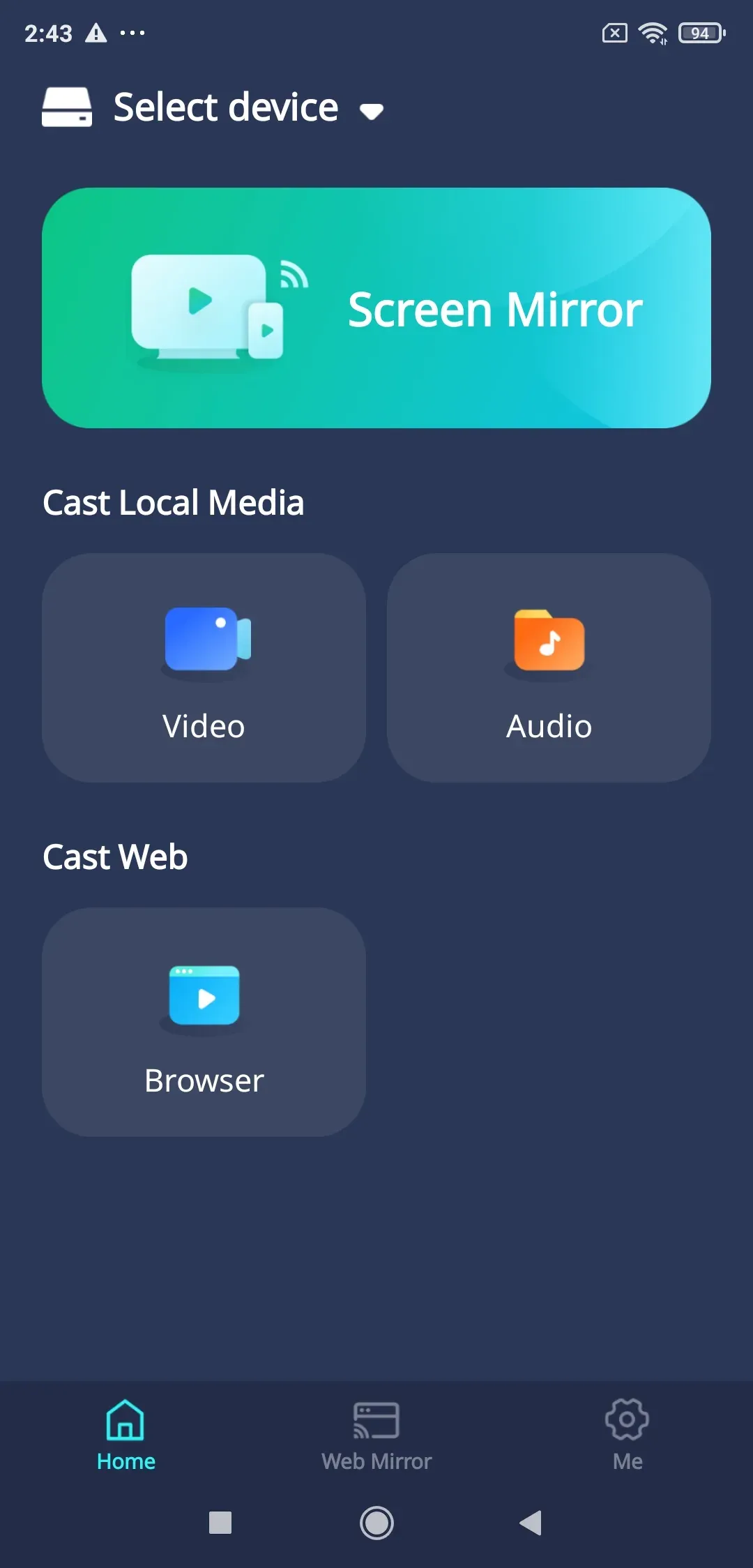
How to start Motorola screen mirroring with PigeonCast:
Step 1. Install PigeonCast on your Android phone and TV from the app store.


Overall Rating:


Step 2. Ensure your phone and TV are on the same Wi-Fi network.
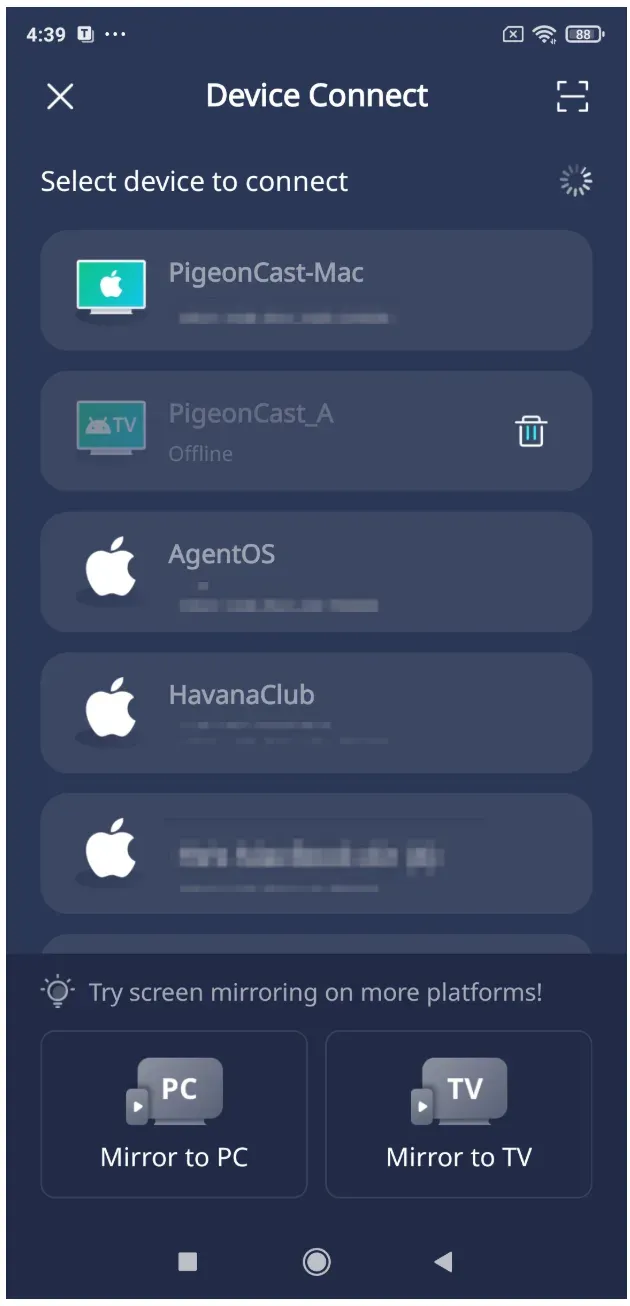
Step 3. Launch the app on both your devices and on your phone, tap the top bar, and choose your TV from the list.
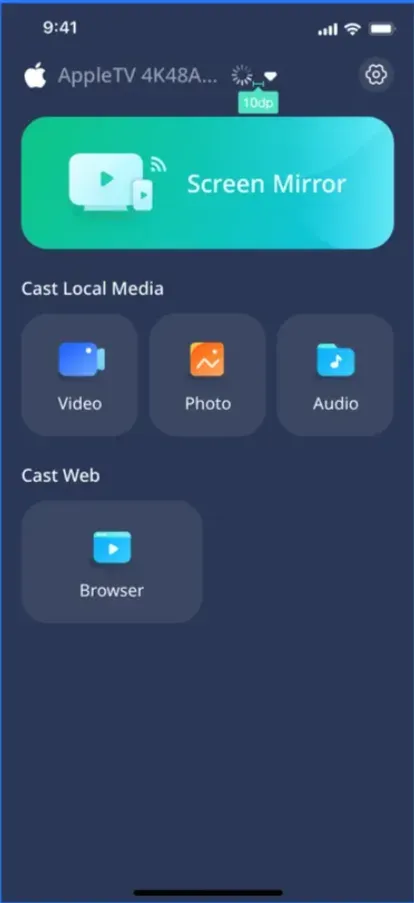
Step 3. Tap Screen Mirror and follow the onscreen instructions to start Motorola phone screen mirroring.
If you're struggling with Moto G Stylus 5G screen mirroring without Chromecast, this route often solves the problem without digging into system settings.
Method 3: Using Chromecast for Smooth App-Based Streaming
If you already have a Chromecast device or a TV with built-in Chromecast, this option feels more polished. Instead of duplicating your entire screen, Chromecast often streams content directly from apps. That means better quality and less lag.
How to screen mirror on Motorola phone? Here are the steps:
Step 1. Connect your Chromecast or TV to the same Wi-Fi network as your Motorola phone.
Step 2. Open a supported app like YouTube or Netflix on your phone.
Step 3. Tap the cast icon on the streaming app and choose your TV.
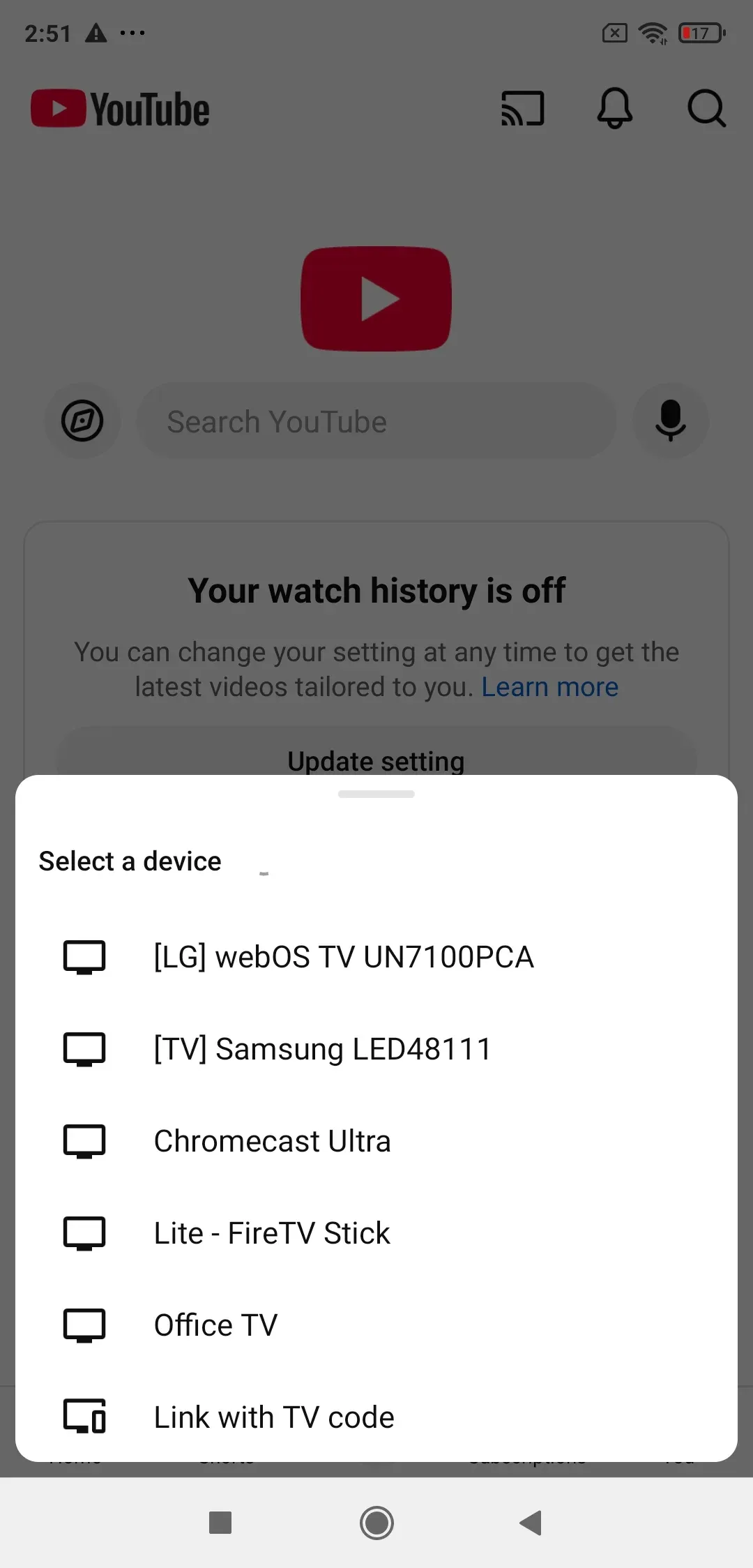
You can still mirror your full screen through the Google Home app, but app-based casting is usually smoother.
Method 4: Going Wired with HDMI for Maximum Stability
If wireless methods keep screen mirroring lagging or dropping, HDMI is your fallback. It's not flashy, but it works every time.
How to connect Motorola phone to TV with HDMI:
Step 1. Use a USB-C to HDMI adapter.
Step 2. Connect your phone to the adapter.
Step 3. Plug HDMI cable into your TV.
Step 4. Switch to the correct input.
The wired connection is straightforward. However, not all Motorola phones support video output through USB-C. This is especially important for budget models.
Still, if your device supports it, HDMI gives you:
- Zero delay
- Stable connection
- Better performance for gaming or presentations
Quick Comparison: Best Method for Motorola Screen Mirroring
| Scenario | Recommended Option |
|---|---|
| Quick wireless casting | Miracast / Roku |
| Mixed device compatibility issues | PigeonCast |
| Streaming apps like Netflix | Chromecast |
| Gaming or no lag required | HDMI |
If I had to choose one for most users, I'd lean toward PigeonCast. They strike a good balance between simplicity and reliability.
Quick Fixes to Motorola Screen Mirroring Issues
Before assuming something is broken, try these:
- Restart both devices
- Reconnect to Wi-Fi
- Move closer to your router
- Check for system updates
A lot of casting issues come down to network instability, not your phone.
Final Thoughts
How to do Motorola screen mirroring? If convenience matters, go wireless. If stability matters, go wired. And if your devices refuse to cooperate, don't waste time fighting them. Use a flexible tool like PigeonCast and move on.
Screen mirroring shouldn't feel like troubleshooting every time. Once you find the method that works for your setup, it becomes second nature.
Screen Mirroring Motorola FAQ
Does the Moto G 5G have screen mirroring?
Yes, most Moto G 5G models support basic casting through the built-in Cast feature. However, support may vary depending on region and software version, so availability isn't always consistent.
Where is the cast option in a Motorola phone?
You can usually find it under Settings > Connected devices > Cast. If it doesn't show up right away, use the search bar in Settings. Some models hide the feature or limit it, in which case tools like PigeonCast can help.
Why is my Motorola screen cast not working?
The most common reason is network mismatch or weak Wi-Fi. Make sure both devices are on the same network, restart them, and try again. In some cases, device compatibility can also limit casting.
How to cast Motorola phone to Roku TV if it doesn't appear?
First, enable screen mirroring on your Roku under Settings > System > Screen Mirroring. Then confirm both devices are connected to the same Wi-Fi network. If your Roku still doesn't show up, restart both devices and retry.
How do I cast my Motorola phone to my TV without Chromecast?
You can use Miracast if your TV supports it, connect via HDMI for a wired setup, or use a third-party solution like PigeonCast for broader compatibility.
Does HDMI always work with Motorola phones?
Only if your device supports video output through USB-C. Some Motorola models, especially budget ones, don't support this feature, so it's worth checking before buying an adapter.
Mia Clarke is a technology editor specializing in screen mirroring and casting solutions across multiple platforms. Mia provides clear, practical guides and in-depth insights to help users seamlessly connect their devices. Passionate about enhancing digital experiences, Mia is dedicated to keeping readers updated on the latest trends and tools in cross-platform screen sharing. Whether you’re looking to mirror your smartphone, laptop, or smart TV, Mia’s content delivers reliable, user-friendly advice to simplify your tech setup.